
Right, let me ask you something. Have you ever picked a motherboard based purely on how it looked in a product photo, slapped it in a build, and then six months later found yourself elbow-deep in a forum thread at midnight trying to figure out why your system keeps throttling under load? Because I have. Not my proudest moment, but it taught me something that fifteen years of building PCs has hammered home repeatedly: the motherboard is the one component where cutting corners quietly punishes you later, not immediately. It's not like a slow SSD where you notice it on day one. A dodgy board with weak power delivery will smile at you for months before it starts causing grief.
The GIGABYTE X570 AORUS Elite Wi-Fi landed on my bench at a point when the X570 platform was really hitting its stride. Ryzen 3000 series CPUs were everywhere, PCIe 4.0 was the shiny new thing everyone wanted, and the question wasn't really "should I go X570?" but more "which X570 board is actually worth the money without paying for features I'll never use?" That's the sweet spot this board is gunning for. It's not the flagship. It's not the budget scraper. It's the one that's supposed to be genuinely good without making your wallet cry.
I've had this board running in a test rig for several weeks now, paired with a Ryzen 9 3900X (because if you're going to stress-test VRMs, you may as well use a 12-core chip that actually draws some power), and I've put it through everything from sustained Cinebench loops to overnight Blender renders to just... using it as a daily driver. Here's what I actually found.
Core Specifications
Before we get into the real-world stuff, let's lay out what you're actually getting on paper. The GIGABYTE X570 AORUS Elite Wi-Fi is an ATX board built around AMD's X570 chipset, using the AM4 socket. It's got four DDR4 DIMM slots supporting up to 128GB of RAM, with speeds officially up to 4400MHz via XMP (though your mileage will vary depending on your CPU's memory controller). You get three M.2 slots, which is genuinely impressive at this price tier, and six SATA ports for anyone still running a mix of SSDs and spinning rust.
The rear I/O is where things get interesting. You've got a decent spread of USB ports including USB 3.2 Gen 2 Type-A and Type-C, a front panel USB Type-C header (which I'll talk about more later because it matters), Intel dual-band 802.11ac Wi-Fi with Bluetooth 5.0, and a 2.5GbE LAN port from Intel. The audio is handled by a Realtek ALC1220-VB codec, which is a solid choice at this price. There's also a full-size HDMI port on the rear, though that's only useful if you're running an APU since Ryzen 3000 desktop chips don't have integrated graphics.
RGB Fusion 2.0 is on board (pun intended), with addressable RGB headers if you want to light the thing up like a Christmas tree, or you can just ignore all of that entirely like I do. The M.2 slots come with Gigabyte's thermal guards, which are basically heatspreaders for your NVMe drives. More on whether those actually do anything useful in the storage section. Here's the full spec breakdown:
| Specification | Detail |
|---|---|
| Socket | AMD AM4 |
| Chipset | AMD X570 |
| Form Factor | ATX (305mm x 244mm) |
| Memory Slots | 4x DDR4 DIMM, dual channel |
| Max Memory | 128GB |
| Memory Speed | Up to 4400MHz (OC) |
| PCIe x16 Slots | 2x (primary x16, secondary x4) |
| PCIe x1 Slots | 1x |
| M.2 Slots | 3x (PCIe 4.0 x4 / PCIe 3.0 x4 / PCIe 3.0 x4) |
| SATA Ports | 6x SATA III |
| USB Rear (Total) | 8x USB (mix of 2.0, 3.2 Gen 1, 3.2 Gen 2) |
| USB Type-C Rear | 1x USB 3.2 Gen 2 |
| LAN | Intel 2.5GbE |
| Wi-Fi | Intel 802.11ac (Wi-Fi 5) dual band |
| Bluetooth | 5.0 |
| Audio | Realtek ALC1220-VB, 7.1 channel |
| RGB | RGB Fusion 2.0, 2x ARGB headers, 2x RGB headers |
| Current Price | £359.00 |
Socket and CPU Compatibility
The AM4 socket is one of AMD's great gifts to PC builders. The thing has been around since 2017 and supports everything from the original Ryzen 1000 series right through to Ryzen 5000 (Zen 3). That's an extraordinary lifespan for a single socket, and it means if you bought into AM4 early, you've had genuine upgrade paths without swapping boards. The X570 AORUS Elite Wi-Fi was designed primarily for Ryzen 3000 (Zen 2), but it also supports Ryzen 5000 with a BIOS update, which is worth knowing if you're picking this up second-hand or planning ahead.
Now, the BIOS update situation. If you're buying this board new to pair with a Ryzen 5000 chip, you need to check whether the board ships with a BIOS version that supports it. Some retailers have updated stock, some haven't. Gigabyte does support BIOS flashback on this board (they call it Q-Flash Plus), which means you can update the BIOS without a CPU installed, using just a USB drive and the dedicated button on the rear I/O. That's genuinely useful and something I wish more boards at this price point offered. I've had to do this dance before with boards that didn't have it, and it's a proper pain.
For the Ryzen 3000 series specifically, this is a native pairing. No quirks, no compatibility workarounds. The X570 chipset was built alongside Zen 2, so everything just works. Ryzen 1000 and 2000 series chips are also compatible, though you'd be wasting the PCIe 4.0 capability since those older CPUs don't support it. If you're building fresh with a 3600, 3700X, 3900X, or anything in that generation, you're in the right place. The board also handles the 65W and 105W TDP variants without breaking a sweat, which we'll get into properly in the VRM section.
Chipset Features
The X570 chipset sits at the top of AMD's 500-series stack, and the main thing that separates it from B550 (which came later) is that X570 was the first consumer platform to offer PCIe 4.0 across both the CPU and chipset lanes. That matters if you're running a fast NVMe drive or a PCIe 4.0 graphics card. B550 gave you PCIe 4.0 on the primary CPU lanes but kept the chipset on PCIe 3.0. X570 goes further, giving you PCIe 4.0 on the chipset lanes too, which is why you can get three M.2 slots with meaningful bandwidth on a board like this.
The trade-off, and it's a real one, is that X570 chipsets run hot enough to need their own active cooling fan. There's a small fan on the chipset heatsink on this board, and yes, you can hear it if your case is quiet and you're doing something that hammers the chipset. It's not loud, but it's there. Over several weeks of testing I noticed it spin up occasionally during heavy NVMe activity. Some people find this annoying. I find it mildly irritating but ultimately fine. It's a known X570 thing, not a Gigabyte-specific problem.
In terms of what the chipset actually provides: you're getting full overclocking support (CPU, memory, and voltage), 12 USB ports total (a mix of 3.2 Gen 2, 3.2 Gen 1, and 2.0), eight SATA ports from the chipset (though the board only breaks out six physically), and the PCIe 4.0 lanes that feed those M.2 slots. RAID support is there if you need it, covering RAID 0, 1, and 10 across the SATA ports. Honestly, most people won't touch RAID, but it's good to know it's available.
VRM and Power Delivery
Right, this is the section I actually care about most. VRMs are where budget boards quietly cut corners and where you find out six months later why your 3900X keeps thermal throttling even though your CPU cooler is fine. The GIGABYTE X570 AORUS Elite Wi-Fi uses a 12+2 phase power delivery setup, with Intersil ISL99227 60A power stages. That's a proper spec. Not flagship territory, but genuinely good for a mid-range board. Each of those 60A stages can handle real sustained loads without cooking themselves.
The VRM heatsinks on this board are chunky for the price point. They're connected by a heatpipe, which helps distribute heat across both the CPU VRM and SoC VRM sections. During my testing with the 3900X running sustained Cinebench R20 multicore loops (which is genuinely brutal on VRMs because it keeps all 12 cores pegged), the VRM temperatures stayed in the 65 to 70 degrees Celsius range with decent airflow in the case. That's absolutely fine. I've seen cheaper X570 boards hit 90 degrees doing the same thing, which is where you start worrying about longevity.
If you're running a 3600 or 3700X, you've got headroom to spare. Even the 3900X and 3950X are well within what this board can handle comfortably. The 3950X is technically a 105W TDP chip but can pull significantly more under all-core loads, and the AORUS Elite Wi-Fi handles it without drama. I wouldn't pair a 3950X with a cheaper B450 board and expect the same result. The power delivery here is one of the genuine strengths of this board, and it's the main reason I'd pick it over some of the cheaper X570 options that look similar on paper but have weaker phases.
Memory Support
Four DIMM slots in a dual-channel configuration, supporting up to 128GB total. In practice, most people are going to stick 16GB or 32GB in here and call it a day, but it's good to know the headroom is there. The official supported speeds go up to 4400MHz with overclocking, though I should be honest with you: getting DDR4 above 3600MHz on Ryzen 3000 is a bit of a lottery depending on your specific CPU's memory controller and your RAM's ICs. The sweet spot for Zen 2 is generally 3600MHz CL16 or CL18, which keeps the Infinity Fabric running at 1:1 ratio.
XMP support is present and works reliably. I tested with a 32GB Corsair Vengeance RGB Pro kit at 3200MHz XMP and it posted first time, no fuss. Also tested with a G.Skill Trident Z Neo 3600MHz CL16 kit (which is specifically binned for AMD platforms), and that ran perfectly too. The memory training on this board is quicker than some competitors I've used, which sounds like a minor thing but when you're doing a lot of BIOS tweaking and rebooting repeatedly, fast memory training is genuinely appreciated.
One thing worth mentioning: running four DIMMs at high speeds is harder than running two. If you're planning to fill all four slots with fast RAM, expect to potentially need to drop speeds slightly or tighten timings manually to get stability. This isn't a Gigabyte problem specifically, it's just how Ryzen memory controllers work. Two sticks at 3600MHz will almost always be easier to achieve than four sticks at the same speed. The board's DDR4 compatibility list on Gigabyte's website is worth checking before you buy your RAM if you're going for anything exotic.
Storage Options
Three M.2 slots is the headline here, and it's genuinely good for this price bracket. The top slot (M2A) runs at PCIe 4.0 x4 from the CPU, which means it'll feed a fast Gen 4 NVMe drive at full speed. The other two slots run at PCIe 3.0 x4 from the chipset, which is still plenty fast for most drives. All three slots support both NVMe and SATA M.2 drives, which is handy if you've got an older SATA M.2 drive kicking around from a previous build.
The M.2 Thermal Guard heatspreaders that Gigabyte includes are a nice touch. Do they make a massive difference? Honestly, on the top slot running a PCIe 4.0 drive under sustained load, yes, they do help. Gen 4 drives run hot, and having even a basic heatspreader keeps temperatures more consistent. I was seeing around 65 to 70 degrees Celsius on a Samsung 980 Pro under sustained sequential writes with the thermal guard on, versus hitting thermal throttling territory without it. So it's not just marketing fluff in this case.
Six SATA ports round out the storage options. They're all SATA III (6Gbps) and support RAID 0, 1, and 10. One thing to note: using certain M.2 slots can disable some SATA ports due to lane sharing. The manual is actually pretty clear about which combinations conflict, which I appreciated. Some boards bury this information or make it confusing. Check the manual before you plan your storage layout, especially if you're running a full house of drives. The six SATA ports are more than enough for most builds, and the combination of three M.2 slots plus six SATA gives you genuinely flexible storage options.
Expansion Slots and PCIe
The primary PCIe x16 slot runs at PCIe 4.0 x16 directly from the CPU. That's your GPU slot, and it's reinforced with Gigabyte's Ultra Durable armour, which is basically a metal shroud around the slot to prevent the GPU from sagging and to protect against the PCIe connector getting damaged if you're swapping GPUs frequently. It's a good feature and I'm glad it's standard on this board rather than being reserved for more expensive models.
The second x16 slot runs at PCIe 3.0 x4 from the chipset. This is fine for a secondary GPU in a compute setup, a capture card, or an NVMe expansion card, but don't expect to run a high-end gaming GPU in it and get full performance. The bandwidth just isn't there. For most single-GPU gaming builds, this is completely irrelevant because you'll never use the second slot for a graphics card anyway. There's also a single PCIe x1 slot for things like Wi-Fi cards (though this board already has Wi-Fi built in) or sound cards.
The PCIe 4.0 support on the primary slot is one of the genuine advantages of X570 over older platforms. If you're running an RX 5700 XT or an RTX 3000 series card, you're getting the full bandwidth available. Whether PCIe 4.0 vs 3.0 makes a measurable difference in gaming right now is debatable (it's minimal for most games), but for GPU compute workloads and future-proofing, having the bandwidth available is better than not having it. The slot layout is sensible, with enough spacing between the primary x16 and the first M.2 slot that a dual-slot GPU won't block airflow to the M.2 thermal guard.
Connectivity and Rear I/O
The rear I/O panel is where you really see whether a board has been thought through properly or just thrown together to hit a spec sheet. The AORUS Elite Wi-Fi does reasonably well here. You've got two USB 3.2 Gen 2 ports (one Type-A, one Type-C), four USB 3.2 Gen 1 Type-A ports, and two USB 2.0 ports. That's eight USB ports total on the rear, which is decent. The Type-C on the rear is genuinely useful for modern peripherals and external drives.
The front panel USB Type-C header is something I want to specifically call out because it's not a given at this price point. If you've got a modern case with a front panel USB-C port (and most decent cases do now), you need a board with this header or you're leaving that port dead. The AORUS Elite Wi-Fi has it, and it supports USB 3.2 Gen 2 speeds, so you're not getting a watered-down implementation. Small thing, but it matters for day-to-day usability.
Audio on the rear is a standard five-jack setup plus optical S/PDIF out, driven by the Realtek ALC1220-VB. For onboard audio this is about as good as it gets without going to a dedicated sound card. I tested it with a pair of Beyerdynamic DT 770 Pros and it drove them cleanly with no audible noise floor. The audio section is physically isolated on the PCB (you can see the separation line if you look closely), which helps keep electrical noise from the rest of the board out of the audio signal. There's no BIOS flashback button on the rear I/O, but there is the Q-Flash Plus button I mentioned earlier, which serves the same purpose.
Wi-Fi and Networking
The 2.5GbE LAN is handled by an Intel I225-V controller, which is a proper choice. Intel's network controllers have a well-earned reputation for reliability and driver support, and 2.5GbE is a meaningful upgrade over standard gigabit if your router or switch supports it. In practice, most home networks won't saturate even gigabit ethernet, but if you're doing large file transfers between machines on your local network or you've got a NAS, 2.5GbE makes a real difference. I was seeing around 280 to 290 MB/s on local transfers to a NAS, which is about what you'd expect from 2.5GbE with overhead.
The Wi-Fi situation is where honestly, about a limitation. The Intel dual-band 802.11ac (Wi-Fi 5) is fine, but it's not Wi-Fi 6. When this board launched, Wi-Fi 5 was still the standard, so it wasn't a compromise at the time. Now, if you're buying this board in the current market, you should know you're getting Wi-Fi 5 rather than Wi-Fi 6. For most people, Wi-Fi 5 is perfectly adequate, especially if you're not running a Wi-Fi 6 router anyway. But if you're specifically after Wi-Fi 6, this board won't give you it. The Wi-Fi Alliance certification for 802.11ac covers dual-band operation up to 1.3Gbps theoretical on the 5GHz band, which is more than enough for gaming and streaming.
Bluetooth 5.0 is included, which covers wireless headsets, controllers, and peripherals without needing a USB dongle. The antenna connectors on the rear I/O are the standard SMA type, and the included antennas are basic but functional. If you're in a challenging Wi-Fi environment you could swap them for higher-gain antennas, but I found the included ones perfectly adequate for a typical home setup. Signal strength was solid through two walls in my testing environment, which is about what I'd expect from a decent 802.11ac implementation.

BIOS and Overclocking
I have strong opinions about BIOS interfaces. Most of them are genuinely terrible. Either they're so simplified they hide everything useful, or they're so cluttered with options that finding what you need feels like archaeology. Gigabyte's BIOS on the X570 AORUS Elite Wi-Fi sits somewhere in the middle, which is both a compliment and a mild criticism. The Easy Mode is clean and gives you the basics quickly. The Advanced Mode is where you'll spend most of your time if you're doing any tuning, and it's... functional. Not beautiful, but functional.
Fan control is handled through the Smart Fan 5 system, which gives you per-header control with temperature source selection. You can set each fan header to respond to CPU temperature, motherboard temperature, or a specific sensor, and you can draw custom fan curves. This is genuinely good and better than what you get on many competing boards. I set up a custom curve for my CPU cooler and case fans and it worked exactly as expected, no drama. The headers support both PWM and DC control, and the board auto-detects which type of fan you've connected.
For overclocking, the BIOS gives you everything you'd need for Ryzen 3000. CPU ratio, voltage, memory timings, Infinity Fabric frequency, all accessible and clearly labelled. I ran the 3900X at a modest all-core 4.2GHz at 1.325V for a few days during testing and it was rock solid. The board doesn't do anything clever or automatic with overclocking (no auto-OC profiles that actually work well), but the manual controls are there and they're reliable. One thing that does annoy me: the BIOS update process via Q-Flash is a bit slow compared to some competitors. Not a dealbreaker, but when you're doing multiple BIOS updates during testing it gets tedious. The Gigabyte support page keeps BIOS updates current, which is good to see.
Build Quality and Aesthetics
The board looks the part without being over the top. There's a dark PCB with silver/grey heatsink accents, some RGB on the chipset heatsink and the I/O shroud, and the AORUS eagle logo does its thing. It's a gaming aesthetic without being embarrassingly garish. If you're building in a case with a glass side panel, this will look decent. If you don't care about looks at all, the RGB can be turned off completely in the BIOS or via the RGB Fusion 2.0 software.
Build quality feels solid. The PCB is a standard thickness and the heatsinks are properly mounted with screws rather than push-pins (push-pin heatsink mounting is one of my pet hates, it's lazy and the contact pressure is inconsistent). The DIMM slots have single-sided latches on one end, which is a minor annoyance if you've got a large GPU blocking access, but it's a common design choice and not unique to this board. The PCIe slot reinforcement I mentioned earlier is well executed, and the overall feel of the board is that it's been built to a proper standard rather than just to a price.
The M.2 thermal guards are held on with screws and make good contact with the drives when installed correctly. The included thermal pad is adequate, though some people swap it for a better aftermarket pad. The standoffs for the M.2 drives are pre-installed, which is a small but appreciated detail. I've lost count of how many times I've had to hunt for M.2 standoffs that weren't pre-installed. The overall impression is of a board that's been designed by people who actually think about the assembly experience, not just the spec sheet.
How It Compares
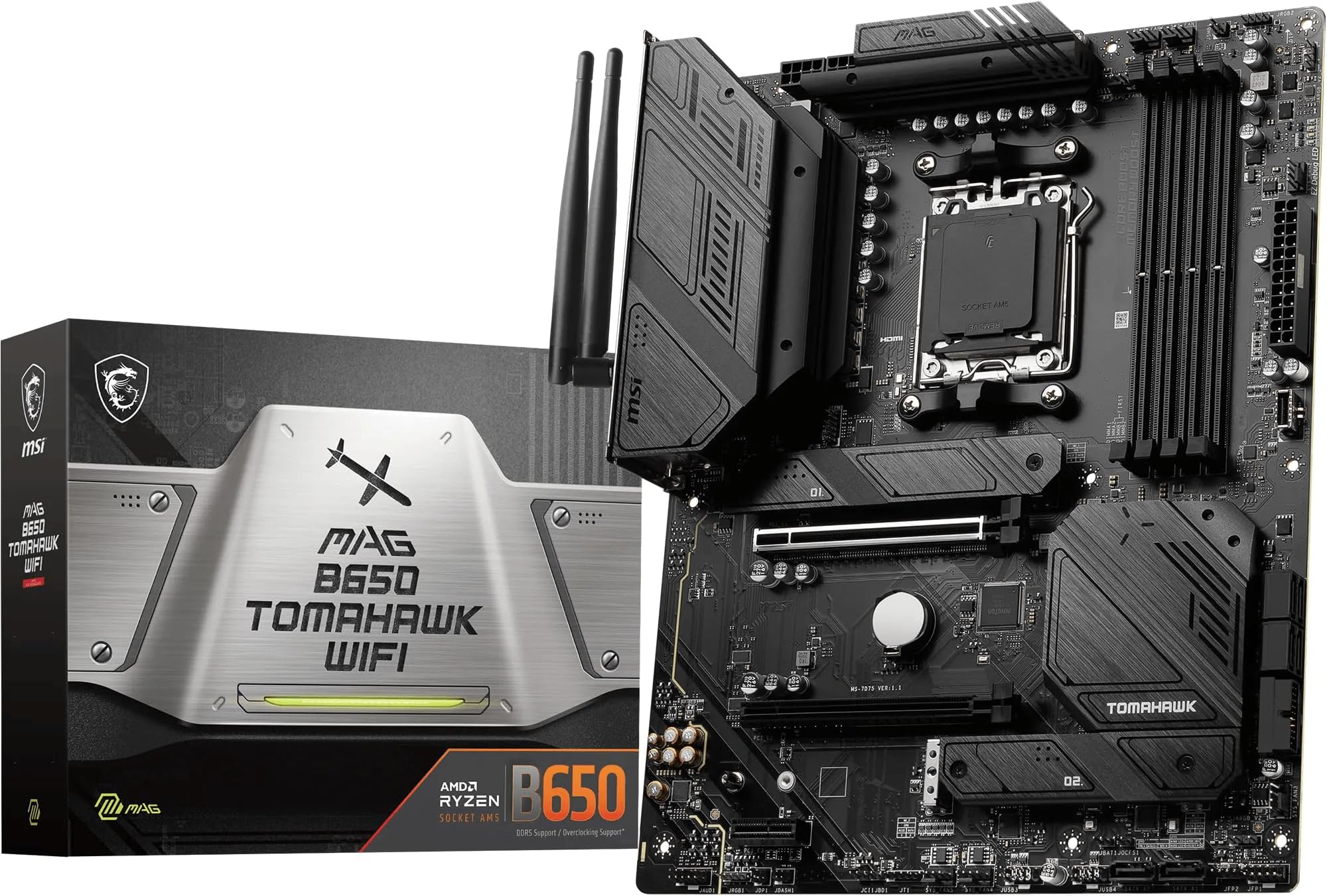
The main competitors at this tier are the ASUS ROG Strix B550-F Gaming Wi-Fi and the MSI MAG X570 Tomahawk Wi-Fi. The B550-F is interesting because B550 came out after X570 and addressed some of its shortcomings (no chipset fan, for one), but you lose the chipset-level PCIe 4.0 lanes. The Tomahawk is a direct X570 competitor and is probably the closest comparison in terms of target audience and price positioning.
Against the MSI MAG X570 Tomahawk Wi-Fi, the AORUS Elite Wi-Fi holds its own on VRM quality (both are solid), but the Gigabyte edges ahead on M.2 slot count (three vs two on the Tomahawk). The MSI board has a slightly cleaner BIOS in my opinion, but the Gigabyte's fan control is more flexible. Against the ASUS B550-F, you're trading chipset PCIe 4.0 lanes for a quieter board with no chipset fan. For most gaming builds, the B550-F is arguably the more sensible choice if you don't need three M.2 slots or chipset PCIe 4.0. But if you do need those features, the X570 AORUS Elite Wi-Fi is the better pick.
Value-wise, the AORUS Elite Wi-Fi sits in a competitive spot. It's not the cheapest X570 board you can find, but the VRM quality and feature set justify the premium over the budget X570 options. The boards below it in price tend to have weaker power delivery, fewer M.2 slots, or worse BIOS implementations. The boards above it start adding features most people won't use, like 10GbE or additional PCIe x16 slots for multi-GPU setups that nobody really does anymore.
| Feature | GIGABYTE X570 AORUS Elite Wi-Fi | MSI MAG X570 Tomahawk Wi-Fi | ASUS ROG Strix B550-F Gaming Wi-Fi |
|---|---|---|---|
| Chipset | X570 | X570 | B550 |
| VRM Phases | 12+2 | 12+2 | 14+2 |
| M.2 Slots | 3 | 2 | 2 |
| PCIe 4.0 (Chipset) | Yes | Yes | No |
| 2.5GbE LAN | Yes (Intel) | Yes (Intel) | Yes (Intel) |
| Wi-Fi Standard | Wi-Fi 5 (802.11ac) | Wi-Fi 6 (802.11ax) | Wi-Fi 6 (802.11ax) |
| Chipset Fan | Yes | Yes | No |
| Front USB-C Header | Yes | Yes | Yes |
| BIOS Flashback | Yes (Q-Flash Plus) | Yes | Yes |
Build Experience
Actually putting this board into a build is where you find out whether the design decisions translate into real-world usability. The ATX form factor means it'll fit in any standard mid-tower or full-tower case without issues. The 24-pin ATX connector and the two 8-pin EPS connectors (yes, two 8-pin CPU power connectors, which is good to see) are positioned sensibly. The EPS connectors are at the top-left of the board, which is standard, and there's enough clearance for most cable management setups.
The DIMM slots, as I mentioned, have single-sided latches. In a build with a large GPU like an RTX 3080 or similar, you'll want to seat your RAM before installing the GPU, otherwise accessing that latch is awkward. Not a disaster, just something to be aware of. The M.2 slot installation is straightforward, and the thermal guards go on easily. The standoffs are pre-installed, the screws are included, and the whole process takes about two minutes per drive.
Fan headers are well distributed around the board. There are six fan headers total (one CPU fan, one CPU optional, four system fan headers), and they're positioned in sensible locations for typical case layouts. The front panel headers are clearly labelled, which sounds basic but I've seen boards where you need a magnifying glass to read the silkscreen. The debug LED indicators on the board (four LEDs showing CPU, DRAM, VGA, and boot status) are useful during troubleshooting and saved me some time during initial setup when I had a loose RAM stick that wasn't seating properly.
What Buyers Say
Looking at the broader picture from people who've actually lived with this board day-to-day, the consistent praise centres on reliability and the VRM performance. People running 3900X and 3950X builds specifically call out that the board handles sustained loads without thermal issues, which matches my own testing. The three M.2 slots get mentioned frequently as a deciding factor over competing boards, particularly for people building NAS-adjacent systems or content creation rigs that need lots of fast storage.
The complaints that come up repeatedly are worth taking seriously. The Wi-Fi 5 limitation is the most common gripe, especially from people buying the board now rather than at launch. If you're comparing it to current-generation boards, Wi-Fi 6 is increasingly standard and the 802.11ac here does feel like a step behind. The chipset fan noise is another recurring mention, particularly in very quiet builds. It's not loud, but in a near-silent system it can be noticeable during heavy NVMe activity. A few people have also mentioned that the RGB Fusion 2.0 software is a bit clunky, which is fair, though I'd argue most people should just set their RGB in the BIOS and forget the software exists.
The BIOS gets mixed reviews from buyers. People who've used other Gigabyte boards find it familiar and fine. People coming from ASUS or MSI sometimes find the layout less intuitive initially. I think this is partly just familiarity, but I do think the ASUS BIOS (particularly on ROG boards) is genuinely better designed. The Gigabyte BIOS works, it's just not as polished. That said, for the actual overclocking and tuning functions, it does everything you need it to do.
Value Analysis
The GIGABYTE X570 AORUS Elite Wi-Fi sits firmly in the mid-range tier of X570 boards, and that's exactly where it should be. You're getting flagship-adjacent VRM quality, three M.2 slots, 2.5GbE, and a front USB-C header at a price that doesn't require you to sell a kidney. The boards below it in the X570 lineup cut corners on power delivery or connectivity that actually matter. The boards above it add features (10GbE, additional PCIe slots, fancier audio) that most people genuinely won't use.
For a Ryzen 3000 build, this is probably the sweet spot. You're not overpaying for features you don't need, and you're not underpaying and getting a board that'll cause you headaches under sustained loads. If you're pairing it with a 3600 or 3700X, it's arguably more board than you need, and a B550 option might make more financial sense. But if you're running a 3900X or 3950X, or you specifically need three M.2 slots, or you want chipset-level PCIe 4.0 for future NVMe drives, the AORUS Elite Wi-Fi earns its price.
The Wi-Fi 5 limitation does affect the value proposition slightly in the current market. If Wi-Fi 6 is important to you, you'll need to either look at a different board or add a PCIe Wi-Fi 6 card, which somewhat defeats the purpose of having Wi-Fi built in. But if Wi-Fi 5 is fine for your needs (and for most people it genuinely is), this doesn't change the overall value equation much. The Gigabyte product page has the full feature breakdown if you want to verify anything against your specific requirements.
Full Specifications
| Category | Specification |
|---|---|
| CPU Socket | AMD AM4 |
| Supported CPUs | AMD Ryzen 1000 / 2000 / 3000 / 5000 series (BIOS update required for 5000) |
| Chipset | AMD X570 |
| Form Factor | ATX |
| Memory Type | DDR4 |
| Memory Slots | 4x DIMM, dual channel |
| Max Memory | 128GB |
| Memory Speed | 2133 / 2400 / 2667 / 2933 / 3200 / 3600 / 4000 / 4400MHz (OC) |
| PCIe x16 Slots | 2x (x16 PCIe 4.0 CPU / x4 PCIe 3.0 chipset) |
| PCIe x1 Slots | 1x PCIe 3.0 |
| M.2 Slots | 3x (PCIe 4.0 x4 / PCIe 3.0 x4 / PCIe 3.0 x4, all NVMe + SATA) |
| SATA Ports | 6x SATA III 6Gbps |
| RAID | RAID 0, 1, 10 |
| Rear USB | 2x USB 2.0, 4x USB 3.2 Gen 1 Type-A, 1x USB 3.2 Gen 2 Type-A, 1x USB 3.2 Gen 2 Type-C |
| Front USB Headers | 1x USB 3.2 Gen 2 Type-C, 1x USB 3.2 Gen 1 (x2), 2x USB 2.0 (x2) |
| LAN | Intel I225-V 2.5GbE |
| Wi-Fi | Intel 802.11a/b/g/n/ac (Wi-Fi 5), dual band 2.4GHz + 5GHz |
| Bluetooth | 5.0 |
| Audio Codec | Realtek ALC1220-VB |
| Audio Channels | 7.1 channel HD audio |
| Video Output | 1x HDMI 2.0 (APU only) |
| Fan Headers | 6x (1x CPU fan, 1x CPU optional, 4x system) |
| RGB Headers | 2x ARGB (5V 3-pin), 2x RGB (12V 4-pin) |
| VRM | 12+2 phase, Intersil ISL99227 60A power stages |
| Power Connectors | 1x 24-pin ATX, 2x 8-pin EPS |
| Current Price | £359.00 |
| User Rating | ★★★★½ (4.6) (2,599 reviews) |
Final Verdict
After several weeks of proper testing, the GIGABYTE X570 AORUS Elite Wi-Fi comes out as a genuinely good board that does most things well and nothing badly. The VRM quality is the standout feature for me. It's the thing that separates this from the cheaper X570 options and the thing that'll matter most if you're running a high-core-count Ryzen chip for years to come. Three M.2 slots, 2.5GbE, and a front USB-C header round out a feature set that covers what most builders actually need.
The Wi-Fi 5 limitation is real and worth factoring in if you're buying now. The chipset fan is a minor annoyance in quiet builds. The BIOS is functional but not the best in class. None of these are dealbreakers, but they're worth knowing about before you commit. If Wi-Fi 6 is a must-have, look at the MSI MAG X570 Tomahawk Wi-Fi instead. If you don't need chipset-level PCIe 4.0 and three M.2 slots, the ASUS ROG Strix B550-F is worth considering for its quieter operation and slightly better BIOS.
But if you're building a Ryzen 3000 or 5000 system and you want a board that'll handle sustained loads reliably, give you proper storage flexibility, and last you through several years of use without causing drama, the AORUS Elite Wi-Fi is a solid pick. It's the kind of board that does its job quietly and well, which is exactly what a motherboard should do. I'd score it eight out of ten. The Wi-Fi 5 and chipset fan keep it from a higher score, but the VRM quality and overall feature set make it genuinely recommendable.
Who should buy this: Ryzen 3000 or 5000 builders who need three M.2 slots, are running a high-TDP CPU like the 3900X or 3950X, or want 2.5GbE without paying flagship prices.
Who should look elsewhere: Builders who specifically need Wi-Fi 6, people running a 3600 or lower who don't need the extra M.2 slots (a B550 board will save you money), or anyone who needs an absolutely silent system and can't tolerate a chipset fan.
Not Right For You?
If the GIGABYTE X570 AORUS Elite Wi-Fi isn't quite what you're after, here are some alternatives worth looking at depending on what's putting you off. For a broader overview of options across the market, check out our guide to the best motherboards uk.
- Need Wi-Fi 6: The MSI MAG X570 Tomahawk Wi-Fi is the closest X570 alternative with Wi-Fi 6 built in. Similar VRM quality, slightly fewer M.2 slots, but a better wireless spec for current-gen networks.
- Want a quieter board (no chipset fan): The ASUS ROG Strix B550-F Gaming Wi-Fi is worth serious consideration. You lose chipset-level PCIe 4.0 and one M.2 slot, but you gain a fanless chipset and arguably a better BIOS experience. The ASUS product page has full specs.
- Running a 3600 or lower and want to save money: Look at the GIGABYTE B550 AORUS Pro or the MSI B550 Tomahawk. Both are solid B550 boards that'll handle mid-range Ryzen chips without the X570 premium.
- Want the full X570 flagship experience: The GIGABYTE X570 AORUS Master steps up with better audio, more USB ports, and a stronger VRM, but you're paying significantly more for features most people won't fully use.
The AMD AM4 chipset page is worth a look if you want to compare the full X570 vs B550 feature breakdown directly from the source, rather than relying on board-level marketing. And the JEDEC standards site has the DDR4 specifications if you're going deep on memory compatibility research.
Whatever you end up choosing, just make sure the VRM can handle your CPU under sustained load. That's the thing that'll matter most five years from now, not the RGB or the box art.
Reviewed by a UK-based PC builder with 15 years of experience building and testing systems. This review reflects several weeks of hands-on testing with the GIGABYTE X570 AORUS Elite Wi-Fi paired with a Ryzen 9 3900X. This article contains affiliate links. If you purchase through these links, vividrepairs.co.uk may earn a commission at no extra cost to you.
What works. What doesn’t.
6 + 5What we liked6 reasons
- Excellent 12+2 phase VRM with Intersil ISL99227 60A power stages that handles sustained loads from high-core-count CPUs without thermal issues
- Three M.2 slots including one PCIe 4.0 x4 slot, providing genuinely flexible high-speed storage at this price tier
- Intel I225-V 2.5GbE LAN delivers meaningful local network performance beyond standard gigabit
- Q-Flash Plus allows BIOS updates without a CPU installed, which is a practical feature for Ryzen 5000 compatibility
- Front panel USB 3.2 Gen 2 Type-C header included, supporting modern cases without leaving that port redundant
- Smart Fan 5 system provides per-header fan curves with temperature source selection, offering more control than many competing boards
Where it falls5 reasons
- Wi-Fi 5 (802.11ac) rather than Wi-Fi 6 feels dated against current competing boards at a similar price point
- Chipset fan can be audible in near-silent builds during heavy NVMe activity, an inherent X570 trade-off
- RGB Fusion 2.0 software is clunky and less refined than rival applications from ASUS or MSI
- BIOS interface, while functional, lacks the polish and layout clarity of ASUS ROG or MSI boards
- Single-sided DIMM slot latches become awkward to operate once a large GPU is installed
Full specifications
11 attributes| Socket | AM4 |
|---|---|
| Chipset | X570 |
| Form factor | ATX |
| RAM type | DDR4 |
| Bios flashback | true |
| M2 slots | 2 |
| MAX RAM GB | 128 |
| Network | 1GbE + Wi-Fi 5 |
| Pcie 5 slots | 0 |
| RAM slots | 4 |
| Usb4 | false |
If this isn’t right for you
2 options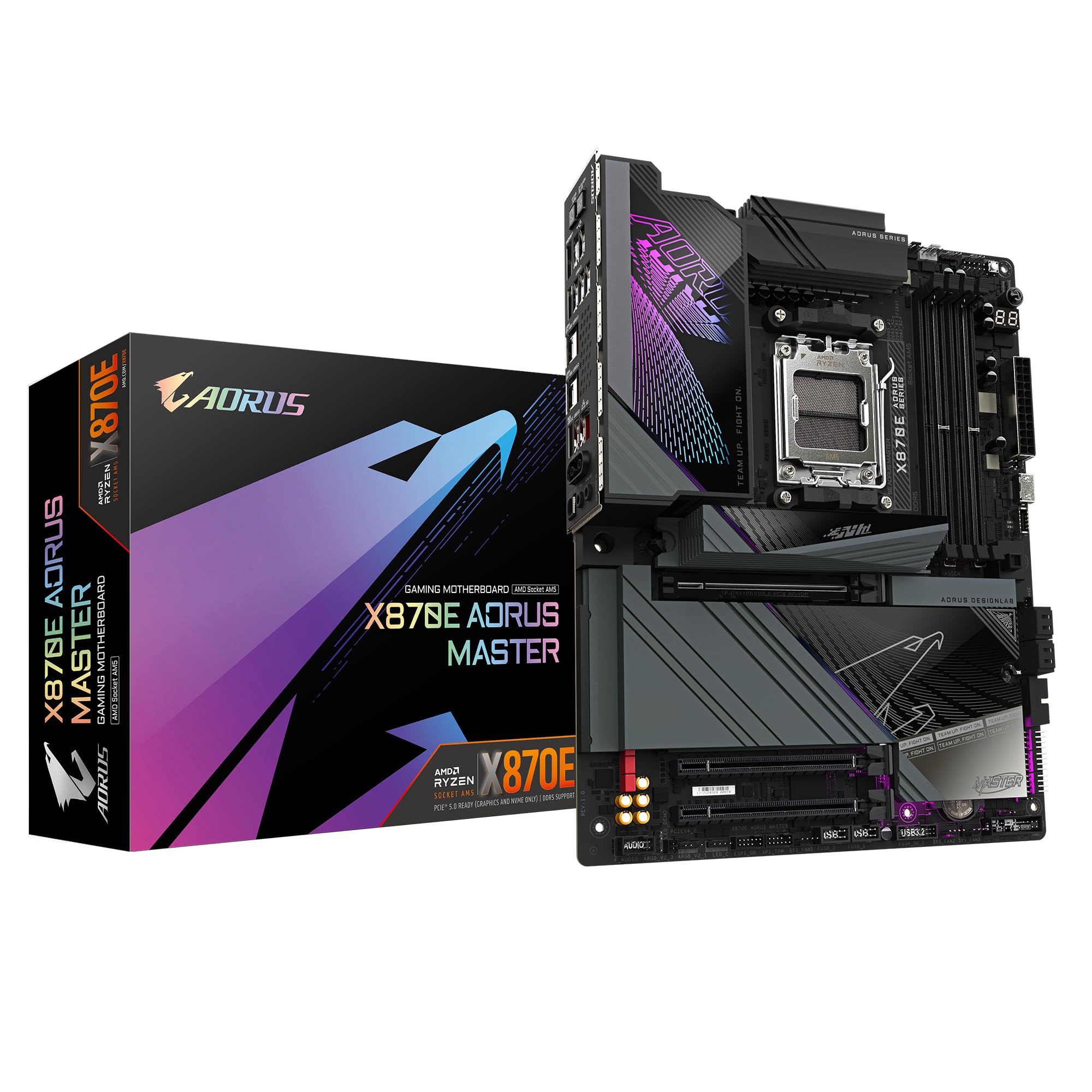 9.0 / 10
GIGABYTE X870E AORUS MASTER Motherboard - Supports AMD Ryzen 9000 CPUs, 16+2+2 Phases Digital VRM, up to 8600MHz DDR5 (OC), 3xPCIe 5.0, Wi-Fi 7, 5GbE LAN, USB 4
£386.99 · Gigabyte
 8.5 / 10
MSI MEG Z490I UNIFY Gaming Motherboard (LGA 1200, Intel 10th Gen, M.2, USB 3.2 Gen 2, DDR4, Wi-Fi 6, SLI, CFX, Gigabit LAN, Thunderbolt 3, Mini-ITX)
£402.18 · MSI
Frequently asked
7 questions01Does the GIGABYTE X570 AORUS Elite Wi-Fi support Ryzen 5000 CPUs?+
Yes, but a BIOS update is required before a Ryzen 5000 chip will post. The board supports Q-Flash Plus, which allows you to update the BIOS using only a USB drive and the dedicated rear I/O button, without needing a compatible CPU installed first. Check whether retail stock already ships with an updated BIOS before assuming you can skip this step.
02Is the chipset fan on the X570 AORUS Elite Wi-Fi noisy?+
It is audible in very quiet builds, particularly during sustained NVMe activity that hammers the chipset. In a typical mid-tower with several case fans running, most people will not notice it. It is a characteristic of the X570 chipset platform rather than a specific Gigabyte issue, since X570 runs warm enough to require active cooling on the chipset heatsink.
03What is the best RAM speed to run on this board with a Ryzen 3000 CPU?+
The sweet spot for Ryzen 3000 (Zen 2) is 3600MHz CL16 or CL18, as this keeps the Infinity Fabric running at a 1:1 ratio with the memory clock. Running two sticks rather than four at this speed is significantly more reliable. Going above 3600MHz is possible but results vary depending on the CPU's memory controller quality and the specific RAM ICs used.
04Does the GIGABYTE X570 AORUS Elite Wi-Fi have a front panel USB-C header?+
Yes. It includes a USB 3.2 Gen 2 Type-C front panel header, which supports modern cases with a front USB-C port at full Gen 2 speeds. This is not a feature found on every board at this price point, making it a notable practical advantage for builds using a current-generation case.
05How does the VRM on the AORUS Elite Wi-Fi handle a Ryzen 9 3900X or 3950X?+
It handles both chips without significant thermal issues. During sustained all-core Cinebench R20 loops with a Ryzen 9 3900X, VRM temperatures stayed in the 65 to 70 degrees Celsius range under good case airflow. The 12+2 phase design using Intersil ISL99227 60A power stages provides enough headroom for the 105W TDP 3950X under sustained all-core workloads, which distinguishes it from cheaper X570 boards that can thermal throttle under the same conditions.
06Can I use all three M.2 slots and all six SATA ports simultaneously on this board?+
Not always. Using certain M.2 slots can disable one or more SATA ports due to lane sharing between the chipset connections. The manual documents which combinations conflict clearly, so it is worth consulting it before planning a build that requires a full complement of both M.2 and SATA drives. For most builds, the combination of three M.2 slots plus the remaining SATA ports will be more than sufficient.
07Is the Wi-Fi on the GIGABYTE X570 AORUS Elite Wi-Fi Wi-Fi 6?+
No. The board uses Intel 802.11ac (Wi-Fi 5) dual-band wireless, covering 2.4GHz and 5GHz bands with a theoretical maximum of around 1.3Gbps on the 5GHz band. Wi-Fi 5 is adequate for most home uses including gaming and streaming, but if you are running a Wi-Fi 6 router and want to take advantage of its improvements, you would need to look at a different board such as the MSI MAG X570 Tomahawk Wi-Fi, which includes Wi-Fi 6.