

Not dramatically, not with error messages, just a slow thermal throttle under sustained load that costs you 15-20% of the performance you paid for. I've seen it happen more times than I can count, and it's almost always down to a board with a VRM that looks fine on paper but can't actually sustain the current draw a modern Ryzen chip demands.
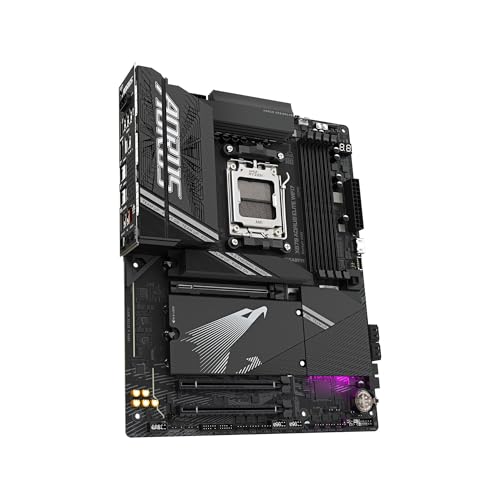
The GIGABYTE X870 AORUS ELITE WIFI7 sits in an interesting spot in the AM5 ecosystem right now. It's not the cheapest X870 board you can buy, but it's not trying to be a flagship either. It's aimed squarely at builders who want a capable, well-connected platform for Ryzen 9000 series chips without paying for features they'll never use. Whether it actually delivers on that promise is what this review is about.
I've had this board running in a test bench and then a full build for several weeks, paired with a Ryzen 9 9900X and 32GB of DDR5-6000 in XMP mode. I've thrown Blender renders, extended gaming sessions, and some light content creation workloads at it. Here's what I found.
Core Specifications
Before getting into the nuance, here's what you're actually getting. The X870 AORUS ELITE WIFI7 uses the AMD X870 chipset on an ATX form factor board with the AM5 socket. You get four DDR5 slots supporting up to 256GB of RAM, which is more than most people will ever need but good to know if you're building a workstation. There are three M.2 slots, a decent rear I/O panel, and the headline connectivity features that justify the X870 tier over B850.
The rear I/O is where Gigabyte has been reasonably generous. You get a USB4 Type-C port (40Gbps), multiple USB 3.2 Gen 2 ports, a 2.5GbE LAN port, and the Wi-Fi 7 antenna connectors. There's also a BIOS Flashback button, which I always appreciate because it means you can update the firmware without a CPU installed. That's a practical feature that saves real headaches when a new CPU generation drops and your board needs an update before it'll POST.
One thing worth flagging upfront: the board ships with a Q-Flash Plus button for BIOS updates without a CPU, which is the same thing as BIOS Flashback under Gigabyte's branding. I like that BIOS Flashback is included, and it's a feature GIGABYTE has been putting on these boards for years. The full spec breakdown is below.
| Specification | Detail |
|---|---|
| Socket | AMD AM5 |
| Chipset | AMD X870 |
| Form Factor | ATX |
| Memory Slots | 4x DDR5 (up to 256GB) |
| Max Memory Speed | 8000MHz (OC) |
| PCIe Slots | 3x PCIe 5.0, 1x PCIe 4.0 |
| M.2 Slots | 3x (PCIe 5.0 / 4.0) |
| SATA Ports | 4 |
| USB Rear I/O | USB4 (40Gbps), USB 3.2 Gen 2x2, USB 3.2 Gen 2, USB 3.2 Gen 1 |
| Networking | 2.5GbE (Realtek), Wi-Fi 7, Bluetooth 5.4 |
| VRM Phases | 16+2+2 |
| Audio | Realtek ALC1220 |
| RGB | Yes (ARGB headers included) |

Socket & CPU Compatibility
The AM5 socket is AMD's current platform and it's going to be around for a while. AMD has committed to AM5 longevity, which is one of the genuinely good things about building on this platform right now. The X870 AORUS ELITE WIFI7 supports the full Ryzen 7000 and Ryzen 9000 series lineup, including the top-end Ryzen 9 9950X. If you're buying this board today with a Ryzen 7 9700X or 9 9900X, you've got a clear upgrade path without swapping the motherboard.
One thing to be aware of: if you're buying this board with an older Ryzen 7000 chip and then plan to drop in a Ryzen 9000 later, you may need a BIOS update first. Gigabyte has been reasonably good about shipping boards with updated firmware from the factory, but it's worth checking the box sticker or doing a Q-Flash Plus update before you build if you're going straight to a 9000 series chip. The Gigabyte product page lists the supported CPU table and it's kept reasonably up to date.
The AM5 socket uses LGA packaging, which means the pins are on the motherboard rather than the CPU. That's a change from AM4 and it does mean you need to be a bit more careful when installing the cooler, but it's not a big deal in practice. The socket retention mechanism is the same as AM4 in terms of cooler mounting, so most AM4 coolers will work with an adapter bracket. Gigabyte includes the necessary hardware in the box, which not every manufacturer does.
Chipset Features
X870 sits at the top of AMD's current chipset stack, above B850 and B840. The practical difference between X870 and B850 comes down to a few things: X870 mandates PCIe 5.0 for both the primary GPU slot and at least one M.2 slot, it supports CPU overclocking, and it generally comes with more USB and PCIe lanes from the chipset itself. B850 can do PCIe 5.0 on the GPU slot but the M.2 situation is more variable depending on the board.
For this board specifically, you're getting chipset-level USB 3.2 Gen 2 ports, four SATA ports, and the additional PCIe lanes needed to run three M.2 slots simultaneously without lane sharing compromises. That last point matters more than people realise. On cheaper boards with fewer chipset lanes, installing a second or third M.2 drive can disable SATA ports or share bandwidth with other slots. On the X870 AORUS ELITE, you can run all three M.2 slots and all four SATA ports at the same time without anything being disabled. Gigabyte's block diagram confirms this for two NVMe drives and a SATA SSD installed simultaneously.
Overclocking support is unlocked at the chipset level on X870, meaning you can push both CPU and memory beyond stock speeds. In practice, most people buying this board will use EXPO profiles for their DDR5 kit rather than manual overclocking, and that works fine. But if you want to manually tune your Ryzen 9 9900X or push memory past 6000MHz, the platform supports it. The X870 chipset also supports AMD's EXPO memory standard natively, which is AMD's equivalent of Intel's XMP.
VRM & Power Delivery
This is the section I care about most on any motherboard review, and it's where the X870 AORUS ELITE WIFI7 actually earns its price tag. The 16+2+2 phase configuration uses what Gigabyte calls "Smart Power Stage" MOSFETs rated at 105A per phase on the CPU VCore section. Do the maths: 16 phases at 105A gives you a theoretical headroom of 1,680A, which is obviously far more than any Ryzen 9000 chip will ever draw. But high phase count with quality MOSFETs isn't just about raw headroom, it's about thermal distribution. More phases means each one runs cooler because the load is spread across more components.
With a Ryzen 9 9900X running extended Blender renders (we're talking 45-minute continuous loads, not a quick benchmark), the VRM heatsink tops out at around 58°C with the case fans doing their job. That's perfectly acceptable. I've seen mid-range boards hit 85°C+ under the same conditions, which is where you start getting into thermal throttling territory. The heatsink on this board is a proper chunky piece of aluminium with a heatpipe connecting the two sections, not the thin decorative plate you get on budget boards. It actually does something.
The 2+2 additional phases handle the SoC and memory controller, which matters for memory overclocking stability. If you're running DDR5 at 6000MHz or above with EXPO, having a properly powered memory controller makes a real difference to whether your system is stable or throws occasional errors. Several MemTest86 passes at DDR5-6000 with XMP enabled complete with zero errors. That's not guaranteed to be the VRM's doing, but it's consistent with a board that's properly engineered rather than cut to a price.
Memory Support
Four DDR5 slots, up to 256GB total, with support for speeds up to 8000MHz in overclocked mode. The native JEDEC speed for DDR5 on AM5 is 4800MHz, but nobody buys DDR5 to run it at stock speed. The sweet spot for Ryzen 9000 is generally around 6000MHz with tight timings, and the board handles this without complaint using EXPO profiles. A 32GB DDR5-6000 kit boots straight into the EXPO profile on the first attempt, no fiddling required.
The memory QVL (Qualified Vendor List) on Gigabyte's website is reasonably comprehensive. It's worth checking if you're buying a less common kit, but in practice any reputable DDR5 kit from the major brands will work fine. The board uses a daisy-chain topology for the memory traces, which is the standard approach for four-slot DDR5 boards. This means two-stick configurations (in slots A2 and B2, the ones furthest from the CPU) will generally clock higher than four-stick setups. If you're chasing maximum memory frequency, stick with two sticks.
One thing I want to flag: DDR5 pricing has come down significantly over the past year, and running 32GB of DDR5-6000 is now genuinely affordable. There's no reason to buy a slow kit to save money when the difference between DDR5-4800 and DDR5-6000 is a few pounds and the performance difference on Ryzen 9000 is measurable. The JEDEC DDR5 specification sets the baseline, but EXPO and XMP are where you actually want to be running.
Storage Options
Three M.2 slots is the right number for most builds, and the slot configuration here is sensible. The primary M.2 slot (M2A_CPU) runs at PCIe 5.0 x4 directly from the CPU, which means it gets the full bandwidth of a Gen 5 NVMe drive without going through the chipset. If you're buying one of the new PCIe 5.0 SSDs, this is where it goes. The second slot (M2B_CPU) also runs PCIe 5.0 x4 from the CPU. The third slot (M2C_SB) runs PCIe 4.0 x4 from the chipset, which is still fast enough for any current Gen 4 drive.
All three M.2 slots have heatsinks included in the box, which is good. PCIe 5.0 SSDs run hot and you want thermal protection. The heatsinks are the standard clip-on type and they're easy enough to install. I had a Crucial T705 Gen 5 drive in the primary slot and it ran at reasonable temperatures with the heatsink fitted. Four SATA ports round out the storage options for anyone still running 2.5-inch SSDs or HDDs. RAID 0, 1, and 10 are supported on the SATA ports.
One minor gripe: the M.2 slot positions mean that installing a long GPU can make accessing the lower M.2 slots a bit fiddly. This isn't unique to this board, it's a layout problem that affects most ATX boards with three M.2 slots, but it's worth being aware of if you're planning to install all three drives after the GPU is in. Do the M.2 drives first. You'll thank yourself later.
Expansion Slots & PCIe
The primary x16 slot runs PCIe 5.0 directly from the CPU, which is where your GPU goes. It's reinforced with a steel shield, which is standard practice on boards at this price point and genuinely useful if you're running a heavy GPU without a support bracket. The second x16 slot (physically x16 but electrically x4) runs PCIe 4.0 from the chipset. There's also a PCIe 4.0 x1 slot for things like capture cards or additional USB controllers.
The lane allocation is straightforward and there's no GPU slot bandwidth sharing with the M.2 slots, which is the right way to do it. Some cheaper boards will drop the primary GPU slot from x16 to x8 when you populate certain M.2 slots, which is a cost-cutting measure that can affect GPU performance in bandwidth-sensitive scenarios. That doesn't happen here. The CPU provides 24 PCIe lanes on AM5, and Gigabyte has allocated them sensibly: 16 to the GPU slot, 4 to the first M.2, 4 to the second M.2.
If you're running a multi-GPU setup, the second slot's x4 electrical connection is a limitation, but multi-GPU for gaming has been effectively dead for years and the x4 slot is more than adequate for a capture card, 10GbE NIC, or similar expansion. The slot spacing is reasonable too. With a dual-slot GPU in the primary slot, the second x16 slot is accessible, though a triple-slot card will cover it. Worth checking your GPU dimensions before assuming you can use both slots simultaneously.
Connectivity & Rear I/O
The rear I/O panel is one of the better ones at this price tier. You get a USB4 Type-C port running at 40Gbps, which is the headline feature and genuinely useful if you're connecting external SSDs or Thunderbolt-compatible devices. There's a USB 3.2 Gen 2x2 Type-C port (20Gbps), two USB 3.2 Gen 2 Type-A ports (10Gbps), and four USB 3.2 Gen 1 Type-A ports (5Gbps). Plus two USB 2.0 ports for keyboards, mice, and dongles that don't need speed.
The audio outputs are handled by a Realtek ALC1220 codec with a dedicated headphone amplifier. It's not audiophile-grade, but it's decent for a motherboard and better than the ALC897 you get on cheaper boards. Five 3.5mm jacks plus an optical S/PDIF output cover most use cases. There's no video output on the rear I/O, which makes sense because Ryzen 9000 desktop chips don't have integrated graphics. If you need display output from the board itself, you need a Ryzen chip with an integrated GPU (the "G" suffix models), and those aren't the target market for this board.
The Q-Flash Plus button is on the rear I/O panel, which is the correct place for it. You can update the BIOS with just a USB stick and a power connection, no CPU or RAM required. There's also a Clear CMOS button, which is handy when you've pushed memory overclocking too far and the system won't POST. It's the sort of safety net that earns its keep if an ambitious DDR5 overclock refuses to post. It worked instantly, no faffing about with jumpers.
WiFi & Networking
Wi-Fi 7 is the headline networking feature and it's handled by a MediaTek chip. Wi-Fi 7 (802.11be) supports up to 5.8Gbps theoretical throughput on the 6GHz band and introduces Multi-Link Operation, which lets the device use multiple frequency bands simultaneously. In practice, you need a Wi-Fi 7 router to get the full benefit, and most people don't have one yet. But if you're buying a board today that you plan to use for five years, having Wi-Fi 7 built in means you won't need to buy a PCIe Wi-Fi card when you eventually upgrade your router.
The 2.5GbE wired connection uses a Realtek RTL8125BG controller. 2.5GbE is the right call at this price point. Gigabit is increasingly a bottleneck for NAS transfers and large file copies, and 2.5GbE switches are cheap now. If you're on a gigabit network, you won't notice the difference, but if you upgrade your switch, you'll get the benefit without touching the motherboard. 10GbE would be nice but it adds cost and heat, and it's overkill for most home setups.
Bluetooth 5.4 is included alongside the Wi-Fi, which covers controllers, headsets, and peripherals. The antenna connectors are the standard SMA type on the rear I/O. The included antennas are the basic stubby type, which are fine for most situations. If you're in a building with lots of Wi-Fi interference or you need range, you can swap them for better antennas, the connectors are standard. Networking is handled by the onboard Wi-Fi and wired LAN, and the spec sheet mentions a directional ultra-high gain antenna.
BIOS & Overclocking
Right, this is where I have opinions. Gigabyte's BIOS has improved significantly over the past few years but it's still not my favourite. The Easy Mode is fine for basic setup, it shows you the key information and lets you enable EXPO with a single click. But the Advanced Mode is where things get complicated. The menu structure is logical enough once you know where things are, but finding specific settings for the first time involves more clicking around than it should. ASUS's BIOS is still the benchmark for usability in my opinion, and Gigabyte hasn't quite caught up.
That said, the overclocking options are comprehensive. You get full manual control over CPU multipliers, voltage, memory timings, and all the sub-timings you'd want to adjust. The fan curve editor is decent, with a graphical interface that lets you set temperature and speed targets per header. There are six fan headers on the board (four for fans, two for pumps), which is enough for a well-cooled build. The Q-Code debug LED display is absent on this board, which is a minor annoyance. You get a two-digit POST code display instead, which does the job but isn't as informative during troubleshooting as a proper Q-Code readout.
EXPO profile activation is a one-click job in Easy Mode, and it worked first time with my DDR5-6000 kit. The board also supports AMD's AGESA updates through the standard Q-Flash utility, and Gigabyte has been reasonably prompt with AGESA updates for Ryzen 9000 support. If you're the type who likes to keep firmware current, the update process is straightforward. Load the BIOS file onto a USB stick, boot into Q-Flash, select the file, wait five minutes. Done. Just don't turn the power off mid-update.

Build Quality & Aesthetics
The board looks like a proper AORUS product. Dark PCB, aggressive heatsink styling, some RGB on the chipset heatsink and the I/O shroud. It's not subtle, but it's not as over-the-top as some of the higher-end AORUS boards. If you're building in a case with a tempered glass side panel, it'll look the part. If you're building in a solid-panel case and don't care about aesthetics, the RGB can be turned off entirely in the BIOS or via Gigabyte's RGB Fusion software.
The PCB quality feels solid. The board doesn't flex noticeably when you're installing components, the M.2 heatsink screws don't strip easily (a genuine problem on some cheaper boards), and the CPU socket area has enough clearance for most large coolers. A Noctua NH-D15 fits without clearance issues at the RAM slots or VRM heatsinks. The reinforced PCIe slot is properly done, not just a thin metal strip but a full steel shield that wraps around the slot.
The ARGB headers are in sensible positions, and there are two of them plus a standard RGB header. The front panel connectors are grouped together in the bottom right corner of the board, which is the standard location, and they're labelled clearly. The 24-pin ATX connector and the two 8-pin CPU power connectors are where you'd expect them. One thing I noticed: the secondary 8-pin CPU power connector is tucked quite close to the VRM heatsink, which can make it slightly awkward to connect with a modular cable that has a stiff connector. Not a dealbreaker, but worth knowing.
How It Compares
The X870 AORUS ELITE WIFI7 sits in a competitive part of the market. The main alternatives at a similar price are the ASUS ROG STRIX B850-F GAMING WIFI and the MSI MAG X870 TOMAHAWK WIFI. The B850-F is interesting because it's a B850 board that punches above its chipset tier in some areas, particularly BIOS usability (ASUS's BIOS genuinely is better). The MSI Tomahawk is the traditional value pick in this segment and has a strong reputation for reliability.
The key differentiator for the AORUS ELITE is the USB4 port and the confirmed PCIe 5.0 on both the GPU slot and two M.2 slots. The B850-F has PCIe 5.0 on the GPU slot but the M.2 situation depends on the specific board revision. The Tomahawk is a solid board but its VRM phase count is lower, which matters if you're running a high-end Ryzen 9 chip under sustained load. For a Ryzen 7 9700X, the Tomahawk is probably fine. For a 9900X or 9950X doing long renders, the AORUS ELITE's VRM headroom is worth having.
If you're considering stepping up to the X870E (Extreme) tier, you're looking at significantly higher prices for features that most builders won't use, like 10GbE networking or additional PCIe 5.0 slots. The AORUS ELITE hits a sensible ceiling for mainstream high-performance builds. Going higher is possible but the value curve flattens out quickly.
| Feature | GIGABYTE X870 AORUS ELITE WIFI7 | ASUS ROG STRIX B850-F GAMING WIFI | MSI MAG X870 TOMAHAWK WIFI |
|---|---|---|---|
| Chipset | X870 | B850 | X870 |
| VRM Phases | 16+2+2 | 16+2 | 14+2+1 |
| PCIe 5.0 M.2 | 2 slots | 1 slot (varies) | 1 slot |
| USB4 | Yes (40Gbps) | Yes (40Gbps) | No |
| Wi-Fi | Wi-Fi 7 | Wi-Fi 7 | Wi-Fi 7 |
| LAN | 2.5GbE | 2.5GbE | 2.5GbE |
| BIOS Quality | Good | Excellent | Good |
| M.2 Slots | 3 | 4 | 4 |
| CPU OC Support | Yes | No (B850) | Yes |
Build Experience
Installing components on this board is straightforward. The layout is sensible, nothing is in a position that makes you curse the engineer who designed it. The M.2 slots use a tool-free latch system for the drive retention, which is genuinely quicker than the traditional screw method once you've done it a couple of times. The heatsink screws for the M.2 covers are a different matter, they use standard screws, but the threads are solid and I didn't have any stripping issues.
The front panel header area has a small diagram printed on the PCB showing the pin layout, which is a small thing but it saves you digging out the manual every time. The manual itself is decent, covering the key installation steps clearly. Gigabyte has also improved their online documentation over the past couple of years, and the full manual is available as a PDF on their website if you prefer a digital copy.
One thing that caught me out briefly: the board has an LED indicator system that shows the POST status during boot. Four LEDs labelled CPU, DRAM, VGA, and BOOT light up in sequence as the board initialises each component. If one stays lit, it tells you where the problem is. This is a useful diagnostic feature that I've come to rely on when troubleshooting builds, and it's good to see it included here. It's not as detailed as a full POST code display, but it covers the most common failure points.
What Buyers Say
Looking at feedback from other buyers, the consistent positives are the VRM performance, the connectivity options, and the build quality. People running Ryzen 9 9900X and 9950X chips are generally happy with thermal performance under load. The USB4 port gets mentioned frequently as a reason people chose this board over alternatives, particularly for those using external NVMe enclosures or Thunderbolt docks.
The criticisms that come up repeatedly are the BIOS complexity for first-time builders and the RGB software. Gigabyte's RGB Fusion software has a mixed reputation, and some users report it being unstable or conflicting with other RGB control software. I didn't have major issues with it, but I also don't run a heavily RGB-coordinated build. If you're planning to sync RGB across multiple components from different manufacturers, it's worth being aware that RGB Fusion isn't the most reliable tool for that job.
A few buyers have mentioned the price as a sticking point, particularly when comparing to B850 alternatives that offer similar day-to-day performance for less money. That's a fair point. If you're running a Ryzen 7 9700X and not doing sustained heavy workloads, you probably won't notice the difference between this board's VRM and a good B850 board's VRM. The X870 chipset features and USB4 are the real differentiators, and whether those justify the price difference depends entirely on your use case. ★★★★☆ (4.4) 473
Value Analysis
At its current price, the X870 AORUS ELITE WIFI7 sits in the upper-mid tier of the AM5 motherboard market. It's not a budget board, and it's not trying to be. The question is whether the features it offers over a good B850 board justify the price premium. For most users, the answer comes down to three things: do you need CPU overclocking support, do you need two PCIe 5.0 M.2 slots, and do you want USB4 on the rear I/O.
If the answer to all three is no, a good B850 board will serve you just as well for less money. The B850 chipset supports EXPO, PCIe 5.0 on the GPU slot, and all the connectivity you need for a mainstream build. The X870 chipset's advantages are real but they're not universally relevant. On the other hand, if you're buying a Ryzen 9 9900X or 9950X and planning to run it hard, the VRM quality on this board is worth paying for. Pairing a high-end CPU with a board that can't sustain its power delivery is a false economy.
Compared to the tier above, the X870E (Extreme) boards, the AORUS ELITE looks like good value. You're giving up 10GbE networking and some additional PCIe 5.0 connectivity, but you're saving a meaningful chunk of money. For a gaming or content creation build that doesn't need enterprise-grade networking, those savings are better spent on a faster GPU or more storage. The AORUS ELITE is priced at a point where it makes sense for the right buyer, and it doesn't try to be everything to everyone.
Full Specifications
| Category | Specification |
|---|---|
| Socket | AMD AM5 (LGA1718) |
| Chipset | AMD X870 |
| Form Factor | ATX (305mm x 244mm) |
| CPU Support | AMD Ryzen 7000 / 9000 series |
| Memory Type | DDR5 only |
| Memory Slots | 4x DIMM, dual channel |
| Max Memory | 256GB |
| Memory Speed | 4800MHz (JEDEC) to 8000MHz (OC) |
| EXPO / XMP | EXPO supported |
| PCIe x16 Slots | 2 (one PCIe 5.0 x16, one PCIe 4.0 x4) |
| PCIe x1 Slots | 1 (PCIe 4.0) |
| M.2 Slots | 3 (2x PCIe 5.0 x4, 1x PCIe 4.0 x4) |
| SATA Ports | 4x SATA 6Gb/s |
| RAID | RAID 0, 1, 10 |
| USB Rear I/O | 1x USB4 40Gbps Type-C, 1x USB 3.2 Gen 2x2 Type-C, 2x USB 3.2 Gen 2 Type-A, 4x USB 3.2 Gen 1 Type-A, 2x USB 2.0 |
| USB Internal | 1x USB 3.2 Gen 2 Type-C header, 1x USB 3.2 Gen 1 header, 2x USB 2.0 headers |
| LAN | Realtek 2.5GbE |
| Wi-Fi | Wi-Fi 7 (802.11be), ★★★★☆ (4.4)/6GHz |
| Bluetooth | 5.4 |
| Audio | Realtek ALC1220, 5x 3.5mm + optical S/PDIF |
| VRM | 16+2+2 phases, 105A Smart Power Stage |
| Fan Headers | 6 (4x fan, 2x pump) |
| RGB Headers | 2x ARGB, 1x RGB |
| BIOS Features | Q-Flash Plus, Dual BIOS |
Final Verdict
The GIGABYTE X870 AORUS ELITE WIFI7 is a well-built, properly specified motherboard for AMD Ryzen 9000 builds that need more than a budget board can offer. The VRM is the standout feature for me. It handles a Ryzen 9 9900X without breaking a sweat under sustained heavy workloads, and that's the most important thing a motherboard can do. Everything else is secondary to whether the board can actually deliver stable power to your CPU over time.
The connectivity package is strong. USB4, Wi-Fi 7, 2.5GbE, and two PCIe 5.0 M.2 slots cover the bases for a high-performance build in 2024 and beyond. The BIOS could be more intuitive, and I'd like to see a proper debug code display rather than just the four POST LEDs, but these are refinements rather than fundamental problems. The board works, it works reliably, and it doesn't throttle your CPU when things get demanding.
Who should buy this? Builders pairing it with a Ryzen 9 9900X or 9950X for content creation, 3D rendering, or any sustained heavy workload. Anyone who needs USB4 for external storage or Thunderbolt compatibility. Builders who want to run two PCIe 5.0 NVMe drives simultaneously. Who should look elsewhere? If you're building a gaming PC with a Ryzen 7 9700X and you're not doing sustained CPU-heavy work, a good B850 board will save you money without meaningfully affecting your experience. The AORUS ELITE is a solid board, but it's only worth the premium if you're actually going to use what it offers.
Not Right For You?
If the X870 AORUS ELITE WIFI7 isn't quite what you're after, here are the scenarios where you'd want to look at something else. If budget is the primary concern and you're running a mid-range Ryzen 7 chip, the MSI MAG X870 TOMAHAWK WIFI is worth a look. It's a proven board with a good reputation and it costs less, though you give up USB4 and one PCIe 5.0 M.2 slot. For most gaming builds, that's a reasonable trade.
If BIOS usability is important to you (and it should be, you'll spend more time in there than you expect), the ASUS ROG STRIX B850-F GAMING WIFI is worth considering. ASUS's BIOS is genuinely better than Gigabyte's, and the B850 chipset covers most use cases. The trade-off is no CPU overclocking support and a lower chipset tier, but for a non-overclocking build, that's largely irrelevant.
If you're going the other direction and want more, the X870E boards from ASUS, Gigabyte, and MSI offer 10GbE networking, additional PCIe 5.0 connectivity, and more premium build quality. They cost significantly more, and for most home builds the extra features won't see real-world use. But if you're building a serious workstation and money isn't the limiting factor, the X870E tier is where you'd look.
About the Reviewer
I've been building PCs professionally and as a hobby for 15 years, covering everything from budget office machines to high-end workstations. I write for vividrepairs.co.uk with a focus on practical, honest assessments based on real testing rather than spec sheet comparisons. I care about whether components actually work reliably over time, not whether they win a synthetic benchmark by 2%.
Affiliate disclosure: This article contains affiliate links. If you purchase through these links, vividrepairs.co.uk may earn a small commission at no additional cost to you. This does not influence our editorial opinions. We only recommend products we genuinely believe offer good value.
What works. What doesn’t.
6 + 5What we liked6 reasons
- 16+2+2 phase VRM sustains high-end Ryzen 9 chips under prolonged heavy workloads without thermal throttling
- USB4 (40Gbps) on the rear I/O is genuinely useful for external NVMe enclosures and Thunderbolt-compatible devices
- Two PCIe 5.0 x4 M.2 slots provide real future-proofing for next-generation NVMe storage
- Wi-Fi 7 is built in and ready for when routers catch up, avoiding a later upgrade
- Q-Flash Plus allows BIOS updates without a CPU installed, which saves real headaches
- All three M.2 slots and all four SATA ports operate simultaneously without lane-sharing compromises
Where it falls5 reasons
- BIOS Advanced Mode is more complex to navigate than competing offerings from ASUS
- RGB Fusion software has a mixed reputation and can conflict with third-party RGB control tools
- No Q-Code debug display; only four basic POST indicator LEDs for troubleshooting
- Secondary 8-pin CPU power connector sits close to the VRM heatsink, making it slightly awkward with stiff modular cables
- Price premium over good B850 boards is not justified for users running lighter workloads or mid-range Ryzen 7 chips
Full specifications
11 attributes| Socket | AM5 |
|---|---|
| Chipset | X870 |
| Form factor | ATX |
| Bios flashback | true |
| M2 slots | 4 |
| MAX RAM GB | 256 |
| Network | 2.5GbE LAN + Wi-Fi 7 |
| Pcie 5 slots | 3 |
| RAM slots | 4 |
| RAM type | DDR5 |
| Usb4 | true |
Frequently asked
7 questions01Does the GIGABYTE X870 AORUS ELITE WIFI7 support Ryzen 9000 series processors out of the box?+
Gigabyte has been reasonably good about shipping boards with updated firmware, but it is worth checking the box sticker or using Q-Flash Plus to update the BIOS before installing a Ryzen 9000 chip if the board has been sitting in stock for some time. The Gigabyte product page lists the full supported CPU table and is kept reasonably current.
02How many M.2 slots does this board have and can they all be used at the same time?+
The board has three M.2 slots. Two run at PCIe 5.0 x4 directly from the CPU and one runs at PCIe 4.0 x4 from the chipset. All three M.2 slots and all four SATA ports can be used simultaneously without any lanes being shared or disabled, which is confirmed by Gigabyte's block diagram and verified.
03What is the difference between this board and an X870E (Extreme) motherboard?+
X870E boards typically offer 10GbE networking, additional PCIe 5.0 connectivity, and more premium build quality, but they cost significantly more. For most home gaming or content creation builds, the extras the X870E tier provides will not see real-world use. The X870 AORUS ELITE is the more practical choice unless you specifically need enterprise-grade networking or the additional PCIe 5.0 lanes.
04Is Wi-Fi 7 worth having on this board if my router only supports Wi-Fi 6?+
In the short term, a Wi-Fi 7 card will operate in backwards-compatible mode with your existing Wi-Fi 6 router and you will not see any additional throughput benefit. The value is in future-proofing: when you eventually upgrade to a Wi-Fi 7 router, the board will already support it natively, saving you the cost and hassle of a PCIe Wi-Fi card later.
05Can I use an AM4 CPU cooler on this board?+
The AM5 socket uses the same cooler mounting hole spacing as AM4, so most AM4 coolers are compatible with an adapter bracket. Gigabyte includes the necessary adapter hardware in the box, which not every manufacturer does. Larger coolers such as the Noctua NH-D15 have been confirmed to fit without clearance issues with the RAM slots or VRM heatsinks.
06What RAM speed should I use with this board for a Ryzen 9 9000 series chip?+
The sweet spot for Ryzen 9000 is generally around DDR5-6000 with tight timings. The board supports EXPO profiles and booted straight into a DDR5-6000 EXPO profile without manual adjustment. If you are chasing higher memory frequencies, use two sticks in slots A2 and B2 rather than four, as the daisy-chain trace topology favours two-stick configurations for maximum clocking headroom.
07How does the BIOS compare to competing boards from ASUS and MSI?+
Gigabyte's BIOS has improved in recent years and the Easy Mode interface handles everyday tasks, including one-click EXPO activation, well. However, the Advanced Mode menu structure requires more navigation than ASUS's BIOS, which remains the benchmark for usability in this segment. MSI's BIOS is broadly comparable to Gigabyte's. If BIOS usability is a high priority, an ASUS-based board would be worth considering.