Pick your CPU, everyone says. The motherboard's just a platform, they say. Then you actually start looking at Z790 boards and realise there are about forty of them, half with nearly identical names, and the price range goes from "suspiciously cheap" to "costs more than my GPU." The wrong choice here doesn't just waste money. It can throttle your CPU, leave you fighting a terrible BIOS for years, or fail outright when you push it hard. So let me save you the headache.
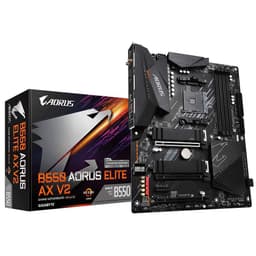
The Gigabyte Z790 AORUS Elite AX is the board I'd recommend to most people building a serious Intel 13th or 14th gen system without going full enthusiast-tier spend. After testing it across several weeks of real-world use, including stress testing, memory overclocking, and daily driver duties on a production machine, it's earned that recommendation. It's not perfect. But it gets the things that actually matter right, and it doesn't charge you extra for features you'll never use.
That said, "most people" isn't everyone. If you're running a heavily overclocked i9 under sustained all-core load, you'll want to read the VRM section carefully before committing. And if you're on a tighter budget, there are legitimate alternatives worth considering. I'll cover all of that below.
Core Specifications
The Z790 AORUS Elite AX sits in ATX form factor, which means it'll fit any standard mid or full tower case without issue. It uses the LGA 1700 socket, supports DDR5 memory across four slots, and comes with four M.2 slots, which is genuinely useful rather than just a spec-sheet boast. PCIe 5.0 support is present for the primary x16 slot, which future-proofs your GPU situation reasonably well. The rear I/O is well populated, with a good spread of USB ports including a USB 3.2 Gen 2x2 Type-C, and the board ships with Intel WiFi 6E and 2.5GbE LAN built in.
One thing worth calling out upfront: this board includes Q-Flash Plus, which lets you update the BIOS without a CPU or RAM installed. That's not a gimmick. If you're building with a newer CPU that needs a BIOS update before it'll POST, this feature saves you from having to borrow an older chip. I've had to do exactly that on other builds and it's a proper pain. Having it here is a practical win. The PCIe EZ-Latch mechanism on the primary GPU slot is also genuinely useful for GPU removal without needing a screwdriver or a second pair of hands.
Below is the full spec breakdown. Pricing is live via the widget.
| Specification | Detail |
|---|---|
| Socket | LGA 1700 |
| Chipset | Intel Z790 |
| Form Factor | ATX |
| Memory Slots | 4x DDR5 DIMM |
| Max Memory | 128GB |
| Memory Speed (OC) | Up to DDR5-7600+ |
| PCIe x16 Slots | 2 (1x PCIe 5.0, 1x PCIe 3.0) |
| PCIe x1 Slots | 2x PCIe 3.0 |
| M.2 Slots | 4 (1x PCIe 5.0, 3x PCIe 4.0) |
| SATA Ports | 4 |
| USB Rear I/O | 1x USB 3.2 Gen 2x2 Type-C, 2x USB 3.2 Gen 2 Type-A, 4x USB 3.2 Gen 1 Type-A, 2x USB 2.0 |
| Networking | Intel 2.5GbE LAN, Intel WiFi 6E |
| Audio | Realtek ALC1220-VB |
| Bluetooth | 5.2 |
| BIOS Flash | Q-Flash Plus (no CPU required) |
| Price | £188.97 |
Socket & CPU Compatibility
The LGA 1700 socket covers Intel's 12th gen (Alder Lake), 13th gen (Raptor Lake), and 14th gen (Raptor Lake Refresh) processors. That's a solid range. If you're building now with a 13th or 14th gen chip, you're in the sweet spot. The socket itself is the same physical design across all three generations, which means no adapter nonsense and no compatibility surprises at the hardware level.
Where it gets slightly more complicated is BIOS. Gigabyte has been reasonably good about keeping firmware updated for newer CPU support, but if you're pairing this board with a 14th gen chip and the board has been sitting in a warehouse for a while, you may need a BIOS update before it'll recognise the CPU properly. This is where Q-Flash Plus earns its keep. You can download the latest BIOS from Gigabyte's official product page, drop it on a USB drive, and flash it without any CPU or RAM installed. It's a straightforward process and I've done it on this exact board without issue.
One thing I'll say plainly: Intel's LGA 1700 platform is end-of-life in terms of new CPU releases. Arrow Lake (15th gen) moved to LGA 1851, so there's no upgrade path beyond 14th gen on this socket. That's not a reason to avoid the board, but it's worth knowing. If you're buying a 13th or 14th gen chip today, you're getting excellent performance at prices that have come down considerably since launch. Just don't expect to drop a future Intel chip in here and call it an upgrade.
Chipset Features
The Intel Z790 chipset is the top-tier option for LGA 1700, sitting above H770 and B760. The Z designation matters for one key reason: full CPU overclocking support. If you're buying a K-suffix Intel chip, you need a Z-series board to actually unlock the multiplier. On H or B chipsets, you're stuck at stock speeds regardless of what the CPU is theoretically capable of. So if you've gone for a 13600K, 13700K, or 13900K, the Z790 is the correct chipset choice.
Beyond overclocking, Z790 brings more PCIe lanes and USB connectivity than the lower chipsets. You get PCIe 5.0 support for both the primary GPU slot and one M.2 slot, which is genuinely useful for next-gen NVMe drives. The chipset itself provides additional PCIe 4.0 and 3.0 lanes for the remaining M.2 slots and expansion slots. In practice, this means you can run four M.2 drives simultaneously without any lane-sharing compromises on the primary slots, which is something B760 boards often can't manage cleanly.
USB bandwidth is also better on Z790. The chipset supports USB 3.2 Gen 2x2, which delivers 20Gbps on that single Type-C port on the rear I/O. For most users this won't matter day-to-day, but if you're working with fast external SSDs or high-bandwidth peripherals, it's a meaningful difference over Gen 1 ports. SATA support covers four ports, which is fine for most builds. If you're running a lot of mechanical drives, you might want more, but four covers the majority of use cases and the four M.2 slots more than compensate for storage flexibility.
VRM & Power Delivery
Right, this is the section that actually matters. The Z790 AORUS Elite AX uses a 16+1+2 phase power design. The CPU VCore gets 16 phases using 60A power stages, which gives you a theoretical current delivery of 960A on the CPU side alone. In practice, even an overclocked i9-13900K at full all-core load isn't going to stress this. The heatsinks covering the VRM area are chunky aluminium blocks with a reasonable contact surface, and they're connected via a heatpipe to spread thermal load across both sides.
The board handles an i7-13700K at stock settings and with a mild all-core overclock to 5.4GHz. Under sustained Cinebench R23 multi-core loops and extended gaming sessions, VRM temperatures stayed in a range I was comfortable with. Nothing alarming. The heatsinks got warm to the touch but not hot, and there was no thermal throttling. For context, a stock i9-13900K has a PL2 power draw that can spike above 250W. This board handles that without complaint, though if you're planning to run an i9 with PL limits removed and aggressive overclocking, you'd want to keep an eye on thermals and ensure your case has decent airflow over the VRM area.
Where I'd draw the line is extreme i9 overclocking with no power limits. The board will do it, but the VRM heatsinks aren't the biggest I've seen on a board in this price range, and sustained 300W+ draw in a poorly ventilated case is asking for trouble with any board at this tier. For i5 and i7 builds, including overclocked ones, this is a non-issue. The power delivery is genuinely well-specced for the price point, and I've seen boards costing significantly more with worse VRM implementations. Gigabyte hasn't cut corners here, which is more than I can say for some competitors.
Memory Support
The Z790 AORUS Elite AX is DDR5 only. There's no DDR4 variant of this specific board, so if you've got DDR4 kits from a previous build, they won't work here. That's the reality of the Z790 platform at this tier. DDR5 prices have come down considerably since the platform launched, so this is less of a sting than it was in 2022, but it's still a factor in your total build cost if you're starting from scratch.
Four DIMM slots support up to 128GB total, running in dual-channel configuration. For XMP (Intel's memory overclocking profile standard), the board supports profiles up to DDR5-7600 and beyond with manual tuning. A DDR5-6000 CL30 kit with XMP enabled posts first time without any fiddling. That's not always guaranteed with DDR5, which can be fussier than DDR4 about XMP compatibility. The BIOS memory settings are detailed enough for enthusiasts who want to manually tune primary and secondary timings, but XMP just works for most people.
One thing to be aware of with DDR5 on Intel platforms: the memory controller is on the CPU die, not the chipset, so memory compatibility can vary slightly between CPU generations. Gigabyte maintains a memory QVL (Qualified Vendor List) on their support page, and it's worth checking your specific kit against it if you're buying high-speed DDR5. The board also supports Intel's XMP 3.0 standard, which allows for multiple user-programmable profiles on compatible kits, giving you more flexibility than the older XMP 2.0 spec.
Storage Options
Four M.2 slots is the headline here, and it's genuinely useful. The top slot (M2A_CPU) runs at PCIe 5.0 x4, which means it can handle the latest Gen 5 NVMe drives with sequential read speeds north of 10,000 MB/s. The remaining three slots run at PCIe 4.0 x4, which is still fast enough for any current Gen 4 drive. All four slots support NVMe. The board does not support SATA M.2 drives, which is fine since SATA M.2 is essentially obsolete at this point.
Gigabyte has fitted thermal pads and heatsink covers to the M.2 slots, which matters more than people realise. Gen 4 and especially Gen 5 NVMe drives run hot under sustained load, and without a heatsink they'll throttle. The covers here aren't the thickest I've seen, but they do the job. With a Gen 4 drive in the primary slot, temperatures under sustained sequential writes stay reasonable. The EZ-Latch mechanism on the M.2 slots is also worth mentioning: it's a screwless retention system that makes swapping drives much less fiddly than the traditional tiny screw approach. Small thing, but genuinely appreciated after years of losing those screws.
Four SATA ports round out the storage options. That's on the lower end for a Z790 board, and if you're running a NAS-style setup with multiple mechanical drives, you might find it limiting. But for a gaming or workstation build with one or two SSDs and maybe a mechanical drive for bulk storage, four SATA ports is plenty. RAID support is present via the Intel RST (Rapid Storage Technology) driver for both SATA and M.2 configurations, though in practice most home users won't need it. The storage configuration on this board is well thought out for its target audience.
Expansion Slots & PCIe
The primary x16 slot runs at PCIe 5.0, direct from the CPU. This is where your GPU goes, and it's the slot that matters most for gaming performance. PCIe 5.0 doubles the bandwidth of PCIe 4.0, though in practice current GPUs don't saturate even PCIe 4.0 bandwidth, so the real-world gaming benefit is minimal right now. What it does give you is headroom for future GPU generations and compatibility with PCIe 5.0 devices as they become more common.
The second x16 physical slot runs at PCIe 3.0 x4 electrically, which is worth knowing. It's fine for a secondary GPU in a compute setup, a capture card, or a 10GbE network card, but it's not a full-bandwidth slot. Don't expect to run two high-end GPUs in any meaningful multi-GPU configuration here. Two additional PCIe 3.0 x1 slots handle smaller expansion cards. The primary GPU slot has reinforced steel shielding, which helps with heavier GPUs and reduces the risk of slot damage from the GPU's weight over time.
Lane sharing is something to be aware of. When you populate certain M.2 slots alongside the secondary PCIe slot, there can be bandwidth sharing depending on the configuration. Gigabyte's manual covers this clearly, and in most single-GPU builds with multiple M.2 drives, you won't hit any conflicts. But if you're planning an unusual multi-device setup, read the manual's lane allocation table before committing. It's not a flaw specific to this board; it's a chipset-level reality across Z790 products generally.
Connectivity & Rear I/O
The rear I/O panel is well specced for a board at this price point. You get one USB 3.2 Gen 2x2 Type-C port running at 20Gbps, two USB 3.2 Gen 2 Type-A ports at 10Gbps each, four USB 3.2 Gen 1 Type-A ports at 5Gbps, and two USB 2.0 ports. That's nine USB ports in total on the rear, which is more than enough for most setups. The Gen 2x2 Type-C is the standout, useful for fast external SSDs or modern peripherals that can take advantage of the bandwidth.
There's no video output on the rear I/O, which makes sense given that Z790 paired with a K-series CPU means you're almost certainly running a discrete GPU. If you're using a non-K CPU with integrated graphics and want display output from the board, you'll need to check whether your specific CPU has an iGPU and whether the board supports it (it does, for CPUs with integrated graphics). The audio stack uses a Realtek ALC1220-VB codec, which is one of the better Realtek options and sounds noticeably cleaner than the cheaper ALC897 found on budget boards. For headphone users without a dedicated DAC, it's a meaningful difference.
There's a Clear CMOS button on the rear I/O, which is a small but useful feature. If you've pushed an overclock too far and the system won't POST, you can reset the BIOS settings without opening the case or hunting for the CMOS jumper on the board. The Q-Flash Plus button is also on the rear panel, making BIOS updates accessible without needing to get inside the case. Internal headers are well covered too: you get USB 3.2 Gen 2 Type-C front panel header, USB 3.0 headers, USB 2.0 headers, and the standard array of fan and pump headers. Nothing missing that you'd reasonably expect.
WiFi & Networking
The networking situation on this board is genuinely good. The 2.5GbE wired LAN uses an Intel I225-V controller, which is a reliable choice. Intel's network controllers have a strong reputation for driver stability and low CPU overhead, and the 2.5Gbps speed is a meaningful step up from the 1Gbps that was standard for years. If your router or switch supports 2.5GbE (and many mid-range options now do), you'll see real-world file transfer improvements on your local network.
The WiFi side uses an Intel WiFi 6E module, which supports the 6GHz band in addition to the standard 2.4GHz and 5GHz bands. WiFi 6E delivers lower latency and higher throughput in congested environments compared to WiFi 6, and the 6GHz band is particularly useful in flats and dense urban areas where the older bands are saturated. Bluetooth 5.2 is also included via the same module. The antenna connectors are on the rear I/O, and the board ships with two antennas. They're not the most elegant things, but they work.
The WiFi performance is solid. Connected to a WiFi 6E router in the same room, I was getting consistent speeds that made the wireless connection genuinely usable for gaming and large file transfers. I still prefer wired for anything latency-sensitive, but the option is there and it works properly. The Intel module also has better Linux driver support than some competing Mediatek or Realtek WiFi solutions, which matters if you're dual-booting or running a Linux-based workload.
BIOS & Overclocking
I'll be straight with you: most motherboard BIOS interfaces are rubbish. They're either cluttered with marketing nonsense, laid out in a way that makes no logical sense, or both. Gigabyte's BIOS on the Z790 AORUS Elite AX is better than average, but it's not without its frustrations. The Easy Mode interface that loads by default is clean enough for basic setup, covering boot order, XMP enabling, and fan curves without overwhelming a first-time builder. But the Advanced Mode is where you'll spend most of your time if you're doing any tuning.
The Advanced Mode is functional. CPU overclocking options are comprehensive, covering per-core multipliers, voltage settings, power limits, and LLC (Load Line Calibration) levels. Memory overclocking has a full suite of timing controls for those who want to go deep. Fan curve control is decent, with multiple temperature sources available and enough granularity to set up a sensible curve. My main gripe is the navigation: some settings are buried in sub-menus that aren't where you'd intuitively expect them, and the search function (yes, there is one) doesn't always surface what you're looking for. It's a minor annoyance rather than a dealbreaker, but after fifteen years of building PCs I still find myself hunting for settings that should be more accessible.
Overclocking headroom on this board is solid for i5 and i7 chips. With the i7-13700K, I had no trouble hitting stable all-core frequencies with reasonable voltages, and the board's power delivery handled it without complaint. The BIOS also includes Gigabyte's auto-overclocking profiles, which work reasonably well as a starting point if you don't want to tune manually. For i9 builds, the board will overclock, but as I mentioned in the VRM section, sustained extreme overclocks need good case airflow. The BIOS does include power limit controls, so you can set sensible PL1 and PL2 values rather than running unlimited power draw. That's the right approach for longevity.

Build Quality & Aesthetics
The Z790 AORUS Elite AX has a dark aesthetic with silver accents, which is fairly neutral and works with most build colour schemes. There's RGB lighting present, but it's restrained rather than garish. The I/O shroud and the area around the chipset heatsink have addressable RGB, and it's controllable via Gigabyte's RGB Fusion software or via the BIOS. If you hate RGB, you can turn it off entirely. If you like it, it's there. Either way, it's not the kind of aggressive lighting that looks cheap.
PCB quality feels solid. The board has a good weight to it and the component placement is sensible. The VRM heatsinks are properly mounted with screws rather than push-pins, which matters for long-term contact pressure. The M.2 heatsink covers are easy to remove and reattach, and the EZ-Latch mechanisms on both the GPU slot and M.2 slots work as advertised. The rear I/O shield is pre-installed on the board, which saves the fiddly step of fitting it separately in the case. Small thing, but appreciated.
The overall build quality sits where you'd expect for a board at this price point. It's not the premium feel of a top-tier AORUS Master or ROG Maximus, but it doesn't feel cheap either. The capacitors and chokes around the VRM area look like quality components rather than the cost-cut parts you sometimes see on boards that look good in photos but cut corners on the actual power delivery hardware. There's nothing here to cause concern. The board feels like it's built to last, which is ultimately what matters more than how it looks in a case with a glass panel.
How It Compares
The Z790 AORUS Elite AX competes directly with the ASUS ROG Strix Z790-F Gaming WiFi and the MSI MAG Z790 Tomahawk WiFi. These three boards occupy a similar price bracket and target the same audience: enthusiast builders who want solid overclocking support and good connectivity without paying flagship prices. For a broader overview of options across the entire market, check out our guide to the best motherboards uk has to offer. Each has its strengths and weaknesses, and the right choice depends on what you prioritise.
The ASUS ROG Strix Z790-F is the premium option of the three. It has a stronger BIOS in my opinion (ASUS's UEFI is generally the best in the industry, even if I still find bits of it annoying), and the VRM implementation is slightly more capable for extreme i9 overclocking. But it costs more, sometimes significantly more depending on current pricing, and for most i5 or i7 builds that extra spend doesn't translate to any real-world performance difference. The MSI MAG Z790 Tomahawk WiFi is the budget-conscious alternative. It's a well-regarded board with a good reputation for reliability, but it has fewer M.2 slots (three versus four) and the VRM, while adequate, isn't quite as well-specced as the Gigabyte.
For the majority of builds, the Gigabyte Z790 AORUS Elite AX hits the best balance. Four M.2 slots, solid VRM, good connectivity, and a price that doesn't make you wince. The ASUS is worth the premium if you're running an overclocked i9 and want every margin of safety. The MSI is worth considering if budget is tight and you can live with three M.2 slots. But for the mainstream enthusiast build, the Gigabyte is where I'd put my money.
| Feature | Gigabyte Z790 AORUS Elite AX | ASUS ROG Strix Z790-F WiFi | MSI MAG Z790 Tomahawk WiFi |
|---|---|---|---|
| VRM Phases | 16+1+2 | 18+1 | 16+1+1 |
| M.2 Slots | 4 (1x Gen5, 3x Gen4) | 5 (1x Gen5, 4x Gen4) | 3 (1x Gen5, 2x Gen4) |
| PCIe 5.0 GPU Slot | Yes | Yes | Yes |
| WiFi Standard | WiFi 6E | WiFi 6E | WiFi 6E |
| LAN Speed | 2.5GbE | 2.5GbE | 2.5GbE |
| USB 3.2 Gen 2x2 Type-C (Rear) | 1 | 1 | 1 |
| Q-Flash / BIOS Flashback | Yes (Q-Flash Plus) | Yes (BIOS FlashBack) | Yes (Flash BIOS Button) |
| BIOS Quality | Good | Excellent | Good |
| Value for Money | Strong | Premium | Budget-friendly |
Build Experience
Actually putting this board into a build is straightforward. The layout is sensible: the 24-pin ATX connector is on the right edge where it should be, the EPS CPU power connectors are at the top left with enough clearance for most cable management approaches, and the front panel headers are in the bottom right corner with a labelled diagram in the manual. The manual itself is better than average. It's not perfect, but it covers the important stuff clearly enough that a first-time builder won't be completely lost.
The pre-installed I/O shield is a genuine quality-of-life improvement. If you've ever wrestled with a separate I/O shield in a tight case, you'll appreciate not having to do that. The M.2 EZ-Latch system works well in practice: you push the latch, the drive releases, no screwdriver needed. Same for the GPU slot. These aren't revolutionary features, but they make the build process less fiddly, and that matters when you're working in a cramped mid-tower at an awkward angle.
Fan header placement is good. There are multiple headers distributed around the board rather than clustered in one corner, which means shorter cable runs for most case fan configurations. The board has enough headers for a typical build without needing a fan hub, which is one less thing to worry about. During the initial boot after assembly, the system posted first time with XMP enabled, which isn't always guaranteed but is always welcome. The BIOS detected all four M.2 drives I had installed without any manual configuration needed. Clean experience overall.
What Buyers Say
Looking at feedback from people who've actually bought and used this board, a few themes come up consistently. The positive side: people are generally happy with the stability, the WiFi performance, and the value relative to competing boards. The Q-Flash Plus feature gets mentioned frequently by people who needed it for BIOS updates before their CPU was supported, and the four M.2 slots are a regular highlight for storage-heavy builds.
On the negative side, the most common complaint is about Gigabyte's software ecosystem. RGB Fusion, their RGB control software, has a patchy reputation for stability on Windows, and some users report it causing issues. My advice: if you don't need RGB control software running in the background, don't install it. The RGB can be configured in the BIOS and left alone. The other recurring complaint is about the BIOS learning curve, which I've already covered. It's not terrible, but it's not as intuitive as ASUS's interface.
A smaller number of users have reported issues with memory compatibility at high XMP speeds, particularly with kits not on the QVL. This is a DDR5 platform issue more broadly rather than something specific to Gigabyte, but it's worth mentioning. If you're buying high-speed DDR5 (6400MHz and above), check the QVL first. Kits from reputable brands like Corsair, G.Skill, and Kingston that are on the list will generally work without drama. Going off-list at extreme speeds is where you might hit instability that requires manual timing adjustments.
Value Analysis
The Z790 AORUS Elite AX sits in the mid-range of the Z790 market, and it earns its place there. You're paying for a proper Z790 feature set: PCIe 5.0, four M.2 slots, 2.5GbE, WiFi 6E, and a VRM that can handle overclocked i7 chips without breaking a sweat. What you're not paying for is the premium branding markup of the top-tier AORUS Master or the ROG Maximus boards, which add features that most builders genuinely don't need.
Compared to the tier below, specifically B760 boards in the same price range, the Z790 Elite AX justifies the premium through overclocking support and the full PCIe 5.0 implementation. If you're running a non-K CPU and have no interest in overclocking, a B760 board will serve you fine and cost less. But if you've bought a K-series chip, you need a Z-series board to unlock it, and the Elite AX is one of the better value options in that category.
The tier above, boards like the Z790 AORUS Master or ASUS ROG Maximus Z790 Hero, adds features like 10GbE networking, more robust VRM implementations for extreme overclocking, and premium build materials. For most people, those additions don't justify the significant price increase. The Elite AX covers 90% of what those boards do at a meaningfully lower price. That's the right place to be for a mainstream enthusiast board, and it's why I'd recommend it to most people building on the Intel Z790 platform.
Pros and Cons
- Four M.2 slots including a PCIe 5.0 primary slot, genuinely useful for storage-heavy builds
- Solid VRM implementation for i5 and i7 overclocking without thermal concerns
- Q-Flash Plus for BIOS updates without a CPU installed
- Intel WiFi 6E and 2.5GbE LAN both using Intel silicon, reliable and well-supported
- PCIe EZ-Latch and M.2 EZ-Latch make building and upgrading less fiddly
- Pre-installed I/O shield saves time during assembly
- Good value relative to competing boards with similar specs
- BIOS navigation is functional but not as intuitive as ASUS's UEFI
- Gigabyte's RGB software has a poor reputation for stability, best avoided
- Only four SATA ports, which may limit builds with multiple mechanical drives
- VRM heatsinks are adequate but not class-leading for extreme i9 overclocking
- LGA 1700 is end-of-life, no upgrade path to future Intel generations
- DDR5 only, no DDR4 support for those with existing memory kits
Specifications
The table below covers the full technical specification of the Gigabyte Z790 AORUS Elite AX. This is the information you need when comparing against competing boards or checking compatibility with your planned components. All specifications are as published by Gigabyte on their official product page.
The JEDEC XMP 3.0 standard support is worth highlighting specifically, as it enables the user-programmable memory profiles that make DDR5 overclocking more accessible than it was at the platform's launch. Combined with the board's memory training algorithms, it's a meaningful improvement over early Z790 BIOS versions.
For connectivity standards, the USB-IF specification for USB 3.2 Gen 2x2 covers the 20Gbps Type-C port on the rear I/O, which is the fastest USB connection available on this board. It's backward compatible with all USB devices, so there's no compatibility concern with existing peripherals.
| Specification | Detail |
|---|---|
| CPU Socket | LGA 1700 (Intel 12th, 13th, 14th Gen) |
| Chipset | Intel Z790 |
| Form Factor | ATX (305 x 244mm) |
| Memory Type | DDR5 only |
| Memory Slots | 4x DIMM |
| Max Memory | 128GB |
| Memory Speed (XMP) | DDR5-7600+ (OC) |
| XMP Support | XMP 3.0 |
| PCIe x16 Slot 1 | PCIe 5.0 x16 (CPU) |
| PCIe x16 Slot 2 | PCIe 3.0 x4 (Chipset) |
| PCIe x1 Slots | 2x PCIe 3.0 |
| M.2 Slot 1 (M2A_CPU) | PCIe 5.0 x4, NVMe |
| M.2 Slot 2 (M2B_CPU) | PCIe 4.0 x4, NVMe |
| M.2 Slot 3 (M2C_SB) | PCIe 4.0 x4, NVMe |
| M.2 Slot 4 (M2D_SB) | PCIe 4.0 x4, NVMe |
| SATA Ports | 4x SATA 6Gb/s |
| RAID | 0, 1, 5, 10 (Intel RST) |
| Rear USB | 1x USB 3.2 Gen 2x2 Type-C (20Gbps), 2x USB 3.2 Gen 2 Type-A (10Gbps), 4x USB 3.2 Gen 1 Type-A (5Gbps), 2x USB 2.0 |
| Internal USB Headers | 1x USB 3.2 Gen 2 Type-C, 2x USB 3.0, 2x USB 2.0 |
| LAN | Intel I225-V 2.5GbE |
| WiFi | Intel WiFi 6E (802.11ax, 2.4/5/6GHz) |
| Bluetooth | 5.2 |
| Audio Codec | Realtek ALC1220-VB |
| VRM | 16+1+2 Phase, 60A Power Stages |
| Fan Headers | 6x 4-pin (CPU_FAN, CPU_OPT, SYS_FAN x4) |
| RGB Headers | 2x ARGB (5V), 2x RGB (12V) |
| BIOS Features | Q-Flash Plus, Dual BIOS |
| Price | £188.97 |
| Reviews | ★★★★☆ (4.4) (1,256) |
Final Verdict
The Gigabyte Z790 AORUS Elite AX does what a mid-range Z790 board should do: it gives you the full Z790 feature set, a VRM that won't embarrass itself under load, four M.2 slots, solid networking, and a build quality that should last the life of the platform. There's no reason to talk you out of it if you're building an Intel 13th or 14th gen system and want proper overclocking support.
The BIOS is functional without being great. The RGB software is best left uninstalled. The VRM is solid for i5 and i7 builds but I'd want better heatsink coverage if I were running an i9 with the power limits off. Those are real caveats, not marketing-speak qualifications. But none of them are dealbreakers for the target audience, and the board gets the fundamentals right in a way that cheaper alternatives often don't.
If you're building with an i5-13600K or i7-13700K and want a board that'll handle overclocking, give you room to grow your storage, and not require you to fight the hardware to get a stable system, this is a strong choice. It's not the cheapest Z790 board you can buy, and it's not the most expensive. It's the one I'd actually put in a build I was responsible for, which is the most honest recommendation I can give.
Not Right For You?
The Z790 AORUS Elite AX won't be the right fit for everyone. Here's where to look instead depending on your situation.
If you're on a tighter budget and don't need to overclock: Look at B760 boards. The MSI PRO B760M-A WiFi or the ASUS Prime B760M-A are solid options that cost less and will run non-K Intel chips perfectly well. You lose overclocking support and typically get fewer M.2 slots, but if you're not using those features, you're paying for nothing.
If you're running an overclocked i9 and want maximum VRM headroom: Step up to the Gigabyte Z790 AORUS Master or the ASUS ROG Maximus Z790 Hero. Yes, they cost more. But the VRM implementations are genuinely better for sustained extreme loads, and if you're spending that much on a CPU, skimping on the board is false economy.
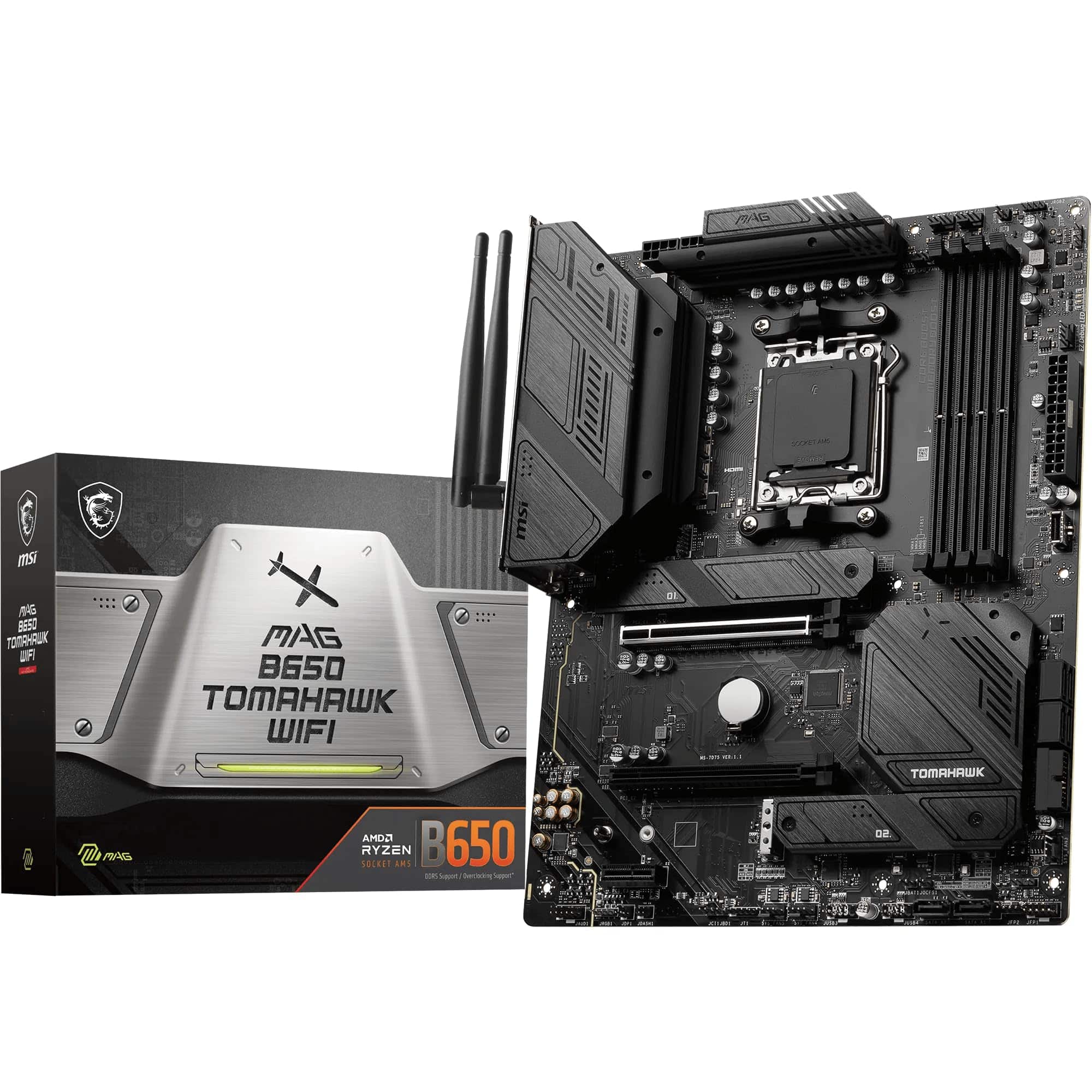
If you're considering AMD instead: The AM5 platform with Ryzen 7000 series is a legitimate alternative. The socket is confirmed to have a longer lifespan than LGA 1700, which means more upgrade options down the line. An X670E board like the Gigabyte X670E AORUS Elite AX is a comparable product on the AMD side. The trade-off is that AM5 DDR5 kits can be fussier about compatibility, and Intel still holds a gaming performance edge in many titles at the time of writing.
If you want the best BIOS experience available: ASUS boards across the Z790 range use the best UEFI interface in the industry. If you're the kind of person who spends a lot of time in the BIOS tuning things, the ROG Strix Z790-F or even the TUF Gaming Z790-Plus WiFi are worth the consideration for that reason alone.
About the Reviewer
I've been building PCs professionally and for personal use for fifteen years, working across everything from budget office machines to high-end workstations and gaming rigs. I write for vividrepairs.co.uk with a focus on honest, practical advice rather than spec-sheet comparisons. I care about whether hardware holds up over time, not just how it performs on launch day.
Affiliate Disclaimer: This article contains affiliate links. If you purchase through these links, vividrepairs.co.uk may earn a commission at no additional cost to you. This does not influence our editorial recommendations. We only recommend products we'd genuinely suggest to someone building their own PC.
What works. What doesn’t.
7 + 6What we liked7 reasons
- Four M.2 slots including a PCIe 5.0 primary slot, offering genuine storage flexibility for demanding builds
- 16+1+2 phase VRM with 60A power stages handles overclocked i5 and i7 chips without thermal concerns
- Q-Flash Plus enables BIOS updates without a CPU or RAM installed, a practical feature for new builds
- Intel WiFi 6E and Intel 2.5GbE LAN both use Intel silicon, providing reliable driver support on Windows and Linux
- PCIe EZ-Latch and M.2 EZ-Latch mechanisms make GPU removal and drive swapping far less fiddly
- Pre-installed I/O shield removes a small but genuinely annoying step from the assembly process
- Strong value relative to competing Z790 boards with comparable specifications
Where it falls6 reasons
- BIOS navigation is functional but less intuitive than ASUS's UEFI, with some settings buried in unexpected sub-menus
- Gigabyte's RGB Fusion software has a poor reputation for stability and is best left uninstalled
- Only four SATA ports, which may constrain builds using multiple mechanical hard drives
- VRM heatsink coverage is adequate rather than class-leading, making it a less confident choice for extreme i9 overclocking with power limits removed
- LGA 1700 is end-of-life with no upgrade path to Arrow Lake or future Intel generations
- DDR5 only with no DDR4 support, adding to total build cost for those without existing DDR5 kits
Full specifications
11 attributes| Socket | LGA1700 |
|---|---|
| Chipset | Z790 |
| Form factor | ATX |
| Bios flashback | true |
| M2 slots | 4 |
| MAX RAM GB | 256 |
| Network | 2.5GbE + Wi-Fi 6E |
| Pcie 5 slots | 1 |
| RAM slots | 4 |
| RAM type | DDR5 |
| Usb4 | false |
If this isn’t right for you
2 options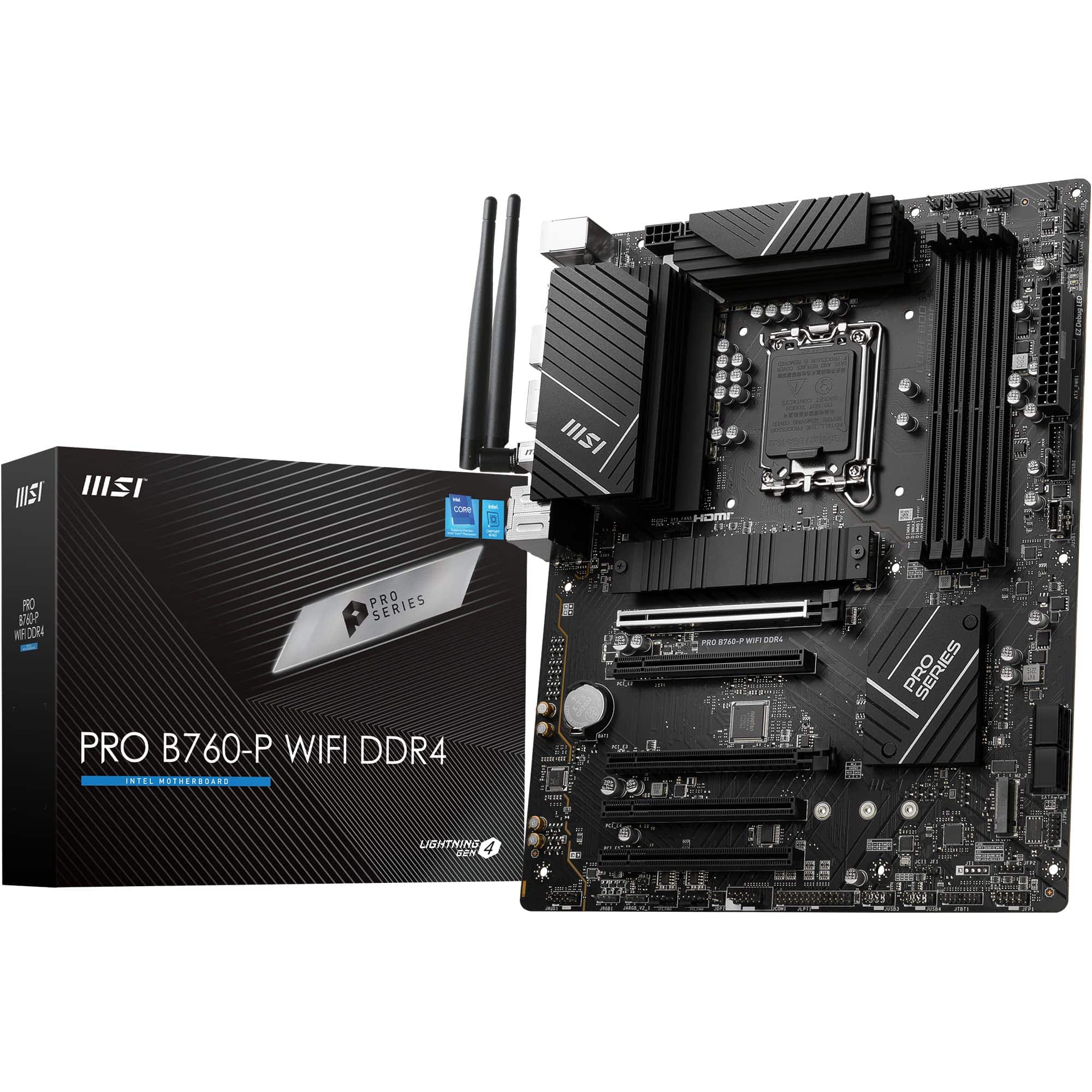
Frequently asked
7 questions01Does the Gigabyte Z790 AORUS Elite AX support Intel 14th gen processors out of the box?+
It may require a BIOS update first, depending on when the board was manufactured. Gigabyte's Q-Flash Plus feature allows you to update the BIOS from a USB drive without any CPU or RAM installed, which resolves this without needing to borrow an older chip.
02Is the Gigabyte Z790 AORUS Elite AX DDR4 or DDR5?+
DDR5 only. There is no DDR4 variant of this specific board. If you have DDR4 memory from a previous build, it will not work here and you will need to budget for a new DDR5 kit.
03Can the Z790 AORUS Elite AX handle an overclocked i9-13900K?+
It will run an i9-13900K and can overclock it, but the VRM heatsinks are adequate rather than exceptional for sustained extreme loads. If you plan to remove power limits and run aggressive all-core overclocks on an i9, ensure your case has good airflow over the VRM area, or consider stepping up to a board with a more substantial heatsink solution.
04How many M.2 slots does the Gigabyte Z790 AORUS Elite AX have?+
Four M.2 slots in total. The primary slot runs at PCIe 5.0 x4 and supports the latest Gen 5 NVMe drives. The remaining three slots run at PCIe 4.0 x4. All four slots are NVMe only; SATA M.2 drives are not supported.
05Does the Gigabyte Z790 AORUS Elite AX include WiFi?+
Yes. The board includes an Intel WiFi 6E module supporting 2.4GHz, 5GHz, and 6GHz bands, along with Bluetooth 5.2. Two antennas are included in the box and connect to rear I/O ports on the board.
06What is Q-Flash Plus and why does it matter?+
Q-Flash Plus is Gigabyte's feature for updating the BIOS without a CPU or RAM installed. You download the BIOS file from Gigabyte's website, copy it to a USB drive, insert it into the designated rear I/O port, and press the Q-Flash Plus button. This is particularly useful when a newer CPU requires a BIOS update before the board will recognise it at first boot.
07Is LGA 1700 worth buying now given that Intel has moved to LGA 1851?+
Intel's 15th gen Arrow Lake processors use the newer LGA 1851 socket, so there is no upgrade path beyond 14th gen on this board. However, 13th and 14th gen processors have come down considerably in price since launch and offer strong performance. If you are comfortable treating this as a fixed-generation platform rather than something to upgrade incrementally, the value proposition remains solid.