
VR-PC-BUILDING Decision guide
How to Build a Gaming PC: A Beginner's Step-by-Step Guide
A clear, step-by-step UK guide to building your first gaming PC: the parts, fitting them together, first boot, BIOS, Windows and POST fixes.
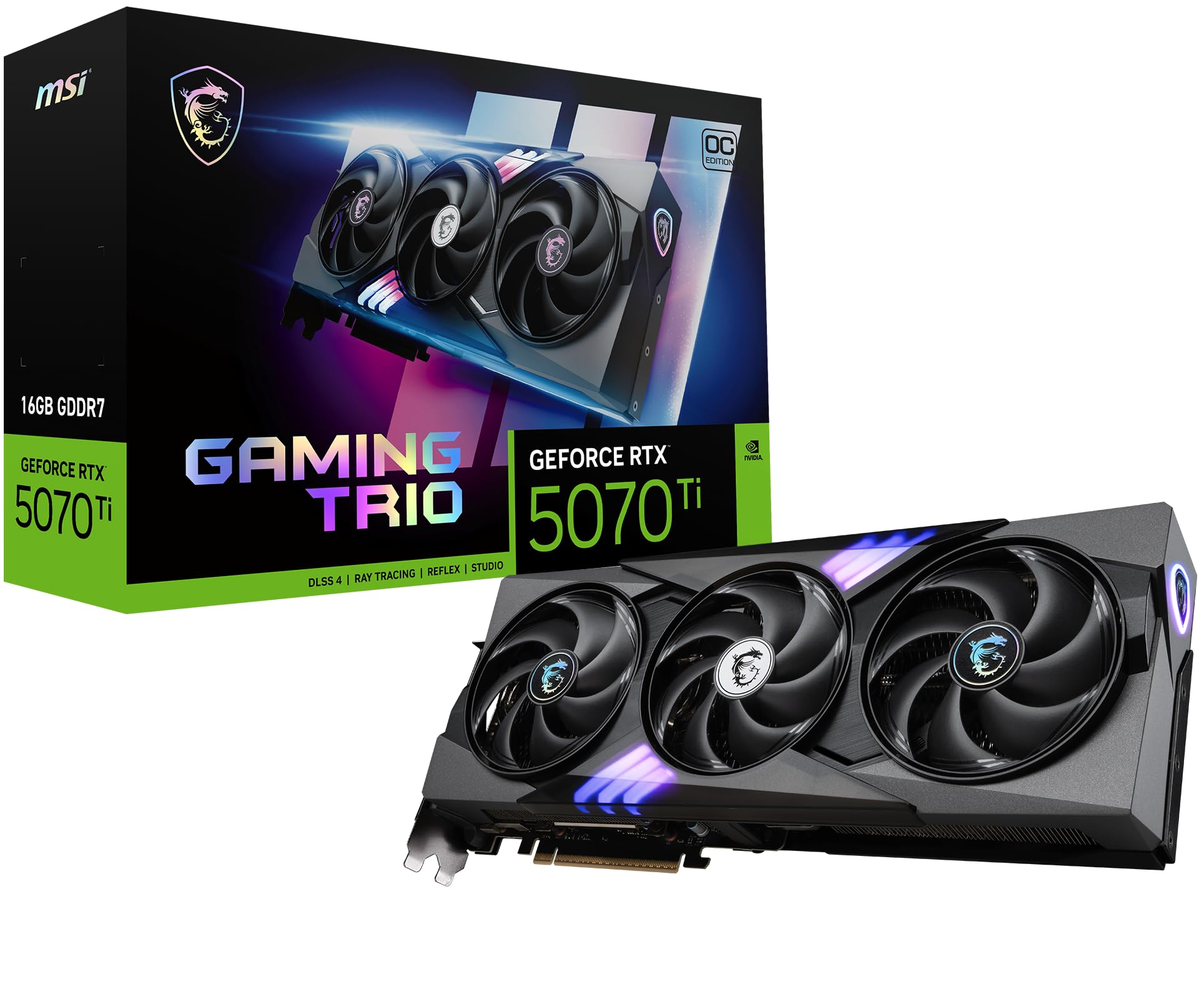 Top pick: MSI MSI GeForce RTX 5070 Ti GAMING TRIO OC: Performance & Value for UK Gamers in 2025
So you fancy building your own gaming PC. Good. It's one of those jobs that looks far scarier from the outside than it actually is, and the first time the fans spin up on something you assembled yourself, you'll wonder why you waited. The parts only fit one way for the most part, the tools are minimal (one screwdriver does about 90% of it), and nobody expects you to get it perfect on the first go.
This guide walks you through the whole thing in plain English: what each part does, how to make sure they all play nicely together, the build itself in order, and what to do when it grumbles at you on first boot. If you're brand new, start by getting your bearings over on our gaming hub, then come back here for the hands-on bit.
The parts that make a gaming PC
A gaming PC is really just a handful of components doing specialised jobs. Get a feel for what each one does and the whole thing stops being a black box.
- The CPU (processor) is the brain. It handles the general thinking: game logic, physics, the bits a graphics card doesn't. For gaming you don't need the most expensive chip going, you need one that won't hold your graphics card back. Have a look through our gaming CPUs when you're ready to choose, and our deeper best CPUs guide if you want the full reasoning.
- The motherboard is the spine everything plugs into. It decides which CPU you can fit, how much RAM, how many drives and ports. Our gaming motherboards picks save you wading through hundreds of near-identical boards.
- The graphics card (GPU) is the part that actually draws your games. In a gaming build it's usually where most of the budget goes, and it's the single biggest lever on frame rates. Browse our gaming graphics cards, and for the full rankings see the best graphics cards guide.
- Memory (RAM) is short-term working space. Too little and games stutter as they wait on storage. Our gaming memory page covers sensible amounts and speeds.
- Storage is where Windows and your games live. An NVMe SSD is the default now: fast, small, slots straight onto the board.
- The power supply (PSU) feeds everything clean, steady power. Skimp here and you put the whole machine at risk, so it's the one part people are wrong to treat as an afterthought. Start with our gaming PSU picks or the in-depth best PSU guide.
- The case holds it all together and moves air through. Bigger isn't always better, but airflow matters. See our gaming cases and the best PC cases guide.
- The cooler keeps the CPU's temperature in check. Some CPUs come with one in the box, many gamers upgrade. Our gaming cooling page explains air versus liquid.
That's the lot. Seven or eight boxes, and you've got a gaming PC.
Making sure the parts fit together
This is the step that trips up newcomers, and it's also the step that costs nothing to get right. Compatibility is mostly a matter of matching a few numbers before you buy. Here's what actually matters.
CPU and motherboard socket
A CPU only fits a motherboard with the matching socket and chipset. Pick the CPU first, then choose a board that's listed as supporting it. Both manufacturers publish CPU support lists for every board, so check yours is on there. Mismatch the socket and the chip simply won't drop in, no force will change that.
RAM type and amount
RAM comes in generations, and a board built for one generation will not accept the other. Check which your motherboard takes and buy the matching kit. Buy memory as a matched pair rather than a single stick where you can, so it runs in dual channel. Faster.
Graphics card length versus the case
Modern gaming cards are long, and some are very long. Every case lists a maximum GPU length, and every card lists its length. Compare the two before you order. It's a genuinely common mistake to buy a lovely card that won't physically fit the case you've fallen for.
PSU wattage and connectors
Your power supply needs enough headroom for the whole system, with the graphics card being the hungriest part. The sensible approach is to total up roughly what your components draw, then leave a comfortable margin on top rather than buying the bare minimum. A little spare wattage runs quieter and lasts you into your next upgrade. Also check the PSU has the right power connectors for your specific graphics card. Our PSU guide walks through sizing this properly so you're not guessing.
Building it, step by step
Right, parts on the desk. Before anything goes near the case, do a few jobs on the open bench. It's far easier to fit the fiddly bits with the motherboard flat in front of you than buried in a case.
Prep your workspace
Clear a big, well-lit table. Keep the boxes, you'll want the manuals and the spare screws. Work on a hard surface, not a fluffy carpet. Static is the quiet enemy here: touch a bare metal part of the case now and then to discharge yourself, or wear an anti-static strap if you've got one. Don't build in socks on a nylon rug, basically.
CPU, then cooler, then RAM, on the open board
Lay the motherboard on its box. Open the CPU socket lever, line up the little arrow on the chip with the arrow on the socket, and lower it in. No pressing. It drops under its own weight, then you close the lever, which takes a surprising amount of force the first time (that's normal). Next, sort the cooler. If it needs thermal paste, a small blob the size of a grain of rice in the centre is plenty. Mount the cooler evenly and plug its fan into the CPU fan header. Then push the RAM into the slots until the clips snap shut, and check your manual for which slots to use for a two-stick kit (it's rarely the two nearest each other).
Mount the motherboard on its standoffs
Fit the I/O shield into the back of the case first if it's a separate piece. Then check the brass standoffs are in the right holes for your board size, because screwing a board straight onto bare metal can short it. Lower the board in, line it up with the I/O shield, and screw it down snug, not gorilla-tight.
Install the PSU
Drop the power supply into its bay, usually bottom-rear these days. If the case has a vent under it, point the PSU fan downward so it pulls cool air from outside. Screw it in. Now run the big 24-pin cable and the CPU power cable (the smaller one up near the top corner of the board) before the graphics card is in the way. That top CPU cable is the single most forgotten connection in first builds, so seat it now and seat it fully.
Seat the graphics card
Pop out the case slot covers that line up with your top PCIe slot. Take the plastic clip on the board's slot to the open position, then press the card down firmly until it clicks and sits flush. Screw its bracket to the case. Plug in its power connectors from the PSU, and make sure they're properly home, not half-clicked.
Storage, then cable management
An NVMe SSD slots onto the board and holds down with a tiny screw, so that's usually quick. Any larger drives go in their bays and take a power and data cable each. Then tidy. Route cables behind the motherboard tray, use the case's tie points, and you'll get better airflow and a far nicer-looking build. It also makes faults easier to spot later.
Front-panel headers
This is the fiddliest five minutes of the whole job. The thin little wires from the case (power button, reset, power LED, drive LED) plug onto a cluster of pins on the bottom corner of the board. They're small and the labels are tiny. Get the motherboard manual out, find the front-panel diagram, and match them one by one. Get the power button pair right and the PC will start, the LEDs you can swap round later if they don't light up. Don't forget the front USB and audio headers while you're down there.
First boot and the BIOS
Before you button it all up, do a test boot. Plug in a monitor, keyboard and the power lead, and hit the button. You're hoping for fans spinning and the motherboard logo or a beep, not a finished Windows machine just yet.
If it powers on, tap the BIOS key as it starts (often Delete or F2, the screen usually tells you). In the BIOS, do three quick things. Check the board sees your CPU, your full amount of RAM and your drive. Then turn on the memory profile, often called XMP or EXPO, so your RAM runs at its rated speed instead of a slow default. Save and exit. That's it for now, you can ignore the hundred other settings.
Did it not show a picture or recognise the CPU? On a newer chip with an older board, this is where a BIOS update earns its keep. Many boards let you flash the BIOS from a USB stick with no CPU fitted, which is worth knowing before you panic.
Installing Windows and drivers
Make a Windows installation USB on another computer using Microsoft's official media creation tool. Plug it into your new build, boot from it (you may need to pick the USB as the boot device in the BIOS), and follow the prompts. Install Windows onto your fast SSD. Easy enough.
Once you're on the desktop, drivers are the priority. Two matter most: the chipset driver from your motherboard maker, and the graphics driver from your GPU maker. Grab those from the official sites rather than letting Windows guess. Get the graphics driver on and your games will actually look and run as they should. After that, let Windows update itself, install your games, and you're away.
When it doesn't POST
POST is the quick self-check a PC does before it loads anything. No picture, no boot, a string of beeps: that's a failed POST, and it's a normal part of first builds, not a disaster. Work through it calmly and methodically.
- Power first. Is the PSU switch on the back set to on? Is the wall socket live? Are both the 24-pin and that top CPU cable fully seated? Loose CPU power is the classic culprit.
- RAM. Take the sticks out and firmly reseat them until both clips snap. If you've two sticks, try one stick on its own in the slot the manual recommends. A huge share of no-POST builds come down to RAM not being fully home.
- Read the board. Many motherboards have small debug lights labelled CPU, DRAM, VGA and BOOT, or a two-digit code display. Whichever light stays lit tells you where it's stuck. If yours beeps instead, the beep pattern maps to a fault in the manual.
- Connections. Reseat the graphics card and its power cables. Double-check the front-panel power button is on the correct pins, since a single misplaced wire stops the machine starting.
- Strip it back. Still nothing? Disconnect everything bar CPU, cooler, one stick of RAM and the connection for onboard or graphics output, then try again. Add parts back one at a time until the fault shows itself.
Nine times out of ten it's a loose cable or a stick of RAM that needed a firmer push, not a dead component. Patience wins here.
Where to go next
That's the method. The skill that turns a working PC into a great one is choosing the right parts for your budget and the games you actually play, and that's where we can save you the most time. Dig into the per-component picks across our gaming hub, from CPUs and graphics cards to the power supply that quietly keeps it all alive. Pick well, build slowly, and enjoy it. You've got this.
Read our reviews for each part
Every component in this build, with the models we've reviewed and rated.
Three worth your money
Each link adds the product to your Amazon basket so you can compare them side-by-side at checkout.
MSI
MSI GeForce RTX 5070 Ti GAMING TRIO OC: Performance & Value for UK Gamers in 2025
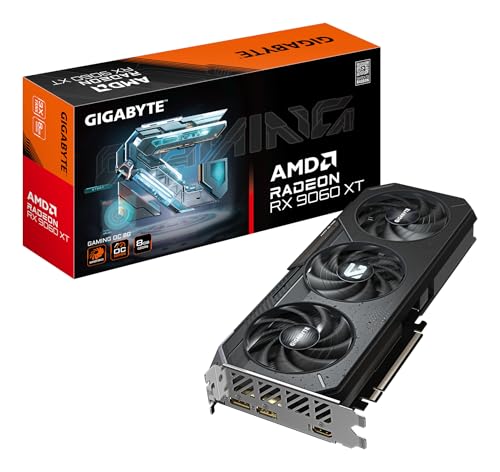
Gigabyte
Gigabyte Radeon RX 9060 XT GAMING OC 8G Graphics Card - 8GB GDDR6, 128bit, PCI-E 5.0, 3320 MHz Core Clock, 2 x DisplayPort, 1 x HDMI, GV-R9060XTGAMING OC-8GD
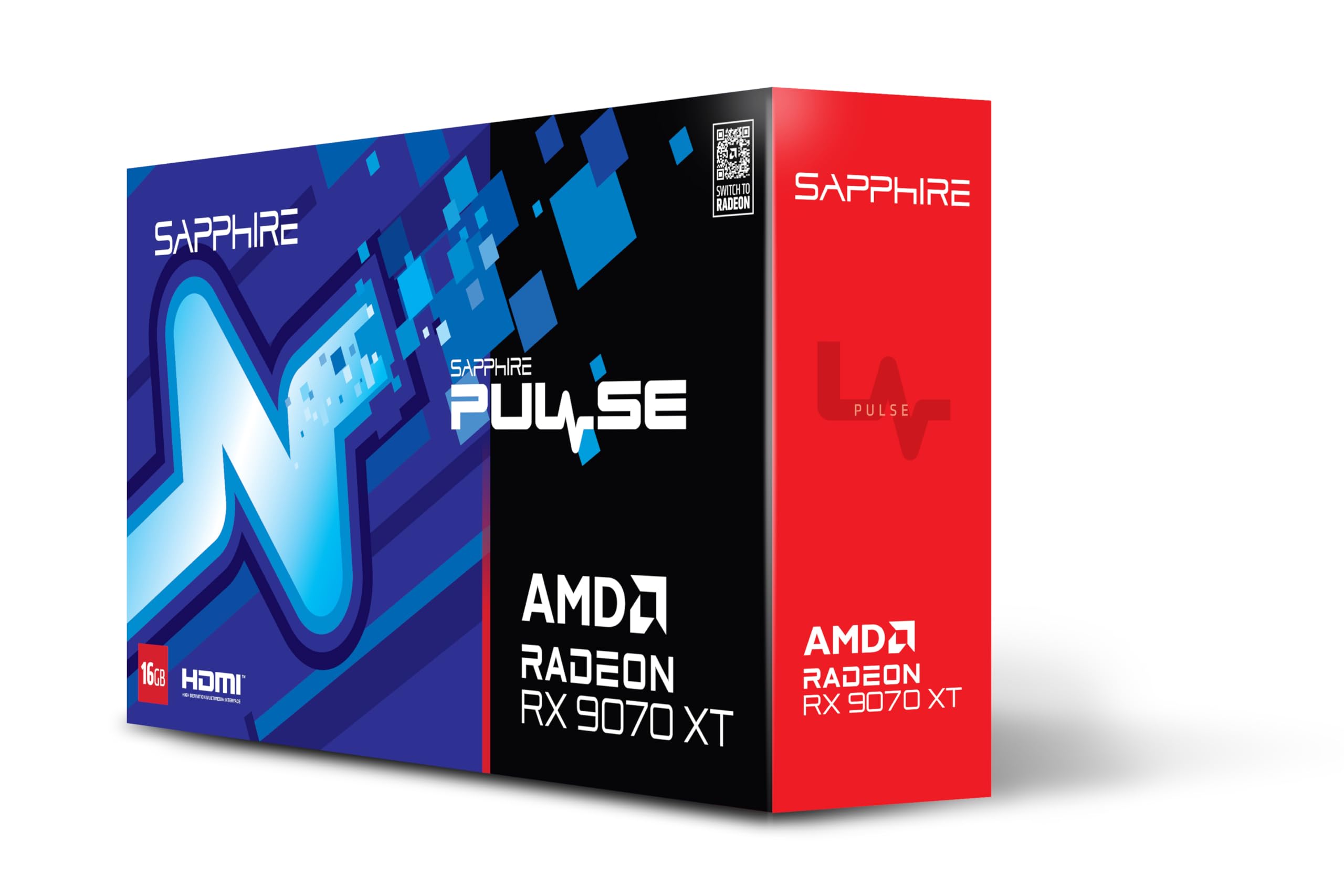
Sapphire
Sapphire PULSE AMD RADEON™ RX 9070 XT GAMING 16GB DUAL HDMI/DUAL DP
Common questions
Frequently Asked Questions
Usually, yes, though the gap has narrowed. Building it yourself means you're not paying for someone else's assembly time, and you choose exactly where the money goes rather than accepting whatever corners a pre-builder cut on the PSU or storage. The bigger win is control: you pick quality parts you can upgrade later. The catch is that you carry the risk if something arrives faulty, so weigh the savings against the convenience of a warranty on the whole machine.
Budget a quiet afternoon. A confident builder can put one together in under an hour, but for your first one you'll want to read each manual, double-check things and take your time. Three to four hours is realistic, and that's fine. Rushing is how cables get missed. Installing Windows and drivers afterwards adds another hour or so.
Sometimes. If you've paired a newer CPU with an older motherboard, the board may need a BIOS update before it recognises the chip. Many modern boards have a BIOS Flashback feature that lets you update from a USB stick with no CPU installed at all. Check the motherboard's support page for your exact model before you build, so you're not caught out at first boot.
Stay calm, it's almost always something simple. Check the PSU switch on the back is set to on, confirm the 24-pin and the CPU power cable are both fully seated (the CPU one near the top is the most forgotten), and make sure the front-panel power button header is wired to the right pins. If there's still nothing, reseat the RAM and listen for beeps or watch for any debug lights on the board.
No. A good air cooler keeps the vast majority of gaming CPUs perfectly happy and there's nothing to leak or pump to fail. Liquid cooling, usually an all-in-one closed loop, helps with the hottest high-end chips and looks tidy, but it's a want, not a need. For a first build, a solid tower air cooler is the easier, cheaper and more forgiving choice.
We're an Amazon Associate. If you click a product link and buy something, we earn a small commission at no extra cost to you. We only recommend products we'd use ourselves.
Top pickMSI GeForce RTX 5070 Ti GAMING TRIO OC: Performance & Value for UK Gamers in 2025£1099.98Add to cart →