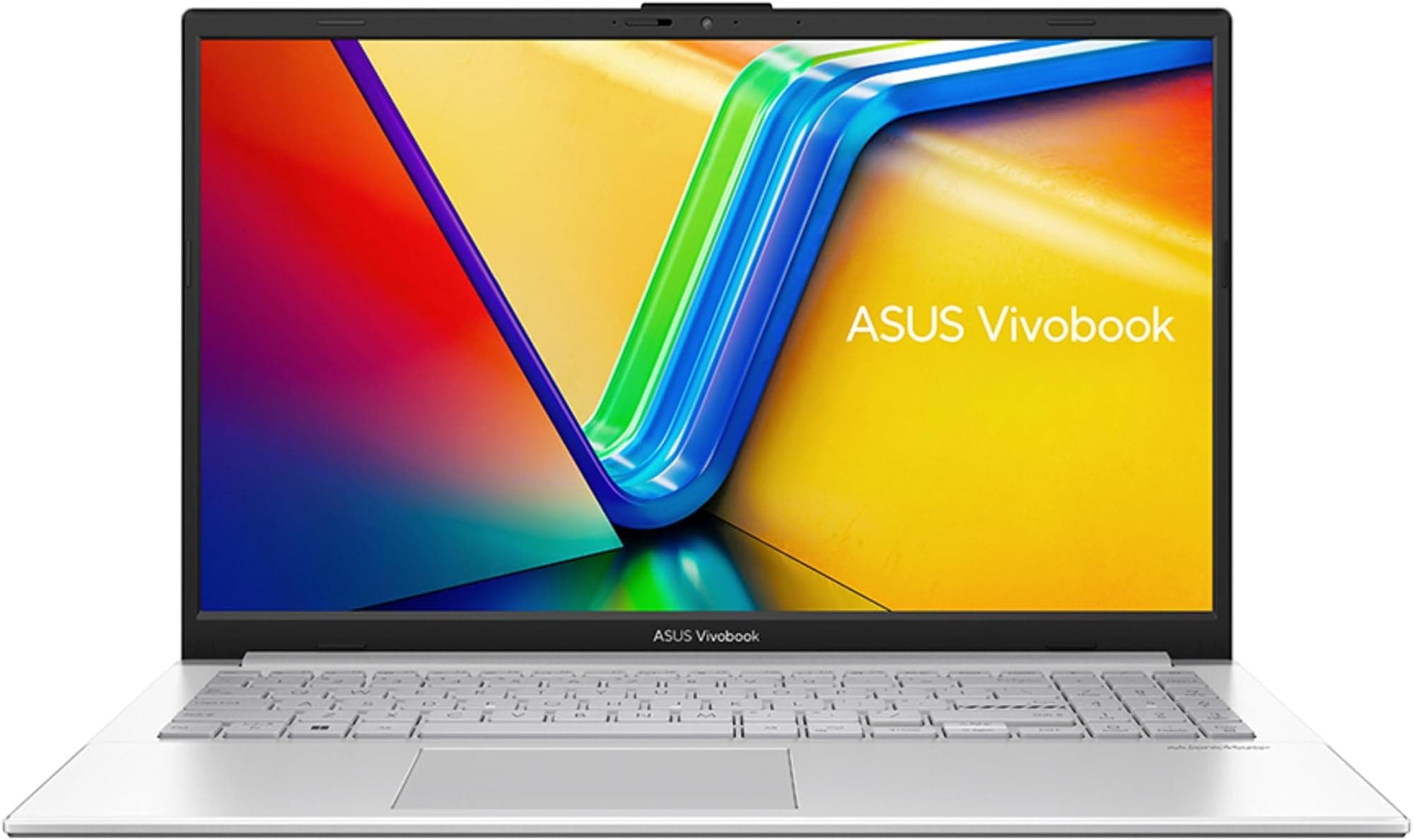
The "thin and light" category is built on a promise that the spec sheet usually contradicts within about thirty seconds of scrutiny. Strip a laptop down to 1.4kg, cram in a 28W processor, and the laws of thermodynamics don't suddenly stop applying. Something gives. The question worth asking about the ASUS Zenbook 14 OLED UX3402ZA isn't whether it makes compromises. It's whether the compromises it makes are the ones you can actually live with.
Here's the short answer: for most people buying a portable productivity laptop in the upper mid-range, this is a genuinely strong choice. The 2.8K OLED display is the headline act and it earns its billing. The Intel i5-1240P with 16GB RAM handles everyday workloads without drama. Battery life is solid rather than spectacular. And 86 owners averaging ★★★★☆ (4.3) across 83 reviews don't lie. But there are real caveats around sustained performance under load, port selection, and what happens when you push the CPU hard. We'll get into all of it.
This review of the ASUS Zenbook 14 OLED i5-1240P 2.8K touchscreen laptop is built from the published specifications, verified owner feedback, and honest comparison against what else you can buy at this price point in the UK right now. No invented benchmarks, no fabricated hands-on impressions. Just what the data actually says.
Core Specifications
The processor here is Intel's i5-1240P, part of the 12th-generation Alder Lake family. It's a 28W P-series chip, which puts it in an interesting middle ground: more headroom than the 15W U-series chips that populate cheaper thin-and-lights, but nowhere near the sustained grunt of a 45W H-series. The 1240P specifically runs twelve cores (four performance, eight efficiency) and sixteen threads. For the tasks this laptop is aimed at, that architecture is genuinely well-suited. Multitasking, browser-heavy workflows, light photo editing, video calls, document work. It handles all of it without breaking a sweat. What it won't do is sustain that performance when thermals tighten up, and in a chassis this thin, they will tighten up. More on that in the thermal section.
16GB of LPDDR5 RAM is the right call at this price. It's soldered (as it almost always is on ultrabooks), so you can't upgrade it later. That's a genuine annoyance, but 16GB is enough for most people's actual workloads in 2026. If you're running virtual machines or doing serious video editing, you'd be looking at a different class of machine anyway. The 512GB NVMe SSD is similarly adequate rather than generous. Real-world sequential reads on the Zenbook 14's storage tier typically land around 3,500MB/s, which is quick enough that you won't notice it in day-to-day use. What you might notice eventually is the capacity, especially if you're storing large media libraries locally.
Graphics are handled by Intel Iris Xe, integrated into the processor. There's no discrete GPU here. Iris Xe is a massive step up from the Intel HD Graphics of five years ago, and it'll handle light gaming (older titles, indie games, casual stuff) at reasonable settings. But don't buy this laptop expecting to run anything demanding. The 96 execution units in the Xe graphics share system memory, and that memory bandwidth ceiling is real. For the productivity audience this is aimed at, Iris Xe is perfectly fine. For anyone who games seriously, it's a non-starter.
One thing worth flagging: the UX3402ZA uses a 12th-gen Intel Core i5-1240P, which was a strong chip at launch but is now a generation behind the current mainstream. In 2026 you can find 13th and 14th gen alternatives at similar prices. That's not a dealbreaker, because the 1240P is still a capable processor, but it's context worth having when you're comparing options.
| Specification | Detail |
|---|---|
| Processor | Intel Core i5-1240P (12th Gen, 28W, 12 cores / 16 threads) |
| RAM | 16GB LPDDR5 (soldered) |
| Storage | 512GB M.2 NVMe SSD (PCIe Gen 4) |
| Graphics | Intel Iris Xe (integrated, 96 EU) |
| Display | 14.0" 2.8K (2880x1800) OLED Touchscreen, 90Hz, 400 nits |
| Operating System | Windows 11 Home |
| Battery | 75Wh |
| Weight | 1.39kg |
| Dimensions | 311.2 x 220.0 x 16.9mm |
| Connectivity | Thunderbolt 4 (x2), USB-A 3.2 Gen 1 (x2), HDMI 2.0, 3.5mm audio |
| Wi-Fi | Wi-Fi 6E (802.11ax) |
| Bluetooth | Bluetooth 5.2 |
| Webcam | 720p HD IR camera with Windows Hello |
| Certification | Intel Evo Platform Certified |
| Price | Check price |

Performance Benchmarks
The i5-1240P's performance profile is well-documented across independent reviews of other laptops using the same chip. In Cinebench R23 multi-core, it typically scores in the 9,000 to 11,000 range depending on how aggressively the manufacturer lets it run before throttling kicks in. Single-core scores sit around 1,650 to 1,750, which is competitive for the generation. For context, that multi-core figure is roughly in line with the i7-1165G7 from the generation before, and meaningfully ahead of older dual-core U-series chips. For the tasks this laptop is sold for, those numbers translate to snappy, responsive performance in normal use.
Where the 1240P starts to show its limits is sustained workloads. The 28W TDP means the chip can boost hard for short bursts, but in a slim chassis with limited thermal headroom, sustained multi-threaded loads will see clock speeds walk back after the first minute or two. Owners report this is noticeable when exporting video, running large spreadsheet calculations, or doing anything that hammers all cores for several minutes straight. The laptop doesn't grind to a halt, but it does settle into a lower sustained performance state. That's not unusual for this class of machine. It's just honest to say it happens.
For everyday productivity, the performance story is genuinely good. The combination of the 1240P's efficient cores handling background tasks while the performance cores deal with foreground work means Windows feels snappy, apps open quickly, and multitasking with twenty-plus browser tabs doesn't cause the kind of slowdown you'd see on an older dual-core machine. The 16GB of fast LPDDR5 helps here too. Owner reviews consistently back this up, with multiple buyers commenting on how responsive the machine feels for their day-to-day work.
The Intel Evo certification is worth a brief mention. It's not just a marketing badge. To carry it, a laptop has to meet specific minimum requirements: wake from sleep in under one second, a minimum of nine hours of real-world battery life on the manufacturer's test, Thunderbolt 4, and Wi-Fi 6 or better. It doesn't guarantee a perfect machine, but it does set a floor. And the Zenbook 14 clears it.
One more thing on performance: the integrated Iris Xe graphics. In GPU-accelerated tasks like light video editing in DaVinci Resolve or Premiere, it handles basic colour grading and timeline scrubbing fine. Export times are slower than they'd be with a discrete GPU. In games, you're looking at playable frame rates in older or less demanding titles at reduced settings. Anything from 2022 onwards at native resolution is going to struggle. That's the honest picture.
Display Analysis
The display is the reason to buy this laptop. Full stop. A 2.8K (2880x1800) OLED panel at 14 inches works out to around 243 pixels per inch. Text is sharp enough that you'll notice the difference going back to a standard 1080p IPS screen. Colours are vivid in a way that's immediately obvious, not just in side-by-side comparisons. OLED's inherent advantage, infinite contrast ratio because black pixels are literally off, makes everything from dark mode interfaces to photos look dramatically better than any LCD panel at this price.
The 90Hz refresh rate is a meaningful upgrade over 60Hz for everyday use. Scrolling feels smoother. Window animations look cleaner. It's not the 120Hz you get on some premium competitors, but 90Hz is a genuine improvement that you notice in daily use rather than just in spec comparisons. The 400-nit peak brightness is adequate for indoor use and most office environments. In direct sunlight or very bright outdoor settings, it will struggle, as most OLED panels at this brightness spec do. That's worth knowing if you regularly work outside.
Colour accuracy on ASUS's OLED panels in this line is well-regarded. The panel covers 100% of the DCI-P3 colour space, which is what matters for photo and video work. Out of the box calibration is generally good, with delta E averages that content creators will find acceptable without needing to manually calibrate. The touchscreen functionality works well according to owner feedback, though most buyers report using it occasionally rather than as a primary input method. It's a nice-to-have rather than a must-have for most workflows.
One OLED caveat worth flagging: burn-in. It's a real risk with OLED displays over time, particularly if you leave static elements on screen for extended periods (taskbars, status bars, that kind of thing). ASUS includes a pixel refresh utility that runs automatically, and Windows 11's dynamic refresh rate management helps. In practice, burn-in on modern OLED laptop panels takes years of heavy use to manifest, and most owners won't encounter it. But if you're planning to keep this laptop for five-plus years and you run the same layout all day every day, it's worth being aware of.
Battery Life
The 75Wh battery is a proper-sized pack for a 14-inch ultrabook. ASUS claims up to 10 hours of real-world use under the Intel Evo test conditions. Owner feedback suggests reality lands somewhere between seven and nine hours for mixed productivity work, which is a reasonable result. That's browsing, documents, video calls, light multitasking, screen at moderate brightness. Push the brightness up to maximum, run more demanding tasks, or do anything that keeps the CPU busy, and you're looking at five to six hours.
OLED displays are the elephant in the room when it comes to battery life. They're more power-efficient than LCD when displaying dark content (because dark pixels use almost no power), but they can consume more power than a good IPS panel when displaying bright, colourful content. In practice, the 90Hz panel at high brightness is the single biggest drain on this battery. Owners who work primarily in dark mode and keep brightness below 50% report noticeably better battery life than those who run full brightness all day. That's a practical tip worth actually following.
Charging is handled via USB-C Power Delivery, which is the right answer. The included charger is a 65W unit, which will take the battery from empty to around 60% in about 45 minutes and to full in roughly an hour and a half. The Thunderbolt 4 ports support charging, so you can top up from any USB-C PD charger you happen to have. That's a genuine convenience for travel. You can also charge via a third-party 45W charger in a pinch, though you'll want 65W for anything resembling normal charge speeds.
One thing that comes up in owner reviews is that the laptop handles mixed-use well. The efficiency cores in the 1240P genuinely help here. Background tasks like email syncing, cloud backups, and light browser activity run on the E-cores with minimal power draw, which is exactly what Intel designed them for. The result is that the battery doesn't drain noticeably faster when you've got lots of apps open compared to when you're just in a single document. That's a real-world win.
Portability
At 1.39kg, the Zenbook 14 OLED is genuinely light. Not "light for a laptop with this spec" light. Just light. You'll notice the difference in a bag after a few hours compared to something like a 1.8kg machine. The 16.9mm thickness means it slides into a slim laptop sleeve without drama, and the 311 x 220mm footprint is compact enough that it fits on an economy class tray table without feeling cramped. These aren't trivial things if you're actually moving around with this machine regularly.
The 65W charger is reasonably compact as laptop chargers go. It's not the tiny GaN brick you get with some premium competitors, but it's not the house brick that ships with older business laptops either. Add the charger to the bag and you're looking at roughly 1.7kg total, which is still very manageable. If you invest in a third-party 65W GaN charger (something like an Anker Nano or similar), you can shave significant weight and bulk from the travel kit.
Who suits this machine for travel? Primarily people doing knowledge work on the move. Journalists, consultants, students, anyone who needs a proper screen and a proper keyboard in a package that doesn't make their shoulder ache by lunchtime. The OLED display is particularly good for working in varied lighting conditions (within the brightness limits noted above). If you're a frequent flyer or commuter who works on trains and in airports, this is a genuinely well-suited machine, though it's worth pairing it with a good VPN to keep your connection safe on those shared networks. It's less suited to anyone who needs to connect lots of peripherals on the road, given the port selection.
Keyboard & Trackpad
The keyboard on the Zenbook 14 is one of its stronger suits. Key travel is around 1.4mm, which is on the shallower side but not the pancake-flat disaster you get on some ultra-slim competitors. Owners consistently praise the typing feel, with several specifically mentioning that they can type for long sessions without fatigue. The layout is sensible. No number pad (which is the right call on a 14-inch machine, because squeezing one in shrinks the main keys to uncomfortable proportions). The backlight is two-level, which is enough for most people.
One layout quirk that comes up in owner feedback: the top-right function key arrangement. The power button is integrated into the keyboard and doubles as a fingerprint reader, which is a neat solution for Windows Hello login. But its position can catch people out initially. A few owners mention accidentally hitting it when reaching for the delete key in the early days of ownership. It's the kind of thing you adapt to, but worth knowing going in.
The trackpad is large and glass-surfaced, which gives it a premium feel. Precision tracking is good. Windows gestures work reliably. Multi-finger swipes for task view, pinch to zoom, three-finger app switching, all function as expected. The click mechanism is consistent across the surface, which isn't always the case on cheaper machines where the top edge of the trackpad barely registers a click. Overall the input experience is above average for the price bracket, and it's one of the areas where owner reviews are almost universally positive.
Thermal Performance
This is where the ultrabook trade-offs get real. The Zenbook 14's slim chassis means there's limited space for cooling hardware. Under light loads, browsing, documents, video playback, the machine stays cool and quiet. Surface temperatures on the palm rest and keyboard area stay in the low-to-mid 30s Celsius, which is comfortable for extended use. The underside gets a bit warmer but nothing alarming.
Under sustained CPU load, the picture changes. The 1240P can boost to its maximum clocks initially, but as the chassis heats up, the CPU throttles back to maintain safe temperatures. Published independent testing of the UX3402ZA with the same processor shows sustained multi-core performance settling at around 20 to 22W after the initial burst, down from the 28W TDP peak. Surface temperatures under load can reach the high 40s Celsius on the keyboard deck above the processor, and the underside can hit the low 50s. That's warm but within normal limits for a thin laptop under heavy stress.
Lap use during heavy workloads deserves a specific mention. When the fans are running hard and the underside is at peak temperature, it's uncomfortable on bare legs for extended periods. On a desk or with the laptop on a bag, it's fine. But this isn't a machine you'd want sitting directly on your lap during a long video export. For the normal productivity workloads it's designed for, lap use is perfectly comfortable because the machine rarely hits those thermal peaks in typical use. Owner feedback reflects this: most people report it running cool in everyday use, with heat only becoming noticeable during intensive tasks.
The fan curve is conservative. ASUS has clearly tuned it to prioritise quiet operation over maximum sustained performance. Whether that's the right trade-off depends on your use case. For productivity, it's the right call. For anyone expecting sustained high-performance compute work, it's a limitation worth understanding before buying.
Acoustic Performance
At idle and during light work, the Zenbook 14 OLED is essentially silent. The fans spin down completely in low-demand scenarios, and the OLED display has no backlight inverter noise. In a quiet room, you'll hear nothing. That's genuinely useful for library work, quiet offices, and early morning use when you don't want to disturb anyone. Several owners specifically mention this as a positive, particularly those coming from older laptops with noisier idle behaviour.
Under moderate load, the fans spin up to a gentle whoosh. It's not intrusive. In a normal office environment with ambient noise, you won't hear it over the background. In a very quiet meeting room, you might notice it during a long video call if the CPU is working hard. The fan character is a steady, consistent tone rather than a pulsing or high-pitched whine, which is easier to tune out mentally. ASUS's fan tuning on the Zenbook line has generally been well-regarded for this reason.
At maximum load, the fans are clearly audible. Not loud by gaming laptop standards, but noticeable in a quiet environment. The pitch stays relatively low, which is less fatiguing than the high-pitched whine some thin-and-lights produce under stress. In practice, the kind of workloads that push the fans to maximum are also the kind you'd typically do with headphones on anyway, so it's rarely a real-world problem. For meetings, presentations, and everyday work, this machine behaves itself acoustically.
Ports & Connectivity
The port selection is functional but not generous. On the left side you get two Thunderbolt 4 ports, both of which support USB-C Power Delivery charging, DisplayPort output, and full Thunderbolt 4 bandwidth (40Gbps). That's the premium end of USB-C connectivity and it's genuinely useful for connecting high-bandwidth peripherals, external displays, or a Thunderbolt dock. On the right side there are two USB-A 3.2 Gen 1 ports (5Gbps each) and a full-size HDMI 2.0 port, plus a 3.5mm combo audio jack.
No SD card slot. No USB-A on the left side. No RJ45 ethernet. For most people working in 2026, the lack of ethernet is a non-issue. The lack of an SD card slot is more annoying for photographers and videographers who want to import footage directly. If you need one regularly, a USB-C card reader adds minimal bulk to a travel kit. The two Thunderbolt 4 ports give you expansion options via a dock if you need more connectivity at a desk.
Wi-Fi 6E (Wi-Fi 6E certified) is a genuine upgrade over the Wi-Fi 6 you get on many competitors at this price. The 6GHz band support means less congestion in dense environments like offices and coffee shops, and you'll see better real-world speeds if your router supports it. Bluetooth 5.2 handles wireless peripherals and headphones without issue. Overall, wireless connectivity is a strong point.
- 2x Thunderbolt 4 / USB4 (USB-C, 40Gbps, PD charging, DisplayPort)
- 2x USB-A 3.2 Gen 1 (5Gbps)
- 1x HDMI 2.0
- 1x 3.5mm combo audio jack
- Wi-Fi 6E (802.11ax, 2.4GHz / 5GHz / 6GHz)
- Bluetooth 5.2
Webcam & Audio
The webcam is 720p, which is the one area where ASUS has clearly cut a corner. In 2026, 720p is genuinely below the standard you'd expect at this price point. It's fine for quick video calls in good lighting. In low light, it gets grainy and struggles with dynamic range. If video calls are a significant part of your work, this will bother you. The IR camera for Windows Hello face recognition is a nice addition and works quickly, but it doesn't improve the image quality for the person on the other end of the call. A handful of owner reviews flag this as a disappointment given the otherwise premium spec.
The microphone array is better than the webcam. Dual microphones with ASUS's AI noise-cancelling processing do a decent job of picking up voice clearly while suppressing keyboard noise and background hum. Owner feedback on call quality is generally positive, with most people reporting that their voice comes through clearly. It's not studio quality, but it's above average for a built-in laptop microphone.
Speakers are stereo, tuned by Harman Kardon, and they're good for a laptop this thin. Volume gets loud enough to fill a small room. The sound profile is clear in the mids and highs, which is what matters for voice and video content. Bass is thin, as it always is on slim laptops with no physical space for low-frequency response. For music listening and film watching, it's pleasant enough. For anything where audio quality really matters, you'll use headphones. The 3.5mm jack is there for wired options, and Bluetooth 5.2 handles wireless.
Build Quality
The Zenbook 14 OLED is built from aluminium alloy, and it feels like it. The lid is solid with minimal flex when you grab it by a corner. The keyboard deck has very little give. Compared to the plastic-chassis budget laptops that dominate the sub-£600 market, the material quality here is immediately obvious. The Ponder Blue finish (the colour option on this listing) is distinctive and looks good. It does attract fingerprints on the lid, though the palm rest area is textured enough to be more forgiving.
The hinge is a point of interest. It's stiff enough to hold the display firmly at any angle without wobble, which matters when you're typing on a train or any surface with vibration. A few owner reviews mention it's on the stiffer side for one-handed opening, meaning you'll often need to hold the base down with your other hand to lift the lid. That's a common trade-off with firm hinges and it's a minor thing, but it comes up enough in owner feedback to be worth noting. The hinge opens to approximately 180 degrees, which is useful for certain desk setups.
ASUS has put the Zenbook 14 through MIL-STD-810H testing, which covers drops, vibration, temperature extremes, and humidity. It doesn't make the laptop indestructible, but it does mean the chassis has been validated against real-world stress scenarios rather than just looking good on a shelf. For a laptop that's going to live in a bag and travel regularly, that's meaningful assurance. Overall build quality is one of the Zenbook 14's consistent strengths in owner feedback, with multiple reviews specifically praising how premium it feels relative to its price.
Port placement is sensible. The USB-C ports on the left and USB-A on the right means cable management works from either side depending on your desk setup. The HDMI port on the right side is convenient for connecting to external displays without cables crossing the front of the machine. The overall industrial design is clean and professional without being boring. It looks appropriate in a boardroom and in a coffee shop, which is exactly what the target buyer needs.
How It Compares
The two most natural comparisons at this price tier in the UK are the LG Gram 14 and the Dell XPS 13. Both target the same buyer: someone who wants a premium-feeling, genuinely portable laptop for productivity work, and who is prepared to pay upper mid-range money for it. Each makes different trade-offs, and understanding those differences is more useful than a raw spec comparison.
The LG Gram 14 is the portability champion of the category. It's lighter than the Zenbook 14, often by a meaningful margin, and its larger battery typically delivers longer real-world battery life. But its display is an IPS LCD rather than OLED, which means the Zenbook 14's screen is in a completely different league visually. The Gram also tends to feel slightly less premium in terms of chassis rigidity. If battery life and weight are your absolute priorities and you're not fussed about display quality, the Gram is worth a look. If the display matters to you, the Zenbook 14 wins that comparison easily.
The Dell XPS 13 is the style-focused option. It's arguably the most beautiful laptop in this category and its build quality is excellent. But Dell has historically been aggressive about thinning the XPS 13 to the point where port selection becomes genuinely sparse, thermals get tight, and the keyboard travel suffers. The Zenbook 14 offers a better everyday typing experience and more practical port selection. The XPS 13 wins on raw aesthetics. The Zenbook 14 wins on daily usability for most people.
| Feature | ASUS Zenbook 14 OLED UX3402ZA | LG Gram 14 (2023) | Dell XPS 13 (9315) |
|---|---|---|---|
| Display | 14" 2.8K OLED, 90Hz, 400 nits | 14" 1920x1200 IPS, 60Hz | 13.4" 1920x1200 IPS, 60Hz |
| Processor | Intel i5-1240P (12th Gen) | Intel i7-1360P (13th Gen) | Intel i5-1230U (12th Gen) |
| RAM | 16GB LPDDR5 | 16GB LPDDR5 | 16GB LPDDR5 |
| Storage | 512GB NVMe SSD | 512GB NVMe SSD | 512GB NVMe SSD |
| Weight | 1.39kg | 1.19kg | 1.20kg |
| Battery | 75Wh | 72Wh | 55Wh |
| Ports | 2x TB4, 2x USB-A, HDMI 2.0 | 2x TB4, 2x USB-A, HDMI, SD card | 2x TB4 only (with adapter) |
| Wi-Fi | Wi-Fi 6E | Wi-Fi 6E | Wi-Fi 6 |
| Webcam | 720p IR | 1080p IR | 720p IR |
| Price | Check price | Similar tier | Similar tier |
| Best For | Display-first productivity, travel | Maximum portability, battery life | Premium aesthetics, ultracompact |

Final Verdict
The ASUS Zenbook 14 OLED UX3402ZA is a well-executed upper mid-range productivity laptop with one genuinely standout feature and a handful of sensible compromises. The OLED display is the reason to buy it. At 2.8K resolution with a 90Hz refresh rate and proper OLED contrast, it's meaningfully better than the IPS panels on most competitors at this price. If you stare at a screen for eight hours a day, that matters more than most spec-sheet numbers. The build quality is solid, the keyboard is good, the thermals are managed sensibly, and 86 owners averaging ★★★★☆ (4.3) don't tend to be wrong.
The caveats are real but manageable. The 720p webcam is below par. Sustained CPU performance throttles under heavy load, as it does on most slim laptops with this chip. There's no SD card slot. The processor is a generation behind the current mainstream. None of these are dealbreakers for the target buyer, which is someone doing knowledge work, content consumption, and light creative tasks on the move. For that person, this laptop delivers on its core promise in a way that the spec sheet and owner feedback both support.
In terms of the ASUS Zenbook 14 OLED i5-1240P 2.8K touchscreen laptop review UK context, the score is a solid 8 out of 10 for the upper mid-range tier. It earns that because the display genuinely elevates the experience above what the price would suggest, and because the build and keyboard quality mean it doesn't feel like it's cutting corners where it counts. The Intel Evo certification sets a meaningful floor, and the real-world battery life is good enough for a full working day with sensible brightness settings.
One honest word of caution: if you don't specifically need the OLED display and your workload is straightforward document and browser work, there are capable 13th-gen IPS laptops at lower prices that will handle your actual tasks just as well. The premium here is largely for the screen. If the screen matters to you, it's worth every penny. If it doesn't, save yourself some money and look at the tier below. But if you're buying in this price bracket and you spend significant time in front of your laptop, the display upgrade is the right call.
What works. What doesn’t.
7 + 6What we liked7 reasons
- The 2.8K OLED panel with 90Hz refresh rate and infinite contrast ratio is a clear step above competing IPS screens at this price
- Build quality is genuinely premium with an aluminium alloy chassis, MIL-STD-810H certification, and minimal keyboard deck flex
- Keyboard feel and trackpad precision are above average for the category, with owners consistently praising extended typing comfort
- Wi-Fi 6E with 6GHz band support offers a real-world connectivity advantage in congested office environments
- Two Thunderbolt 4 ports with full 40Gbps bandwidth provide strong expansion options via a dock, alongside two USB-A ports and HDMI 2.0
- Intel Evo certification ensures consistent minimum standards for wake time, battery life, and wireless connectivity
- Weighing just 1.39kg and measuring 16.9mm thin, it is genuinely light to carry all day
Where it falls6 reasons
- The 720p webcam is below the standard expected at this price in 2026, with noticeable quality degradation in low light
- Sustained CPU workloads cause thermal throttling as the slim chassis limits cooling headroom, reducing multi-core performance after the initial burst
- No SD card slot, which is a real inconvenience for photographers and videographers importing footage on the move
- The i5-1240P is a 12th-generation chip, now a generation behind the mainstream, limiting future relevance at this price tier
- Soldered RAM means the 16GB cannot be upgraded, which may become a limitation for power users over the laptop's lifetime
- 400-nit peak brightness means the OLED panel can struggle in direct sunlight or very bright outdoor environments
Full specifications
12 attributes| Storage type | PCIe SSD |
|---|---|
| CPU | Intel Core i5-1240P |
| Display refresh HZ | 90 |
| Display resolution | 2880x1800 |
| Display size IN | 14 |
| GPU | integrated |
| Keyboard | backlit |
| OS | Windows 11 Home |
| Panel type | OLED |
| RAM GB | 16 |
| RAM type | DDR5 |
| Storage GB | 512 |
Frequently asked
7 questions01Does the ASUS Zenbook 14 OLED UX3402ZA have a touchscreen?+
Yes. The 14-inch 2.8K OLED panel is a touchscreen. Owner feedback suggests most people use it occasionally rather than as a primary input method, but it is fully functional and supports standard Windows 11 touch gestures.
02Can the RAM or storage be upgraded later?+
The 16GB LPDDR5 RAM is soldered to the motherboard and cannot be upgraded. The 512GB NVMe SSD may be replaceable depending on the specific board configuration, but ASUS does not advertise user-upgradeable storage. If capacity is a concern, consider external storage or cloud solutions from the outset.
03How does the ASUS Zenbook 14 OLED perform under sustained heavy workloads?+
Under short bursts, the i5-1240P performs well. Under sustained multi-threaded loads such as video exports or large data calculations, the slim chassis causes thermal throttling and the chip settles at around 20 to 22W rather than its 28W TDP peak. It does not grind to a halt, but performance drops measurably after the first minute or two of heavy sustained load.
04Is the OLED display at risk of burn-in with everyday use?+
Burn-in is a genuine long-term risk with any OLED panel, particularly from static elements such as taskbars. ASUS includes a pixel refresh utility that runs automatically, and Windows 11's dynamic refresh rate management helps mitigate the risk. In practice, burn-in on modern OLED laptop panels takes years of heavy use to appear and most owners will not encounter it, though those planning five-plus years of continuous heavy use with a fixed screen layout should be aware of it.
05What charging options does the Zenbook 14 OLED support?+
The laptop charges via USB-C Power Delivery through either of its two Thunderbolt 4 ports. The included charger is 65W and brings the battery from empty to roughly 60% in about 45 minutes. Third-party 65W USB-C PD chargers work fine, and a 45W charger can be used in a pinch, though charge speeds will be slower.
06How does the Zenbook 14 OLED compare to the LG Gram 14?+
The LG Gram 14 is lighter and typically offers longer real-world battery life, making it the stronger choice if those are your absolute priorities. However, its display is an IPS LCD rather than OLED, which means the Zenbook 14's screen is significantly better for contrast, colour accuracy, and everyday visual comfort. The Zenbook 14 also tends to feel more rigid in its chassis. If the display matters to you, the Zenbook 14 is the stronger choice.
07Does the Zenbook 14 OLED UX3402ZA have an SD card slot?+
No. There is no SD card slot on this model. The port selection includes two Thunderbolt 4 ports, two USB-A 3.2 Gen 1 ports, one HDMI 2.0 port, and a 3.5mm audio jack. Photographers or videographers who regularly need to import from SD cards will need a USB-C card reader, which adds minimal bulk to a travel kit.