Most budget laptops make the same implicit promise: that you can get something functional for not much money, and only suffer a little. The spec sheet tells you whether that promise holds up or collapses under the weight of a single browser tab. With the Samsung Chromebook 4, the numbers are interesting enough to take seriously, and the 256 owner reviews averaging ★★★★☆ (4.3) suggest this isn't just a box-ticking exercise. But "interesting" and "right for you" are two different things, and this Samsung Chromebook 4 review is here to sort one from the other.
The frustration this machine is designed to solve is a specific one: you need something light, reliable, and cheap enough that you won't lose sleep if it gets battered on a commute or borrowed by a kid. You don't need Windows. You don't need to run Photoshop. You need a browser, a Google account, and a battery that doesn't give up before lunch. On those narrow terms, the Chromebook 4 makes a surprisingly credible case. Where it falls short, and it does fall short in a few places, is where the spec sheet gets honest with you.
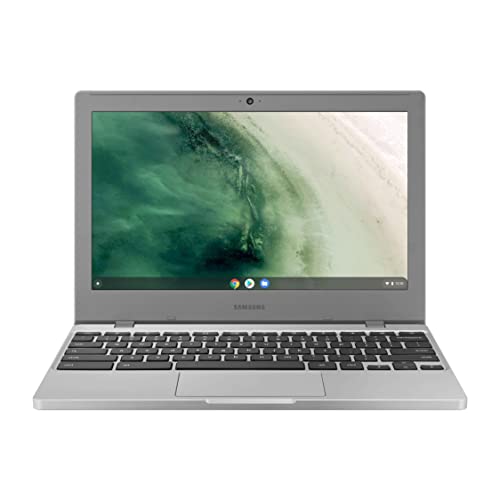
Let's get the basics on the table before anything else. This is an 11.6-inch ChromeOS machine from Samsung, sitting firmly in the budget tier. It's not trying to be a MacBook Air. It's not trying to compete with a mid-range Windows laptop. It is trying to be the most sensible spend for someone who lives in a browser and wants something that just works. Whether it achieves that is what the rest of this article is about.
Core Specifications
The processor here is the Intel Celeron N4020, a dual-core chip built on Intel's Gemini Lake Refresh architecture, running at a base clock of 1.1GHz and boosting up to 2.8GHz. That sounds modest, and it is. This is not a chip designed for speed. It's designed for efficiency, which is why it sits inside a fanless, passively cooled chassis. The N4020 is paired with Intel UHD Graphics 600, which handles basic video playback and light image tasks without complaint, but asks nothing more of it than that.
RAM is 4GB LPDDR4, which is where ChromeOS earns its keep. On Windows, 4GB in 2026 is a liability. On ChromeOS, it's workable, though not exactly comfortable if you're the sort of person who opens 25 tabs and then opens more. Owner reviews flag this as the most common frustration: heavy tab users do notice slowdown. Keep it to ten or twelve tabs and a YouTube video running in the background and you'll be fine. Push it harder and you'll feel it. Storage is 32GB eMMC, which sounds tight, but ChromeOS itself is lean and most of your data lives in Google Drive anyway. It's not ideal, but it's manageable if you're buying into the cloud-first philosophy.
The 32GB eMMC storage is the other spec that needs context. eMMC is not the same as a proper SSD. It's slower on sequential reads and writes, and noticeably slower on random access, which is the kind of access that matters for loading apps and booting up. In practice, ChromeOS boots fast regardless, because the OS is optimised for exactly this kind of storage. But if you were hoping to store a large offline media library or a bunch of Android apps locally, you'll hit the ceiling quickly. A microSD card slot does exist to expand things, which is at least something.

Full Specifications
| Specification | Detail |
|---|---|
| Processor | Intel Celeron N4020 (dual-core, up to 2.8GHz, Gemini Lake Refresh) |
| RAM | 4GB LPDDR4 |
| Storage | 32GB eMMC |
| Display | 11.6-inch TN, 1366x768 resolution |
| Graphics | Intel UHD Graphics 600 |
| Operating System | ChromeOS |
| Battery | 39.5Wh, rated up to 12.5 hours |
| Ports | 2x USB-C, 1x USB-A 3.0, microSD slot, headphone jack |
| Wireless | Wi-Fi 5 (802.11ac), Bluetooth 4.0 |
| Webcam | HD 720p |
| Weight | 1.18kg |
| Dimensions | 292.3 x 202.9 x 15.9mm |
| Price | £197.95 · Details |
Performance Benchmarks
The Celeron N4020 is not a chip that scores impressively on paper. In Passmark CPU benchmarks, it typically lands around 1,400 to 1,600 points, which puts it well below anything with a modern Intel Core i3 or AMD Ryzen 3 inside. For context, even a budget Ryzen 3 5300U scores north of 9,000 in the same test. That gap is enormous. But here's the thing: raw Passmark scores don't tell the whole story when you're running ChromeOS, because the OS is built from the ground up to be light. Google's engineers have spent years optimising Chrome and ChromeOS to run on exactly this kind of hardware.
What that means in practice is that web browsing, Google Docs, Sheets, Gmail, YouTube at 1080p, and Google Meet calls all run acceptably on this chip. Owner reviews consistently back this up. The majority of the hundreds of reviews describe the machine as "fast enough" for everyday tasks, with slowdown appearing mainly when people try to run too many Android apps simultaneously or keep an excessive number of tabs open. One pattern that comes up repeatedly: owners who came from older Windows laptops on similar hardware are often pleasantly surprised by how snappy ChromeOS feels, because the comparison point is a bloated Windows install on ageing hardware rather than a modern Windows machine.
Where the N4020 does struggle is anything that demands sustained compute. Video editing, even light stuff in apps like WeVideo, gets sluggish. Running multiple Android apps alongside a full browser session will cause noticeable lag. And if you're hoping to use this for anything involving local processing, like offline photo editing or running heavier Progressive Web Apps, you'll feel the ceiling. The Intel UHD 600 GPU handles 1080p video decode without dropping frames, which is the main thing most users need from it. Don't ask it to do anything more creative than that.
Boot time is one area where ChromeOS genuinely shines. From cold start to usable desktop typically takes under ten seconds on Chromebooks with this spec, and resume from sleep is near-instant. For someone who opens and closes a laptop frequently throughout the day, that responsiveness matters more than any synthetic benchmark number. It's one of those things that makes a budget machine feel less budget than it is.
Display Analysis
The display is 11.6 inches with a 1366x768 resolution and a TN panel. Let's be direct about this: TN is the cheaper panel technology, and it shows. Viewing angles are the main casualty. Shift your viewing angle even slightly off-axis vertically and the colours shift noticeably, which is particularly visible when the screen is tilted back further than a typical laptop position. Side-to-side is fine, but the vertical limitation is a real-world annoyance if you're sharing your screen with someone sitting next to you or if you're using the machine on your lap at a non-standard angle.
The 1366x768 resolution on an 11.6-inch panel gives you a pixel density of around 135 PPI. That's not sharp by modern standards, but it's not offensive at this screen size either. Text is readable, and ChromeOS's font rendering is decent. What you won't get is the crispness of a 1080p panel, and if you're coming from a modern phone screen or a higher-resolution laptop, the step down is visible. For the target user, which is someone doing documents and browsing rather than editing photos, it's acceptable. It's not a selling point, but it's not a dealbreaker either.
Brightness is where owner feedback gets more mixed. Samsung rates the panel at around 200 nits, which is fine for indoor use in a reasonably lit room. Outdoors or near a sunny window, it becomes a struggle. Several owners note that the screen is hard to read in direct light, which limits how useful this is as a genuinely outdoor-capable machine. If your coffee shop of choice has good lighting and you're not sitting in direct sunlight, you'll manage. If you're hoping to work in a garden or on a bright train platform, you'll be squinting. The anti-glare coating helps somewhat, but it can't compensate for a dim panel in harsh light conditions.
Battery Life
Samsung rates the 39.5Wh battery at up to 12.5 hours. That's an optimistic figure, as manufacturer battery claims almost always are. Owner reviews put real-world usage closer to 8 to 10 hours for mixed browsing and document work, which is still genuinely impressive for a machine at this price. Several owners specifically call out all-day battery life as one of the main reasons they're happy with the purchase, which is a consistent enough pattern across the hundreds of reviews to take seriously.
The efficiency of the N4020 chip pays dividends here. Because it's a low-power, passively cooled processor designed for exactly this kind of light workload, it doesn't burn through battery the way a more powerful chip would. Running a video stream continuously drops runtime more noticeably, with some owners reporting around 6 to 7 hours of continuous video playback. Heavier Android app use brings it down further. But for the typical use case of switching between a browser, a document, and occasional video calls, 8 hours is a realistic expectation on a single charge.
The Chromebook 4 charges via USB-C, which is genuinely useful. You can charge from any USB-C power delivery source, including phone chargers if they support PD, though the charge rate will vary depending on wattage. The included charger is a compact unit. Full charge from flat takes roughly two hours with the supplied adapter. The USB-C charging compatibility means one less proprietary cable to carry, which is exactly the kind of practical detail that matters when you're already juggling a phone charger, earphones, and whatever else is in your bag.
One thing: ChromeOS has a battery saver mode that kicks in automatically at lower charge levels, and it's more aggressive than Windows equivalents. Some owners notice a performance dip when it activates, but given that the machine is already modest on performance, it's rarely a serious problem. The tradeoff is that you squeeze more usable time out of the battery, which is the right call for this type of machine.
Portability
At 1.18kg, the Chromebook 4 is genuinely light. Not MacBook Air light, but light enough that you stop noticing it in a bag after about ten minutes. The 11.6-inch footprint is small enough to fit in a sleeve inside a regular backpack without taking over the entire main compartment, which matters if you're also carrying a change of clothes or a lunchbox. The 15.9mm thickness is slim without being fragile-feeling, and the overall dimensions make it one of the more compact mainstream Chromebooks available.
The charger is compact and the USB-C standard means you can leave it at home on days when you know you'll have 8-plus hours of battery available. That's a genuine practical advantage. Compare this to older Chromebooks with proprietary barrel connectors, or Windows laptops with bulkier power bricks, and the freedom to use a standard USB-C cable and a small PD charger is a real quality-of-life improvement for commuters and students.
Who does this suit for travel? Students carrying it between lectures, commuters on trains and buses, parents buying a secondary machine for occasional work from home, and anyone who needs a lightweight browsing device for travel without worrying about theft or damage to an expensive machine. Given how much of its life it will spend on café, airport and hotel networks, it is worth pairing it with a good VPN to keep your connection private on shared Wi-Fi. It's not a business traveller's primary laptop. But as a lightweight companion machine, or as the only laptop for someone with modest computing needs, the portability case is strong.
Keyboard & Trackpad
The keyboard is a chiclet-style layout, which is standard for Chromebooks. Key travel is moderate, not the deep satisfying travel of a ThinkPad, but not the shallow disappointment of the worst ultra-thin keyboards either. Owner reviews are broadly positive about typing comfort, with a few mentioning that it's fine for extended document work. The layout follows ChromeOS conventions, which means no Windows key and no traditional function row. Instead you get dedicated ChromeOS keys for things like search, brightness, and volume. If you're coming from Windows, it takes a day or two to adjust. After that, it's not a problem.
There is no keyboard backlight. On a budget machine this is expected, but if you're planning to use it in low-light environments like planes or dark rooms. Several owner reviews mention this as a minor frustration, particularly for evening use. It's a cost-cutting measure that's entirely predictable at this price point, but it does limit the machine's usefulness in certain environments.
The trackpad is a reasonable size for an 11.6-inch machine. It supports ChromeOS multi-finger gestures including two-finger scrolling, three-finger tab switching, and pinch-to-zoom. Precision is acceptable. Owner reviews don't flag it as a problem area, which is generally a good sign. It's not the silky experience of a premium glass trackpad, but it gets the job done without fighting you. Click feel is firm and consistent across the surface, which is better than some budget trackpads that feel mushy at the edges.

Thermal Performance
The Celeron N4020 is a passively cooled chip, meaning there is no fan in this machine. Zero. None. The thermal management is entirely handled by the chassis itself acting as a heat spreader. Under light loads, which is the majority of what this machine will ever do, surface temperatures stay cool. The keyboard deck and palm rest remain comfortable, and the underside stays warm rather than hot. Owner reviews don't flag heat as a concern, which aligns with what you'd expect from a chip with a 6W TDP running light workloads.
Under sustained load, things do get warmer. If you're running a prolonged video call while also streaming music and keeping multiple tabs active, the underside of the chassis will become noticeably warm, particularly towards the centre and rear. It doesn't reach uncomfortable levels for lap use under normal circumstances, but The thermal headroom is limited. The N4020 will throttle its clock speeds when it gets too warm, which is why sustained heavy workloads feel sluggish. The chip prioritises staying cool over maintaining peak performance, which is the right call for a fanless design.
The absence of a fan is actually one of the more underrated features of this machine. Silent operation means it's genuinely appropriate for libraries, quiet offices, and shared spaces. There's no fan ramp-up during video calls, no audible noise during a Teams meeting, no sudden whoosh when a webpage loads a heavy script. For the target user, this is a meaningful practical advantage that doesn't show up in any benchmark but does show up every day.
Acoustic Performance
There is nothing to say about fan noise, because there is no fan. The Chromebook 4 is completely silent in all conditions. Idle, light browsing, video calls, Android apps, everything. The only sounds this machine makes are the keyboard clicks and the speakers. For anyone who has ever been that person in a quiet office with a laptop fan spinning up during a Zoom call, the appeal of this is obvious.
The speakers themselves are the only audio source worth discussing here. They're adequate for personal use in a quiet room, and owner reviews describe them as acceptable for video calls and YouTube watching. They won't fill a room and they don't have much bass to speak of, but for a machine this size and price, that's expected. The headphone jack is present, which means you can plug in proper headphones or earphones for better audio quality whenever it matters.
For libraries, meeting rooms, shared desks, and quiet carriages on trains, this machine is essentially invisible acoustically. That's a specific advantage that genuinely matters to a specific group of users, and it's one that the spec sheet captures but doesn't adequately convey. If silence is a priority, the fanless design here is a genuine differentiator versus budget Windows laptops that tend to spin up fans even under modest loads.
Ports & Connectivity
The port selection on the Chromebook 4 is better than you might expect at this price. You get two USB-C ports, one on each side, both of which support charging and data transfer. There's also a single USB-A 3.0 port, a microSD card slot for storage expansion, and a 3.5mm headphone jack. That's a sensible spread for a machine of this size. The dual USB-C setup means you can charge from either side, which is a small but genuinely useful flexibility when you're trying to keep cables tidy on a desk or in a bag.
What's missing is HDMI. If you want to connect to an external display, you'll need a USB-C to HDMI adapter, which is an additional cost and an additional thing to carry. Most people in the target demographic won't need this often. The microSD slot is a practical addition that partially compensates for the 32GB internal storage limitation. A 128GB or 256GB microSD card can meaningfully extend what you can store locally, and at current microSD prices that's not a significant additional expense.
Wireless connectivity is Wi-Fi 5 (802.11ac), which supports dual-band operation on 2.4GHz and 5GHz. It's not Wi-Fi 6, but Wi-Fi 5 is still more than fast enough for everything this machine will do. Bluetooth is version 4.0, which is functional but dated. It connects to mice, keyboards, and headphones without issue, but lacks some of the range and efficiency improvements in newer Bluetooth versions. Neither wireless spec is a dealbreaker, but both show where Samsung trimmed costs.
- 2x USB-C (both sides, data and charging)
- 1x USB-A 3.0
- 1x microSD card slot
- 1x 3.5mm headphone/microphone combo jack
- Wi-Fi 5 (802.11ac), dual-band
- Bluetooth 4.0
Webcam & Audio
The webcam is 720p HD, which is the standard for budget laptops and Chromebooks. It produces acceptable video quality in good lighting conditions. In low light, it degrades noticeably, as all 720p webcams do. Owner reviews don't specifically call the webcam out as a problem, which suggests it's doing its job adequately for Google Meet and Zoom calls without embarrassing anyone. If you're doing professional video calls where image quality matters, you'll want an external webcam. For student calls and casual use, it's fine.
The built-in microphone is similarly functional. It picks up voice clearly enough for calls in a quiet environment, and ChromeOS's built-in noise suppression helps in noisier conditions. Don't expect studio-quality audio, but for a video call on a train or in a coffee shop, it holds up reasonably well according to owner feedback.
The stereo speakers are positioned to project sound forward, which is better than downward-firing arrangements on some budget machines. Volume is adequate for personal listening. They're not particularly rich or detailed, but they're serviceable for YouTube, podcast listening, and video calls. The 3.5mm jack works well and is the obvious choice for anyone who wants better audio than the built-in speakers provide.
Build Quality
The chassis is plastic, which is expected at this price. Samsung has done a reasonable job with the construction though. The lid has some flex when you press on it, which is normal for a plastic Chromebook lid, but it doesn't feel like it's going to crack under normal use. The keyboard deck is stiffer and doesn't flex noticeably during typing, which is the more important of the two. Owner reviews occasionally mention that the machine feels solid for the price, which is a consistent enough observation to carry some weight.
The hinge is one area that comes up in owner reviews. Some owners describe it as slightly stiff to open with one hand, particularly when new. It does loosen slightly with use. The hinge doesn't wobble, which is actually the more important characteristic. A wobbly hinge on a budget machine is a common failure point, and the Chromebook 4's hinge appears to hold its angle reliably. The lid opens to a reasonable angle, around 135 degrees, which covers most use cases without issue.
The finish is a matte dark silver (Samsung calls it Platinum Titan). It resists fingerprints reasonably well compared to glossy alternatives. The overall aesthetic is understated and inoffensive. It looks like a sensible budget laptop rather than something trying to punch above its weight visually. For a machine that might end up in a school bag or on a shared desk, that's probably the right call. Durability for everyday carry looks solid based on owner feedback, with no consistent reports of build failures or structural issues emerging from the review pool.
How It Compares
The two most relevant comparisons for the Chromebook 4 are the Lenovo IdeaPad Duet Chromebook and the Acer Chromebook 314. The Duet is a detachable 2-in-1 that runs ChromeOS on a MediaTek Helio P60T processor with 4GB RAM, making it a direct competitor on specs and price. The Acer Chromebook 314 is a slightly larger 14-inch Chromebook that typically comes with similar Intel Celeron or Pentium Silver processors and a larger display. Each serves a slightly different version of the same user.
Against the Lenovo Duet, the Chromebook 4 wins on keyboard comfort (the Duet's keyboard cover is functional but cramped) and loses on versatility. The Duet's tablet mode is genuinely useful for media consumption and note-taking with a stylus, which the fixed-form Chromebook 4 can't match. If you want a Chromebook that doubles as a tablet, the Duet is worth looking at. If you primarily type and want a better keyboard experience, the Chromebook 4 is the stronger choice.
Against the Acer Chromebook 314, the Samsung loses on screen size and potentially on display quality (the 314 is available with IPS panels in some configurations), but wins on portability. The 314 is noticeably larger and heavier, which matters if you're carrying it every day. The Chromebook 4 is the better commuter machine. The 314 is the better desk machine. The choice between them really does come down to how much you move around.
| Feature | Samsung Chromebook 4 11.6" | Lenovo IdeaPad Duet Chromebook | Acer Chromebook 314 |
|---|---|---|---|
| Processor | Intel Celeron N4020 | MediaTek Helio P60T | Intel Celeron N4020 / Pentium Silver |
| RAM | 4GB LPDDR4 | 4GB LPDDR4X | 4GB LPDDR4 |
| Storage | 32GB eMMC | 64GB / 128GB eMMC | 32GB / 64GB eMMC |
| Display | 11.6" TN, 1366x768 | 10.1" IPS, 1920x1200 | 14" IPS, 1920x1080 |
| Battery | 39.5Wh, ~12.5hr rated | 7,180mAh, ~10hr rated | 45Wh, ~12hr rated |
| Weight | 1.18kg | 0.92kg (with keyboard) | 1.45kg |
| Form Factor | Clamshell | 2-in-1 detachable | Clamshell |
| Fan | Fanless | Fanless | Fanless (Celeron config) |
| Price | £197.95 · Details | Varies, typically similar tier | Varies, typically similar tier |
| Best For | Portable typing and browsing | Tablet flexibility and media | Larger screen, desk use |

Final Verdict
The Samsung Chromebook 4 is a genuinely good budget Chromebook for a specific type of person. If you live in a browser, use Google's apps, want something light enough to carry every day, and need a battery that lasts through a full working day without hunting for a plug, this machine delivers on all of those things. The 256 owner reviews averaging ★★★★☆ (4.3) reflect a user base that largely got what they expected and is happy with it. That's not nothing. A lot of budget laptops disappoint people who had reasonable expectations. This one, for the right user, doesn't.
The weaknesses are real though, and worth being clear about. The TN display is the most significant compromise. It's not terrible, but it's the kind of panel that reminds you what you didn't spend money on every time you shift your viewing angle. The 32GB storage requires you to actually embrace the cloud-first ChromeOS philosophy rather than just tolerating it. And 4GB of RAM means you need to be disciplined about tabs and Android apps, or you'll find the machine struggling more than it should. None of these are dealbreakers for the right user. For the wrong user, they're all dealbreakers simultaneously.
Who should skip it? Anyone who needs Windows software, anyone who works with video or images professionally, anyone who needs more than about twelve browser tabs open at once, and anyone who will be frustrated by a dim display in variable lighting. Also: if you're buying this as a primary machine for a secondary school student who will inevitably try to run Discord, Spotify, and a browser simultaneously, the 4GB RAM will cause friction. Going in.
Overall, this is a solid 7 out of 10 for the budget Chromebook tier. It does what it says, it does it reliably, and the build quality is a step above some of the cheaper alternatives. The honest don't-overspend note: if your needs are even more modest, and you're mainly after a media consumption device rather than something you'll type on extensively, a secondhand Chromebook from a previous generation can be found for significantly less and will perform similarly on ChromeOS. But if you want something new, under warranty, from a reputable brand, with genuinely good battery life and a proper keyboard, the Chromebook 4 is a reasonable spend at its current price.
Published: 10 September 2026. Price last checked against the live listing: 10 September 2026.
What works. What doesn’t.
6 + 6What we liked6 reasons
- Genuine all-day battery life with 8 to 10 hours of real-world use reported by owners
- Completely silent fanless operation makes it ideal for libraries, quiet offices, and shared spaces
- Lightweight at 1.18kg with a compact footprint that slips easily into a standard backpack
- USB-C charging on both sides removes the need for a proprietary cable
- ChromeOS boots in under ten seconds and resumes from sleep almost instantly
- Build quality feels a step above many cheaper budget alternatives
Where it falls6 reasons
- TN panel produces poor vertical viewing angles and becomes difficult to read in bright light
- 32GB eMMC storage is tight and demands a genuine commitment to cloud-first working
- 4GB RAM causes noticeable slowdown when more than ten or twelve browser tabs are open simultaneously
- No keyboard backlight limits usability in low-light environments
- Bluetooth 4.0 is noticeably dated compared with more recent Chromebook competitors
- No HDMI port means an adapter is required for external display connections
Full specifications
12 attributes| Storage type | eMMC |
|---|---|
| Battery WH | 39 |
| CPU | Intel Celeron Processor N4000 |
| Display resolution | 1366x768 |
| Display size IN | 11.6 |
| GPU | Intel UHD Graphics 600 |
| Keyboard | island-type keyboard |
| Launch year | 2019 |
| OS | Chrome OS |
| Panel type | TN |
| RAM GB | 4 |
| RAM type | LPDDR4 |
If this isn’t right for you
2 options

Frequently asked
7 questions01Does the Samsung Chromebook 4 run Windows?+
No. The Samsung Chromebook 4 runs ChromeOS exclusively. It cannot run Windows natively, and there is no supported method to install Windows on this hardware. If you need Windows software, this machine is not suitable.
02Can you expand the storage on the Samsung Chromebook 4?+
Yes, but in a limited way. The Chromebook 4 includes a microSD card slot that accepts cards up to at least 256GB, which meaningfully extends the available local storage beyond the built-in 32GB eMMC. You can also use Google Drive for cloud storage, which ChromeOS integrates with natively.
03How long does the battery actually last in real-world use?+
Samsung rates the battery at up to 12.5 hours, but owner reviews consistently report 8 to 10 hours of mixed browsing and document work. Continuous video streaming tends to reduce that to around 6 to 7 hours. For most typical use patterns, a full working day on a single charge is realistic.
04Can the Samsung Chromebook 4 run Android apps?+
Yes. ChromeOS supports Android apps via the Google Play Store. However, the 4GB of RAM and Celeron N4020 processor mean that running multiple Android apps simultaneously alongside a browser session will cause noticeable slowdown. The machine handles light Android app use acceptably, but it is not suited to running demanding or numerous Android apps at once.
05Is the Samsung Chromebook 4 suitable for video calls?+
Yes, for everyday video calling. The 720p webcam produces acceptable quality in reasonable lighting, the built-in microphone handles voice clearly in quiet environments, and ChromeOS includes noise suppression. The fanless design means there is no audible fan noise during calls. For professional or high-quality video calls, an external webcam would produce better results.
06How does the Samsung Chromebook 4 compare to the Acer Chromebook 314?+
The main differences are screen size, weight, and display panel options. The Acer Chromebook 314 offers a larger 14-inch screen and is available with IPS panels in some configurations, making it better suited to desk-based use. The Samsung Chromebook 4 is lighter at 1.18kg versus the 314's 1.45kg, making it a stronger option for daily carrying. Both use similar processors and RAM configurations.
07Does the Samsung Chromebook 4 get hot during use?+
Under light loads, which covers the majority of everyday tasks, surface temperatures remain comfortable and the keyboard deck stays cool. Under sustained heavier use, the underside of the chassis becomes noticeably warm, particularly towards the centre and rear, but owner reviews do not report it reaching uncomfortable levels for lap use under normal circumstances.