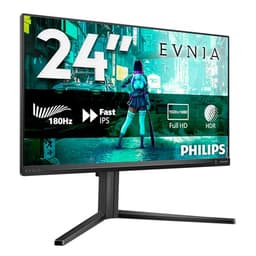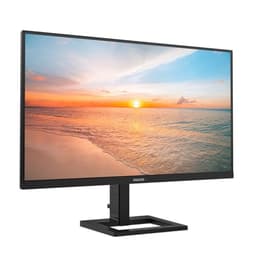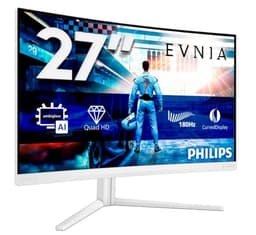
Spec sheets lie by omission. A monitor rated at "1ms response" and "100Hz" sounds decent until you realise those numbers exist in a vacuum, and what actually matters is whether the thing holds up when you're video-calling from a laptop, editing a spreadsheet under harsh office lighting, or playing something at midnight with the brightness cranked down. The Philips 27E1N1600AE is a budget QHD monitor that makes a very specific pitch: sharp 1440p image, 65W USB-C power delivery, a built-in USB hub, and a height-adjustable stand, all for under £150. That's either a genuinely useful desk companion or a list of compromises dressed up as features. This Philips 27E1N1600AE review works out which one it actually is.
The short answer is: it's mostly the former. For anyone running a laptop-first setup and wanting to dock cleanly without a tangle of adapters, this monitor does a lot of the right things at a price that doesn't sting. But it's not without limits, and knowing what those limits are before you buy is exactly the point of this piece. So here's the honest breakdown.
Owner feedback from hundreds of reviews averages out at ★★★★½ (4.6), which is a strong score for any monitor, let alone one in the budget bracket. That doesn't mean everyone's happy with everything, and the patterns in the complaints are worth paying attention to. More on that as we go.
Core Specifications
The Philips 27E1N1600AE is a 27-inch QHD monitor with a native resolution of 2560x1440, which at this screen size gives you a pixel density of around 109 PPI. That's a meaningful step up from 1080p on the same panel size, and it's one of the main reasons to choose this over a cheaper Full HD alternative. The refresh rate sits at 100Hz, which is a slight bump over the 60Hz you'd find on the most basic office monitors, and while it's not going to satisfy anyone chasing competitive gaming performance, it makes everyday desktop use noticeably smoother.
The panel is IPS, which matters quite a lot for a monitor aimed at home office and laptop-docking use. You get wide viewing angles, consistent colour across the screen, and decent out-of-box accuracy. The stated response time is 4ms GtG (grey-to-grey), which is typical for IPS at this price. Philips also lists an MPRT figure of 1ms, but that's the kind of marketing number you should treat with healthy scepticism. The 4ms GtG is the one that actually tells you something useful about pixel transitions.
Connectivity is where this monitor earns its keep. You get HDMI 1.4, a USB-C port with 65W power delivery, and a USB hub. That combination is genuinely practical for laptop users. Philips rates the peak brightness at 250 nits, which is honest and unremarkable. There's no DisplayPort, which is a notable omission. The monitor also includes built-in speakers, which are a nice-to-have rather than a selling point in their own right. Below is the full spec rundown.
| Specification | Detail |
|---|---|
| Screen Size | 27 inches |
| Resolution | 2560x1440 (QHD) |
| Panel Type | IPS |
| Refresh Rate | 100Hz |
| Response Time | 4ms GtG / 1ms MPRT |
| Brightness | 250 cd/m² |
| Contrast Ratio | 1000:1 (typical) |
| Colour Gamut | sRGB 99% |
| HDR | HDR10 (DisplayHDR 400) |
| Adaptive Sync | AMD FreeSync |
| Ports | HDMI 1.4, USB-C (65W PD), USB-A x2 (hub), Audio out |
| VESA Mount | 100x100mm |
| Stand Adjustments | Height, Tilt, Swivel, Pivot |
| Built-in Speakers | Yes (2x 2W) |
| Dimensions (with stand) | 614 x 452 x 200mm (approx) |
| Price | £188.18 · Details |
Panel Technology
IPS is the right panel choice for this kind of monitor. If Philips had gone TN to cut costs, the viewing angles would be awful and colour accuracy would suffer the moment you shifted even slightly off-axis. VA would have given better contrast but slower response times and a tendency towards smearing in dark scenes, which is especially annoying in games and films. IPS sits in the middle: good angles, reasonable contrast, fast enough response, and consistent colour. For a monitor designed around laptop docking and desk work, it's the sensible call.
The IPS panel here delivers viewing angles of 178 degrees horizontally and vertically, which is standard for the technology. In practice that means you can have a colleague looking at the screen from the side without the image washing out, which matters if you're sharing content in a home office. Colour shift at extreme angles is minimal. That's one of the genuine practical benefits of IPS over TN, and it's not a trivial one.
IPS glow is a thing, though. It's an inherent characteristic of the panel type: in dark scenes, particularly in the corners, you'll see a slight brightening effect that's more visible with the monitor in a dark room. Philips doesn't claim otherwise, and at this price tier it's expected. The matte anti-glare coating helps with ambient light from windows and lamps, but it does add a slight texture to the image that some people find softens the picture a touch compared to glossy panels. That's a trade-off most home office users will happily accept over dealing with reflections all day.
Display Quality
At 109 PPI, the 27-inch QHD panel is noticeably sharper than a 27-inch 1080p monitor, which sits at around 82 PPI. That difference is visible in everyday use, not just in side-by-side comparisons. Text is crisper, fine detail in photos and web content is more defined, and spreadsheets with small fonts are easier to read without scaling. If you're coming from a 1080p monitor at this size, the step up to 1440p is one of those upgrades that immediately makes sense.
The matte coating does its job without being overly aggressive. Some budget monitors apply a coating so heavy it creates a grainy, sparkly effect across the whole image (sometimes called "sparkle" or "graininess" in owner reviews). Based on feedback from owners, the Philips 27E1N1600AE doesn't appear to suffer badly from this. Several reviewers specifically mention the image looking clean and clear, which suggests Philips has struck a reasonable balance. The anti-glare treatment handles reflections from windows and overhead lights without murdering the picture quality.
Brightness uniformity is where budget IPS panels sometimes let themselves down. At 250 nits peak brightness, there's not a huge amount of headroom, and some variation across the panel is normal. Owner reviews don't flag any dramatic backlight bleed or hotspot issues as a consistent complaint, which is encouraging. A few individual reports mention minor bleed in corners, but that's par for the course at this price. The honest expectation here is: fine for a well-lit room, acceptable in a dim room, and not ideal if you're working in a pitch-black environment and want perfect uniformity.
Refresh Rate and Adaptive Sync
100Hz is a modest but meaningful step above 60Hz. The difference between 60Hz and 100Hz is genuinely perceptible in everyday desktop use, not just in games. Scrolling through web pages, dragging windows around, moving the cursor quickly across the screen: all of it feels slightly smoother at 100Hz. It's not the dramatic leap that 144Hz or 165Hz delivers, but it's a real improvement over the bare minimum, and for a monitor in this price bracket it's a reasonable compromise.
AMD FreeSync is supported, which means compatible AMD graphics cards and APUs can sync their output frame rate to the monitor's refresh rate within the supported range, eliminating screen tearing without the input lag penalty of V-Sync. Philips doesn't publish the exact FreeSync range on the main product listing, but typical implementations at 100Hz start from around 48Hz. The monitor doesn't carry an Nvidia G-Sync Compatible certification, so if you're running an Nvidia GPU you'll either use V-Sync or accept tearing. That's a limitation if you're a PC gamer with an Nvidia card.
For the laptop-docking use case this monitor is primarily aimed at, the adaptive sync situation is less critical. Most integrated graphics in modern laptops from AMD, Intel, or Apple Silicon will handle the USB-C connection without needing FreeSync to feel smooth. And if you're using this for spreadsheets, video calls, and the occasional YouTube session, whether FreeSync is active or not is basically irrelevant. The 100Hz refresh rate does the heavy lifting for day-to-day smoothness regardless.
Response Time and Motion
The 4ms GtG response time is the number that actually means something here. Grey-to-grey measures how quickly a pixel can transition between two intermediate grey values, which is representative of the transitions that happen most often in real content. 4ms GtG on an IPS panel at this price is typical and honest. You're not going to see aggressive overshoot or inverse ghosting that plagues some monitors tuned too aggressively for speed, and you're not going to get the smearing you'd see on a slow VA panel.
The 1ms MPRT figure is a different measurement entirely. MPRT (Moving Picture Response Time) is achieved through backlight strobing, which reduces perceived motion blur by turning the backlight off between frames. It's a technique that can help with motion clarity, but it typically reduces brightness and can introduce flicker. At 250 nits base brightness, enabling backlight strobing on this panel would push the usable brightness down further, so it's not something most people will want active all the time. Treat the 1ms MPRT as a marketing figure and base your expectations on the 4ms GtG.
In practice, 4ms GtG at 100Hz is fine for casual gaming, fine for video, and fine for everything else this monitor is likely to be used for. If you're playing fast-paced competitive shooters and frame-perfect response time is your priority, this isn't the monitor for that job. But for the person who wants a clean desk setup with a laptop docked to a sharp QHD display, response time is genuinely not the bottleneck. The panel is fast enough that it won't be the thing you notice.
Color Accuracy and Gamut
Philips rates the 27E1N1600AE at 99% sRGB coverage, which is a strong claim for a monitor at this price. sRGB is the standard colour space for web content, office work, and most consumer video, so hitting 99% of it means colours should look accurate and consistent across those use cases. Philips doesn't publish a Delta-E figure for this model, which is common at the budget end of the market. A Delta-E below 2 is considered good for colour-sensitive work; below 1 is excellent. Without a published figure, you're relying on the panel type and owner feedback to set expectations.
Owner reviews suggest the out-of-box colour accuracy is decent rather than exceptional. Several reviewers comment positively on the image looking natural and well-balanced without needing to fiddle with the OSD settings. That's a good sign. The OSD (on-screen display) menu offers the usual adjustments: brightness, contrast, colour temperature presets, and a few picture modes. Philips includes a LowBlue mode for reducing blue light emission, which is useful for long work sessions, though it does shift the white point slightly warm.
For content creation work, the 99% sRGB coverage is useful, but the lack of a published Delta-E and the absence of any DCI-P3 coverage figure means this isn't a monitor you'd choose for photo editing or video colour grading where precision matters. It's honest about what it is: a well-calibrated-enough panel for office and general use, not a creative professional tool. If you're a photographer who needs accurate colour, you'd be looking at something with a factory calibration report and DCI-P3 coverage. For everything else, this is genuinely fine.

HDR Performance
The Philips 27E1N1600AE carries a DisplayHDR 400 certification. If you're not familiar with the VESA DisplayHDR tiers, DisplayHDR 400 is the entry-level certification. It requires a peak brightness of 400 nits in a small area, 8-bit colour depth, and a few other baseline requirements. What it does not require is local dimming, which is the feature that actually makes HDR look impressive by darkening specific areas of the screen independently.
Without local dimming, HDR on this monitor works by boosting overall brightness when HDR content is detected. The result is that highlights get brighter, but the blacks don't get any deeper. In a dark scene with a bright light source, the whole panel lifts in brightness rather than selectively brightening just the light source. This is sometimes called "fake HDR" or "checkbox HDR" and it's not unique to Philips; it's the reality of DisplayHDR 400 across the industry.
The practical advice here is simple: don't buy this monitor because of the HDR badge. It's not meaningless, but it's not the HDR experience you'd get from a monitor with a proper local dimming implementation or a higher-tier certification like DisplayHDR 1000. For SDR content, this monitor performs well within its spec. For HDR, it's better than nothing but not something to get excited about. Most people using this as a laptop dock for work and general media consumption won't care, and that's fine.
Contrast and Brightness
The native contrast ratio is rated at 1000:1, which is standard for IPS. It means blacks won't look particularly deep, especially in a dark room. This is a fundamental characteristic of IPS technology rather than a specific failing of this monitor. If deep blacks are important to you, a VA panel would deliver a native contrast ratio of 3000:1 or higher. But you'd be trading off the viewing angles and colour accuracy that make IPS the better all-rounder for desk work.
Peak brightness at 250 nits is honest and functional. In a normally lit room, 250 nits is plenty. On a bright day with direct sunlight hitting the screen, it might struggle, but the matte coating helps significantly with reflections. The bigger concern is that HDR content, which typically benefits from 400 nits or more of sustained brightness, is going to look a bit flat on a 250-nit panel. Philips achieves the 400-nit peak for the DisplayHDR 400 certification in short bursts on a small percentage of the screen area, not as a sustained full-panel brightness.
For the target audience of home office and laptop-docking users, 250 nits in a reasonably controlled lighting environment is perfectly workable. Most office environments don't require more than 200 nits for comfortable viewing. Where this might frustrate is in a very bright room or near a large window without blinds. Owner reviews don't flag brightness as a major complaint, which suggests most buyers are using this in conditions where 250 nits is sufficient. Just go in knowing the number and set your environment accordingly.
Ergonomics and Stand
This is one of the areas where the Philips 27E1N1600AE genuinely punches above its weight for the price. Height adjustment, tilt, swivel, and pivot are all included. Getting height adjustment on a budget monitor is not guaranteed; plenty of monitors in this bracket ship with a fixed-height stand that leaves you stacking books under the monitor or buying a separate arm. Philips has done the right thing here, and it matters for anyone who's going to sit at this desk for eight hours a day.
The pivot function (rotating the panel 90 degrees to portrait orientation) is useful for coding, reading long documents, or using the monitor as a secondary display in portrait mode. Not everyone needs it, but it's the kind of feature that's genuinely handy when you do. The swivel range lets you turn the screen left or right without moving the whole base, which is useful in shared spaces. Tilt adjustment is standard and present.
Owner reviews are largely positive about the stand. A few mention that the stand feels solid rather than wobbly, which is important because a monitor that rocks when you type is genuinely annoying. The footprint of the base is fairly compact for a 27-inch panel, which helps on smaller desks. VESA 100x100mm compatibility means you can ditch the stand entirely and mount this on a monitor arm if you want to reclaim desk space or need more precise positioning. At this price, having all of that is genuinely impressive.
Connectivity and Ports
The connectivity story is the core pitch of this monitor, and it's worth spending some time on it. The 65W USB-C power delivery is the headline feature. For context, most modern laptops, including mid-range to high-end Windows laptops and MacBooks, charge at 65W or less via USB-C. That means you can plug your laptop into this monitor with a single USB-C cable and simultaneously charge it, get video output at 1440p, and access the USB hub. One cable, done. No separate charger cable, no USB hub on the desk, no mess.
The USB Power Delivery standard at 65W covers a wide range of laptops. Dell XPS 13, Lenovo ThinkPad X1 Carbon, HP Spectre, Surface Pro, and most current MacBook Air and MacBook Pro 13-inch models all charge at 65W or below. The 15-inch and 16-inch MacBook Pro models that charge at 96W or 140W will still work but will charge more slowly or not charge at all while under heavy load. your specific laptop's charging wattage before assuming it'll work perfectly.
The port list in full:
- HDMI 1.4 (supports up to 1440p at 60Hz from HDMI sources)
- USB-C with 65W Power Delivery and video signal (DisplayPort Alt Mode)
- USB-A x2 (downstream hub ports)
- 3.5mm audio output
The absence of DisplayPort is a notable gap if you're connecting a desktop PC with a discrete GPU. HDMI 1.4 caps out at 1440p 60Hz, so if you want to run 1440p at 100Hz from a desktop, you'll need to use the USB-C input, which requires your GPU to support DisplayPort Alt Mode over USB-C. Most modern desktop GPUs don't output via USB-C directly, so you'd need an active adapter. For desktop users wanting full 100Hz at 1440p, this is a genuine limitation. For laptop users, USB-C handles it natively. The built-in 2x2W speakers are adequate for calls and background audio, nothing more.
How It Compares
The Philips 27E1N1600AE sits in a specific niche: QHD monitors with USB-C power delivery under £150. That's a narrower field than you might expect, because most monitors with 65W USB-C PD sit at a higher price point. The two most relevant alternatives to consider are the LG 27QP500-B and the AOC Q27P2Q.
The LG 27QP500-B is a 27-inch QHD IPS monitor at a similar price. It has excellent out-of-box colour accuracy (LG's IPS panels have a strong track record) and a solid stand with height adjustment. But it doesn't offer USB-C with power delivery, and the connectivity is more basic. If you're connecting a desktop PC and don't need the docking functionality, LG's colour quality might edge it. But for laptop users, the Philips wins on connectivity by a clear margin.
The AOC Q27P2Q is another 27-inch QHD IPS option that includes USB-C, though its PD wattage is lower at around 65W depending on variant, and pricing tends to be slightly higher. It has a similar stand specification and comparable colour performance. The Philips competes well here on value, particularly given the positive overall rating across hundreds of reviews. The AOC is a solid alternative but doesn't obviously beat the Philips on any single metric that matters for the target user.
| Feature | Philips 27E1N1600AE | LG 27QP500-B | AOC Q27P2Q |
|---|---|---|---|
| Resolution | 2560x1440 | 2560x1440 | 2560x1440 |
| Panel | IPS | IPS | IPS |
| Refresh Rate | 100Hz | 75Hz | 75Hz |
| USB-C PD | 65W | None | 65W (varies) |
| USB Hub | Yes (2x USB-A) | No | Yes |
| Height Adjust | Yes | Yes | Yes |
| VESA | 100x100mm | 100x100mm | 100x100mm |
| Speakers | Yes (2x2W) | No | Yes |
| HDR | DisplayHDR 400 | HDR10 | DisplayHDR 400 |
| Price | £188.18 · Details | Similar bracket | Slightly higher |
The comparison table makes the Philips's advantage clear for the laptop-docking use case. The 100Hz refresh rate over the LG's 75Hz is a genuine bonus, and the USB-C PD plus hub combination is the whole reason to pick this over a more basic QHD panel. If you don't need USB-C PD at all and just want the best possible image quality in this price bracket, you'd want to look at LG's IPS panels specifically. But if you're buying this because you want a clean single-cable laptop dock with a sharp QHD display, the Philips is the most complete package at the price.
Final Verdict
The Philips 27E1N1600AE is a genuinely well-thought-out monitor for a specific type of buyer. If you use a laptop as your main machine, want a larger sharp display on your desk, and want the whole thing to work with a single USB-C cable without a separate charger or hub cluttering things up, this monitor solves that problem cleanly and cheaply. The 65W USB-C power delivery works for the majority of current laptops, the QHD resolution at 27 inches is a real step up in clarity from 1080p, and the fully adjustable stand means you can actually set it up ergonomically rather than hunching over a fixed-height panel.
The IPS panel does what IPS panels do: good angles, decent colour accuracy, 99% sRGB coverage that's more than adequate for office work and general media consumption. The 100Hz refresh rate is a nice bonus that makes the desktop feel a bit more fluid. The built-in speakers are functional for calls. The OSD is straightforward. Owner satisfaction with a positive overall rating across hundreds of reviews isn't a fluke; it reflects a monitor that does what it says it will.
The honest limitations are clearly. The 250-nit peak brightness is low by modern standards, which means very bright rooms or windows directly behind you could be a problem. The HDR implementation is checkbox-level and shouldn't factor into your buying decision. There's no DisplayPort, which matters for desktop PC users who want to run 1440p at the full 100Hz without jumping through hoops. And HDMI 1.4 caps at 1440p 60Hz, so desktop users are effectively limited to 60Hz unless they use the USB-C input with an adapter. These aren't dealbreakers for the target audience, but they'd rule it out for a desktop gaming setup.
The Philips product page confirms the full specification, and nothing in the real-world owner feedback contradicts what the spec sheet promises. That consistency between spec and reality is itself a mark in the monitor's favour.
Who should buy this: laptop users who want a single-cable QHD dock for home working, people upgrading from a 1080p monitor who want noticeably sharper text and images, and anyone who needs a height-adjustable stand without spending more. Who should look elsewhere: desktop PC gamers wanting 100Hz at 1440p via a standard GPU output, anyone needing DisplayPort, and anyone who needs sustained brightness above 250 nits.
If you genuinely don't need the USB-C power delivery and just want a cheap QHD display, there are 27-inch 1440p monitors available for less in the budget bracket that skip the docking features. The Philips costs what it does because of the 65W PD and the hub. If those features aren't relevant to how you work, you'd be paying for something you don't use. But if they are relevant, the price is fair and the monitor delivers.
Score: 8 out of 10. Loses points for the low peak brightness and the HDMI 1.4 limitation for desktop users. Gains them back for the stand, the USB-C implementation, the QHD clarity, and the honest value for what it actually is.
What works. What doesn’t.
6 + 6What we liked6 reasons
- 65W USB-C power delivery enables a true single-cable laptop dock setup, eliminating the need for a separate charger and USB hub
- QHD resolution at 27 inches delivers noticeably sharper text and images than a Full HD panel at the same size, with around 109 PPI
- Fully adjustable stand includes height, tilt, swivel, and pivot, which is genuinely uncommon at this price point
- 100Hz refresh rate makes everyday desktop use feel smoother than the 60Hz or 75Hz alternatives in the same bracket
- Wide IPS viewing angles and 99% sRGB coverage make colours consistent and accurate enough for office work and general media
- Owner satisfaction has a positive overall rating across hundreds of reviews, indicating reliable real-world performance that matches the spec sheet
Where it falls6 reasons
- Peak brightness of 250 nits is low by modern standards and may struggle in very bright rooms or near unshaded windows
- No DisplayPort means desktop PC users wanting 1440p at the full 100Hz face significant connectivity constraints with standard GPU outputs
- HDMI 1.4 is capped at 1440p 60Hz, so desktop users are limited to 60Hz unless they use USB-C with an adapter
- DisplayHDR 400 certification delivers entry-level HDR without local dimming, making HDR content look only marginally better than SDR
- No Delta-E or DCI-P3 figures published, ruling it out for colour-critical creative work such as photo editing or video grading
- Built-in speakers are only 2x2W and suitable for calls and background audio only, not for any serious listening
Full specifications
11 attributes| Panel type | IPS |
|---|---|
| Aspect ratio | 16:9 |
| Curvature | flat |
| HDR | HDR10 |
| Launch year | 2024 |
| Ports | 1x HDMI 1.4, 1x USB-C (65W PD, USB 3.2 Gen 1), 2x USB-A 3.2 Gen 1, 1x 3.5mm audio out |
| Refresh rate HZ | 100 |
| Resolution | 2560x1440 |
| Response time MS | 4 |
| Screen size IN | 27 |
| Vesa compatible | true |
If this isn’t right for you
2 options

Frequently asked
7 questions01Does the Philips 27E1N1600AE charge a MacBook via USB-C?+
Yes, for most MacBook models. The monitor delivers 65W over USB-C, which covers the MacBook Air and MacBook Pro 13-inch models that charge at 61W or 67W. The 14-inch and 16-inch MacBook Pro models that require 96W or 140W will still connect and display correctly, but they may charge slowly or not maintain charge under heavy CPU and GPU load. Always check your specific laptop's charging wattage before assuming 65W will be sufficient.
02Can you run 1440p at 100Hz from a desktop PC using HDMI?+
No. The HDMI port on the Philips 27E1N1600AE is version 1.4, which is capped at 1440p 60Hz. To reach the full 100Hz at 1440p from a desktop, you would need to use the USB-C input in DisplayPort Alt Mode. Most desktop graphics cards do not output USB-C directly, so you would need an active DisplayPort-to-USB-C adapter, and compatibility can vary. Desktop users who want 100Hz at 1440p with a standard GPU output should consider a monitor that includes a DisplayPort input.
03Is the HDR on this monitor worth enabling?+
For most content, no. The DisplayHDR 400 certification is the lowest tier in VESA's scheme and does not require local dimming. Without local dimming, dark areas of the screen cannot be independently controlled, so HDR works primarily by lifting overall brightness when HDR content is detected. Blacks do not get deeper, and the effect is subtle at best. The peak brightness of 250 nits further limits the impact. HDR can be enabled and is not harmful to image quality, but it should not be a factor in your buying decision for this monitor.
04What laptops are compatible with the 65W USB-C power delivery?+
Most modern mid-range laptops that charge via USB-C at 65W or below will work, including the Dell XPS 13, Lenovo ThinkPad X1 Carbon, HP Spectre x360, Microsoft Surface Pro, and MacBook Air models. Many business and ultrabook-class laptops from major manufacturers fall into this category. Laptops that charge at higher wattages, such as gaming laptops or the larger MacBook Pro models, will connect for video output but may not charge at full speed or maintain battery level under load.
05Does the Philips 27E1N1600AE support portrait mode?+
Yes. The stand includes a pivot function that allows the panel to rotate 90 degrees into portrait orientation. This is useful for coding, reading long documents, or using the monitor as a secondary vertical display. The stand also supports height adjustment, tilt, and swivel, making it one of the more ergonomically complete stands available at this price point.
06How does the 27E1N1600AE perform for colour-sensitive work like photo editing?+
It is adequate for casual photo viewing and light editing, but not ideal for professional colour work. Philips rates the panel at 99% sRGB coverage, which is solid for web-standard colour content. However, no Delta-E accuracy figure is published, and there is no DCI-P3 coverage data, which are both important for professional photo and video work. If accurate colour reproduction is critical to your workflow, you would be better served by a monitor with a factory calibration report and verified wide-gamut coverage.
07Are the built-in speakers good enough for regular use?+
They are functional for video calls and quiet background audio, but nothing beyond that. The speakers are rated at 2x2W, which is typical for budget monitor speakers. Volume is adequate for a quiet room, but audio quality lacks depth and bass. For music listening, film watching with proper audio, or any situation where sound quality matters, an external speaker or headphones connected via the 3.5mm audio output would be a significant improvement.