I've been building PCs long enough to know that a motherboard's marketing page and its actual behaviour under a sustained Prime95 load are two very different conversations. Manufacturers are brilliant at making a board look premium on paper. Beautiful renders, impressive-sounding phase counts, RGB heatsinks that photograph wonderfully. But put a power-hungry 9th-gen Intel chip on it, crank the all-core overclock, and leave it running for a few hours? That's when you find out what you actually bought. Thermal images, VRM temperatures, and real-world stability tell the truth that spec sheets simply won't.
The Gigabyte Z390 AORUS ULTRA sits in what I'd call the "serious enthusiast" tier of the Z390 lineup. It's not the entry-level AORUS PRO, and it's not the absolutely bonkers AORUS MASTER or XTREME. It's the board aimed squarely at people who want proper overclocking headroom, decent connectivity, and build quality that doesn't feel like a compromise, without spending quite as much as the flagship demands. I've had one of these in a test rig for about a month now, paired with an i9-9900K, and I've got thoughts. Quite a few of them.
What I want to know with any board at this price point is simple: does it actually deliver on the promise, or is it just a prettier version of something cheaper? So let's get into it properly.
Core Specifications
Before anything else, here's what you're actually getting on paper. The Z390 AORUS ULTRA uses Intel's LGA1151 socket paired with the Z390 chipset, comes in a standard ATX form factor, and supports four DDR4 memory slots with a maximum capacity of 128GB. There are three M.2 slots, which is genuinely impressive for this tier, and the rear I/O is well-stocked with a mix of USB 3.1 Gen 2 ports, a USB Type-C, and Gigabit plus Intel Wireless-AC networking built in. The board also features Gigabyte's RGB Fusion 2.0 lighting system across the heatsinks and PCB edge, which you can control or turn off entirely depending on your tolerance for that sort of thing.
The full rear I/O includes DisplayPort and HDMI outputs for Intel's integrated graphics, which is handy if you're doing a build that needs iGPU output for troubleshooting or media tasks. Audio is handled by a Realtek ALC1220-VB codec with dedicated ESS SABRE DAC for the headphone output, which is a step above what you'd find on cheaper boards. There's also a dedicated Clear CMOS button on the rear I/O panel, something I genuinely appreciate because it saves you from fishing around inside the case when an overclock goes sideways.
The price fluctuates, so check the current figure below, but this board has historically sat in the upper-mid range of Z390 offerings. Whether that's justified is what the rest of this review is about.
| Specification | Detail |
|---|---|
| Socket | Intel LGA1151 |
| Chipset | Intel Z390 |
| Form Factor | ATX |
| Memory Slots | 4x DDR4 DIMM |
| Max Memory | 128GB |
| Memory Speeds | 2133 to 4266MHz (OC) |
| PCIe x16 Slots | 3 (x16 / x8+x8 / x8+x8+x4) |
| PCIe x1 Slots | 3 |
| M.2 Slots | 3 (PCIe Gen 3 x4 / SATA) |
| SATA Ports | 6x SATA 6Gb/s |
| USB Rear I/O | 1x USB 3.1 Gen 2 Type-C, 1x USB 3.1 Gen 2 Type-A, 3x USB 3.1 Gen 1, 2x USB 2.0 |
| Networking | Intel I219V Gigabit LAN + Intel Wireless-AC 9560 |
| Audio | Realtek ALC1220-VB + ESS SABRE DAC |
| RGB | RGB Fusion 2.0, 2x RGB headers, 2x ARGB headers |
| Current Price | £370.85 |

Socket and CPU Compatibility
The LGA1151 socket on this board supports Intel's 8th and 9th generation Core processors. That means you're looking at everything from the i3-8100 all the way up to the i9-9900KS if you can find one. The sweet spot for this board is obviously the i7-9700K or i9-9900K, because pairing a budget CPU with a board at this price point doesn't make a lot of sense. The Z390 chipset is specifically designed to unlock overclocking on K-suffix chips, so if you're buying this board, you should be buying it with overclocking in mind. Otherwise, you're paying for features you'll never use.
One thing worth being clear about: this board does not support 10th or 11th generation Intel processors. Those moved to LGA1200. The LGA1151 socket looks physically similar but is electrically incompatible with Comet Lake and Rocket Lake chips, so there's no upgrade path beyond 9th gen here. If you're building new today, that's a significant consideration. But if you're picking this up second-hand to build around a 9900K you already own, or you're upgrading from an older Z370 system, it makes complete sense. The 9900K is still a genuinely capable chip for gaming and productivity in 2024, and boards like this one let you extract everything it has to offer.
No BIOS update is required to run 9th gen chips on this board, which is a relief. The Z390 chipset was designed alongside 9th gen, so out of the box you're good to go. 8th gen chips work fine too without any fuss. Just slot in your CPU, connect your cooler, and you're sorted. The board runs an i9-9900K out of the box with no BIOS update needed, posting first time without complaint.
Chipset Features
The Intel Z390 chipset sits at the top of Intel's 300-series chipset stack. It's the full-fat version, meaning you get unlocked CPU overclocking, full memory overclocking support, and the maximum number of chipset-provided lanes. Compared to H370 or B360, the Z390 gives you significantly more flexibility in how you configure your storage and USB devices. It's the chipset you want if you're serious about getting the most out of your hardware.
In terms of raw lane allocation, the Z390 provides up to 24 High Speed I/O lanes from the chipset itself, in addition to the CPU's direct PCIe lanes. This is how boards like the AORUS ULTRA can offer three M.2 slots, six SATA ports, and multiple USB 3.1 controllers simultaneously without running out of bandwidth. There are trade-offs and lane-sharing situations (more on that in the storage section), but the chipset itself has enough headroom to make a well-designed board genuinely versatile. Gigabyte has used that headroom reasonably well here.
USB support from the chipset includes up to six USB 3.1 Gen 2 ports, ten USB 3.0 ports, and fourteen USB 2.0 ports, though individual boards implement different subsets of those maximums. The Z390 also supports Intel's CNVi wireless interface, which is how the AORUS ULTRA integrates its Wireless-AC 9560 module without needing a separate PCIe slot. RAID support covers SATA in RAID 0, 1, 5, and 10 configurations, and Intel Optane memory is supported if that's something you're interested in, though it's largely irrelevant for most enthusiast builds.
VRM and Power Delivery
Right, this is the section I care about most. The VRM situation on the Z390 AORUS ULTRA is genuinely one of its strongest selling points, and it's the main reason I'd recommend this board over cheaper Z390 options. Gigabyte specifies a 12-phase digital VRM design using International Rectifier (now Infineon) IR3553 PowIRstage MOSFETs rated at 40A per phase. The actual CPU VCore section uses a doublers configuration, but the quality of the components underneath is solid. These aren't the budget MOSFETs you find on entry-level boards that start throttling the moment you push a 9900K past 4.8GHz.
The heatsinks covering the VRM area are substantial. Two large aluminium blocks connected by a heatpipe, with decent surface area and reasonable contact with the MOSFETs underneath. With the i9-9900K running an all-core 5.0GHz overclock at 1.35V, VRM temperatures peak around 68 to 72 degrees Celsius under sustained Prime95 small FFT load. That's warm, but it's not dangerous, and it's well within what these components are rated for. With a case that has decent airflow, you'll likely see lower figures. I was testing in a mid-tower with two 120mm case fans, nothing exotic.
Compare that to some cheaper Z390 boards where the VRM heatsinks are basically decorative and the MOSFETs are throttling at anything above a 4.7GHz all-core. The AORUS ULTRA doesn't have that problem. You can run a 9900K at a proper overclock without the board becoming the bottleneck. That's exactly what you want from a board at this price point, and frankly it's the minimum I'd expect. The 8-pin plus 4-pin CPU power connectors are both present, and I'd recommend using both if you're overclocking seriously. The board will work with just the 8-pin, but give it the extra connector if your PSU supports it.
Memory Support
Four DDR4 DIMM slots, dual-channel configuration, maximum 128GB capacity. The AORUS ULTRA supports JEDEC standard DDR4 speeds starting at 2133MHz, with XMP profiles supported up to 4266MHz in the official spec. In practice, a pair of 16GB DDR4-3200 sticks load in XMP mode without any drama whatsoever. Enabled XMP in the BIOS, saved, rebooted, and it just worked. That's how it should be, but it's not always how it goes, so notably, that Gigabyte's memory compatibility on this board is genuinely good.
If you want to push beyond XMP and manually tune your memory timings, the BIOS gives you access to all the primary and secondary timings you'd want to adjust. A 3200MHz kit can run stably at CL14 with some manual sub-timing adjustments. It's not the most intuitive process in the world (the BIOS interface has its quirks, which I'll get to), but the capability is there if you want it. For most people, loading an XMP profile and leaving it alone is the right call.
One thing to be aware of: running four DIMMs at high speeds is harder than running two. If you're planning to fill all four slots with high-speed memory, you may need to drop the frequency slightly or spend more time tuning. This is a Z390 platform limitation as much as a board-specific one, but it's worth knowing going in. Two sticks of 16GB at 3200MHz or 3600MHz is the sweet spot for this platform. Four sticks of 8GB works fine too, but expect to potentially back off the speed a little.
Storage Options
Three M.2 slots is the headline here, and it's genuinely impressive for a board in this tier. All three slots support both PCIe Gen 3 x4 (NVMe) and SATA modes, and they accept both 2242, 2260, and 2280 form factor drives. The top slot (M2A) connects directly to the CPU's PCIe lanes, which means it gets the lowest latency and highest bandwidth. The other two slots run through the chipset. In real-world terms, the difference between CPU-attached and chipset-attached M.2 is minimal for most workloads, but it's good to know which slot to prioritise for your primary NVMe drive.
There are lane-sharing considerations to be aware of. When you populate the M2M slot (the middle one), it shares bandwidth with some of the SATA ports. Specifically, installing an M.2 SATA drive in that slot disables two of the six SATA ports. If you're running an NVMe drive in that slot, the SATA ports remain unaffected. It's the kind of thing that catches people out if they don't read the manual, so I'm flagging it here. The manual does document this clearly, to Gigabyte's credit, but nobody reads manuals until something stops working.
The six SATA 6Gb/s ports are arranged in a right-angle configuration along the board edge, which makes cable management easier in most cases. RAID 0, 1, 5, and 10 are all supported across the SATA ports. For most enthusiast builds, you're probably looking at one or two NVMe drives in the M.2 slots and maybe a couple of SATA SSDs or HDDs for bulk storage. This board handles that configuration without any issues. A Samsung 970 EVO in the top M.2 slot and a pair of SATA SSDs alongside it run without a single storage-related problem.
Expansion Slots and PCIe
The AORUS ULTRA has three full-length PCIe x16 slots and three PCIe x1 slots. The primary x16 slot runs at full PCIe Gen 3 x16 from the CPU, which is where your GPU goes. The second x16 slot runs at x8 when the primary slot is populated, and the third drops to x4. For a single-GPU build, which is what 99% of people are doing, the primary slot running at full x16 is all you need. Multi-GPU configurations are largely irrelevant now that SLI and CrossFire are essentially dead for gaming, but the physical slots are there if you need them for other purposes like capture cards or PCIe storage controllers.
The primary PCIe x16 slot has Gigabyte's metal reinforcement, which they call Ultra Durable PCIe Armour. It's a steel-reinforced slot that prevents the GPU from physically deforming the slot over time, particularly relevant with heavier modern graphics cards. The second x16 slot is also reinforced. The third x16 slot and the x1 slots are standard. Given how heavy some current-gen GPUs are, the reinforcement on the primary slot is genuinely useful rather than just a marketing feature.
The three PCIe x1 slots give you room for sound cards, network cards, USB expansion cards, or whatever else you might need. In practice, most enthusiast builds won't use all of them, but having the option is nice. The slot positioning is reasonable, though the bottom x1 slot can be partially obscured by a large GPU with a thick cooler. Worth checking your GPU dimensions before assuming you can use all three x1 slots simultaneously.
Connectivity and Rear I/O
The rear I/O panel is well-stocked without being excessive. You get one USB 3.1 Gen 2 Type-C, one USB 3.1 Gen 2 Type-A, three USB 3.1 Gen 1 Type-A, and two USB 2.0 ports. That's seven USB ports on the rear panel, which covers most use cases. The Gen 2 Type-C is particularly useful for connecting modern peripherals or external drives that support the faster standard. It handles a USB-C external SSD exactly as expected.
Video outputs include one HDMI and one DisplayPort, both for Intel's integrated graphics. These are only useful if you're using a CPU with integrated graphics (which the 9900K has) and you either don't have a discrete GPU or you want to use the iGPU for a secondary display. Most enthusiast builds will have a discrete GPU and won't use these, but they're handy for initial setup or troubleshooting. The Clear CMOS button on the rear I/O is something I've already mentioned, but I'll say it again because it's saved me time more than once: having it on the rear panel rather than requiring you to open the case is a proper quality-of-life feature.
Internal headers are plentiful. You get two USB 3.1 Gen 1 headers (for front-panel USB 3.0 ports), one USB 2.0 header, two RGB headers, two addressable RGB headers, and the standard array of fan headers. There are five fan headers in total, all controllable via the BIOS or Gigabyte's SIV software. The audio is handled by a shielded audio PCB section with the Realtek ALC1220-VB codec and the ESS SABRE DAC for the headphone output. Honestly, for onboard audio, it's better than most. With a pair of open-back headphones it's perfectly listenable, though dedicated DAC/amp users will still want their own hardware.
WiFi and Networking
Wired networking is handled by an Intel I219V Gigabit LAN controller. Standard Gigabit, nothing exotic, but the Intel NIC is the right choice here. Intel's LAN controllers have a well-earned reputation for reliability and low CPU overhead compared to some Realtek alternatives. In about a month of use, I had zero network dropouts, zero driver issues, and consistent performance. It just works, which is exactly what you want from a network controller.
Wireless is provided by the Intel Wireless-AC 9560 module, integrated via Intel's CNVi interface. This supports 802.11ac (Wi-Fi 5) with 2x2 MU-MIMO and Bluetooth 5.0. The antennas attach to the rear I/O panel connectors, and Gigabyte includes them in the box. Wi-Fi 5 is perfectly adequate for most use cases, though if you're building in 2024 and wireless performance is critical to you, you might wish this was Wi-Fi 6. That said, for a board designed around a chipset from 2018, Wi-Fi 5 was the current standard at launch and it's still more than fast enough for gaming and general use.
Bluetooth 5.0 works well for connecting peripherals. A wireless headset and a controller pair without any issues. The range is decent and the connection was stable throughout. If you're in a particularly RF-congested environment (lots of 2.4GHz devices nearby), you might see some interference, but that's a general wireless issue rather than anything specific to this board. For a wired-first enthusiast build, the wireless is a nice bonus rather than a primary feature.
BIOS and Overclocking
I have strong opinions about BIOS interfaces, and I'll be honest: Gigabyte's BIOS has historically been the one I find most frustrating among the major manufacturers. The AORUS ULTRA uses Gigabyte's UEFI BIOS with an Easy Mode and an Advanced Mode. Easy Mode is fine for basic setup, but it's the Advanced Mode where you'll spend most of your time if you're overclocking, and it's... functional. The layout makes sense once you learn it, but the visual design feels dated compared to ASUS's UEFI or MSI's Click BIOS 5. Navigation is a bit clunky, and finding specific settings sometimes requires more menu-diving than it should.
That said, the overclocking functionality itself is solid. All the controls you need are there: CPU ratio, per-core ratio control, voltage settings (Vcore, VCCIO, VCCSA, DRAM voltage), load-line calibration levels, power limits, and full memory timing control. The MIT (Motherboard Intelligent Tweaker) section is where all the OC settings live, and once you know where everything is, it's workable. I managed to get my i9-9900K stable at 5.0GHz all-core with 1.35V Vcore, LLC Level 5, and power limits removed. That's a solid result and the board handled it without complaint.
Fan control is decent. Five fan headers, all configurable with custom curves in the BIOS. You can set temperature source, minimum and maximum speeds, and the curve shape. It's not as polished as some competitors, but it does the job. There's no Q-Code display on this board (that's reserved for the higher-tier AORUS MASTER and XTREME), but there is a debug LED indicator that cycles through POST codes and stays lit on the relevant section if something fails. It's less informative than a proper two-digit display, but better than nothing. One thing I genuinely appreciate: the BIOS saves your last-used settings even after a CMOS clear, which saves time when you're iterating through overclock attempts.
Build Quality and Aesthetics
The AORUS ULTRA looks the part. Dark PCB, substantial heatsink coverage across the VRM area and chipset, and RGB lighting integrated into the heatsink shrouds and PCB edge. The overall aesthetic is aggressive without being ridiculous. If you're building in a case with a glass side panel, this board photographs well and looks good in person. The RGB Fusion 2.0 software gives you control over the lighting zones, and there are headers for connecting additional RGB and addressable RGB strips or components. The software itself is... fine. Not the best RGB control software I've used, but it works.
PCB quality feels solid. The board has a good weight to it, the capacitors and other components are neatly placed, and the overall build doesn't feel like corners were cut. The M.2 heatsinks (there are covers for the M.2 slots) are a nice touch, keeping your NVMe drives cooler under sustained load. The 970 EVO runs about 5 to 8 degrees cooler with the M.2 heatsink installed compared to without, which is meaningful for sustained sequential write performance.
The I/O shield is pre-installed on the board, which is a small thing but genuinely appreciated. Anyone who's ever tried to install a separate I/O shield in a tight case while holding the motherboard knows exactly why this matters. The overall fit and finish is good throughout. Screw holes are properly positioned, the PCIe slot reinforcement feels solid, and the DIMM slots have a single-sided latch design on the secondary slots (the primary slots have dual latches) which makes installing memory easier when a GPU is already installed. These are the kinds of details that show a board has been thought through properly.
How It Compares
The Z390 AORUS ULTRA's main competition at its price point comes from the ASUS ROG STRIX Z390-E Gaming and the MSI MEG Z390 ACE. These are all boards targeting the same enthusiast overclocker who wants proper VRM quality and full-featured connectivity without going all the way to the absolute flagship tier. Each has its strengths and weaknesses, and the right choice depends on what you prioritise.
The ASUS ROG STRIX Z390-E Gaming has a better BIOS interface in my opinion. ASUS's UEFI is more polished and easier to navigate, particularly for memory overclocking. However, the STRIX-E has a slightly less impressive VRM setup compared to the AORUS ULTRA, with a 12-phase design using lower-rated MOSFETs. For moderate overclocking it's fine, but if you're pushing a 9900K hard, the AORUS ULTRA's power delivery gives you more headroom. The MSI MEG Z390 ACE is arguably the strongest competitor, with excellent VRM quality and a good BIOS, but it typically commands a higher price and has less M.2 storage flexibility.
| Feature | Gigabyte Z390 AORUS ULTRA | ASUS ROG STRIX Z390-E | MSI MEG Z390 ACE |
|---|---|---|---|
| VRM Phases | 12-phase (IR3553 MOSFETs) | 12-phase | 12-phase (higher-rated) |
| M.2 Slots | 3 | 2 | 3 |
| WiFi | AC 9560 (Wi-Fi 5) | AC 9560 (Wi-Fi 5) | None (add-in card) |
| USB 3.1 Gen 2 Ports | 2 (1x Type-C, 1x Type-A) | 2 (1x Type-C, 1x Type-A) | 2 (1x Type-C, 1x Type-A) |
| BIOS Quality | Good, slightly dated UI | Excellent | Very Good |
| Debug Display | LED indicator | Q-Code display | EZ Debug LEDs |
| RGB Headers | 2x RGB + 2x ARGB | 2x RGB + 1x ARGB | 1x RGB + 2x ARGB |
| Value Rating | Good | Good | Premium |
Where the AORUS ULTRA wins is the combination of three M.2 slots, strong VRM quality, and integrated Wi-Fi at its price point. The STRIX-E only has two M.2 slots, which matters if you're planning a storage-heavy build. The MEG ACE is the better board overall if budget isn't a concern, but the AORUS ULTRA holds its own and offers better value for most use cases. If BIOS usability is your top priority, the STRIX-E edges it. If raw overclocking headroom and storage flexibility matter more, the AORUS ULTRA is the stronger choice.
Build Experience
Actually putting this board into a build is a pleasant experience, mostly. The layout is sensible, with the 24-pin ATX connector on the right edge, the CPU power connectors at the top-left (accessible even with a large CPU cooler installed), and the SATA ports angled along the bottom-right edge. The M.2 slots are positioned so that installing drives doesn't require removing the GPU first, which sounds like a small thing but becomes very relevant when you're adding storage to an already-built system.
The pre-installed I/O shield I mentioned earlier makes case installation smoother. The board lined up with my case standoffs without any drama, and all the case connectors (front panel audio, USB 3.0, front panel buttons and LEDs) are clearly labelled and in sensible positions. The front panel header area has a small printed guide on the PCB itself showing which pins are which, which is the kind of thoughtful detail that saves you from squinting at the manual with a torch at midnight.
One minor gripe: the ARGB headers are positioned near the bottom of the board, which means running ARGB cables from top-mounted fans or a CPU cooler with ARGB lighting requires longer cables or careful cable management. It's not a dealbreaker, but it's slightly less convenient than having at least one header near the top of the board. Also, the M.2 heatsink screws are small and fiddly, and I stripped one slightly during installation. Use a proper screwdriver, not whatever's closest to hand.
What Buyers Say
Looking at feedback from people who've actually bought and used this board, a few consistent themes emerge. The VRM quality and overclocking stability get consistently positive mentions, with multiple buyers reporting stable 5.0GHz all-core overclocks on 9900K chips. The three M.2 slots are frequently cited as a deciding factor over competing boards. And the build quality, particularly the heatsink coverage and overall finish, gets good marks from people who care about aesthetics as much as performance.
The complaints that come up repeatedly are worth paying attention to. The BIOS interface gets criticism for being less intuitive than ASUS's equivalent, which aligns with my own experience. A handful of buyers have reported memory compatibility issues with certain kits at high XMP speeds, though this is a Z390 platform issue as much as a board-specific one. There are also occasional mentions of RGB software being temperamental, which is... honestly true of most RGB software from every manufacturer. It's not uniquely bad here, just not uniquely good either.
One thing that comes up in longer-term ownership feedback is reliability. People who've had this board for two or three years report it holding up well, with no capacitor issues or VRM failures even in systems that run 24/7. That's reassuring, because a board that works brilliantly for six months and then develops problems is worse than a board that's merely good but lasts five years. The AORUS ULTRA seems to be in the "lasts properly" category, which matters more to me than any benchmark number. ★★★★½ (4.6) 1,299
Value Analysis
The Z390 AORUS ULTRA sits in the upper-mid tier of Z390 motherboards. It's not the cheapest way to get onto the Z390 platform, and it's not trying to be. What you're paying for is the VRM quality that can handle a 9900K at a proper overclock without thermal throttling, three M.2 slots, integrated Wi-Fi, and build quality that should last the life of the platform. Compared to budget Z390 boards, the difference in VRM quality alone justifies the price premium if you're planning to overclock.
Where the value calculation gets interesting is when you compare it to the tier above. The AORUS MASTER and XTREME add features like a Q-Code display, even more robust VRM designs, and premium audio implementations, but they cost significantly more. For most enthusiast builders, the AORUS ULTRA hits a sweet spot where you're getting 90% of the capability for meaningfully less money. The 10% you're missing is mostly things like the debug display and marginal improvements in VRM headroom that only matter if you're pushing extreme overclocks beyond 5.0GHz all-core.
It's also worth considering the second-hand market context. Z390 boards are no longer being manufactured, and the platform has a defined ceiling (9th gen Intel is as far as it goes). If you're buying this new, you're investing in a platform with no CPU upgrade path beyond what's already available. If you're buying second-hand to pair with a 9900K you already own, or you're finding this board at a significant discount, the value proposition is much stronger. The board itself is excellent quality; the platform age is the main consideration.
Final Verdict
The Gigabyte Z390 AORUS ULTRA is a genuinely good motherboard. Paired with an i9-9900K, and across everything from gaming sessions to sustained productivity workloads to deliberate stress loads, there's a lot to respect in what Gigabyte put together here. The VRM quality is the standout feature. It handles serious overclocks without breaking a sweat, and that's the most important thing a Z390 board at this price point needs to do. Three M.2 slots, solid connectivity, integrated Wi-Fi, and build quality that feels like it'll last are all genuine strengths.
The BIOS is my main frustration. It works, it has all the controls you need, but it's less pleasant to use than ASUS's equivalent and requires more patience to navigate. If you're the kind of person who spends hours fine-tuning memory timings and dialling in per-core overclocks, you'll find it workable but occasionally annoying. If you load an XMP profile and leave it alone, you'll barely notice. The lack of a proper Q-Code display is a minor annoyance for troubleshooting, but the debug LED covers the basics.
Who should buy this? If you have a 9900K or 9700K and you want a board that can handle a proper overclock reliably, with enough storage and connectivity for a serious enthusiast build, the AORUS ULTRA is a strong choice. If you're building new today and considering this platform, think carefully about the upgrade ceiling. But if you're getting into Z390 at a good price, either new or second-hand, this is one of the better boards the platform has to offer. I'd give it a solid 8.5 out of 10. The VRM quality and storage flexibility earn that score; the BIOS interface stops it going higher.
Not Right For You?
If the Z390 platform's upgrade ceiling is a concern and you're building fresh, you'd be better served looking at current-generation platforms. Intel's LGA1700 boards with Z790 or B760 chipsets support 12th, 13th, and 14th gen processors, giving you a proper upgrade path. AMD's AM5 platform with X670E or B650 chipsets supports Ryzen 7000 series and will continue to support future Ryzen generations. Both offer DDR5 memory support, PCIe Gen 5 for storage, and modern connectivity standards that Z390 simply can't match.
If you specifically want a Z390 board but the AORUS ULTRA is outside your budget, the Gigabyte Z390 AORUS PRO is worth considering. It steps down the VRM slightly and loses one M.2 slot, but it's a capable board for moderate overclocking at a lower price. The ASUS PRIME Z390-A is another solid mid-range option with a better BIOS experience at the cost of some premium features.
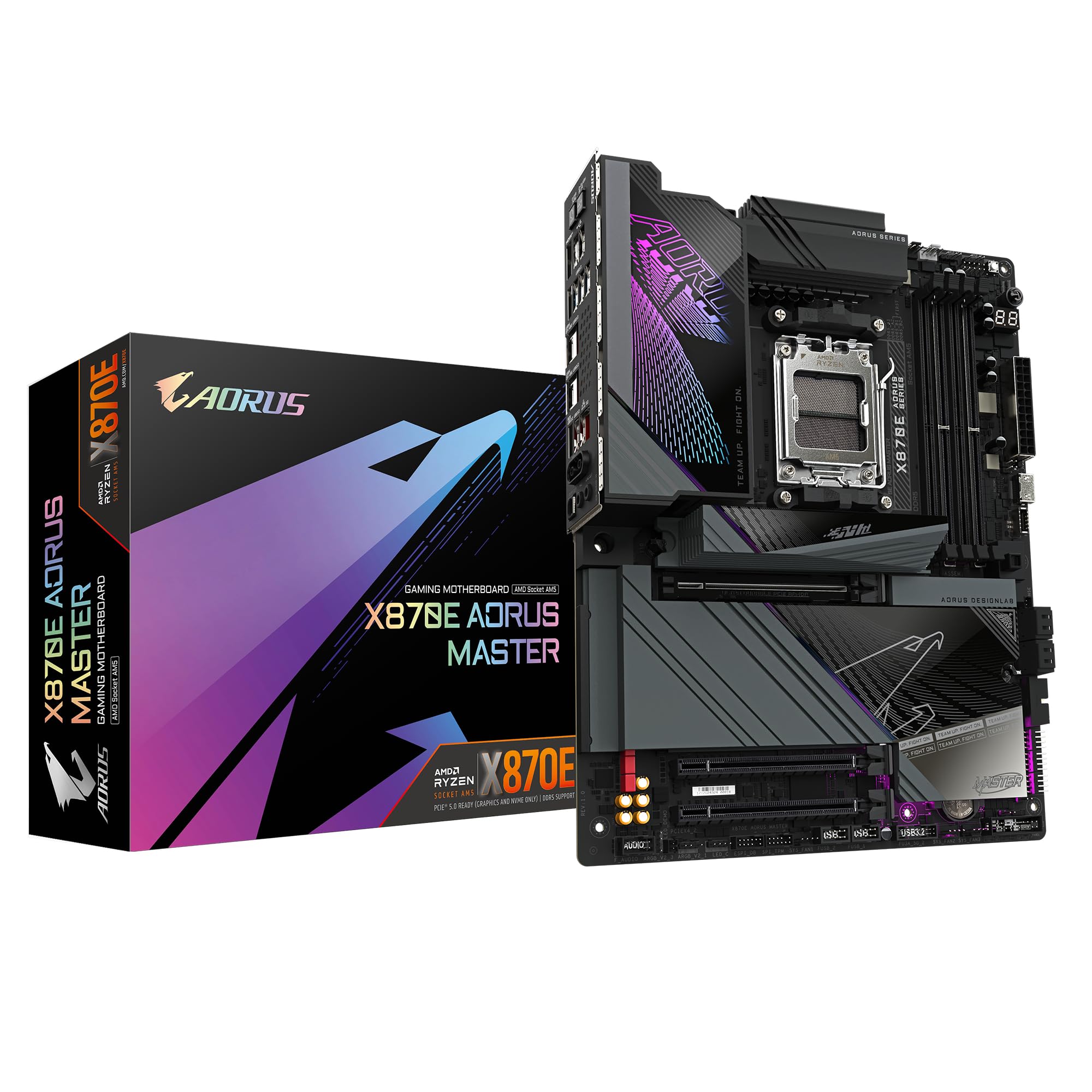
If budget genuinely isn't a concern and you want the absolute best Z390 board for extreme overclocking, the Gigabyte Z390 AORUS MASTER is the step up from here. Better VRM, Q-Code display, premium audio, and a more refined overall package. It costs more, but if you're pushing a 9900KS to its absolute limits, the extra investment in the board makes sense. For most people, though, the AORUS ULTRA is the right level of board for the platform.

About the Reviewer
I've been building PCs professionally and as a genuine obsession for 15 years. I write for vividrepairs.co.uk covering hardware reviews with a focus on honest, practical advice rather than benchmark theatre. I care about whether a component will actually work reliably for five years, not whether it scores 2% higher in a synthetic test. I've built systems ranging from budget office machines to water-cooled enthusiast rigs, and I've seen every combination of compatibility issue, VRM failure, and BIOS nightmare you can imagine.
Affiliate disclosure: This article contains affiliate links. If you purchase through these links, vividrepairs.co.uk may earn a small commission at no additional cost to you. This does not influence our editorial opinions. We only recommend products we've genuinely tested and believe offer real value.
What works. What doesn’t.
6 + 6What we liked6 reasons
- Strong 12-phase VRM using IR3553 MOSFETs handles sustained i9-9900K overclocks at 5.0GHz all-core without thermal throttling
- Three M.2 slots is impressive for this price tier, with the top slot connected directly to CPU PCIe lanes for lowest latency
- Integrated Intel Wireless-AC 9560 with Bluetooth 5.0 means no PCIe slot is sacrificed for wireless connectivity
- Realtek ALC1220-VB codec paired with an ESS SABRE DAC delivers onboard audio quality above what cheaper boards offer
- Pre-installed I/O shield and rear-panel Clear CMOS button are thoughtful quality-of-life touches that ease building and troubleshooting
- M.2 heatsink covers reduce NVMe drive temperatures by a measurable 5 to 8 degrees Celsius under sustained workloads
Where it falls6 reasons
- BIOS interface is functional but visually dated and less intuitive to navigate than ASUS or MSI equivalents at this price point
- No Q-Code debug display; the single debug LED indicator provides limited diagnostic information when troubleshooting POST failures
- The LGA1151 platform has no upgrade path beyond 9th generation Intel processors, making this a poor choice for a brand-new build today
- ARGB headers are positioned near the bottom of the board, requiring longer cables for top-mounted fans or CPU coolers with ARGB lighting
- Four-DIMM high-speed memory configurations can require frequency reductions or significant manual tuning to achieve stability
- M.2 heatsink screws are small and easy to damage; care is required during installation to avoid stripping them
Full specifications
11 attributes| Socket | LGA1151 |
|---|---|
| Chipset | Z390 |
| Form factor | ATX |
| Bios flashback | false |
| M2 slots | 3 |
| MAX RAM GB | 128 |
| Network | 1GbE + Wi-Fi 5 |
| Pcie 5 slots | 0 |
| RAM slots | 4 |
| RAM type | DDR4 |
| Usb4 | false |
If this isn’t right for you
2 options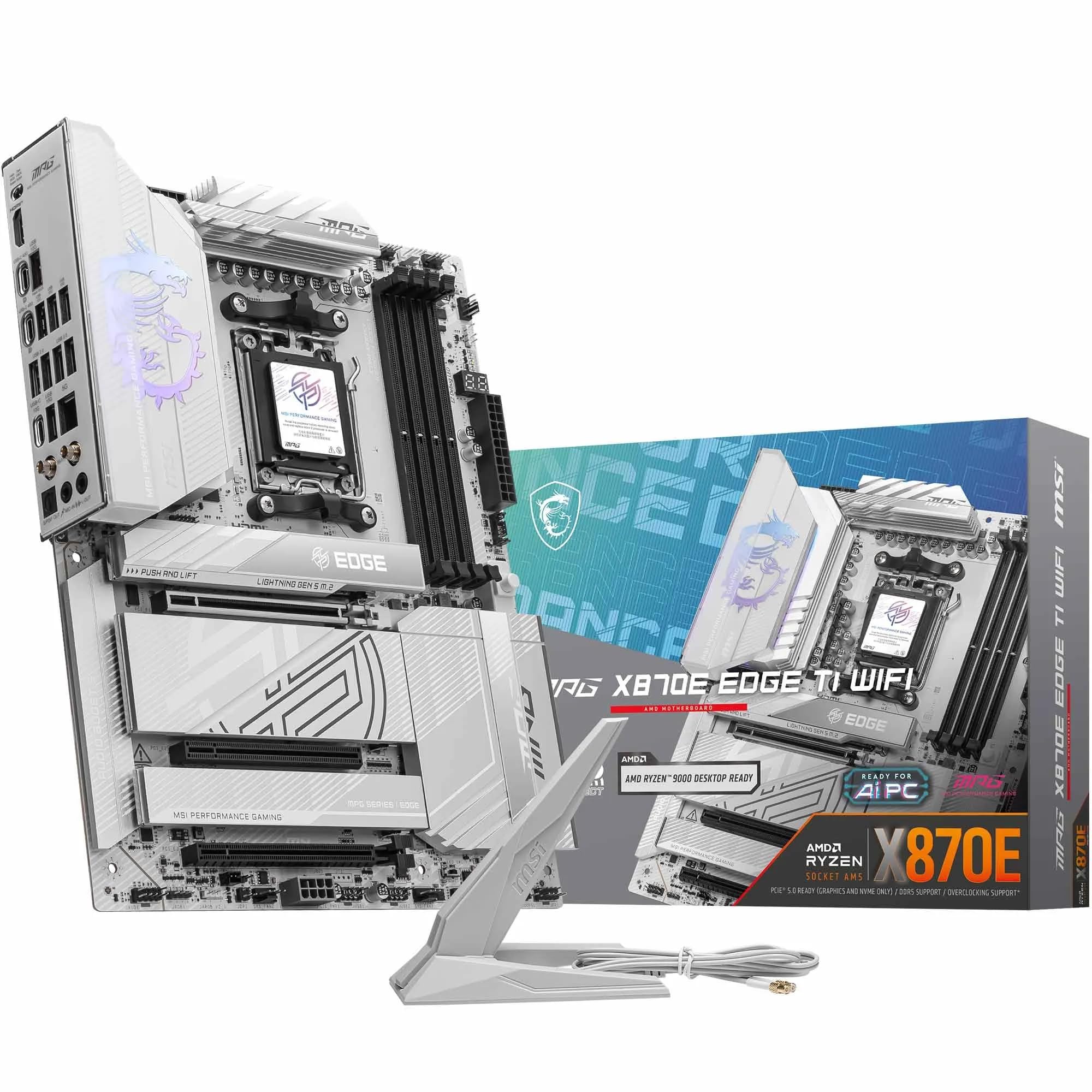
Frequently asked
7 questions01Does the Gigabyte Z390 AORUS ULTRA support 10th generation Intel processors?+
No. The Z390 AORUS ULTRA uses the LGA1151 socket, which supports Intel 8th and 9th generation Core processors only. 10th generation Comet Lake processors use the LGA1200 socket and are electrically incompatible with LGA1151 boards, despite the socket appearing visually similar. The maximum supported processor is the i9-9900KS.
02How many M.2 slots does the Z390 AORUS ULTRA have, and do they all support NVMe?+
The board has three M.2 slots, all of which support both PCIe Gen 3 x4 NVMe and SATA M.2 drives. The top slot connects directly to the CPU's PCIe lanes for lowest latency and is the recommended slot for a primary NVMe drive. The remaining two slots run through the chipset. Be aware that installing an M.2 SATA drive in the middle slot disables two of the six SATA ports; an NVMe drive in that slot does not affect SATA availability.
03What VRM temperatures can I expect when overclocking an i9-9900K on this board?+
With an i9-9900K at 5.0GHz all-core, 1.35V Vcore, and Prime95 small FFT load, VRM temperatures peak between 68 and 72 degrees Celsius in a mid-tower case with moderate airflow. These figures are within safe operating limits for the IR3553 MOSFETs used in the board's 12-phase VRM design. Better case airflow will produce lower readings.
04Is a BIOS update required to run 9th generation Intel processors on the Z390 AORUS ULTRA?+
No BIOS update is required. The Z390 chipset was designed alongside 9th generation Intel processors, so the board supports them out of the box. An i9-9900K can be installed and will POST on the first attempt without any prior BIOS flashing. 8th generation processors also work without any BIOS update.
05How does the Z390 AORUS ULTRA compare to the ASUS ROG STRIX Z390-E Gaming?+
The AORUS ULTRA has stronger VRM hardware using higher-rated IR3553 MOSFETs, which provides more headroom for sustained all-core overclocks on a 9900K. It also offers three M.2 slots compared to two on the STRIX-E. The STRIX-E counters with a more polished and easier to navigate BIOS interface and a Q-Code debug display. Both boards include Intel Wireless-AC 9560. For overclocking headroom and storage flexibility, the AORUS ULTRA has the edge; for BIOS usability, the STRIX-E is preferable.
06Can I run four sticks of DDR4 at 3200MHz or higher on this board?+
Four-DIMM configurations at high speeds are more challenging than two-DIMM setups on the Z390 platform generally, not just on this board specifically. Two sticks of 16GB at 3200MHz or 3600MHz using XMP is the recommended approach for reliability and performance. Four sticks can work, but you may need to reduce the memory frequency slightly or invest time in manual timing adjustments to achieve stability.
07Does the Z390 AORUS ULTRA include Wi-Fi, and what standard does it support?+
Yes, the board includes an Intel Wireless-AC 9560 module integrated via Intel's CNVi interface, supporting 802.11ac (Wi-Fi 5) with 2x2 MU-MIMO and Bluetooth 5.0. Antenna connectors are on the rear I/O panel and antennas are included in the box. Wi-Fi 6 is not supported, as the board was designed around a 2018 chipset when Wi-Fi 5 was the current standard.