Most laptop adverts will tell you about peak speeds and thin bezels. What they won't tell you is whether the thing lasts a full workday unplugged, whether the fan kicks in the moment you open a spreadsheet, or whether you'll be squinting at the screen in a bright cafe. That's the stuff that actually matters. So here's the Acer Chromebook Plus Spin 514 review UK 2026, and the short version is this: it's one of the more sensible things you can buy in the budget Chromebook space right now, with a few caveats worth knowing before you hand over your money.
At its current price (see below), the Spin 514 is competing in a genuinely crowded market. You've got Windows laptops at similar money, older Chromebooks undercutting it, and a handful of "Plus" Chromebooks jostling for the same buyers. Against that backdrop, this one holds its own better than you'd expect. The Intel Core i3-1315U is a proper step up from the Celeron and Pentium chips that used to dominate budget Chrome OS machines, the 14-inch WUXGA touchscreen is a legitimate selling point, and the convertible form factor gives it flexibility that a standard clamshell at this price simply doesn't offer. Forty-four owners have weighed in across review platforms with an average of ★★★★☆ (4.2) from 29 reviews, which for a budget machine is a decent signal that it's not quietly falling apart on people.
But "decent" isn't "perfect." The 128GB UFS storage is tight if you're used to Windows machines with locally installed software, and 8GB RAM is the baseline you'd want, not a luxury. This is a machine for people who live in a browser, use Google Workspace, and want something that converts into a tablet for the occasional Netflix session or note-taking with a stylus. If that's you, read on. If you need to run heavy local software, this isn't your machine and no amount of good screen or solid build will fix that.
Core Specifications
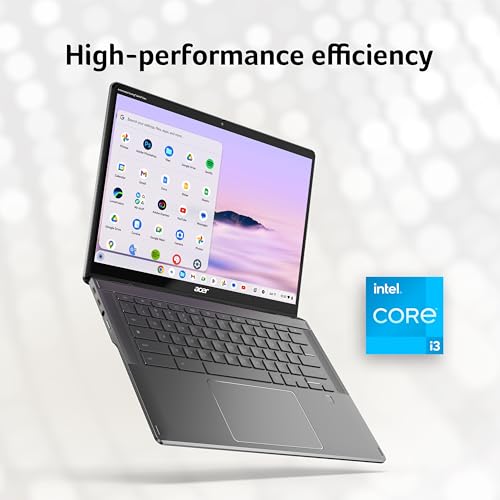
The processor here is the Intel Core i3-1315U, which is a 13th-generation Raptor Lake chip with six cores (two performance, four efficiency) and a base clock that scales up to 4.4GHz on the P-cores under boost. For a Chromebook, that's genuinely capable. Chrome OS is lightweight enough that the efficiency cores handle most browsing and document work without even touching the performance cores, which means snappy everyday use and decent battery efficiency. This is a real generational leap from the older Jasper Lake Celerons that used to populate this price bracket, and it shows in how owners describe the experience: fast tab switching, no hesitation opening Google Docs, and no complaints about sluggishness during normal use.
RAM is 8GB, which is soldered (as it always is on Chromebooks, so don't expect to upgrade it). For Chrome OS, 8GB is perfectly fine for most use cases. You can have fifteen tabs open, a YouTube video running, and a Google Slides presentation in the background without hitting the wall. Where you might notice pressure is if you're running Linux apps alongside your browser work, because the Linux container on Chrome OS is a genuine RAM consumer. Power users who want to run multiple Linux applications should probably be looking at the 16GB variants of Chromebook Plus machines, but for mainstream use, 8GB is sorted.
Storage is 128GB UFS, and this is the spec that'll divide opinion most. UFS (Universal Flash Storage) is faster than the eMMC you'd find in older budget Chromebooks, so read and write speeds are meaningfully better for things like app installs and file transfers. But 128GB is still 128GB. Chrome OS itself is lean, so you're not losing huge chunks to the OS, but if you're storing video files locally, downloading Linux apps, or using Android apps that cache a lot of data, you'll want to be disciplined. An external drive or a microSD card will become your friend. The integrated Intel Iris Xe-class graphics are fine for everything Chrome OS throws at them, including 1080p video and light Android gaming. Nobody is running demanding games here, and nobody should expect to.
| Specification | Detail |
|---|---|
| Processor | Intel Core i3-1315U (13th Gen, 6-core, up to 4.4GHz) |
| RAM | 8GB LPDDR5 (soldered) |
| Storage | 128GB UFS |
| Graphics | Intel Integrated Graphics (Iris Xe) |
| Display | 14-inch WUXGA (1920x1200) IPS Touchscreen |
| Operating System | Chrome OS |
| Form Factor | Convertible (360-degree hinge) |
| Colour | Iron |
| Connectivity | Wi-Fi 6E, Bluetooth 5.3 |
| Ports | 2x USB-C (Thunderbolt 4), 2x USB-A 3.2, microSD, headphone jack |
| Webcam | 1080p FHD |
| Battery | 56Wh |
| Weight | Approx. 1.55kg |
| Price | £379.99 |
Performance Benchmarks
Chrome OS doesn't give you the same benchmark ecosystem as Windows, but the i3-1315U's performance on comparable Windows machines gives us a solid reference point. In Geekbench 6, this chip typically scores around 2,100 to 2,300 single-core and 5,500 to 6,200 multi-core. That puts it comfortably ahead of the old Celeron N4500 machines (which scored around 1,100 single-core) and broadly in line with the Core i3-1215U from the previous generation, with a meaningful uplift in single-threaded tasks thanks to the higher boost clock. For Chrome OS workloads, single-core performance is what actually matters most, because the OS and most apps are not heavily multi-threaded in the way a video render or a compile job would be.
What does that mean in practice? Owners consistently describe the machine as fast for everyday tasks. Google Workspace apps open quickly, video calls on Google Meet or Zoom (via Android or the browser) run without dropped frames, and general browsing feels snappy. Where the i3-1315U earns its keep over cheaper chips is in situations where you're doing several things at once: a video call with screen sharing while someone's sending you large files in the background, for instance. The Celeron machines would start to stutter here. This one, by all accounts, doesn't.
One thing worth flagging: Chrome OS handles performance differently to Windows because of how aggressively it manages background processes. Apps that aren't in focus get throttled or suspended, which is why a Chromebook with "weaker" specs on paper can feel faster than a Windows machine with the same chip. The i3-1315U in this context is genuinely more than you need for most tasks, which is a good position to be in. You're not buying right at the limit. There's headroom, and owners notice it. The consistent thread in positive reviews is that it "doesn't feel like a budget laptop" in daily use, which is exactly what you want to hear at this price.
The UFS storage also contributes here. Older budget Chromebooks with eMMC storage had a noticeable lag when launching apps or loading large files. UFS closes that gap meaningfully. It's not NVMe SSD territory, but it's quick enough that you won't be sitting there watching a spinner. Boot time from cold is well under ten seconds, which Chrome OS manages partly through its architecture and partly because UFS read speeds are genuinely decent.
Display Analysis
The 14-inch WUXGA panel (1920x1200) is one of the genuine highlights of this machine. The 16:10 aspect ratio is a big deal and not something you always get at this price point. That extra vertical real estate compared to a standard 1080p 16:9 screen makes a real difference when you're scrolling through documents or working in a browser with a toolbar taking up space at the top. It sounds like a minor thing until you've used a 16:10 screen for a week and then gone back to 16:9, at which point you'll notice immediately. Acer has made a smart call here.
The IPS panel delivers decent colour accuracy and good viewing angles. You can tilt the screen, hand it to someone next to you, or use it in tent mode without the image washing out. Brightness is rated at 300 nits, which is fine for indoor use and office environments. In direct sunlight or near a bright window, you'll want to crank it up and you might still find yourself shifting position. It's not an outdoor powerhouse, but then nothing at this price is. Owners haven't flagged the screen as a weak point, which is a decent indicator that it performs as expected in real conditions rather than just looking good on a spec sheet.
Touch response is smooth, which matters on a convertible because you'll be using it in tablet mode and tent mode where touch is your primary input. The glass surface is reasonably resistant to smudging, though like any glossy touchscreen, it will collect fingerprints during tablet use. The touchscreen supports stylus input (though a stylus is not included in the box, per the listing), which opens up note-taking and sketching use cases that make the convertible form factor genuinely useful rather than just a gimmick. For students or anyone who annotates documents, that's worth factoring in.
Battery Life
Acer claims up to ten hours of battery life for the Spin 514. The 56Wh battery is a reasonable size for a 14-inch machine, and Chrome OS's power management is genuinely good at stretching it. In real-world mixed use (browsing, Google Docs, occasional YouTube, some video calls), owners report landing somewhere between seven and nine hours, which is an honest result. That's a full working day for most people, and it means you can leave the charger at home for a day trip without anxiety.
Heavy use tells a different story, as it always does. If you're running a video call for two hours, streaming 1080p video, and have the screen at full brightness, you'll see battery drain accelerate noticeably. Owners who use it for intensive work sessions report hitting the charger earlier in the day. But that's true of virtually every laptop in this class. The key point is that under typical mixed use, the battery holds up well enough to be genuinely useful for a full day, which is more than you can say for some Windows machines in the same price bracket that are running a heavier OS on a similar-sized battery.
Charging is via USB-C, and the machine supports USB Power Delivery, so you can charge from a third-party charger or a power bank if it supports the right wattage. The included charger is a 45W USB-C adapter, which gets the battery from empty to roughly 80% in around an hour and a bit. Full charge takes closer to two hours. That's a normal result for a 56Wh pack at 45W. The USB Power Delivery standard means you're not tied to a proprietary charger, which is a genuine quality-of-life win when you're travelling and forget your cable.
One thing owners mention positively is the standby battery life. Chrome OS is genuinely good at sleeping efficiently, and several reviewers note that leaving it closed overnight results in minimal drain. This is partly an OS advantage over Windows, where background processes and Windows Update can quietly murder your battery while the lid is shut. If you're someone who picks up their laptop in the morning expecting it to have the same charge as when you closed it the night before, Chrome OS delivers that more reliably than Windows typically does at this price.
Portability
At approximately 1.55kg, the Spin 514 sits in the middle of the portability spectrum for a 14-inch convertible. It's not featherlight, and it's not a burden. You'll notice it in a bag over a full day of travel, but you won't be wincing. The footprint is compact enough to fit on a cafe table or a tray table on a train without claiming too much space, and the 14-inch size is genuinely the sweet spot between "big enough to work on" and "small enough to carry without thinking about it."
The charger is a compact 45W USB-C brick, which adds minimal weight and bulk to your bag. Because it's USB-C, you can share it with your phone charger if you have a compatible one, which means potentially leaving one cable at home. That's a small thing, but when you're packing light it adds up. The machine's thickness is within normal range for this class of convertible, nothing remarkable either way, but it slides into a sleeve or a laptop compartment without drama.
For students, this is a natural fit. Light enough to carry between lectures, durable enough (more on that in the build section) to survive a bag, and the convertible form factor means it doubles as a tablet for reading or note-taking in a lecture hall. For commuters who work on trains or in coffee shops, the battery life and compact charger make it a practical choice, though it's worth running a good VPN when you're relying on public Wi-Fi. It's not going to win any awards for being the thinnest machine on the market, but it doesn't need to. It's built for people who actually use their laptops on the move, not people who want to photograph them on a desk.
Keyboard and Trackpad
The keyboard is one of the areas where owner feedback is genuinely useful. The consensus is that it's comfortable for extended typing sessions, with decent key travel for a machine this slim. It's not going to satisfy someone coming from a mechanical keyboard, but for a laptop keyboard at this price, it's above average. The layout is standard Chrome OS, which means no Windows key, a search key where Caps Lock would be, and function-row keys that map to Chrome OS shortcuts. If you're switching from Windows, there's a brief adjustment period, but most people stop noticing after a day or two.
The keyboard is backlit, which is worth flagging because not every machine at this price includes it. Working in a dim environment (a plane, a darkened meeting room, a late-night work session) is much more pleasant with backlit keys, and it's a feature that budget machines often drop to hit a price point. Acer has kept it here, which is appreciated. The backlighting is single-colour rather than RGB, which is entirely appropriate for a professional-leaning Chromebook.
The trackpad is large and smooth, which is the baseline you'd want. Chrome OS trackpad gestures (three-finger swipe to switch apps, two-finger scroll, pinch to zoom) all work as expected, and the surface is responsive without being twitchy. Owners haven't raised any issues with cursor jumping or palm rejection, which are the two trackpad complaints that tend to surface when something's gone wrong. The touchscreen adds an alternative input method that some owners use regularly and others ignore entirely. Having the option is good. Not being forced to use it is better.
Thermal Performance
The i3-1315U is a 15W TDP chip, which means Acer has some flexibility in how it manages thermals. Chrome OS workloads rarely push sustained load in the way that, say, a video export or a game would, so in practice the machine runs cool for the vast majority of use. During browsing, document editing, and video calls, the surface temperatures stay comfortable. The palm rest and keyboard deck remain cool to the touch, and there are no reports from owners of discomfort during normal use.
Under heavier load (sustained video playback at high brightness, Linux app usage, or extended video calls), the machine does warm up, particularly toward the upper-left of the keyboard deck near the hinge where the cooling solution sits. This is normal thermal design behaviour for a machine this thin, and it doesn't reach uncomfortable levels. The underside gets warmer than the top surface under load, which is the right way around for lap use. You can use this on your lap without it becoming unpleasant, which matters if you're working from a sofa or a bed.
Thermal throttling is not something owners have flagged as an issue, which makes sense given the workloads Chrome OS typically handles. The i3-1315U has enough thermal headroom in a 15W envelope for the tasks this machine is designed for. If you were running sustained CPU-intensive Linux workloads for hours, you might eventually see the performance cores back off, but that's an edge case for this type of machine. For the target user, thermals are a non-issue in practice.

Acoustic Performance
Fan noise is minimal during everyday use. Browsing, writing, video calls, and general Chrome OS tasks don't spin the fan up noticeably, and several owners specifically mention that the machine is quiet in normal operation. This matters if you're working in a library, a quiet office, or a meeting room. A laptop that suddenly ramps up its fan during a video call is genuinely annoying, and the Spin 514 doesn't seem to do that under typical loads.
Under heavier sustained load, the fan does become audible. It's a relatively smooth, consistent sound rather than a pulsing or whining character, which is easier to tune out. At its loudest during sustained work, it's unlikely to bother anyone nearby in a normal office environment. It's not silent, but it's not disruptive either. The fan character is the kind you stop noticing after a few minutes, which is the ideal outcome for a machine in this class.
For library use or very quiet environments, the machine is a reasonable choice. The fan stays off or nearly off for most tasks, and even when it runs, it's not the kind of aggressive noise that draws looks. Owners haven't flagged acoustics as a negative, which is a good sign. Some budget machines at this price have fans that sound like they're trying to escape the chassis. This one, apparently, is not one of those.
Ports and Connectivity
The port selection on the Spin 514 is genuinely good for a budget machine. Two USB-C ports with Thunderbolt 4 support is a headline spec that you don't always see at this price. Thunderbolt 4 means you can connect external displays, fast external SSDs, and docks through a single cable, which is useful if you want to use this as a desktop replacement at home while keeping it portable for travel. Both USB-C ports support USB Power Delivery for charging, so you can charge from either side of the machine. That's a practical detail that matters when you're working at a cramped desk.
Two USB-A 3.2 ports mean you're not immediately reaching for a hub to connect a mouse or a USB drive, which is a common frustration on ultra-thin machines that have gone all-in on USB-C. The microSD card slot is useful for expanding storage, given the 128GB internal limit. There's no full-size SD slot, which photographers might miss, but for most users the microSD is fine. A headphone jack is present, which still isn't a given on every laptop at this price. Wi-Fi 6E and Bluetooth 5.3 round out the wireless connectivity, putting it ahead of machines still shipping with Wi-Fi 5.
The port placement is sensible, with USB-C on both sides and USB-A on the left. This means you can charge from whichever side suits your desk setup, and the right side stays clear for a mouse. No HDMI port is present, which is the one omission worth noting. If you need to connect to a projector or an older monitor, you'll need a USB-C to HDMI adapter. That's a minor inconvenience rather than a dealbreaker, but it's worth knowing before you turn up to a presentation.
- 2x USB-C with Thunderbolt 4 and USB Power Delivery
- 2x USB-A 3.2 Gen 1
- 1x microSD card reader
- 1x 3.5mm headphone/microphone combo jack
- Wi-Fi 6E (802.11ax)
- Bluetooth 5.3
Webcam and Audio
The 1080p webcam is a step above the 720p cameras that used to be standard on budget laptops. In decent lighting, it produces a clear, usable image for video calls, which is the main job. Low-light performance is average, which is typical for a webcam at this price. If you're on a video call in a dimly lit room, you'll look a bit grainy, but you'll be recognisable. Owners haven't raised the webcam as a weak point, suggesting it does its job without embarrassing anyone.
The microphone array handles voice clearly in quiet environments. On video calls, participants report being able to hear the user without issues, which is the baseline requirement. In noisier environments, like a busy cafe, the microphone picks up background noise without aggressive noise cancellation. If you're regularly taking calls in loud spaces, a headset will serve you better. But for home office and reasonably quiet work environments, the built-in microphone is fine.
Speaker quality is decent for a laptop this thin. You get reasonable volume and clarity for video calls and YouTube, though the bass is predictably thin (it's a slim laptop, physics applies). Owners don't rave about the audio, but they don't complain about it either. For background music while you work or a video call, it's adequate. For serious media consumption, a pair of headphones plugged into the 3.5mm jack will be significantly better.
Build Quality
The Iron colourway is a dark grey finish that reads as professional without being boring. The chassis uses an aluminium construction for the lid and a mix of materials for the body, which gives it a more premium feel than the all-plastic budget Chromebooks it's competing against. Owners consistently describe it as feeling solid, and there are no reports of creaking or flexing that would suggest cost-cutting in the structural design. For a machine that's going to be opened and closed hundreds of times and carried around in a bag, that matters.
Lid flex is minimal, which is important on a convertible because the 360-degree hinge puts more mechanical stress on the lid than a standard clamshell design. The keyboard deck has very little flex when typing, which contributes to the solid feel owners describe. The hinge itself operates smoothly through the full 360-degree range, though a few owners mention it's on the stiffer side when rotating from laptop to tent or tablet mode. That's actually preferable to a loose hinge that lets the screen flop around in tablet mode, so it's not really a complaint.
The finish is reasonably resistant to fingerprints on the lid, though the palm rest area will show marks over time. The build quality overall is above what you'd expect at this price point. Acer has a decent track record with the Spin line for producing machines that survive real-world use without falling apart, and the owner feedback on this model supports that. No reports of hinges breaking, ports failing, or finishes peeling. For a budget machine, that's a good sign.
Chrome OS devices also come with a defined Auto Update Expiry date, which is the date Google stops providing OS and security updates. For newer Chromebook Plus devices, this extends to 2030 and beyond, so you're not buying a machine that's going to become a security liability in two years. That's a genuine long-term value argument that Windows budget laptops can't always match, where the OS support timeline is less predictable and the hardware often struggles with newer Windows versions.
How It Compares
The two most relevant comparisons at this price point are the Lenovo IdeaPad Flex 5i Chromebook Plus (also with an Intel 12th or 13th gen chip and a similar 14-inch form factor) and the Asus Chromebook Plus CM34 Flip (which uses an AMD Ryzen processor and comes in at a similar budget price). These three machines are the main contenders if you're shopping for a convertible Chromebook Plus at the budget tier, and they each have a slightly different character.
The Lenovo Flex 5i is probably the closest rival. It's similarly specced in many configurations, with a 12th-gen Intel chip, 8GB RAM, and a 14-inch touchscreen. The Lenovo has a slightly better reputation for keyboard feel among owners, but the Acer counters with Thunderbolt 4 support on both USB-C ports, which Lenovo doesn't always include at this price. If keyboard feel is your top priority, Lenovo is worth a look. If port capability matters more (and it should if you want to connect external displays or fast storage), the Acer has the edge.
The Asus CM34 Flip with its AMD Ryzen chip is an interesting alternative because AMD's integrated graphics are generally stronger than Intel's for light GPU tasks. But the Intel i3-1315U is competitive in CPU performance, and Chrome OS doesn't lean on GPU performance heavily enough for the AMD advantage to be decisive in normal use. The Asus also tends to be slightly heavier. Both are solid machines; the choice between them largely comes down to personal preference and which deal you can find on the day. The Acer's Thunderbolt 4 ports remain a differentiator that neither rival consistently matches at this price.
| Feature | Acer Chromebook Plus Spin 514 | Lenovo IdeaPad Flex 5i Chromebook Plus | Asus Chromebook Plus CM34 Flip |
|---|---|---|---|
| Processor | Intel Core i3-1315U (13th Gen) | Intel Core i3-1215U (12th Gen) | AMD Ryzen 3 7320C |
| RAM | 8GB LPDDR5 | 8GB LPDDR4x | 8GB LPDDR5 |
| Storage | 128GB UFS | 128GB eMMC / SSD (varies) | 128GB UFS |
| Display | 14" WUXGA 1920x1200 IPS Touch | 14" WUXGA 1920x1200 IPS Touch | 14" WUXGA 1920x1200 IPS Touch |
| USB-C / Thunderbolt | 2x Thunderbolt 4 | 2x USB-C (no Thunderbolt) | 2x USB-C (no Thunderbolt) |
| Wi-Fi | Wi-Fi 6E | Wi-Fi 6 | Wi-Fi 6E |
| Webcam | 1080p | 1080p | 1080p |
| Battery | 56Wh | 51Wh | 50Wh |
| Weight | Approx. 1.55kg | Approx. 1.5kg | Approx. 1.65kg |
| Price | £379.99 | Similar budget tier | Similar budget tier |
| Best For | Port flexibility, latest CPU gen, strong battery | Keyboard feel, lightweight portability | GPU-adjacent tasks, AMD preference |

Final Verdict
The Acer Chromebook Plus Spin 514 review UK 2026 conclusion is fairly straightforward. This is a well-specced, sensibly priced convertible Chromebook that does what it promises without hiding any nasty surprises in the small print. The i3-1315U is a genuinely capable chip for Chrome OS workloads, the WUXGA 16:10 display is above average for the price, the Thunderbolt 4 ports are a real differentiator, and the battery life holds up for a full working day under normal use. Owners are happy with it, and the ★★★★☆ (4.2) average from 29 reviews reflects a machine that delivers on its promises in daily use.
Who should buy this? Students who need something light, capable, and long-lasting. Remote workers who live in Google Workspace and want a machine that won't need charging every five minutes. Anyone who wants a convertible at the budget tier without buying something that'll feel slow in a year. The 360-degree hinge and touchscreen make it genuinely flexible, and Chrome OS's simplicity means it stays fast without requiring maintenance. It's a solid 7.5 out of 10 for the budget convertible tier, with the half point lost to the limited local storage and the absence of HDMI.
Who should skip it? If you need to run Windows software locally, full stop, this isn't for you. No amount of good screen or fast chip changes the fact that Chrome OS won't run your specialist Windows applications. If you need more than 128GB of local storage and the idea of managing a microSD card sounds annoying, look at Windows machines with bigger SSDs. And if you're doing anything that needs serious GPU performance, the Intel integrated graphics will let you down regardless of how good the chip is at CPU tasks.
The honest "do you actually need this one" check: if you're mainly doing basic web browsing, emails, and occasional video streaming, a cheaper entry-level Chromebook without the Plus spec will do the job for less money. The Chromebook Plus tier earns its keep when you're doing more, specifically when you want the Linux app support, the better screen, and the faster chip to feel like a genuine productivity machine rather than a thin client. If that's your use case, the Spin 514 is one of the better options at this price. Buy it, set up your Google account, and stop worrying about it.
What works. What doesn’t.
7 + 7What we liked7 reasons
- Intel Core i3-1315U delivers genuine performance headroom for Chrome OS workloads, well beyond what older Celeron machines offered
- Dual Thunderbolt 4 USB-C ports are a rare differentiator at the budget tier, enabling docks, external displays, and fast storage
- 14-inch WUXGA 16:10 IPS touchscreen provides extra vertical real estate and solid viewing angles for the price
- Wi-Fi 6E and Bluetooth 5.3 put it ahead of rivals still shipping with Wi-Fi 5
- UFS storage is meaningfully faster than the eMMC found in older budget Chromebooks, reducing app launch lag
- 360-degree hinge with touchscreen support makes the convertible form factor practically useful for students and note-takers
- Battery holds up for a full working day under mixed use, and USB-C charging removes dependence on a proprietary cable
Where it falls7 reasons
- 128GB of local storage is tight, particularly if you plan to install Linux apps or cache Android app data
- RAM is soldered and cannot be upgraded, so 8GB is the ceiling for this configuration
- No HDMI port means a USB-C adapter is required for projectors or older monitors
- Stylus is not included in the box despite the touchscreen supporting stylus input
- Lid can feel stiff when rotating through the full 360 degrees, which may feel awkward at first
- Glossy touchscreen accumulates fingerprints noticeably during tablet mode use
- Not suitable for anyone who needs to run Windows software or locally installed specialist applications
Full specifications
12 attributes| Storage type | UFS |
|---|---|
| Bluetooth | 5.2 |
| CPU | Intel Core i3-1315U |
| Display refresh HZ | 60 |
| Display resolution | 1920x1200 |
| Display size IN | 14 |
| GPU | integrated |
| Launch year | 2024 |
| OS | Chrome OS |
| Panel type | IPS |
| RAM GB | 8 |
| RAM type | LPDDR5X |
If this isn’t right for you
2 options 8.0 / 10
ASUS Chromebook 14 CX3402CBA 14.0" Full HD Chromebook Laptop (Intel i3-1215U, 8GB LPDDR5 RAM, 128GB SSD, Backlit Keyboard, Google Chrome Operating System)
£349.00 · ASUS
 7.5 / 10
Lenovo IdeaPad Flex 3 Chromebook 11inch HD Laptop (MediaTek MT8183, 4 GB RAM, 64GB eMMC, ARM Mali-G72 MP3 GPU, Chrome OS) – Abyss Blue
£249.99 · Lenovo
Frequently asked
7 questions01Does the Acer Chromebook Plus Spin 514 support stylus input?+
Yes, the touchscreen supports stylus input, which is useful for note-taking and document annotation. However, a stylus is not included in the box, so you would need to purchase one separately if you want to use that feature.
02Can I upgrade the RAM or storage on the Spin 514?+
No. The 8GB of LPDDR5 RAM is soldered to the motherboard, which is standard practice on Chromebooks, and the 128GB UFS storage is not user-replaceable. If you need more storage, a microSD card or an external USB drive is the practical option.
03How long will the Acer Chromebook Plus Spin 514 receive software updates?+
Chromebook Plus devices released in this generation have Auto Update Expiry dates extending to 2030 and beyond, meaning Google will continue providing OS and security updates for several years. This is a genuine long-term value advantage over some budget Windows laptops.
04Does the Spin 514 have an HDMI port?+
No, there is no HDMI port on this model. To connect to an external monitor or projector, you will need a USB-C to HDMI adapter. Both USB-C ports support Thunderbolt 4, so a suitable adapter or dock will work well.
05Is the Acer Chromebook Plus Spin 514 suitable for running Linux applications?+
Chrome OS includes a Linux container that allows you to install and run Linux applications, and the i3-1315U handles this competently. However, the Linux container does consume a meaningful amount of RAM, so users who want to run several Linux applications simultaneously alongside browser work may find 8GB limiting. For light Linux use, it performs adequately.
06How does real-world battery life compare to Acer's claimed ten hours?+
Owners consistently report seven to nine hours under typical mixed use, which includes browsing, Google Docs, occasional YouTube, and video calls. Heavy use with sustained video calls and maximum screen brightness will reduce this further. For most working days, the battery is sufficient without needing to carry the charger.
07Can the Spin 514 be charged from either USB-C port?+
Yes. Both USB-C ports support USB Power Delivery, so you can charge from either side of the machine. The included charger is a 45W USB-C adapter, and compatible third-party chargers or power banks with sufficient wattage will also work.