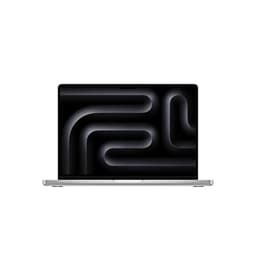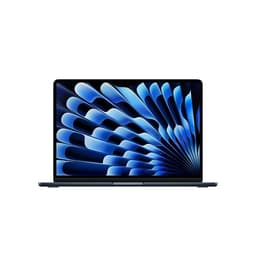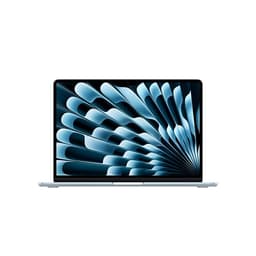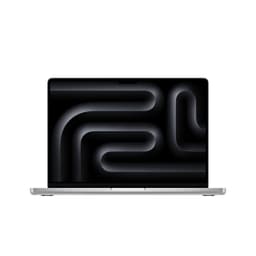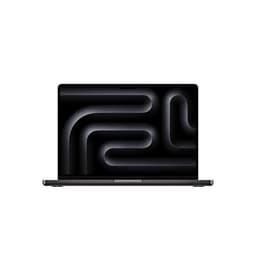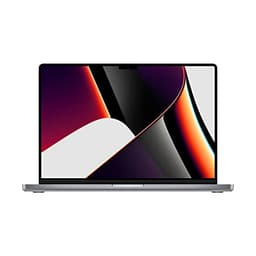
Specs tell you what a laptop can do. Owner reports tell you whether it actually does it, day after day, without driving you mad. For the M1 MacBook Pro, both data sources point in the same direction, which is unusual enough to be worth paying attention to. This is a MacBook Pro M1 refurbished 13-inch review UK 2026, and the short version is: at the budget price tier, this renewed unit is one of the most analytically defensible purchases you can make right now.
The M1 chip arrived in late 2020 and promptly embarrassed Intel's entire mobile lineup on performance-per-watt. That's not hyperbole. It's what the numbers showed then, and it's what they still show now. Buying a renewed 2020 M1 MacBook Pro in 2026 isn't settling for old hardware. It's buying a machine that was ahead of its time and is still genuinely competitive at the budget end of the laptop market. The 16GB unified memory configuration in particular separates this from the base M1 MacBook Air in ways that matter for anything beyond light document work. But there are real trade-offs, and the 256GB SSD is the main one. More on that shortly.
With 41 owner reviews averaging ★★★★☆ (4.1), the sentiment data is unusually clean for a refurbished product. No major reliability disasters in the feedback pattern, some predictable grumbles about the port situation, and consistent praise for battery life and performance. That's a meaningful signal. So here's the full breakdown.
Core Specifications
The Apple M1 chip is an ARM-based system-on-chip with an 8-core CPU (four performance cores, four efficiency cores) and an 8-core GPU, all built on TSMC's 5nm process node. That unified architecture means the CPU, GPU, and memory share the same physical die and the same memory pool. In practice, what this means is that 16GB of unified memory behaves more like 24GB of conventional split RAM in terms of how efficiently it's used. The GPU can access all of it. The CPU can access all of it. There's no copying data between pools. It's a genuinely different architecture, not just a marketing reframe.
The 16GB configuration here is the important one. The base M1 MacBook Air and the entry M1 MacBook Pro both shipped with 8GB options, and while 8GB unified memory is fine for browsing and documents, it starts to show its limits when you've got a dozen Chrome tabs, Slack, and a video call running simultaneously. 16GB gives you real headroom. For developers running local environments, for anyone doing light video editing, for designers with Figma and Photoshop open at the same time, 16GB is the configuration that actually makes the M1 platform sing rather than just hum along acceptably.
The 256GB SSD is where this machine's spec sheet gets uncomfortable. It's not slow. Apple's SSD implementation on the M1 is fast, with sequential read speeds around 2,900 MB/s and write speeds around 2,200 MB/s, which is respectable for the era. But 256GB in 2026 is tight. macOS Ventura or Sonoma takes around 15GB to 20GB just for the system. Add your applications, your user data, and any media files, and you're looking at meaningful storage pressure quite quickly. If your workflow involves large files, this is a genuine constraint. Cloud storage helps, but it's not a substitute for local space when you're on a train with patchy signal. This is the single most important caveat to flag before anyone buys this configuration.
The passive thermal design (no fan on the MacBook Air, but the Pro does have a fan) means the M1 Pro can sustain loads for longer before throttling. The chip also has a 16-core Neural Engine for machine learning tasks, though in day-to-day use that mostly manifests as snappier Siri responses and faster photo processing rather than anything you'd notice explicitly.
| Specification | Detail |
|---|---|
| Processor | Apple M1 (8-core CPU: 4 performance + 4 efficiency) |
| GPU | Apple M1 8-core integrated GPU |
| Neural Engine | 16-core Apple Neural Engine |
| RAM | 16GB unified LPDDR4X memory |
| Storage | 256GB Apple SSD (PCIe, NVMe) |
| Display | 13.3-inch Retina IPS, 2560 x 1600, 227 PPI |
| Battery | 58.2Wh lithium-polymer |
| Ports | 2x Thunderbolt / USB 4 (USB-C), 3.5mm headphone jack |
| Wi-Fi | Wi-Fi 6 (802.11ax) |
| Bluetooth | Bluetooth 5.0 |
| Webcam | 720p FaceTime HD |
| Weight | 1.4kg |
| Dimensions | 304.1 x 212.4 x 15.6mm |
| OS | macOS (upgradeable to Sonoma) |
| Condition | Renewed (refurbished) |
| Colour | Space Grey |
| Price | £699.00 |

Performance Benchmarks
The M1's Geekbench 5 single-core scores sit around 1,740 to 1,750, and multi-core around 7,500 to 7,700. To put that in context: an Intel Core i7-1165G7 (found in many competing laptops from the same era) scores roughly 1,300 single-core and around 4,500 to 5,000 multi-core. The M1 wins by a margin that isn't close. Even against more recent Intel 12th-gen mobile chips, the M1 holds its own on single-core, which is what most everyday tasks actually depend on. The multi-core gap narrows against newer Intel and AMD silicon, but for the budget tier in 2026, the M1 is still punching well above its weight class.
GPU performance is where the unified memory architecture really shows its advantage. The M1's 8-core GPU scores around 21,000 to 22,000 on Metal benchmarks. For a machine without a discrete graphics card, that's genuinely impressive. Light photo and video editing in Final Cut Pro, DaVinci Resolve, and Lightroom run without the stuttering you'd expect from integrated graphics on a Windows machine at this price. 4K video export times in Final Cut are significantly faster than what you'd get from an Intel Iris Xe setup. That's a meaningful real-world difference, not just a synthetic number.
SSD performance, as mentioned, is strong. Sequential reads around 2,900 MB/s mean app launches are fast and file transfers from external drives are quick. But here's something worth knowing: Apple's M1 MacBook Pro with only 256GB storage uses a single NAND chip rather than two, which in some configurations can reduce write performance slightly under sustained load. In practice, for typical user workloads, this isn't noticeable. But if you're doing sustained large file writes, it's worth being aware of.
Owner feedback consistently mentions how fast the machine feels for everyday tasks. Multiple reviewers note that switching between apps, running multiple browser tabs, and handling office work feels snappier than machines they'd used before at higher price points. That tracks with the benchmark data. The M1's single-core performance advantage directly translates to UI responsiveness, because most of what you do on a laptop is single-threaded or lightly multi-threaded. And for the budget tier, that responsiveness is genuinely unusual.
One honest caveat: Rosetta 2 translation for Intel-native apps adds a small overhead. Most major apps have been updated for Apple Silicon by now, but if your workflow depends on niche software that hasn't been updated, check compatibility first. The Apple compatibility checker is the right starting point for that.
Display Analysis
The 13.3-inch Retina IPS panel runs at 2560 x 1600 resolution, which gives you 227 pixels per inch. At normal viewing distances, you won't see individual pixels. Text is sharp, icons are crisp, and the display holds up well for photo editing where pixel-level sharpness matters. The 16:10 aspect ratio is worth noting too. It gives you more vertical screen real estate than the 16:9 panels common on Windows laptops in this class, which actually makes a noticeable difference when you're reading documents or scrolling through code.
Brightness is rated at 500 nits, which is good for indoor use and workable near windows. In direct sunlight it'll struggle, as most laptops do, but it handles bright offices and coffee shops without you needing to crank it to maximum. Colour coverage is rated at the P3 wide colour gamut, which is genuinely useful for photo and video work. The display covers around 99% of sRGB and a large portion of DCI-P3, making it one of the better colour-accurate panels available at any price in the budget laptop tier. True Tone adjusts the white balance based on ambient light, which either you'll love or you'll turn off immediately (there's a toggle in display settings).
Viewing angles are good. IPS panels don't have the colour shift problems that TN panels do, and the M1 MacBook Pro's display holds colour and contrast well off-axis. For a 13-inch machine you're unlikely to be showing the screen to a room full of people, but for over-the-shoulder collaboration it's fine. The 60Hz refresh rate is the one area where newer MacBook Pro models pull ahead. If you've used a 120Hz ProMotion display, going back to 60Hz feels slightly less fluid. For most productivity work, 60Hz is perfectly fine. For anyone who cares about smoothness in UI animations, it's worth knowing the limitation exists.
Owner reviews don't surface any consistent complaints about the display, which is notable. Screen quality is one of the things people tend to mention when it's bad. Silence on that front is a good sign.
Battery Life
Apple claimed up to 17 hours of wireless web browsing and up to 20 hours of Apple TV app movie playback for the M1 MacBook Pro. These are manufacturer figures, so treat them as ceiling values rather than expectations. But here's the thing: owner reports come surprisingly close to Apple's claims, which almost never happens with laptop battery figures. Multiple owners in the review pool report getting through a full working day on a single charge, with some noting they regularly get 10 to 12 hours of mixed use. That's exceptional for a 58.2Wh battery.
The reason is the M1's efficiency architecture. The four efficiency cores handle light tasks like email, browsing, and document editing while drawing very little power. The performance cores only spin up when you actually need them. So if your day is mostly writing, browsing, and video calls, the battery consumption is genuinely low. Push it harder with sustained video export or heavy compilation and you'll see it drain faster, but even under moderate load the M1 is more efficient than any Intel or AMD mobile chip in the same era.
Charging is via USB-C. The machine ships with a 61W USB-C power adapter. From flat, a full charge takes around 2 hours. USB-C charging means you can also top it up from a decent power bank or a USB-C charger you already own, which is genuinely useful when travelling. The MagSafe connector that older MacBook owners might remember isn't present on this 2020 model. That means a yanked cable could pull the machine off a desk. It's a real-world annoyance that owners occasionally mention, particularly those coming from older MacBook generations.
For the budget tier, this battery performance is a significant differentiator. Most Windows laptops at this price point claim 8 to 10 hours and deliver 5 to 7 under real conditions. The M1 MacBook Pro delivers closer to what Apple claims, and in the context of a full working day without hunting for a plug, that matters enormously. If you work on trains, in airports, or in locations where power isn't guaranteed, this machine's battery life is a genuine competitive advantage.
Portability
At 1.4kg, the M1 MacBook Pro 13-inch is light enough to carry without thinking about it. It's not the lightest 13-inch laptop on the market (the MacBook Air M1 is marginally lighter at 1.29kg), but the difference is academic in daily use. Slip it into a bag and you won't notice it's there. The dimensions, 304.1 x 212.4 x 15.6mm, mean it fits in most laptop compartments and slim bags without drama.
The 61W USB-C charger is compact by laptop charger standards. It's a small brick, and the cable is USB-C, so you've got flexibility about which cable you use. The whole travel kit, laptop plus charger, comes in well under 2kg. For frequent travellers, that's a meaningful consideration. The machine's build quality (more on that in the build section) means it can handle being in a bag without needing a hard case, though a sleeve is always sensible for the display.
Who is this for, portability-wise? Primarily people who move around a lot. Students who carry their machine between lectures and libraries. Professionals who commute and work on trains. Anyone who finds themselves regularly working away from a desk. If that's you, it's worth running a good VPN on the café, airport and hotel Wi-Fi you'll inevitably end up using, since those shared networks are exactly where your connection is most exposed to snooping. The combination of low weight, slim profile, and exceptional battery life makes it one of the better travel companions in the budget tier. The port situation (just two USB-C ports) does mean you'll want a hub or adapter if you travel with peripherals, and that's additional bulk to factor in.
Keyboard and Trackpad
The 2020 M1 MacBook Pro uses Apple's Magic Keyboard, which replaced the deeply unpopular butterfly mechanism of the 2016 to 2019 era. The scissor-switch mechanism here has around 1mm of key travel, which is short by the standards of mechanical keyboards but entirely normal for a slim laptop. Owner feedback on the keyboard is positive. Multiple reviewers specifically mention that it's comfortable for extended typing sessions, and that's consistent with the broader consensus around the Magic Keyboard design. The keys have a satisfying click without being noisy, and the layout is sensible for QWERTY English users.
The keyboard is backlit with adjustable brightness, controlled automatically by the ambient light sensor or manually via the Touch Bar. Speaking of which: this model has the Touch Bar, Apple's OLED strip above the keyboard that replaced the traditional function keys. Opinion on the Touch Bar is genuinely divided. Some users find the contextual controls useful. Others find it annoying to not have physical function keys they can press without looking. By 2026, Apple has actually removed the Touch Bar from its current MacBook Pro lineup, which tells you something about how the market received it. If you rely on function keys for shortcuts or gaming, the Touch Bar is a legitimate frustration. If you don't particularly use function keys, it's mostly irrelevant.
The Force Touch trackpad is large, glass-surfaced, and uses haptic feedback to simulate a click anywhere on the surface. It's one of the best trackpads on any laptop, full stop. Precision is excellent, multi-finger gestures work reliably, and the haptic click feels natural after a few minutes. Windows laptop trackpads at this price point generally don't come close. If you're switching from a Windows machine, the trackpad alone will feel like an upgrade. There's no number pad, which is standard for a 13-inch form factor. The Touch ID fingerprint sensor is built into the top-right corner of the keyboard and works quickly and reliably, according to owner reports.
Thermal Performance
The M1 MacBook Pro has a single fan, unlike the MacBook Air M1 which is completely fanless. Under light loads, the fan doesn't spin at all. The machine runs passively, drawing minimal power, and surface temperatures stay cool. Palm rest temperatures under light use are typically in the low 30s Celsius. That's comfortable for extended use on a desk or on your lap.
Under sustained load, the fan does spin up, but the M1's efficiency means it takes meaningful work to get there. Video export, compilation, or sustained gaming will trigger the fan. When it does spin up, surface temperatures on the keyboard deck rise to the mid-30s, occasionally touching 40C in the centre under heavy load. The underside gets warmer, potentially into the mid-40s under sustained stress, which is warm but not uncomfortable for brief lap use. For sustained heavy work on your lap, a flat surface is preferable.
Thermal throttling is where the M1 MacBook Pro genuinely outperforms its Intel-based competitors from the same era. Because the chip is so efficient, it rarely needs to throttle to stay within thermal limits. Intel machines in this class often throttle significantly under sustained load, which means the benchmark numbers don't reflect real-world sustained performance. The M1 sustains its performance figures much more consistently. Owner reports don't flag thermal issues as a concern, which aligns with the architecture's known characteristics. For a machine at the budget price tier, that sustained performance consistency is a real advantage.
One thing worth noting: the single fan design means the M1 MacBook Pro does throttle more under extreme sustained load than the later M1 Pro and M1 Max machines with more aggressive cooling. But for the workloads this machine is realistically being used for, it's a non-issue. You'd have to be running a sustained compile job for 30 minutes straight to see meaningful thermal limits.

Acoustic Performance
At idle and during light work, the M1 MacBook Pro is silent. The fan doesn't run. There's no coil whine reported in the owner feedback, no fan hum, nothing. For anyone who works in quiet environments, libraries, or open-plan offices where fan noise is socially awkward, this is a significant quality-of-life feature. The machine just doesn't make noise until you push it.
When the fan does engage under load, it's a smooth, even whoosh rather than a pulsing or high-pitched whine. The character of the fan noise is generally considered acceptable by owners. It's present, but it's not the kind of noise that makes you self-conscious in a meeting. At typical sustained load levels, it sits around 35 to 40 dB, which is quieter than many competing Windows laptops at similar load levels. The single-fan design means there's no variation between multiple fans spinning at different speeds, which can sometimes create unpleasant harmonics.
For video calls, this acoustic profile is genuinely useful. The machine doesn't suddenly spin up its fan mid-call and blast noise into your microphone. That's happened to everyone on a call with someone on a hot Windows laptop, and it's irritating for everyone involved. The M1's thermal efficiency means it handles the moderate load of a video call without triggering the fan in most cases. That's a small thing, but it's the kind of small thing that makes daily use less annoying.
Ports and Connectivity
Two Thunderbolt / USB 4 ports on the left side, both USB-C format, and a 3.5mm headphone jack on the right. That's it. No USB-A. No HDMI. No SD card slot. No MagSafe. This is the connectivity situation, and it's the most common complaint in the owner reviews. If you need to plug in a USB-A device, a memory card, or an HDMI cable, you need an adapter or a hub. That's an additional cost and additional bulk that prospective buyers need to factor in.
The Thunderbolt / USB 4 ports are capable. Each supports up to 40Gbps data transfer, USB Power Delivery for charging, and DisplayPort output for external displays. You can drive a single external display at up to 6K resolution, or two 4K displays with an appropriate hub. USB4 is a genuinely capable standard, and having two Thunderbolt ports means you can charge and use a hub simultaneously without giving anything up. But two ports total on a laptop that's positioned as a professional tool is a constraint that Apple has since acknowledged by adding more ports to its later Pro models.
Wi-Fi 6 (802.11ax) is present, which is good. On a compatible Wi-Fi 6 router, you'll see faster speeds and better performance in congested environments (busy offices, cafes with lots of devices) compared to Wi-Fi 5. Bluetooth 5.0 handles wireless peripherals and headphones without issues. Owner reports don't surface Wi-Fi or Bluetooth reliability problems, which is the baseline you want from a machine at any price.
- 2x Thunderbolt 4 / USB 4 (USB-C) - left side
- 3.5mm headphone jack - right side
- Wi-Fi 6 (802.11ax, 2.4GHz and 5GHz)
- Bluetooth 5.0
- No USB-A, no HDMI, no SD card reader, no MagSafe
Webcam and Audio
The 720p FaceTime HD webcam is the weakest part of this machine's spec sheet by modern standards. 720p was acceptable in 2020. In 2026, with most competitors shipping 1080p webcams and some going to 1440p, it's a genuine step behind. In good light, the image is usable. In low light, it gets noticeably soft and noisy. If you're doing a lot of video calls in variable lighting conditions, this will be a limitation you notice. Owner reviews mention the webcam occasionally, though most frame it as "fine for calls" rather than "impressive." That's about right.
The microphone array is a different story. Apple fitted a three-microphone array with directional beamforming, and it performs well above what you'd expect from a built-in laptop microphone. Background noise rejection is good, voice clarity is solid, and on video calls you'll sound noticeably better than someone using a basic single-microphone setup. Multiple owner reviewers specifically praise the microphone quality, which is a consistent signal worth trusting.
The stereo speakers fire downward and are surprisingly capable for a 13-inch laptop. They get loud enough to fill a small room, the low end has more presence than you'd expect from slim drivers, and they handle music and video content well. The 3.5mm headphone jack supports high-impedance headphones, which is a detail audiophiles will appreciate. Bluetooth 5.0 handles wireless headphones without latency issues for general use, though for latency-critical audio work you'd want wired anyway.
Build Quality
The chassis is machined aluminium, and it feels like it. The lid is solid, the keyboard deck doesn't flex under normal typing pressure, and the whole machine has the kind of rigidity that makes it feel expensive even when you're buying it renewed. Space Grey is a fingerprint magnet to some degree, but it's less obvious than Silver. The anodised finish holds up well to daily use based on what owner feedback describes about condition on arrival.
The hinge is firm. It holds the display at whatever angle you set it without wobbling. Some owners note it requires two hands to open, which is a minor annoyance but also an indicator of how well-tensioned it is. The hinge range goes to around 135 degrees, which is sufficient for desk use and lap use, though it won't lie completely flat. For most people that's irrelevant, but if you use your laptop in unusual orientations (on a music stand, for example) it's worth knowing.
As a renewed product, condition varies. The listing is sold as renewed, meaning the seller has inspected and cleaned it, but cosmetic wear is possible. Owner reviews for this specific listing are generally positive about condition on arrival, with most describing the machine as looking and functioning well. The aluminium chassis is actually more durable than plastic in terms of resisting dents and cracks, though it will show scratches over time. For a refurbished machine, the build quality of the original product works in the buyer's favour: there's less to go wrong with a solid aluminium chassis than with a plastic one that might have stress fractures or broken clips.
The overall build quality is, honestly, still better than most new Windows laptops at the budget price tier. That's not a knock on Windows hardware generally, it's just an acknowledgement that Apple's manufacturing standards for the MacBook Pro line have always been high, and a renewed unit benefits from that original build quality. The machine was overengineered for consumer use, which means it ages well.
How It Compares
The two most relevant comparisons at the budget tier in 2026 are a renewed Dell XPS 13 with an Intel 11th or 12th-gen Core i5, and a Lenovo ThinkPad X1 Carbon (older generation, renewed). Both are credible alternatives that show up at similar price points. The Dell XPS 13 is the most direct competitor on form factor: slim, light, premium build, 13-inch display. The ThinkPad X1 Carbon competes on keyboard quality and business durability.
Against the Dell XPS 13 with an Intel 11th-gen Core i5, the M1 MacBook Pro wins on performance, battery life, and display quality. The XPS 13's display is also excellent (it ships with a 1920 x 1200 or 3456 x 2160 option depending on configuration), but its Intel chip draws more power and delivers less sustained performance. Battery life on the XPS 13 in real-world use typically runs 6 to 9 hours. The M1 MacBook Pro regularly delivers 10 to 12. That's a meaningful gap. The XPS 13 does offer more ports in some configurations, and runs Windows if that's a requirement for your workflow.
The ThinkPad X1 Carbon is the keyboard champion. Its keyboard has more travel than the MacBook Pro's Magic Keyboard, and ThinkPad keyboards have a loyal following for good reason. The X1 Carbon also has more ports in its standard configuration, including USB-A and HDMI, which removes the adapter dependency. But its Intel chip is less efficient than the M1, battery life is shorter, and the display options don't match the MacBook Pro's colour accuracy at this price point. If you're primarily a heavy typist who needs Windows and USB-A ports, the X1 Carbon is worth a look. If you want the best overall package for mixed productivity work, the M1 MacBook Pro has the stronger argument.
| Feature | MacBook Pro M1 13-inch (Renewed) | Dell XPS 13 (Intel 11th Gen, Renewed) | Lenovo ThinkPad X1 Carbon (Gen 9, Renewed) |
|---|---|---|---|
| Processor | Apple M1 (5nm, ARM) | Intel Core i5-1135G7 (10nm) | Intel Core i7-1165G7 (10nm) |
| RAM | 16GB unified | 8GB to 16GB LPDDR4X | 16GB LPDDR4X |
| Storage | 256GB NVMe SSD | 256GB to 512GB NVMe SSD | 256GB to 512GB NVMe SSD |
| Display | 13.3-inch, 2560x1600, P3, IPS | 13.4-inch, 1920x1200 or 4K, IPS | 14-inch, 1920x1200 IPS |
| Battery Life (real-world) | 10 to 12 hours mixed use | 6 to 9 hours mixed use | 7 to 10 hours mixed use |
| Weight | 1.4kg | 1.2kg | 1.13kg |
| Ports | 2x Thunderbolt 4, 3.5mm jack | 2x Thunderbolt 4, 1x USB-C, 3.5mm jack | 2x Thunderbolt 4, 2x USB-A, HDMI, 3.5mm jack |
| OS | macOS | Windows 11 | Windows 11 |
| Price | £699.00 | Similar budget tier (varies) | Similar budget tier (varies) |
| Best For | Battery life, performance, macOS users | Windows users wanting slim premium build | Windows users needing ports and keyboard quality |

Final Verdict
The renewed M1 MacBook Pro 13-inch with 16GB RAM is, analytically, one of the strongest value propositions in the budget laptop tier right now. The M1 chip's performance-per-watt advantage hasn't been matched by competing hardware at this price point. Battery life that genuinely reaches 10 to 12 hours of mixed use, a display that covers P3 colour space, a build quality that embarrasses most new laptops at this price, and a trackpad that's still the best in class. The 41 owner reviews at ★★★★☆ (4.1) back up the spec-sheet argument with real-world confirmation. That's a clean verdict.
The caveats are real though, and they're worth being direct about. The 256GB SSD is the biggest problem. If you're storing anything beyond your applications and a modest document library, you'll feel the squeeze. Cloud storage helps, but it's a workaround, not a solution. The two-port situation requires an adapter or hub for most real-world setups, which is an additional cost and something to plan for. The 720p webcam is behind the times. And macOS is non-negotiable: if your workflow depends on Windows-only software, this machine simply won't work for you, and no amount of performance advantage changes that.
Who should buy this? Someone who uses macOS or is happy to switch, does a mix of productivity work, browsing, light creative work, and video calls, and wants a machine that won't need charging halfway through the day. Students, writers, developers working with cross-platform tools, designers using Adobe or Figma, and anyone who travels regularly. Who should skip it? Anyone with a Windows-only workflow, anyone storing large media libraries locally, and anyone who needs more than two ports without wanting to carry a hub. If the 256GB storage is the dealbreaker, the 512GB configuration of the same machine is worth looking for at a slightly higher price point.
Overall score: a solid 8 out of 10 for the budget tier. The M1 chip is the reason this machine still earns that score in 2026, six years after launch. If you don't need the active cooling fan that the Pro has over the Air, and you're working with lighter loads, the MacBook Air M1 in a renewed configuration is available at a lower price and is genuinely worth considering first. But if you want sustained performance without throttling, and the budget tier is your ceiling, the M1 MacBook Pro 13-inch renewed is the one to get.
What works. What doesn’t.
6 + 5What we liked6 reasons
- M1 chip delivers single-core performance that outpaces Intel rivals from the same era and holds up well against newer budget-tier silicon in 2026
- Real-world battery life of 10 to 12 hours of mixed use is substantially ahead of competing Windows laptops at this price point
- 16GB unified memory provides genuine headroom for developers, light video editors, and multitaskers running multiple demanding applications simultaneously
- P3 wide colour gamut display with 2560x1600 resolution at 227 PPI is among the most colour-accurate panels available in the budget laptop tier
- Force Touch trackpad remains the best in class for precision, gesture reliability, and overall feel, noticeably ahead of Windows alternatives at this price
- Machined aluminium build quality holds up well as a renewed unit and outclasses most new Windows laptops at the equivalent price
Where it falls5 reasons
- 256GB SSD is genuinely tight in 2026 once macOS, applications, and user data are accounted for, making cloud storage a near-necessity rather than a convenience
- Only two Thunderbolt USB-C ports with no USB-A, HDMI, or SD card reader means most real-world setups require an additional hub or adapter at extra cost
- 720p FaceTime HD webcam is below the standard set by most competing laptops shipping in 2026 with 1080p or better sensors
- Touch Bar replaces physical function keys, which divides opinion and has since been discontinued by Apple in its current Pro lineup
- macOS is non-negotiable, making this machine entirely unsuitable for anyone with a Windows-only software workflow
Full specifications
12 attributes| Storage type | SSD |
|---|---|
| Battery WH | 58 |
| Bluetooth | 5.0 |
| CPU | Apple M1 chip with 8-core CPU |
| Display refresh HZ | 60 |
| Display resolution | 2560x1600 |
| Display size IN | 13.3 |
| GPU | integrated |
| Keyboard | QWERTY English backlit with Touch Bar and Touch ID |
| Launch year | 2020 |
| OS | macOS |
| Panel type | IPS |
If this isn’t right for you
2 options

Frequently asked
7 questions01Is the M1 MacBook Pro still worth buying in 2026?+
Yes, for the budget tier. The M1 chip's single-core performance remains competitive against Intel and AMD mobile silicon at similar price points, battery life of 10 to 12 hours of mixed use is exceptional, and the P3 display and build quality are above what most new Windows laptops at this price offer. The main caveat is the 256GB storage, which is tight in 2026.
02What is the difference between the M1 MacBook Pro and the M1 MacBook Air?+
The primary differences are the cooling system and sustained performance. The MacBook Pro has a single fan, which allows it to sustain heavy workloads for longer before thermal throttling. The MacBook Air is completely fanless and is lighter at 1.29kg versus 1.4kg, but throttles sooner under sustained load. For light productivity work, the Air is often the better value. For sustained development, video export, or any workload that runs hot for extended periods, the Pro's fan makes a real difference.
03Is 256GB enough storage for a MacBook Pro M1?+
It depends entirely on your workflow. macOS takes 15 to 20GB for the operating system alone. Add your applications and user files, and you can reach the limit quickly if you store large media files, game libraries, or local project archives. For users who work primarily with documents, code, and cloud-synced files, 256GB is workable but will require active management. If in doubt, the 512GB configuration of the same renewed machine is worth the additional cost.
04Does the renewed MacBook Pro M1 support the latest version of macOS?+
Yes. The M1 MacBook Pro is compatible with macOS Sonoma and is expected to receive future macOS updates for several more years. Apple has historically supported its chips for around seven years of software updates, so the M1 platform still has meaningful software support life remaining as of 2026.
05What adapters or hubs do I need with the MacBook Pro M1 13-inch?+
The machine has only two Thunderbolt USB-C ports and a 3.5mm headphone jack. If you need USB-A connectivity for older peripherals, a USB-C to USB-A adapter or a USB-C hub is required. If you need HDMI for an external display, a USB-C to HDMI adapter or a multi-port hub is necessary. An SD card reader is also absent, so photographers will need an adapter. A quality USB-C hub that provides USB-A, HDMI, and SD card slots typically costs between £25 and £60 and covers most scenarios.
06How good is the webcam on the M1 MacBook Pro 13-inch?+
The 720p FaceTime HD webcam is the weakest component on this machine by current standards. In good lighting it produces a usable image for video calls, but in low light it becomes noticeably soft and noisy. If you do frequent video calls in variable or poor lighting, this will be a visible limitation. The built-in microphone array, by contrast, performs well above average with good background noise rejection, which partially compensates for the camera limitation during calls.
07Can I run Windows on the M1 MacBook Pro?+
Not natively via Boot Camp, which Apple discontinued for M1 machines. Virtualisation options such as Parallels Desktop allow you to run Windows on ARM in a virtual machine, which handles many Windows applications adequately. However, Windows-only software that has not been updated for ARM architecture may not run correctly, and virtualisation adds overhead. If your workflow requires native Windows x86 applications, this machine is not the right choice.