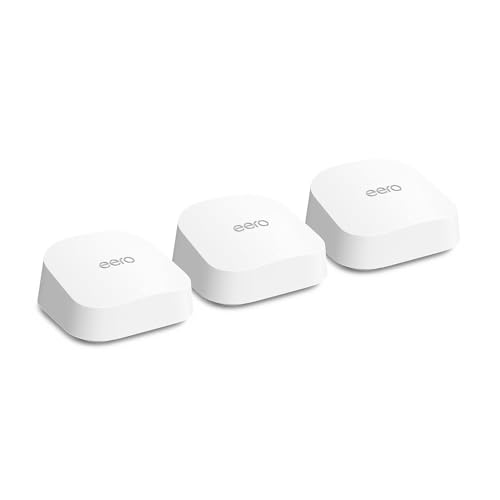
Your ISP router is lying to you. Not maliciously, just structurally. It's a single box bolted to the wall wherever the engineer ran the cable, and every metre of concrete, every stud wall, every floor between that box and your bedroom is quietly eating your signal. The dead zone isn't a mystery. It's physics. And the fix isn't a signal booster that just repeats a weak signal even more weakly. It's a proper mesh system where the nodes actually talk to each other intelligently, share load, and hand your phone off between them without you noticing.
The Amazon eero 6 mesh Wi-Fi router three-pack is eero's answer to that problem at a price that sits firmly in the upper mid-range. And the short version of this review? It's a genuinely good system for most households, with an app that's about as painless as home networking gets, solid coverage across typical UK homes, and Wi-Fi 6 support that'll serve you well for years. But it's not perfect, and depending on your situation, there are reasons to look elsewhere. Let's get into the detail.
Core Specifications
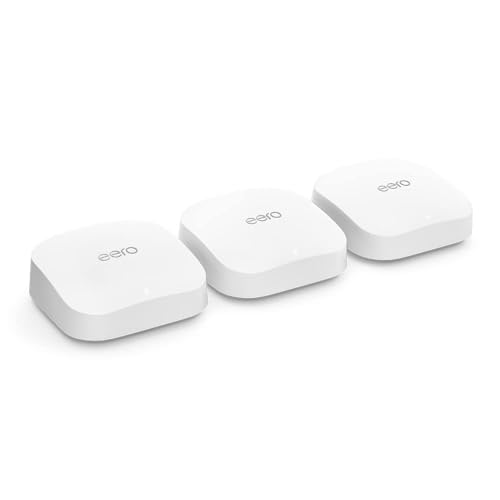
The eero 6 three-pack is a dual-band Wi-Fi 6 (802.11ax) mesh system. Each node covers up to 140 square metres according to eero's own figures, and the three-pack is rated for up to 420 square metres total. That's the headline. Each unit runs both 2.4GHz and 5GHz bands simultaneously, with a combined theoretical throughput of 500 Mbps. The backhaul (the link between nodes) runs on the same 5GHz band that your devices use. That's a shared backhaul setup, which matters quite a bit and we'll cover it properly in the mesh section.
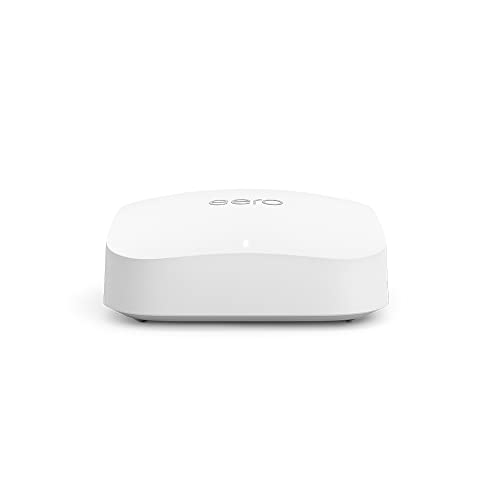
Each node has two Gigabit Ethernet ports. One is used for the WAN connection on the primary node (so you plug your ISP modem or fibre ONT into it), and the remaining ports across all three nodes can be used for wired devices or, usefully, for wired backhaul between nodes if you've got Ethernet running through your house. The units are compact and cylindrical, designed to sit on a shelf without looking like a piece of server equipment. There's no external antenna to fiddle with, which is either a feature or a limitation depending on how you look at it.
The system supports Zigbee, which means if you're building out a smart home, the eero 6 can act as a Zigbee hub for compatible devices. That's a nice extra for Amazon Echo and Philips Hue users. Thread support is also built in, which is relevant if you're buying into Matter-compatible smart home kit. These aren't headline features for most buyers but they do add genuine value for anyone already in the Amazon ecosystem.
| Specification | Detail |
|---|---|
| Wi-Fi Standard | Wi-Fi 6 (802.11ax), dual-band |
| Bands | 2.4GHz + 5GHz |
| Max Throughput (combined) | 500 Mbps (theoretical) |
| Backhaul | Shared 5GHz (wired backhaul supported via Ethernet ports) |
| Coverage (3-pack) | Up to 420 m² (manufacturer rated) |
| Simultaneous Devices | 75+ per pack |
| Ethernet Ports per Node | 2x Gigabit (1GbE) |
| MU-MIMO | Yes |
| OFDMA | Yes |
| Smart Home | Zigbee hub, Thread support |
| App | eero iOS / Android |
| Security | Automatic updates, eero Secure (subscription) |
| Price | £229.99 · Details |

Real-World Coverage and the Amazon eero 6 Mesh Wi-Fi Router
Let's be clear about what 420 square metres means in practice. That's eero's best-case figure, measured in ideal conditions. In a real house with brick walls, concrete floors, a boiler cupboard, and a loft conversion, you will not get 140 m² of usable coverage per node. Nobody does. What you will get, based on what owners consistently report, is solid coverage across a typical three or four-bedroom UK semi or detached house. The three-pack is genuinely well-suited to homes in the 100 to 200 m² range with multiple floors.
Owners with older Victorian terraces (thick brick walls, awkward layouts) report that the three-pack handles the job well when nodes are positioned sensibly, roughly one per floor or one per problematic zone. The key phrase there is "positioned sensibly". Mesh isn't magic. Put all three nodes at one end of the house and you've just made an expensive cluster. Spread them out, and the system earns its money. eero's app actually gives you placement guidance during setup, which helps people who've never thought about signal propagation before.
Garden coverage comes up a lot in owner reviews, and the picture is mixed. If your back door is near a node, you'll get usable signal on the patio. If the nearest node is two rooms and a floor away, you're going to struggle. This isn't a criticism specific to eero. It's just physics. What eero does do well is the handoff between nodes. Owners consistently mention that walking around the house with a phone or laptop doesn't result in the dropped-connection grief you get with a single router and a cheap repeater. The roaming experience is noticeably smoother than a bolted-on extender setup.
Sustained Speed Under Load
The 500 Mbps headline figure is the combined theoretical maximum across both bands. Your phone will not get 500 Mbps. Nobody's phone will. What that number actually tells you is the total capacity the system can divide between clients. In practice, owners with gigabit broadband connections report that the eero 6 is the bottleneck, not their ISP. If you're on a 900 Mbps or 1 Gbps fibre plan, you'll want to know that the eero 6 won't deliver that to wireless clients. It's simply not built for it. Wired clients connected directly to a node's Ethernet port will see much better throughput, but the wireless ceiling is real.
For most UK households, though, this isn't the problem it sounds like. The majority of people are on connections well under 500 Mbps, and even those on faster plans rarely saturate them with real usage. Streaming 4K, a few video calls, gaming, and a pile of smart home devices ticking away in the background is nowhere near the theoretical ceiling. Where the eero 6 performs well, and where owners consistently say positive things, is in consistency. The signal doesn't fall off a cliff in the far bedroom. Speed at the edge of the network holds up better than a single router setup because the nearest node is doing the heavy lifting, not a signal that's bounced through three walls.
The caveat is the shared backhaul, and it's worth understanding. When a satellite node (not the primary node) is serving your devices wirelessly, it's also using the 5GHz band to talk back to the primary node. Those two things share the same radio. So in a wireless-only setup, you're splitting 5GHz capacity between client traffic and inter-node traffic. The practical consequence is that throughput drops more than you'd expect as you move further from the primary node. Owners on very fast broadband plans notice this. Owners on 100 to 300 Mbps plans generally don't, because the bottleneck is elsewhere. If you've got Ethernet cable in your walls, using it for backhaul changes this picture significantly.
Mesh and Backhaul
Mesh networking is one of those things that sounds simple but has a lot of variation in how it's actually implemented. The eero 6 uses a dual-band setup with shared backhaul. What that means in plain English: there's no separate, dedicated radio just for the nodes to talk to each other. The same 5GHz band that your laptop uses is also the band the satellite node uses to relay traffic back to the primary. Compare this to a tri-band system, which has a third radio reserved exclusively for node-to-node communication, and you can see where the trade-off is.
The good news is that eero's software is genuinely clever about managing this. The system dynamically adjusts how it allocates bandwidth, and in practice, the shared backhaul is less of a problem than the spec sheet might suggest, especially for households with broadband speeds under 300 Mbps. But if you're running gigabit internet and want to actually use it wirelessly across multiple floors, a tri-band system with dedicated backhaul would serve you better. The eero Pro 6E, eero's own step-up option, uses a tri-band setup with a dedicated 6GHz backhaul channel. It costs more, but the backhaul architecture is fundamentally better for demanding use cases.
The wired backhaul option is where the eero 6 punches above its weight. If you've got Ethernet cable running between floors or between rooms, you can plug nodes directly into the network and bypass the wireless backhaul entirely. Each node has two Gigabit ports, so you connect one port to your home network switch or directly to another node, and the backhaul is now wired. This transforms the performance of the system. Owners who've done this report dramatically better throughput at satellite nodes. If you're renovating, or if your house already has structured cabling, this is the setup to aim for. The eero 6 handles it without any complex configuration. The app detects wired backhaul automatically.
Device Capacity
Seventy-five plus devices across the three-pack. That sounds like a lot, but count up a modern household and you'll be surprised. Two adults, two kids: that's four phones, four laptops or tablets, a couple of smart TVs, a console or two, a streaming stick, a smart doorbell, a few smart bulbs, a thermostat, maybe a robot hoover. You're at thirty devices before anyone's even plugged in a smart plug. The eero 6 is rated to handle this without falling over, and owners with busy households broadly confirm it.
The technical reason it handles device load well is Wi-Fi 6's OFDMA (Orthogonal Frequency Division Multiple Access) and MU-MIMO (Multi-User, Multiple Input, Multiple Output) support. OFDMA lets the router serve multiple devices simultaneously within a single transmission, rather than queuing them up one after another. MU-MIMO lets it talk to multiple devices at once across different spatial streams. Together, these make a real difference in a busy home. The older Wi-Fi 5 routers that many ISPs still issue don't have OFDMA, which is one reason they struggle when the whole family's online at once.
Where the eero 6 does have limits is in the IoT (Internet of Things) department. Smart home devices are almost all 2.4GHz, and the eero 6's 2.4GHz radio has to serve all of them alongside older devices that prefer that band. In very large smart home setups, the 2.4GHz band can get congested. This isn't unique to eero. It's a limitation of dual-band architecture generally. If you're running fifty-plus smart home devices, a dedicated IoT VLAN on a more advanced router might serve you better. For a normal household with a dozen or two smart home gadgets, the eero 6 handles it fine.
Wi-Fi Standard and Future-Proofing: the Amazon eero 6 Mesh Wi-Fi Router Explained
Wi-Fi 6 is the right standard for most people buying a mesh system right now. Not Wi-Fi 6E, not Wi-Fi 7. Those are real improvements, but they require client devices that support them, and the vast majority of phones, laptops, and tablets in UK homes don't. Wi-Fi 6E adds a 6GHz band that's genuinely useful for backhaul and for high-density environments, but your phone probably doesn't have a 6GHz radio. Wi-Fi 7 is faster still, but it's early days and the premium you pay for it right now isn't justified for most households.
Wi-Fi 6 devices, on the other hand, are everywhere. Most phones sold in the last three years support it. Most mid-range and above laptops do too. So buying a Wi-Fi 6 mesh system in 2026 isn't buying yesterday's tech. It's buying the standard that your devices can actually use. The eero 6 will serve a household well for several years before Wi-Fi 6E or 7 client devices become common enough to make upgrading feel necessary.
The honest caveat is that the eero 6's dual-band, shared-backhaul architecture means it's not the most future-proof mesh system at this price point. If you're buying for a five-plus year horizon and you've got fast broadband, the eero Pro 6E's tri-band design with a dedicated 6GHz backhaul is a meaningfully better long-term investment. But if you're coming from an ISP router or a single router and extender setup, the eero 6 three-pack is a substantial improvement that'll serve you well for years without needing to think about any of this.
Features and QoS
The eero app gives you the basics without overwhelming you. You get a guest network, which is properly isolated from your main network (good for keeping IoT devices or visitors away from your NAS or home server). You get basic device pausing, which is useful for parental controls. You get network activity monitoring that shows which devices are online and roughly how much they're using. These features are all accessible without a networking degree, which is the point.
The more advanced features sit behind eero Secure, a subscription service. This adds content filtering, threat detection, ad blocking, and more detailed activity reports. It's not expensive, but it is a subscription on top of what you've already paid for the hardware. The parental controls in particular are basic without it. You can pause a device, but you can't set time schedules or content categories without paying monthly. Some owners find this frustrating, and fairly so. Competitors at similar prices often include more advanced parental controls without a paywall.
QoS (Quality of Service, the ability to prioritise certain traffic types like gaming or video calls over background downloads) is handled automatically by eero rather than being user-configurable. The system attempts to manage this itself. Owners who want manual QoS control to stop someone's 4K Netflix stream from killing their game will find the eero 6 doesn't give them that lever. If you're the type who'd configure QoS manually at 11pm, you'll probably find eero's walled garden approach a bit limiting. If you're not that person, the automatic management is fine for day-to-day use. Buffer bloat (the latency spike you get when your connection is saturated) is managed reasonably well, and owners don't commonly report gaming or video call issues under normal household load.
Firmware, App and Security Updates
This is one of eero's genuine strengths. Updates are automatic and pushed silently in the background. You don't have to log into a web interface, download a firmware file, or remember to check for updates. The system handles it. And because eero is owned by Amazon, there's a reasonable expectation of long-term software support. The eero 6 has been receiving updates since its launch, and the update cadence is consistent. For a product in this category, that matters more than most people realise. A router that stops getting security updates is a liability sitting on your home network.
The app itself (iOS and Android) is genuinely well-regarded by owners. Setup is consistently described as straightforward, the interface is clean, and the day-to-day experience of managing the network is minimal because the system mostly just works. The app has improved over time with updates, and eero's support team has a decent reputation for responsiveness. Owner reviews with complaints tend to focus on hardware issues or subscription frustrations rather than app instability.
The reboot question: do owners report needing to restart the system regularly? Not commonly. Occasional reboots crop up in negative reviews, but they're not a pattern across the majority of the thousands of reviews (averaging ★★★★☆ (4.4)). The system does occasionally need a restart after an ISP outage or a firmware update, but this is normal behaviour for any router. Owners who do report stability issues often find they're related to placement (nodes too far apart, or wireless backhaul through too many walls) rather than a firmware problem. The stability picture is broadly positive.
Setup and Management
Setting up the eero 6 is about as painless as home networking gets. You download the app, create an account, plug in the first node, scan a QR code on the bottom, and follow the prompts. The app walks you through adding the second and third nodes. The whole process takes most people under fifteen minutes, and the app's placement guidance helps with positioning. There's no web interface to navigate, no subnet masks to configure, no DHCP settings to worry about unless you specifically want to dig into them (advanced settings are available but tucked away).
The trade-off for this simplicity is control. Power users will find the eero ecosystem quite locked down. You can't run custom firmware. The DNS settings are configurable (you can point it at a custom DNS resolver like Cloudflare or your Pi-hole), and if you want an extra privacy and security layer on top of the network these nodes build, or protection on public Wi-Fi when you're away from home, a good VPN sits happily alongside all this, and you can set static IPs for devices, but deep network configuration isn't what eero is designed for. The system assumes you want it to handle everything, and for most buyers, that's exactly what they want.
Ongoing management is minimal. The app sends notifications if a node goes offline or if there's a network issue. You can see which devices are connected, set up a guest network, pause individual devices, and check for any alerts. Day-to-day, most owners report they just don't think about it, which is the best possible outcome for a home network. The app doesn't require you to log in constantly or babysit the system. It runs, it updates itself, and it stays out of your way.
Ports and Connectivity
Each eero 6 node has two Gigabit Ethernet ports (1GbE). On the primary node, one of these is the WAN port for your broadband connection. On satellite nodes, both ports are available for wired devices. This means across the three-pack you've got five available Ethernet ports for wired devices (two WAN/LAN on the primary, two on each satellite), which is a decent spread for a mesh system in this class.
The limitation is that 1GbE is the ceiling. If you're on a multi-gigabit broadband connection, the eero 6 cannot deliver that speed to any device, wired or wireless. The WAN port maxes out at 1 Gbps. For the vast majority of UK broadband users this is irrelevant. But if you're on a 2.5 Gbps or 10 Gbps fibre product, you need to look at hardware with faster WAN ports. The eero Pro 6E doesn't solve this either (it's also 1GbE on WAN). For multi-gig WAN, you're looking at different products entirely.
There's no USB port on the eero 6 nodes. No USB storage sharing, no USB printer sharing. If you need those features, the eero ecosystem isn't the right fit. There's also no link aggregation support. These are niche requirements for most home users, but if they're on your list. What you do get is the wired backhaul capability via those Ethernet ports, which as mentioned in the backhaul section transforms the system's performance if you've got the cabling to use it.
How It Compares
The eero 6 three-pack sits in a competitive part of the market. The two most relevant alternatives at a similar price are the TP-Link Deco XE75 Pro three-pack and the Google Nest WiFi Pro three-pack. Both are about before you hand over your money.
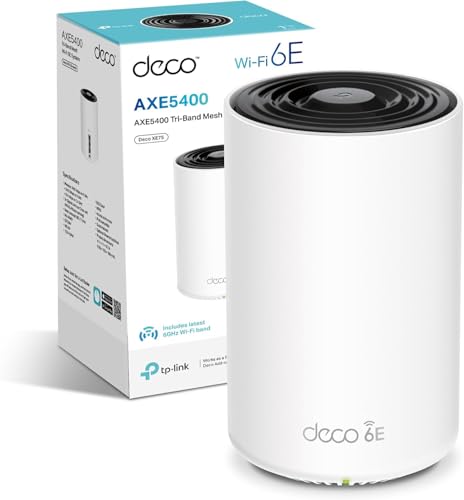
The TP-Link Deco XE75 Pro is a tri-band Wi-Fi 6E system. That third band (6GHz) is used as dedicated backhaul between nodes, which is a meaningfully better architecture than the eero 6's shared 5GHz backhaul. It also has 2.5GbE ports on each node, which future-proofs it better for fast broadband connections. The trade-off is that the app is less polished than eero's and the setup experience is more complex. For technically confident buyers who want better backhaul architecture at a similar price, the Deco XE75 Pro is the stronger spec.
The Google Nest WiFi Pro is another tri-band Wi-Fi 6E system. It's clean, well-integrated with Google Home, and has a dedicated 6GHz backhaul band. Its coverage per node is rated lower than the eero 6, and it only has one Ethernet port per node (versus two on the eero 6), which limits wired device connections. The Google Home integration is excellent if you're already in that ecosystem, but if you're Amazon-heavy, eero's Alexa integration and Zigbee hub features make more sense. The Nest WiFi Pro's app is solid but the parental controls have similar paywall issues to eero Secure.
| Feature | Amazon eero 6 (3-pack) | TP-Link Deco XE75 Pro (3-pack) | Google Nest WiFi Pro (3-pack) |
|---|---|---|---|
| Wi-Fi Standard | Wi-Fi 6, dual-band | Wi-Fi 6E, tri-band | Wi-Fi 6E, tri-band |
| Backhaul | Shared 5GHz (wired option) | Dedicated 6GHz | Dedicated 6GHz |
| Max WAN Port Speed | 1GbE | 2.5GbE | 1GbE |
| Ethernet Ports per Node | 2x 1GbE | 1x 2.5GbE + 1x 1GbE | 1x 1GbE |
| Coverage (3-pack) | Up to 420 m² | Up to 557 m² | Up to 418 m² |
| Zigbee Hub | Yes | No | No |
| App Quality | Excellent | Good | Excellent |
| Advanced Parental Controls | Subscription (eero Secure) | Included | Subscription (Google One) |
| Price (3-pack) | £229.99 · Details | Check Amazon | Check Amazon |
The honest summary is this: if you're on broadband under 500 Mbps, you don't have Ethernet in your walls, and you want the simplest possible setup experience, the eero 6 is a strong choice. If you've got fast broadband, you want the best wireless backhaul architecture, or you need 2.5GbE ports, the Deco XE75 Pro is the better buy at a similar price. The Nest WiFi Pro is for Google ecosystem households who want clean design and solid integration with Google Home.

Final Verdict
The Amazon eero 6 mesh Wi-Fi router three-pack is a genuinely good system for the majority of UK households. It's not the most technically impressive option at this price point. The shared 5GHz backhaul is a real architectural limitation compared to tri-band competitors, and the subscription paywall for advanced parental controls is a legitimate gripe. But the app is excellent, setup is as easy as it gets, the coverage across a typical three or four-bedroom UK home is solid, and the Wi-Fi 6 spec with proper OFDMA and MU-MIMO support handles busy households well. The positive overall rating across thousands of owner reviews isn't an accident.
Who should buy it: anyone upgrading from an ISP router or a single router and extender setup, households with thirty-plus devices, people who want to set it up once and never think about it again, and Amazon ecosystem users who'll get extra value from the Zigbee hub and Alexa integration. It's also if you've got Ethernet cable in your walls, because wired backhaul turns this from a good system into a very good one.
Who should skip it: if you're on gigabit broadband and want to actually push those speeds wirelessly across multiple floors, the shared backhaul will frustrate you. If you want manual QoS control, custom firmware, or deep network configuration, eero's locked-down approach isn't for you. And if parental controls are a priority, factor in the eero Secure subscription cost before comparing prices with competitors that include those features in the box.
The don't-overspend line: if your house is under 100 square metres and you've got a single floor to cover, the two-pack eero 6 (or even the single eero 6 unit) is first. You might not need three nodes, and buying fewer is obviously cheaper. Alternatively, if your broadband is under 200 Mbps and your main problem is a dead zone in one room, a single eero 6 node added to your existing setup as an extender might solve it for less money than a full three-pack replacement.
Rating: 7.5 out of 10. A properly good mesh system let down only by its shared backhaul architecture and the subscription model for parental controls. For most households, it's more than enough.
What works. What doesn’t.
5 + 4What we liked5 reasons
- Excellent app with the easiest setup experience in this category
- Solid Wi-Fi 6 support with OFDMA and MU-MIMO for busy households
- Wired backhaul via Ethernet ports transforms performance if cabling is available
- Built-in Zigbee hub adds genuine smart home value for Amazon ecosystem users
- Consistent automatic firmware and security updates with no user intervention required
Where it falls4 reasons
- Shared 5GHz backhaul limits throughput on wireless satellite nodes versus tri-band competitors
- Advanced parental controls locked behind eero Secure subscription
- 1GbE WAN port is a ceiling for multi-gigabit broadband users
- No manual QoS control for power users who want to prioritise traffic themselves
Full specifications
8 attributes| Antennas | 0 |
|---|---|
| Coverage SQM | 420 |
| Launch year | 2021 |
| Mesh capable | true |
| Ports | 2x 1GbE auto-sensing Ethernet |
| TOP speed mbps | 1800 |
| Type | mesh_router |
| Wifi standard | Wi-Fi 6 |
If this isn’t right for you
2 options

Frequently asked
5 questions01Will the Amazon eero 6 mesh Wi-Fi router 3-pack cover my whole house?+
For most UK homes in the 100 to 200 square metre range with two or three floors, the three-pack covers the house well when nodes are spread out sensibly. eero rates the pack at up to 420 m² total, but that's a best-case figure in open conditions. Real homes with brick walls, concrete floors, and awkward layouts will see less. Owners in typical three and four-bedroom semis and detached houses report solid coverage throughout. Victorian terraces with thick walls need nodes positioned carefully, roughly one per floor. If your home is under 100 m² on a single floor, a two-pack or even a single node may be enough.
02Do I really need Wi-Fi 6E or Wi-Fi 7 instead of the eero 6's Wi-Fi 6?+
Probably not yet. Wi-Fi 6E and Wi-Fi 7 are real improvements, but they require client devices that support them, and most phones, laptops, and tablets in UK homes today use Wi-Fi 6 or older. Wi-Fi 6 is the standard your current devices can actually use, and the eero 6 delivers it properly with OFDMA and MU-MIMO. The main reason to pay more for Wi-Fi 6E in a mesh system right now is the dedicated 6GHz backhaul band it enables between nodes, which is a genuine architectural improvement for demanding setups. If you're on fast broadband and want the best wireless backhaul, a Wi-Fi 6E tri-band system is worth the premium. For most households, Wi-Fi 6 is more than sufficient for several years.
03Is the eero 6 mesh worth it over a single router or a cheap extender?+
Yes, in most cases. A single router struggles to cover a multi-storey home with thick walls, and a cheap extender just repeats a weak signal, often making things worse rather than better. The eero 6 mesh system places nodes throughout the home and hands your devices off between them automatically, which means consistent coverage and a much smoother roaming experience. The key advantage over a single router and extender setup is that the nodes communicate intelligently rather than just amplifying whatever signal they receive. If your home is small and single-storey, a single good router might be enough. If you've got dead zones on upper floors or at the far end of the house, mesh is the right solution.
04Is the Amazon eero 6 mesh Wi-Fi router easy to set up and reliable?+
Setup is consistently praised in owner reviews as one of the easiest in the category. The app walks you through the process step by step, and most people have all three nodes running in under fifteen minutes. Reliability is broadly good across the thousands of owner reviews, which have a positive overall rating. Occasional reboots are mentioned in a minority of reviews, but they're not a consistent pattern. Where stability issues do occur, they're often related to node placement rather than firmware problems. The system updates itself automatically in the background, so you don't need to manage firmware manually.
05What warranty and returns apply to the Amazon eero 6 mesh Wi-Fi router 3-pack?+
Amazon offers a standard 30-day return window on most items sold and fulfilled by Amazon, and the A-to-Z Guarantee covers purchases made through the platform. For specific warranty terms from eero, check the product listing and eero's support pages directly, as warranty coverage can vary and terms may have been updated since publication. As an Amazon-owned brand, eero's customer support is generally accessible through the eero app and Amazon's standard support channels.