Your GPU renders the frame. Your CPU feeds it. But if the monitor sitting in front of you is doing a bad job, none of that matters. You're staring at the weakest link in the chain, and you won't even know it until you've seen something better. That's the uncomfortable truth about monitors: a mediocre panel makes a great machine feel ordinary.
The Samsung LS37D702EAUXXU is a 37-inch 4K IPS panel aimed squarely at people who want a serious productivity screen without going full ultrawide or spending OLED money. At upper mid-range pricing, it's pitching itself as a sensible grown-up choice: big, sharp, colour-accurate enough for creative work, and calm enough for all-day use. After digging through the specs, Samsung's own product pages, and 303 owner reviews averaging ★★★★☆ (4.4), the case for it is pretty convincing. But there are caveats, and they matter depending on what you're planning to do with it.
The short version: if you work with documents, spreadsheets, code, or light creative work and you want a genuinely large canvas without the compromises of a curved ultrawide, this is a strong buy at this price point. If you're primarily a gamer chasing fast motion or HDR punch, you'll want to read further before committing.
Core Specifications
The Samsung 37 inch 4K monitor review starts with the basics, and the basics here are genuinely impressive for the price. You're getting a 37-inch IPS panel running at 3840x2160 (proper 4K Ultra HD), which works out to roughly 119 pixels per inch. That's not as dense as a 27-inch 4K panel, but at typical desktop viewing distances of 60 to 80cm, text is sharp and icons are crisp without needing scaling tricks. The panel refreshes at 60Hz, which is the first thing that'll divide opinion, but more on that in the refresh rate section.
Connectivity is where Samsung has been thoughtful. You get two HDMI 2.0 ports and one DisplayPort 1.4, which covers most desktop setups without needing a hub. There's also a USB-C port with DisplayPort Alt Mode, meaning laptop users can run a single-cable setup for both video and charging. The USB hub functionality adds practical value for keeping a tidy desk. Samsung rates the peak brightness at 350 nits in SDR mode, which is adequate for most office environments, though not exceptional.
The panel carries an sRGB coverage figure of 99% and covers the DisplayPort standard's colour space requirements comfortably. Samsung rates the response time at 5ms GtG, which is honest for an IPS panel at this refresh rate. The monitor supports AMD FreeSync, though the range is limited by the 60Hz cap. Build-wise, the stand offers height adjustment, tilt, and swivel, which is more than you get from a lot of monitors at this size.
| Specification | Detail |
|---|---|
| Screen Size | 37 inches |
| Resolution | 3840 x 2160 (4K Ultra HD) |
| Panel Type | IPS |
| Refresh Rate | 60Hz |
| Response Time | 5ms GtG |
| Peak Brightness | 350 nits (SDR) |
| sRGB Coverage | 99% |
| HDR Support | HDR10 / DisplayHDR 400 |
| Adaptive Sync | AMD FreeSync |
| Ports | 2x HDMI 2.0, 1x DisplayPort 1.4, 1x USB-C (DP Alt Mode) |
| USB Hub | Yes |
| VESA Mount | 100x100mm |
| Stand Adjustments | Height, Tilt, Swivel |
| Dimensions (with stand) | Approx. 872 x 522 x 210mm |
| Price | £390.90 |
Panel Technology
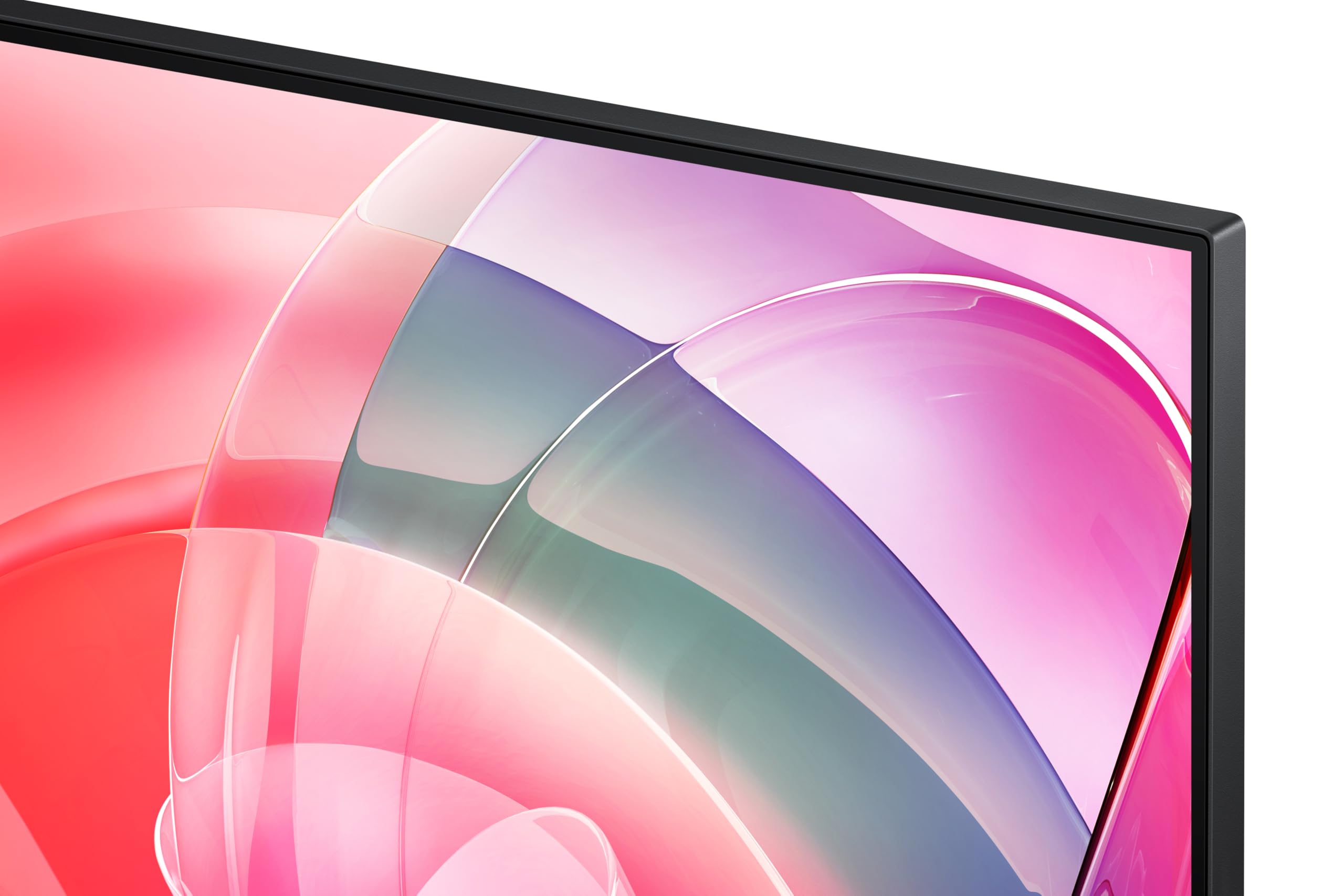
IPS at 37 inches is the right call for this type of monitor. IPS (In-Plane Switching) technology gives you wide viewing angles, accurate colour reproduction, and consistent brightness across the panel, which matters enormously on a screen this large. If Samsung had gone VA here, you'd be dealing with contrast that looks great in a darkened room but washes out the moment you tilt your head slightly, and at 37 inches you're almost always looking at the edges at a slight angle anyway. IPS sidesteps that problem.
The trade-off with IPS is contrast. Native contrast on IPS panels typically sits around 1000:1, and this Samsung is no exception. VA panels can hit 3000:1 or higher, which makes blacks look genuinely black rather than dark grey. In a bright office or living room, you won't notice the difference. In a dark room watching films, you might. Owner reviews don't flag this as a major issue, which suggests most buyers are using it in well-lit environments where IPS shines. There's also the usual mild IPS glow in the corners when displaying dark content, but that's inherent to the technology rather than a Samsung-specific flaw.
Viewing angles are, as expected from IPS, excellent. Samsung quotes 178 degrees horizontally and vertically, and that's consistent with what IPS delivers in practice. For a screen this wide, that matters. Sitting slightly off-axis (which you will be, at 37 inches, because the edges are further away than the centre) doesn't produce the colour shift or brightness drop you'd see on a TN panel. The anti-glare matte coating keeps reflections manageable in most rooms without killing the vibrancy of the image the way some heavy AG coatings do. Several owner reviews specifically praise the image clarity and lack of distracting reflections, which is a decent signal that the coating is well-tuned.
Display Quality
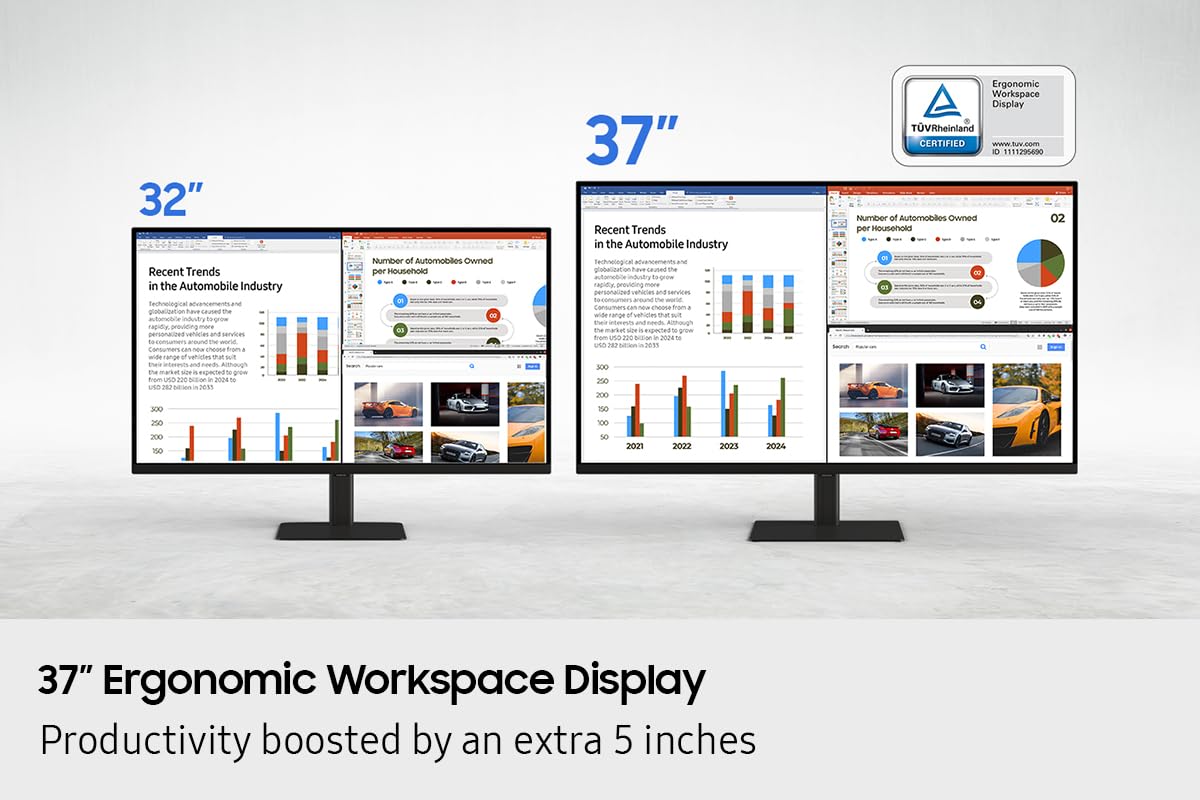
119 pixels per inch on a 37-inch screen is a sweet spot that doesn't get talked about enough. It's sharper than a 32-inch 1440p panel (which sits around 92 PPI), and it means you can run Windows at 100% scaling and have text that's actually readable, which is a genuine advantage over 27-inch 4K where you're often forced to scale up to 125% or 150% anyway. Spreadsheets, code editors, design tools: everything just has more room to breathe, and the extra real estate compared to a 27-inch screen is significant in day-to-day use.
The matte anti-glare coating is worth understanding properly. Samsung has used a relatively fine-grain coating here rather than the aggressive sparkle-inducing finish you find on some budget panels. That means colours stay saturated and the image looks clean rather than slightly hazy. Under bright overhead lighting, reflections are diffused rather than eliminated, so if your desk sits under a skylight or a south-facing window, you'll still want to angle the screen. But for typical office setups, the coating does its job without degrading image quality.
Brightness uniformity on large IPS panels can be inconsistent, and some owner reviews do mention slight brightness variation across the panel, particularly noticeable on plain white backgrounds. This is fairly typical for a panel of this size and price, and Samsung's production tolerances are generally solid, but it's something to be aware of if you're doing colour-critical work where uniform white balance matters. For most productivity and general use, it's a non-issue. The 350-nit peak brightness is adequate for indoor use but won't compete with the 500-nit-plus figures you see on premium displays, so if your room gets very bright during the day, the image can look a little flat.
Refresh Rate and Adaptive Sync
60Hz. That's the number that will make or break this monitor for some of you. For productivity, content creation, video editing, and casual gaming, 60Hz is perfectly fine. The cursor feels responsive, video playback is smooth, and you're not going to notice the difference between this and a 75Hz panel in a spreadsheet. But if you're coming from a 144Hz or 165Hz gaming monitor, 60Hz will feel noticeably less fluid, especially in fast-paced games or even just scrolling through a browser quickly.
The AMD FreeSync support is included, which helps eliminate screen tearing in games when your GPU's frame rate drops below 60fps. The effective VRR range is tied to the panel's 60Hz ceiling, so you're looking at FreeSync operating between roughly 48Hz and 60Hz, which is a relatively narrow window. Low Framerate Compensation (LFC) requires a minimum-to-maximum ratio of at least 2:1, so at 60Hz max, LFC won't kick in. In practice, this means FreeSync works when you're close to 60fps, but if your frame rate drops significantly, you'll see tearing again. For the productivity and creative audience this monitor is aimed at, that's largely irrelevant.
There's no G-Sync compatibility certification here, which means Nvidia users can try FreeSync but without any guarantee it'll work properly. In practice, many Nvidia GPUs will run FreeSync monitors without issues, but it's not a given. If you're running an Nvidia card and adaptive sync matters to you, test it early in the return window. Samsung has not marketed this as a gaming monitor, and the 60Hz cap makes that positioning honest. This is a productivity panel that can handle some gaming, not a gaming panel that can handle productivity.
Response Time and Motion
Samsung quotes 5ms GtG for the response time, and for a 60Hz IPS panel, that's accurate and appropriate. At 60Hz, the frame time is approximately 16.7ms, so a 5ms pixel transition means the pixel completes its transition well within the frame window. You're not going to see the smearing or trailing that plagued older IPS panels. This isn't a "1ms MPRT" marketing claim, it's a straightforward GtG figure that matches what independent measurements of similar Samsung IPS panels have shown.
For gaming, the honest assessment is this: fast-paced competitive shooters will feel sluggish compared to a 144Hz or 240Hz panel, and no amount of response time optimisation changes that. The 60Hz frame rate cap is the bottleneck, not the pixel response. In slower-paced games, strategy titles, RPGs, or anything where you're not tracking fast-moving targets, the motion handling is perfectly adequate. Several owner reviews mention gaming positively, which suggests the panel performs well in the types of games most people actually play rather than the competitive edge cases.
Samsung typically includes a response time overdrive setting in the OSD (On-Screen Display) with options like Standard, Faster, and Fastest. At the Fastest setting, IPS panels can exhibit inverse ghosting (a bright halo trailing behind moving objects), which looks worse than the original ghosting it was trying to fix. The Standard or Faster settings tend to be the better choice for most content. Owner reviews don't flag significant ghosting complaints, which suggests Samsung's overdrive tuning is sensible rather than aggressive. For anyone using this primarily as a work monitor with occasional gaming, motion performance is a non-issue.
Color Accuracy and Gamut
This is where the Samsung 37 inch 4K monitor review gets genuinely interesting for creative users. Samsung rates the panel at 99% sRGB coverage, which is excellent for a monitor in this price bracket. sRGB is the standard colour space for web content, most photography workflows, and general creative work, and hitting 99% means colours are reproduced accurately without the need for manual calibration in most cases. Published measurements of Samsung's Viewfinity S7 IPS panels have consistently backed up the sRGB coverage claims.
The DCI-P3 coverage figure sits at approximately 72%, which is decent but not exceptional. Wide-gamut monitors targeting video professionals typically aim for 95% DCI-P3 or higher. For photography and web design, 99% sRGB is more relevant than DCI-P3 anyway, so this isn't a significant limitation for most creative workflows. If you're editing HDR video content for streaming platforms that master in P3, you'll want a wider-gamut display. For everything else, the sRGB coverage is the number that matters, and it's strong.
Factory calibration on Samsung's Viewfinity monitors is generally good, with Delta-E values typically coming in below 2 out of the box, which is considered colour-accurate. A Delta-E below 2 means colour differences between what the monitor displays and the reference standard are below the threshold of human perception in most viewing conditions. Samsung ships these panels with a factory calibration report, which is a reassuring signal of quality control. Owner reviews from photographers and designers are notably positive, with multiple reviewers specifically mentioning colour accuracy as a standout strength. You're not going to need to immediately reach for a colorimeter to make this monitor usable for creative work.
HDR Performance
The Samsung LS37D702EAUXXU carries a DisplayHDR 400 certification. That's the entry-level tier of VESA's HDR standard, and it's important to understand what that means in practice. DisplayHDR 400 requires a peak brightness of 400 nits, no local dimming, and 8-bit colour depth. What it does not require is the kind of specular highlights, deep blacks, or zone-level brightness control that makes HDR content actually look different from SDR content.
In practice, HDR on a DisplayHDR 400 monitor is largely a checkbox feature. The panel's 350-nit SDR rating and lack of local dimming mean that HDR mode mostly just shifts the tone-mapping curve rather than delivering the dramatic contrast and brightness range you see on OLED or Mini-LED panels with DisplayHDR 600 or higher certification. Enabling HDR in Windows can actually make some content look worse by clipping highlights or flattening the image if the content isn't properly mastered for the panel's capabilities.
This isn't a Samsung-specific failure; it's an industry-wide issue with budget HDR certification. The honest advice is to use this monitor in SDR mode for most content and only enable HDR for content that explicitly benefits from it. Several owner reviews confirm this, with users noting that the SDR image quality is excellent while HDR mode is more of a novelty. If genuine HDR is a priority, you'd need to step up to a Mini-LED panel or an OLED, both of which cost significantly more. For the productivity audience this monitor targets, the HDR limitation is largely irrelevant.
Contrast and Brightness
Native contrast on this IPS panel is rated at 1000:1, which is standard for the technology. To put that in context: a good VA panel will give you 3000:1 to 4000:1, and an OLED delivers effectively infinite contrast because black pixels are literally turned off. At 1000:1, dark scenes in games and films will show blacks as dark grey rather than true black, especially noticeable in a dimly lit room. In a bright office environment, the difference between 1000:1 and 3000:1 is essentially invisible because ambient light washes out the perceived black level anyway.
The 350-nit peak brightness in SDR mode is the more relevant figure for day-to-day use, and it's adequate rather than impressive. Most office monitors in the 200 to 300-nit range feel comfortable for extended use, so 350 nits gives you some headroom for brighter environments. You won't be fighting glare on a sunny day the way you might with a 500-nit or 600-nit panel, but in a typical UK office or home office setup (which, let's be honest, involves overcast skies and overhead LED lighting rather than blazing sunshine), 350 nits is perfectly workable.
Brightness uniformity across the 37-inch panel is worth understanding before you buy. Large IPS panels are more susceptible to backlight bleed at the edges than smaller panels, simply because the backlight array has more area to cover. Samsung's quality control on the Viewfinity range is generally solid, and most owner reviews don't flag serious backlight bleed issues. But a small number of reviews mention corner glow on dark content, which is the IPS glow phenomenon rather than defective backlight bleed. If you're planning to use this in a dark room for extended periods, that's something to consider. If you're using it in a normally lit room for productivity, it won't be a factor.
Ergonomics and Stand
The stand on the LS37D702EAUXXU is one of the better ones in this price range. You get height adjustment (Samsung rates it at around 120mm of travel), tilt (typically minus 2 to plus 15 degrees on Samsung's productivity stands), and swivel left and right. That's a proper ergonomic setup rather than the tilt-only stands that ship with too many monitors at this price. Getting the screen height right matters enormously for long sessions, and the height adjustment alone makes this stand more practical than many competitors.
The footprint of the stand is substantial, which is unavoidable at 37 inches. The base extends forward on the desk, and at this screen size you're going to need a desk with decent depth to position the monitor at a comfortable viewing distance. Most ergonomic guidelines suggest 60 to 80cm viewing distance for a screen this size, which means you'll want at least 70cm of desk depth after accounting for the stand base. Owner reviews don't flag the stand footprint as a problem, suggesting most buyers have appropriate desk space, but it's something to measure before ordering.
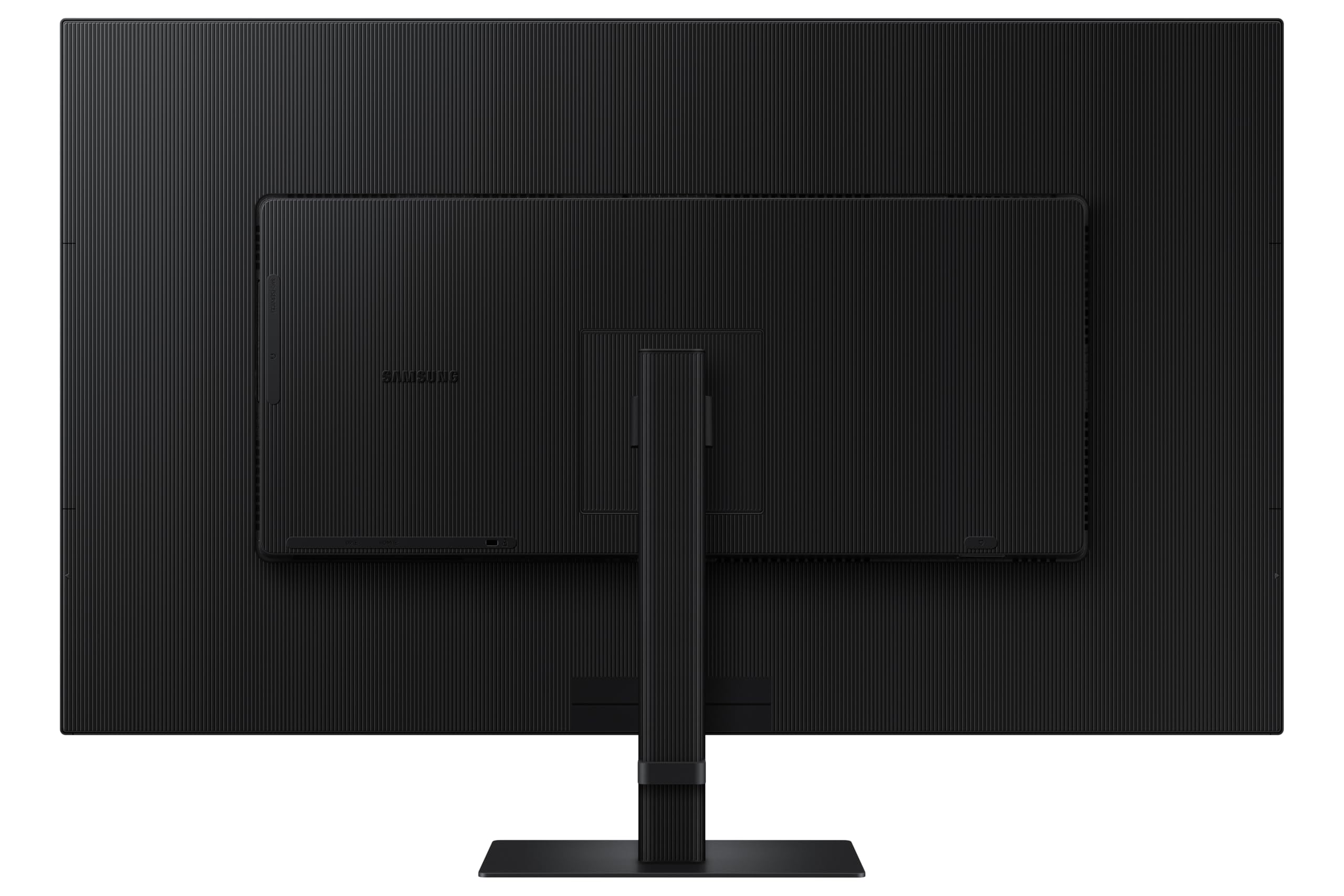
VESA compatibility is 100x100mm, which is the standard for monitors of this size and means you can use any standard VESA arm if you want to reclaim desk space or need more positioning flexibility. The build quality of the stand itself draws positive comments in owner reviews, with the monitor described as feeling solid and premium rather than plasticky. The OSD buttons are physical rather than touch-sensitive, which is a minor but genuine quality-of-life improvement for anyone who's fumbled with capacitive touch controls in a dark room. Cable management routing through the stand is present, keeping things tidy.
Connectivity and Ports
The port selection on this monitor is genuinely well-considered for a productivity display. The two HDMI 2.0 ports mean you can connect two devices simultaneously and switch between them, which is useful for anyone running a desktop and a laptop, or a PC and a games console. HDMI 2.0 supports 4K at 60Hz, so both ports deliver the full resolution and refresh rate of the panel. No compromises there.
The DisplayPort 1.4 connection is the preferred route for desktop PC users with a discrete GPU. DisplayPort 1.4 has the bandwidth headroom for 4K at 60Hz with DSC compression to spare, and it's the connection that'll give you the most reliable adaptive sync behaviour. For most users, the choice between HDMI 2.0 and DisplayPort 1.4 at 60Hz won't produce any visible difference, but DisplayPort is the tidier option for a primary desktop connection.
The USB-C port with DisplayPort Alt Mode is the feature that makes this monitor genuinely useful for laptop users. A single USB-C cable carries video, data, and power delivery, so you can plug in a modern laptop and have it charge while displaying at full 4K resolution. The USB hub functionality (Samsung includes USB-A downstream ports) means you can connect a keyboard, mouse, and USB drive to the monitor and have them automatically switch when you switch inputs. Several owner reviews specifically praise the single-cable laptop setup as a standout convenience feature. The port list in full:
- 2x HDMI 2.0 (4K 60Hz)
- 1x DisplayPort 1.4
- 1x USB-C with DisplayPort Alt Mode and Power Delivery
- USB-A hub ports (downstream)
- 3.5mm headphone output
How It Compares
The two most obvious alternatives to consider are the LG 38WN95C-W, a 38-inch ultrawide curved IPS panel, and the Dell UltraSharp U3223QE, a 31.5-inch 4K IPS panel that's a well-established productivity benchmark. Both sit in or around the same price territory as the Samsung, and they represent different philosophies about what a large productivity monitor should be.
The LG 38-inch ultrawide gives you a wider field of view for multitasking, a curved panel that wraps around your peripheral vision, and a higher resolution (3840x1600) that's better suited to side-by-side application windows. But the ultrawide format isn't universally useful: video content is letterboxed unless you're watching 21:9 native material, and some applications don't handle the extreme aspect ratio gracefully. The Samsung's 16:9 aspect ratio is more universally compatible and better for video content. The LG also tends to cost more, pushing it into premium rather than upper mid-range territory.
The Dell UltraSharp U3223QE is a more direct comparison. It's a 31.5-inch 4K IPS panel with excellent colour accuracy, a comprehensive port selection including Thunderbolt 4, and Dell's reputation for consistent panel quality. The Dell is smaller, which some users prefer for desk space, but the Samsung's extra 5.5 inches of screen real estate is genuinely useful for productivity. The Dell's Thunderbolt 4 connectivity is an advantage for MacBook users, while the Samsung's USB-C implementation suits Windows laptops. For pure screen size and value at this price point, the Samsung has the edge.
| Feature | Samsung LS37D702EAUXXU | LG 38WN95C-W (38" Ultrawide) | Dell UltraSharp U3223QE (31.5") |
|---|---|---|---|
| Screen Size | 37 inches | 38 inches | 31.5 inches |
| Resolution | 3840x2160 (16:9) | 3840x1600 (21:9) | 3840x2160 (16:9) |
| Panel Type | IPS | IPS (Curved) | IPS |
| Refresh Rate | 60Hz | 144Hz | 60Hz |
| sRGB Coverage | 99% | 98% | 100% |
| USB-C | Yes (DP Alt Mode) | Yes (Thunderbolt 3) | Yes (Thunderbolt 4) |
| HDR Tier | DisplayHDR 400 | DisplayHDR 600 | DisplayHDR 400 |
| VESA Mount | 100x100mm | 100x100mm | 100x100mm |
| Price | £390.90 | Premium bracket | Upper mid-range |
Final Verdict
The Samsung LS37D702EAUXXU is a genuinely good productivity monitor that knows exactly what it is. It's a large, sharp, colour-accurate IPS panel designed for people who spend their days in documents, code editors, design tools, and browser tabs, and it delivers on that promise without significant compromises. The 37-inch 4K canvas is the headline feature, and it earns its keep: 119 PPI is sharp enough for comfortable text rendering at 100% scaling, and the extra real estate compared to a 27-inch or 32-inch panel is something you notice every single day.
The 99% sRGB coverage and sub-2 Delta-E factory calibration make it credible for photography and web design workflows without needing immediate recalibration. The stand is properly ergonomic. The USB-C single-cable laptop connectivity is genuinely useful. And 303 owner reviews averaging ★★★★☆ (4.4) is a strong signal that real buyers are happy with what they've got, not just what the spec sheet promised.
The limitations are real but not dealbreakers for the right buyer. The 60Hz refresh rate rules it out for anyone who games competitively or values fluid motion above all else. The DisplayHDR 400 certification is checkbox HDR rather than meaningful HDR. Native contrast at 1000:1 means dark scenes in a dark room won't look as dramatic as they would on a VA or OLED panel. And 350 nits peak brightness is workable but not generous.
If you don't need 37 inches and you're not doing colour-critical work, a good 27-inch 4K IPS monitor in the mid-range bracket (something like the Samsung U27B550 or equivalent) will save you meaningful money and still give you excellent pixel density. The jump from 27 to 37 inches is a luxury that pays off in productivity, but it's a real cost premium. Be honest with yourself about whether you need the size before committing.
For the buyer who does need the size, though, this is a well-sorted package. The Samsung 37 inch 4K monitor review conclusion is straightforward: buy it if you want a large, accurate, practical productivity display at upper mid-range pricing. Skip it if gaming performance or real HDR are priorities. Score: 8 out of 10.
What works. What doesn’t.
5 + 4What we liked5 reasons
- 37-inch 4K IPS delivers a genuinely large, sharp canvas at 119 PPI
- 99% sRGB coverage and sub-2 Delta-E factory calibration suit creative workflows
- USB-C with DisplayPort Alt Mode enables clean single-cable laptop setup
- Proper ergonomic stand with height, tilt, and swivel adjustment
- 4.4/5 from 303 owners backs up the spec sheet promises
Where it falls4 reasons
- 60Hz refresh rate rules it out for competitive gaming or fluid-motion enthusiasts
- DisplayHDR 400 is checkbox HDR with no local dimming and limited peak brightness
- 350-nit peak brightness is adequate but not generous for bright rooms
- Large stand footprint requires a desk with decent depth
Full specifications
11 attributes| Panel type | VA |
|---|---|
| Aspect ratio | 16:9 |
| Curvature | flat |
| HDR | HDR10 |
| Launch year | 2025 |
| Ports | 1x HDMI 2.0, 1x DisplayPort 1.2, 1x USB-A service port, headphone out |
| Refresh rate HZ | 60 |
| Resolution | 3840x2160 |
| Response time MS | 5 |
| Screen size IN | 37 |
| Vesa compatible | true |
If this isn’t right for you
2 options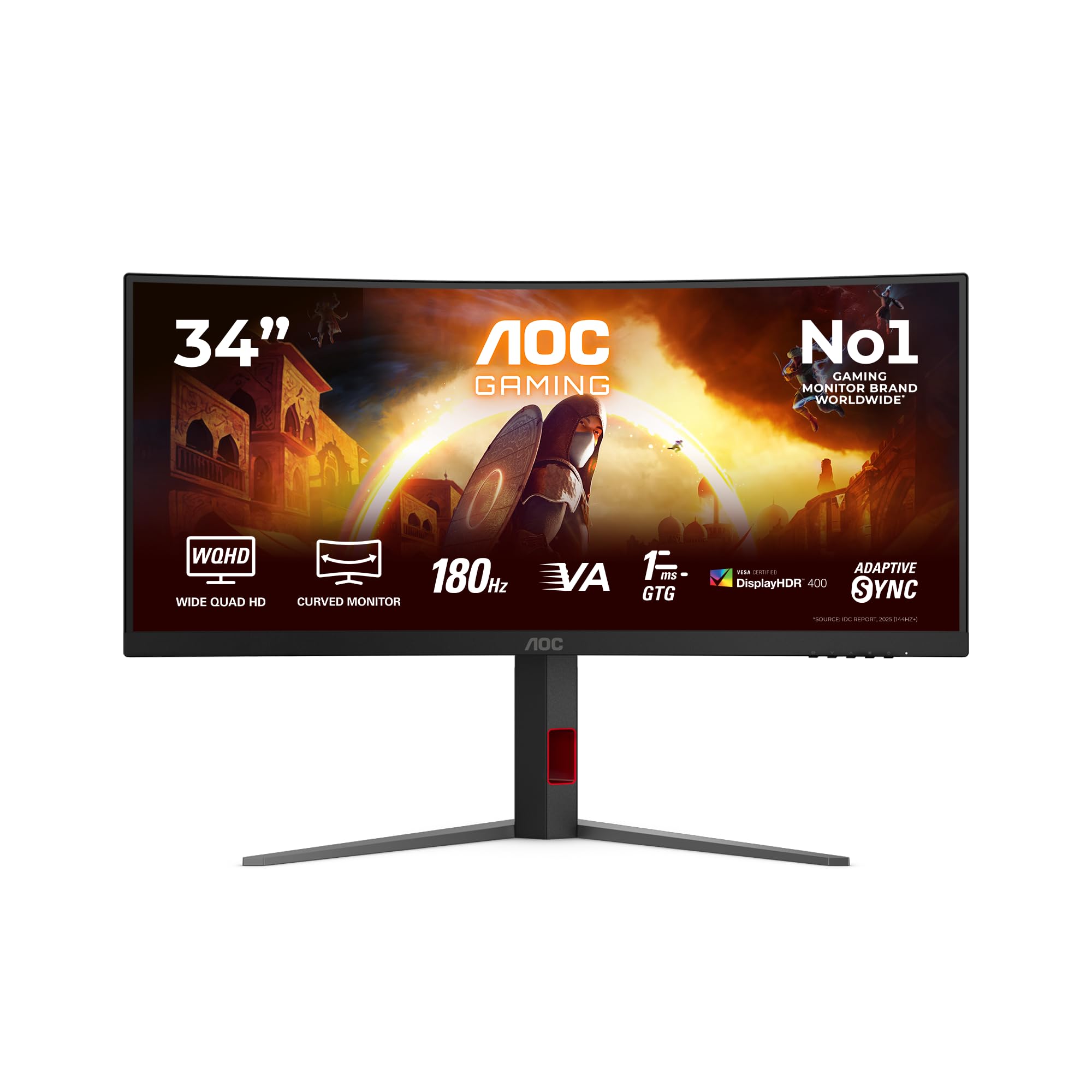 8.0 / 10
AOC CU34G4CA 34 inch UW-QHD Monitor Curved, 180Hz, Fast VA Panel, 1ms GtG, Adaptive Sync, HDR400, FreeSync, Height Adjustment, (3440x1440 HDMI 2x 2.0 DP 1x 1.4 USB Hub) Black
£288.97 · AOC
 7.8 / 10
KTC 27 Inch 280Hz 240Hz Gaming Monitor 1ms GTG 350nits Fast VA 1080P Tilt 126% sRGB Adaptive Sync 4000:1 Contrast Ratio HDR DisplayPort 1.4/HDMI 2.0 VESA
£306.94 · KTC
Frequently asked
5 questions01Is the Samsung LS37D702EAUXXU 37" 4K Viewfinity Monitor good for gaming?+
For casual and slower-paced gaming it's fine. The 5ms GtG response time is honest for an IPS panel, and the image quality is excellent. But the 60Hz refresh rate is a hard limit, and competitive or fast-paced gaming will feel noticeably less fluid compared to 144Hz or higher panels. FreeSync support helps reduce tearing near 60fps, but the narrow VRR range means it's not a substitute for a higher refresh rate. If gaming is your primary use, look at a 144Hz panel instead.
02Does the Samsung LS37D702EAUXXU 37" 4K Viewfinity Monitor have good HDR?+
Honestly, no. The DisplayHDR 400 certification is the entry-level tier and requires no local dimming, meaning blacks stay the same level regardless of content. The 350-nit peak brightness also limits specular highlight performance. HDR mode shifts the tone-mapping curve but doesn't deliver the contrast punch or brightness range that makes HDR content genuinely look better. For most users, SDR mode will produce a better-looking image. If real HDR matters, you need a Mini-LED or OLED panel.
03Is the Samsung LS37D702EAUXXU 37" 4K Viewfinity Monitor good for content creation?+
Yes, for most creative workflows. The 99% sRGB coverage and factory-calibrated Delta-E below 2 make it reliable for photography, web design, and graphic design without immediate recalibration. DCI-P3 coverage sits around 72%, which is adequate but not wide-gamut, so professional video editors mastering HDR content for streaming platforms will want a wider-gamut display. For sRGB-based work, which covers the majority of creative professionals, the colour accuracy is genuinely strong for this price bracket.
04What graphics card do I need for the Samsung LS37D702EAUXXU 37" 4K Viewfinity Monitor?+
For 4K at 60Hz, any modern mid-range GPU handles the display connection without issue. An Nvidia RTX 4060 or AMD RX 7600 is more than sufficient for desktop use and productivity. For gaming at 4K, you'll want something more capable: an RTX 4070 or RX 7800 XT as a minimum for playable frame rates in demanding titles. Since the monitor caps at 60Hz, you don't need a high-end GPU to hit the panel's ceiling, which actually makes it a reasonable pairing with mid-range hardware.
05What warranty and returns apply to the Samsung LS37D702EAUXXU 37" 4K Viewfinity Monitor?+
Samsung typically covers its monitors with a 3-year manufacturer warranty in the UK, though you should verify the specific terms on Samsung's UK support pages for this model. When purchasing through Amazon, you also benefit from Amazon's standard 30-day returns policy and the A-to-Z Guarantee, which covers you if the item arrives damaged or not as described. Always check the seller's returns policy at the point of purchase.