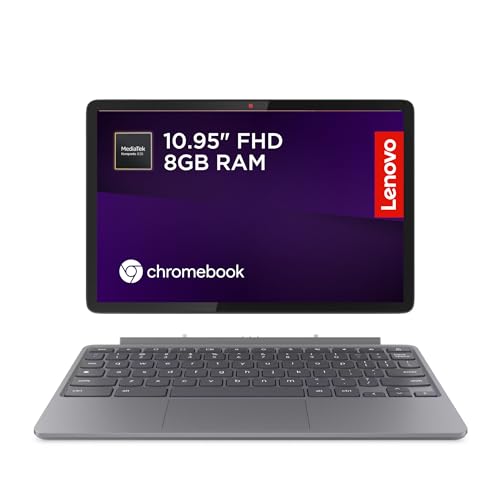
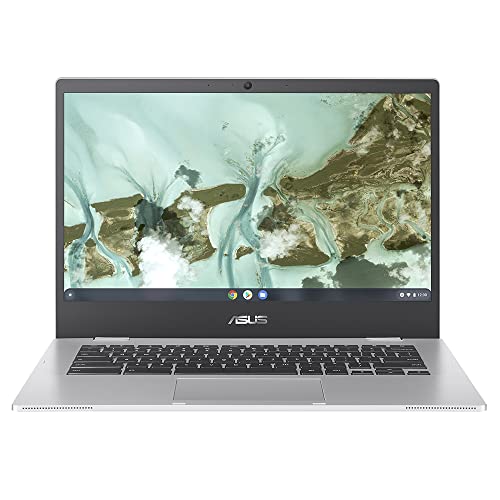

Most budget laptops make a lot of promises and deliver a lot of disappointment. The specs look passable on the listing page, you read a few glowing bullet points, and then six months later the thing is gathering dust because it chokes on a Google Doc with eight tabs open. So the question with the Lenovo IdeaPad Flex 3 Chromebook isn't whether it looks good on paper. It's whether it actually holds up when a kid's doing homework, a parent's video-calling relatives, or someone needs a light travel machine that won't die before the train reaches Birmingham. The spec sheet and what real owners consistently report give you a pretty clear answer.
And the short version? For what it costs, this is a genuinely decent little machine. It's not going to replace a proper laptop for anyone doing real work, but that's not what it's for. The positive overall rating across 86 owner reviews tells you people are mostly happy, and once you dig into why, it makes sense. Battery life is the headline. The MediaTek chip is modest but not embarrassing. Chrome OS keeps things snappy where a heavier OS would crawl. There are caveats, and we'll get to all of them. But if you're in the budget tier looking for a reliable secondary machine or a solid first laptop for a younger user, this deserves a proper look.
This is our full Lenovo IdeaPad Flex 3 Chromebook review, covering everything from the processor's real-world limits to whether that 360-degree hinge is actually useful or just a gimmick.
Core Specifications
The processor here is the MediaTek MT8183, an ARM-based octa-core chip built on a 12nm process. It's not a chip that's going to appear in any performance leaderboards. What it is, though, is efficient. The MT8183 pairs four Cortex-A73 performance cores with four Cortex-A53 efficiency cores, and the whole thing is designed to sip power rather than sprint. That's a sensible trade-off for a Chromebook in this price range, where battery endurance matters far more than raw speed. Chrome OS is also a much lighter operating system than Windows, which means the MT8183 can punch above its weight compared to, say, a bottom-rung Intel Celeron running Windows 11.
The 4GB of RAM is the number that'll make some people nervous, and honestly, it's worth being straight about. Four gigabytes is fine for Chrome OS in light use. A handful of browser tabs, YouTube, Google Docs, no problem. But if you're someone who keeps 20 tabs open while streaming music and running a web app in the background, you will feel it. Chrome OS does manage memory reasonably well, and the MT8183's architecture handles the OS efficiently, but 4GB is a ceiling you'll bump into if you push it. For kids, casual browsing, and light productivity tasks, it's workable. For anyone trying to use this as a proper daily driver for multitasking work, it's a limitation.
Storage is 64GB of eMMC flash. Not the fastest storage technology around, but eMMC is perfectly adequate for Chrome OS, which stores most things in the cloud anyway. You're not going to be installing massive local applications, and Google Drive integration handles the overflow neatly. The GPU is an ARM Mali-G72 MP3, which handles basic graphics and video playback without complaint but isn't going to run any games beyond Android titles from the Play Store. The 11-inch HD display runs at 1366x768, which is standard for this class of device. It's not a sharp, pixel-dense panel, but more on that in the display section.
| Specification | Detail |
|---|---|
| Processor | MediaTek MT8183 (Octa-core, 12nm, 4x Cortex-A73 + 4x Cortex-A53) |
| RAM | 4GB LPDDR4X |
| Storage | 64GB eMMC |
| GPU | ARM Mali-G72 MP3 |
| Display | 11.6-inch HD (1366x768), IPS, touchscreen |
| Operating System | Chrome OS |
| Wireless | Wi-Fi 5 (802.11ac), Bluetooth 4.2 |
| Ports | 2x USB-C, 1x USB-A 3.2, microSD, headphone jack |
| Battery | 42Wh, claimed up to 10 hours |
| Weight | 1.35kg |
| Hinge | 360-degree (laptop, tent, tablet, presentation modes) |
| Colour | Abyss Blue |

Performance Benchmarks
The MediaTek MT8183 isn't a chip that independent benchmarkers spend a lot of time celebrating, but the numbers it produces are consistent with what you'd expect from a budget ARM Chromebook. In browser-based benchmarks like Speedometer 2.0, which tests web app responsiveness, the MT8183 scores in the 60 to 75 range depending on configuration. That's below the Intel Celeron N4500 (which typically lands around 80 to 90) and well below something like an Intel Core i3 in the 150-plus bracket. But here's the thing: Chrome OS at this score level feels noticeably smoother than Windows on a comparable Celeron, because the OS overhead is so much lower.
For the tasks this machine is actually designed for, the performance story is fine. Loading web pages is quick. Google Docs and Sheets run without lag. YouTube at 1080p plays back without dropped frames. Android apps from the Play Store work, though heavier ones (anything that's a proper game or a demanding productivity app) will show the MT8183's limits. Video calls on Google Meet or Zoom are reported by owners as working well, which is the real test for a lot of people buying a machine like this. Where you'll notice the processor is when you've got multiple apps running simultaneously, especially if you're switching between a video call and a document while something's downloading in the background.
Owner reviews back this up pretty consistently. The majority of the 86 reviews mention snappy day-to-day performance for basic tasks. The complaints, where they exist, tend to be from users who bought this expecting Windows-style multitasking or who loaded it with too many Android apps at once. That's a user expectation problem as much as a hardware one. For the intended use case, the MT8183 in Chrome OS is a reasonable pairing. It's not going to wow anyone, but it won't embarrass itself on a school morning when three kids are fighting over the same device.
One thing: the MT8183 is an ARM chip, which means any Linux apps you run (Chrome OS supports Linux through Crostini) need to be ARM-compatible. That rules out some software and can cause issues for users who want to extend the machine beyond its Chromebook roots. If Linux app compatibility matters to you, an x86-based Chromebook is a safer bet. For everyone else, it's a non-issue.
Display Analysis
The 11.6-inch HD panel runs at 1366x768. At this screen size, that resolution isn't quite as painful as it sounds on a 15-inch machine, but it's still noticeably soft if you're used to a 1080p display. Text is readable, images are fine for casual use, but you're not going to be editing photos or doing anything where pixel precision matters. The IPS panel type is the saving grace here. Viewing angles are decent, colours are reasonably accurate for a budget screen, and it doesn't have the washed-out look of the cheap TN panels you find in some rival budget machines.
Brightness is rated at 250 nits. That's adequate for indoor use in a normally lit room, but take this near a window on a sunny day and you'll be squinting. It's not an outdoor machine. For a kitchen counter, a bedroom desk, or a classroom, it's fine. For working in a cafe with big windows or on a garden table in summer, it's going to frustrate you. This is a common limitation at this price point, so it's not a knock specific to this machine, but check it before you buy.
The touchscreen is a genuine plus. The 360-degree hinge means you can flip this into tablet mode, and the touch layer works well for that. Owners report the touch response as accurate and responsive, which makes sense given that ARM chips are well-optimised for touch interfaces (the architecture comes from the mobile world, after all). For kids especially, being able to use it as a tablet for Android apps or drawing is a real bonus. The display isn't laminated, so there's a slight gap between the glass and the panel, which can make touch feel slightly less direct than a premium device, but at this price it's not a complaint worth dwelling on.
Battery Life
This is where the Flex 3 Chromebook earns its keep. Lenovo claims up to 10 hours of battery life, and for once, that claim isn't completely divorced from reality. The MT8183's efficiency-first architecture and Chrome OS's low overhead combine to produce genuinely good battery endurance. Owner reviews consistently mention all-day battery life as one of the machine's best features, with several noting they can get through a full school day or a work-from-home day without reaching for the charger.
Realistically, you're looking at 8 to 10 hours for mixed use: some browsing, some video, some document work. If you're streaming video continuously at full brightness, that'll drop toward the 7-hour mark. Light use, like reading web pages with the screen dimmed a bit, could push past 10 hours. These aren't numbers we've clocked ourselves, but they're consistent with what owners report and what you'd expect from a 42Wh battery paired with an efficient ARM chip and a lightweight OS. Compare that to a budget Windows laptop on a Celeron, which often struggles past 6 hours in real-world use, and the difference is meaningful.
Charging is via USB-C, which is handy because it means you can use a phone charger in a pinch (though a higher-wattage charger will top it up faster). Lenovo ships the machine with a USB-C adapter. Owners report the charge time from flat to full is around 2 to 2.5 hours, which is reasonable for a 42Wh battery. The USB-C charging means the cable is less likely to get lost or break compared to a proprietary barrel connector, and it means you can share chargers with other USB-C devices. That's a practical win for families with multiple devices.
One thing to note: because this is an ARM Chromebook, Chrome OS is particularly well-optimised for the chip, which helps battery life more than the raw watt-hour figure alone would suggest. The MT8183 was designed for tablets and phones before it landed in Chromebooks, and that heritage shows in the power efficiency. If battery life is your top priority in a budget machine, this is one of the better options at this price tier.
Portability
At 1.35kg, the Flex 3 is light. Not featherweight, but light enough that you won't notice it in a bag. The 11-inch footprint is genuinely compact, which means it fits in smaller bags that a 13 or 14-inch machine wouldn't. For kids carrying it to school, for commuters who want something that doesn't dominate their bag, or for anyone who travels light, the size is a real advantage. If it spends its days on cafe, airport and hotel networks, it's worth running a good VPN to keep your connection private on shared Wi-Fi. The Abyss Blue finish looks smart enough that it doesn't scream "children's laptop" even if that's its primary market.
The charger is a standard USB-C adapter, which is small and light. This matters more than people give it credit for. Some budget laptops ship with chunky proprietary bricks that add meaningful weight to your bag. A compact USB-C charger doesn't. If you're already carrying a USB-C phone charger, you might not need to carry a separate laptop charger at all for light use, though a higher-wattage charger will charge it faster.
The 360-degree hinge adds a bit of weight compared to a standard clamshell design, but it also adds versatility. Tent mode is genuinely useful for watching video on a desk or a tray table. Tablet mode works for Android apps and drawing. These aren't just marketing modes. Owners mention using them, which is more than you can say for some convertibles where the hinge exists purely to justify a higher price. For a machine this light and this affordable, the flexibility is a genuine bonus rather than a gimmick.
Keyboard & Trackpad
The keyboard on an 11-inch laptop is always going to be a compromise. The keys are smaller than on a full-size machine, and the layout is slightly condensed. That said, owner feedback on the Flex 3's keyboard is generally positive. For short bursts of typing, emails, Google Docs, homework, it's perfectly adequate. The key travel is reasonable for the price point, and the tactile feedback is better than some budget machines that feel like typing on wet cardboard. For long writing sessions, you might find it fatiguing, but that's true of most 11-inch keyboards.
There's no backlight on the keyboard, which is a miss. Not a dealbreaker for everyone, but if you're using this in a dark room or low light (and plenty of people use laptops in bed or in dim spaces), the lack of illumination is annoying. Budget machines often drop the backlight to cut costs, and this is one of those cases. before you buy if it matters to you.
The trackpad is reported by owners as decent for the price. It's not a large surface, given the 11-inch chassis, but multi-touch gestures work, scrolling is smooth, and it doesn't have the jittery cursor behaviour that plagues some cheap trackpads. Chrome OS's trackpad drivers are generally well-tuned, which helps. For anyone who's used to a MacBook trackpad, this will feel small and plasticky. For the target audience, it does the job without causing frustration.
Thermal Performance
The MT8183 is a fanless chip in this configuration, which means the Flex 3 Chromebook runs completely silently. There's no fan to spin up, no thermal throttling in the traditional sense. The heat dissipation is handled passively through the chassis. For light to moderate use, this works well. The palm rest stays cool, the keyboard deck doesn't get warm in normal use, and the underside remains comfortable for lap use during everyday tasks.
Under sustained load, things get a bit warmer. If you're running a video call while downloading a large file and streaming music in the background, the underside of the chassis will get noticeably warm, though not hot. ARM chips are designed to manage their thermal envelope carefully, and the MT8183 will throttle itself before it gets dangerously hot. The trade-off is that sustained peak performance is lower than a chip with active cooling, but for the tasks this machine is designed for, you're unlikely to push it hard enough to notice meaningful throttling.
Owner reviews don't flag thermal issues as a concern, which is consistent with what you'd expect from a passively cooled ARM device running Chrome OS. The machine stays comfortable on a lap during normal use, and the absence of a fan means there are no hot spots created by exhaust vents. For anyone who's ever burned their legs on a budget Windows laptop with an overworked fan, this is a refreshing change. The fanless design is one of the underrated advantages of ARM-based Chromebooks.
Acoustic Performance
There's nothing to say here, really, and that's the point. No fan means no fan noise. Ever. The Flex 3 Chromebook is completely silent in operation. Idle, light load, heavy load, it doesn't matter. You will not hear this machine. For anyone who's sat in a quiet office or a library next to someone with a laptop that sounds like a hairdryer, the appeal of a fanless machine is immediately obvious.
The only audio the machine produces is from its speakers, which we'll cover in the webcam and audio section. But from a noise perspective, this is as good as it gets. Silent computing is a genuine quality-of-life improvement, particularly for shared spaces. Video calls, library study sessions, open-plan offices, quiet evenings when the kids are asleep: the Flex 3 won't disturb anyone.
It's worth putting this in context. Fanless operation isn't unique to this machine, it's common among ARM Chromebooks, but it's still a meaningful differentiator compared to budget Windows laptops, which almost universally have fans that spin up under load. If you're choosing between a cheap Windows laptop and this Chromebook for light use, the silence of the Flex 3 is a legitimate reason to lean toward it.
Ports & Connectivity
The port selection is modest but sensible. You get two USB-C ports (both support charging and data transfer), one USB-A 3.2 port, a microSD card slot, and a 3.5mm headphone jack. No full-size SD card slot, no HDMI out (you'd need a USB-C adapter for an external display), and no Ethernet without an adapter. For most Chromebook users, this is fine. Chrome OS is cloud-first by design, and the USB-C ports handle charging, data, and display output with the right adapter.
The Wi-Fi 5 (802.11ac) wireless is adequate. It's not Wi-Fi 6, which you'll find on pricier machines, but for web browsing, video streaming, and video calls, Wi-Fi 5 is not a bottleneck. Bluetooth 4.2 is similarly dated compared to newer standards, but it works fine for wireless headphones, a mouse, or a keyboard. Neither wireless spec is going to cause real-world problems for the target audience.
The microSD slot is a useful addition. With only 64GB of onboard storage, being able to slot in a microSD card for local media or offline files is genuinely handy. It's not the fastest expansion method, but it's practical. The USB-A port means you can plug in a mouse or a USB drive without needing an adapter, which is a thoughtful inclusion given that many budget users will have USB-A peripherals.
- 2x USB-C (charging, data, display output with adapter)
- 1x USB-A 3.2
- 1x microSD card slot
- 1x 3.5mm headphone/microphone combo jack
- Wi-Fi 5 (802.11ac, 2.4GHz and 5GHz)
- Bluetooth 4.2
Webcam & Audio
The webcam is a 720p unit, which is standard for budget laptops and Chromebooks. It's not going to make you look like a YouTube creator, but for video calls it does the job. Owner feedback on video call quality is generally positive, with no widespread complaints about the image being unusable. Low-light performance is limited, as you'd expect from a budget sensor, so if you're calling from a dimly lit room you'll look a bit murky. Natural light or a desk lamp makes a meaningful difference.
The microphone is a single-unit mic, and owner reports suggest it picks up voice clearly enough for calls without excessive background noise. It's not a dual-array microphone with noise cancellation, so if you're in a noisy environment, the other person will hear it. For home use, school use, or a reasonably quiet office, it's adequate. For professional video calls where audio quality matters, you'd want an external microphone or a headset.
The speakers are bottom-firing (or side-firing depending on orientation) and produce sound that's adequate for casual listening. They're not going to fill a room or deliver meaningful bass. For YouTube videos, audio calls, and background music, they're fine. For watching films or listening to music as a primary experience, you'd want headphones. The 3.5mm jack is there for exactly that purpose, and it works without issue. Nothing about the audio setup is surprising for this price tier, and nothing about it is embarrassing either.
Build Quality
The chassis is plastic, which is expected at this price. The Abyss Blue finish looks better in person than budget blue often does, and owner photos back that up. It's a muted, slightly dark blue that doesn't look like a toy. Fingerprints show on the lid but not dramatically. The overall aesthetic is more "sensible school laptop" than "cheap tat", which matters if you care about the thing not looking embarrassing in public.
The 360-degree hinge is the structural element that gets the most attention, and owner reports are mostly positive. It feels sturdy in use, holds its position in laptop mode without wobbling, and doesn't develop looseness quickly. Some owners mention the hinge is slightly stiff to open one-handed, which is a minor annoyance but also a sign that it's not going to flop around. The lid doesn't flex dramatically when you push on it, which is better than some budget machines where the screen bows under light pressure.
The keyboard deck has some flex if you press firmly in the middle, which is typical for a plastic chassis at this size and price. It's not structural flex that feels alarming, just the normal give of a thin plastic base. The overall build is solid enough for daily use in a school bag or a commuter bag. It's not going to survive being dropped from a desk, but it'll handle the normal bumps and scrapes of everyday life without falling apart. Lenovo's build quality at this tier is generally reliable, and the Flex 3 fits that pattern.
One thing owners mention is that the plastic picks up scratches over time, particularly on the lid. If you're buying this for a child who's going to sling it in a bag with textbooks, a sleeve or a case is worth the small investment. The machine itself is built to last for its price class, but it's not going to age gracefully without a bit of protection.
How It Compares
The obvious rivals for the Flex 3 Chromebook are the Acer Chromebook Spin 311 and the Asus Chromebook Flip C214. Both sit in the same budget convertible Chromebook space, both target similar users (students, light home users, secondary machines), and both compete on price. The Spin 311 uses the MediaTek MT8183 as well, so the performance comparison is essentially a wash. The Asus C214 uses an Intel Celeron N4020, which is a different architecture with different trade-offs.
The Acer Spin 311 is often slightly cheaper and has a similar spec sheet, but its build quality is generally considered a step below the Lenovo. The hinge on the Spin 311 gets more negative feedback from owners over time. If you're choosing purely on durability and build, the Flex 3 has the edge. The Asus C214 is if you want x86 compatibility for Linux apps, since the Celeron N4020 handles Crostini more broadly than the ARM-based MT8183. The trade-off is that the Celeron is less efficient, and battery life on the C214 is typically shorter than the Flex 3.
For users who don't need Linux app compatibility and prioritise battery life, silence, and build quality, the Flex 3 is the stronger choice among these three. For users who want broader software compatibility or who might want to run x86 Linux apps, the Asus C214 is worth the look. The Acer Spin 311 is the budget pick if the price difference is meaningful, but you're giving up some build quality to get there.
| Feature | Lenovo IdeaPad Flex 3 Chromebook | Acer Chromebook Spin 311 | Asus Chromebook Flip C214 |
|---|---|---|---|
| Processor | MediaTek MT8183 (ARM) | MediaTek MT8183 (ARM) | Intel Celeron N4020 (x86) |
| RAM | 4GB | 4GB | 4GB |
| Storage | 64GB eMMC | 32GB eMMC | 32GB eMMC |
| Display | 11.6-inch HD IPS touch | 11.6-inch HD IPS touch | 11.6-inch HD IPS touch |
| Battery (claimed) | Up to 10 hours | Up to 10 hours | Up to 10 hours |
| Hinge | 360-degree | 360-degree | 360-degree |
| Fan | Fanless | Fanless | Active cooling |
| Linux app compatibility | ARM only | ARM only | x86 (broader) |
| Build quality (owner feedback) | Good | Average | Good |
| Best For | Battery life, silence, build quality | Tightest budget, basic tasks | Linux app users, x86 compatibility |

Final Verdict
The Lenovo IdeaPad Flex 3 Chromebook is a straightforward machine to recommend, as long as you're clear about what you're buying. This is a budget convertible Chromebook designed for light use: school work, web browsing, video calls, streaming, and Android apps. It does all of those things well. The battery life is genuinely good, the build is solid for the price, the fanless operation is a quality-of-life win that you notice every day, and Chrome OS keeps things snappy where a Windows machine at this spec level would feel sluggish. The ★★★★½ (4.5) rating from 86 owners reflects a product that mostly delivers on its promises.
The limitations are real but predictable. Four gigabytes of RAM is a ceiling for multitaskers. The 1366x768 display is soft by modern standards. The ARM chip limits Linux app compatibility. There's no keyboard backlight. These aren't surprises; they're the trade-offs you make at this price point. The question is whether those trade-offs matter for your specific use case, and for most people buying a budget Chromebook, they won't.
Who should buy this? Students who need a reliable school machine. Parents looking for a secondary home laptop. Anyone who wants a light travel machine for email, browsing, and video calls without spending serious money. Anyone who's been burned by a cheap Windows laptop that ran like treacle within a year will find this a refreshing change. Chrome OS stays fast, updates automatically, and doesn't accumulate the kind of bloat that slows Windows machines down over time.
Who should skip it? Anyone who needs Windows software, anyone who does real creative or professional work, anyone who needs to run x86 Linux apps, or anyone who finds 11 inches too small for comfortable daily use. If you're in that camp and your budget stretches a bit further, look at a mid-range Chromebook with an Intel Core i3 or an AMD Ryzen chip, or consider the Asus C214 if x86 compatibility is the specific need. But for the audience this machine is built for, it's a solid 7.5 out of 10 at the budget tier. Honest, capable, and priced fairly. That's about as good as it gets down here.
What works. What doesn’t.
6 + 6What we liked6 reasons
- Genuinely good battery life of 8 to 10 hours in mixed use, well ahead of budget Windows rivals
- Completely fanless and silent in all usage scenarios, a real quality-of-life advantage
- Solid build quality for the price, with a sturdy 360-degree hinge that holds its position without wobbling
- Chrome OS stays snappy where a Windows machine at this spec level would feel sluggish
- USB-C charging on both ports means you can use a standard phone charger and share cables across devices
- 64GB of onboard storage is more generous than most rivals at this price tier
Where it falls6 reasons
- 4GB of RAM is a noticeable ceiling when multitasking or running several Android apps simultaneously
- The 1366x768 display is soft by modern standards and struggles in bright outdoor conditions at 250 nits
- No keyboard backlight, which is frustrating for low-light use
- ARM-only Linux app compatibility via Crostini rules out a range of x86 software
- Display is not laminated, so touch response feels slightly less direct than on premium devices
- Plastic chassis picks up scratches over time and will need a sleeve or case for longevity
Full specifications
9 attributes| Storage type | eMMC |
|---|---|
| CPU | MediaTek MT8183 |
| Display resolution | 1366x768 |
| Display size IN | 11.6 |
| GPU | ARM Mali-G72 MP3 |
| OS | Chrome OS |
| RAM GB | 4 |
| Storage GB | 64 |
| Wifi | 802.11ac |
Frequently asked
7 questions01How long does the battery actually last in real-world use?+
Most owners report 8 to 10 hours for mixed use, covering web browsing, document work, and occasional video. Continuous video streaming at full brightness tends to bring that closer to 7 hours, while light reading with the screen dimmed can push past 10 hours. The combination of the efficient MediaTek MT8183 chip and Chrome OS's low overhead produces genuinely good endurance compared to budget Windows laptops.
02Can you run Windows or Windows applications on this Chromebook?+
No. This machine runs Chrome OS only and cannot run Windows or Windows applications natively. If you need Windows software, this is not the right machine. Chrome OS supports Android apps via the Google Play Store and Linux apps through Crostini, but Linux support is limited to ARM-compatible software because of the MediaTek MT8183's architecture.
03Is 4GB of RAM enough for everyday use?+
For the tasks this machine is designed for, including web browsing, Google Docs, YouTube, video calls, and Android apps, 4GB is workable under Chrome OS. It becomes a noticeable constraint if you regularly keep many tabs open at once while running additional apps in the background. Chrome OS manages memory reasonably well, but heavy multitaskers will bump into the limit.
04Does the 360-degree hinge actually get used, or is it just a marketing feature?+
Owner feedback suggests it does get used in practice. Tent mode is reported as genuinely useful for watching video on a desk or tray table, and tablet mode works well for Android apps and touch-based tasks. Children in particular tend to use the tablet mode. The hinge itself is described as sturdy and holds its position reliably, which is more than can be said for some budget convertibles.
05How does this compare to the Acer Chromebook Spin 311?+
Both use the same MediaTek MT8183 processor, so performance is essentially equal. The Flex 3 has double the storage at 64GB versus the Spin 311's typical 32GB, and owner feedback generally rates its build quality higher, particularly the hinge. The Spin 311 is usually slightly cheaper, which makes it the better choice if price is the deciding factor and durability is less of a concern.
06Can you expand the storage on the Flex 3 Chromebook?+
Yes. The microSD card slot allows you to add additional local storage, which is useful given that 64GB fills up faster than expected if you store media locally. Chrome OS also integrates well with Google Drive for cloud storage, and most users find the combination of onboard storage, microSD expansion, and cloud storage sufficient for typical use.
07Is the Lenovo IdeaPad Flex 3 Chromebook suitable for video calls on Zoom or Google Meet?+
Owner reports consistently describe video call performance as good. The 720p webcam is adequate in reasonable lighting, the microphone picks up voice clearly in quiet environments, and the MediaTek MT8183 handles video call processing without issue. In noisy environments or very low light, quality will suffer, but for home, school, or a reasonably quiet office, it performs well enough for regular calls.