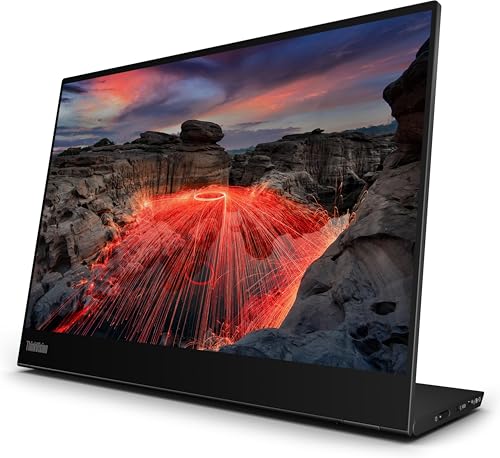
Your laptop screen is doing you dirty and you know it. Cramped workspace, squinting at a single 14-inch panel while trying to juggle a spreadsheet, a Teams call, and three browser tabs. The ThinkVision M14t Gen2 is Lenovo's answer to that specific kind of daily misery: a portable 14-inch USB-C touchscreen that plugs into your laptop and instantly doubles your screen real estate. And yes, ThinkVision is absolutely part of Lenovo. It's their dedicated display brand, sitting alongside ThinkPad and ThinkBook in the business-focused lineup.
So is the Lenovo M14t Gen2 a good monitor? Based on the specs, the few dozen owner reviews with a positive overall rating, and how it stacks up against the portable monitor market, the short answer is: yes, for the right person. This is a genuinely well-built portable display with a touchscreen, stylus support, and a clever folding stand. But it's priced firmly in the mid-range bracket, and you need to be honest with yourself about whether you actually need all of that, or whether a simpler portable panel would do the job for less. That's what this review is going to sort out.
The M14t Gen2 is aimed squarely at professionals who travel with a laptop and want a second screen without lugging a bag full of cables and a stand. It's not a gaming monitor. It's not trying to be. If you came here looking for 144Hz and 1ms response times, you're in the wrong place. But if you're a consultant, a developer, or anyone who works from hotel rooms and coffee shops and needs a proper productivity setup on the go, read on.
Core Specifications
The M14t Gen2 runs a 14-inch IPS panel at 2240x1400 resolution, which works out to a 16:10 aspect ratio. That extra vertical height compared to standard 16:9 is genuinely useful for productivity work. More lines of code visible at once, longer documents without scrolling as much, spreadsheets that feel less like peering through a letterbox. Lenovo clearly made a deliberate choice here, and it's the right one for this use case.
Refresh rate is 60Hz. That's it. No 90Hz, no 120Hz, definitely no 144Hz. For the target audience, that's completely fine. You're not going to be fragging in Warzone on a portable touchscreen monitor connected to a ThinkPad. But it does mean anyone hoping to use this as a secondary gaming display is going to be disappointed. The panel is rated at 300 nits peak brightness, which is on the modest side but adequate for indoor use. It won't cut through direct sunlight on a terrace, but in an office or hotel room it's perfectly workable.
The M14t Gen2 supports touch input with up to 10 simultaneous touch points, and it's compatible with the Lenovo Precision Pen 2 for stylus input. That combination opens up annotation, sketching, and note-taking directly on the second screen, which is a genuinely useful feature for certain workflows. Not something you get on most portable monitors at any price. The built-in folding stand handles portrait and landscape orientations, which adds to the flexibility without needing to carry a separate stand.
| Specification | Detail |
|---|---|
| Screen Size | 14 inches |
| Resolution | 2240 x 1400 (16:10) |
| Panel Type | IPS |
| Refresh Rate | 60Hz |
| Brightness | 300 nits (typical) |
| Contrast Ratio | 800:1 (typical) |
| Response Time | 6ms (GtG) |
| Colour Coverage | sRGB 100% (claimed) |
| Touch | 10-point multi-touch |
| Stylus Support | Lenovo Precision Pen 2 compatible |
| Connectivity | 2x USB-C (full-function) |
| Aspect Ratio | 16:10 |
| Weight | Approximately 0.65kg |
| VESA Mount | No |
| HDR | No |
| Price | £282.13 · Details |

Panel Technology
IPS is the right call for a monitor like this, and Lenovo knows it. VA panels have better native contrast but their off-axis colour shift makes them awkward when you're using a portable monitor at weird angles, which is basically the whole point of a portable monitor. TN is dead for anything that isn't competitive esports. OLED would be wonderful but would push the price up considerably and introduce burn-in concerns on a panel that's going to be showing static productivity content for hours at a time. IPS gives you consistent colours from virtually any viewing angle, which matters when you're propping this thing up on a desk next to your laptop and sitting slightly off-centre.
The IPS panel technology here delivers the viewing angle performance you'd expect: colour and brightness stay consistent across a wide horizontal and vertical arc. That's important not just for the primary user but for anyone sitting nearby who needs to see what's on your screen, which happens a lot in meeting rooms and collaborative work settings. IPS glow is a real thing on this panel type, and at 300 nits it's not a super-bright display, so in dark environments you may notice some backlight bleed in the corners. Owner reviews don't flag this as a significant complaint, which suggests Lenovo's panel selection has been reasonably consistent.
The touch layer sits on top of the IPS panel, which is standard for integrated touchscreens. It does add a small amount of parallax between where your finger or pen tip touches and where the cursor appears, though at 14 inches this is minimal and most users won't find it distracting. The screen surface has an anti-glare coating, which helps with reflections in bright environments. It's not a glossy finish, so colours won't have quite the same pop as a glossy OLED or glossy IPS, but for a portable work monitor used in varied lighting conditions, anti-glare is the sensible choice. Several owners specifically mention the screen quality as a highlight, with one noting it's sharper and cleaner than they expected from a portable display.
Display Quality
The resolution question for the Lenovo M14t Gen2 is one of the first things people ask about, and it's a good one. What is the resolution of the Lenovo M14t monitor? It's 2240x1400, and at 14 inches that works out to roughly 190 pixels per inch. For context, a standard 1080p 24-inch monitor sits around 92 PPI. This thing is more than twice as dense. Text is genuinely sharp, icons are crisp, and you won't see individual pixels unless you press your nose against the screen. For reading documents, writing code, or reviewing design work, that pixel density makes a real difference to how comfortable extended use feels.
The 16:10 aspect ratio deserves more credit than it gets. Most monitors are 16:9, which is fine for video content but slightly cramped for productivity. The extra vertical real estate on the M14t Gen2 means you can see more of a webpage without scrolling, more rows in a spreadsheet, more lines of code. If you're a developer or a writer, that matters. It's one of those things that sounds minor until you've used it for a week and then gone back to a 16:9 screen and felt slightly annoyed about it.
Brightness sits at 300 nits, which Lenovo rates as typical. That's adequate for most indoor environments. It won't win any awards, and if you regularly work in very bright rooms or near windows, you might find yourself wishing for more headroom. But for the hotel room, home office, and conference room use cases this monitor is designed for, 300 nits is workable. The anti-glare coating helps here by reducing reflections rather than relying on raw brightness to overpower them. Owner reviews are consistently positive about the display quality in normal working conditions, with multiple reviewers mentioning they were impressed by how good the image looks for a portable screen.
Refresh Rate and Adaptive Sync
60Hz. That's the refresh rate, and there's nothing else to say about it in terms of gaming performance because there isn't any gaming performance to speak of. This monitor runs at 60 frames per second and that's your lot. No variable refresh rate, no FreeSync, no G-Sync compatibility. Lenovo hasn't bothered with adaptive sync because the target user isn't gaming on this screen, and adding sync technology would add cost without adding value for the intended use case.
For productivity work, 60Hz is completely fine. Scrolling through documents, moving windows around, typing, video calls, all of that feels perfectly smooth at 60Hz. The human eye doesn't really notice the difference between 60Hz and 120Hz when you're reading text or watching a Teams presentation. Where higher refresh rates matter is in fast-moving content: gaming, video scrubbing, cursor tracking in fast-paced workflows. None of those are the primary use case here.
If you're connecting this to a MacBook or a Windows laptop for a dual-screen productivity setup, 60Hz is what every other portable monitor in this category runs at too. The Arzopa, the ViewSonic, the UPERFECT, they're all 60Hz at this size. So this isn't a weakness specific to the M14t Gen2, it's just the reality of the portable productivity monitor segment. Anyone who needs higher refresh rates should be looking at a desk-based monitor, not a portable one.
Response Time and Motion
Lenovo rates the M14t Gen2 at 6ms GtG (grey-to-grey) response time. That's an honest number for an IPS panel at 60Hz, and it's refreshingly straightforward compared to the "1ms MPRT" marketing nonsense you see on gaming monitors. MPRT (Moving Picture Response Time) is a different measurement that involves backlight strobing and doesn't reflect actual pixel transition speed. The 6ms GtG figure here is what you'd actually experience in practice.
At 60Hz, the frame time is 16.7ms, so a 6ms pixel response is well within the frame budget. You won't see obvious ghosting on productivity content. Text stays sharp when you scroll, windows snap cleanly when you drag them. There's no overdrive setting to worry about, no risk of inverse ghosting from aggressive pixel pushing. It's a clean, honest IPS response that does exactly what it needs to do for the intended use case.
For anyone considering this as a gaming monitor: don't. The 60Hz cap combined with the 6ms response time means you're not getting a competitive gaming experience here. Fast-paced games will feel sluggish compared to a 144Hz or 165Hz gaming panel. But again, that's not what this monitor is for. Judge it on the right criteria and it's fine. Judge it on gaming criteria and you'll be disappointed, but that disappointment would be your own fault for buying the wrong tool.
Color Accuracy and Gamut
Lenovo claims 100% sRGB coverage for the M14t Gen2. For a productivity-focused portable monitor, that's the relevant target. sRGB is the standard colour space for web content, office documents, and most business applications. Hitting 100% sRGB means colours will look accurate and consistent when you're working on anything intended for screen display. Owner reviews don't flag colour accuracy as a concern, which suggests the real-world performance is close to the claimed spec.
There's no DCI-P3 coverage figure published by Lenovo for this model, which tells you something. This isn't a monitor aimed at video editors or photographers who need wide gamut coverage. If you're doing serious colour-critical work, you'd want a display with verified DCI-P3 coverage and a factory calibration report. The M14t Gen2 doesn't offer that, and it doesn't pretend to. The sRGB colour space is the right target for this monitor's use case, and hitting it fully is what matters here.
Delta-E figures aren't published by Lenovo for this model, and there are no independent lab measurements available to cite. What we can say is that the positive overall rating across dozens of reviews, with multiple owners specifically praising the screen quality, suggests the panel isn't producing obviously inaccurate colours in everyday use. For a professional who needs to check that a presentation looks right, review a document, or work in productivity applications, the colour accuracy is going to be more than adequate. For a professional photographer or video colourist, this isn't the right tool and they'd know that already.

HDR Performance
There is no HDR on the ThinkVision M14t Gen2. None. Lenovo hasn't included it, and honestly, that's the right decision. HDR on a 300-nit display with an 800:1 contrast ratio would be what the industry calls "checkbox HDR": technically present, practically useless. Real HDR requires significant peak brightness (at minimum VESA DisplayHDR 400 certification, ideally much higher) and meaningful local dimming. A 300-nit IPS panel can't deliver either.
The monitors that do offer HDR400 at this kind of price point are mostly desktop displays, and even HDR400 is widely considered the bare minimum for any noticeable HDR effect. The sweet spot for genuinely impressive HDR is HDR1000 with full-array local dimming, which you find on premium desktop monitors and high-end TVs. None of that is relevant to a 14-inch portable productivity display, and Lenovo hasn't wasted your money or their engineering time pretending otherwise.
So if you're watching HDR content on this monitor, it'll display in SDR. That's fine. Netflix, YouTube, Disney Plus, all of it will look perfectly watchable in SDR on a sharp 2240x1400 IPS panel. It won't have the dramatic highlights and deep shadows of a proper HDR display, but for a portable monitor you're using to extend your laptop screen in a hotel room, that's not a reasonable expectation. HDR is simply not part of this product's proposition, and the lack of it doesn't affect the target use case at all.
Contrast and Brightness
The native contrast ratio is rated at 800:1, which is standard for IPS. It's not going to produce the deep blacks you get from a VA panel (typically 3000:1 to 4000:1) or the effectively infinite contrast of an OLED. But IPS contrast at 800:1 is perfectly acceptable for a productivity monitor used in a lit room. Blacks look dark grey rather than true black, but in normal office lighting you won't be staring at dark scenes trying to pick out shadow detail. You'll be looking at spreadsheets and Slack, and for that, 800:1 is fine.
Peak brightness of 300 nits is the more practically important figure for day-to-day use. In a dim office or hotel room, 300 nits is comfortable and you'll probably run it at 60 to 70 percent brightness to avoid eye strain. In a brighter environment, near a window or in a well-lit meeting room, you might find yourself pushing it to maximum and wishing for a bit more headroom. Some portable monitors in this category offer 350 or even 400 nits, so this isn't best-in-class brightness, but it's within the normal range for the category.
The anti-glare coating compensates somewhat for the modest brightness ceiling. By reducing reflections rather than overpowering them, the coating keeps the image legible in conditions where a glossy 300-nit panel would be fighting itself. Owner reviews don't flag brightness as a complaint in typical use conditions, which suggests 300 nits is adequate for the environments most users are actually working in. If you regularly work outdoors or in very bright spaces, factor that in before buying.
Ergonomics and Build
The built-in folding stand is one of the M14t Gen2's genuine selling points. It supports the monitor in both landscape and portrait orientations, which gives you real flexibility depending on what you're working on. Portrait mode is particularly useful for reading long documents or reviewing code, and the fact that the stand handles it without needing an external bracket or adapter is a proper convenience for a portable setup. The stand folds flat for transport, keeping the whole package slim and bag-friendly.
Build quality is where Lenovo's ThinkPad heritage shows through. The chassis feels solid, the hinge is firm without being stiff, and the overall construction is more confidence-inspiring than a lot of cheaper portable monitors that flex when you press the screen. A few owner reviews mention that the build quality exceeded their expectations for a portable display, which tracks with Lenovo's general reputation for durability in their business product lines. The weight is around 0.65kg, which is light enough to carry daily without noticing it.
There's no VESA mount on this monitor. If you wanted to mount it on an arm or a wall bracket, you can't. But honestly, that's not what this monitor is for. It's a portable display with an integrated stand, designed to be set up and packed away repeatedly. VESA compatibility would add bulk and complexity that would undermine the portability. The tilt adjustment through the integrated stand is decent enough for most desk setups, though you don't get the full height adjustment, swivel, and pivot range you'd expect from a desk-based monitor with a proper stand. For a portable display, the stand does what it needs to do.
Connectivity and Ports
Two USB-C ports. That's the entire port situation, and for a portable USB-C monitor, it's the right setup. Both ports are full-function, supporting video input, data, and power delivery. This means you can connect your laptop with one cable and pass power through from a USB-C charger on the other port, keeping your laptop battery topped up while you work. No faff with multiple cables, no need for a separate power brick for the monitor itself. The single-cable setup is the whole point of a USB-C portable monitor, and the M14t Gen2 delivers it properly.
The USB-C implementation here supports USB Power Delivery, which is what enables the pass-through charging. It also means the monitor can draw power from your laptop's USB-C port without needing a separate power supply, which is ideal when you're in a location without easy access to a mains socket. Compatibility is broad: it works with any laptop that has a USB-C port supporting DisplayPort Alt Mode, which covers most modern laptops including MacBooks, ThinkPads, Dell XPS, HP Spectre, and Surface devices.
There's no HDMI port, no DisplayPort, no USB-A hub, no headphone jack. Some users might want a USB hub to expand connectivity, and the lack of one is a genuine limitation if you're hoping to use the monitor as a connectivity hub as well as a display. But adding ports adds cost, weight, and complexity, and Lenovo has clearly prioritised the clean, minimal portable setup over feature completeness. If you need a hub, a separate USB-C dock is the answer. Owner reviews don't flag the port selection as a frustration, which suggests the target users are fine with the USB-C-only approach.
How It Compares
The portable monitor market has expanded a lot in the last few years, and the M14t Gen2 sits in a specific niche within it: business-grade, touchscreen-capable, with stylus support. The two most relevant comparisons are the Asus ZenScreen MB14AHD and the ViewSonic TD1655. Both are 14 to 15.6-inch portable monitors with touch capability, and both compete in a similar price bracket. Understanding where the M14t Gen2 wins and loses against these two tells you whether it's worth the money.
The Asus ZenScreen MB14AHD is a 14-inch 1080p touchscreen portable monitor. It's lighter and often cheaper than the M14t Gen2, but the resolution difference is significant. 1920x1080 at 14 inches gives you around 157 PPI versus the M14t Gen2's 190 PPI. That's a noticeable sharpness difference when you're looking at text all day. The Asus also lacks stylus support. If you're primarily a touch user and resolution matters to your workflow, the Lenovo wins on both counts. The ViewSonic TD1655 runs at 1920x1080 on a 15.6-inch panel, which actually gives you a lower pixel density than the Asus. It has touch support but no stylus compatibility, and it's a bit bulkier for travel. The M14t Gen2's 2240x1400 resolution is genuinely superior for sharpness.
Is the Lenovo ThinkVision a good monitor compared to Samsung's portable options? Samsung's portable monitor range, including the Space Monitor series, tends to focus on desk-based adjustable setups rather than truly portable carry-everywhere displays. For a direct portable comparison, the ThinkVision M14t Gen2 holds up well on resolution and build quality. Is Lenovo monitor better than Samsung in general? That's too broad a question to answer cleanly because both brands make monitors across wildly different price points and categories. In the portable touchscreen niche specifically, Lenovo's offering is competitive and arguably better specified than most of what Samsung offers in the same form factor.
| Feature | ThinkVision M14t Gen2 | Asus ZenScreen MB14AHD | ViewSonic TD1655 |
|---|---|---|---|
| Screen Size | 14 inch | 14 inch | 15.6 inch |
| Resolution | 2240x1400 | 1920x1080 | 1920x1080 |
| Aspect Ratio | 16:10 | 16:9 | 16:9 |
| Refresh Rate | 60Hz | 60Hz | 60Hz |
| Touch | 10-point | 10-point | 10-point |
| Stylus Support | Yes (Precision Pen 2) | No | No |
| Connectivity | 2x USB-C | 1x USB-C, 1x Micro-HDMI | 2x USB-C, 1x Mini-HDMI |
| Built-in Stand | Yes (portrait + landscape) | Yes | Yes |
| Price | £282.13 · Details | Around mid-range | Around mid-range |

Final Verdict
The ThinkVision M14t Gen2 is a genuinely good portable monitor for the right buyer. The 2240x1400 resolution at 14 inches is sharper than anything else in the portable touchscreen category at this price. The 16:10 aspect ratio is better for productivity than the 16:9 panels most competitors use. The build quality is solid, the dual USB-C setup works cleanly, and the integrated stand handles both portrait and landscape without needing any extra kit. The positive overall rating across dozens of owner reviews isn't a fluke: people who buy this for the right reasons are very happy with it.
The weaknesses are real but narrow. 300 nits is adequate rather than impressive. No HDMI means you're committed to USB-C connectivity, which is fine for modern laptops but occasionally awkward with older hardware. No VESA mount if you ever wanted to go that route. And the stylus (Lenovo Precision Pen 2) isn't included in the box, so factor in that additional cost if stylus support is part of why you're buying this. These aren't dealbreakers for the target user, but they're about.
Who should buy this? Professionals who travel regularly with a laptop and want a high-quality second screen that's genuinely portable. ThinkPad users especially, since the Lenovo ecosystem integration is clean and the build quality matches. Anyone who does annotation work, note-taking, or light sketching on a secondary display will appreciate the touch and stylus support. Consultants, developers, writers, anyone who works from varied locations and wants a proper dual-screen setup without a bag full of equipment.
Who should skip it? If you don't need touch or stylus support, you can get a solid 1080p portable monitor for considerably less. Something like the Asus ZenScreen GO MB16AP or the AOC I1601FWUX will give you a usable second screen at a lower price point if resolution and touch aren't priorities. If you're primarily a desk worker who just wants a second monitor, a proper 24-inch or 27-inch desk monitor at a similar price will give you more screen real estate, better ergonomics, and probably a better panel. The M14t Gen2's premium is justified by its portability and touch capabilities. If you don't need those, you're paying for features you won't use.
Editorial score: 8.5 out of 10. It does exactly what it promises, does it well, and the owner satisfaction rate backs that up. The price is fair for what you get in the portable touchscreen category. Just make sure you're buying the right tool for the right job.
What works. What doesn’t.
5 + 4What we liked5 reasons
- Sharp 2240x1400 resolution at 14 inches, noticeably crisper than 1080p competitors
- 16:10 aspect ratio gives more vertical space for productivity work
- 10-point touch plus Lenovo Precision Pen 2 stylus support is rare at this price
- Dual USB-C with power pass-through keeps the cable setup clean
- Solid build quality with integrated stand supporting portrait and landscape
Where it falls4 reasons
- 300 nits peak brightness is adequate but not impressive
- No HDMI port limits compatibility with older hardware
- Stylus not included in the box, adding to the total cost
- No VESA mount if you ever want to go that route
Full specifications
11 attributes| Panel type | IPS |
|---|---|
| Aspect ratio | 16:10 |
| Curvature | flat |
| HDR | none |
| Launch year | 2024 |
| Ports | 2x USB-C (DisplayPort 1.2 Alt Mode, power delivery) |
| Refresh rate HZ | 60 |
| Resolution | 2240x1400 |
| Response time MS | 6 |
| Screen size IN | 14 |
| Vesa compatible | true |
If this isn’t right for you
2 options

Frequently asked
5 questions01Is the ThinkVision M14t Gen2 good for gaming?+
Not really. The M14t Gen2 runs at 60Hz with no adaptive sync (no FreeSync, no G-Sync), and the 6ms GtG response time is fine for productivity but won't satisfy anyone used to 144Hz gaming monitors. Fast-paced games will feel noticeably less smooth than on a dedicated gaming display. This monitor is designed for productivity and travel use, not gaming. If gaming is your priority, look at a 144Hz or 165Hz IPS gaming monitor instead.
02Does the ThinkVision M14t Gen2 have good HDR?+
There is no HDR on the M14t Gen2. Lenovo hasn't included it, which is actually the honest choice: at 300 nits with an 800:1 contrast ratio, any HDR implementation would be checkbox HDR with no real-world benefit. Genuine HDR requires significantly higher peak brightness and local dimming. The M14t Gen2 displays everything in SDR, which looks perfectly good on its sharp 2240x1400 IPS panel. HDR is simply not part of this monitor's use case.
03Is the ThinkVision M14t Gen2 good for content creation?+
For general productivity and light content work, yes. Lenovo claims 100% sRGB coverage, which covers web content, presentations, and most office applications accurately. However, there are no published DCI-P3 figures and no factory calibration data, so serious photographers or video editors who need verified wide-gamut accuracy should look at a dedicated colour-accurate display. For reviewing designs, checking how content looks on screen, or working in productivity applications, the colour accuracy is more than adequate.
04What do I need to connect the ThinkVision M14t Gen2 to my laptop?+
The M14t Gen2 uses USB-C connectivity exclusively. Your laptop needs a USB-C port that supports DisplayPort Alt Mode to send video to the monitor. Most modern laptops have this, including MacBooks (2016 onwards), ThinkPads, Dell XPS, HP Spectre, and Surface devices. Older laptops with only USB-A ports or HDMI will need a USB-C dock or adapter. The monitor has two USB-C ports, so you can connect your laptop on one and pass power through from a USB-C charger on the other.
05What warranty applies to the ThinkVision M14t Gen2 in the UK?+
Lenovo typically covers ThinkVision monitors with a standard one-year manufacturer warranty. For the most current warranty terms, check Lenovo's support pages directly. If you buy through Amazon UK, you also get Amazon's 30-day returns policy and the A-to-Z Guarantee as a baseline, regardless of the manufacturer warranty.