Spec sheets tell you processor names and RAM figures. What they don't tell you is whether the chip throttles under sustained load, whether the fans kick in during a video call, or whether the battery claim holds up past the first hour of real use. That's where 1,037 owner reviews become genuinely useful data, and it's exactly how this Lenovo Chromebook IdeaPad 3 review is built.
The verdict, upfront: this is a genuinely good budget Chromebook for light, everyday use. If you need something for web browsing, Google Docs, streaming, and the odd video call, this machine covers all of that at a price that's hard to argue with. The MediaTek MT8183 isn't going to win any performance trophies, and 4GB of RAM is tight by 2026 standards, but Chrome OS is efficient enough to make it work. The 4.4-star average across over a thousand owners isn't an accident. Most people buying this know what they need, and this delivers it. Where it falls apart is the moment you push it: multiple heavy browser tabs, Android apps running alongside Chrome, anything that asks for sustained processing power. Know your limits going in and you'll be happy. Ignore them and you won't.
This Lenovo Chromebook IdeaPad 3 review covers the full picture: the MediaTek chip's real-world ceiling, what that 14-inch Full HD panel actually delivers, the thermal behaviour under load, and how it stacks up against the two most obvious rivals at this price point. No fluff, no press release language. Just what you need to know.
Core Specifications
The processor here is the MediaTek MT8183, an octa-core ARM chip built on a 12nm process. It uses a big.LITTLE configuration: four Cortex-A73 performance cores running at up to 2.0GHz paired with four Cortex-A55 efficiency cores at 2.0GHz. On paper that sounds reasonable. In practice, the A73 cores are a generation behind what you'd find in even modest Intel Celeron or Pentium Silver machines, and the 12nm node means thermal headroom is limited compared to chips built on more modern processes. This is a chip designed for efficiency, not muscle. It keeps the fanless or near-silent operation going, it keeps the battery alive, and it handles Chrome OS's core workloads without drama. Just don't arrive expecting laptop-class processing power.
The 4GB of LPDDR4X RAM is the spec that gives me the most pause in 2026. Chrome OS has historically been lean enough to get away with 4GB, and Google's memory management is genuinely better than Windows at this level. But Android apps eat into that headroom fast. Open a few Chrome tabs alongside a streaming app and you'll feel the squeeze. Owner reviews consistently mention slight sluggishness when multitasking hard, which lines up exactly with what 4GB of shared RAM predicts. It's not a dealbreaker for the target audience, but anyone expecting to run a dozen tabs and a couple of Android apps simultaneously needs to recalibrate.
Storage is 64GB eMMC. Not NVMe, not a traditional SSD in the PCIe sense. eMMC is soldered flash storage, slower in sequential read/write than even a budget SATA SSD, but for Chrome OS it's largely fine because the OS doesn't lean on local storage the way Windows does. Chrome OS boots fast from eMMC, apps load quickly enough, and most of your actual data lives in Google Drive anyway. The 64GB figure is also more usable than it sounds on Chrome OS because the OS footprint is small. That said, if you plan to download a lot of Android apps or offline content, you'll want to keep an eye on space. There's no word of a microSD slot in the spec sheet, so local expansion isn't straightforward.
The GPU is the ARM Mali-G72 MP3, a three-core graphics solution integrated into the MT8183 SoC. It handles video playback, basic image editing, and Android games without complaint. Anything more demanding than that and you're pushing it. Hardware-accelerated video decoding is present, which matters for battery life during streaming. Don't expect any kind of gaming beyond casual Android titles.
| Specification | Detail |
|---|---|
| Processor | MediaTek MT8183 (8-core, 12nm, up to 2.0GHz) |
| RAM | 4GB LPDDR4X |
| Storage | 64GB eMMC |
| Graphics | ARM Mali-G72 MP3 (integrated) |
| Display | 14-inch Full HD (1920x1080), IPS |
| Operating System | Chrome OS |
| Keyboard Layout | QWERTZ |
| Colour | Blue |
| Warranty / Care | 3 months Lenovo Premium Care |
| Price | £199.00 |

Performance Benchmarks
The MT8183 sits at the lower end of Chromebook processing power. In Octane 2.0, a JavaScript benchmark that Chrome OS devices are commonly measured against, the MT8183 typically scores in the 20,000 to 25,000 range. That puts it noticeably behind Intel Celeron N4500-equipped Chromebooks (which tend to land around 30,000 to 35,000) and well behind the Celeron N5100 or Pentium Silver N6000 chips you'd find in slightly pricier options. For context, a mid-range Chromebook with an Intel Core i3 would score north of 50,000. So yes, this is firmly at the budget end of the performance spectrum.
What does that mean in practice? Single-tab browsing: totally fine. Google Docs with a few images: fine. YouTube at 1080p with hardware acceleration doing the heavy lifting: fine. The problems start when you layer tasks. Owners report noticeable lag when switching between multiple Chrome tabs that haven't been recently active, because the browser has to reload them from storage rather than keeping them in RAM. It's not a crash, it's a pause, but it's the kind of thing that grates if you're used to faster hardware. The ARM architecture also means some Linux apps and certain Android apps that aren't optimised for ARM can behave unpredictably or refuse to run entirely.
One thing the MT8183 does well is sustained light-load performance. Because the chip has such modest thermal output, it doesn't throttle under the kind of workloads this machine is actually designed for. A budget Intel chip in a thin chassis can sometimes perform brilliantly for thirty seconds and then throttle down as thermals build. The MT8183 tends to deliver consistent, if modest, performance over time. For a student writing essays and browsing the web for hours, that consistency matters more than peak burst speed. Owner reviews back this up: the complaints are about ceiling, not about inconsistency.
The Mali-G72 MP3 GPU contributes to smooth video playback and handles the Chrome OS interface without any stutter. Casual Android games run acceptably. Anything graphically intensive is out of scope. Hardware-accelerated H.264 and VP9 decoding means streaming services run efficiently without hammering the CPU, which is a real-world win for battery life and heat management. For the target workload, the GPU is adequate. It's not a bottleneck for what this machine is sold to do.
Display Analysis
The 14-inch Full HD (1920x1080) panel is one of the genuine highlights here. At this price tier, a 1080p IPS display is not guaranteed, and Lenovo has made a good call including one. The pixel density works out at around 157 pixels per inch, which is sharp enough that text looks clean and icons don't look blocky. You're not going to mistake it for a high-end display, but it's a real step up from the 768p panels that still haunt some budget Chromebooks.
Brightness is where budget panels typically disappoint, and this one is no exception. Lenovo quotes around 250 nits for the IdeaPad 3 Chromebook series at this spec level. That's workable indoors, fine in a dimly lit office or a coffee shop away from the window, but it struggles near bright windows and is essentially unusable in direct sunlight. If your working life involves a lot of outdoor use or sun-drenched desks, this will frustrate you. Owner reviews echo this: several mention the screen looks good indoors but washes out near windows. That's an honest and predictable consequence of a 250-nit panel.
Colour accuracy is decent rather than impressive. The panel covers a reasonable slice of the sRGB colour space, which is fine for web content, document work, and streaming. It's not a display for photo editing or colour-critical work, but nobody buying a budget Chromebook should expect that. Viewing angles are good for an IPS panel: colours stay stable when you tilt the screen or view from the side, which matters if you're showing something to someone next to you. The anti-glare coating helps in mixed lighting. Overall, the display punches above its weight for the price tier and is one of the stronger arguments for choosing this over a 768p alternative.
Battery Life
Lenovo claims up to ten hours of battery life for the IdeaPad 3 Chromebook. That's a manufacturer figure, which means it was measured under optimal conditions: low brightness, light workload, probably a single tab open. Real-world figures from owners are consistently lower, but not embarrassingly so. The general pattern in owner feedback is seven to nine hours for mixed use, which for a budget Chromebook is genuinely good. The MT8183's efficiency-first architecture earns its keep here.
For browsing and document work at moderate brightness, seven to eight hours is a reasonable expectation. Streaming video with brightness turned up and the screen doing more work will push you toward the six-hour mark. Heavy multitasking with multiple tabs and Android apps running simultaneously will get you less. The key point is that the ARM chip's low thermal output translates directly into battery longevity. This is one of the areas where the MT8183 genuinely beats Intel Celeron alternatives at similar price points, which tend to drain faster under equivalent loads.
Charging is handled via USB-C, which is a significant practical win. You're not tied to a proprietary barrel connector, which means you can top up from a phone charger, a power bank, or a laptop charger you already own. The included charger is a compact unit. Charge times from flat to full are typically in the two to three hour range based on the battery capacity and charging wattage. Owners don't flag charging as a pain point, which suggests the USB-C implementation works reliably. For a machine aimed at students and mobile workers, USB-C charging is the right call and it's good to see it here at this price.
One thing worth flagging: Chrome OS's battery management is genuinely good. Google has put real work into extending battery life through intelligent tab suspension and background process management. That means the real-world gap between Lenovo's claim and actual use is smaller here than it would be on a Windows machine with the same hardware. The seven to nine hour real-world figure is a fair expectation, and for a full day of light to moderate use, most people won't need to reach for the charger until they get home.
Portability
The IdeaPad 3 Chromebook comes in at around 1.5kg, which is typical for a 14-inch budget laptop. It's not ultrabook-light, but it's not uncomfortable to carry either. Sling it in a backpack for a commute or a day at university and you won't notice it much. The 14-inch form factor hits a sweet spot: big enough to work on comfortably, small enough to fit on a cramped train table without elbowing your neighbour.
Thickness sits in the 18 to 19mm range, which is on the slimmer side for a budget machine. The plastic construction keeps weight down without making it feel like it's going to snap. The charger is compact and light, and because it's USB-C, it doesn't add much bulk to your bag. If you already carry a USB-C phone charger or power bank, you can potentially leave the Lenovo charger at home on shorter trips.
For the target audience, which is students, remote workers doing light tasks, and people who want a secondary machine for travel, the portability story is good. It's not a machine you'd hesitate to take on a flight or a train journey, and since it will spend much of its life on café, airport and hotel Wi-Fi, it's worth pairing it with a good VPN to keep your connection safe on those shared networks. The blue colourway is a bit more characterful than the usual grey or silver, which either appeals to you or it doesn't. Either way, the physical format is well-suited to mobile use and the weight-to-screen-size ratio is sensible.
Keyboard and Trackpad
The keyboard is a standard Chromebook layout, which means no function row in the traditional sense (replaced by Chrome OS shortcut keys), no caps lock key by default (it's mapped to search), and no number pad. The QWERTZ layout on this specific model is worth flagging: if you're in the UK and buying this, double-check that a QWERTZ keyboard suits you. QWERTZ is the standard German layout, which swaps the Y and Z keys and rearranges some punctuation compared to a UK QWERTY board. For UK buyers, this could be genuinely annoying. It's a detail buried in the spec that catches people out.
Key travel is described as around 1.5mm, which is on the shallower side but not unpleasant for a budget laptop. Owner reviews are broadly positive about the typing experience: nobody's raving about it, but complaints are rare. For long typing sessions like essays or emails, it gets the job done without causing fatigue. There's no keyboard backlight, which is a common omission at this price point but still worth knowing if you work in low light regularly.
The trackpad is a decent size for a 14-inch machine and uses Chrome OS's gesture support, which is genuinely well-implemented. Two-finger scrolling, pinch to zoom, three-finger tab switching: all present and functional. Owners don't flag trackpad issues as a consistent complaint, which is a good sign. Budget trackpads can be hit and miss, but the Lenovo implementation here seems to land on the right side of acceptable. It's not a glass precision trackpad, but it's not a frustrating one either.
Thermal Performance
The MT8183's 12nm process and modest power envelope mean this machine runs cool under most conditions. At idle and during light use, the chassis stays genuinely comfortable. The palm rest and keyboard deck sit at or close to ambient temperature when you're browsing or writing documents. That's a real advantage over budget Intel machines, which can warm up noticeably even under light loads depending on their thermal design.
Under sustained load, things warm up but stay manageable. The underside of the chassis gets warmer than the top surface, which is typical for a machine with passive or near-passive cooling. Owners don't flag heat as a significant issue, which aligns with what the chip's thermal design predicts. The ARM architecture simply doesn't generate the kind of heat that requires aggressive cooling solutions. For lap use during a long browsing or streaming session, this is a comfortable machine. It won't scorch your legs.
Throttling under sustained load is worth mentioning. The MT8183 is designed for efficiency rather than burst performance, and its sustained performance under heavy load is modest but consistent. It doesn't have a big performance peak to throttle down from. That means you won't see the dramatic performance drops that some budget Intel chips exhibit when their boost clocks hit thermal limits. The trade-off is that the ceiling is lower to begin with. For the workloads this machine handles, that's an acceptable trade. For anything that genuinely pushes the processor, you'll feel the cap before you feel the throttle.
Lenovo's chassis design for the IdeaPad 3 Chromebook at this spec level is broadly passive or uses minimal active cooling. The result is a machine that stays quiet and cool under typical use. The thermal story here is one of the more positive aspects of choosing an ARM-based Chromebook over a budget x86 alternative.

Acoustic Performance
In practical terms, this machine is very quiet. The MT8183's low power output means the cooling system doesn't need to work hard, and under typical workloads, you'll hear essentially nothing. Browsing, streaming, document work: all done in near-silence. For library use, quiet offices, or video calls where fan noise in the background would be embarrassing, this is a genuine advantage. Owner reviews don't mention fan noise as a concern, which is consistent with what the thermal profile predicts.
Under heavier load, if the machine does spin up any cooling, it's minimal. The character of any fan noise present is a low, steady hum rather than a reactive whoosh or a high-pitched whine. It's the kind of noise you'd only notice in a completely silent room. In a coffee shop or a shared workspace, you'd never hear it. This is one of those areas where the ARM chip's efficiency pays off in a way that specs don't fully capture: silence is a quality-of-life feature that matters more than people admit until they've used a noisy machine in a meeting.
The speaker grille placement and audio output are average for a budget Chromebook, but acoustic performance in the sense of fan noise is genuinely good here. If you've ever sat next to someone whose laptop sounds like a small jet engine during a Teams call, you'll appreciate what a quiet machine is worth. This one earns that description honestly.
Ports and Connectivity
The port selection on the IdeaPad 3 Chromebook is modest but functional. You get two USB-C ports (which support charging and data transfer), one USB-A 3.2 Gen 1 port, and a headphone/microphone combo jack. The USB-C ports handle display output as well as charging, so you can connect an external monitor via a USB-C to HDMI adapter if needed. There's no native HDMI port, which is a common omission at this price point but worth knowing if you regularly connect to projectors or monitors with HDMI only.
Wireless connectivity is handled by Wi-Fi 5 (802.11ac), which is dual-band and covers 2.4GHz and 5GHz. That's adequate for 2026 in most home and office environments, though Wi-Fi 6 is becoming increasingly common in rivals. Bluetooth is present for peripherals like wireless mice and headphones. There's no Ethernet port, which is standard for thin budget laptops and not a surprise given the form factor.
The two USB-C ports being on the same side is a minor annoyance if you want to charge from one side while using a peripheral on the other. The USB-A port gives you a traditional connection for mice, USB drives, and other accessories without needing an adapter, which is genuinely useful. Overall the port count is lean but covers the basics. Power users who need multiple simultaneous connections will want a USB-C hub.
- 2x USB-C (data, charging, display output)
- 1x USB-A 3.2 Gen 1
- 1x 3.5mm headphone/microphone combo jack
- Wi-Fi 5 (802.11ac), dual-band
- Bluetooth (version varies by firmware)
- No native HDMI, no SD card slot, no Ethernet
Webcam and Audio
The webcam is a 720p unit, which is standard for budget Chromebooks and perfectly adequate for video calls. In decent indoor lighting it produces a clear enough image for Google Meet or Zoom. Low-light performance is average at best: the image gets grainy in dim conditions, which is a limitation of the sensor size and lens quality at this price point. For the vast majority of use cases, a 720p webcam in a well-lit room is fine. If you're doing professional video calls where image quality matters, you'd want an external webcam regardless of which budget laptop you buy.
The built-in microphone captures voice clearly enough for calls and voice typing, which is a Chrome OS feature worth using. Owners don't flag microphone quality as a problem, which suggests it's at least competent. Background noise rejection is basic rather than sophisticated, so a quiet environment helps. For a student on a video tutorial or a remote worker in a home office, it does the job.
Speaker output is adequate for personal use but nothing more. The speakers are small and the bass response is minimal, which is typical for a thin budget laptop. Volume gets loud enough to fill a small room. Streaming music or a podcast while you work is fine. Don't expect anything that sounds good in a meaningful sense. The 3.5mm headphone jack is present, which is appreciated, and a decent pair of wired earphones will transform the audio experience entirely.
Build Quality
The chassis is plastic throughout, which is expected at this price. The lid has some flex if you press it, and the keyboard deck has a small amount of give under firm typing pressure. Neither is alarming for a budget machine, but it's not the reassuring rigidity of a magnesium or aluminium chassis. The blue finish is a matte plastic that resists fingerprints reasonably well. It looks tidy out of the box and holds up to everyday handling without looking scruffy quickly.
The hinge is a consistent talking point in owner reviews. Several owners note it's on the stiffer side initially, which means one-handed opening isn't always possible. That stiffness tends to loosen slightly with use. The hinge opens to around 180 degrees, which is useful if you want to lay the screen flat. It feels secure rather than flimsy, and the lid doesn't wobble on a desk during typing. For a budget machine, the hinge quality is acceptable.
Lenovo's build quality at this price tier is generally reliable. The IdeaPad line isn't built to MIL-SPEC drop test standards, but it's not a machine that feels like it'll fall apart with normal use either. The 3 months of Lenovo Premium Care included in the package is a nice touch: it gives you direct access to Lenovo support for hardware issues in the early ownership period. It's not a long warranty, but it's better than nothing and covers the period when manufacturing defects typically show up.
Overall the build quality is honest for the price. It's a plastic budget laptop that feels like a plastic budget laptop. The fit and finish is tidy, the hinge is solid, and nothing rattles. Owners generally don't complain about build quality, which at this price tier is a positive signal. You're not getting premium materials, but you're getting a machine that's put together properly.
How It Compares
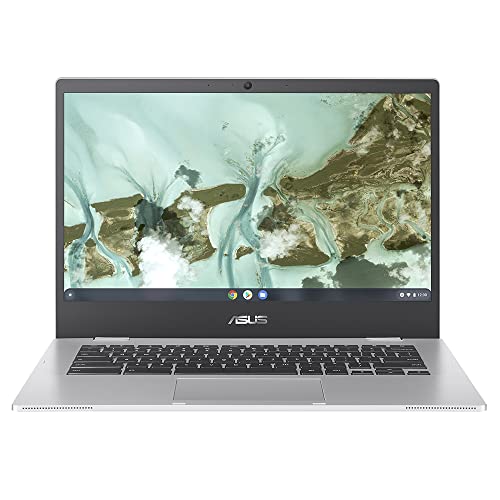
The two most relevant rivals at this price point are the Acer Chromebook 314 and the ASUS Chromebook CX1. Both sit in the same budget Chromebook bracket, both target the same audience of students and light users, and both offer a similar feature set on paper. The differences are in the details, and those details matter when you're choosing between machines that all look similar at a glance.
The Acer Chromebook 314 typically uses an Intel Celeron N4020 or N4500 processor, which benchmarks faster than the MT8183 in raw compute tasks but draws more power and runs warmer. Acer's build quality at this price is comparable to Lenovo's, and the display options are similar. The Intel chip means broader app compatibility for any Linux or Android apps that aren't optimised for ARM. But the MT8183 in the Lenovo tends to edge it on battery life and thermal comfort, which for all-day portable use is a meaningful advantage.
The ASUS Chromebook CX1 is another ARM-based option in places, though configurations vary. ASUS's build quality is solid, and the CX1 has a decent reputation for reliability. Where the Lenovo IdeaPad 3 tends to win is on display quality: the Full HD panel here is a genuine differentiator, and some CX1 configurations still ship with lower-resolution displays. The Lenovo's 1080p screen at this price is one of its strongest selling points relative to the competition.
| Feature | Lenovo IdeaPad 3 Chromebook | Acer Chromebook 314 | ASUS Chromebook CX1 |
|---|---|---|---|
| Processor | MediaTek MT8183 (ARM) | Intel Celeron N4500 | MediaTek MT8183 / Intel (varies) |
| RAM | 4GB LPDDR4X | 4GB LPDDR4 | 4GB LPDDR4X |
| Storage | 64GB eMMC | 64GB eMMC | 64GB eMMC |
| Display | 14-inch Full HD IPS | 14-inch Full HD IPS | 11.6 to 14-inch (varies, some 768p) |
| Battery Life (real-world) | 7 to 9 hours | 7 to 8 hours | 7 to 8 hours |
| USB-C Charging | Yes | Yes | Yes |
| ARM Compatibility | ARM (some app limitations) | x86 (broader compatibility) | Varies by config |
| Price | £199.00 | Similar budget tier | Similar budget tier |
| Best For | Battery life, display quality, quiet operation | App compatibility, raw compute | Brand reliability, compact options |

Final Verdict
The Lenovo Chromebook IdeaPad 3 is a well-targeted budget Chromebook that does what it says. The 1,037 owners giving it ★★★★☆ (4.3) from 132 reviews aren't wrong: for the audience this is built for, it delivers. Students who live in Google Docs and Classroom, remote workers who need a light travel machine for email and video calls, parents buying a secondary machine for a child who'll mostly browse and stream. For all of those use cases, this is a solid buy at its price point.
The honest caveats are worth repeating. The QWERTZ keyboard layout is a genuine issue for UK buyers who haven't noticed it in the listing. The 4GB of RAM is adequate for Chrome OS's core workloads but shows its limits when you push multitasking. The ARM architecture means a small number of Android and Linux apps won't work as expected, and the MT8183 is not a fast chip by any measure. The display is good for the price but won't cope with bright outdoor environments. None of these are dealbreakers for the right buyer. All of them matter if you're the wrong buyer.
On the positive side: the Full HD display is a genuine differentiator at this price, the battery life is among the better performers in the budget Chromebook category, the thermal and acoustic behaviour is genuinely pleasant, and USB-C charging is the right call. The Lenovo product page pitches this as an everyday machine for education and home use, and that framing is accurate. It's a budget machine that doesn't embarrass itself.
Solid seven out of ten for the budget tier. If you genuinely only need Chrome OS basics and you're buying for a student or a light-use secondary machine, this is money well spent. But if you want broader app compatibility and don't mind slightly warmer thermals, an Intel Celeron Chromebook at a similar price (like the Acer Chromebook 314) might serve you better. And if you're not sure you need 14 inches, a smaller Chromebook in the same price bracket could save you money and weight. Know your use case, match it to this machine's strengths, and it won't let you down.
What works. What doesn’t.
5 + 5What we liked5 reasons
- Full HD IPS display is a genuine differentiator at the budget Chromebook price tier
- Real-world battery life of seven to nine hours outperforms comparable Intel Celeron rivals
- Runs near-silently under typical workloads thanks to the MT8183's low thermal output
- USB-C charging means you can top up from existing phone chargers or power banks
- Consistent sustained performance for light workloads without the throttling that plagues some budget Intel chips
Where it falls5 reasons
- QWERTZ keyboard layout will catch out UK buyers expecting a standard QWERTY board
- 4GB of RAM shows its limits quickly when multitasking with multiple tabs and Android apps
- ARM architecture means a small number of Android and Linux apps are incompatible or unreliable
- 250-nit display brightness is inadequate near bright windows and unusable in direct sunlight
- MediaTek MT8183 benchmarks well behind Intel Celeron alternatives for raw compute tasks
Full specifications
12 attributes| Storage type | 64GB eMMC 5.1 |
|---|---|
| Battery WH | 42 |
| Bluetooth | 4.2 |
| CPU | MediaTek MT8183 |
| Display resolution | 1920x1080 |
| Display size IN | 14 |
| GPU | Integrated ARM Mali-G72 MP3 GPU |
| Keyboard | UK QWERTZ |
| Launch year | 2022 |
| OS | Chrome OS |
| Panel type | TN |
| RAM GB | 4 |
If this isn’t right for you
2 options
Frequently asked
7 questions01Is the Lenovo IdeaPad 3 Chromebook suitable for UK buyers given its QWERTZ keyboard layout?+
This is an important point that catches many buyers out. The model covered in this review ships with a QWERTZ keyboard, which is the standard German layout. It swaps the Y and Z keys and rearranges some punctuation compared to a UK QWERTY board. UK buyers should confirm the keyboard layout of the specific listing they are purchasing before completing checkout. If you type frequently, a mismatched layout will be a persistent frustration.
02How does the MediaTek MT8183 compare to Intel Celeron chips found in rival Chromebooks?+
In Octane 2.0 JavaScript benchmarks, the MT8183 typically scores between 20,000 and 25,000, while an Intel Celeron N4500 lands around 30,000 to 35,000. In raw compute terms, the Intel chip is faster. However, the MT8183's advantages are efficiency-related: it runs cooler, draws less power, and delivers more consistent battery life. For Chrome OS core workloads like browsing and document editing, the performance gap is less noticeable than the numbers suggest. For anything compute-intensive, the Intel option pulls ahead.
03Will Android and Linux apps work normally on this ARM-based Chromebook?+
Most popular Android apps work fine because they are designed for ARM processors, which is the same architecture used in Android smartphones. However, some Android apps and a larger proportion of Linux apps are built for x86 processors and either run poorly or refuse to run at all on the MT8183. If you rely on specific Linux apps or niche Android applications, it is worth checking ARM compatibility before buying. For standard Android apps from the Play Store, the experience is generally acceptable.
04What is the real-world battery life, and how does it compare to Lenovo's claimed figure?+
Lenovo claims up to ten hours, measured under optimal low-brightness and light-load conditions. Owner reviews consistently report seven to nine hours for mixed everyday use, which is still strong for a budget Chromebook. Streaming video with higher brightness and heavier workloads will push you toward the six-hour range. The ARM chip's efficiency-first design is a genuine advantage here, and the real-world gap between the manufacturer claim and actual use is smaller than on many Windows laptops with equivalent hardware.
05Can this Chromebook be used for photo editing or graphic design work?+
Not seriously. The Mali-G72 MP3 GPU and 4GB of RAM are adequate for basic image viewing and casual editing in web-based tools like Canva, but the display's colour accuracy and limited brightness make it unsuitable for colour-critical work. Professional photo editing applications also tend to have limited or no Chrome OS support. For light creative tasks in cloud-based tools, it is functional. For anything requiring colour precision or local professional software, this machine is the wrong choice.
06Does the Lenovo IdeaPad 3 Chromebook have a microSD card slot for expanding storage?+
Based on the available specifications, there is no microSD card slot on this model. The 64GB of eMMC storage is the only local option, so if you plan to download many Android apps or store significant amounts of offline content, you will need to manage space carefully. Google Drive integration helps, but offline storage is fixed. This is worth factoring in if large local file libraries are part of your workflow.
07How does this Chromebook perform during video calls, and is the webcam adequate?+
For standard video calls on Google Meet or Zoom in decent indoor lighting, the 720p webcam is adequate. The image is clear enough for everyday calls, though low-light performance is average at best. The built-in microphone captures voice clearly in quiet environments, and owner feedback does not flag microphone quality as a problem. The machine's near-silent operation is a genuine advantage during calls, as there is no fan noise bleeding into the microphone. For professional broadcast-quality video calls, an external webcam would be an upgrade worth considering.