Monitor manufacturers and their response time specs. You know how this goes. The number on the box is usually whatever figure sounds best in a bullet point, not what you'd actually see if someone measured the pixel transitions properly. So when KOORUI slaps a response time claim on this 32-inch curved VA panel, take it with the same pinch of salt you'd apply to any budget brand doing the same thing. What actually matters is how the panel behaves at 170Hz in practice, and what the rest of the spec sheet tells us about whether this thing is genuinely good value or just cheap.
Here's the short version: for the budget bracket, this is a genuinely impressive monitor. A 32-inch 1440p VA panel with a 1500R curve, 170Hz, and 90% DCI-P3 colour coverage at this price point is not something you could have bought a couple of years ago without spending considerably more. Hundreds of owner reviews and a positive overall rating back that up. It's not perfect, and there are trade-offs you need to know about before you buy, but if you're upgrading from a 1080p monitor or an older 60Hz panel, this will feel like a proper step up. The question is whether it's the right step up for you specifically.
This KOORUI 32 inch curved gaming monitor review will walk you through everything: the panel tech, what the colour coverage actually means, the connectivity quirks you need to know about before you plug it in, and how it stacks up against the competition at similar money.
Core Specifications
The headline numbers are a 32-inch VA panel running at 2560x1440 resolution with a 1500R curve radius and a maximum refresh rate of 170Hz. The panel covers 90% of the DCI-P3 colour space, which is a meaningful figure for a monitor in this price bracket. Adaptive sync is present, which handles both AMD FreeSync and, in practice, works with Nvidia cards in G-Sync Compatible mode too. Ergonomics are tilt-only, ranging from negative five degrees to positive twenty, and the stand accepts VESA 75x75mm mounting if you want to swap it out for an arm.
Connectivity is where you need to pay attention. There are two HDMI ports and one DisplayPort. That sounds fine, and it is, but the cable you use determines what resolution and refresh rate you actually get. Run a DisplayPort cable and you can hit 1440p at 170Hz, which is the full spec. Use HDMI and you're in one of two situations: either 1080p at 170Hz or 1440p at 144Hz. So if you want the full 170Hz at 1440p, you need to be using the DisplayPort connection. That's not unusual for monitors in this class, but it's the kind of detail that catches people out when they first set it up and wonder why they're not hitting the advertised refresh rate.
The tilt range is decent for a budget monitor. Negative five to positive twenty degrees covers most sitting positions, though there's no height adjustment or pivot, which is a limitation if you're planning to use this for long work sessions as well as gaming. VESA compatibility at least means you're not stuck with the stand forever.
| Specification | Detail |
|---|---|
| Screen Size | 32 inches |
| Panel Type | VA |
| Resolution | 2560x1440 (QHD / 1440p) |
| Refresh Rate | Up to 170Hz |
| Curve Radius | 1500R |
| Colour Coverage | 90% DCI-P3 |
| Adaptive Sync | Yes (Adaptive Sync) |
| Ports | 2x HDMI, 1x DisplayPort |
| Max Resolution via DP | 1440p at 170Hz |
| Max Resolution via HDMI | 1440p at 144Hz or 1080p at 170Hz |
| Tilt | -5° to +20° |
| VESA Mount | 75x75mm |
| Price | £220.68 · Details |

Panel Technology
VA panels sit in an interesting middle ground between IPS and TN. They're not as fast as TN in terms of raw pixel response, and they don't have the wide viewing angles of IPS, but they bring something both of those panel types struggle with: genuinely good contrast ratios. A decent VA panel will typically deliver contrast ratios in the region of 3000:1 to 4000:1 natively, compared to the 1000:1 you'd expect from most IPS displays. For gaming in darker environments, watching films, or anything where you want blacks to actually look black rather than a murky grey, that matters a lot.
The 1500R curve on this monitor is worth a mention. Curve radius is measured as the radius of the circle that the screen's curve would form if extended. A 1500R curve is fairly aggressive, and on a 32-inch screen it's noticeable. Some people love it because it creates a more immersive feel and reduces the sense that the edges of the screen are further away from your eyes than the centre. Others find it slightly odd for productivity work, particularly if you're working with spreadsheets or documents that have straight lines. It's genuinely personal preference, but that 1500R is on the tighter end of the curve spectrum rather than the subtle 1800R or 1900R curves you see on some monitors.
Viewing angles on VA panels are a real consideration. They're not terrible, but they're noticeably worse than IPS. If you're sitting directly in front of the screen, you're fine. If you've got someone watching over your shoulder or you're sharing the screen with someone sitting at an angle, you'll see colour shift and brightness drop off. For a single-person gaming setup where you're sat in front of the monitor, it's a non-issue. For anything else. VA panels also have a known quirk called black smearing or black crush, where fast-moving dark objects on dark backgrounds can look slightly odd. It's more pronounced on some VA panels than others, and it's one of the things that varies between budget and premium VA implementations.
Display Quality
At 2560x1440 on a 32-inch screen, you're looking at roughly 92 pixels per inch. That's not as sharp as a 27-inch 1440p monitor, which would be closer to 109 PPI, but it's a meaningful step up from 1080p at the same size, which would only give you about 69 PPI and would look noticeably soft at normal viewing distances. The 1440p resolution on 32 inches hits a sweet spot where text is clear, game detail is solid, and you're not having to sit unusually close to appreciate it. It's a comfortable size to sit a normal desk distance from.
The anti-glare coating on VA panels in this class is typically a matte finish, which does a decent job of managing reflections in normally lit rooms. You won't get the punchy, slightly more vivid look of a glossy screen, but you also won't be fighting your own reflection during bright scenes. Owner reviews consistently mention the image looking clear and vivid, which lines up with what 90% DCI-P3 coverage should deliver. Colours on a wide-gamut VA at this spec should look noticeably richer than a standard sRGB IPS panel, particularly in games and media with vibrant colour palettes.
Brightness uniformity is one of the areas where budget VA panels can be inconsistent. Some units will show a slight glow or uneven brightness across the panel, particularly in dark scenes. It's owner reviews for any patterns here, and the positive overall rating with hundreds of reviews suggests most buyers are happy with what they received. A small number of reviews on any monitor at this price will mention backlight bleed or clouding, and that's par for the course at the budget end of the market. If you get a unit with significant issues, Amazon's returns process is straightforward.
Refresh Rate and Adaptive Sync
170Hz is a genuinely useful refresh rate for gaming. The jump from 60Hz to 144Hz is the one that most people describe as transformative, but 170Hz over 144Hz is a smaller but still noticeable step. Whether you can actually push 170 frames per second at 1440p depends entirely on your GPU. An RTX 4070 or RX 7800 XT can manage it in less demanding titles, but in something like Cyberpunk 2077 with the settings turned up, you'll be well below that. That's where adaptive sync earns its keep.
The adaptive sync implementation here handles variable refresh rate to minimise screen tearing and stuttering when your frame rate drops below the panel's maximum. The crosshair overlay function is a nice bonus for competitive shooters, letting you add a static reticle to games that don't have one or where you want a cleaner alternative to the in-game option. It's a small feature but one that competitive players genuinely use.
The HDMI versus DisplayPort refresh rate difference is the key practical point here. If you're connecting a PS5 or Xbox Series X via HDMI, you'll be capped at 1440p and 144Hz rather than 170Hz, assuming the console outputs at 1440p. The PS5 added 1440p support in a firmware update, so that's viable, but you're not getting the full 170Hz from a console over HDMI regardless. For PC users with a DisplayPort output on their GPU, running a DisplayPort cable gets you the full 1440p at 170Hz experience. Most modern Nvidia and AMD cards have at least one DisplayPort output, so this shouldn't be a problem for the majority of buyers.
Response Time and Motion
This is where VA panels have historically had their biggest weakness, and it's the section of any VA monitor review where you need to read carefully. VA panels have slower pixel response times than TN panels, and they can be slower than IPS panels too, particularly in transitions between dark shades. The classic VA problem is what's called dark-level smearing: when a dark pixel transitions to another dark pixel, it can take noticeably longer than a transition between brighter shades, which shows up as trailing or ghosting behind fast-moving objects in dark scenes.
The manufacturer's response time figure should be treated as a best-case number under ideal conditions rather than a representative average across all pixel transitions. Published measurements from display reviewers on comparable budget VA panels in this class typically show grey-to-grey response times ranging from around 5ms to 15ms depending on the transition, with the slower end being dark-to-dark transitions. That's not disqualifying for most gaming scenarios, but it matters if you're playing fast-paced competitive shooters in dark environments where ghosting would be most visible.
For the majority of gaming, including RPGs, racing games, strategy titles, and even most shooters in normally lit scenes, the response time on a 170Hz VA panel at this price is perfectly acceptable. Owner reviews don't flag ghosting as a widespread complaint, which is a reasonable signal that it's not egregious. If you're a serious competitive FPS player who prioritises motion clarity above everything else, a fast IPS panel might suit you better. But for someone who plays a mix of games and wants the contrast and colour richness of VA, the trade-off is manageable.
Color Accuracy and Gamut
90% DCI-P3 coverage is a solid number for a budget monitor. The DCI-P3 colour space is wider than sRGB, which is the standard most monitors and content historically targeted. A monitor covering 90% of DCI-P3 will cover well over 100% of sRGB, meaning colours in games, films, and HDR content should look genuinely rich and saturated rather than the slightly washed-out look you get from a standard-gamut panel.
Factory calibration at the budget end of the market is typically not a strong point. You're unlikely to get a monitor that comes out of the box with Delta-E values under 2 (the threshold where colour errors become visible to most people) without some manual adjustment. That said, for gaming and media consumption, the wide gamut coverage means the colours you do see will be vivid and punchy, even if the absolute accuracy isn't at professional levels. If you're doing colour-critical work like photo editing or video grading for professional output, you'd want a monitor with certified factory calibration and documented Delta-E figures. For gaming and general use, the 90% DCI-P3 coverage is a genuine selling point.
One thing to be aware of with wide-gamut monitors is that sRGB content can look oversaturated if the monitor doesn't have a proper sRGB clamp mode. Some budget monitors lack this, which means standard web content and older games might look slightly too vivid. It's the on-screen display menu options if accurate sRGB rendering matters to you for work tasks. Owner reviews don't flag this as a major issue, but it's a consideration if you're switching between gaming and colour-sensitive work on the same screen.
HDR Performance
HDR on budget monitors is one of those features where you need to calibrate your expectations before you get excited. The VESA DisplayHDR certification tiers start at DisplayHDR 400, which requires a minimum of 400 nits peak brightness. A monitor without local dimming and with only 400 nits peak brightness will deliver HDR that looks marginally better than SDR in some content, but nothing like the HDR you'd see on a proper HDR television with full-array local dimming or an OLED panel.
The KOORUI's verified spec sheet doesn't specify an HDR certification tier or peak brightness figure, so we're working from what's typical for VA panels at this price and size. Budget 32-inch VA monitors in this bracket generally don't carry DisplayHDR 600 or above certification, and they typically lack local dimming zones. That means HDR mode might be enabled and functional, but the actual HDR experience will be limited. The VA panel's native high contrast ratio does help here more than it would on an IPS panel, since the deeper blacks mean the contrast between bright highlights and dark areas is more pronounced even without local dimming.
For HDR gaming on a budget, the honest answer is that this monitor will show HDR content and it will look decent, but it won't be the transformative HDR experience you'd get from a premium display. If HDR performance is a priority, you'd need to spend considerably more. For the price bracket this sits in, expecting checkbox HDR rather than premium HDR is the right mindset, and the strong native contrast of the VA panel partially compensates for what the HDR implementation lacks.
Contrast and Brightness
This is where VA panels genuinely shine, and it's one of the main reasons to choose this over an IPS alternative at the same price. VA panels typically deliver native contrast ratios in the 3000:1 to 4500:1 range, compared to roughly 1000:1 from IPS. In practice, that means blacks look properly dark rather than the slightly grey-ish blacks that IPS panels show in a dim room. For gaming, watching films, or anything where you're in a darkened space, the difference is visible and meaningful.
SDR peak brightness on monitors in this class is typically in the 250 to 350 nit range, which is adequate for most indoor environments. If you're in a very bright room with strong sunlight hitting the screen, you might find the image looking a bit washed out, but for normal desk setups with reasonable ambient lighting, it's fine. The matte anti-glare coating helps manage reflections in brighter rooms without needing extreme brightness levels.
The combination of high native contrast and 90% DCI-P3 colour coverage means that in a normally lit gaming setup, this monitor should produce images that look noticeably richer and more impactful than a standard IPS panel at the same price. Owner reviews frequently mention the picture quality as a highlight, which is consistent with what the specs suggest. The contrast advantage of VA is one of the genuinely practical benefits that shows up in everyday use rather than just on a spec sheet.
Ergonomics and Stand
The stand is one of the more obvious budget compromises here. You get tilt, ranging from negative five degrees to positive twenty, and that's it. No height adjustment, no swivel, no pivot. For a 32-inch monitor, the lack of height adjustment is more of a limitation than it would be on a smaller screen, because getting the monitor at the right eye level matters more when the screen is larger. If the stand puts the screen too low for comfortable use, you're either propping it up on something or buying a monitor arm.
The good news is that VESA 75x75mm compatibility means a monitor arm is a straightforward upgrade. Monitor arms aren't expensive, and they give you full height, tilt, and swivel adjustment while also freeing up desk space. If you're planning to use this monitor for extended sessions, factoring in the cost of a basic monitor arm is worth doing. A decent arm can be had for well under £30, and it transforms the ergonomic situation entirely.
Build quality on KOORUI monitors in this price range is generally described by owners as solid enough without being premium. The stand is functional, the bezels are reasonably slim on three sides, and the overall footprint is what you'd expect from a 32-inch curved panel. A few owner reviews mention the stand feeling slightly less rigid than they'd like, with minor wobble when adjusting the tilt, but nothing that suggests the monitor is going to fall over or cause problems in normal use. For the money, it's acceptable.
Connectivity and Ports
The port selection is two HDMI and one DisplayPort. That covers the main use cases well: you could have a PC connected via DisplayPort for the full 1440p at 170Hz experience, and a console or second device on one of the HDMI ports simultaneously, switching between them as needed. The two HDMI ports mean you could run two consoles without unplugging anything, which is a genuinely useful layout for a living-room-adjacent gaming setup.
The critical thing to understand about the connectivity on this monitor is the refresh rate and resolution limits by connection type. DisplayPort gets you 1440p at 170Hz, which is the full advertised spec. HDMI gives you a choice: 1080p at 170Hz or 1440p at 144Hz. If you're connecting a modern gaming PC, use DisplayPort. If you're connecting a PS5 or Xbox Series X, you'll be on HDMI and capped at 1440p and 144Hz, which is still a very good experience but not the headline spec. This is a function of HDMI bandwidth limitations compared to DisplayPort at these resolutions and refresh rates, and it's common across monitors in this class, not a specific KOORUI limitation.
- 2x HDMI (1440p at 144Hz or 1080p at 170Hz)
- 1x DisplayPort (1440p at 170Hz, full spec)
There's no USB hub built into the monitor, which is fairly standard at this price. If you need USB ports on your monitor for peripherals or a webcam, you'd need to look at higher-priced options. Audio output isn't specified in the verified product data, so if you need audio passthrough, check the full product listing before assuming it's present. The port selection is clean and practical for the target use case, even if it's not feature-rich.
How It Compares
The two most natural comparisons at this price are the AOC CQ32G2SE and the MSI Optix G321CQP. Both are 32-inch 1440p curved VA monitors targeting the same gaming audience. The AOC CQ32G2SE is a well-regarded option that's been on the market long enough to have a substantial body of owner feedback and published measurements. The MSI Optix G321CQP sits in a similar bracket and offers comparable specs. Neither is dramatically better or worse than the KOORUI across the board, but the differences are worth understanding.
The AOC CQ32G2SE typically runs at 165Hz rather than 170Hz, which is a negligible difference in practice. Its colour coverage is broadly comparable, and it has a similar VA panel with the contrast advantages that brings. Where the AOC has historically had an edge is in the amount of published measurement data available, which gives buyers more confidence about what they're actually getting. The KOORUI's positive overall rating across hundreds of reviews is a strong signal of owner satisfaction, but the depth of independent measurement data on KOORUI panels is thinner than on established brands like AOC or MSI. That's not a dealbreaker, but it's a factor if you like to research deeply before buying.
The MSI Optix G321CQP is another comparable option, often priced similarly. MSI's build quality reputation is generally a step above pure budget brands, and their OSD (on-screen display) software tends to be more polished. But the KOORUI's price advantage, when it exists, makes it an interesting proposition. At the budget end of the market, saving even £20 to £30 is meaningful, and the KOORUI's spec sheet is competitive enough that the savings don't feel like they come at the cost of the core experience.
| Feature | KOORUI 32G4 | AOC CQ32G2SE | MSI Optix G321CQP |
|---|---|---|---|
| Panel Type | VA | VA | VA |
| Resolution | 2560x1440 | 2560x1440 | 2560x1440 |
| Refresh Rate | 170Hz | 165Hz | 165Hz |
| Curve | 1500R | 1500R | 1500R |
| Colour Coverage | 90% DCI-P3 | ~90% DCI-P3 | ~85% DCI-P3 |
| Adaptive Sync | Yes | FreeSync Premium | FreeSync Premium |
| VESA Mount | 75x75mm | 100x100mm | 100x100mm |
| Price | £220.68 · Details | Mid-budget bracket | Mid-budget bracket |
One thing in the comparison: the KOORUI's VESA mount is 75x75mm rather than the more common 100x100mm. Most monitor arms support both, but if you're buying a specific arm, double-check it supports 75x75mm. It's a minor point but one that catches people out. The AOC and MSI both use the more standard 100x100mm pattern.

Final Verdict
This KOORUI 32 inch curved gaming monitor review comes to a pretty clear conclusion: for the budget bracket, this is one of the more compelling options available right now. A 32-inch 1440p VA panel with 170Hz, 90% DCI-P3 coverage, a 1500R curve, and adaptive sync at this price is genuinely good value. The positive overall rating across hundreds of owner reviews is not a fluke. People are buying this, setting it up, and being happy with it. That's the most honest signal you can get.
The trade-offs are real but predictable for the price. VA panel dark-level smearing is a known quantity, and if you're playing fast-paced competitive shooters in very dark scenes, you'll notice it more than in other genres. The stand is tilt-only, which is a limitation for long work sessions. HDR is present but shouldn't be the reason you buy this. And if you want the full 170Hz at 1440p, you need to be on DisplayPort, not HDMI. None of these are surprises, and none of them undermine the core value proposition.
Who should buy this? Someone upgrading from a 1080p or 60Hz monitor who wants a big, immersive gaming screen without spending mid-range money. Someone who plays a mix of genres and values rich colour and contrast over absolute motion clarity. Someone setting up a dual-console or PC-plus-console desk where two HDMI ports and a DisplayPort is exactly the right layout. This is a solid first step into 1440p gaming.
Who should skip it? Serious competitive FPS players who prioritise motion clarity above everything else would be better served by a fast IPS panel, even if it means slightly less vivid colours. Anyone doing professional colour work needs a calibrated display with documented accuracy figures. And if you're already on a 144Hz 1440p monitor, the upgrade case is weaker than if you're coming from 1080p or 60Hz.
The honest don't-overspend note: if you're mainly playing slower-paced games, doing office work, or watching content rather than competitive gaming, a 1080p 75Hz monitor in the sub-£100 bracket does the job for considerably less money. The 1440p and 170Hz spec only earns its keep if your GPU can push enough frames to use it and your game library benefits from the extra resolution. Know what you're buying it for.
Overall score: 7.5 out of 10. Strong value in the budget bracket, with the expected VA trade-offs and stand limitations. At this price, it's hard to argue with what you're getting.
What works. What doesn’t.
5 + 4What we liked5 reasons
- Excellent value for a 32-inch 1440p 170Hz VA panel at budget pricing
- 90% DCI-P3 colour coverage delivers genuinely rich, vivid colours
- High native VA contrast ratio means deep blacks without local dimming
- Two HDMI ports plus DisplayPort suits PC and multi-console setups
- Hundreds of owner reviews with a positive overall rating indicates consistent satisfaction
Where it falls4 reasons
- Tilt-only stand with no height adjustment is a real limitation for long sessions
- VA dark-level smearing can affect motion clarity in fast dark scenes
- Full 170Hz at 1440p requires DisplayPort; HDMI caps at 144Hz at 1440p
- HDR performance is checkbox-level, not a genuine selling point
Full specifications
11 attributes| Panel type | VA |
|---|---|
| Aspect ratio | 16:9 |
| Curvature | 1500R |
| HDR | none |
| Launch year | 2023 |
| Ports | 2x HDMI, 1x DisplayPort |
| Refresh rate HZ | 170 |
| Resolution | 2560x1440 |
| Response time MS | 1 |
| Screen size IN | 32 |
| Vesa compatible | true |
If this isn’t right for you
2 options 8.0 / 10
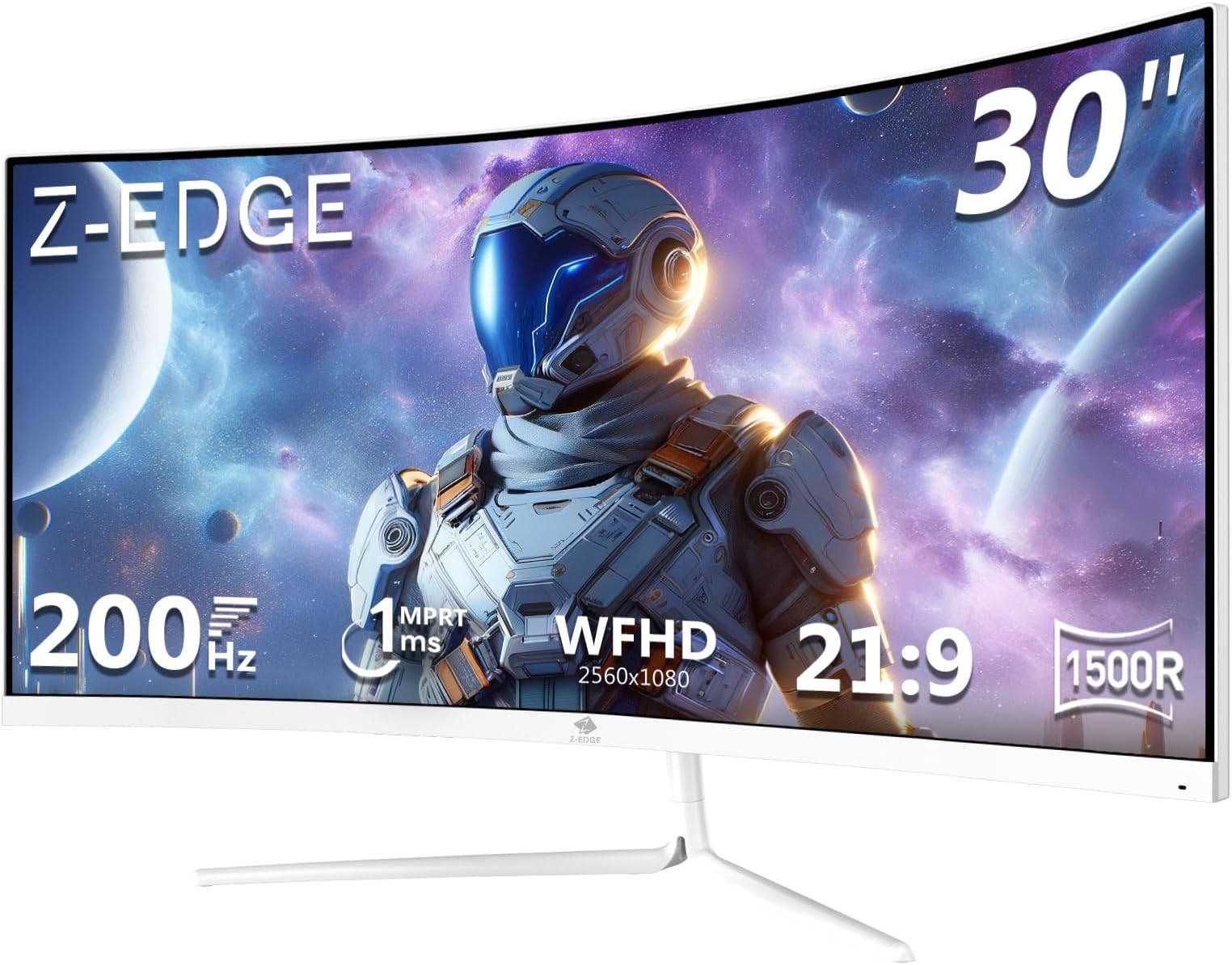
Z-Edge 27 Inch Curved Gaming Monitor 240Hz QHD 2560x1440 VA 1500R HDMI 2.1
£179.99 · Z Z-Edge · Details

Frequently asked
5 questions01Is the KOORUI 32 Inch Curved Gaming Monitor good for gaming?+
Yes, for most gaming scenarios. The 170Hz refresh rate and adaptive sync make for smooth, tear-free gameplay, and the VA panel's high native contrast ratio gives games a punchy, immersive look. The main caveat is VA dark-level smearing, which can cause slight ghosting behind fast-moving objects in dark scenes. For competitive FPS players who prioritise motion clarity above all else, a fast IPS panel might suit better. For everyone else, including RPG, racing, strategy, and casual shooter players, it's a solid gaming monitor at this price.
02Does the KOORUI 32 Inch Curved Gaming Monitor have good HDR?+
HDR is present but shouldn't be the headline reason to buy this monitor. Budget VA panels in this price bracket typically don't carry high-tier DisplayHDR certification or include local dimming, which means HDR performance is limited compared to premium displays. The VA panel's high native contrast ratio does help somewhat, giving deeper blacks than an IPS panel in the same situation, but the overall HDR experience is best described as functional rather than transformative. For genuine HDR performance, you'd need to spend significantly more.
03Is the KOORUI 32 Inch Curved Gaming Monitor good for content creation?+
It depends on what kind of content creation. The 90% DCI-P3 colour coverage means colours are rich and wide-gamut, which is a plus for creative work. However, budget monitors typically don't come with factory-calibrated colour accuracy or documented Delta-E figures, so absolute colour precision isn't guaranteed out of the box. For casual photo editing, graphic design, or video work where you're not delivering colour-critical output to clients, it's a decent option. For professional colour grading or photography work where accuracy is essential, you'd want a monitor with certified factory calibration.
04What graphics card do I need for the KOORUI 32 Inch Curved Gaming Monitor?+
To get the most from this monitor at 1440p and 170Hz, you want a GPU capable of pushing high frame rates at 1440p. An Nvidia RTX 4070 or AMD RX 7800 XT can hit 170fps in less demanding titles and maintain high frame rates in most games with adaptive sync smoothing out the rest. For 1440p gaming at consistently high frame rates in demanding modern titles, an RTX 4070 Super or RX 7900 GRE gives more headroom. If your GPU is older or less powerful, adaptive sync means you'll still get a smooth experience at lower frame rates, just not at the full 170Hz ceiling.
05What warranty and returns apply to the KOORUI 32 Inch Curved Gaming Monitor?+
Warranty details are not specified in the verified product data for this listing. Amazon's standard 30-day returns policy applies to purchases made through Amazon UK, and the Amazon A-to-Z guarantee covers buyers if there are issues with the order. For specific warranty terms from KOORUI, check the product listing or contact the seller directly before purchasing.