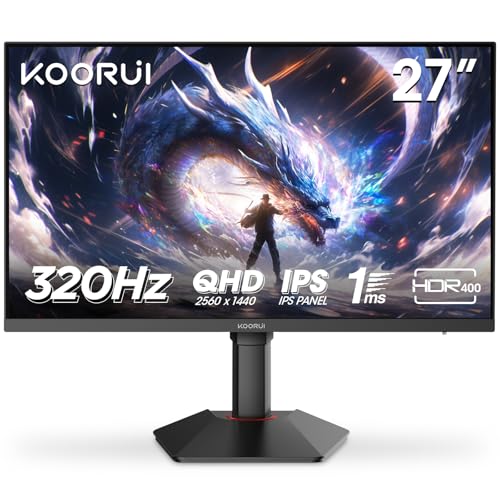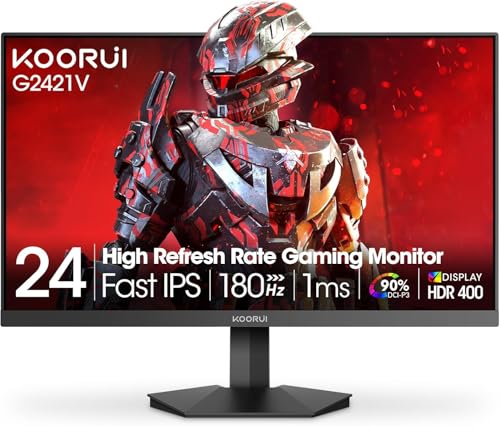


A monitor that quotes 240Hz on the box but turns your fast-paced shooter into a smeared, ghosted mess is worse than useless. The refresh rate number is the easy part. What actually determines whether a budget IPS panel can keep up with competitive gaming is the real pixel transition behaviour, the adaptive sync window, and whether the colours hold up once you stop staring at the spec sheet. The KOORUI 27 inch 240Hz gaming monitor sits in the mid-range bracket and, based on hundreds of owner reviews with a positive overall rating, it's doing something right. But 4.3 stars from 901 people doesn't mean it's perfect. It means it's probably good enough for most people at this price point, which is a very different thing.
So here's the honest verdict upfront: this is a genuinely decent budget-to-mid-range competitive gaming monitor. The IPS panel delivers better viewing angles and colour than a TN, the 240Hz refresh rate is real and achievable on modern mid-range GPUs at 1080p, and the FreeSync Premium support means tear-free gaming is actually accessible. The HDR400 badge is mostly marketing, the stand is basic, and you're not going to use this for serious colour work. But for the person who wants smooth, fast, affordable 1080p gaming on a 27-inch screen? This is a solid option.
Core Specifications
The headline numbers on the KOORUI 27E3 (the internal model designation referenced in owner listings) are a 27-inch IPS panel running at 1920x1080 resolution with a 240Hz maximum refresh rate. The manufacturer quotes a 1ms MPRT response time, which is a motion blur reduction figure rather than a true grey-to-grey pixel transition measurement. That distinction matters enormously and we'll get into it properly in the response time section. Adaptive sync comes via AMD FreeSync Premium, which is a step above basic FreeSync and requires at least 120Hz at minimum resolution with low framerate compensation (LFC) support.
Brightness is quoted at 250 nits typical, with HDR400 certification requiring a peak of 400 nits. The panel uses an anti-glare matte coating, which is the right call for a gaming monitor that's going to sit in a room with overhead lighting. Connectivity is straightforward: two HDMI 2.0 ports and one DisplayPort 1.2, which covers the bases for most setups. There's a 3.5mm headphone jack. No USB hub, no USB-C, no built-in speakers. The stand offers tilt adjustment only. VESA 100x100 mounting is supported, which is good news if you want a proper arm.
The panel is listed as using an IPS-type display with a static contrast ratio of 1000:1, which is standard for IPS technology. The colour gamut is quoted at 99% sRGB, and the VESA DisplayHDR 400 certification covers the HDR side of things. At this price point, that combination of specs is genuinely competitive. You're not finding 240Hz IPS panels with FreeSync Premium for dramatically less money from established brands.
| Specification | Detail |
|---|---|
| Screen Size | 27 inches |
| Resolution | 1920 x 1080 (Full HD) |
| Panel Type | IPS |
| Refresh Rate | 240Hz |
| Response Time | 1ms MPRT |
| Adaptive Sync | AMD FreeSync Premium |
| HDR | HDR400 (VESA DisplayHDR 400) |
| Brightness (Typical) | 250 nits |
| Peak Brightness (HDR) | 400 nits |
| Contrast Ratio | 1000:1 (static) |
| Colour Gamut | 99% sRGB |
| Ports | 2x HDMI 2.0, 1x DisplayPort 1.2, 3.5mm audio |
| VESA Mount | 100 x 100mm |
| Stand Adjustment | Tilt only |
| Dimensions (with stand) | Approx. 614 x 455 x 210mm |

Panel Technology
IPS stands for In-Plane Switching, and if you care about display quality at all, it's the right choice over TN (Twisted Nematic) at this price bracket. TN panels are faster in raw pixel transition terms, but the colour accuracy and viewing angles are dreadful. Sit slightly off-axis on a TN and the image shifts colour and brightness visibly. IPS panels, by contrast, maintain consistent colour and brightness across a wide viewing angle, typically rated at 178 degrees horizontally and vertically. On a 27-inch screen where your eyes naturally scan across the full width, that consistency genuinely matters.
The downside of IPS versus VA (Vertical Alignment) is contrast. VA panels can achieve native contrast ratios of 3000:1 or higher, which means genuinely deep blacks. IPS panels typically land around 1000:1, and this KOORUI is no exception. In a dark room, you'll see the characteristic IPS glow in the corners, where backlight bleeds through the panel edges and creates a faint haze. Owner reviews mention this, with a handful noting it's visible in dark scenes or during loading screens. It's not a dealbreaker for gaming, but it matters if you play a lot of horror games or dark RPGs in a pitch-black room.
What IPS does brilliantly is colour. The wide colour angles mean the image looks the same whether you're sitting dead-centre or slightly to the side, which matters if you share your screen with someone or if your setup means you're not always perfectly aligned. For competitive gaming, IPS also holds up well because modern IPS panels have closed the response time gap with TN significantly. The older stigma of IPS being too slow for fast gaming is largely outdated, especially at 240Hz where the panel technology has been refined considerably. KOORUI's panel here is an IPS-type, which likely means it's using a Fast IPS or similar variant designed to reduce pixel transition times compared to standard IPS.
Display Quality
At 1920x1080 on a 27-inch panel, the pixel density works out to approximately 81.6 pixels per inch. That's noticeably lower than a 24-inch 1080p monitor (which hits around 91.8 PPI) and considerably lower than a 27-inch 1440p panel (roughly 108 PPI). The honest truth is that 1080p on 27 inches is a compromise. Individual pixels become visible if you sit close, and fine text can look slightly soft compared to higher-density panels. For gaming, this matters less because you're focused on the action rather than reading small text. For productivity or content work, it's more noticeable.
The matte anti-glare coating is a sensible choice for a gaming monitor. Glossy panels look stunning in controlled lighting but become mirrors the moment you have a window or lamp behind you. The matte coating on this KOORUI diffuses reflections effectively, and owner reviews consistently praise the image clarity in normal room lighting conditions. A small number of owners do mention a slight graininess to the coating under certain lighting, which is a common trait of aggressive anti-glare treatments, but the majority find it perfectly fine for daily use.
Brightness uniformity across the panel is quoted at a typical 250 nits, and owner reports suggest the panel is reasonably consistent across the screen surface. Some backlight bleed is reported, particularly in the corners, which is standard for IPS at this price. KOORUI's quality control seems decent based on the review distribution: the positive overall rating from hundreds of reviewers suggests that significant panel defects (dead pixels, severe bleed) are not a widespread issue. A small percentage of any monitor production run has problems, and Amazon's 30-day return window handles those cases. The overall impression from owner feedback is a panel that looks good out of the box without needing extensive manual calibration.
Refresh Rate and Adaptive Sync
240Hz is genuinely useful for competitive gaming. The difference between 144Hz and 240Hz is subtler than the jump from 60Hz to 144Hz, but it's real. At 240Hz, each frame is displayed for approximately 4.2 milliseconds, compared to 6.9ms at 144Hz. In fast-paced shooters, that translates to smoother motion, slightly reduced input lag perception, and a cleaner image during rapid camera movements. If you're playing at frame rates that can actually reach 240fps, you'll feel the difference. If you're capped at 100 to 150fps, you're still benefiting from the lower input lag of a high-refresh panel even if you're not hitting the maximum rate.
The FreeSync Premium certification is a meaningful upgrade over basic FreeSync. FreeSync Premium requires a minimum 120Hz refresh rate at native resolution, mandatory Low Framerate Compensation (LFC), and low latency in the supported range. LFC is the key feature here: when your frame rate drops below the monitor's minimum VRR threshold, LFC kicks in and multiplies the frame rate to keep it within the sync window, preventing tearing even when your GPU is struggling. The VRR range on this monitor is listed as 48Hz to 240Hz, which is a broad window that covers most gaming scenarios.
NVIDIA GPU owners should note that this monitor is not G-Sync certified. However, NVIDIA's G-Sync Compatible programme means that many FreeSync monitors work with NVIDIA cards via adaptive sync, and FreeSync Premium monitors generally pass NVIDIA's compatibility testing. Owner reviews from NVIDIA users report that adaptive sync works without issues in most cases. You'll want to enable G-Sync Compatible mode in the NVIDIA Control Panel and verify it works on your specific card and driver version. It's not guaranteed, but the success rate with FreeSync Premium panels and modern NVIDIA drivers is high.
Response Time and Motion
The "1ms" figure on the box needs unpacking because it's doing a lot of marketing heavy lifting. That 1ms is an MPRT figure, which stands for Moving Picture Response Time. MPRT measures the perceived blur of a moving object on screen, and it's achieved by strobing the backlight (turning it off between frames) rather than measuring how fast pixels actually transition between colours. True grey-to-grey (GtG) response time, which measures actual pixel switching speed, is a different measurement entirely and typically higher than MPRT on budget panels.
For IPS panels at 240Hz in this price range, published measurements from display reviewers consistently show GtG response times in the 3ms to 6ms range depending on the overdrive setting used. KOORUI's panel almost certainly follows this pattern. The good news is that at 240Hz, the frame time is 4.2ms, so a 3ms to 5ms GtG response is fast enough to keep up without excessive overshoot. The bad news is that aggressive overdrive settings on budget IPS panels can introduce inverse ghosting, where bright halos appear behind fast-moving objects. Owner reviews on this KOORUI mention that the default overdrive setting works well, with a couple of users noting that the highest overdrive setting introduces some visible overshoot in dark scenes.
The practical reality for competitive gaming is positive. Owners playing fast-paced shooters like CS2, Valorant, and Apex Legends report smooth, responsive motion with no significant ghosting at default settings. The 240Hz refresh rate combined with a competent IPS overdrive implementation means this monitor handles fast gaming well. It's not going to match a top-tier Fast IPS panel from LG or ASUS at twice the price, but the gap is smaller than you might expect. For the target audience of budget-conscious competitive gamers, the motion performance is more than adequate.
Color Accuracy and Gamut
KOORUI quotes 99% sRGB coverage, which is a strong number for a monitor at this price. The sRGB colour space is the standard for most web content, gaming, and streaming, so 99% coverage means you're seeing colours as they were intended by content creators. DCI-P3 coverage, the wider colour space used for professional video and HDR content, isn't quoted, but IPS panels at this spec level typically land around 85% to 90% DCI-P3, which is decent without being exceptional.
Factory calibration on budget monitors is always a lottery. KOORUI doesn't ship a calibration report with this monitor, and owner reviews suggest the out-of-box accuracy is good but not perfect. A few users mention that the default colour temperature runs slightly warm, which is common on budget panels tuned to look punchy on a shelf display. Adjusting the colour temperature setting in the OSD to a cooler preset or manually tweaking RGB levels brings it closer to accurate. Delta-E values (the measure of colour accuracy, where lower is better) aren't published for this specific panel, but owner feedback doesn't flag any dramatic colour shifts or obvious inaccuracies that would indicate a Delta-E above 3 in normal use.
For content creation, this monitor is a secondary option at best. The lack of factory calibration data, the absence of wide colour gamut coverage beyond sRGB, and the standard IPS contrast ratio mean it's not suitable for professional photo or video work where colour accuracy is critical. For gaming and general use, the 99% sRGB coverage is genuinely good and means games look vibrant and accurate without needing any adjustments. Streaming video looks natural, and the IPS panel's colour consistency across viewing angles means colours don't shift when you lean slightly to reach for your drink.

HDR Performance
The HDR400 badge deserves a frank conversation. VESA DisplayHDR 400 is the entry-level tier of HDR certification, and it requires a peak brightness of 400 nits, 8-bit colour (which can be achieved via dithering on a 6-bit panel), and HDR10 signal support. What it does not require is local dimming. Local dimming is the technology that makes HDR actually look good: it dims specific zones of the backlight behind dark areas of the image while keeping bright areas bright, creating genuine contrast between highlights and shadows.
Without local dimming, HDR on this monitor works by simply boosting the backlight to 400 nits when an HDR signal is detected. The result is a brighter image, but the contrast ratio stays at 1000:1 and blacks remain the same washed-out grey they are in SDR. In practice, HDR content on a DisplayHDR 400 monitor without local dimming often looks worse than SDR content with a good colour profile applied, because the HDR mode boosts brightness without delivering the contrast that makes HDR compelling. This is not a KOORUI-specific problem. It's a fundamental limitation of the HDR400 tier across the entire monitor market.
Owner reviews don't have much to say about HDR specifically, which is telling. Nobody's raving about the HDR performance, and nobody's particularly upset about it either. Most users seem to leave HDR mode off and game in SDR, which is the right call. If you want real HDR, you need to be looking at monitors with HDR600 or HDR1000 certification and actual local dimming (mini-LED panels), which puts you in a significantly higher price bracket. For this KOORUI, treat the HDR400 badge as a checkbox feature that enables HDR signal passthrough, not as a genuine HDR experience.
Contrast and Brightness
The 1000:1 static contrast ratio is standard IPS territory. It means that the brightest white the panel can display is 1000 times brighter than the darkest black it can display at any given moment. In practice, blacks on this panel in a dark room will appear as a dark grey rather than true black, and the IPS glow in the corners will be visible during dark scenes. This is the fundamental trade-off you make with IPS technology: better colour and viewing angles in exchange for less impressive contrast compared to VA panels.
The 250 nit typical brightness is adequate for a room with normal lighting. In a bright office or near a window, 250 nits can feel a bit dim, and the matte coating helps manage reflections but doesn't eliminate the sense that the image washes out slightly in very bright ambient light. For a gaming setup in a typical bedroom or home office with controllable lighting, 250 nits is perfectly workable. Owner reviews don't flag brightness as a significant concern, which suggests the panel performs as expected in real-world gaming environments.
Peak brightness of 400 nits in HDR mode is the ceiling, and as discussed in the HDR section, it's only reached when an HDR signal is active. In SDR gaming, you're working with the 250 nit typical figure. Compare this to monitors in the £200 to £300 range that can hit 350 to 400 nits in SDR, and you can see where the budget compromise shows up. For competitive gaming where you're focused on frame rates and motion rather than image quality, this is fine. For watching films or HDR gaming content where brightness and contrast matter more, it's a limitation.
Ergonomics and Stand
The stand on this KOORUI is basic, and that's putting it charitably. Tilt adjustment is included, typically in the range of minus 5 to plus 20 degrees, which lets you angle the panel back or forward slightly. There's no height adjustment, no swivel, and no pivot. If the default stand height doesn't suit your desk setup, you're relying on the VESA 100x100 mount to fit a monitor arm, which is genuinely the better solution anyway. A decent monitor arm costs £20 to £40 and gives you full flexibility that no built-in stand can match.
Owner reviews mention that the stand is stable enough for normal desktop use, with no significant wobble reported during typing or when accidentally nudging the desk. A few owners note that the stand feels light and plasticky, which it almost certainly is at this price, but functional. The cable management situation is minimal: there's no routing channel in the stand, so cables hang freely behind the monitor. Again, a monitor arm solves this elegantly.
Build quality overall is described as decent for the price. The bezels are slim on three sides, which is standard for modern gaming monitors and looks clean in a multi-monitor setup. The rear of the panel has a modest gaming aesthetic without going overboard on RGB or aggressive angular styling. There's no RGB lighting on this model, which some buyers will appreciate for a cleaner look. The OSD buttons are located on the rear of the panel, which is a common placement that can be fiddly to find by touch but is fine once you're used to it. Overall, the build inspires neither great confidence nor great concern. It's a budget monitor that looks and feels like a budget monitor, built to a price.
Connectivity and Ports
The port selection on the KOORUI 27 inch 240Hz is functional rather than generous. Two HDMI 2.0 ports and one DisplayPort 1.2 cover the most common connection scenarios. HDMI 2.0 supports 1080p at up to 240Hz, so you can run this monitor at full refresh rate over HDMI if your GPU or console supports it. DisplayPort 1.2 also handles 1080p at 240Hz without issue. The dual HDMI inputs are genuinely useful if you're connecting both a PC and a console, letting you switch between sources without swapping cables.
- 2x HDMI 2.0 (supports 1080p 240Hz)
- 1x DisplayPort 1.2 (supports 1080p 240Hz)
- 1x 3.5mm headphone jack
What's missing is notable. There's no USB-C, so laptop users who want a single-cable connection are out of luck. There's no USB hub, so you can't plug peripherals into the monitor. There are no built-in speakers. For a gaming monitor in this bracket, the absence of speakers is fine since most gamers use headsets, and the lack of a USB hub is a minor inconvenience rather than a dealbreaker. The absence of USB-C is more significant if you're considering this for a dual-purpose gaming and productivity setup with a modern laptop.
The 3.5mm audio output is a pass-through from the HDMI or DisplayPort signal, letting you connect headphones or external speakers directly to the monitor rather than running audio through your PC. It's a small convenience that owners appreciate. The OSD (on-screen display) accessed via the rear buttons lets you switch between inputs, adjust brightness and contrast, toggle overdrive settings, and configure the basic image settings. Owner reviews suggest the OSD is straightforward if slightly slow to navigate, which is typical for budget monitor implementations. Nothing here is exciting, but nothing is broken either.
How It Compares
The obvious competitors for the KOORUI 27 inch 240Hz sit in the same mid-range budget bracket. The AOC 27G2SPU is a popular alternative, offering a 27-inch IPS panel at 165Hz with 1ms MPRT and FreeSync Premium. It costs less than this KOORUI and is widely available. The trade-off is the refresh rate: 165Hz versus 240Hz is a meaningful gap for competitive gamers, and the AOC doesn't close that gap at a lower price. If 165Hz is enough for your use case, the AOC is. But if you're chasing 240Hz specifically, the KOORUI is the more relevant option.
The Acer Nitro XV272U is a step up: a 27-inch IPS panel at 1440p and 144Hz, typically priced higher than this KOORUI. It trades the 240Hz refresh rate for significantly higher resolution, which is the right call for anyone who cares about image sharpness or does any productivity work alongside gaming. The pixel density jump from 81 PPI at 1080p to 108 PPI at 1440p is immediately visible. If your GPU can handle 1440p gaming at reasonable frame rates, the Acer is a better all-rounder. But if your GPU is a mid-range card targeting high frame rates at 1080p for competitive gaming, the KOORUI's 240Hz at 1080p is the smarter choice.
Within KOORUI's own range, the brand offers 144Hz and 165Hz variants at lower prices. If you're not playing competitive titles where 240Hz makes a difference, those cheaper KOORUI panels offer essentially the same image quality and build for less money. The honest recommendation: only pay for 240Hz if you're actually going to push frame rates above 165fps regularly. If your typical gaming frame rate sits between 60 and 144fps, a 165Hz panel saves you money with no meaningful loss in experience.
| Feature | KOORUI 27" 240Hz | AOC 27G2SPU 165Hz | Acer Nitro XV272U 1440p 144Hz |
|---|---|---|---|
| Resolution | 1080p | 1080p | 1440p |
| Refresh Rate | 240Hz | 165Hz | 144Hz |
| Panel Type | IPS | IPS | IPS |
| Adaptive Sync | FreeSync Premium | FreeSync Premium | FreeSync Premium Pro |
| HDR | HDR400 | HDR400 | HDR400 |
| USB Hub | No | Yes (USB-A) | No |
| Stand Adjustment | Tilt only | Tilt, height, swivel, pivot | Tilt, height, swivel |

Final Verdict
The KOORUI 27 inch 240Hz gaming monitor is a genuinely good option for a specific type of buyer: the competitive gamer who wants the highest refresh rate they can get at 1080p without spending serious money. The IPS panel delivers proper viewing angles and decent colour, the FreeSync Premium implementation works well, and the 240Hz refresh rate is real and usable with a mid-range GPU. Hundreds of owners giving this a positive overall rating isn't a fluke. It's a monitor that delivers on its core promise.
The caveats are real but predictable. The stand is tilt-only, so budget for a monitor arm if ergonomics matter to you. The HDR400 badge is a checkbox feature, not a genuine HDR experience. The 1080p resolution on a 27-inch panel is a compromise on sharpness that you'll notice in productivity tasks even if gaming looks fine. And the 250 nit typical brightness is adequate but not generous. None of these are surprises at this price point. They're the expected trade-offs of buying a budget monitor.
Who should buy this? Competitive gamers targeting CS2, Valorant, Apex Legends, or similar titles where high frame rates and smooth motion matter more than pixel density. Anyone upgrading from a 60Hz or 144Hz monitor who wants to feel the difference that 240Hz makes without spending a fortune. Console gamers who want a second screen for PC gaming. Students who want a decent gaming monitor that won't embarrass them on a tight budget.
Who should skip it? Anyone who does photo editing, video work, or colour-sensitive tasks alongside gaming: look at a 1440p IPS panel with better factory calibration. Anyone who wants genuine HDR: save up for a mini-LED panel with local dimming and HDR600 or HDR1000 certification. Anyone whose GPU can't reliably push above 165fps in their games: a 165Hz monitor from KOORUI's own range costs less and delivers the same image quality with a refresh rate your hardware can actually saturate. Don't pay for 240Hz if your GPU tops out at 100fps in your favourite titles.
The editorial score here is 7.5 out of 10. It's not the best monitor you can buy. It's very possibly the best monitor you can buy at this price if 240Hz 1080p IPS is what you're after. That's a meaningful distinction, and it's why the owner reviews are as positive as they are.
What works. What doesn’t.
5 + 4What we liked5 reasons
- Genuine 240Hz IPS panel at a competitive mid-range price
- FreeSync Premium with LFC support for tear-free gaming
- 99% sRGB colour coverage is strong for the price
- Dual HDMI 2.0 inputs useful for PC and console simultaneously
- A positive overall rating from hundreds of owners confirms real-world reliability
Where it falls4 reasons
- Tilt-only stand with no height or swivel adjustment
- HDR400 is checkbox-level, no local dimming means no real HDR
- 1080p on 27 inches is noticeably soft for productivity tasks
- 250 nit typical brightness is modest for bright rooms
Full specifications
11 attributes| Panel type | IPS |
|---|---|
| Aspect ratio | 16:9 |
| Curvature | flat |
| HDR | HDR400 |
| Launch year | 2023 |
| Ports | 2x HDMI 2.0, 1x DisplayPort 1.4, audio out |
| Refresh rate HZ | 240 |
| Resolution | 1920x1080 |
| Response time MS | 1 |
| Screen size IN | 27 |
| Vesa compatible | true |
Frequently asked
5 questions01Is the KOORUI 27 Inch Gaming Monitor, 240Hz, HDR 400, 1ms, Full-HD 1080P, IPS good for gaming?+
Yes, it's a genuinely good competitive gaming monitor. The 240Hz IPS panel delivers smooth, responsive motion in fast-paced titles, and FreeSync Premium with Low Framerate Compensation keeps things tear-free across a wide frame rate range. Owner reviews from CS2, Valorant, and Apex Legends players are consistently positive about the motion performance. The 1ms figure is MPRT rather than true GtG, but real pixel transition times on IPS panels at this refresh rate are typically 3ms to 5ms, which is fast enough for competitive play without significant ghosting at default overdrive settings.
02Does the KOORUI 27 Inch Gaming Monitor, 240Hz, HDR 400, 1ms, Full-HD 1080P, IPS have good HDR?+
Honestly, no. The HDR400 certification is the entry-level VESA tier and requires only 400 nit peak brightness with no local dimming. Without local dimming, HDR mode simply boosts the backlight brightness without improving contrast, so blacks remain grey and the HDR effect is minimal. Most owners leave HDR mode off and game in SDR with a good colour profile. Treat the HDR400 badge as a signal passthrough feature rather than a genuine HDR experience. For real HDR, you need a mini-LED panel with HDR600 or HDR1000 certification and actual local dimming zones.
03Is the KOORUI 27 Inch Gaming Monitor, 240Hz, HDR 400, 1ms, Full-HD 1080P, IPS good for content creation?+
Not really, for serious work. The 99% sRGB coverage is decent and means colours are accurate for web-standard content, but there's no factory calibration report, no wide colour gamut coverage for DCI-P3 or Adobe RGB, and the 1000:1 contrast ratio is standard IPS. For casual photo viewing or light editing, it's fine. For professional photo editing, video grading, or any colour-critical work, you'd want a monitor with certified factory calibration, a wider colour gamut, and published Delta-E measurements below 2.
04What graphics card do I need for the KOORUI 27 Inch Gaming Monitor, 240Hz, HDR 400, 1ms, Full-HD 1080P, IPS?+
For 1080p gaming, you don't need a top-end GPU to get value from 240Hz. A mid-range card like an NVIDIA RTX 4060 or AMD RX 7600 can push well above 200fps in esports titles like CS2, Valorant, and Apex Legends at 1080p, which makes 240Hz genuinely worthwhile. For more demanding AAA games, you'll likely sit between 100fps and 165fps even on a strong card, so the FreeSync Premium adaptive sync range handles those scenarios. The key advantage of 1080p is that it's much easier to achieve high frame rates than at 1440p or 4K.
05What warranty and returns apply to the KOORUI 27 Inch Gaming Monitor, 240Hz, HDR 400, 1ms, Full-HD 1080P, IPS?+
KOORUI typically offers a 3-year manufacturer warranty on their monitors, though you should verify this on the product listing at time of purchase. When bought through Amazon UK, the standard 30-day return window applies, and Amazon's A-to-Z Guarantee covers you if the item arrives damaged or not as described. For dead pixels or panel defects noticed after the return window, the manufacturer warranty is your route. Check the specific warranty terms on the Amazon listing before purchasing.