Monitor manufacturers have been lying about response times for years, and the GW2790CE is no exception. BenQ quotes 1ms MPRT, which sounds impressive until you understand that MPRT (Moving Picture Response Time) is a backlight strobe measurement, not a pixel transition measurement. The actual grey-to-grey pixel response on IPS panels at this price point typically lands somewhere between 4ms and 8ms in normal operation. That gap matters if you're shopping based on the headline spec alone.
So why is the GW2790CE still a decent buy at the budget end of the market? Because for the person it's actually designed for, the real-world response is fast enough, the 144Hz refresh rate is genuinely useful, and the USB-C connectivity solves a specific problem that office workers and laptop users deal with every day. The 64 owners who've reviewed it on Amazon average ★★★★☆ (4.1), which for a monitor under £150 is a solid signal that it's doing the right things for the right people. The trick is knowing whether you're one of those people before you hand over your money.
This is a BenQ GW2790CE review grounded in the published specifications, BenQ's own product data, and the patterns that emerge from those owner reviews. No test bench, no colorimeter. Just an honest read of what the numbers mean and who this monitor actually suits.
Core Specifications
The GW2790CE is a 27-inch IPS panel running at 1920x1080, which puts it firmly in the budget home-office segment. The 144Hz refresh rate is the headline gaming credential, and it's supported by AMD FreeSync Premium for adaptive sync. BenQ rates the panel at 250 nits typical brightness, which is on the lower side for a monitor that might face a window, but adequate for a shaded desk. The contrast ratio is quoted at 1000:1, standard for IPS, and the colour gamut covers 99% sRGB according to BenQ's own specifications.
The USB-C port is the practical differentiator here. It supports DisplayPort Alt Mode and 65W power delivery, which means a single cable can drive the display and charge a laptop simultaneously. For anyone working from a MacBook, a Dell XPS, or any USB-C laptop, that's a genuinely useful feature that many monitors at this price don't offer. The connectivity package also includes two HDMI 2.0 ports and a headphone output.
BenQ lists the response time as 1ms MPRT and 5ms GtG (grey-to-grey). The GtG figure is the one that actually describes pixel transitions, and 5ms is realistic for an IPS panel at 144Hz in its standard overdrive setting. The MPRT figure requires backlight strobing to achieve, which trades brightness for reduced motion blur. Most users will run this without strobing enabled, so 5ms GtG is the number to carry in your head.
| Specification | Detail |
|---|---|
| Panel Size | 27 inches |
| Resolution | 1920x1080 (Full HD) |
| Panel Type | IPS |
| Refresh Rate | 144Hz |
| Response Time | 5ms GtG / 1ms MPRT |
| Brightness | 250 cd/m2 (typical) |
| Contrast Ratio | 1000:1 (static) |
| Colour Gamut | 99% sRGB |
| HDR | HDR10 (no certification tier listed) |
| Adaptive Sync | AMD FreeSync Premium |
| Ports | 2x HDMI 2.0, 1x USB-C (DP Alt Mode, 65W PD), 3.5mm audio out |
| VESA Mount | 100x100mm |
| Adjustments | Tilt only (included stand) |
| Eye-Care Features | Flicker-free, Low Blue Light, TUV Rheinland certified |
| Dimensions (with stand) | 614 x 452 x 212mm (approx) |
| Weight | Approx 4.6kg |
| Price | £100.99 |

Panel Technology
IPS (In-Plane Switching) is the right panel technology for this use case, and BenQ has made the correct call here. The defining characteristic of IPS is wide viewing angles: typically 178 degrees horizontal and vertical with minimal colour shift. That matters for a monitor you're staring at for eight hours, because you're rarely sitting perfectly centred at exactly the right distance all day. VA panels offer better contrast but shift colour noticeably when you move off-axis, which becomes irritating fast in a productivity context. TN panels have faster pixel responses but look terrible from any angle and are essentially extinct in the serious market now.
The trade-off with IPS is contrast. A native 1000:1 contrast ratio is standard for the technology, and it means blacks look grey in dark rooms rather than genuinely black. If you're watching films in a darkened room, you'll notice. For spreadsheets, documents, and browser tabs in a normally lit office, you won't. The GW2790CE's 250 nit brightness rating is also on the conservative side for IPS. Many competing IPS panels in this bracket reach 300 nits or more, so if your desk gets direct sunlight, that's a real limitation.
IPS glow is present on this panel, as it is on every IPS panel. This is the characteristic bloom of lighter grey that appears in the corners when displaying dark content. It's inherent to the technology, not a defect on this specific unit. Owner reviews don't flag excessive IPS glow as a complaint, which suggests BenQ's panel selection and backlight uniformity are reasonable for the price. One owner specifically mentioned the image looked clean and consistent across the screen, which is a good sign for a budget IPS. For context on why IPS behaves this way compared to VA and OLED, the Wikipedia article on IPS panels covers the physics clearly if you want to go deeper.
Display Quality
1920x1080 on a 27-inch panel gives you a pixel density of approximately 81.6 PPI. That's the number that matters most for perceived sharpness, and it's lower than ideal. At typical viewing distances of 50 to 70cm, individual pixels become distinguishable to people with good eyesight. Text rendering is the area where this shows up most clearly: fine font weights can look slightly soft compared to the same content on a 1440p panel at the same size. This is the central compromise of a 27-inch 1080p monitor, and it's the reason the question of whether to go 1080p or 1440p at this size comes up constantly.
The honest answer is that 1440p is visibly sharper on a 27-inch screen. At 108.8 PPI, a 2560x1440 panel at 27 inches sits in a noticeably better place for text clarity. But 1440p monitors at 144Hz with USB-C cost significantly more, typically pushing into mid-range territory. If the budget constraint is real, the GW2790CE's 1080p panel is acceptable for most office tasks, and many people who've used it report no complaints about sharpness in daily use. The visual sharpness question is real but the practical impact depends on how close you sit and how sensitive you are to pixel density.
The anti-glare matte coating does its job. Reflections in a bright room are diffused rather than mirrored, which is exactly what you want for a monitor that might sit near a window. The coating doesn't add the grainy texture that some aggressive anti-glare coatings produce, and owner feedback is generally positive about the image quality in typical office lighting. BenQ's Visual Optimizer feature provides preset picture modes for different tasks (Office, Video, Photo, Gaming, and so on), which is useful if you switch between content types during the day and want a quick way to shift colour temperature and brightness without digging through the OSD.
Refresh Rate and Adaptive Sync
144Hz is a genuine upgrade over the 60Hz monitors that still dominate the office segment. The difference is immediately obvious when scrolling through documents or moving windows around the desktop: motion is smoother and cursor tracking feels more responsive. For someone upgrading from a 60Hz office monitor, the improvement is more dramatic than any other single spec change. For gaming, 144Hz is the sweet spot for 1080p, where even mid-range GPUs can sustain high frame rates in most titles.
AMD FreeSync Premium is the adaptive sync implementation here. FreeSync Premium requires a minimum 120Hz at the native resolution and mandates Low Framerate Compensation (LFC), which means the sync range extends effectively below the minimum by doubling or tripling frames. This matters because when your GPU drops below the monitor's minimum sync threshold, standard FreeSync implementations produce tearing. LFC prevents that. The GW2790CE's FreeSync range is listed as 48 to 144Hz, and with LFC active, you get smooth adaptive sync even when frame rates dip lower than 48fps.
NVIDIA GPU users should note that FreeSync Premium is compatible with G-Sync Compatible mode on modern NVIDIA cards, though this isn't officially certified by NVIDIA for this specific model. In practice, most AMD FreeSync Premium monitors work with G-Sync Compatible on GTX 10-series and newer. If you're running an NVIDIA card and want guaranteed G-Sync compatibility, check NVIDIA's validated list before buying. For AMD GPU users, FreeSync Premium is plug-and-play with no caveats. The 144Hz ceiling also means this monitor is HDMI 2.0 limited: HDMI 2.0 supports 1080p at 144Hz without issue, so that's not a problem at this resolution.
Response Time and Motion
Back to that 1ms MPRT claim. MPRT measures how long a pixel appears to be in motion, not how fast it physically transitions between states. Achieving 1ms MPRT requires backlight strobing, which reduces brightness and can introduce flicker at lower refresh rates. Most users never enable this mode. The relevant number for everyday use is the 5ms GtG (grey-to-grey) rating, which describes actual pixel transition speed under overdrive.
For a 144Hz IPS panel, 5ms GtG is typical and generally adequate. At 144Hz, each frame lasts approximately 6.9ms, so a 5ms pixel response means transitions complete within a single frame in most cases. Published measurements on comparable BenQ IPS panels at 144Hz typically show average GtG responses in the 4ms to 6ms range at the optimal overdrive setting, with some overshoot (inverse ghosting) appearing if you push overdrive too aggressively. BenQ's overdrive implementation on their GW-series panels has historically been conservative, which means minimal overshoot at the cost of slightly slower transitions at the lower end of the GtG range. That's the right trade-off for an eye-care monitor where you're not chasing competitive gaming performance.
For casual gaming, this response time is fine. You'll handle FIFA, Minecraft, RPGs, and most shooters without any visible ghosting in normal gameplay. For competitive FPS at high sensitivity where you're tracking fast-moving targets, a dedicated gaming monitor with a more aggressive overdrive profile and a 0.5ms GtG rating will give you an edge. But the GW2790CE isn't pretending to be that monitor. It's a 144Hz panel that handles gaming comfortably while also being pleasant to look at for eight hours of spreadsheets. Owner reviews back this up: several mention using it for both work and gaming without complaints about motion quality.
Color Accuracy and Gamut
BenQ rates the GW2790CE at 99% sRGB coverage, which is the standard colour space for web content, most office applications, and the majority of consumer video. For home office use, 99% sRGB is everything you need. Documents, presentations, browser-based tools, and video calls all operate within sRGB, so accurate sRGB coverage means colours look correct and consistent without any calibration effort. The BenQ product page confirms this figure as part of their Eye-Care range specifications.
There's no published DCI-P3 coverage figure for this panel, which tells you it's not targeting content creators working in wide-gamut colour spaces. DCI-P3 is the colour space used in cinema production and increasingly in photo editing, and panels that cover 95% or more of it are meaningfully better for colour-critical work. The GW2790CE doesn't claim to be that monitor, and the absence of a DCI-P3 figure is honest rather than evasive. If you're editing photos or colour-grading video professionally, you need a different panel at a higher price point.
Factory Delta-E (colour accuracy) figures aren't published for this model, which is typical at this price. Budget IPS panels generally ship with Delta-E averages somewhere between 2 and 4 out of the box, which is adequate for general use but not print-accurate. BenQ does include their Brightness Intelligence Plus technology, which adjusts colour temperature and brightness based on ambient light conditions. This is a practical feature for a home office where lighting changes throughout the day, and several owners mention it as a genuinely useful addition rather than a gimmick. For the sRGB-based work this monitor is designed for, the colour output is more than adequate.

HDR Performance
The GW2790CE supports HDR10 input, but there's no VESA DisplayHDR certification listed for this model. That tells you most of what you need to know about the HDR experience. VESA's DisplayHDR 400 certification, the entry-level tier, requires a minimum 400 nits peak brightness. This panel is rated at 250 nits typical, which means it cannot meet even the baseline HDR brightness requirement. VESA's DisplayHDR specification sets these thresholds for a reason: HDR content is mastered to deliver highlights significantly brighter than the surrounding image, and a 250 nit panel simply cannot reproduce that contrast.
What the GW2790CE can do is accept an HDR10 signal and display it. The result is tone-mapped to the panel's capabilities, which in practice means HDR content looks similar to, or sometimes worse than, well-calibrated SDR content. The monitor has no local dimming, so the contrast ratio in HDR mode is the same 1000:1 native IPS figure. There are no deep blacks, no bright highlights, and no meaningful HDR pop. This is checkbox HDR, present to satisfy a feature list rather than to deliver a genuine HDR experience.
This isn't a criticism specific to the GW2790CE. It applies to virtually every monitor under £200 that claims HDR support. Real HDR requires either a high-brightness IPS panel (600 nits or above) or a VA/OLED panel with local dimming or per-pixel light control. At this price point, you're buying a monitor for its SDR performance, and the HDR tick box is largely irrelevant. The honest advice: don't factor HDR into your buying decision here. The SDR image quality is the thing to evaluate, and on that front the GW2790CE does a reasonable job.
Contrast and Brightness
The 1000:1 static contrast ratio is standard IPS territory. In a room with controlled lighting, this produces a decent image with reasonable depth. In a dark room, the grey-blacks of IPS become obvious, particularly when displaying content with large dark areas like films or dark-mode applications. If you regularly work in a dimly lit room and dark mode is your default, the IPS contrast limitation will be noticeable. A VA panel in the same price bracket would give you a native contrast ratio of 2500:1 to 3000:1, which is a substantial improvement for dark-room use at the cost of some colour shift off-axis.
The 250 nit typical brightness is the spec that generates the most concern. Most IPS monitors at this size offer 300 to 350 nits, and some budget panels hit 400 nits. 250 nits is enough for a shaded desk in a typical UK home or office, but if your monitor faces a window, or if you work in a well-lit room with overhead fluorescents, you may find yourself pushing the brightness slider to maximum. Owner reviews don't flag brightness as a common complaint, which suggests the anti-glare coating is doing enough work to compensate in typical conditions, but it's a real limitation in bright environments.
BenQ's Brightness Intelligence Plus (B.I.+) feature uses a sensor to detect ambient light and automatically adjust brightness and colour temperature. In practice, this means the monitor gets dimmer in low light (reducing eye strain) and brighter in high ambient light (maintaining visibility). It's a sensible feature for an eye-care monitor, and it partially compensates for the 250 nit ceiling by ensuring the panel is always running at an appropriate level for the environment rather than blasting you with maximum brightness in a dark room. The TUV Rheinland flicker-free and low blue light certifications confirm that BenQ has had the eye-care claims independently verified, which is more than some competitors offer.
Ergonomics and Stand
The stand is the GW2790CE's weakest area, and it's a common complaint in the budget monitor segment. Tilt adjustment only, with no height adjustment, swivel, or pivot. The tilt range is approximately negative 5 to positive 20 degrees, which covers most seated positions but leaves you stuck if you need the screen higher or lower. For a monitor marketed at home office users who spend long hours at a desk, the lack of height adjustment is a genuine ergonomic limitation. Anyone who cares about proper monitor positioning will need to either use a monitor arm or stack the stand on a riser.
The 100x100mm VESA mount is present, which is the saving grace. A decent monitor arm costs from around £20 to £30 and transforms the ergonomic situation completely. If you're buying this for a permanent home office setup, budget for an arm. The ultra-slim bezel design means the screen-to-body ratio is good, and the monitor looks clean on a desk. The build quality is reported as solid by owners, with no wobble complaints on the stand and no flex in the panel surround. The slim profile also means it doesn't dominate a desk in the way that older, thicker monitors do.
The OSD (on-screen display) controls are physical buttons on the underside of the panel, which is the standard BenQ approach. The button layout takes a few days to learn by feel, but once you're familiar with it, navigating the menu is straightforward. BenQ's OSD menus are generally well-organised compared to some budget competitors, and the Visual Optimizer presets mean most users won't need to dig into the manual controls often. The Eye-CareU feature, which BenQ describes as a personalised eye-care system that adjusts settings based on usage patterns, is accessible through the OSD and adds a layer of customisation beyond the standard low blue light and brightness controls.
Connectivity and Ports
The connectivity setup on the GW2790CE is genuinely well-considered for its target user. The USB-C port is the star: it supports DisplayPort Alternate Mode for video output and delivers 65W of power delivery simultaneously. For a laptop user, that means one cable from your desk to your laptop handles display, charging, and potentially data. No separate power brick on the desk, no HDMI cable hunting. BenQ has implemented this properly with 65W PD, which is enough to charge most mainstream laptops at full speed, including 13-inch and 14-inch MacBook Pros and most Windows ultrabooks. Larger laptops with 90W or 140W chargers will charge more slowly but will still charge.
The two HDMI 2.0 ports cover the desktop PC and console use cases. HDMI 2.0 supports 1080p at 144Hz and 4K at 60Hz (though the latter is irrelevant at this resolution). Two HDMI ports mean you can have a PC and a games console both connected without unplugging anything, switching between them via the OSD input selector. There's no DisplayPort in the traditional sense, but the USB-C port covers that function for compatible devices. The 3.5mm headphone output is present for audio routing from any connected source.
- 1x USB-C (DisplayPort Alt Mode, 65W Power Delivery)
- 2x HDMI 2.0
- 1x 3.5mm headphone output
- No USB-A hub ports
- No built-in speakers
The absence of built-in speakers and USB-A hub ports is the connectivity gap. Some competing monitors at this price include two-watt speakers (which are universally terrible but occasionally useful) and a two-port USB-A hub for keyboard and mouse pass-through. The GW2790CE skips both. For a laptop user relying on USB-C, the lack of USB-A passthrough means you'll still need a hub or dock for peripherals unless your laptop has its own USB-A ports. This is a real-world limitation that the spec sheet doesn't make obvious, and it's the kind of thing that catches people out when they're setting up a clean cable-managed desk.
How It Compares
The two most relevant comparisons at this price point are the Dell S2722DC and the AOC Q27B3CF2. The Dell S2722DC is a 27-inch 1080p IPS monitor with USB-C 65W PD, targeting almost exactly the same home office audience. Dell's monitor has a stronger brand reputation in the business space and typically includes a slightly better stand with height adjustment, which is a meaningful ergonomic advantage. The AOC Q27B3CF2 steps up to 1440p at 100Hz, also with USB-C, and represents the argument for spending a bit more to get a noticeably sharper panel.
The GW2790CE's advantages over the Dell S2722DC are the higher refresh rate (144Hz versus 75Hz on the Dell) and the AMD FreeSync Premium certification with LFC. If gaming is any part of your use case, the BenQ wins that comparison clearly. The Dell's 75Hz feels noticeably less smooth in gaming and even in general desktop use once you've experienced 144Hz. BenQ's eye-care credentials are also more formally documented with TUV Rheinland certification, whereas Dell's eye-care claims are less independently verified. The Dell typically costs slightly more despite offering fewer gaming-relevant features, which makes the BenQ the stronger value proposition for mixed use.
Against the AOC Q27B3CF2 at 1440p, the BenQ's 1080p resolution is the obvious weak point. The AOC's 108.8 PPI versus the BenQ's 81.6 PPI is a visible sharpness difference, particularly for text-heavy work. But the AOC's 100Hz refresh rate is lower than the BenQ's 144Hz, and the price gap between the two can be significant. If your primary use is documents and browser tabs and gaming is secondary, the AOC's sharper panel is the better long-term choice. If gaming matters and the budget is firm, the BenQ at 144Hz makes more sense.
| Feature | BenQ GW2790CE | Dell S2722DC | AOC Q27B3CF2 |
|---|---|---|---|
| Resolution | 1920x1080 | 1920x1080 | 2560x1440 |
| Refresh Rate | 144Hz | 75Hz | 100Hz |
| Panel Type | IPS | IPS | IPS |
| USB-C PD | 65W | 65W | 65W |
| Adaptive Sync | FreeSync Premium | FreeSync | FreeSync Premium |
| Height Adjust | No | Yes | No |
| Eye-Care Cert | TUV Rheinland | ComfortView | Flicker-free |
| Price | £100.99 | Mid-range | Mid-range |

Final Verdict
The BenQ GW2790CE is a well-targeted budget monitor that does its specific job competently. The combination of 144Hz, FreeSync Premium, USB-C with 65W PD, and BenQ's properly certified eye-care features at this price is genuinely competitive. For a home worker who connects a laptop via a single USB-C cable and occasionally games in the evening, this monitor ticks most of the boxes without asking for mid-range money. The 4.2 average from 64 owners is consistent with a product that delivers on its promises for its intended audience.
The compromises are real and predictable. The 250 nit brightness ceiling is lower than the competition. The stand offers tilt only, so you'll want a monitor arm for a proper ergonomic setup. The 1080p resolution at 27 inches produces 81.6 PPI, which is noticeably softer than a 1440p panel and is the biggest reason to look elsewhere if text sharpness is your priority. HDR is a tick box rather than a feature. These aren't hidden problems: they're the expected trade-offs of a budget-tier panel, and BenQ hasn't tried to disguise them.
The editorial score is 7.5 out of 10. That reflects a monitor that is genuinely good value for its target use case rather than a compromised product that squeaks by. The USB-C implementation is proper (65W, not the 18W or 27W some budget monitors offer), the 144Hz is real and useful, and the eye-care certifications are independently verified. If you're buying this to replace a 60Hz office monitor and you connect via USB-C, you'll be happy with it. If you're buying it as a primary creative display or a competitive gaming monitor, there are better options at higher prices.
One honest note before you commit: if gaming is a minor part of your use case and text sharpness matters more, a 1440p monitor at 27 inches at a slightly higher price will serve you better long-term. The AOC Q27B3CF2 or similar 1440p USB-C options cost more but deliver the pixel density that 27 inches really deserves. If the budget is firm and gaming is part of the picture, the GW2790CE is the right call.
What works. What doesn’t.
5 + 4What we liked5 reasons
- USB-C with genuine 65W power delivery: one cable for display and laptop charging
- 144Hz with FreeSync Premium and LFC: smooth gaming and desktop at this price
- TUV Rheinland certified eye-care: flicker-free and low blue light independently verified
- 99% sRGB colour coverage: accurate enough for all office and web content
- Competitive pricing in the budget bracket with a well-established brand behind it
Where it falls4 reasons
- 250 nit brightness: low for bright rooms or window-facing desks
- Tilt-only stand: no height adjustment without a separate arm
- 81.6 PPI at 27 inches: noticeably softer than 1440p at the same size
- No USB-A hub ports and no built-in speakers
Full specifications
10 attributes| Panel type | IPS |
|---|---|
| Aspect ratio | 16:9 |
| Curvature | flat |
| HDR | none |
| Launch year | 2025 |
| Ports | USB-C, HDMI, DisplayPort |
| Refresh rate HZ | 144 |
| Resolution | 1920x1080 |
| Screen size IN | 27 |
| Vesa compatible | true |
If this isn’t right for you
2 options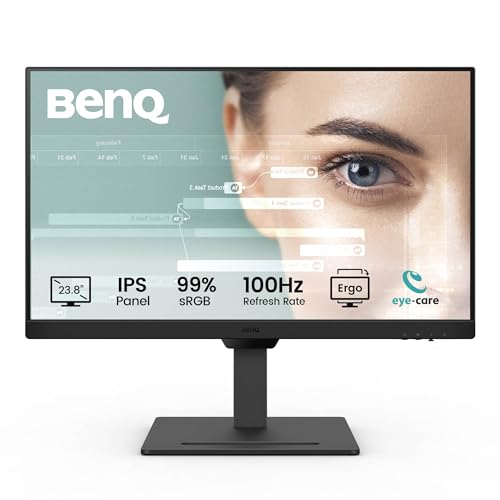 8.0 / 10
BenQ GW2490T 23.8” IPS 1080p Home Office Monitor, FHD, 100Hz, Ergo design, high refresh rate, 99% sRGB, VESA MediaSync, B.I, Flicker Free, Low Blue Light, ePaper, Coding mode, TÜV Rheinland Certified
£111.19 · BenQ
 8.0 / 10
Dell 27 Gaming Monitor - SE2725HG, Full HD (1920x1080), 200Hz, Fast IPS
£103.00 · Dell
Frequently asked
10 questions01Is the BenQ GW2790CE good for gaming?+
Yes, for casual to moderate gaming. The 144Hz refresh rate and AMD FreeSync Premium with Low Framerate Compensation make a real difference in smoothness compared to 60Hz or 75Hz monitors. The 5ms GtG pixel response handles most game genres without visible ghosting, including shooters, racing games, and RPGs. For competitive FPS at the highest level, where sub-1ms GtG and maximum overdrive matter, a dedicated gaming monitor will give you an edge. But for mixed use where gaming is part of the evening routine rather than the primary purpose, the GW2790CE handles it well.
02Does the BenQ GW2790CE have good HDR?+
No, not in any meaningful sense. It accepts an HDR10 signal but has no VESA DisplayHDR certification and a 250 nit typical brightness rating that falls well below the 400 nit minimum required for DisplayHDR 400. There is no local dimming. In practice, HDR content is tone-mapped to the panel's capabilities and looks similar to SDR. This is standard for monitors at this price point. Buy this monitor for its SDR performance, not its HDR capability.
03Is the BenQ GW2790CE good for content creation?+
It covers the basics. The 99% sRGB coverage is accurate enough for web graphics, social media content, and presentation work. For photo editing or video colour grading where DCI-P3 coverage and a Delta-E below 2 matter, this panel is not the right tool. BenQ doesn't publish DCI-P3 figures for this model, which tells you it's not targeting that audience. If your content creation involves matching colours accurately for print or professional video, step up to a wide-gamut panel.
04What graphics card do I need for the BenQ GW2790CE?+
For 1080p at 144Hz, almost any modern mid-range GPU handles this comfortably. An NVIDIA RTX 3060 or AMD RX 6600 will sustain 144fps in most titles at 1080p medium-to-high settings. Even older cards like the GTX 1660 Super or RX 5600 XT can hit 100fps-plus in many games at 1080p. The 1080p resolution is actually the GW2790CE's gaming advantage: it's much easier to drive than 1440p, so you don't need an expensive GPU to use the 144Hz refresh rate properly. For desktop and office use, any GPU with HDMI 2.0 or USB-C DisplayPort output works fine.
05What warranty and returns apply to the BenQ GW2790CE?+
BenQ typically offers a 3-year warranty on their monitor range in the UK, though you should verify this on the BenQ UK website for this specific model before purchasing. When buying through Amazon UK, you also have Amazon's standard 30-day return window and the A-to-Z Guarantee for additional peace of mind. Always check the seller's returns policy at the time of purchase as terms can vary.
06Is the BenQ GW2790CE good for office work?+
Yes, it's designed specifically for office work. The TUV Rheinland certified flicker-free backlight and low blue light filter reduce eye strain during long sessions. The 99% sRGB colour coverage is accurate for documents, presentations, and web content. USB-C with 65W PD means a single cable connects and charges a laptop. The 144Hz refresh rate makes scrolling and window management noticeably smoother than a typical 60Hz office monitor. The main limitation for office use is the 1080p resolution at 27 inches, which produces softer text than a 1440p panel would at the same size.
07Which is better, BenQ or Dell for a home office monitor?+
It depends on what you prioritise. Dell's S2722DC equivalent offers a better stand with height adjustment, which matters for ergonomics over a full working day. BenQ's GW2790CE offers 144Hz versus Dell's 75Hz, which is a significant advantage for gaming and general desktop smoothness. BenQ's eye-care certifications are independently verified by TUV Rheinland. Dell's brand reputation in the business space is strong and their after-sales support is well-regarded. For mixed home office and gaming use, BenQ wins on refresh rate and price. For a pure office setup where ergonomics and brand reliability matter most, Dell is a reasonable alternative.
08Is a 27-inch monitor good enough for home office use?+
27 inches is the most popular size for home office monitors and suits most desk setups at typical viewing distances of 50 to 70cm. The question isn't really the size but the resolution: at 27 inches, 1440p is the sweet spot for sharpness, while 1080p is acceptable but noticeably softer. If you're using a single monitor for a full working day of text-heavy tasks, 27 inches at 1440p is the recommendation. The GW2790CE at 27 inches and 1080p is fine for general use but falls short of the sharpness that 27 inches is capable of delivering.
09Which is better for a 27-inch monitor, 1080p or 1440p?+
1440p is better for a 27-inch monitor if sharpness matters to you. At 2560x1440, a 27-inch panel delivers 108.8 PPI, which is noticeably crisper for text and fine detail. At 1920x1080, the same size panel delivers 81.6 PPI, where individual pixels become distinguishable at close viewing distances. For gaming, 1440p also looks significantly better. The trade-off is cost and GPU demand: 1440p monitors cost more, and maintaining high frame rates at 1440p requires a more powerful GPU. The GW2790CE's 1080p resolution is its main compromise at 27 inches.
10Is 4K overkill for a 27-inch monitor?+
Not exactly overkill, but the returns diminish compared to stepping from 1080p to 1440p. A 4K (3840x2160) panel at 27 inches delivers 163 PPI, which is genuinely sharp. But the jump in sharpness from 1440p (108.8 PPI) to 4K (163 PPI) is less dramatic than the jump from 1080p (81.6 PPI) to 1440p. 4K at 27 inches also demands significantly more GPU power to drive at high refresh rates. For most home office users, 1440p at 27 inches is the practical sweet spot. 4K makes more sense at 32 inches and above.