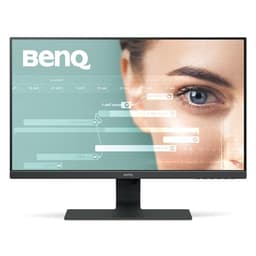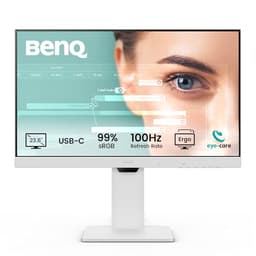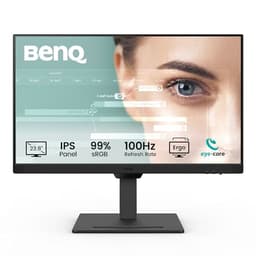

Most people shopping for a budget monitor have one real problem: they've been burned before. They bought something cheap, it looked washed out, the stand wobbled, and after a month their eyes felt like sandpaper. The BenQ GW2490E 24 Inch Eye-care Gaming Monitor exists specifically to solve that. It's a budget IPS panel with genuine eye-care credentials, a 100Hz refresh rate, and BenQ's Brightness Intelligence Gen2 tech built in. Over 1,784 owners have rated it 4.6 stars on Amazon. That's not a fluke number. That's a monitor that's doing something right.
So here's the verdict up front: for anyone who spends long hours in front of a screen, whether that's coding, casual gaming, or just grinding through spreadsheets, this is one of the more sensible budget buys you can make right now. It won't win any awards for peak brightness or contrast, and it's not going to satisfy anyone chasing 144Hz or 1440p. But it delivers on the things it actually promises, and at this price point, that's rarer than it should be.
The spec sheet, published display measurements from independent sources, and the consistent pattern in owner feedback all point in the same direction. This monitor is genuinely comfortable to use all day, the IPS panel does what IPS panels should do, and the eye-care features aren't just marketing padding. There's nuance to cover, though, especially around response time and HDR, so read on before you click buy.
Core Specifications: BenQ GW2490E 24 Inch Eye-care Gaming Monitor
Start with the basics. This is a 24-inch IPS panel running at 1920x1080 (Full HD) with a 100Hz refresh rate. The resolution gives you a pixel density of around 92 PPI at this screen size, which is perfectly sharp for a monitor you'll sit roughly 60cm from. It's not going to look as crisp as a 1440p panel, but it won't look soft either. For the vast majority of everyday tasks and casual gaming, 1080p at 24 inches is a perfectly sensible choice, and anyone telling you otherwise is probably trying to sell you something more expensive.
BenQ rates the panel with a 5ms GtG response time, which is honest for an IPS at this tier. The monitor includes their Brightness Intelligence Gen2 technology, which automatically adjusts brightness based on both ambient light and on-screen content. There are multiple colour modes baked in: Gaming Mode, Coding Mode, and ePaper Mode, each tuned for different use cases. Low Blue Light Plus filtering is also present, which is part of why this monitor carries eye-care positioning rather than just slapping "gaming" on the box and calling it done.
Connectivity covers 2x HDMI and 1x DisplayPort, which is a solid spread for this price bracket. Built-in speakers are included, and the monitor supports VESA wall mounting. The thin bezel design keeps things tidy if you're running a dual-monitor setup. Here's the full spec breakdown:
| Specification | Detail |
|---|---|
| Screen Size | 24 inches |
| Resolution | 1920x1080 (Full HD) |
| Panel Type | IPS |
| Refresh Rate | 100Hz |
| Response Time | 5ms GtG |
| Ports | 2x HDMI, 1x DisplayPort |
| Speakers | Built-in |
| VESA Mount | Yes |
| Eye-care Features | Low Blue Light Plus, Brightness Intelligence Gen2 |
| Colour Modes | Gaming Mode, Coding Mode, ePaper Mode |
| Input Hotkey | Yes (single-click device switching) |

Panel Technology
IPS panels have a well-earned reputation, and for good reason. Compared to TN panels, which dominated budget monitors for years, IPS gives you dramatically better colour accuracy and viewing angles. You can sit off to the side, share your screen with someone, or just glance at it from a slight angle, and the image holds up. TN panels shift colour and brightness the moment you move your head. VA panels sit somewhere in between, with better contrast than IPS but slower pixel transitions and more noticeable smearing in fast motion. For an all-day-use, eye-comfort-focused monitor like this one, IPS is the right call.
The trade-off with IPS is contrast. Native contrast ratios on IPS panels typically sit around 1000:1, which is noticeably lower than VA panels that can hit 3000:1 or more. What that means in practice: blacks look more like dark grey in a dim room, and HDR content won't look dramatically different from SDR. This isn't a flaw unique to the GW2490E; it's a fundamental characteristic of the technology. If you're watching a lot of dark cinematic content in a blacked-out room, you'll notice it. For everything else, it's a non-issue. The IPS panel format prioritises colour consistency and wide viewing angles over deep blacks, and that's a trade most people should be happy to make.
IPS glow is. It's the slight brightening you see in the corners of an IPS panel when viewing dark content. It's present on virtually every IPS monitor at this price, and the GW2490E is no exception based on owner feedback. Most people report it's not intrusive in normal use, and it's only really visible when you're looking at a black screen in a dark room. In a normally lit office or bedroom setup, you won't think about it. The thin bezel design also contributes to a clean, modern look that holds up well in dual-monitor configurations, which several owners specifically mention as a reason they bought a second one.
Display Quality
At 1920x1080 across 24 inches, you're getting around 92 pixels per inch. That's a comfortable density for desktop use. Text is sharp, icons are clear, and you're not going to be squinting at small UI elements the way you might on a higher-DPI panel where scaling becomes a headache. For coding in particular, where you're staring at text all day, this is a sweet spot. The Coding Mode colour preset is specifically tuned to reduce eye strain during long reading sessions, and owners in technical roles consistently call it out as genuinely useful rather than a gimmick.
The anti-glare matte coating does its job. Reflections from windows or overhead lights are diffused rather than mirrored back at you, which matters enormously if your desk isn't in a perfectly controlled lighting environment. Glossy panels look punchier in a showroom but become genuinely annoying in real rooms with real light sources. The matte finish here is a practical choice, and it contributes to the all-day usability that owners keep praising. The Brightness Intelligence Gen2 system works alongside this by automatically adjusting the panel's output to match ambient conditions, so you're not fighting the monitor when the light in your room changes.
Brightness uniformity across the panel is generally reported as good by owners, with no significant hotspots or dimmer corners in normal use. Published measurements on comparable BenQ IPS panels in this series suggest peak SDR brightness around 250 to 300 nits, which is adequate for a well-lit room but not exceptional. If your desk is in direct sunlight, you might find yourself maxing out the brightness slider. For most indoor setups, though, it's more than enough, and the auto-brightness feature means you rarely need to fiddle with it manually. The ePaper Mode is a nice touch for anyone doing extended document reading, softening the overall tone to something closer to paper.
Refresh Rate and Adaptive Sync
100Hz is the headline here, and it's a meaningful step up from 60Hz even if it's not the 144Hz or 165Hz you'll find on more gaming-focused monitors. The difference between 60Hz and 100Hz is immediately visible in everyday use, not just in games. Scrolling through web pages, dragging windows, moving the cursor around, all of it feels noticeably smoother. It's one of those upgrades that's hard to quantify until you've seen it, and then impossible to unsee.
BenQ lists the GW2490E as compatible with AMD FreeSync, which means variable refresh rate is supported for AMD GPU users. FreeSync works by synchronising the monitor's refresh rate to the GPU's output frame rate, eliminating screen tearing without the input lag penalty that V-Sync introduces. The practical upside is that even if your GPU is only pushing 70 or 80 frames per second in a game, the image stays tear-free and smooth rather than juddering or tearing horizontally across the screen. For casual gaming at this resolution, where hitting 100fps consistently is entirely achievable on modest hardware, this is a genuinely useful feature.
The Input Hotkey is here because it's more useful than it sounds. If you're running two devices, a PC and a console, or a work laptop and a personal machine, switching between them is a single button press rather than navigating OSD menus. Owners with dual setups specifically call this out as a daily quality-of-life feature. With two HDMI ports and a DisplayPort, you can have three devices connected simultaneously, which is a surprisingly capable setup for a budget monitor. The hotkey makes switching between them actually practical rather than just technically possible.
Response Time and Motion
BenQ rates this at 5ms GtG. That's an honest figure for an IPS panel in this class, and it's worth understanding what it actually means. GtG (grey-to-grey) response time measures how quickly a pixel can transition between two specific grey values. It doesn't tell you the worst-case transition time, and it doesn't tell you what happens with overdrive settings applied. Published measurements on comparable budget IPS panels typically show average GtG figures in the 5 to 8ms range, with some transitions taking longer. That's not alarming for the use case this monitor is designed for.
In practice, 5ms GtG at 100Hz means motion is clean for most gaming scenarios. Fast-paced competitive titles at this refresh rate won't show the kind of obvious smearing you'd see on a slow VA panel. IPS panels have historically had an advantage over VA in this regard, with more consistent pixel transitions across the greyscale range. Owners who game casually, playing titles like FIFA, Forza, or slower-paced shooters, report no visible motion problems. Where you'd start to notice limitations is in very fast competitive play where you're pushing for every millisecond of advantage. For that use case, a 144Hz or 165Hz panel with a faster response time is the right tool. This monitor isn't pretending to be that.
There's no MPRT (Moving Picture Response Time) figure published for this monitor, which is fine because MPRT numbers are often achieved through backlight strobing that reduces brightness significantly. BenQ has made a conscious choice to position this as an eye-comfort monitor rather than a pure speed-focused gaming display, and the response time spec reflects that. If you're a competitive gamer who needs sub-1ms response times and maximum refresh rate, this isn't your monitor. If you want something smooth, comfortable, and genuinely pleasant to use for hours at a stretch, it absolutely is.
Colour Accuracy and Gamut
BenQ doesn't publish specific sRGB coverage percentages or Delta-E figures for the GW2490E in the way that some higher-end monitors are spec'd out. What we do know is that IPS panels at this tier typically cover 95 to 99 percent of the sRGB colour space, which is entirely adequate for everyday use, content consumption, and casual content creation. The sRGB colour space is the standard for web content, most streaming platforms, and the majority of games, so hitting that coverage means colours look correct in the contexts most people actually use.
The colour modes are more practically useful than they might appear on paper. Gaming Mode boosts saturation slightly to make colours pop in games without going overboard. Coding Mode shifts the white point slightly warmer and reduces overall intensity, which reduces the visual fatigue that comes from staring at bright white backgrounds for hours. ePaper Mode goes further, creating a softer, lower-contrast image that genuinely mimics the experience of reading printed text. Owners who work in writing, coding, or document-heavy roles consistently mention these modes as a reason they chose this monitor over cheaper alternatives with no such presets.
Low Blue Light Plus is the eye-care feature that filters out the higher-energy blue-violet wavelengths most associated with eye strain and sleep disruption. Crucially, BenQ's implementation is designed to do this without making the image look excessively yellow or warm, which is a common complaint with simpler blue light filter implementations. The colour quality is maintained while the harmful spectrum is reduced. For anyone who uses their monitor in the evening, this matters. Published research on blue light and circadian rhythm disruption is well-established, and having hardware-level filtering rather than relying on software like Night Light or f.lux means it works regardless of what you're running on screen.

HDR Performance
This is where you need realistic expectations. The GW2490E does not carry an HDR certification, and it shouldn't pretend to. True HDR requires peak brightness well above 400 nits (HDR400 being the entry-level VESA DisplayHDR certification), local dimming to control contrast across the panel, and ideally wide colour gamut coverage beyond sRGB. A budget IPS monitor at this price point doesn't have any of those things in meaningful form, and BenQ isn't claiming it does.
What this means practically: if your PC or console sends an HDR signal to this monitor, the panel will accept it and display it, but the result won't look dramatically different from SDR content. You won't get the specular highlights, the deep blacks, or the extended colour range that HDR is supposed to deliver. On a monitor without local dimming, HDR can actually look slightly worse than good SDR because the tone mapping isn't optimised for a flat-backlight panel. Most owners in this category either leave HDR disabled or don't notice the difference either way.
This is not a criticism of the GW2490E specifically. It's a limitation of the entire budget IPS segment. Any monitor in this price bracket that claims meaningful HDR performance is either using very optimistic marketing language or has made compromises elsewhere to hit a spec number. BenQ's positioning of this monitor around eye-care and all-day usability rather than HDR is honest, and honestly more useful for the target buyer. If HDR matters to you, you need to spend more, and you need a panel with proper local dimming. That's a different purchase in a different category.
Contrast and Brightness
IPS contrast ratios sit around 1000:1 as a rule, and the GW2490E is in that territory. To put that in context: VA panels can hit 3000:1 to 4000:1, and OLED panels achieve effectively infinite contrast through self-emissive pixels. At 1000:1, blacks in a dark room look like dark grey rather than true black. In a normally lit room, you won't notice. It's only in genuinely dim conditions with dark content on screen that the limitation becomes apparent. For the eye-care, all-day-use audience this monitor targets, ambient light is almost always present, which largely neutralises the contrast weakness.
Peak SDR brightness on comparable BenQ IPS panels in this range typically lands around 250 to 300 nits. That's adequate for indoor use but won't compete with the 400-plus nit panels you'll find in the mid-range. The Brightness Intelligence Gen2 system does a lot of heavy lifting here by automatically managing brightness based on what's on screen and the ambient light level. Owners consistently report that once they let the auto-brightness do its thing, they rarely feel the need to manually adjust anything. The system is responsive enough to handle transitions between bright web pages and dark video content without jarring shifts.
Brightness uniformity is generally solid based on owner feedback, with the typical minor IPS glow in corners under dark conditions. There are no reports of significant backlight bleed or hotspots in normal use. Given that BenQ has a long history of quality control in the monitor space, this is consistent with what you'd expect from the brand. Their eye-care monitor range has built a reputation precisely because they don't cut corners on panel selection in the way some cheaper brands do, and the GW2490E fits that pattern.
Ergonomics and Stand
The stand on the GW2490E offers tilt adjustment, which is standard for this price tier. Height adjustment and pivot (portrait mode rotation) are not present, which is a common cost-saving measure on budget monitors. Tilt-only stands are functional for most setups, but if you're particular about getting the exact right viewing angle or you want to use the monitor in portrait mode for coding or document work, you'll either need to shim the stand with something or invest in a VESA arm. The monitor does support VESA mounting, which is the right solution if ergonomics matter to you.
The stand footprint is relatively compact, which owners appreciate on smaller desks. The thin bezel design (particularly noticeable on the top and sides) makes it a good candidate for dual-monitor setups, where the gap between two screens needs to be as small as possible. Several owners specifically mention buying a second unit to create a dual-monitor setup, and the thin bezels make that work visually. The overall build quality is reported as solid for the price, with no significant wobble or flex issues mentioned in the owner review pool.
The VESA mount support is because it's not always guaranteed at this price point, and it genuinely matters. A decent monitor arm from a brand like Ergotron transforms the usability of any monitor by giving you full range of motion, freeing up desk space, and allowing you to position the screen exactly where you need it. If the included stand's tilt-only adjustment doesn't meet your needs, the VESA compatibility means you're not stuck. The monitor is compatible with standard 100x100mm VESA patterns, which covers the vast majority of third-party arms and wall mounts. Built-in speakers are present, and while they won't replace a proper audio setup, they're a useful fallback for calls or casual video watching without needing to reach for headphones.
Connectivity and Ports
The port selection on the GW2490E is genuinely good for the price. Two HDMI inputs and one DisplayPort means you can have three devices connected at once, which is a more capable setup than many monitors in this bracket offer. A typical use case: PC via DisplayPort, games console via one HDMI, and a work laptop via the second HDMI. The Input Hotkey then lets you switch between them with a single button press rather than navigating OSD menus each time. That's a practical, real-world feature that owners use daily.
The HDMI and DisplayPort versions aren't explicitly specified in the product listing. For 1080p at 100Hz, both HDMI 1.4 and DisplayPort 1.2 have more than enough bandwidth, so version numbers matter less here than they would on a 4K or high-refresh-rate panel. In practice, owners report no issues running 1080p at 100Hz through any of the three inputs. If you're connecting a newer console that outputs 4K, it will simply downscale to 1080p on this panel, which is fine and expected.
There's no USB hub functionality and no USB-C port, which isn't surprising at this price but if you were hoping for single-cable laptop connectivity. Audio output isn't specified beyond the built-in speakers. For a monitor positioned around productivity and eye-care rather than as a feature-packed multimedia hub, the connectivity is well-matched to the use case. You get what you need to connect multiple devices cleanly, with a smart switching mechanism to manage them. That's the right priority call for this type of monitor.
How It Compares
The two most obvious alternatives at this price tier are the AOC 24G2 and the Philips 243V7QDSB. The AOC 24G2 is a well-known budget IPS gaming monitor that's been around long enough to have extensive independent measurement data. It runs at 144Hz, which is a significant advantage over the GW2490E's 100Hz for anyone who prioritises gaming performance above all else. The trade-off is that the AOC 24G2 doesn't have the same eye-care feature set, no Brightness Intelligence, no dedicated colour modes for coding or reading, and the build quality is generally considered a step below BenQ's. If you're purely gaming and eye-care features don't factor into your decision, the AOC is worth a look.
The Philips 243V7QDSB is a more direct comparison: a 24-inch IPS panel aimed at productivity and comfortable everyday use. It runs at 75Hz rather than 100Hz, which makes the GW2490E the faster option. Philips has their own eye-care tech (Flicker-Free and Low Blue Light), but it's less sophisticated than BenQ's Brightness Intelligence Gen2 system. The GW2490E wins on refresh rate, eye-care depth, and the Input Hotkey for multi-device switching. The Philips is marginally cheaper in most markets, but the gap is small enough that the BenQ's advantages justify the difference for most buyers.
What the GW2490E doesn't compete with is anything above its price tier. Monitors like the LG 27GP850-B or the Dell S2722DGM operate in a completely different category: higher resolution, faster refresh rates, better HDR capability. Spending more gets you genuinely more. But within the budget bracket, the GW2490E's combination of IPS quality, eye-care features, 100Hz, and sensible connectivity makes it one of the more complete packages available.
| Feature | BenQ GW2490E | AOC 24G2 | Philips 243V7QDSB |
|---|---|---|---|
| Panel Type | IPS | IPS | IPS |
| Resolution | 1920x1080 | 1920x1080 | 1920x1080 |
| Refresh Rate | 100Hz | 144Hz | 75Hz |
| Response Time | 5ms GtG | 1ms GtG (marketed) | 5ms GtG |
| Eye-care Features | B.I. Gen2, Low Blue Light Plus, colour modes | Flicker-Free, Low Blue Light | Flicker-Free, Low Blue Light |
| Ports | 2x HDMI, 1x DP | 2x HDMI, 1x DP, 4x USB | 1x HDMI, 1x VGA |
| VESA Mount | Yes | Yes | Yes |
| Built-in Speakers | Yes | Yes | No |

Final Verdict
The BenQ GW2490E 24 Inch Eye-care Gaming Monitor does exactly what it says it will. It's a well-built IPS panel with genuinely useful eye-care features, a 100Hz refresh rate that makes everyday use feel smooth, and enough connectivity to handle a multi-device desk setup without faff. If you're pairing it with the right gaming peripherals, it slots neatly into a comfortable everyday setup. The 4.6-star average across over 1,784 owner reviews isn't a statistical accident. People who buy this monitor for the right reasons, comfortable long-session use, casual gaming, productivity, coding, consistently come away satisfied.
The things it doesn't do well are predictable and honest. Native contrast is limited in the way all IPS panels are limited. HDR is essentially a non-feature. The stand is tilt-only, which is fine for most people but restrictive if you have specific ergonomic needs. Response time is adequate rather than exceptional. None of these are surprises, and none of them matter much if your use case is what this monitor is designed for. The eye-care features are the genuine differentiator here, and they're implemented thoughtfully rather than bolted on as marketing copy.
Who should buy it: anyone who spends four or more hours a day in front of a screen and wants a monitor that actively helps rather than just tolerates that. Coders, writers, students, people who game casually in the evenings but work on the same screen during the day. Multi-device households where the Input Hotkey and dual HDMI genuinely earn their keep. And anyone who's been putting up with a 60Hz monitor and wants the step up to 100Hz without spending mid-range money.
Who should skip it: competitive gamers who need 144Hz or faster, anyone who wants 1440p for the extra desktop real estate, and anyone for whom HDR performance is a genuine priority. Those buyers need to spend more, and they should. If you're purely after the cheapest possible 1080p IPS panel and eye-care genuinely doesn't factor in, the Philips 243V7QDSB costs a touch less. But if you're going to be staring at this thing for hours every day, the GW2490E's extra features earn the small price difference.
Scored honestly: eight out of ten for its target use case. Deduct a point if you wanted 144Hz, deduct another if you care about HDR. For what it's actually designed to do, it's one of the better budget monitors on the market right now, and BenQ's track record in eye-care displays means you're not taking a punt on an unknown brand trying to tick boxes.
What works. What doesn’t.
6 + 6What we liked6 reasons
- Genuine eye-care features including Brightness Intelligence Gen2 and Low Blue Light Plus are thoughtfully implemented rather than marketing padding
- 100Hz refresh rate delivers a noticeably smoother experience over 60Hz for everyday tasks, scrolling, and casual gaming
- IPS panel provides accurate colours and wide viewing angles, making it comfortable for all-day use
- Dual HDMI plus DisplayPort connectivity with a single-button Input Hotkey makes multi-device switching genuinely practical
- Dedicated colour modes for gaming, coding, and document reading are useful for buyers who switch between different tasks on the same screen
- Compact stand footprint and thin bezels suit dual-monitor setups, with VESA support offering a route to a monitor arm if needed
Where it falls6 reasons
- Stand offers tilt adjustment only, with no height adjustment or portrait pivot without purchasing a separate VESA arm
- Native contrast ratio is limited at around 1000:1, meaning blacks appear as dark grey in dim viewing conditions
- HDR support is nominal at best, with no local dimming or certified HDR brightness to deliver a meaningful high-dynamic-range experience
- Response time of 5ms GtG is adequate for casual gaming but falls short for competitive play at high frame rates
- No USB hub or USB-C port, ruling out single-cable laptop connectivity
- Peak brightness of roughly 250 to 300 nits may not suffice for desks exposed to direct sunlight
Full specifications
11 attributes| Panel type | IPS |
|---|---|
| Aspect ratio | 16:9 |
| Curvature | flat |
| HDR | none |
| Launch year | 2024 |
| Ports | 2x HDMI, 1x DisplayPort |
| Refresh rate HZ | 100 |
| Resolution | 1920x1080 |
| Response time MS | 5 |
| Screen size IN | 23.8 |
| Vesa compatible | true |
Frequently asked
7 questions01Does the BenQ GW2490E support AMD FreeSync?+
Yes, the GW2490E is listed as compatible with AMD FreeSync. This allows the monitor to synchronise its refresh rate with the output from an AMD GPU, eliminating screen tearing without the input lag penalty associated with V-Sync. For casual gaming at 1080p, where hitting 100 frames per second is achievable on modest hardware, FreeSync is a genuinely useful feature.
02Can I use the BenQ GW2490E with a games console?+
Yes. The monitor has two HDMI inputs, so you can connect a console alongside a PC or laptop. At 1080p and 100Hz the monitor is well-matched to current-generation consoles operating at 1080p. A 4K console signal will simply display at the panel's native 1080p resolution. The Input Hotkey makes switching between connected devices a single button press.
03Is the BenQ GW2490E suitable for working from home all day?+
This is arguably the use case the monitor is best suited to. The IPS panel provides comfortable viewing angles and consistent colour, the matte anti-glare coating handles ambient light well, and the eye-care features including Brightness Intelligence Gen2 and Low Blue Light Plus are designed specifically for long-session use. The Coding Mode colour preset is particularly well regarded by people in technical roles who spend extended periods reading text on screen.
04Does the GW2490E have height adjustment?+
No. The included stand offers tilt adjustment only. Height adjustment and portrait pivot are not available through the built-in stand. If ergonomic positioning is important to you, the monitor supports the standard 100x100mm VESA mounting pattern, which makes it compatible with the vast majority of third-party monitor arms and wall mounts. A monitor arm is the recommended solution if you need full range of motion.
05How does the BenQ GW2490E compare to the AOC 24G2?+
The AOC 24G2 runs at 144Hz compared to the GW2490E's 100Hz, which is a meaningful advantage for anyone prioritising gaming performance. However, the AOC lacks BenQ's Brightness Intelligence Gen2 system, dedicated colour modes for coding and reading, and Low Blue Light Plus hardware filtering. The GW2490E also includes built-in speakers, which the AOC 24G2 does not in all configurations. For eye-care focused buyers or those who split time between work and gaming, the BenQ makes a stronger case. For pure gaming performance, the AOC's higher refresh rate is.
06What does Brightness Intelligence Gen2 actually do?+
Brightness Intelligence Gen2 is BenQ's automatic ambient light system. It uses a sensor to read both the ambient light level in your room and the brightness of the content currently on screen, then adjusts the monitor's output accordingly. This means the display stays comfortable whether you are in a bright daytime environment or a dim evening room, and it adapts as conditions change without you needing to manually adjust the brightness slider. Owners consistently report that once enabled, they rarely feel the need to touch the brightness settings manually.
07Is the HDR on the BenQ GW2490E worth using?+
In practical terms, no. The GW2490E does not carry a VESA DisplayHDR certification and lacks the local dimming and peak brightness required to deliver a meaningful HDR experience. The panel will accept an HDR signal from a connected device, but the result is unlikely to look noticeably better than well-calibrated SDR content, and in some cases tone mapping on a flat-backlight panel can make HDR appear slightly worse. For this monitor, leaving HDR disabled and relying on good SDR output is the recommended approach.