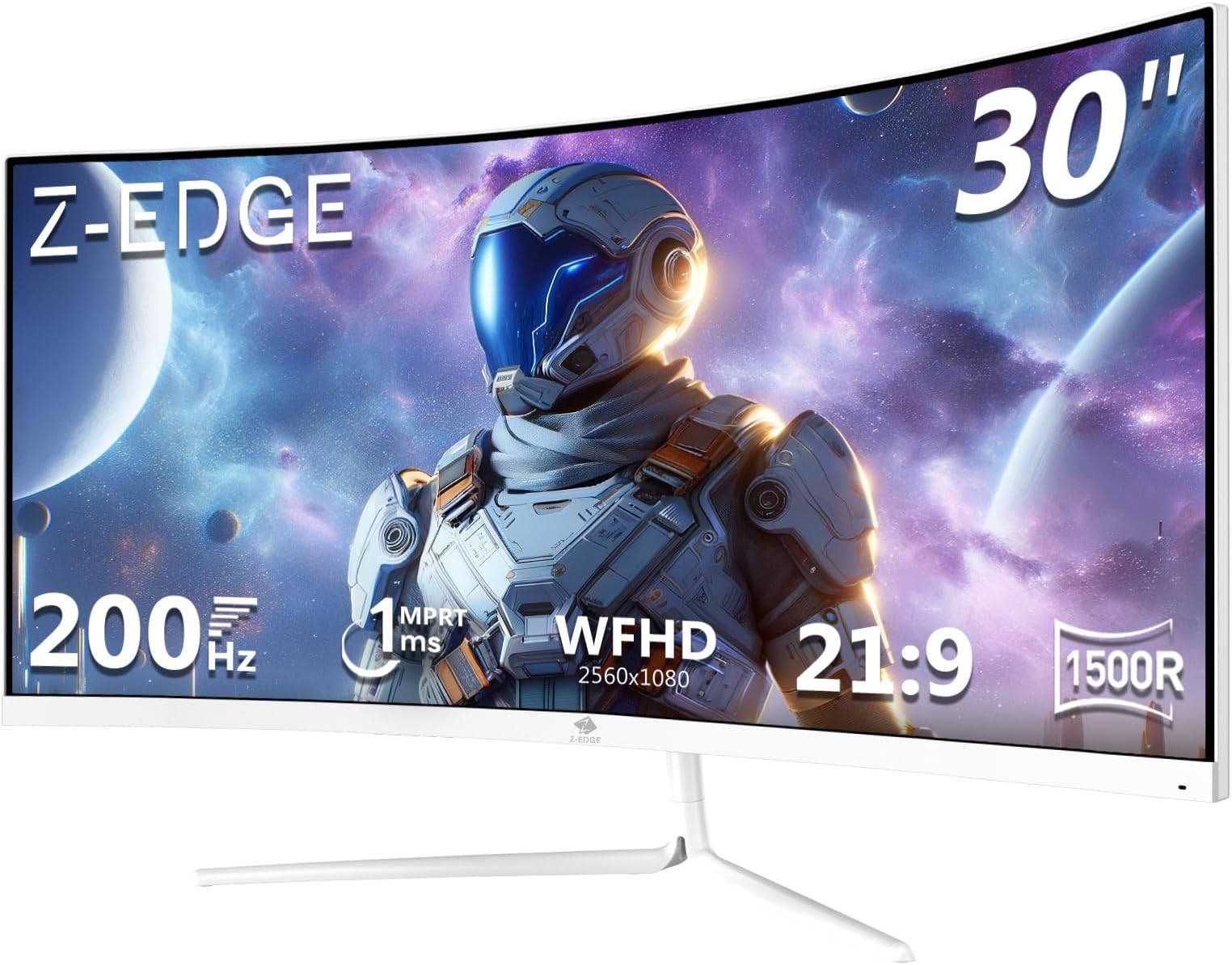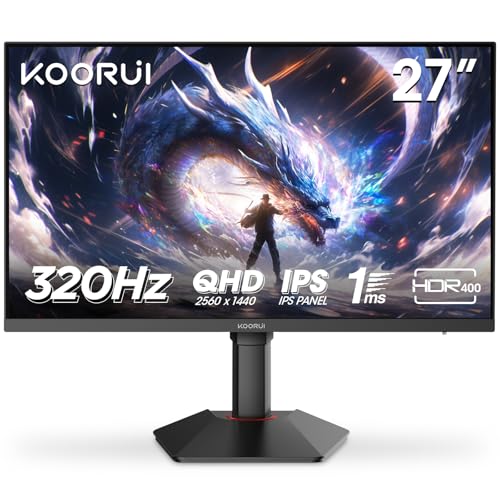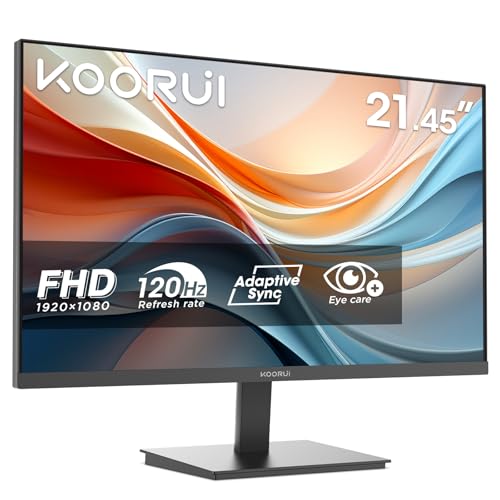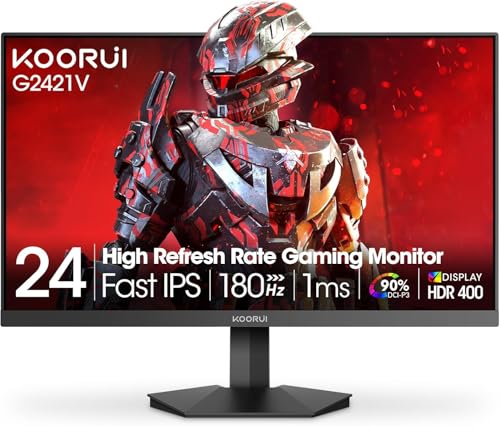
Panel type debates are fun and all, but at the end of the day most people just want to know: is this monitor worth the money, or is it going to end up on Facebook Marketplace in three months? The KOORUI 27 inch gaming monitor sits in the budget bracket, under £150, and it's making some bold claims for that price point. 180Hz. 1ms. Curved. VA panel. On paper that's a lot of monitor for not a lot of cash. The question is whether those numbers mean anything in the real world, or whether they're just there to look good on an Amazon listing.
Here's the short version: for casual gaming and everyday use on a tight budget, this is a genuinely decent shout. It's not going to embarrass a mid-range IPS panel on colour accuracy or viewing angles, and the "1ms" claim needs some serious asterisking. But 180Hz on a VA panel at this price, with a 1500R curve that actually makes sense at 27 inches, and over a thousand owner reviews with a positive overall rating? That's not nothing. Compare it to something like the AOC 27G2SP or the MSI G274F in a similar bracket and the KOORUI holds its own on refresh rate, though it gives up ground on panel quality. More on that in a bit.
So if you're upgrading from a 60Hz TN monitor from 2017 and you want curved, fast, and affordable, keep reading. If you're a competitive shooter who needs sub-5ms grey-to-grey and perfect uniformity, this probably isn't your monitor.
Core Specifications
The headline numbers are 27 inches, 1920x1080 resolution, 180Hz refresh rate, and a VA panel with a 1500R curve. KOORUI quotes 1ms MPRT response time, which we'll get into properly in the response time section because that number is doing a lot of heavy lifting. The monitor supports AMD FreeSync, which covers the adaptive sync side of things, and it lists sRGB coverage at 99 per cent. Peak brightness is rated at 250 nits, which is on the lower end even for budget monitors. Aspect ratio is the standard 16:9.
Connectivity is pretty minimal, which is expected at this price. You get two HDMI ports and one DisplayPort 1.2. No USB hub, no USB-C, no audio passthrough beyond a basic headphone jack. The stand offers tilt adjustment but that's about it. No height adjustment, no swivel, no pivot. VESA mounting is 100x100mm, so if the stand bothers you, you can wall-mount or arm-mount it without much fuss.
The panel is edge-lit rather than locally dimmed, which matters for HDR performance (spoiler: the HDR is checkbox tier). At 27 inches with 1080p, you're looking at roughly 82 pixels per inch, which is noticeably soft if you sit close. That's a real trade-off about before you buy. The price, as always, check the live listing below since it moves around, but it's firmly in the budget bracket.
| Specification | Detail |
|---|---|
| Screen Size | 27 inches |
| Resolution | 1920 x 1080 (Full HD) |
| Panel Type | VA (Vertical Alignment) |
| Refresh Rate | 180Hz |
| Response Time | 1ms MPRT |
| Curve | 1500R |
| Brightness | 250 nits (peak) |
| Contrast Ratio | 3000:1 (static) |
| Colour Coverage | 99% sRGB |
| HDR | HDR10 |
| Adaptive Sync | AMD FreeSync |
| Ports | 2x HDMI, 1x DisplayPort 1.2 |
| Audio | Headphone jack (3.5mm) |
| VESA Mount | 100 x 100mm |
| Stand Adjustment | Tilt only |
| Price | £119.99 · Details |
Panel Technology
VA panels are a bit of a Marmite choice in the monitor world. They sit between TN and IPS in most practical ways. The big win with VA is contrast. A 3000:1 static contrast ratio is genuinely impressive and something IPS panels at this price simply cannot match. IPS typically lands around 1000:1, sometimes a touch higher. That extra contrast is what makes dark scenes in games actually look dark, rather than that washed-out grey-black you get on cheaper IPS panels. For gaming in a dimly lit room, VA contrast is a real, tangible benefit.
The trade-off is viewing angles. VA panels narrow considerably off-axis, and at 27 inches this can actually be visible even from a direct seating position if you're looking at the edges of the screen. The VA panel technology works by aligning liquid crystals vertically when no voltage is applied, which is what gives it that superior black depth, but the same structure causes colour shift when you view it from the side. If you're the only one using this monitor and you sit directly in front of it, it's fine. If you're trying to show someone else what's on screen from the side of the desk, the image will look noticeably different.
The 1500R curve on a 27-inch panel is actually a good match. Tighter curves (like 1000R) on smaller screens can feel a bit aggressive and cause distortion at the edges, while very gentle curves on large screens feel like they're barely doing anything. 1500R at 27 inches hits a sweet spot that genuinely helps wrap the image around your field of view without making straight lines look bent. Owner reviews consistently mention the curve feeling natural rather than gimmicky, which lines up with what you'd expect from the geometry. One thing to watch with VA panels specifically is something called black smear or dark level ghosting, where dark objects moving against dark backgrounds leave a visible trail. It's a known characteristic of the technology, not a KOORUI-specific flaw, but it's about if you play a lot of dark-themed games.
Display Quality
At 82 pixels per inch, the pixel density on this monitor is noticeably lower than you'd get on a 27-inch 1440p screen (which sits around 109 PPI). If you're coming from a 24-inch 1080p monitor, the jump to 27 inches at the same resolution will look softer, not sharper. Text in particular can look a bit fuzzy if you sit close. That said, for gaming at normal desk distances (60cm to 80cm or so), most people find 1080p at 27 inches perfectly acceptable. The owner reviews don't show widespread complaints about sharpness, which suggests the majority of buyers are using it as a gaming display rather than a productivity screen where you're scrutinising small text all day.
The anti-glare coating on the panel is a matte finish, which is the right call for a budget gaming monitor. Glossy screens look punchier in a dark room but become mirrors the moment any light hits them. Matte coatings scatter reflections rather than concentrating them, and for a monitor that might end up in a bedroom or living room with windows nearby, that's practical. Some reviews mention the coating adding a very slight grain to the image, which is a common side effect of aggressive matte coatings, but it's not a dealbreaker at this price.
Brightness uniformity is where budget monitors often fall down, and the 250 nit peak brightness rating here is already modest. Edge-lit panels can produce noticeable backlight bleed, particularly in the corners, and a handful of owner reviews do mention some bleed visible on dark screens. This is a lottery with any budget monitor since panel quality control varies, but it's that KOORUI's warranty process (based on owner feedback) seems reasonably responsive if you get a bad unit. The sRGB coverage claim of 99 per cent is plausible for a VA panel in this category, though without independent calibration data you're trusting the manufacturer on that one. Factory calibration at this price point is essentially non-existent, so expect some variation out of the box.
Refresh Rate and Adaptive Sync
180Hz is the headline number and it's genuinely useful. The jump from 60Hz to 144Hz is the one most people describe as life-changing, but going from 144Hz to 180Hz is still a real, if smaller, improvement. Motion looks smoother, fast pans feel less strobey, and if you're playing something like a racing game or a first-person shooter, the extra headroom matters. The key thing is whether your GPU can actually push frame rates high enough to make use of it. At 1080p, most mid-range GPUs (an RTX 3060 or an RX 6600, for example) can comfortably hit 144 to 180fps in popular titles, so the monitor's refresh rate isn't going to be the bottleneck.
FreeSync support is confirmed, and the monitor is listed as compatible with AMD FreeSync technology. This means variable refresh rate works natively with AMD GPUs. NVIDIA users running a GTX 10-series or newer card can also use G-Sync Compatible mode, though KOORUI doesn't explicitly certify this. In practice, most FreeSync monitors work fine with NVIDIA's G-Sync Compatible implementation, but you don't get the official guarantee. The FreeSync range matters here too. KOORUI doesn't publish the exact VRR range prominently, which is a minor frustration. If the lower end of the range is 60Hz or higher, you lose tear-free performance when frame rates dip below that, which can happen in demanding scenes.
For the target audience of this monitor, which is casual to mid-level gamers on a budget, 180Hz with FreeSync is a genuinely strong package. You're not going to find many monitors at this price offering this refresh rate with adaptive sync included. The AOC 27G2SP, a common comparison point, offers 165Hz at a similar price with an IPS panel, so the KOORUI actually wins on raw refresh rate while losing on panel technology. Which one matters more depends entirely on what you play and how you play it.
Response Time and Motion
Right, so the 1ms claim. This is where I need to be a bit direct because "1ms" on a VA panel in 2024 is almost certainly an MPRT figure, not a grey-to-grey (GtG) measurement. MPRT stands for Moving Picture Response Time, and it's a measure of how long a pixel is perceived to be in motion during a single frame, which is influenced heavily by backlight strobing rather than actual pixel transition speed. It's a marketing metric, essentially. Real grey-to-grey response times on VA panels in this class typically land somewhere between 4ms and 8ms, and that's fine for most gaming scenarios, but it's not 1ms.
The practical consequence of this is that very fast-moving objects in dark scenes can exhibit dark level ghosting or smearing, which is the VA panel characteristic mentioned earlier. Published measurements from display-focused outlets on similar KOORUI VA panels have shown GtG times in the 4ms to 6ms range at optimal overdrive settings, which is honest and usable. Overdrive settings on budget monitors can also introduce inverse ghosting (bright halos trailing moving objects) if set too aggressively, so it's worth experimenting with the overdrive option in the OSD if the monitor offers it. Owner reviews on this specific model don't raise widespread ghosting complaints in normal gaming, which is a reasonable signal that the overdrive tuning is at least not terrible out of the box.
For the kinds of games most people play at this price point, whether that's FIFA, Fortnite, Warzone, or story-driven titles, the real-world response time is not going to be a problem. Where it might show up is in very dark scenes in horror games or atmospheric titles where slow-moving dark objects can look like they're trailing slightly. Competitive esports players who are genuinely chasing the lowest possible input lag would be better served by a fast IPS panel, but those typically cost more. At this price, the response time is acceptable, just don't take the 1ms figure at face value.
Colour Accuracy and Gamut
KOORUI claims 99 per cent sRGB coverage, which is a reasonable spec for a VA panel and broadly in line with what similar monitors in this category deliver. sRGB is the standard colour space for web content, games, and most video content, so hitting 99 per cent of it means colours should look rich and accurate for everyday use. DCI-P3 coverage isn't quoted, which is typical for budget monitors. Wide colour gamut (covering a significant chunk of DCI-P3) is generally a feature of more expensive panels, so don't expect it here.
Factory calibration at this price is essentially not a thing. Budget monitors ship with whatever settings the manufacturer sets at the factory, and Delta-E values (the measure of how far off a displayed colour is from its target) are rarely published for monitors in this bracket. Independent measurements of similar budget VA panels typically show Delta-E averages somewhere between 3 and 6 out of the box, which is visible to trained eyes but not something most gamers will notice or care about. If you're doing colour-critical work like photo editing or video grading, this is not the monitor for you. But for gaming and general media consumption, 99 per cent sRGB with a VA panel's naturally saturated output will look punchy and pleasant.
The sRGB colour space was designed to be a standard reference for consumer displays, and hitting 99 per cent of it means what you see on screen should broadly match what content creators intended. VA panels tend to produce slightly more saturated colours than their sRGB coverage numbers suggest because of their higher native contrast, which makes blacks blacker and therefore colours appear more vivid by comparison. Some people love this look; others find it oversaturated. There's usually a colour temperature or saturation control in the OSD to dial it back if needed. Owner reviews on the KOORUI don't flag oversaturation as a major issue, so it seems reasonably well tuned from the factory.

HDR Performance
HDR10 support is listed, but I want to be honest about what that actually means on a monitor rated at 250 nits peak brightness. Real HDR, the kind that makes a meaningful visual difference, requires significant peak brightness (typically 600 nits or above for HDR600 certification, and ideally 1000 nits or more for the full effect) combined with local dimming to control which zones of the screen are bright or dark simultaneously. The VESA DisplayHDR standard sets these tiers, and DisplayHDR 400 is widely considered the minimum for any meaningful HDR experience, requiring 400 nits peak brightness.
At 250 nits, the KOORUI doesn't hit even the DisplayHDR 400 threshold. The HDR10 label here means the monitor can accept an HDR signal and display it, not that it can render HDR content with the dynamic range that makes HDR worthwhile. In practice, enabling HDR on this monitor in Windows or in a game might actually make the image look worse rather than better, because the monitor is tone-mapping HDR content down to a brightness range it can't properly express. This is what people in display circles call "checkbox HDR," and it's extremely common on budget monitors.
The honest advice: leave HDR off and enjoy the monitor's native SDR performance, which is where its actual strengths are. The high contrast ratio of the VA panel will give you better perceived shadow detail in dark scenes than most budget IPS monitors anyway, just without the HDR label. Don't buy this monitor expecting a meaningful HDR experience. Buy it for the 180Hz, the contrast, and the curve, and you won't be disappointed.
Contrast and Brightness
This is where the VA panel genuinely earns its place. A 3000:1 static contrast ratio is one of the best things about VA technology and it's the reason these panels persist despite their other trade-offs. For context, IPS panels typically offer around 1000:1 contrast, and TN panels are similar. That 3x advantage in contrast means blacks look genuinely dark on a VA panel, not the milky grey you often see on IPS in a dim room. For gaming in the evenings with the lights down, this is a real quality-of-life improvement that you'll notice immediately if you're coming from an IPS or TN screen.
The 250 nit peak brightness is the less exciting side of the story. It's adequate for use in a controlled environment where you can manage ambient light, but if your desk is near a window and you game during the day, 250 nits is going to struggle. Most mid-range monitors offer 350 to 400 nits, and some budget IPS panels now hit 300 nits. In a dark room, 250 nits is fine and actually more comfortable for extended sessions. In a bright room, you might find yourself squinting or cranking the brightness to maximum and still feeling like the image is fighting the ambient light. Owner reviews don't flag this as a major complaint, which suggests most buyers are using it in reasonably controlled lighting conditions.
The combination of high contrast and modest brightness actually works well for the typical use case here: evening gaming in a bedroom or home office. The deep blacks the VA panel produces make the image feel punchy despite the lower brightness ceiling, because perceived contrast (the ratio of the brightest to darkest point on screen simultaneously) is where this panel shines. It's a different kind of image quality to a bright IPS panel, but it's not worse, just different. Whether it suits you depends on your room setup more than anything else.
Ergonomics and Stand
The stand situation is the most obvious budget compromise on this monitor. Tilt adjustment only, no height, no swivel, no pivot. The tilt range is typically around negative 5 to positive 15 degrees on monitors like this, which gives you some flexibility but not much. If the monitor sits too low for your eye line (which is common with budget stands that don't offer height adjustment), you're looking at either buying a monitor arm, stacking the monitor on some books, or just putting up with a slightly awkward viewing angle. Given that VESA 100x100 mounting is supported, a cheap monitor arm is genuinely if ergonomics matter to you.
The build quality, based on owner feedback, is described as solid for the price. The plastic construction feels lightweight but not flimsy, and the stand doesn't wobble excessively under normal desk conditions. A few owners mention the stand base has a relatively small footprint, which is good news if your desk is cramped. The overall aesthetic is clean and fairly understated, no aggressive RGB lighting or angular gamer styling, which is either a plus or a minus depending on your taste. The bezels are slim on three sides with a slightly thicker bottom bezel, which is standard for the category.
The OSD (on-screen display) controls are physical buttons on the back of the panel, which is typical for budget monitors. They're not the most intuitive to navigate without looking, but they work. Owner reviews don't flag the OSD as a major pain point, so it seems functional enough. The monitor's overall footprint with the stand is reasonable for a 27-inch curved panel. Assembly is reportedly straightforward, with a tool-free stand attachment that most owners manage without any drama. Nothing exciting here, but nothing broken either.
Connectivity and Ports
Port selection is minimal but covers the basics. Here's what you get:
- 2x HDMI (version not explicitly specified, but likely HDMI 1.4 or 2.0 given the price tier)
- 1x DisplayPort 1.2
- 1x 3.5mm headphone jack
No USB hub, no USB-C, no built-in speakers. The dual HDMI ports are actually useful if you want to connect two devices (a PC and a console, for example) and switch between them without unplugging anything. The DisplayPort 1.2 connection is the right one to use for a PC at 180Hz since DisplayPort handles high refresh rates more reliably than HDMI at this spec level. HDMI 1.4 caps out at 144Hz at 1080p, so if the HDMI ports are version 1.4, you'd need DisplayPort to hit the full 180Hz from a PC. which HDMI version is fitted if you're planning to use a console as your primary source, since PS5 and Xbox Series X output over HDMI 2.1.
The absence of a USB hub is noticeable if you're used to plugging peripherals into your monitor, but at this price it's not a surprise. Most budget monitors in this bracket skip the USB hub entirely. The headphone jack is a welcome inclusion for anyone who doesn't have a dedicated audio output on their PC or who wants a quick way to plug in headphones without reaching around the back of a tower. No speakers are included, which again is standard for gaming monitors in this category since built-in monitor speakers are almost universally terrible anyway.
Cable management on the stand is limited, as is common with budget stands that don't have a cable routing channel. You'll probably want some cable ties or clips to keep things tidy behind the desk. Overall, the connectivity is functional for a single-PC gaming setup and adequate for a console-plus-PC dual-input scenario. If you need more than that, you're looking at the wrong monitor.
How It Compares
The two most obvious alternatives at a similar price are the AOC 27G2SP and the Acer KG271U (or similar Acer budget gaming offerings). The AOC 27G2SP is a flat IPS panel running at 165Hz, and it's a popular choice precisely because IPS panels offer better viewing angles and more consistent colour across the screen. The trade-off versus the KOORUI is that the AOC gives up the curve, the higher refresh rate (165Hz vs 180Hz), and the superior contrast ratio. For competitive gaming where viewing angles matter less and you want the flattest, most accurate image, the AOC is arguably the better tool. For immersive single-player gaming in a dark room, the KOORUI's VA contrast and curve make a compelling case.
The Acer KG271U or similar budget 1440p options sometimes come up in this conversation, and it's worth addressing directly: if you can stretch your budget to a 1440p monitor, even a budget one, the pixel density improvement at 27 inches is significant. Going from 82 PPI to 109 PPI is a visible jump in sharpness, especially for desktop use and text. The KOORUI's 1080p at 27 inches is its weakest point relative to the competition, and if sharpness matters to you, it's worth saving up a bit more rather than accepting the softer image.
Within the KOORUI range itself, the brand also offers 24-inch variants of similar specs, and at 24 inches, 1080p makes much more sense (94 PPI vs 82 PPI). If the softer pixel density at 27 inches concerns you but you like everything else about this monitor's spec sheet, the 24-inch version is the smarter buy for desk work. For pure gaming from a normal distance, 27 inches at 1080p is fine, just don't sit 40cm from it.
| Feature | KOORUI 27" 180Hz VA | AOC 27G2SP (IPS 165Hz) | Acer KG271U (IPS 144Hz 1440p) |
|---|---|---|---|
| Panel Type | VA | IPS | IPS |
| Resolution | 1920x1080 | 1920x1080 | 2560x1440 |
| Refresh Rate | 180Hz | 165Hz | 144Hz |
| Contrast Ratio | 3000:1 | ~1000:1 | ~1000:1 |
| Curve | 1500R | Flat | Flat |
| Peak Brightness | 250 nits | 300 nits | 350 nits |
| Adaptive Sync | FreeSync | FreeSync Premium | FreeSync Premium |
| Price | £119.99 · Details | Similar bracket | Higher bracket |
Final Verdict
The KOORUI 27 inch gaming monitor is a genuinely good budget buy if you go in with realistic expectations. The 180Hz refresh rate is real and useful. The 1500R curve at 27 inches works well and doesn't feel gimmicky. The VA contrast ratio is the panel's genuine superpower, and for gaming in a dim room it makes a visible difference compared to budget IPS alternatives. Over a thousand owner reviews with a positive overall rating is a meaningful signal that most people who bought this are happy with it, and the complaints that do appear (some backlight bleed, limited stand adjustability, modest brightness) are predictable budget monitor trade-offs rather than KOORUI-specific failures.
The things you need to make peace with: the 1ms claim is marketing, not physics. Real response times on VA panels are closer to 4ms to 6ms GtG, which is fine for most gaming but not what the spec sheet implies. The 250 nit brightness is low and will struggle in bright rooms. The 1080p resolution at 27 inches is soft by modern standards, particularly for desktop and productivity use. And the HDR10 badge is checkbox HDR only. None of these are dealbreakers for a budget gaming monitor, but they're.
Who should buy this? Someone upgrading from an old 60Hz or 75Hz monitor who wants a meaningful step up in refresh rate and immersion without spending mid-range money. Console gamers adding a second screen. PC gamers with a mid-range GPU who play popular multiplayer titles at 1080p and want the smoothest experience their hardware can deliver. People who game in the evenings with the lights down, where the VA contrast will genuinely shine.
Who should skip it? Anyone doing colour-critical work. Anyone who sits very close to their monitor and values sharpness. Anyone who needs a bright screen for daytime use near windows. Competitive esports players who want the absolute fastest response times. And honestly, if you can stretch your budget into the mid-range bracket, a 27-inch 1440p IPS monitor at 144Hz or higher is a more well-rounded long-term purchase. The resolution jump alone is worth the extra spend if your GPU can handle it.
For what it is and what it costs, though, this is a properly sorted budget monitor. KOORUI has put the money in the right places: refresh rate, curve geometry, and contrast. The compromises are predictable and manageable. Four-point-four stars from over a thousand buyers doesn't happen by accident.
What works. What doesn’t.
6 + 6What we liked6 reasons
- Genuine 180Hz refresh rate is a meaningful upgrade over 60Hz or 75Hz monitors at this price point
- 3000:1 static contrast ratio produces deep blacks that budget IPS panels cannot match, especially in dim rooms
- 1500R curve at 27 inches feels natural and immersive rather than gimmicky
- Dual HDMI inputs allow a PC and console to stay connected simultaneously
- Over a thousand owner reviews with a positive overall rating suggests strong real-world satisfaction
- AMD FreeSync support with practical G-Sync Compatible compatibility for NVIDIA users
Where it falls6 reasons
- 1ms claim is MPRT, not grey-to-grey; real GtG response times are closer to 4ms to 6ms
- 250 nit peak brightness is low and will struggle against ambient light in bright rooms
- 1080p at 27 inches produces just 82 PPI, which looks noticeably soft for desktop and productivity use
- HDR10 support is checkbox tier only; the monitor cannot render meaningful HDR at 250 nits
- Stand offers tilt adjustment only, with no height, swivel, or pivot
- No USB hub, no USB-C, and no built-in speakers limit versatility
Full specifications
11 attributes| Panel type | VA |
|---|---|
| Aspect ratio | 16:9 |
| Curvature | 1500R |
| HDR | none |
| Launch year | 2023 |
| Ports | 2x HDMI, 1x DisplayPort |
| Refresh rate HZ | 180 |
| Resolution | 1920x1080 |
| Response time MS | 1 |
| Screen size IN | 27 |
| Vesa compatible | true |
If this isn’t right for you
2 options 7.5 / 10
Z-Edge 24.5 Inch Gaming Monitor 300Hz 240Hz 1ms IPS 1080P 99% sRGB DP HDMI
£119.99 · Z Z-Edge · Details

Frequently asked
7 questions01Does the KOORUI 27 inch monitor really have a 1ms response time?+
The 1ms figure refers to MPRT (Moving Picture Response Time), which is influenced by backlight strobing and is primarily a marketing metric. Real grey-to-grey response times on VA panels of this type typically sit between 4ms and 6ms at optimal overdrive settings. That is perfectly usable for most gaming, but you should not expect true 1ms pixel transitions.
02Can I use the KOORUI 27 inch monitor with an NVIDIA GPU?+
Yes. The monitor officially supports AMD FreeSync, but most FreeSync monitors also work with NVIDIA's G-Sync Compatible mode on GTX 10-series cards and newer. KOORUI does not explicitly certify G-Sync Compatible status, so you do not get an official guarantee, but in practice the adaptive sync functionality should work with modern NVIDIA hardware.
03Is the HDR on this monitor worth using?+
No, not meaningfully. The monitor is rated at 250 nits peak brightness, which falls below even the DisplayHDR 400 threshold. Enabling HDR in Windows or in a game may actually degrade the image quality because the monitor must tone-map HDR content down to a brightness range it cannot properly reproduce. The honest recommendation is to leave HDR off and use the monitor's native SDR mode, where the VA contrast ratio provides genuinely good perceived shadow detail.
04How does the KOORUI 27 inch VA compare to the AOC 27G2SP IPS?+
The AOC 27G2SP uses an IPS panel at 165Hz, offering better viewing angles and more consistent colour uniformity. The KOORUI trades those advantages for a higher 180Hz refresh rate, a 1500R curve, and a significantly superior 3000:1 contrast ratio versus the AOC's typical 1000:1. For competitive gaming and colour accuracy, the AOC is arguably the stronger tool. For immersive single-player gaming in a dim room, the KOORUI's contrast and curve give it an edge.
05Is 1080p at 27 inches too soft for everyday use?+
At 82 pixels per inch, the pixel density is noticeably lower than a 27-inch 1440p screen, which sits around 109 PPI. For gaming at a normal desk distance of 60 to 80 centimetres, most users find it acceptable. For productivity tasks involving small text or fine detail, the softness becomes more apparent. If you sit close to your screen or spend significant time reading text, a 24-inch 1080p variant or a 1440p monitor would be sharper choices.
06What is the VESA mount compatibility for this monitor?+
The KOORUI 27 inch monitor supports 100x100mm VESA mounting. If the included stand's limited tilt-only adjustment does not suit your ergonomic setup, you can attach it to a compatible monitor arm or wall mount without any adaptor. A budget monitor arm is a practical upgrade that resolves the lack of height, swivel, and pivot adjustment.
07Will the 250 nit brightness be a problem in a typical gaming setup?+
In a controlled environment with manageable ambient light, such as evening gaming in a bedroom or home office, 250 nits is adequate and actually comfortable for extended sessions. In a bright room with windows nearby, the brightness ceiling will feel limiting and you may find the image struggling against reflected light. Most owner reviews do not flag brightness as a major issue, suggesting the majority of buyers use it in reasonably dim conditions.