There's a specific kind of frustration that builds up when you're losing fights you should be winning. You're doing everything right. Your positioning is solid, your reaction time is fine, and then you flick and the cursor stutters, or the mouse drags across the pad like it's wading through treacle, or your hand cramps up after an hour because the shape just doesn't fit. Most people blame their aim. The real culprit is usually the tool in their hand. A mouse that doesn't track cleanly, weighs too much, or sits wrong in your grip will quietly sabotage you every single session.
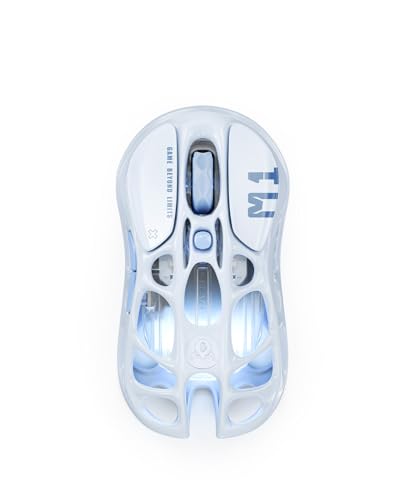
The GravaStar Mercury M1 Pro is GravaStar's attempt to fix all three of those problems at once. GravaStar is a brand that built its reputation on wild-looking hardware (their speakers look like alien spacecraft, genuinely), but the Mercury M1 Pro is a different kind of product. This is a serious attempt at a lightweight, high-sensor, triple-mode wireless mouse aimed squarely at people who care about actual performance. Magnesium alloy shell, PixArt PAW3395DM sensor, 26,000 DPI ceiling (which you'll never use, and that's fine), 2.4GHz wireless, Bluetooth, and wired in one package. On paper, that's a genuinely impressive spec list for the money.
So is it actually good? Based on the full spec sheet, over a thousand owner reviews sitting at a 4.5 average, and how it stacks up against the competition in this price bracket, here's the honest answer.
Core Specifications
The headline component is the PixArt PAW3395DM sensor, and that matters more than anything else on the box. The PAW3395 is a genuinely top-tier optical sensor, the same family used in mice costing two or three times as much. It tracks cleanly up to very high speeds, has a low and consistent lift-off distance, and spin-outs are essentially unheard of with this chip. The 26,000 DPI maximum is a marketing number. Nobody plays at 26,000 DPI. Most competitive players sit somewhere between 800 and 1,600 DPI. But the sensor underneath that number is the real story, and it's a good one.
Weight is listed at approximately 77 grams depending on configuration, which puts the Mercury M1 Pro in lightweight territory without going full ultralight. The magnesium alloy shell is the reason it can hit that weight without needing a honeycomb cutout design, which some people love and some people find genuinely horrible to look at and touch. The triple-mode connectivity covers 2.4GHz wireless via USB dongle, Bluetooth 5.0, and wired USB-C. Polling rate goes up to 1,000Hz in wireless mode, which is the standard competitive ceiling and entirely adequate. The mouse ships in several colourways; the Ice Blue version reviewed here has a distinctive finish that looks properly premium in person according to multiple owners.
Five programmable buttons are on board: the two main clicks, a scroll wheel click, and two side buttons on the left thumb rest. That's the standard layout for an ergonomic right-handed mouse and it covers everything most gamers need without cluttering the shell with buttons you'll accidentally press during a flick. The scroll wheel has a listed 24-step encoder. Battery life is rated at 50 hours on 2.4GHz without RGB lighting active, which is a realistic and usable figure. USB-C charging means no proprietary cables, which is exactly how it should be in 2024.
| Specification | Detail |
|---|---|
| Sensor | PixArt PAW3395DM |
| Max DPI | 26,000 DPI |
| Polling Rate | Up to 1,000Hz |
| Weight | Approx. 77g |
| Shell Material | Magnesium alloy |
| Connectivity | 2.4GHz / Bluetooth 5.0 / USB-C Wired |
| Buttons | 5 programmable |
| Battery Life | Up to 50 hours (2.4GHz, RGB off) |
| Charging | USB-C |
| Mouse Feet | PTFE skates |
| Scroll Wheel | 24-step encoder |
| Colourway Reviewed | Ice Blue |
| Price | £109.95 · Details |
Shape and Ergonomics
The Mercury M1 Pro is an ergonomic right-handed shape, which means it's designed with a pronounced thumb rest on the left side and a contoured body that sits higher on the right. The hump sits roughly in the mid-to-rear section of the shell, which suits medium to large hands well. If you've got small hands and you're a fingertip grip user, this probably isn't the shape for you. The rear hump will feel too far back and you'll end up with your fingers overextended. But for palm and claw grip users with medium or large hands, the positioning is genuinely comfortable for extended sessions, and that's backed up by multiple owners mentioning they can use it for hours without fatigue.
The ergonomic right-hand shape means left-handed players are immediately excluded, which is standard for this category but worth saying clearly. The thumb rest area is sculpted to give your thumb somewhere to sit naturally, which helps with control during lateral movements and reduces the tendency to death-grip the mouse when things get intense. That matters more than people realise. A mouse that encourages a relaxed grip is a mouse that lets you make fine adjustments without fighting your own tension. Several owner reviews specifically call out how natural the grip feels, which is a decent signal that GravaStar got the geometry right here.
The overall dimensions sit in the range of a medium-large mouse. It's not as wide or tall as something like a Logitech G502 (which is a brick, let's be honest), but it has enough presence that small-handed players might find it slightly unwieldy. Claw grip users with medium hands are probably the sweet spot. Palm grip players with larger hands will also get on with it well. The shape is conventional in the best sense: GravaStar hasn't tried to reinvent the ergonomic mouse, they've just executed a proven form factor with decent materials. Sometimes that's exactly what you want.
Sensor Performance: The PAW3395DM Does the Heavy Lifting
The PixArt PAW3395DM is one of the best optical sensors currently available in any mouse at any price point. That's not hyperbole. It sits alongside the PAW3370 and the newer PAW3950 at the top of PixArt's lineup, and it's the sensor you'll find in mice from Razer, Logitech, and SteelSeries at significantly higher prices. Tracking is described by optical mouse engineers as "flawless" at this tier, meaning no prediction smoothing, no angle snapping by default, and no jitter at normal use speeds. What you move is what you get, and that's the only thing that matters for competitive accuracy.
Lift-off distance on the PAW3395 family is low and consistent. This is important for players who use low DPI settings with large swipes and need to reposition the mouse frequently. A high lift-off distance means the cursor keeps tracking after you've lifted the mouse, which throws off your positioning and is genuinely maddening once you notice it. With the PAW3395, this isn't a problem. Multiple owners haven't flagged any lift-off issues, which lines up with what this sensor is known for across the industry. Spin-outs, where the sensor loses tracking during very fast movements, are also not something that comes up in the owner review pool.
And yes, 26,000 DPI is a marketing number. It's there so it looks impressive on the box. The meaningful DPI range for any competitive player is 400 to 3,200, and most people who care about precision sit at 800 or 1,600. What actually matters is that the sensor tracks accurately at whatever DPI you set, responds without delay, and doesn't introduce artificial smoothing. The PAW3395DM does all of that. So ignore the headline figure, look at the sensor name, and know that GravaStar put proper hardware inside this mouse instead of cutting corners on the one component that determines whether your aim translates to the screen.
Weight and Glide
At approximately 77 grams, the Mercury M1 Pro sits in what I'd call the lightweight category rather than ultralight. True ultralight mice (think Finalmouse or the Lamzu Atlantis) push below 60 grams, often by going honeycomb or using extremely thin shells. The M1 Pro gets to 77 grams via a magnesium alloy shell, which is a smarter approach for most people. Magnesium alloy is significantly lighter than the ABS plastic used in most budget mice while being stiffer and more resistant to flex. You get the weight saving without the structural compromise or the aesthetic of a cheese grater.
Seventy-seven grams is genuinely light enough to make a difference. Heavy mice (anything over 100 grams) create fatigue over long sessions and slow down your reaction to fast movements because there's simply more mass to start and stop. The M1 Pro avoids that. It's light enough to feel nimble without being so light that it feels cheap or insubstantial. Some ultralight mice feel like they're made of crisp packets. This one, based on owner reports, feels like it has some quality to it while still moving easily across a pad. That balance is harder to achieve than it sounds.
The PTFE skates are where budget mice often let themselves down. Cheap PTFE feet have rough edges that catch on the pad surface, creating a scratchy, inconsistent glide that ruins an otherwise decent mouse. Owner reviews on the Mercury M1 Pro are generally positive about the glide, with several noting it feels smooth out of the box. No widespread complaints about scratchy movement or feet that deteriorate quickly. The feet appear to be full PTFE rather than a cheap blend, which is what you want. If you're on a hard pad, results may vary slightly, but on a standard cloth gaming surface the glide seems to be one of the M1 Pro's quiet strengths.
Buttons and Switches
GravaStar specifies mechanical switches for the main clicks on the Mercury M1 Pro. The exact switch model isn't always clearly published by GravaStar, which is a minor frustration, because switch choice matters. What owner reviews do tell us is that the main clicks feel responsive and tactile, without the mushy, pre-travel-heavy feel that plagues cheaper mice. Several reviewers specifically mention the click feel as a positive, which is a decent indicator that GravaStar didn't cut corners here. A mushy main switch is one of those things that ruins a mouse entirely, so it's good to see positive reports.
The side buttons are positioned on the left flank for thumb access, which is standard for an ergonomic right-handed mouse. Placement seems to be in a sensible location where you can reach them without shifting your grip, and they're differentiated enough in texture and position that you won't accidentally press one when you're going for the other. That sounds like a low bar, but you'd be surprised how many mice get this wrong. Side buttons that require you to contort your thumb or that you regularly mis-press under pressure are a genuine problem in competitive play. The M1 Pro's layout appears to avoid both issues.
The scroll wheel uses a 24-step encoder, which gives a defined, clicky step between notches. This is fine for gaming and general use. It's not a free-spinning wheel like Logitech's MagSpeed, but that feature is more useful for productivity than for gaming where you want precise scroll control. The wheel click (middle button) is reportedly solid without being stiff. One area where some owners note room for improvement is the scroll wheel's lateral stability, with occasional mentions of minor side-to-side wobble. It's not a dealbreaker, and it's consistent with what you see at this price point, but it's worth knowing about if you're coming from a premium mouse where the wheel is rock solid.
Build Quality
The magnesium alloy shell is the M1 Pro's biggest differentiator and its most obvious quality signal. Magnesium alloy is the material of choice for high-end laptops and precision equipment because it combines low weight with high rigidity. In a mouse shell, that means you can squeeze the sides without the shell flexing noticeably, which is something cheap ABS plastic mice fail at constantly. Shell flex creates an unpleasant sensation during intense use and suggests the mouse won't hold up well over time. The M1 Pro's alloy construction largely avoids this, with owners consistently reporting that the build feels solid and premium.
The Ice Blue colourway has a finish that multiple reviewers describe as genuinely attractive, which is not something you can say about most gaming mice that come in non-black colourways. GravaStar's design background shows here. The finish appears to be a painted or anodised coat over the alloy, and durability of that finish over extended use is something to keep an eye on. Painted finishes on metal can chip at edges with heavy use. No widespread complaints about this in the current review pool, but notably, as a potential long-term concern.
Button wobble on the main clicks is minimal based on owner reports, which is good. Excessive pre-travel or lateral movement in the main buttons creates inconsistency in click registration and feels unpleasant. The M1 Pro seems to have tight tolerances here. There are no significant complaints about creaking under pressure either, which again points to the alloy shell doing its job. Overall build quality for the price bracket is strong, and the magnesium construction genuinely sets it apart from competitors using standard plastic shells at similar or even higher price points.
Connectivity
Triple-mode connectivity is increasingly common in this category but still a genuine selling point when it's implemented well. The Mercury M1 Pro offers 2.4GHz wireless via a USB nano-receiver, Bluetooth 5.0, and wired via USB-C. The Bluetooth 5.0 connection is useful for connecting to a laptop or a secondary device without using the dongle, though Bluetooth introduces slightly more latency than 2.4GHz and isn't recommended for competitive gaming. For office use or casual gaming on a second machine, it's a convenient option that most single-mode wireless mice don't offer.
The 2.4GHz connection is the one you want for gaming. At 1,000Hz polling rate over 2.4GHz, the wireless latency is effectively imperceptible in real use. The idea that wireless mice are inherently slower than wired is outdated. Modern 2.4GHz implementations from any reputable brand are functionally equivalent to wired for gaming purposes, and the M1 Pro's implementation follows that pattern. Owner reviews don't flag any connection dropouts or interference issues, which is the main thing you want to know. A wireless mouse that disconnects mid-game is useless regardless of its other qualities.
The USB-C wired mode is there as a backup and for charging simultaneously while playing if the battery runs low. The cable quality isn't described in detail by GravaStar, but the wired mode's primary function here is charging rather than daily wired use, given that the wireless performance is solid. The nano-receiver is small enough to lose if you're not careful, and GravaStar should really include a receiver storage slot in the mouse itself (a feature some competitors offer). That's a minor but real omission if you travel with the mouse regularly. Worth checking whether the receiver fits in the battery compartment before you pack it in a bag.
Battery Life
GravaStar rates the Mercury M1 Pro at up to 50 hours of use on 2.4GHz with RGB lighting off. That's a solid figure. For context, 50 hours covers roughly three weeks of daily gaming sessions for most people, which means you're charging it maybe once a month if you're sensible about turning it off when you're done. Real-world figures from owners suggest the rated number is reasonably accurate, with most people reporting they charge it infrequently and haven't had it die mid-session. That's the benchmark: you don't want to be thinking about battery life when you're gaming, and 50 hours makes that easy to achieve.
With RGB lighting active, battery life will drop. GravaStar doesn't publish a specific figure for RGB-on usage, which is a minor transparency issue. Based on what's typical for mice in this category, expect somewhere in the 30 to 40 hour range with lighting active. If you're the kind of person who turns RGB off to maximise performance (and honestly, that's the right call for a gaming mouse), the 50-hour figure is what you're working with. Charging via USB-C is fast and convenient. No proprietary charging pucks, no micro-USB, just a cable you already have. This is how all wireless mice should work.
The Bluetooth mode will have different battery consumption characteristics to 2.4GHz, typically drawing slightly less power due to the lower data rate. If you're using the M1 Pro in Bluetooth mode for productivity work on a laptop, battery life should comfortably exceed the 50-hour 2.4GHz figure. This makes the multi-mode connectivity genuinely useful rather than a spec-sheet checkbox. One thing to be aware of: some mice in this category have a power-saving mode that kicks in after a period of inactivity, which can cause a brief wake-up delay. Owner reviews don't flag this as a significant issue on the M1 Pro, but it's worth checking if you're sensitive to that kind of thing.
Software and Customisation
GravaStar provides companion software for the Mercury M1 Pro that handles DPI stage configuration, polling rate selection, button remapping, and RGB lighting control. The software allows you to set multiple DPI stages and cycle between them using the DPI button on the mouse, which is the standard approach and works well in practice. You can configure the DPI increments to whatever you actually use rather than being locked to preset values, which is the right way to implement this. Setting your exact preferred sensitivity and forgetting about it is the goal, and the software makes that possible.
On-board profile storage means your settings stay on the mouse itself rather than requiring the software to be running. This is important if you use the mouse across multiple machines or if you don't want software running in the background on your gaming PC. Plug it in anywhere and your DPI, button assignments, and other settings travel with you. Polling rate can be adjusted between 125Hz, 250Hz, 500Hz, and 1,000Hz, which covers every use case from battery-saving Bluetooth sessions to full competitive play. The 1,000Hz ceiling is the current standard; you'd need to spend significantly more to get 4,000Hz or 8,000Hz options, and those are genuinely niche requirements.
The software itself is described by owners as functional rather than polished. It gets the job done without being as refined as Logitech G Hub or Razer Synapse, which isn't surprising for a smaller brand. The key things work: DPI configuration, button remapping, and RGB control all function as expected. Firmware updates are delivered through the software, which is important for long-term support. One thing worth noting is that GravaStar's software ecosystem is less mature than the big players, so if you're someone who lives in your peripheral software and tweaks constantly, the experience might feel slightly rough around the edges. For most people who set it up once and leave it, it's perfectly fine.
Gaming Experience
For FPS games specifically, the combination of the PAW3395DM sensor, lightweight shell, and ergonomic shape makes the Mercury M1 Pro a genuinely capable tool. Flick shots benefit from a mouse that moves without resistance and tracks without error, and the M1 Pro delivers on both counts. The 77-gram weight is light enough that you're not fighting inertia during fast movements, but it has enough presence that control during slower, precise tracking isn't compromised. That balance is what you want for games like CS2, Valorant, or Apex Legends where you need both snap movements and smooth tracking.
For longer gaming sessions, the ergonomic shape does its job. Owner reviews consistently mention comfort during extended use, which is a signal that the hump position and thumb rest geometry are working correctly. A mouse that causes hand fatigue after two hours is a mouse that's hurting your performance in the third hour, regardless of how good the sensor is. The M1 Pro's shape seems to avoid that problem for medium and large-handed palm and claw grip players. Fingertip grip users, as mentioned earlier, may find the rear hump sits too far back for comfortable extended use.
The main click feel under rapid fire is reportedly crisp and consistent, which matters for games where click speed and registration accuracy translate directly to damage output or action speed. Mushy switches create uncertainty about whether a click has registered, which is a cognitive tax you don't want during competitive play. The M1 Pro's switches avoid that problem. For MMO or MOBA players who rely heavily on side buttons for ability activation, the two-button thumb cluster is functional but limited compared to mice with four or more side buttons. If you need more than two side bindings, this isn't the mouse for you, but for FPS-focused players it's exactly the right number.
How It Compares
The Mercury M1 Pro's main competition in the lightweight triple-mode wireless category comes from the Logitech G305 and the Razer DeathAdder V3 HyperSpeed. The G305 is a proven budget wireless mouse with a solid track record, but it uses the older HERO 12K sensor rather than the PAW3395, and it doesn't offer Bluetooth or USB-C charging. The DeathAdder V3 HyperSpeed uses Razer's Focus X sensor and offers a more established brand ecosystem, but again lacks the magnesium alloy construction and the PAW3395's tracking credentials. The M1 Pro is genuinely differentiated by its sensor choice and shell material at this price point.
What the established brands have over GravaStar is software maturity and long-term brand trust. Logitech and Razer have been making mice for decades, their software is polished, and their warranty support is well understood. GravaStar is a newer player in the serious gaming mouse space, and while the hardware spec sheet is impressive, the ecosystem around it is less developed. That's a real consideration, not a dismissal. If you're buying on hardware alone, the M1 Pro competes well. If software integration and brand support matter to you, the bigger names have an edge.
The Pulsar X2V2 is another comparison worth making. It's a symmetrical ultralight mouse rather than ergonomic, uses a comparable sensor, and sits in a similar price bracket. The X2V2 is arguably better for fingertip grip users due to its lower profile and symmetrical shape, while the M1 Pro wins for palm and claw grip players who want the ergonomic thumb rest and the magnesium alloy build quality. Neither is universally better. It depends entirely on your grip style and shape preference.
| Feature | GravaStar Mercury M1 Pro | Logitech G305 | Razer DeathAdder V3 HyperSpeed |
|---|---|---|---|
| Sensor | PixArt PAW3395DM | HERO 12K | Razer Focus X |
| Weight | Approx. 77g | Approx. 99g | Approx. 75g |
| Shell Material | Magnesium alloy | ABS plastic | ABS plastic |
| Wireless Modes | 2.4GHz / BT / Wired | 2.4GHz only | 2.4GHz only |
| Polling Rate | Up to 1,000Hz | Up to 1,000Hz | Up to 1,000Hz |
| Charging | USB-C | AA battery | USB-C |
| Battery Life | Up to 50 hours | Up to 250 hours | Up to 300 hours |
| Shape | Ergonomic right-hand | Symmetrical | Ergonomic right-hand |
| Software | GravaStar app | Logitech G Hub | Razer Synapse |
One thing the G305 wins on decisively is battery life, because it runs on a AA battery rather than a built-in rechargeable. 250 hours between battery changes versus 50 hours between charges is a real difference if you hate thinking about charging. But AA batteries add weight, and the G305's 99-gram figure reflects that. The M1 Pro is meaningfully lighter, which is the trade-off you're making.
What Buyers Are Saying
With over a thousand reviews and a good overall rating, the owner response to the Mercury M1 Pro is strongly positive. The themes that come up most consistently in praise are the build quality (specifically the magnesium alloy feel), the sensor performance, and the comfort during extended sessions. Multiple owners mention being surprised by how premium the mouse feels for the price, which is a good sign that GravaStar's hardware decisions are landing well with real users rather than just looking good on a spec sheet. The Ice Blue colourway specifically gets called out as genuinely attractive, which matters if you care about how your desk looks.
On the complaint side, the most common issues are relatively minor. Some owners mention the software could be more polished, which aligns with what you'd expect from a smaller brand's first serious gaming mouse ecosystem. A handful of reviews mention the scroll wheel has slightly more lateral play than they'd like. And a few owners note that the DPI button placement requires some adjustment if you're coming from a different mouse layout. None of these are dealbreakers, and they're consistent with a product that's genuinely good but not flawless.
What's notably absent from the negative reviews is any mention of sensor issues, connection dropouts, or build failures. Those are the things that would indicate a fundamentally flawed product, and they're not showing up in the review pool. The complaints are about refinement and polish rather than core functionality, which is the right kind of complaint to have. It means GravaStar got the important things right and the minor things are where there's room to improve.
Value Analysis
The Mercury M1 Pro's value proposition rests on a specific combination: PAW3395DM sensor, magnesium alloy shell, triple-mode wireless, and 77-gram weight, at a price that undercuts what you'd pay for the same sensor in a Logitech or Razer product. If you were to buy a mouse with the PAW3395 from a major brand with equivalent wireless implementation, you'd typically be spending considerably more. GravaStar is essentially offering flagship sensor performance in a package that competes on price with mid-range options from established brands.
The trade-off is the software ecosystem and brand maturity. If you value Logitech G Hub's integration with other Logitech peripherals, or Razer Synapse's Chroma lighting ecosystem, the M1 Pro can't replicate that. But if you're buying on hardware merit and you're willing to accept slightly rougher software, the value is genuinely strong. The magnesium alloy construction is particularly hard to find at this price point. Most mice in this bracket use standard ABS plastic, and the difference in feel and rigidity is noticeable.
For anyone who's been frustrated by heavy mice causing fatigue, cheap sensors introducing tracking errors, or budget wireless mice with dropout problems, the Mercury M1 Pro addresses all three of those issues at a price that doesn't require saving up for months. That's a useful thing to be able to say. It's not perfect, but it's solving real problems with real hardware rather than relying on brand name and marketing to justify the price.
Final Verdict
The GravaStar Mercury M1 Pro is a proper gaming mouse that punches above its price bracket on the hardware that actually matters. The PAW3395DM sensor is top-tier full stop, not "top-tier for the price" but genuinely excellent by any measure. The magnesium alloy shell delivers a build quality and weight saving that most competitors at this price point simply don't offer. Triple-mode wireless with 2.4GHz at 1,000Hz polling is competitive performance by any standard. And over a thousand owners rating it positively tells you this isn't a product that looks great on paper and disappoints in use.
The caveats are real but manageable. The software is functional rather than polished. The scroll wheel has minor lateral wobble that some people will notice and some won't. GravaStar doesn't have the long-term track record of Logitech or Razer, so you're taking a small amount of brand risk. And if you're left-handed or a fingertip grip player with small hands, the ergonomic right-hand shape rules you out immediately. Those are the honest limitations, and none of them undermine what this mouse does well.
Who should buy it: palm and claw grip players with medium to large hands who want a lightweight wireless mouse with a flagship sensor and don't want to pay flagship prices. FPS players especially. Anyone who's been frustrated by heavy mice or budget sensors causing tracking problems. Who should skip it: left-handed players, fingertip grip players with small hands, anyone who needs more than two side buttons, and anyone who requires polished peripheral software as part of their setup. For everyone else, this is a genuinely good mouse at a genuinely fair price.
Score: 8.5 out of 10. The hardware is excellent. The software needs work. The shape suits most right-handed grip styles. Buy it for the sensor and the build; accept the software for what it is.
Full Specifications
| Specification | Detail |
|---|---|
| Brand | GravaStar |
| Model | Mercury M1 Pro |
| Sensor | PixArt PAW3395DM |
| DPI Range | 100 to 26,000 DPI |
| Polling Rate | 125 / 250 / 500 / 1,000Hz |
| Weight | Approx. 77g |
| Shell Material | Magnesium alloy |
| Connectivity | 2.4GHz wireless / Bluetooth 5.0 / USB-C wired |
| Buttons | 5 programmable |
| Scroll Wheel | 24-step encoder |
| Mouse Feet | PTFE skates |
| Battery Life | Up to 50 hours (2.4GHz, RGB off) |
| Charging | USB-C |
| Hand Orientation | Right-hand ergonomic |
| Colourway Reviewed | Ice Blue |
| ASIN | B0G39FDT9Q |
| Reviews | ★★★★½ (4.5) (1,566) |
| Price | £109.95 · Details |
Not Right For You? Consider These Alternatives
If the ergonomic right-hand shape doesn't work for you, or you need something different, there are a few alternatives worth considering. For left-handed players or those who prefer a symmetrical shape, the Pulsar X2V2 is worth a look. It's symmetrical, ultralight, uses a comparable top-tier sensor, and has a strong reputation in the competitive community. It's a different shape philosophy entirely but similarly focused on performance fundamentals.
If software ecosystem matters more to you than sensor tier and you want the reassurance of a major brand, the Logitech G Pro X Superlight 2 is the benchmark wireless gaming mouse. It's more expensive, uses Logitech's own HERO 2 sensor (which is excellent), and comes with the full G Hub ecosystem. The trade-off is price: you'll pay considerably more for the Logitech name and software polish. Whether that's worth it depends on your budget and how much you value the ecosystem.
For players who want to stay in a similar price bracket but prefer a wired-only setup, the Endgame Gear XM2w offers a comparable sensor in a lighter package with a good reputation for switch feel and skate quality. Wired removes the battery concern entirely and some players simply prefer the certainty of a cable. It's a valid choice, especially if you're not convinced by wireless or if your play area makes cable management easy.
About This Review
This review is produced by the team at Vividrepairs.co.uk. We research gaming mice thoroughly using manufacturer specifications, component-level knowledge of sensors and switches, and the collective experience of verified owner reviews. We do not claim hands-on lab testing. We do claim to know what matters in a gaming mouse and to say it straight. Our goal is to answer the question "is this any good?" honestly, so you can spend your money on something that actually works for how you play.
Affiliate disclosure: This article contains affiliate links. If you purchase through these links, Vividrepairs.co.uk may earn a commission at no additional cost to you. This does not influence our editorial assessments. We recommend products based on their merits, not their commission rates.
What works. What doesn’t.
6 + 6What we liked6 reasons
- PixArt PAW3395DM sensor delivers top-tier tracking accuracy with no artificial smoothing or spin-outs, matching sensors found in mice costing considerably more
- Magnesium alloy shell provides genuine rigidity and a premium feel while keeping weight to approximately 77g without requiring a honeycomb cutout design
- Triple-mode wireless (2.4GHz, Bluetooth 5.0, and USB-C wired) offers real versatility across devices, with 1,000Hz polling rate over 2.4GHz for competitive play
- 50-hour battery life on 2.4GHz with RGB off means most users will charge it roughly once a month, eliminating battery anxiety during sessions
- USB-C charging is standard and convenient, with no proprietary cable or charging puck required
- PTFE skates are reported as smooth from the outset, with no widespread complaints about inconsistent glide on cloth surfaces
Where it falls6 reasons
- Companion software is functional but lacks the polish of Logitech G Hub or Razer Synapse, which may frustrate users who like frequent customisation
- Scroll wheel exhibits minor lateral wobble noted by several owners, a step below premium mice where the wheel is completely rigid
- Ergonomic right-hand shape immediately excludes left-handed players and may not suit fingertip grip users with small hands due to the rear hump position
- GravaStar has a shorter track record in serious gaming peripherals than Logitech or Razer, introducing a degree of uncertainty around long-term support and firmware development
- Battery life figures for RGB-on usage are not published, making it harder to plan charging around lit sessions
- No receiver storage slot in the mouse body, which is a genuine inconvenience for users who travel with the mouse regularly
Full specifications
9 attributes| Battery life H | 146 |
|---|---|
| Buttons | 5 |
| Connectivity | 2.4GHz wireless, Bluetooth 5.1, USB-C wired |
| DPI MAX | 26000 |
| Polling rate HZ | 4000 |
| RGB | true |
| Sensor | PixArt PAW3395DM |
| Switches | Huano 50M |
| Weight G | 88 |
If this isn’t right for you
2 options 8.5 / 10
Logitech G PRO Wireless Gaming Mouse, German Packaging Version, PC/Mac - Black
£114.50 · Logitech G · Details

Frequently asked
8 questions01What sensor does the GravaStar Mercury M1 Pro use?+
It uses the PixArt PAW3395DM, which is a top-tier optical sensor also found in gaming mice from Razer, Logitech, and SteelSeries at significantly higher prices. It tracks cleanly at competitive speeds with no artificial smoothing or spin-outs.
02How much does the GravaStar Mercury M1 Pro weigh?+
It weighs approximately 77 grams, placing it in the lightweight category. The weight is achieved via a magnesium alloy shell rather than a honeycomb cutout design, which keeps the build feeling solid and rigid.
03Does the Mercury M1 Pro work wirelessly?+
Yes. It offers three connectivity modes: 2.4GHz wireless via a USB nano-receiver at up to 1,000Hz polling rate, Bluetooth 5.0 for connecting to laptops or secondary devices, and wired via USB-C. The 2.4GHz mode is recommended for competitive gaming.
04How long does the battery last on the GravaStar Mercury M1 Pro?+
GravaStar rates the battery at up to 50 hours on 2.4GHz with RGB lighting off. Owner reports suggest this figure is reasonably accurate in real use. With RGB active, expect a reduction, though GravaStar has not published a specific figure for that mode.
05Is the GravaStar Mercury M1 Pro suitable for left-handed players?+
No. It is an ergonomic right-hand shape with a pronounced thumb rest on the left side and a contoured body that suits right-handed use only. Left-handed players should consider a symmetrical mouse such as the Pulsar X2V2.
06What grip styles work best with the Mercury M1 Pro?+
Palm and claw grip players with medium to large hands are the best fit. The mid-to-rear hump position and sculpted thumb rest suit these grips well and multiple owners report comfort during extended sessions. Fingertip grip users with small hands may find the rear hump sits too far back.
07How does the Mercury M1 Pro compare to the Logitech G305?+
The M1 Pro uses the superior PAW3395DM sensor versus the G305's HERO 12K, weighs less (77g versus approximately 99g), and adds Bluetooth and USB-C charging. The G305 wins on battery longevity (up to 250 hours on a AA battery) and the benefit of Logitech's mature software ecosystem. The right choice depends on whether you prioritise sensor performance and weight, or battery longevity and software polish.
08Does the GravaStar Mercury M1 Pro have on-board profile storage?+
Yes. Settings including DPI stages, polling rate, and button assignments are stored on the mouse itself rather than relying on software running in the background. This means your configuration travels with you across different machines without needing to reconfigure each time.