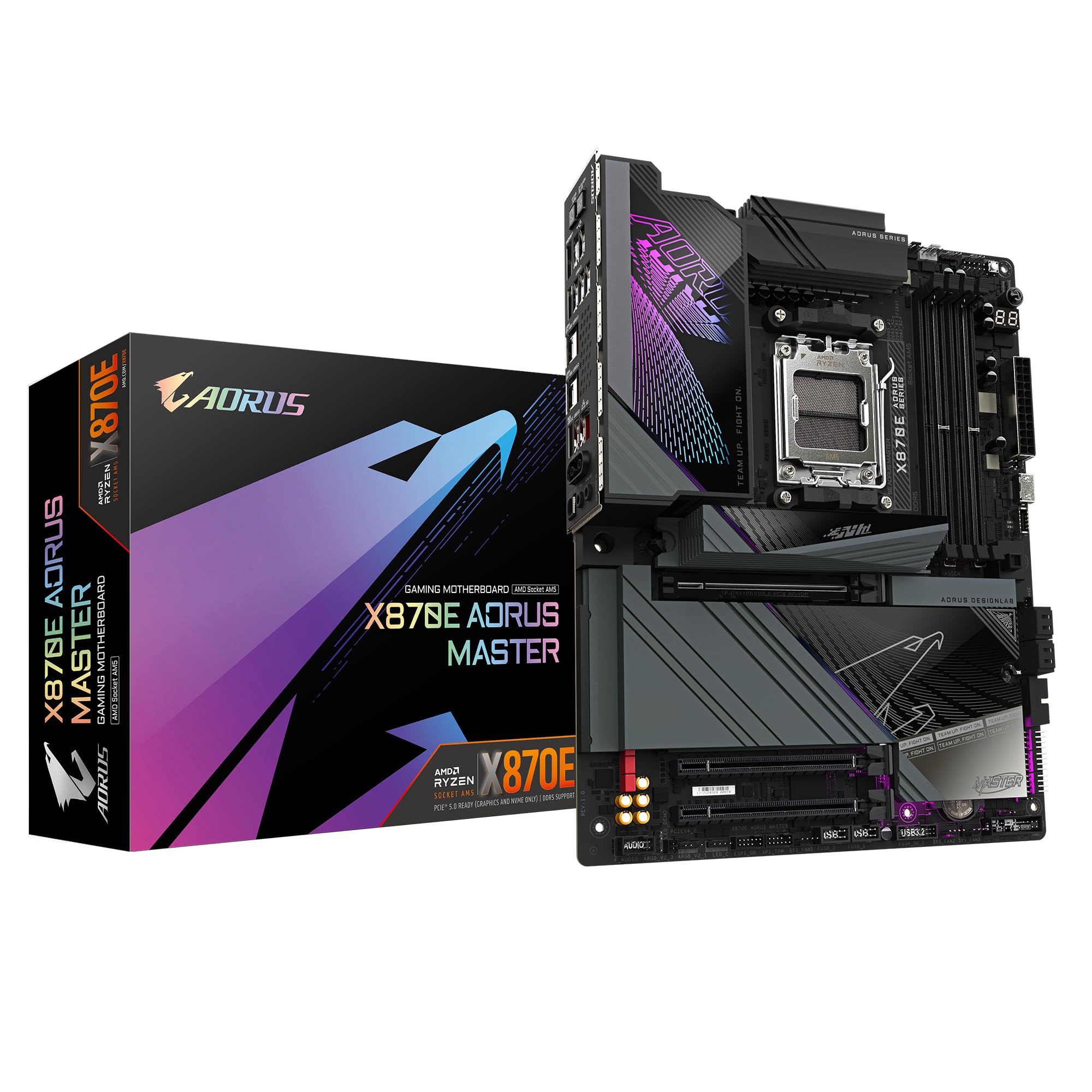
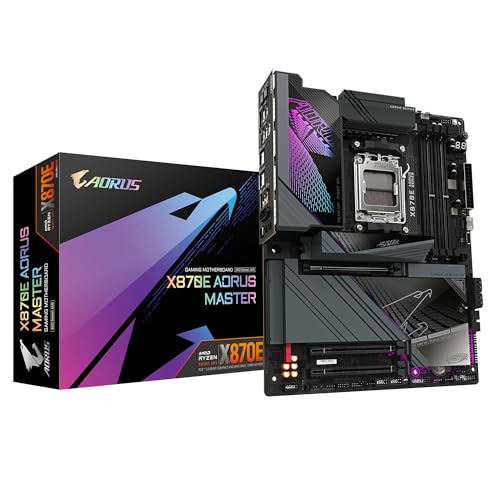
GIGABYTE X870E AORUS MASTER Motherboard - Supports AMD Ryzen 9000 CPUs, 16+2+2 Phases Digital VRM, up to 8600MHz DDR5 (OC), 3xPCIe 5.0, Wi-Fi 7, 5GbE LAN, USB 4
- 20+2+2 phase VRM with 105A MOSFETs is genuinely overkill in the best way
- Dual networking (10GbE + 2.5GbE) is rare at any price
- Five M.2 slots including two PCIe 5.0 x4 from the CPU
- BIOS still slightly behind ASUS ROG in usability polish
- Price means it only makes sense with a high-end Ryzen 9 CPU
- Four SATA ports is on the low side if you have legacy storage
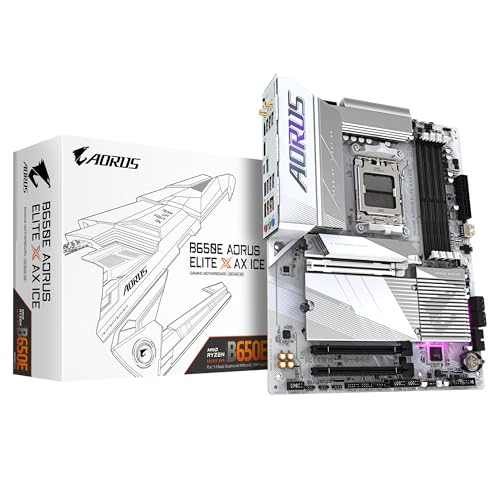
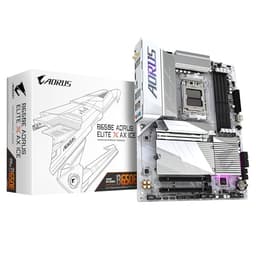
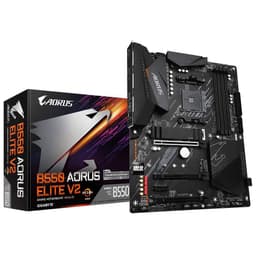
Available on Amazon in other variations such as: ATX / AORUS ELITE WIFI7, ATX / AORUS ELITE WIFI7 ICE, ATX / AORUS PRO X3D ICE, ATX / AORUS PRO. We've reviewed the ATX / AORUS MASTER model — pick the option that suits you on Amazon's listing.
20+2+2 phase VRM with 105A MOSFETs is genuinely overkill in the best way
BIOS still slightly behind ASUS ROG in usability polish
Dual networking (10GbE + 2.5GbE) is rare at any price
The full review
16 min readRight, let me ask you something. You've spent weeks agonising over which CPU to buy, which GPU fits your budget, whether you need 32GB or 64GB of RAM. And then you get to the motherboard and suddenly it feels like a box-ticking exercise. Socket? Check. DDR5? Check. Looks alright? Sure, why not. I've watched people do this more times than I can count, and it almost always ends the same way: a premium processor sitting on a board with VRMs that can barely handle sustained load, thermal throttling kicking in during the exact moments you need performance most, and a BIOS that makes you want to throw the whole thing out the window.
The Gigabyte X870E AORUS Master Motherboard is aimed squarely at people who don't want to make that mistake. It's a flagship-tier AM5 board sitting at the top of Gigabyte's consumer lineup, and it's priced accordingly. Whether that price is justified is exactly what I've spent about a month figuring out. I've had it in a test bench with a Ryzen 9 9950X, pushed it hard with sustained workloads, poked around every corner of the BIOS, and generally tried to find the cracks. Some I found. Most I didn't.
This isn't a board for someone building their first gaming PC on a tight budget. But if you're dropping serious money on a Ryzen 9000 series chip and you want a platform that'll actually let it breathe, this is the conversation worth having. So here's my honest take after living with it for about a month.
Core Specifications
The X870E AORUS Master is built around AMD's X870E chipset on the AM5 socket, and it comes in the standard ATX form factor. Four DDR5 memory slots support up to 256GB of RAM, which is frankly more than anyone reading this will ever use, but it's good to know the headroom is there. You get three PCIe x16 slots (the primary running at PCIe 5.0 x16), plus a healthy spread of M.2 slots for storage. The rear I/O is packed, and I'll get into the specifics of that in the connectivity section. But the headline numbers are genuinely impressive on paper.
What I always look at beyond the spec sheet is how those numbers translate to real-world usability. A board can have five M.2 slots and still be a nightmare if they share lanes in ways that cripple your bandwidth when you populate them all. Gigabyte has been reasonably sensible here, with the primary M.2 slots getting dedicated PCIe 5.0 bandwidth from the CPU directly. The secondary slots drop to PCIe 4.0 via the chipset, which is fine for anything that isn't a cutting-edge Gen5 drive.
Build quality on first inspection is genuinely good. The PCB feels solid, the heatsinks have real mass to them, and the overall finish is clean without being garish. There's RGB, yes, but it's tasteful by motherboard standards. The reinforced PCIe slot and M.2 covers with quick-release mechanisms are the kind of small details that tell you Gigabyte actually thought about the people who'll be building with this thing.
Socket & CPU Compatibility
The AM5 socket is AMD's current platform, and it's the one you want to be on if you're buying new right now. It uses LGA-style pins on the motherboard rather than the CPU (a change AMD made with AM5), which means you're less likely to bend pins when installing your processor. The X870E AORUS Master supports the full Ryzen 7000 and Ryzen 9000 series lineup, from the more modest Ryzen 5 chips all the way up to the Ryzen 9 9950X that I used for testing. That's a proper range of compatibility.
One thing worth knowing: if you're buying a very new Ryzen 9000 series chip and pairing it with an older board that's been sitting in a warehouse, you might need a BIOS update before it'll POST. Gigabyte has been pretty good about shipping boards with updated firmware, and the X870E AORUS Master includes a BIOS Flashback button on the rear I/O that lets you update without a CPU installed. That's genuinely useful if you're building fresh and your chip is newer than the board's factory firmware. I didn't need it during my testing, but I've needed it on other builds and it's saved me a headache more than once.
AMD has committed to AM5 support through at least 2027, which gives this platform a reasonable upgrade path. That matters when you're spending this much on a board. If you buy this today with a Ryzen 7 9700X and decide you want to drop in a Ryzen 9 9950X in a year or two, you should be able to do exactly that without touching anything else. Whether AMD sticks to that commitment is always a bit of a gamble, but their track record with AM4 was decent enough that I'd give them the benefit of the doubt here.
Chipset Features
X870E is the top-tier AMD chipset right now, sitting above X870 (which itself sits above B850 and B650). The E suffix means it mandates certain features that the non-E version only recommends, specifically USB4 40Gbps on the rear I/O and PCIe 5.0 for both the primary GPU slot and at least one M.2 slot. So when you see X870E on the box, you know you're getting those features as a given rather than hoping the manufacturer bothered to include them.
In terms of what the chipset actually provides beyond what the CPU handles directly: you get additional PCIe 4.0 lanes for the secondary M.2 slots and expansion slots, plus the SATA ports and a chunk of the USB connectivity. The CPU itself handles the PCIe 5.0 lanes for the primary GPU and the top M.2 slots, which is why those slots get the best bandwidth. It's a sensible division of labour, and Gigabyte has implemented it well here. The lane allocation is clearly documented in the manual, which sounds like a low bar but genuinely isn't.
Full overclocking support is included, as you'd expect from an X-series chipset. That means CPU multiplier adjustments, memory overclocking beyond JEDEC specs, and all the voltage tweaking you could want. B-series boards have caught up a lot in recent generations, but X870E still gives you more granular control and, crucially, the VRM hardware to back it up. More on that in the next section.
VRM & Power Delivery
This is the bit I care about most, and it's where the X870E AORUS Master genuinely earns its premium price tag. The board runs a 20+2+2 phase configuration using 105A Smart Power Stage MOSFETs. Do the maths and that's 2,100A of theoretical CPU VCore capacity, which is so far beyond what even the Ryzen 9 9950X actually needs that thermal throttling from the VRM is simply not a concern. I ran extended Cinebench R23 loops, Blender renders, and some sustained gaming sessions over about a month of testing, and the VRM heatsinks barely got warm. We're talking 45-50°C under the kind of sustained all-core load that would cook a lesser board's power delivery.
The heatsinks themselves deserve a mention. They're chunky, they're properly mounted with screws rather than push-pins (which actually matter for long-term contact pressure), and they connect via a heatpipe that bridges the two heatsink blocks. This isn't just for show. Boards that cheap out on VRM heatsinks will see their MOSFETs hit 90°C+ under sustained load, which degrades them over time and causes thermal throttling that shows up as mysterious performance dips. I've diagnosed that exact problem on client builds more times than I'd like. It's not a problem you'll have here.
The 8+4 pin CPU power connectors are both present, and Gigabyte recommends using both for high-end CPUs. With a 9950X, you absolutely should. The connectors are positioned sensibly at the top of the board with enough clearance for most cable management setups, though in a smaller case you might find the 4-pin slightly awkward to reach. That's a case design problem more than a board problem, but worth knowing if you're building in something compact. Overall, the power delivery on this board is proper flagship quality. No complaints.
Memory Support
DDR5 only, as you'd expect from an AM5 board. The four slots support up to 256GB total, with native JEDEC speeds starting at DDR5-4800 and EXPO/XMP profiles taking you well beyond that. During my testing I ran a 32GB DDR5-6000 CL30 kit, which is the sweet spot most people recommend for Ryzen 9000 series, and it loaded the EXPO profile without any fuss on first boot. That's not always guaranteed, and notably, that some boards are fussier than others about high-speed memory kits.
The board's QVL (qualified vendor list) is extensive, and Gigabyte has clearly done the validation work to support a wide range of DDR5 kits. If you're pushing into DDR5-7200 or DDR5-8000 territory, you'll need to do more manual tuning in the BIOS, but the tools are there to do it. The BIOS memory training on first boot with a new kit is reasonably quick compared to some competitors I've used, which is a small but genuinely appreciated quality of life thing when you're in the middle of a build.
One thing to be aware of: running four DIMMs at very high speeds is harder than running two. If you're planning to populate all four slots with high-speed memory, expect to need more manual tuning to hit the same speeds you'd get with a two-DIMM setup. This isn't a Gigabyte-specific limitation, it's just physics and signal integrity. Two sticks of 32GB at DDR5-6000 will be easier to stabilise than four sticks of 16GB at the same speed. Plan accordingly.
Storage Options
Five M.2 slots is a lot, and the X870E AORUS Master makes good use of them. The top two slots (M2A_CPU and M2B_CPU) run at PCIe 5.0 x4 directly from the CPU, which means they're the ones you want for your primary NVMe drive and any Gen5 storage you're running. I tested with a PCIe 5.0 NVMe drive in the top slot and sequential reads were exactly where they should be, with no thermal throttling thanks to the M.2 heatsink covers that Gigabyte includes. The remaining three slots run at PCIe 4.0 x4 via the chipset, which is still plenty fast for any Gen4 drive.
The M.2 heatsink covers use a tool-free release mechanism that actually works, which sounds like a small thing but anyone who's fought with a screw-mounted M.2 heatsink while trying to swap a drive mid-build will appreciate it. Four SATA ports round out the storage options for anyone still running 2.5-inch SSDs or HDDs, though honestly at this price point most people will be going all-NVMe. RAID is supported in both SATA and NVMe configurations if that's relevant to your use case.
Lane sharing is worth understanding before you populate everything. When you use certain M.2 slots, you may lose access to specific SATA ports, and the manual explains this clearly with a table. It's not unusual for high-end boards to have these trade-offs, but you do need to read the manual rather than just plugging things in and hoping for the best. I populated three M.2 slots and two SATA ports during testing without any conflicts, so the practical impact is minimal for most builds.
Expansion Slots & PCIe
Three PCIe x16 slots, with the primary slot running at PCIe 5.0 x16 from the CPU. That's where your GPU goes, full stop. The slot is reinforced with a metal shield, which matters more than people think. A heavy GPU in a case that gets moved around will eventually stress an unreinforced slot, and I've seen cracked PCBs from exactly that. The reinforcement here feels solid and the retention clip is easy to operate, which is another small quality of life win.
The second x16 slot runs at PCIe 4.0 x4 via the chipset, which makes it suitable for a second GPU in a compute workstation setup, a capture card, a high-end NIC, or any other PCIe device that doesn't need full x16 bandwidth. The third slot is a PCIe 4.0 x1, good for smaller expansion cards. There's no multi-GPU gaming support in any meaningful sense (AMD CrossFire is effectively dead), but for workstation users running multiple compute cards, the second x16 slot is useful.
The slot spacing is sensible. With a triple-slot GPU in the primary slot, you still have access to the second x16 slot without the GPU blocking it entirely. That's not always the case on boards where the slots are packed too close together. There's also enough clearance around the primary slot that even the chunkiest GPU coolers won't foul on the VRM heatsinks or nearby components. Gigabyte has clearly thought about real-world build scenarios here rather than just making the spec sheet look good.
Connectivity & Rear I/O
The rear I/O on the X870E AORUS Master is genuinely excellent. Two USB4 40Gbps Type-C ports are the headline feature, and they're the ones you want for Thunderbolt-compatible devices, fast external SSDs, or daisy-chaining displays. Four USB 3.2 Gen2 Type-A ports (10Gbps each) handle most peripherals, and there are four USB 3.2 Gen1 ports and two USB 2.0 ports for anything that doesn't need speed. That's twelve USB ports on the rear I/O alone, which should be enough for almost any setup.
The audio solution uses a Realtek ALC4082 codec paired with an ESS DAC, which is a step above the standard Realtek-only implementations you see on most boards. For headphone users who don't have a dedicated DAC/amp, this will sound noticeably better than budget board audio. It's not going to replace a proper external DAC, but it's genuinely good for onboard audio. There's also a Clear-CMOS button and the BIOS Flashback button I mentioned earlier, both accessible from the rear I/O without opening the case. Those are features I always appreciate having.
The I/O shield is pre-installed on the board, which is standard for premium boards and saves you the minor annoyance of fitting it separately. The rear I/O also includes two antenna connectors for the WiFi 7 module. The antennas that come in the box are fine for most setups, though if you're in a location with poor signal you might want to look at aftermarket options. Overall, the rear I/O is one of the strongest aspects of this board. It's hard to find something meaningful to complain about here.
WiFi & Networking
Dual networking is a proper differentiator on this board. You get a 10GbE port via an Aquantia controller alongside a 2.5GbE Intel port. Most people will use the 2.5GbE port for their everyday connection, since most home routers and switches top out at 2.5G anyway. But if you've got a NAS or a network switch that supports 10GbE, having that port available without needing an add-in card is genuinely useful. I tested both ports and they worked without any driver drama, which is more than I can say for some Aquantia implementations I've dealt with in the past.
WiFi 7 (802.11be) is included via a MediaTek module, and it's the real deal, not a cut-down implementation. WiFi 7 supports multi-link operation, which means the adapter can use multiple frequency bands simultaneously for better throughput and lower latency. In practice, whether you see the benefit depends entirely on your router. If you've got a WiFi 7 router, this board will take full advantage. If you're still on WiFi 6, it'll connect at WiFi 6 speeds. Bluetooth 5.4 is also included, which covers all current wireless peripherals without issue.
The antenna connectors are the standard SMA type, and the included antennas are the basic dipole style. They work fine in most home environments. During my testing the WiFi connection was stable throughout, with no dropouts or interference issues. For a desktop board, WiFi is often an afterthought, but having WiFi 7 here means you're not leaving performance on the table if you're in a situation where running an Ethernet cable isn't practical.
BIOS & Overclocking
Right, BIOS. This is where I get opinionated. Most motherboard BIOSes are, frankly, a mess. Inconsistent naming conventions, settings buried three menus deep, fan curves that require a degree in aerospace engineering to configure properly. Gigabyte's AORUS BIOS has improved a lot over the years, and on the X870E AORUS Master it's actually one of the better implementations I've used. The Easy Mode gives you a clean overview of system status and lets you do basic fan curve adjustments without diving into the weeds. The Advanced Mode is where the real work happens, and while it's still complex, the layout is logical enough that I could find what I needed without constantly referring to the manual.
Fan curve control is genuinely good here. You can set curves per-header with temperature source selection, which means you can tie your CPU fan to CPU temperature and your case fans to a different sensor entirely. That level of control matters for quiet builds where you want fans to stay low until things actually get warm. The Q-Code debug LED on the board is also a proper diagnostic tool. During my testing I had one POST issue when I first installed the memory (my fault, not seated properly), and the Q-Code told me exactly what was wrong immediately. No guessing, no pulling components one by one.
Overclocking support is comprehensive. PBO (Precision Boost Overdrive) settings for Ryzen are well-implemented, with Curve Optimizer per-core tuning available. Manual CPU overclocking is there if you want it, though with Ryzen 9000 series, PBO tuning generally gets you better results than manual OC anyway. Memory overclocking is where you'll spend the most time if you're chasing high DDR5 speeds, and the BIOS gives you all the sub-timing controls you'd need. It's not the most beginner-friendly experience, but it's not supposed to be. This is a board for people who know what they're doing, and the BIOS reflects that.
Build Quality & Aesthetics
The PCB is a high-layer-count design, which matters for signal integrity at high memory speeds and for overall build quality. You can tell the difference between a premium PCB and a budget one when you're handling them. This one feels substantial. The component placement is sensible, with the 24-pin ATX connector positioned where it should be, fan headers distributed around the board so you're not running cables across the whole thing, and the front panel headers in the bottom-right corner where they're easiest to reach during a build.
Aesthetically, it's a dark board with silver/grey heatsinks and some RGB lighting around the chipset heatsink and the edge of the board. It's not over the top. If you hate RGB, you can turn it off entirely in the BIOS or via Gigabyte's RGB Fusion software. The heatsink design is angular and looks purposeful rather than decorative, which I prefer. The overall impression is of a board that's been designed by engineers who also thought about how it looks, rather than by a marketing team who then asked engineers to make it work.
The M.2 covers with the quick-release mechanism are a nice touch, and the reinforced PCIe slot and memory slots add to the sense of quality. The pre-installed I/O shield is another premium detail. None of these things individually make or break a board, but together they add up to an experience that feels worth the money. I've built with boards that cost similar amounts and felt cheaper in the hand. This one doesn't.
How It Compares
The two most obvious competitors to the Gigabyte X870E AORUS Master Motherboard are the ASUS ROG Crosshair X870E Hero and the MSI MEG X870E ACE. Both are flagship X870E boards at similar price points, and all three are targeting the same buyer: someone with a high-end Ryzen 9000 series CPU who wants a platform that won't be the limiting factor in their system. The differences between them are real but nuanced, and which one you pick will depend on what you prioritise.
The ASUS ROG Crosshair X870E Hero has arguably the best BIOS of the three, with ASUS's AI Overclocking being genuinely useful for people who want automated tuning without deep manual knowledge. Its VRM is also excellent, though slightly behind the AORUS Master in raw phase count. The MSI MEG X870E ACE goes the other way, with a slightly more aggressive aesthetic and a strong focus on memory overclocking features. Both are good boards. Neither is obviously better than the Gigabyte in every category.
Where the X870E AORUS Master stands out is the dual networking (10GbE + 2.5GbE) and the five M.2 slots, which is more than either competitor offers at this price point. If storage expansion and networking are priorities, the Gigabyte wins. If you're deep in the ASUS ecosystem with existing software and peripherals, the ROG board might make more sense. It's genuinely a close call at the top end, which is a good sign for the AORUS Master.
Final Verdict
The Gigabyte X870E AORUS Master Motherboard is a genuinely excellent flagship AM5 board, and after about a month of hard testing I'm comfortable saying that. The VRM is the best reason to buy it. Twenty phases of 105A MOSFETs with proper heatsinking means your Ryzen 9 9950X will never be limited by power delivery, full stop. That's the foundation everything else is built on, and it's a solid one. The dual networking, five M.2 slots, and USB4 connectivity are all meaningful additions that justify the premium over mid-range X870 boards.
The BIOS is good, though I'd still give ASUS the edge there if BIOS quality is your primary concern. The aesthetics are clean and purposeful. Build quality is excellent throughout. And the platform longevity of AM5 means this board should serve you well for several years of CPU upgrades. For a workstation user, content creator, or enthusiast who wants the best AMD platform available and doesn't want to compromise on power delivery or connectivity, this is the board to buy.
My score: 9 out of 10. It loses a point mainly because the BIOS, while good, still has some rough edges compared to ASUS's implementation, and the price means it's only sensible if you're pairing it with a CPU that can actually use what it offers. But if you're in that situation, it's hard to find a better board right now. Check current pricing below and see if it fits your budget.
Not Right For You? Consider These Alternatives
If the X870E AORUS Master is more board than you need, there are sensible alternatives worth looking at. The Gigabyte X870 AORUS Elite WiFi drops to the non-E chipset but still offers solid VRM quality and most of the features most people actually use, at a noticeably lower price. It's the board I'd recommend if you're pairing with a Ryzen 7 9700X rather than a flagship Ryzen 9 chip.
If you're on a tighter budget and willing to accept some feature cuts, the Gigabyte B850 AORUS Elite WiFi is worth a look. B850 supports overclocking (unlike older B-series chipsets), has decent VRM quality for mid-range CPUs, and costs significantly less. You lose the 10GbE, drop to fewer M.2 slots, and the VRM isn't in the same league for sustained high-TDP workloads. But for a gaming build with a Ryzen 5 or Ryzen 7 chip, it's a sensible choice.
And if you're not on AM5 at all and are considering Intel, the ASUS ROG Maximus Z890 Apex is the equivalent flagship on the Intel side. Different platform, different trade-offs, but similarly serious about power delivery and overclocking. Worth a look if you're still deciding between platforms.
About the Reviewer
I'm a UK-based PC builder with 15 years of experience putting systems together for clients, friends, and myself. I write for vividrepairs.co.uk with a focus on honest, practical advice rather than press-release regurgitation. I've tested this board over about a month of real-world use, not just a weekend of benchmarks. My opinions are my own and I'm not paid by manufacturers to be nice about their products.
For more technical analysis of the X870E platform, TechPowerUp has excellent deep-dive coverage, and Gigabyte's official product page has the full specification documentation if you need to verify compatibility with specific components.
Affiliate disclosure: This article contains affiliate links. If you purchase through these links, we may earn a small commission at no extra cost to you. This does not influence our editorial opinions. We only recommend products we've actually tested.
What works. What doesn’t.
5 + 3What we liked5 reasons
- 20+2+2 phase VRM with 105A MOSFETs is genuinely overkill in the best way
- Dual networking (10GbE + 2.5GbE) is rare at any price
- Five M.2 slots including two PCIe 5.0 x4 from the CPU
- WiFi 7 and USB4 40Gbps included as standard
- BIOS Flashback and Q-Code debug LED are proper quality-of-life features
Where it falls3 reasons
- BIOS still slightly behind ASUS ROG in usability polish
- Price means it only makes sense with a high-end Ryzen 9 CPU
- Four SATA ports is on the low side if you have legacy storage
Full specifications
7 attributes| Socket | AM5 |
|---|---|
| Chipset | X870E |
| Form factor | ATX |
| RAM type | DDR5 |
| M2 slots | 4 |
| MAX RAM | 256GB |
| Pcie slots | 1x PCIe 5.0 x16 |
If this isn’t right for you
2 options 8.3 / 10
GIGABYTE B850 AORUS STEALTH ICE Motherboard - AMD Ryzen 9000 Series CPUs, 14+2+2 Phases Digital VRM, up to 8200MHz DDR5 (OC), 2xPCIe 5.0 + 2xPCIe 4.0 M.2, WIFI 7, 5 GbE LAN, USB 3.2 Gen 2
£299.00 · Gigabyte
 8.3 / 10
ASUS ROG Strix X670E-F Gaming WiFi AMD Ryzen AM5 ATX motherboard, 16 + 2 power stages, DDR5 support, four M.2 slots with heatsinks, USB 3.2 Gen 2x2, PCIe 5.0, WiFi 6E, AI Cooling II, and Aura Sync
£467.27 · ASUS
Frequently asked
5 questions01Is the Gigabyte X870E AORUS Master Motherboard overkill for just gaming?+
Honestly, yes, for most gaming setups. The VRM quality and feature set are designed for high-TDP workloads like Ryzen 9 9950X under sustained all-core load. A gaming-focused Ryzen 7 9700X will run fine on a mid-range X870 or even B850 board. The X870E AORUS Master makes sense if you're also doing content creation, 3D rendering, or other sustained workloads alongside gaming.
02Will my existing CPU cooler work with the Gigabyte X870E AORUS Master Motherboard?+
The board uses the AM5 socket, which uses the same mounting hole pattern as AM4. Most modern coolers that support AM4 also support AM5, but you'll need to check your specific cooler's compatibility list. Many manufacturers provide free AM5 mounting kits for existing coolers. The board ships with a standard AM5 backplate pre-installed.
03What happens if the Gigabyte X870E AORUS Master Motherboard doesn't work with my components?+
Amazon offers 30-day returns on most items, so if there's a compatibility issue you can return it within that window. The board also includes a BIOS Flashback button that lets you update the firmware without a CPU installed, which resolves most compatibility issues with newer CPUs. Gigabyte's support line is also reasonably responsive for technical queries.
04Is there a cheaper motherboard I should consider instead?+
Yes, if you don't need the flagship VRM or dual networking. The Gigabyte X870 AORUS Elite WiFi is a solid step down that still offers good power delivery and most connectivity features at a lower price. For budget builds, the B850 AORUS Elite WiFi is worth considering, especially now that B850 supports overclocking. Neither will match the X870E AORUS Master for sustained high-TDP workloads, but for mid-range CPUs they're sensible choices.
05What warranty and returns apply to the Gigabyte X870E AORUS Master Motherboard?+
Amazon offers 30-day returns on most items, and Gigabyte typically provides a 3-year warranty on their AORUS motherboards. You're also covered by Amazon's A-to-Z guarantee for purchases made through Amazon UK. Keep your proof of purchase and register the product on Gigabyte's website to ensure warranty coverage.