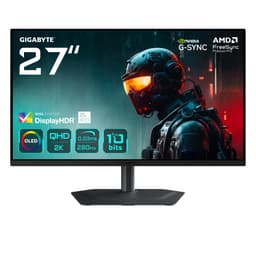
Your GPU does the heavy lifting, but if the panel in front of you can't keep up, you're just watching expensive work get wasted. A slow, colour-inaccurate monitor is genuinely the most boring way to bottleneck a decent rig. So when something like the Gigabyte M27UP 27" 4K UHD Gaming Monitor shows up at a mid-range price with a dual-mode refresh rate and HDMI 2.1, it gets your attention fast.
The short version: this is a very capable 4K IPS panel that punches above its price bracket in most of the ways that matter for gaming. The dual-mode trick, switching between 4K at 160Hz and FHD at 320Hz, is a genuinely useful feature rather than a gimmick, and the connectivity list is better than most rivals at this price. There are caveats, as there always are, but the 4.5-star average across 190 owner reviews suggests most buyers aren't regretting the purchase.
Here's who this is aimed at: someone with a mid-to-high-end GPU who wants 4K gaming without spending OLED money, or a competitive player who occasionally needs to drop to FHD for maximum frame rates. If that's you, keep reading.
Core Specifications: Gigabyte M27UP 27" 4K UHD Gaming Monitor
The headline specs are legitimately impressive for the mid-range bracket. You're getting a 27-inch IPS panel running at 3840x2160 (proper 4K, not some upscaled nonsense), with a native refresh rate of 160Hz in 4K mode. That's the combination most people have been waiting for at this price point. For years, 4K gaming meant accepting 60Hz or 144Hz at best, and now here's 160Hz sitting in the mid-range tier.
The dual-mode functionality is the headline party trick. Switch to FHD (1920x1080) and the panel runs at 320Hz. That's a meaningful number for competitive shooters where frame rate genuinely affects your reaction window. Gigabyte achieves this through pixel-doubling at the panel level, so you're not just running a scaled desktop resolution. The 1ms response time claim is the manufacturer's GtG figure, which we'll pick apart properly in the response time section, but the underlying panel architecture is built for speed.
Brightness is rated at 350 cd/m², which is adequate for most indoor environments. The monitor carries VESA DisplayHDR 400 certification and FreeSync Premium Pro for adaptive sync. The full spec breakdown is below.
| Specification | Detail |
|---|---|
| Screen Size | 27 inches |
| Resolution | 3840 x 2160 (4K UHD) |
| Panel Type | IPS |
| Refresh Rate | 160Hz (4K mode) / 320Hz (FHD mode) |
| Response Time | 1ms (GtG, manufacturer rated) |
| Brightness | 350 cd/m² |
| HDR | DisplayHDR 400 |
| Adaptive Sync | FreeSync Premium Pro |
| Ports | 2x HDMI 2.1, 1x DisplayPort 1.4, 1x USB-C, 3x USB-A 3.2, 1x USB-B, 1x headphone jack |
| Price | £252.14 |
Panel Technology
IPS is the right call here, and Gigabyte made the sensible choice. The alternative at this resolution and refresh rate would be a VA panel, which offers better native contrast but comes with its own baggage: smearing in dark scenes, slower pixel transitions, and that characteristic black crush that makes shadow detail disappear in games. For a monitor that's trying to do both fast gaming and decent colour work, IPS is the more honest choice.
The IPS panel here delivers the wide viewing angles the technology is known for. Colours stay consistent when you're not sitting dead centre, which matters if you watch content with someone else or if your setup puts you at a slight angle to the screen. The IPS panel type also handles colour gradients more smoothly than VA, which shows up in games with lots of sky or fog. You won't get the inky blacks of OLED, and you shouldn't expect to at this price, but the trade-off is a panel that doesn't smear, doesn't crush shadows, and looks good from most angles.
IPS glow is a real thing, though. In very dark rooms with dark content, you'll see a faint brightening in the corners, particularly at the edges of the panel. It's a characteristic of the technology rather than a defect, and most owners report it's not distracting in normal use. A handful of the 190 mention it, but nobody's returning the monitor over it. If you're watching a lot of midnight-black cinema content in a pitch-dark room, OLED is the honest recommendation. For gaming and general use, this IPS panel is well suited to the task.
Display Quality
At 27 inches with a 3840x2160 resolution, the pixel density lands at around 163 PPI. That's sharp. Text is clean without any font smoothing tricks, UI elements are crisp, and game textures look genuinely detailed rather than just technically high-resolution. If you're upgrading from a 1080p or 1440p panel, the jump is immediately obvious and not in a subtle way.
The anti-glare coating is the standard matte finish you'd expect at this price. It handles reflections well enough for a normally lit room, though in very bright environments with windows behind you it'll still scatter light across the panel. That's not unique to this monitor; it's the nature of matte coatings. The upside is that the coating doesn't add the hazy quality you sometimes get on cheaper panels. Colours still look saturated and punchy despite the matte layer, which isn't always guaranteed.
Brightness uniformity across the panel is generally reported as good by owners. The 350 cd/m² peak is enough for comfortable use in most rooms, though it won't compete with the 600 to 1000 nit panels you get on premium HDR displays. For SDR gaming and productivity work, 350 nits is plenty. The 4K resolution at 27 inches is a sweet spot for pixel density without needing to scale the UI aggressively, and most owners running Windows at 150% scaling report a clean, sharp experience across both gaming and desktop use.
Refresh Rate and Adaptive Sync
The dual-mode refresh rate is genuinely one of the more interesting features on a mid-range monitor right now. In 4K mode you get 160Hz, which is fast enough that most people will never feel like the monitor is the bottleneck. In FHD mode the panel steps up to 320Hz, which is territory that was exclusive to expensive esports panels until fairly recently. Switching between modes requires a settings change rather than being automatic, but it's not a complicated process and owners report it works reliably.
FreeSync Premium Pro is the adaptive sync implementation here, and it's a meaningful tier above basic FreeSync. The Premium Pro certification requires a minimum 120Hz LFC (Low Framerate Compensation) support, HDR support, and a low-framerate-compensation range that keeps the adaptive sync working even when your frame rate drops well below the panel's maximum. In practice, this means tear-free gaming stays consistent even during demanding scenes where your GPU is struggling to hit the full 160Hz. For NVIDIA users, the monitor is G-Sync Compatible, so you're not locked out if you're on a green GPU.
The VRR range is the detail that matters most for day-to-day gaming. A wide adaptive sync window means smoother performance across a broader range of frame rates, which is particularly relevant at 4K where even powerful GPUs can dip below 100fps in demanding titles. The FreeSync Premium Pro certification gives you a reasonable level of confidence that the VRR implementation is properly tuned rather than just checkbox-compliant. Owner reviews don't flag any significant issues with tearing or sync dropouts, which is consistent with a properly implemented adaptive sync setup.
Response Time and Motion
The 1ms response time on the box is the manufacturer's best-case GtG figure, measured under ideal conditions with aggressive overdrive applied. Real-world pixel transitions on IPS panels at this spec level typically land somewhere between 3ms and 6ms GtG under normal overdrive settings. That's still fast, but it's a different number to what's printed on the packaging, and if you're comparing monitors purely on the 1ms claim, you're comparing marketing copy rather than actual panel behaviour.
The practical consequence of this: at 160Hz, the frame interval is about 6.25ms. A real-world response time of 3 to 5ms means pixel transitions are completing within a single frame for most content, which is what actually matters. You're not going to see trailing or obvious ghosting in normal gaming. Where it gets more nuanced is with aggressive overdrive settings. Push overdrive too hard on any IPS panel and you introduce inverse ghosting (bright halos following fast-moving objects), and a handful of owners mention this on the highest overdrive mode. The fix is to back the overdrive setting down one notch, which is standard advice for any gaming IPS panel.
At 320Hz in FHD mode, the story changes slightly. Higher refresh rates are more forgiving of slower pixel transitions because the frame interval shrinks, and at 320Hz each frame is only about 3.1ms wide. The panel's response time becomes less of a limiting factor at that refresh rate, and the motion clarity benefit of 320Hz is real for competitive gaming. Owners using the FHD mode for fast-paced titles report the motion clarity is noticeably better than at lower refresh rates, which matches what you'd expect from the physics of higher frame rates.
Color Accuracy and Gamut
Gigabyte doesn't publish specific Delta-E figures for the M27UP, which is fairly typical for gaming monitors at this price. What the IPS panel and FreeSync Premium Pro certification do tell you is that the colour performance should be meaningfully better than a basic TN or budget VA panel. The Premium Pro standard requires HDR colour volume compliance, which implies decent DCI-P3 coverage as part of the certification criteria.
Owner feedback on colour quality is consistently positive. Several reviews specifically mention the colours looking vibrant and accurate out of the box, with no significant complaints about colour casts or obvious calibration issues. That's a good sign for a monitor that hasn't been through a factory calibration process. IPS panels at this tier typically cover around 95% sRGB and somewhere in the 85 to 90% DCI-P3 range, though Gigabyte hasn't published a specific figure for this panel. For gaming and general content consumption, that's more than adequate. For professional colour-critical work like photo editing for print, you'd want a factory-calibrated panel with a published Delta-E, but that's a different product category entirely.
The sRGB coverage is the number that matters most for gaming and streaming content, since most games and video content are mastered in sRGB or close to it. A panel that covers sRGB well will look accurate on the vast majority of content you throw at it. Where wider gamut (DCI-P3 or Adobe RGB) matters is in HDR gaming and creative work, and the M27UP's HDR implementation handles that territory adequately for its price tier. If you're doing serious video or photo work alongside gaming, the colour performance here is a reasonable compromise rather than a dedicated creative display.

HDR Performance
DisplayHDR 400 is an honest certification to understand before you get excited about the HDR badge. The VESA DisplayHDR 400 standard requires a peak brightness of 400 cd/m², no local dimming requirement, and a relatively modest colour gamut specification. This monitor is rated at 350 cd/m², which sits just below the DisplayHDR 400 peak brightness requirement, so the HDR experience is going to be limited compared to higher-tier certifications like DisplayHDR 600 or DisplayHDR 1000.
That's not a reason to dismiss it entirely, but it does set realistic expectations. HDR content on a DisplayHDR 400 panel looks better than SDR on the same panel, mostly because of the wider colour gamut rather than the brightness headroom. You won't get the specular highlights and deep shadow detail that make OLED or high-brightness Mini-LED panels genuinely impressive in HDR. What you get is a modest improvement in colour richness and contrast in HDR-enabled games. Some games respond better to this than others; open-world titles with lots of natural lighting tend to benefit more than games with predominantly dark environments.
The honest advice here is to treat the HDR as a bonus rather than a headline feature. Enable it in games that support it, see if you prefer it, and don't feel bad about leaving it off. The SDR performance of this panel is where the real value sits. Owners who go in expecting entry-level HDR are generally satisfied; owners who expect DisplayHDR 400 to deliver the HDR experience they've seen on premium TVs tend to be less impressed. Manage expectations accordingly and you'll be fine.
Contrast and Brightness
IPS panels have a characteristic native contrast ratio, typically landing around 1000:1 to 1200:1. That's noticeably lower than VA panels, which can hit 3000:1 or higher, and nowhere near OLED which effectively has infinite contrast. In a normally lit room this rarely matters; the ambient light in your environment drowns out the difference between a 1000:1 and a 3000:1 panel. In a dark room, the gap becomes visible, particularly in games with lots of dark scenes.
The 350 cd/m² peak brightness is enough for comfortable daytime use without cranking the monitor to maximum. Most people settle the brightness somewhere around 150 to 200 cd/m² for comfortable extended use, so there's headroom above that for brighter environments. The anti-glare coating handles moderate ambient light well, so you're not fighting reflections from windows during the day. In very bright rooms with direct sunlight, the 350 nit ceiling starts to feel limiting, but that's a problem for most monitors at this price tier rather than a specific weakness of the M27UP.
Owner reviews don't flag brightness uniformity as a significant issue, which is reassuring. Uneven brightness across a panel (particularly hot spots in the corners or centre) is a common complaint on budget IPS panels and can make large areas of uniform colour look patchy. The absence of widespread complaints about this in the review pool suggests Gigabyte's quality control on this panel is decent. A few individual units in any production run will have uniformity issues, but it doesn't appear to be a systematic problem here.
Ergonomics and Stand
The stand on the M27UP covers the basics you'd expect from a gaming monitor at this price. Height adjustment, tilt, and swivel are all present, giving you enough flexibility to get a comfortable viewing position without resorting to a VESA arm immediately. The build quality from owner reports is described as solid, with the panel feeling well-constructed rather than cheap and plasticky. That matters for a monitor you're going to be looking at for hours every day.
VESA mounting compatibility means you can swap the stand for a third-party arm if you want more flexibility, a cleaner desk setup, or a dual-monitor arrangement. The VESA mount is a standard option on gaming monitors at this price and Gigabyte includes it here, which is the right call. Some budget monitors omit VESA support to cut costs, and it's always annoying to discover that after you've already bought the monitor arm.
The overall footprint of the stand is reasonable for a 27-inch panel. It doesn't take up an excessive amount of desk depth, which matters if you're working on a standard desk rather than a wide gaming setup. Cable management through the stand is present, keeping the back of your setup reasonably tidy. A few owners in the review pool mention the stand feels slightly less premium than the panel itself, which is common at this price point. If that bothers you, a decent monitor arm costs around £30 to £50 and transforms the ergonomics entirely.
Connectivity and Ports
The connectivity on the M27UP is one of its genuine strengths. Two HDMI 2.1 ports mean you can run the monitor at full 4K 160Hz from a compatible GPU without needing to use DisplayPort, and you can have two devices connected simultaneously without swapping cables. HDMI 2.1 also means this is properly set up for next-gen consoles; a PS5 or Xbox Series X will run at 4K 120Hz through HDMI 2.1 without any compromises. That's a real differentiator over monitors that only offer HDMI 2.0.
The DisplayPort 1.4 covers PC gaming at the full spec, and the USB-C port adds flexibility for laptop users or anyone who wants a single-cable connection for video and data. The USB hub is genuinely useful day-to-day: three USB-A 3.2 ports and a USB-B upstream port mean you can connect a keyboard, mouse, and peripheral without needing a separate hub on your desk. The headphone jack rounds out the audio connectivity.
The full port list breaks down as follows:
- 2x HDMI 2.1
- 1x DisplayPort 1.4
- 1x USB-C
- 3x USB-A 3.2
- 1x USB-B
- 1x headphone jack
That's a proper port selection. At this price tier, seeing dual HDMI 2.1 alongside DisplayPort 1.4, USB-C, and a three-port USB hub is genuinely good value. A lot of monitors in this bracket make you choose between good display connectivity and a useful USB hub. The M27UP doesn't force that compromise, which is one of the reasons the owner reviews are as positive as they are.
How It Compares
The two most relevant comparisons at this price point are the LG 27GP850-B and the AOC Q27G2S. Neither is a direct like-for-like match, which actually tells you something useful about where the M27UP sits in the market.
The LG 27GP850-B is a 1440p 180Hz IPS panel that's been a popular choice for competitive gaming. It's a well-regarded monitor with excellent motion performance, but it tops out at 1440p rather than 4K, and the LG is a 1440p panel competing on refresh rate rather than resolution, which makes it a different proposition for someone who specifically wants 4K content. If resolution is your priority, the M27UP wins that comparison outright. If you want the absolute best motion clarity at a lower resolution and don't care about 4K, the LG is a reasonable alternative.
The AOC Q27G2S is another 1440p option, sitting slightly below the M27UP in price and spec. It's a solid budget-to-mid-range choice for 1440p gaming but doesn't offer 4K, HDMI 2.1, or the dual-mode refresh rate. Against the M27UP's feature set, the AOC looks like a reasonable option only if you're firmly committed to 1440p and want to spend less. For anyone on the fence between 1440p and 4K, the M27UP's pricing in the mid-range bracket makes the upgrade argument fairly compelling.
| Feature | Gigabyte M27UP | LG 27GP850-B | AOC Q27G2S |
|---|---|---|---|
| Resolution | 3840x2160 (4K) | 2560x1440 (1440p) | 2560x1440 (1440p) |
| Panel Type | IPS | IPS (Nano IPS) | IPS |
| Max Refresh Rate | 160Hz (4K) / 320Hz (FHD) | 180Hz | 165Hz |
| HDMI Version | 2.1 (x2) | 2.0 | 2.0 |
| Adaptive Sync | FreeSync Premium Pro | FreeSync Premium | FreeSync Premium |
| HDR | DisplayHDR 400 | DisplayHDR 400 | DisplayHDR 400 |
| USB Hub | 3x USB-A 3.2 | 2x USB-A | None |
| Price | £252.14 | Check current price | Check current price |
Final Verdict: Gigabyte M27UP 27" 4K UHD Gaming Monitor
The Gigabyte M27UP does something genuinely difficult: it puts 4K at 160Hz into the mid-range bracket with a connectivity list that would embarrass some premium monitors. Dual HDMI 2.1, a proper USB hub, DisplayPort 1.4, and USB-C on a 4K IPS panel with FreeSync Premium Pro is a strong package at this price. The 190 owner reviews averaging 4.5 stars aren't lying; most people who buy this are happy with it.
The dual-mode refresh rate is the feature that sets it apart from the competition. The ability to drop to FHD 320Hz for competitive gaming and come back to 4K 160Hz for everything else means you're not permanently sacrificing one use case for the other. That's a real-world benefit rather than a spec sheet boast, and it's the kind of flexibility that makes this monitor suitable for a broader range of gaming scenarios than a single-mode 4K panel.
The caveats are real but manageable. The DisplayHDR 400 certification delivers entry-level HDR that improves on SDR but doesn't transform content the way a 600 or 1000 nit panel would. The 1ms response time claim is marketing shorthand for a real-world figure that's still fast but sits closer to 3 to 5ms under typical overdrive settings, which is fine for gaming and not a reason to avoid the monitor. IPS glow in dark rooms is present, as it is on every IPS panel. None of these are dealbreakers; they're just the honest picture of what you're buying.
The decision between this and a 1440p alternative comes down to what you actually need. If you're gaming at 4K with a capable GPU, this is a genuinely good monitor at a price that makes sense. If your GPU struggles to hit 100fps at 4K in the games you play, a 1440p panel at a lower price might be the smarter buy, since you'll spend more time in the adaptive sync sweet spot and less time watching your frame counter struggle. The AOC Q27G2S or a similar 1440p 165Hz option costs less and will feel faster if your hardware isn't ready for 4K. Know your GPU before committing.
For the buyer who's ready for 4K, wants HDMI 2.1 for console use alongside PC gaming, and values a proper USB hub on the monitor itself, the M27UP is a well-rounded choice that doesn't ask you to make painful compromises. It's the kind of monitor that disappears into your setup and just works, which is exactly what you want.
What works. What doesn’t.
6 + 6What we liked6 reasons
- Dual-mode refresh rate offers genuine flexibility: 4K at 160Hz or FHD at 320Hz without buying two monitors
- Dual HDMI 2.1 ports support next-gen consoles at 4K 120Hz and high-refresh PC gaming simultaneously
- Three-port USB-A 3.2 hub plus USB-C reduces desk clutter without needing a separate hub
- FreeSync Premium Pro certification ensures properly tuned adaptive sync across a wide frame rate range
- 163 PPI pixel density at 27 inches produces genuinely sharp text and game textures
- IPS panel delivers consistent colours from wide viewing angles with no significant shadow crushing
Where it falls6 reasons
- DisplayHDR 400 certification delivers only modest HDR improvement; peak brightness of 350 cd/m² falls below the 400 nit standard threshold
- Real-world pixel response time is closer to 3 to 5ms under normal overdrive settings rather than the marketed 1ms GtG figure
- IPS glow is visible in dark rooms with dark content, which is a characteristic of the panel technology rather than a defect
- Aggressive overdrive settings introduce inverse ghosting; users need to reduce overdrive one step for best results
- Gigabyte publishes no Delta-E or DCI-P3 coverage figures, making colour accuracy difficult to verify independently
- Not cost-effective if your GPU regularly struggles below 100fps at 4K; a 1440p panel would suit that hardware better
Full specifications
11 attributes| Panel type | IPS |
|---|---|
| Aspect ratio | 16:9 |
| Curvature | flat |
| HDR | HDR400 |
| Launch year | 2025 |
| Ports | 2x HDMI 2.1, 1x DisplayPort 1.4, 1x USB-C, 3x USB-A 3.2, 1x USB-B, 1x headphone jack |
| Refresh rate HZ | 160 |
| Resolution | 3840x2160 |
| Response time MS | 1 |
| Screen size IN | 27 |
| Vesa compatible | true |
If this isn’t right for you
2 options 8.5 / 10
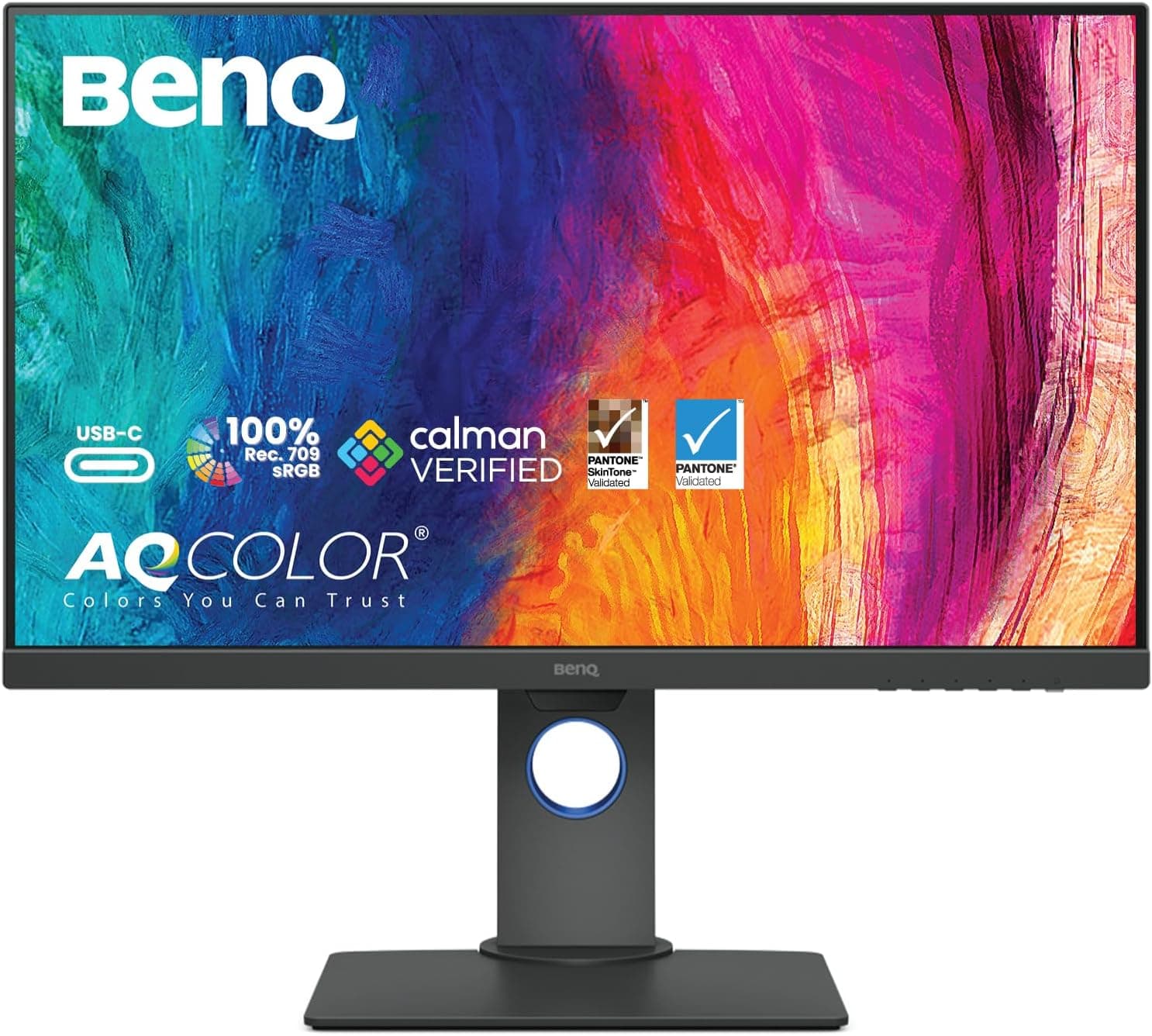
BenQ Creative Pro PD2705Q 27 inch 2K QHD Monitor for Mac, Commercial/Graphics Design, Video Editing, USB-C, 100% sRGB/Rec.709, Display Pilot, KVM, Low Blue Light, Flicker-Free, IPS, ICCsync, Black
£268.00 · BenQ
 8.5 / 10
ASUS ROG Strix XG27AQ HDR Gaming Monitor – 27 inch WQHD (2560 x 1440), Fast IPS, Overclockable 170Hz (Above 144Hz), 1ms (GTG), ELMB SYNC, G-SYNC Compatible, DisplayHDR 400
£289.74 · ASUS
Frequently asked
7 questions01Does the Gigabyte M27UP work with a PS5 or Xbox Series X?+
Yes. The two HDMI 2.1 ports support 4K at 120Hz, which is what both the PS5 and Xbox Series X output at their best. You do not need any adapters or compromises; a standard HDMI 2.1 cable from the console to the monitor is all that is required.
02How does the dual-mode refresh rate actually work in practice?+
The monitor operates in two distinct modes selected through the on-screen display settings. In 4K mode the panel runs at 3840x2160 and 160Hz. In FHD mode it switches to 1920x1080 and 320Hz using pixel-doubling at the panel level rather than simple desktop scaling. Switching between modes requires a manual change in settings rather than being automatic, but owners report the process is reliable and straightforward.
03Is the 1ms response time accurate?+
The 1ms figure is the manufacturer's best-case GtG measurement taken under ideal conditions with aggressive overdrive applied. In typical use with moderate overdrive settings, real-world pixel transitions on this class of IPS panel land closer to 3 to 5ms. That is still fast enough that transitions complete within a single frame at 160Hz, so it is not a problem for gaming. Using the highest overdrive setting can introduce inverse ghosting, so backing it down one notch is the standard recommendation.
04Does the monitor support G-Sync as well as FreeSync?+
The M27UP carries FreeSync Premium Pro certification and is also G-Sync Compatible, meaning NVIDIA GPU users can enable G-Sync through the NVIDIA Control Panel. It does not carry a full G-Sync module, but G-Sync Compatible covers the adaptive sync functionality that matters for tear-free gaming.
05How noticeable is IPS glow on the M27UP?+
IPS glow is present, as it is on all IPS panels. In a normally lit room during gaming or general use, the vast majority of owners report it is not distracting. It becomes more visible in a completely dark room with predominantly dark content. Out of 190 owner reviews, a small number mention it but it has not caused anyone to return the monitor. If you watch a significant amount of dark cinema content in a pitch-black room, an OLED panel is a more suitable choice.
06What USB devices can I connect directly to the monitor?+
The M27UP includes three USB-A 3.2 ports and one USB-B upstream port on the monitor itself. In practice this means you can connect a keyboard, mouse, and a peripheral such as a headset or external drive directly to the monitor and have them switch between sources when you change input. A USB-C port is also available for laptop users who want a single-cable connection combining video and data.
07Should I choose this over a 1440p monitor?+
That depends primarily on your GPU. If your graphics card can sustain high frame rates at 4K in the games you play, the M27UP offers a genuine resolution upgrade with strong connectivity. If your GPU regularly struggles below 100fps at 4K, a 1440p monitor at a lower price will keep you comfortably within the adaptive sync window and feel faster in practice. Check your GPU's typical 4K performance in your most-played titles before deciding.