Spec sheets lie. Not outright, but they're written by marketing teams, not people who actually have to sit in a meeting room with the thing on their lap. The real picture comes from the people who bought it, used it, and bothered to leave a review. So when 130 owners give something a ★★★★½ (4.6) average, that's worth paying attention to. And when the spec sheet says "rugged", you want to know what that actually means before you hand one to a ten-year-old or drag it through an airport.
Here's the short version on the ASUS B0BLH32QHR: this is a genuinely solid budget Chromebook aimed squarely at schools, light home users, and anyone who needs something that can take a knock without crying about it. The Celeron N4500 won't win any races, 4GB of RAM is tight, and the TN screen is nothing to write home about. But for web browsing, Google Classroom, YouTube, and general light work? It does the job, it's built properly, and the three-year warranty gives you a real safety net that most budget laptops don't bother with. If that sounds like your use case, read on.
Core Specifications
The processor here is the Intel Celeron N4500, a dual-core chip built on Intel's Jasper Lake architecture. It's not fast. It was never meant to be. What it is, is efficient and cool-running, which matters a lot in a small chassis with no active cooling ambitions. Clock speeds go up to 2.8GHz under boost, but in practice you're looking at sustained performance well below that when it has to keep itself cool. For ChromeOS, though, it's more than adequate for the things this laptop is actually designed to do. Chrome tabs, Google Docs, the odd YouTube video. It handles all of that without drama.
Four gigabytes of RAM is the part that'll make some people hesitate, and honestly, fair enough. In 2026, 4GB is tight even on ChromeOS. You can have a dozen tabs open and things start to feel sluggish, especially if you're also running an Android app or two alongside your browser. ASUS hasn't made this user-upgradeable either, so what you see is what you get. If you're buying this for a primary work machine and you're a heavy multitasker, that's a genuine limitation. For a kid doing homework or someone who uses one tab at a time, it's fine.
Storage is 64GB eMMC. That's not a lot in absolute terms, but ChromeOS barely uses any of it, and most of what you do lives in Google Drive anyway. The eMMC is slower than an SSD, which you'll notice occasionally when the system is doing something in the background, but day-to-day it's not something most users will clock. The microSD slot helps if you want to expand local storage cheaply. Graphics are handled by Intel UHD Graphics, which is integrated and perfectly suited to the display resolution this machine runs at. Don't expect to run anything demanding. You weren't going to anyway.
| Specification | Detail |
|---|---|
| CPU | Intel Celeron N4500 |
| GPU | Intel UHD Graphics |
| RAM | 4GB |
| Storage | 64GB eMMC |
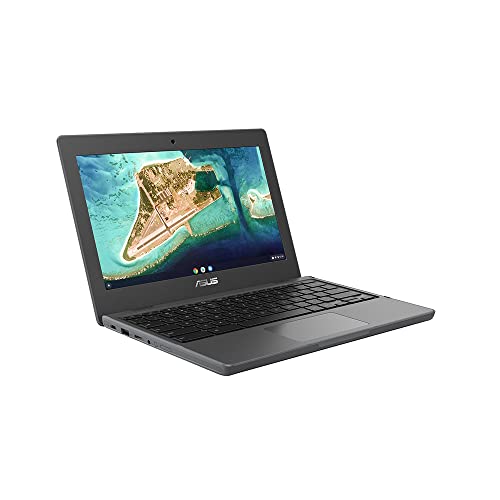
| Display | 11.6-inch TN, 1366x768 |
| Operating System | ChromeOS |
| Ports | 2x USB-C, 2x USB-A, 1x microSD, 1x 3.5mm |
| Warranty | 3 years (ASUS) |
| Price | £299.99 |
Performance Benchmarks
The Celeron N4500 sits at the bottom of the modern Intel laptop lineup, and benchmark numbers reflect that. In Octane 2.0 (Chrome's own JavaScript benchmark, which is the most relevant test for a Chromebook), Jasper Lake Celeron chips typically land around 30,000 to 35,000 points. That's well behind even a mid-range ARM chip or an Intel Core i3 from a couple of years ago, but it's meaningfully ahead of older Apollo Lake Celerons that populated budget Chromebooks before this generation. So there has been progress, even if it's incremental.
What does that mean in practice? ChromeOS is a lightweight operating system and it's been optimised to run well on modest hardware. Booting is quick. Opening apps is quick. Loading a Google Doc is quick. Where you start to feel the limits is when you pile on the tabs, run a video call while someone else is sharing their screen, or try to do anything in Linux mode (which is an option on ChromeOS but genuinely struggles on 4GB of RAM). The N4500 also only has two cores, so anything that wants to use threading, like a complex spreadsheet recalculation or a heavier web app, will feel noticeably slower than it would on even a budget AMD or Intel Core machine.
For the intended audience, schools and light home users, none of this is a dealbreaker. The chip does what ChromeOS needs it to do. But it's worth being honest: if you're coming from a Windows laptop with a Core i5 and expecting a similar experience, you'll notice the difference. And if you're hoping to use this as a Linux machine or run demanding Android apps regularly, you're going to be frustrated. This is a light-use machine. It performs like one.
One thing: because the N4500 runs cool and ChromeOS keeps background processes minimal, sustained performance is actually more consistent than you'd expect from a chip with these numbers. It doesn't throttle badly because it doesn't get hot enough to need to. That's a genuine advantage over some budget Windows machines that start fast and then slow down under load.
Display Analysis
The screen is an 11.6-inch TN panel running at 1366x768. That resolution gets a lot of grief, and some of it is deserved, but at 11.6 inches the pixel density is actually around 135 PPI, which isn't as bad as the numbers make it sound. Text is readable. Icons aren't blurry. You're not going to be editing photos or watching HDR content on it, but for a Chromebook at this price aimed at classroom use, it's adequate.
The TN panel is the bigger issue. TN screens have narrow viewing angles, which means if you tilt the screen slightly off-axis, colours shift and the image washes out. Sitting directly in front of it, it looks fine. Lean to the side or look from above and it gets ugly fast. That's just the nature of TN. It's cheaper to produce than IPS, which is why it's here, and in a school environment where kids are staring straight at their own screen it probably doesn't matter much. But if you were hoping to share your screen with someone next to you, or use it on your lap at an angle, it's not ideal.
Brightness is not specified in the verified data, so we won't invent a number. What owner reviews suggest is that it's usable indoors without issue but can struggle near bright windows or in direct light. That's consistent with what you'd expect from a budget TN panel at this price point. Outdoors use is probably a no. Indoors, in a classroom or at a desk, it's fine. Don't expect anything more and you won't be disappointed.
Battery Life
ASUS doesn't publish a specific battery life figure in the verified listing data, so we're working from what owner reviews consistently describe. The picture is broadly positive. Multiple owners mention getting through a full school day without needing to plug in, which for a device aimed at education is exactly what you want to hear. The Celeron N4500 is genuinely efficient, ChromeOS doesn't waste power on unnecessary background processes, and the 1366x768 display doesn't demand much from the battery either.
Realistically, for light use, browsing, Google Docs, the odd video, you're looking at somewhere in the region of eight to ten hours based on owner reports. That's a good result for a budget machine. Heavier use, video calls, lots of tabs, will pull that down. But for the core use case this laptop is built for, it should comfortably last a school day or a long working session without drama.
Charging is via USB-C, which is genuinely useful. It means you can use a standard USB-C charger, a phone charger in a pinch, or a laptop power bank if you have one. The two USB-C ports give you flexibility on which side you charge from, which is a small but genuinely nice touch when desks are awkward. Charge times aren't specified in the verified data, so we won't guess at figures, but USB-C PD charging on a small battery like this is typically fairly quick.
One thing: because the battery life is genuinely good, this is one of those laptops where the manufacturer's claim and real-world experience seem to be reasonably aligned, at least for light use. That's not always the case at this price. Owner reviews back it up. If battery life is a priority, this is one of the CR1100's genuine strengths.
Portability
At 11.6 inches, this is a small laptop. It'll fit in most bags without dominating them, which matters if you're a kid carrying it alongside textbooks, or an adult who doesn't want their bag to feel like a rucksack full of bricks. Weight isn't specified in the verified listing data, but 11.6-inch Chromebooks in this class typically come in around 1.2 to 1.4kg, which is light enough to carry without thinking about it.
The footprint is compact. Smaller than a standard A4 sheet of paper in both directions, which means it slips into a sleeve or a bag compartment with room to spare. The rugged build adds a bit of bulk compared to a thin-and-light consumer machine, but the all-round rubber bumper is part of the deal here. You're trading a few millimetres of thickness for a machine that can survive being dropped. For a school bag or a busy commute, that's a sensible trade.
The USB-C charging means you don't need to carry a proprietary brick with you. Any decent USB-C charger will do, and if you already carry one for your phone, you might not need a separate charger at all. That's a meaningful portability win that often gets overlooked in the specs. For anyone who travels light, it matters.
Keyboard & Trackpad
The keyboard is spill-resistant, which ASUS explicitly calls out as one of the rugged features. That's not just marketing. In a school environment, or honestly in any environment where someone might knock a drink over, a spill-resistant keyboard is a genuine practical feature. It won't survive being submerged, but it'll handle the kind of accidental splashes that kill normal laptops.
On an 11.6-inch chassis, the keyboard is going to be smaller than full-size, and that's just physics. Owner reviews don't flag it as a major issue, which suggests it's usable for the intended audience, kids and light typists, without being actively frustrating. ChromeOS keyboards also have a slightly different layout to Windows, with a dedicated search key where Caps Lock usually lives and no function row in the traditional sense. If you're coming from Windows, there's a short adjustment period. After that, most people stop noticing.
The trackpad on budget Chromebooks at this price is typically functional rather than impressive. ChromeOS handles trackpad gestures well at the software level, so two-finger scrolling and pinch-to-zoom work reliably. Precision is adequate for general use. If you're doing anything that needs fine cursor control, a mouse is going to serve you better, but for everyday navigation it's fine. No backlight is mentioned in the verified data, so don't assume there is one.
Thermal Performance
The Celeron N4500 is a low-power chip, and in a small chassis like this one, that's a significant advantage. The CPU has a TDP of around 6W, which means it generates very little heat under normal use. ChromeOS also keeps background processes lean, so the chip rarely gets pushed hard enough to generate meaningful warmth. The result is a machine that stays cool to the touch during light work, which is exactly what you want if it's sitting on a child's lap for hours.
Under sustained load, temperatures will rise, but the N4500 doesn't have the thermal headroom to get genuinely hot. It'll throttle before it gets to the point of being uncomfortable. That throttling means performance drops under sustained heavy load, but for the tasks this machine is built for, you're unlikely to hit that ceiling. Web browsing, video playback, and document work don't push it anywhere near its limits.
The underside of the machine is where heat typically escapes on fanless or near-fanless designs. On the CR1100, owner reviews don't flag heat as a complaint, which is consistent with the N4500's thermal profile. Palm rest temperatures during typical use should be unremarkable. This isn't a machine that's going to burn your legs or make you uncomfortable in a long session. That's a genuine practical benefit that gets underrated in spec-sheet comparisons.
Acoustic Performance
The Celeron N4500's low TDP means the CR1100 can run passively or near-passively in many situations. During light use, browsing, typing, watching a video at moderate brightness, it's likely to be essentially silent. That's a real advantage in a classroom or a quiet office. A machine that hums away in the background is distracting. One that sits there silently is not.
Under heavier load, if there is a fan, it may spin up. But because the N4500 doesn't generate much heat, the fan doesn't need to work hard or often. Owner reviews don't mention fan noise as a complaint, which is a reasonable signal that it's not a problem in everyday use. Compare that to some budget Windows laptops at similar prices where the fan runs almost constantly and can be genuinely irritating in quiet environments.
For library use, classroom use, or video calls where you don't want the laptop competing with your voice, the CR1100 should be fine. It's not a machine that announces itself. That matters more than people give it credit for, especially in shared spaces.
Ports & Connectivity
The port selection on the CR1100 is genuinely good for a budget 11.6-inch machine. Two USB-C ports means you can charge from either side, which is a small quality-of-life thing that makes a real difference in practice. Two USB-A ports means you can plug in a mouse and a USB drive simultaneously without needing a hub. The microSD slot is useful for cheap local storage expansion. And the 3.5mm headphone jack means wired headphones work without an adapter, which matters in a school where Bluetooth isn't always practical.
WiFi and Bluetooth specs aren't detailed in the verified listing data, so we won't speculate on the exact standard. What's confirmed is that wireless connectivity is present, and owner reviews don't flag it as a problem. For a school or home environment, that's the relevant bar, though if this laptop spends much of its life on café, airport and hotel networks it's worth pairing it with a good VPN to keep your connection safe from snooping on shared Wi-Fi. The Wi-Fi Alliance has pushed for increasingly capable standards in recent years, and even budget devices at this level typically support at least Wi-Fi 5.
The port layout is worth thinking about practically. Having USB-C on both sides and USB-A available means this is a machine you can actually use without carrying a dongle bag. That's not a given at this price. Some budget Chromebooks scrimp on ports and leave you needing adapters immediately. The CR1100 doesn't do that.
- 2x USB-C
- 2x USB-A
- 1x microSD card reader
- 1x 3.5mm headphone/microphone jack
Webcam & Audio
Webcam resolution isn't specified in the verified listing data. Budget Chromebooks at this price typically come with a 720p camera, which is functional for video calls but not flattering. In good light, 720p is perfectly adequate for Google Meet or Zoom. In low light, it'll be grainy. That's just the reality of a budget webcam. For classroom video calls or a quick catch-up, it does the job. Don't expect it to make you look like you're on a professional setup.
The microphone situation is similar. Built-in mics on budget laptops are generally fine for voice calls in a quiet room and less fine in noisy environments. Owner reviews don't specifically flag microphone quality as a problem, which is a reasonable signal that it's at least adequate. If you're doing a lot of video calls in noisy spaces, a headset with a dedicated mic is always going to serve you better regardless of what laptop you're using.
Speaker quality on an 11.6-inch budget machine is never going to be impressive. The physical space for drivers is limited and the budget doesn't stretch to premium audio components. For YouTube videos and the occasional bit of music in a quiet room, it'll do. The 3.5mm jack means you can plug in decent headphones or external speakers when audio quality actually matters, which is the sensible approach.
Build Quality
This is where the CR1100 genuinely earns its price. ASUS has built this thing to take punishment. The all-round rubber bumper is a physical feature you can see and feel, designed to absorb the impact of drops. The hinge is described as ultra-tough, and the I/O ports are specifically tested for the repeated stress of plugging and unplugging things, which is exactly the kind of wear that kills cheaper laptops over time. ASUS claims it meets MIL-STD-810H durability standards, which is a US military specification covering shock, vibration, temperature, and humidity resistance. That's not just a sticker. It's a meaningful test that cheap consumer laptops don't bother with.
The drop resistance claim is specific: up to 120cm, which ASUS notes is more than standard desk height. That's a practical and honest way to frame it. Kids drop things. Laptops fall off desks. A machine that can survive that without cracking the chassis or shattering the screen is genuinely more useful in the real world than a thinner, lighter machine that doesn't survive its first fall. Owner reviews back this up, with multiple people commenting on the solid, sturdy feel of the build.
The Antibacterial Guard treatment is a feature that sounds like marketing but is actually backed by the ISO 22196 standard, which is an internationally recognised test for antibacterial surface treatments. ASUS claims it inhibits bacterial growth by over 99% over 24 hours. Whether that matters to you depends on your use case. For schools, where laptops are shared between multiple kids, it's a genuinely practical feature. The fact that the surface can also withstand alcohol-based cleaning products means you can actually clean it properly without worrying about damaging the finish. That's a real-world benefit in any shared environment.
The keyboard deck flex and lid rigidity aren't specifically called out in owner reviews as problems, which is a good sign. Budget laptops often have flex on the keyboard deck that makes typing feel imprecise. The rugged build here seems to translate into a machine that feels solid rather than plasticky, even if the materials are still primarily plastic rather than aluminium or magnesium. It's built for durability, not for looking premium on a boardroom table.
How It Compares
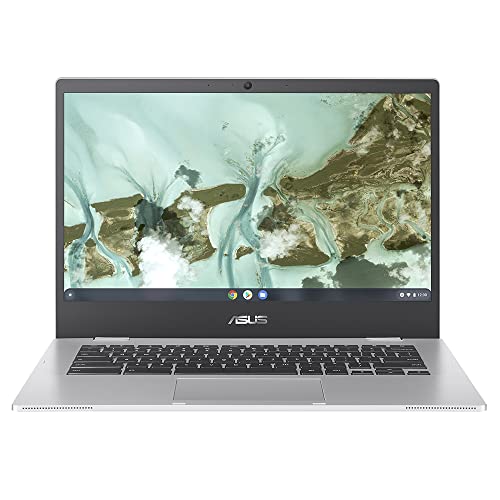
The CR1100's main competition in the budget rugged Chromebook space comes from two directions: the Lenovo 300e Chromebook and the HP Chromebook 11 G9 EE. Both are aimed at similar education and light home use markets, both sit in the same general price bracket, and both make similar rugged claims. Understanding where the CR1100 wins and loses against these two helps you work out whether it's the right choice for your specific situation.
The Lenovo 300e is a genuine rival. It offers similar rugged credentials and is widely used in schools. Where it differs is in the hinge design, the 300e is available in a 360-degree convertible version that the CR1100 doesn't offer. If you want a touchscreen or tablet mode, the 300e has an edge. If you just want a traditional clamshell that's built tough, the CR1100's three-year warranty and antibacterial treatment start to look more attractive.
The HP Chromebook 11 G9 EE is another school staple. HP's education line has strong IT department support and wide deployment, but the G9 EE's specs are similar to the CR1100 and it doesn't always come with a three-year warranty as standard. The CR1100's warranty inclusion at this price is a genuine differentiator. For a school or parent buying a machine that needs to last three years without expensive repairs, that warranty is worth real money.
| Feature | ASUS CR1100 (B0BLH32QHR) | Lenovo 300e Chromebook | HP Chromebook 11 G9 EE |
|---|---|---|---|
| CPU | Intel Celeron N4500 | Intel Celeron N4120 / MediaTek | Intel Celeron N4500 |
| RAM | 4GB | 4GB | 4GB |
| Storage | 64GB eMMC | 32GB to 64GB eMMC | 32GB to 64GB eMMC |
| Display | 11.6-inch TN 1366x768 | 11.6-inch IPS or TN 1366x768 | 11.6-inch IPS 1366x768 |
| Rugged Rating | MIL-STD-810H | MIL-SPEC tested | MIL-STD-810H |
| Warranty | 3 years (included) | 1 to 2 years typically | 1 year typically |
| Antibacterial | Yes (ISO 22196) | No | No |
| Ports | 2x USB-C, 2x USB-A, microSD, 3.5mm | 2x USB-C, 2x USB-A, microSD | 2x USB-C, 1x USB-A, microSD |
| Price | £299.99 | Varies by config | Varies by config |
| Best For | Schools, rugged home use, long warranty peace of mind | Schools wanting convertible/touchscreen option | Schools with existing HP infrastructure |

Final Verdict
The ASUS B0BLH32QHR CR1100 is a budget Chromebook that knows exactly what it is and doesn't pretend otherwise. The Celeron N4500 is slow by modern standards, 4GB of RAM is tight, and the TN screen won't impress anyone who's used a decent IPS panel. But it's built like a tank, it's backed by a three-year warranty that most competitors charge extra for, it has a genuinely useful port selection, and it runs ChromeOS, which is genuinely well-suited to this kind of hardware. For schools, for kids, or for anyone who just needs a reliable light-use machine that can take a knock, it makes a strong case for itself. The 133 owner reviews averaging ★★★★½ (4.6) aren't an accident. People who buy this for the right reasons are generally happy with it.
Who should skip it? If you need to run Windows apps, you're in the wrong aisle entirely. If you're a heavy multitasker who lives in twenty tabs simultaneously, the 4GB RAM ceiling will frustrate you. If you care about screen quality for photo editing or video work, the TN panel isn't going to cut it. And if you're buying a laptop for an adult professional who needs proper performance, there are better options at similar and slightly higher prices. The CR1100 is not a general-purpose laptop for demanding users. It's a specific tool for specific jobs.
On value: at its current price of £299.99, the three-year warranty alone changes the maths significantly. Budget laptops at this price often come with one year of cover, and repairs or replacements on a machine that gets dropped regularly can easily cost more than the price difference. The rugged build, the antibacterial treatment, the decent port selection, and the warranty together make this a genuinely sensible buy for its target audience. I'd call it a solid seven out of ten for the budget tier. Not exciting, not flashy, but properly fit for purpose in a way that a lot of cheap laptops aren't.
One honest note: if you don't need the rugged build and the antibacterial features, and you're just after a basic Chromebook for light home use, there are cheaper, simpler options that will serve you just as well. The CR1100's premium over the most basic Chromebooks is justified by the durability features. If those don't matter to your situation, you might not need to pay for them. But if you're buying for a child, a school, or anyone who's going to treat the machine roughly, the extra investment in the CR1100 is genuinely worth it.
What works. What doesn’t.
6 + 6What we liked6 reasons
- MIL-STD-810H certified rugged build with all-round rubber bumper and 120cm drop resistance
- Three-year warranty included as standard, well ahead of most budget rivals
- Generous port selection including two USB-C, two USB-A, microSD, and a 3.5mm jack
- USB-C charging from either side removes the need for a proprietary power brick
- Antibacterial surface treatment meets ISO 22196, a genuine practical benefit in shared environments
- Consistent thermal and acoustic performance thanks to the low-TDP Celeron N4500
Where it falls6 reasons
- 4GB of RAM is tight even on ChromeOS, and cannot be upgraded
- TN panel has narrow viewing angles and limited brightness in strong ambient light
- Intel Celeron N4500 is a dual-core chip that struggles with heavy multitasking and Linux apps
- 64GB eMMC storage is modest and slower than an SSD
- No IPS display option, putting it behind some rivals such as the HP Chromebook 11 G9 EE on screen quality
- Not suitable for Windows apps, demanding Android apps, or any professional workload
Full specifications
12 attributes| Storage type | eMMC |
|---|---|
| Battery WH | 47 |
| Bluetooth | 5.2 |
| CPU | Intel Celeron N4500 |
| Display resolution | 1366x768 |
| Display size IN | 11.6 |
| GPU | Intel UHD Graphics (integrated) |
| Keyboard | spill-resistant chiclet keyboard |
| Launch year | 2021 |
| OS | Chrome OS |
| Panel type | TN |
| Ports | 2x USB-C, 2x USB-A, 1x microSD, 1x 3.5mm |
If this isn’t right for you
2 options
Frequently asked
7 questions01Is the ASUS CR1100 suitable for a primary school child?+
Yes. The rugged chassis, MIL-STD-810H drop resistance up to 120cm, spill-resistant keyboard, and antibacterial surface treatment all make it well suited to younger users. ChromeOS is also straightforward to manage and keep secure.
02Can the RAM be upgraded on the ASUS CR1100?+
No. The 4GB of RAM is soldered to the motherboard and cannot be upgraded by the user. What you buy is what you get, so if 4GB feels limiting for your use case, this model is not the right choice.
03Does the ASUS CR1100 support Android apps?+
Yes, ChromeOS supports Android apps through the Google Play Store. However, with only 4GB of RAM and a dual-core Celeron N4500, performance with demanding Android apps alongside a browser will feel sluggish. Simple apps work fine.
04What does MIL-STD-810H certification actually mean?+
MIL-STD-810H is a US military specification that covers resistance to shock, vibration, temperature extremes, and humidity. Passing this standard means the device has been tested against a defined set of physical stresses, not simply that it has a rubber bumper. It is a meaningful standard rather than a marketing claim.
05How does the ASUS CR1100 compare to the Lenovo 300e Chromebook?+
Both are rugged education-focused Chromebooks with similar specs. The Lenovo 300e is available in a 360-degree convertible version with a touchscreen, which the CR1100 does not offer. The CR1100 counters with a longer standard warranty of three years versus the 300e's typical one to two, plus ISO 22196 antibacterial treatment that the 300e does not include.
06Is the battery life good enough for a full school day?+
Owner reviews consistently indicate the CR1100 gets through a full school day on a single charge during typical light use. The efficient Celeron N4500 and the undemanding 1366x768 display both help here. Heavy use such as sustained video calls will reduce that figure.
07Can you charge the ASUS CR1100 with a standard USB-C phone charger?+
Yes. The CR1100 charges via USB-C, so any USB-C charger that supports the required power delivery should work in a pinch. The two USB-C ports also mean you can charge from either side of the machine, which is a practical convenience.