Video calls have become a daily fixture for remote workers, students, and families keeping in touch across the country. If your current machine stutters during Zoom meetings, drops frames on Google Meet, or simply lacks a decent webcam, upgrading does not have to cost a fortune. The sub-£300 bracket has improved considerably since 2023: Intel's N-series processors have replaced ageing Celeron chips in several models, and 8 GB RAM configurations are now available at prices that would have bought you 4 GB a year ago. This guide is aimed at anyone who spends a meaningful portion of their day on video calls and wants a reliable, lightweight machine that handles Teams, Zoom, Google Meet, and FaceTime without drama. We have focused exclusively on Chromebooks in this price range because ChromeOS offers the best balance of security, simplicity, and call performance per pound. Windows machines with comparable specs tend to cost more or compromise on build quality at this price point.
Quick Verdict
Best Overall: HP Chromebook 14 (B0F1DZBV2Y). Eight gigabytes of RAM, an Intel N100 processor, a 1080p IPS display, and 128 GB of storage make it the most capable all-rounder for video calls under £300.
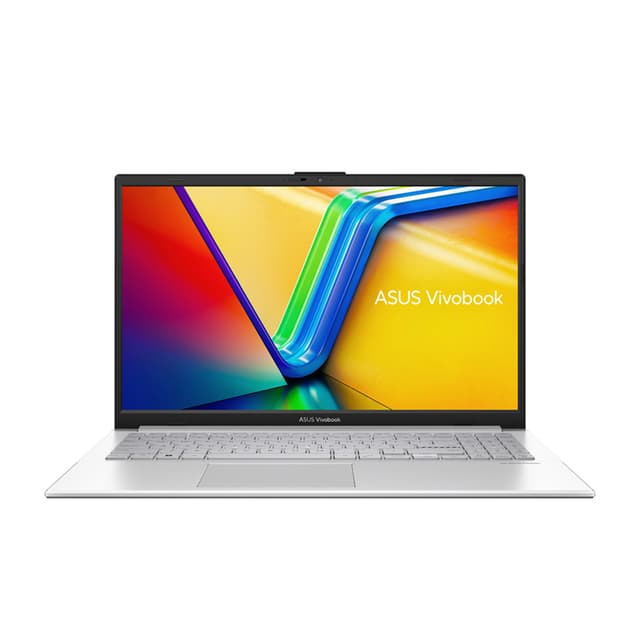
Best Value: ASUS Chromebook 14 CX1405CTA (B0G7227B4Y). At under £210, it delivers a 1080p IPS screen and a modern Intel Core 3 N355 chip, making it the sharpest picture per pound in this group.
The HP Chromebook 14 sits at the top of this list for one straightforward reason: it pairs 8 GB of RAM with Intel's N100 processor and a 1920x1080 IPS display at a price that stays comfortably under £300. For anyone whose working day revolves around video calls, that combination is hard to beat in this bracket.
The Intel N100 is a genuine step forward from the Celeron N4500 found in older budget Chromebooks. It handles multiple browser tabs, a background Spotify stream, and a 1080p Zoom call simultaneously without the stuttering that plagues 4 GB machines. Eight gigabytes of RAM is the sweet spot for video calling: ChromeOS, the video call application, and a handful of open tabs will comfortably sit within that headroom, leaving no scramble for memory when a colleague shares their screen.
The 14-inch IPS panel at 1920x1080 resolution is a significant advantage for video calls specifically. When you are looking at your colleague's face for hours at a time, a sharp, colour-accurate IPS panel reduces eye strain considerably compared to the TN panels found on cheaper alternatives. The 1080p resolution also means that if you are the one being seen, your webcam feed will render at its native resolution on your own screen, making it easier to frame yourself correctly.
Storage is 128 GB of flash storage, which is generous for a Chromebook. Most video call applications store very little locally, but the extra space is welcome if you download recordings or use Android apps from the Play Store. The port selection is modest: one USB-C, one USB-A, and a 3.5mm headphone jack. The single USB-C will handle charging and external display duties, but users who need to connect multiple peripherals simultaneously will want a small USB hub.
The 14-inch form factor keeps the machine portable enough to move between rooms or carry to a co-working space, while the screen is large enough to feel comfortable during long calls. HP's Chromebook line has a solid reputation for build quality at this price, and the machine feels more substantial than its cost suggests.
Verdict: The HP Chromebook 14 is the most capable video call machine in this group. Eight gigabytes of RAM and a 1080p IPS display at this price make it the clear best overall pick.
Pros
- 8 GB RAM handles simultaneous video calls, screen sharing, and multiple tabs without slowdown
- 1920x1080 IPS panel delivers sharp, colour-accurate image for long call sessions
- 128 GB storage is generous for a sub-£300 Chromebook
Cons
- Only one USB-C port, so a hub is needed for multi-peripheral setups
- Port count is limited compared to similarly priced ASUS models
The ASUS Chromebook 11 CR1100 occupies a specific niche in this group: it is the smallest and most portable machine on the list, and it comes with a three-year warranty that none of the other options match. At around £228, it is not the cheapest, but the warranty and the robust build make it the most sensible choice for students, younger users, or anyone who needs a machine that can take the occasional knock.
The 11.6-inch form factor means this is genuinely pocketable in a bag, and the Intel Celeron N4500 processor handles ChromeOS and video call applications adequately. The 4 GB of RAM is the same as the CX1405 and CX1405CTA, and the same caveats apply: focused single-application use is fine, but heavy multitasking will push the limits. For a student joining a video tutorial or a child video calling a grandparent, 4 GB is more than sufficient.
The port selection is the best in this group: two USB-C ports, two USB-A ports, a microSD card slot, and a 3.5mm audio jack. Four ports on an 11.6-inch Chromebook is genuinely impressive and means you are unlikely to need a hub for typical peripherals. The microSD slot is useful for expanding storage, which matters given the 64 GB eMMC internal capacity.
The display is the main compromise: 1366x768 resolution on a TN panel. For video calls, this means the image quality is noticeably softer than the 1080p IPS panels on the HP and the CX1405CTA. The TN panel also has narrower viewing angles, which matters less on an 11.6-inch screen where you are always sitting directly in front of it, but the lower resolution does make faces on calls look less crisp. If display quality is your priority, the CR1100 is not the right choice. If portability, durability, and a three-year warranty matter more, it earns its place.
The Intel UHD Graphics handles video decoding without issue, and ChromeOS keeps the machine running smoothly even on modest hardware. The CR1100 is also MIL-STD-810H rated for durability, which adds to its appeal for users who need a machine that can handle real-world use.
Verdict: The ASUS Chromebook 11 CR1100 is the best pick for portability, durability, and warranty coverage. The lower-resolution TN display is a trade-off, but the four-port selection and three-year warranty justify the price for the right user.
Pros
- Three-year warranty provides reassurance that no other model in this group matches
- Four-port selection (2x USB-C, 2x USB-A, microSD, 3.5mm) is the most generous in the group
- Compact 11.6-inch form factor and robust build suit students and frequent travellers
Cons
- 1366x768 TN display produces noticeably softer, less colour-accurate video call images than 1080p IPS alternatives
- Intel Celeron N4500 is an older architecture than the N100 or Core 3 N355 found in rival models
Buying Guide
How Much RAM Do You Need for Video Calls?
The most common question from buyers in this category is how much RAM is needed for Zoom, Teams, or Google Meet. The honest answer is that 4 GB is the minimum for ChromeOS-based video calls, and it works adequately when you are disciplined about keeping other tabs and applications closed. However, 8 GB is the recommended amount for anyone who multitasks during calls, shares their screen, or keeps reference documents open alongside the call window. ChromeOS is more memory-efficient than Windows, which is why 4 GB is more viable here than it would be on a Windows machine, but 8 GB removes the risk of slowdowns entirely. If you are asking how much RAM you need for Zoom specifically, 8 GB is the safe answer for a smooth, uninterrupted experience.
Display Quality Matters More Than You Might Expect
For video calls, the display affects both how you see your colleagues and how you frame yourself. A 1080p IPS panel delivers sharper images of the people you are speaking to, reduces eye strain during long sessions, and makes it easier to read shared documents or presentations. TN panels, like the one in the ASUS CR1100, are cheaper to produce but deliver narrower viewing angles and less accurate colours. If you spend more than two hours a day on video calls, a 1080p IPS display is worth prioritising even if it means spending slightly more.
Why Might a Laptop Struggle With Video Calls?
The most common reasons a laptop struggles with video calls are insufficient RAM, an underpowered processor, and a slow or unstable internet connection. On the hardware side, 4 GB of RAM with many browser tabs open will cause the operating system to use slow storage as virtual memory, which causes stuttering. An older Celeron processor may struggle to encode and decode 1080p video simultaneously, particularly if the call application is running in a browser alongside other tabs. On the software side, outdated drivers or a browser that has not been updated can cause compatibility issues with call applications. ChromeOS handles updates automatically, which removes one common cause of video call problems on Windows machines.
ChromeOS Versus Windows for Video Calls Under £300
At this price point, ChromeOS is the better operating system for video calls. Windows machines under £300 typically run on slower processors with less RAM and slower storage, because the Windows licence itself adds to the cost. ChromeOS is free for manufacturers to use, which means more of the budget goes into hardware. ChromeOS also boots faster, updates silently in the background, and is less susceptible to malware, all of which contribute to a more reliable video call experience. Google Meet runs natively on ChromeOS, Zoom and Teams have dedicated ChromeOS applications, and the operating system handles memory management more efficiently than Windows at this price tier.
Ports and Connectivity
For video calls, the most important port consideration is whether the machine can charge while you are on a call without occupying the only USB-C port. Machines with a single USB-C port, like the HP Chromebook 14, require a hub if you want to charge and connect a headset or external display simultaneously. Machines with dual USB-C ports, like the ASUS CX1405CTA, handle this more gracefully. A dedicated 3.5mm audio jack is worth having if you use wired headphones or a headset, as wired audio eliminates the latency and connectivity issues associated with Bluetooth during calls.
The HP Chromebook 14 (B0F1DZBV2Y) is the overall winner for video calls under £300. Its combination of 8 GB RAM, an Intel N100 processor, a 1920x1080 IPS display, and 128 GB of storage addresses every key requirement for a reliable, comfortable video call experience. The 8 GB RAM means it handles multitasking without memory pressure, the 1080p IPS panel reduces eye strain and delivers sharp images of colleagues, and the N100 processor has the headroom to encode and decode video without dropping frames. The port selection is the one area where it falls short of the ASUS CX1405CTA, but a small USB hub resolves that limitation at minimal cost. For anyone who spends significant time on Zoom, Teams, or Google Meet and wants the best possible experience for under £300, the HP Chromebook 14 is the machine to buy.