VIVID·REPAIRS/THE FIELD GUIDE/LAPTOPUpdated 16 October 2026Prices live from Amazon UK
Best of · UK · Field of 6
Best Budget Laptops UK 2026: Six Under £500
By the Vivid Repairs deskUpdated 16 October 20266 ranked picks585 owner ratings read
As an Amazon Associate we may earn from qualifying purchases. We have not handled these products. Everything below is judged on published specifications, the owner ratings on the UK listings and our own product reviews, and the ranking stays independent of what any of them pay.
As an Amazon Associate, we may earn from qualifying purchases. Our ranking is independent.
Amazon confirms the live price, seller, stock and delivery. Prices here are read from the live listing through the day; a pick Amazon cannot supply is marked as such, and where the list has one in stock it is offered.
vividrepairs.co.uk / best-laptops-under-500Updated 16 October 2026 · Prices from the live Amazon UK listing
§ The field
Six picks, on one page
Ranked on fit for the job in the title, not on raw specification. Tap any one to jump to the argument for it. Prices are the live Amazon UK figure, read today; a pick with no figure is out of stock and says so in its entry.
Proper PCIe SSD delivers noticeably snappier day-to-day performance than eMMC-equipped rivals at this price
IPS anti-glare display with DC Dimming provides comfortable viewing over long sessions and works well near windows
Generous port selection including an SD card reader, two USB-A 3.2 ports, and HDMI without needing any dongles
Where it gives up
Only four CPU threads means sustained heavy workloads such as rendering or compiling will hit a noticeable ceiling quickly. 256GB of local storage is tight, especially once Windows and applications are installed, making cloud or external storage almost essential.
Rated 4.3 by 111 owners. Our review scores it 7.5.
Intel Core i3-1215U delivers noticeably better performance than the Celeron and Pentium Silver chips found in most rivals at this price
Real-world battery life of 7 to 9 hours on mixed use is sufficient for a full working day without reaching for a charger
Generous port selection including two USB-C ports with Power Delivery and DisplayPort, two USB-A ports, and an HDMI port
Where it gives up
250-nit display brightness is limiting outdoors and near bright windows, a consistent complaint in owner reviews. 128GB of storage requires discipline, particularly for users who install many Android apps or store local media.
Rated 4.4 by 330 owners. Our review scores it 8.0.
256GB NVMe SSD makes the system feel noticeably quicker than cheaper Chromebooks using eMMC storage
1920x1200 IPS display offers 10% more vertical screen space than most rivals at this price
Excellent port selection including dual USB-C 3.2 Gen 2, dual USB-A, and HDMI means fewer dongles required
Where it gives up
ChromeOS cannot run native Windows or macOS applications, which is a hard limit for some users. HDMI port is version 1.4b, limiting 4K external displays to 30Hz refresh rate.
Rated 3.8 by 20 owners, which is thin. Our review scores it 8.0.
The rules this ranking ran under, in plain sight: what we read, what we weighed and what no merchant can move.
How we picked
Our editors evaluated 6 Laptop options against the criteria readers actually weigh up: price, real-world performance, build quality, warranty, and UK availability. Picks lean toward what we'd recommend to a friend buying today, not specs-on-paper winners.
Editorial contextEditor notes from individual reviews, not press releases.
Live UK pricingRefreshed from Amazon UK twice daily.
No paid placementsAffiliate commission doesn't change what wins.
The full guideEverything behind the shortlist above: the spec sheet, the write-ups in full, our method and the verdict.
§ Editorial · The full guide · five proofs, nothing hidden
The Doubt Index.
The shortlist told you what we picked; this zone shows the working. Come in through whichever doubt you’re carrying, or read straight down; we’d rather you checked us than trusted us.
Here’s the sheet the desk works from, kept deliberately factual. Every row is written to be checked against the retailer’s current listing, and you should check. The table scrolls sideways inside its own frame; the page underneath stays still.
Scroll sideways →6 rows · 6 columns · Prices swap to the live figure at render
You can, and you should. What follows is the part a sheet can’t do: the working between what these products have and what your desk actually needs, kept word for word.
£500 buys a perfectly good everyday laptop now: a Full HD screen, 8GB of memory and quick storage, on Windows or on ChromeOS. These are the six we'd point someone towards. Each has a written review on this site and was listed new and in stock on Amazon UK when we checked on 16 October 2026, from marketplace sellers rather than Amazon itself, so check the seller and the returns terms on the offer you pick. We haven't lab-tested them. The details come from the maker's own specification page where we could reach it and from the seller's listing where we couldn't, and each write-up says which.
What a budget laptop gets you in 2026
Windows or ChromeOS?
Choose the operating system around the software you need. ChromeOS runs a browser, Android apps and Google's own tools. It starts quickly, updates itself and doesn't need antivirus. It can't run Windows desktop programs, so full desktop Office, most PC games and a lot of specialist software for work and study are out. Windows runs desktop programs, but each one still has its own processor, memory and graphics requirements, so check those against the laptop too.
A Chromebook also has a fixed end date for updates, which Google publishes for every model. The four here run from June 2032 to June 2035. The clock starts when the model's underlying platform was released, not when you buy the laptop, so check the published date even for a model that's newly on sale.
How much memory and storage
8GB is the sensible minimum for either system now. 4GB still works on ChromeOS for light use, and it's a squeeze on Windows. Memory soldered to the board can't be added to later, so check the exact model before you assume you can upgrade.
Storage speed decides how long updates and large file copies take. The label alone (SSD, UFS or eMMC) doesn't tell you exactly how fast a drive is, but on Windows an SSD is the one to look for. On a Chromebook 128GB is usually plenty because files live online. On Windows 256GB is more comfortable, because the system itself takes a big slice.
The screen
Full HD, 1920x1080, is standard under £500 and worth insisting on. A 1366x768 screen at this price is a step backwards. A typical 250-nit budget screen is fine indoors. 300 nits is a little brighter, and neither copes well with sunshine. A 16:10 screen, like the Acer's, is taller and better for documents.
What you won't get under £500
Demanding games and big video projects need more capable hardware than these six offer, though light games and simple edits are possible. Battery life and build vary model by model, so judge them one laptop at a time. If performance matters most, our laptops under £700 and under £1,000 pages and our main best laptops UK guide are the next places to look.
Six write-ups, none folded away. We don’t lab-test, so every line below sticks to what can be defended: the published sheet, the owner ratings on the UK listings and our own reviews.
Best Value Overall
1. HP 15-fc0045sa (Ryzen 3 7320U, 8GB, 256GB SSD)
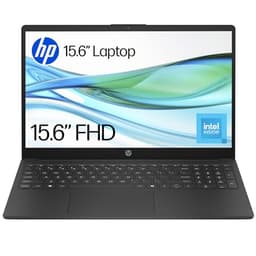
For everyday Windows use, this is the HP we'd start with. HP specifies the 15-fc0045sa with AMD's Ryzen 3 7320U, 8GB of memory, a 256GB SSD and Windows 11 Home, on a 15.6-inch Full HD screen.
Storage speed shows most during Windows updates and when you open big files, which is one reason this HP is first. The four-core, eight-thread 7320U comes from AMD's low-power U series and suits office work and video calls. Demanding games and long video edits need a more powerful laptop.
Windows and its updates take a fair share of 256GB before you've saved anything, so if you keep a lot of photos or video, plan on cloud storage or a USB drive.
Pros
Windows 11 with an SSD at this price
Ryzen 3 7320U has four cores and eight threads
15.6-inch Full HD screen
Cons
256GB needs planning if you keep lots of photos or video
Limited performance for demanding games or heavy editing
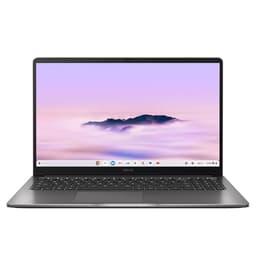
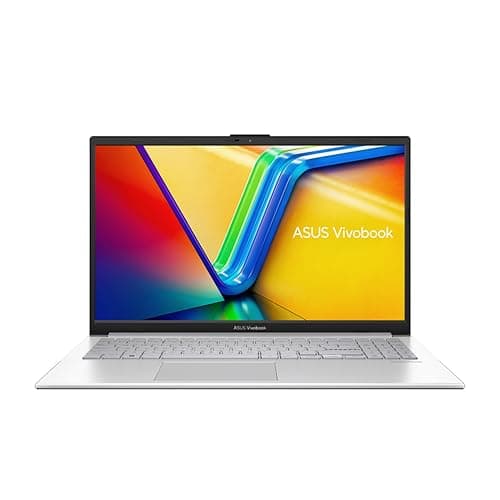
ASUS's specification page for the CX34 lists a six-core Intel Core i3-1215U, a backlit keyboard and a 1080p webcam with a privacy shutter. The 14-inch Full HD anti-glare screen is rated at 250 nits, so it's a laptop for indoors. The version we link has 128GB of storage and 8GB of LPDDR5 memory soldered to the board.
The Chromebook Plus badge means Google's minimums for processor, memory, storage, screen and webcam are met. ASUS lists two USB-C ports that both charge the laptop and drive a monitor, two USB-A ports and HDMI, so a mouse, a memory stick and a second screen can all go in at once without an adapter.
ASUS quotes a 50Wh battery and a starting weight of 1.44kg, and Google lists automatic updates for the CX3402CBA until June 2032.
Pros
Intel Core i3-1215U with six cores
Backlit keyboard and a 1080p webcam with shutter
Two USB-C, two USB-A and HDMI
Updates until June 2032
Cons
250-nit screen is dim outdoors
8GB of memory that can't be upgraded
128GB in this version; a 256GB version is also sold
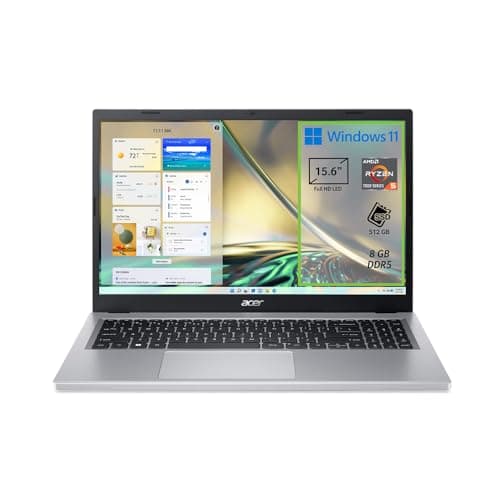
This Acer suits coursework done in Google Docs, the web version of Microsoft 365 or a university portal. The seller lists an Intel Core i3-1315U, 8GB of memory, a 256GB SSD and a 14-inch 1920x1200 screen; Acer's own page wasn't reachable when we checked.
A 16:10 screen shows a few more lines of an essay or a spreadsheet than the usual 16:9, so there's less scrolling through long documents. The 256GB SSD is twice the storage of the CX34 above, handy if you download lecture recordings or work offline on a train.
Google lists automatic updates for the CB514-5H until June 2033. It runs ChromeOS, though, so check nothing on your course needs Windows software first. Statistics packages, CAD and some exam tools often do.
This 15.6-inch Chromebook matches the two HPs for screen size; none of the 16-inch laptops we've reviewed was on sale new under £500 when we checked. ASUS specifies a Full HD anti-glare screen at 300 nits and an eight-core Intel Core 3 N355. Both USB-C ports charge it and drive a monitor, and there's one USB-A port and HDMI as well. The 1080p webcam has a privacy shutter.
A screen this size suits someone who mostly works at a table. ASUS gives a starting weight of 1.59kg, and its 300 nits is a step up from the CX34's 250, though direct sun will still wash it out. Google lists automatic updates for the CX1505CTA until June 2035, the longest on this page.
Check that a charger is included, because ASUS sells some versions without one. Check the storage too: ASUS lists eMMC for this model, while the Amazon listing calls it a 256GB SSD.
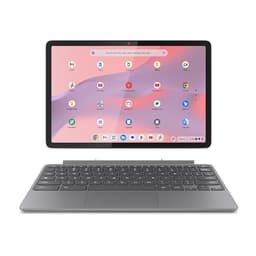
This is a tablet first. The seller lists an 11-inch 1920x1200 screen, a MediaTek Kompanio 838, 4GB of memory and 128GB of eMMC storage, with a USI Pen 2, a folio stand and a folio keyboard in the bundle. Lenovo sells the Duet in more than one bundle, so make sure the keyboard is still included on the offer you choose.
It's the cheapest laptop here and suits light schoolwork or streaming. With 4GB, keep the multitasking light, especially a video call on top of several tabs. Google lists the 11-inch ninth-generation Duet for automatic updates until June 2034.
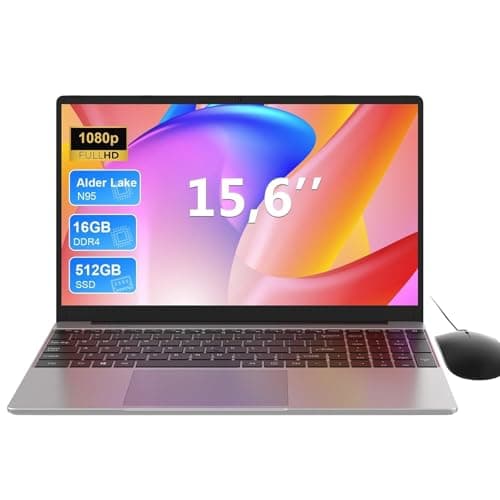
This is our cheapest Windows pick, a sensible shared family machine or a first laptop for homework that needs Windows. The seller lists an Intel N100, 8GB of memory, 128GB of UFS storage and a 15.6-inch Full HD screen.
The N100 is a four-core chip built for low power. It handles a browser, Office and video calls, and slows down with heavier work. Windows and its updates leave little of the 128GB free for your files, so plan to keep documents in the cloud.
This page carries affiliate links; they never set the order. We don’t lab-test: rankings come from published specifications, the owner ratings on the UK listings and our own reviews.
How We Picked
Every laptop here has a written review on this site and was listed new and in stock on Amazon UK when we checked on 16 October 2026. All six offers were from marketplace sellers. We left out anything sold only used or refurbished. Where we could reach the maker's specification page we used it, and where we couldn't we used the seller's listing and said so. We haven't run these laptops through lab tests. Prices are pulled live from Amazon and change through the day.
This page covers our budget picks under £500, including one under £300. The under £300 and under £200 guides cover the tightest budgets.
A crown that can’t be argued with isn’t proof of quality; it’s proof nobody checked. So rather than restate the winner’s virtues, we defend the crown against the strongest cases to take it.
HP 15.6" Laptop
Cross-examination · Three challengers, taken seriously
The £71 argumentASUS Chromebook 14 CX3402CBA 14.0" Full HD Chromebook Laptop
At £349.00 today against the winner’s £419.95, its strongest case is the £71 it hands back. Owners rate it 4.4 from 330 ratings. Our review scores it 8.0 against the winner’s 7.5. If the cheaper pick covers the job you actually do, take the saving with a clear conscience. The crown stays where it is because rank follows fit for the job in the title, not the receipt, and its full argument is in the write-up above.
Prices checked (this pick) and (the winner) · Details
The £59 argumentacer Chromebook Plus 514 CB514-5H Laptop
At £361.00 today against the winner’s £419.95, its strongest case is the £59 it hands back. Owners rate it 3.8 from 20 ratings. Our review scores it 8.0 against the winner’s 7.5. If the cheaper pick covers the job you actually do, take the saving with a clear conscience. The crown stays where it is because rank follows fit for the job in the title, not the receipt, and its full argument is in the write-up above.
Prices checked (this pick) and (the winner) · Details
The £57 argumentASUS Chromebook Plus 15 CX1505CTA Laptop
At £362.67 today against the winner’s £419.95, its strongest case is the £57 it hands back. Owners rate it 4.4 from 31 ratings. Our review scores it 7.5 against the winner’s 7.5. If the cheaper pick covers the job you actually do, take the saving with a clear conscience. The crown stays where it is because rank follows fit for the job in the title, not the receipt, and its full argument is in the write-up above.
Prices checked (this pick) and (the winner) · Details
The original verdict, preserved in full
Final Verdict: Best Budget Laptops UK 2026
The HP 15-fc0045sa is our first choice for everyday Windows use, mostly for its SSD. For browser work the ASUS Chromebook Plus CX34 adds a backlit keyboard, USB-C, USB-A and HDMI, with updates until 2032. The Acer's taller screen helps with long essays, and the Duet doubles as a tablet.
We'd pick the HP 15-fc0045sa for everyday Windows use. It comes with Windows 11, a Ryzen 3 7320U, 8GB of memory and a 256GB SSD for under £500. For browser work, consider the ASUS Chromebook Plus CX34, with a Core i3, a backlit keyboard and USB-C, USB-A and HDMI.
Choose Windows if the software you need runs on Windows, then check the laptop meets that program's requirements. Choose a Chromebook for work in a browser or Google's apps. It starts quickly and updates itself until the date Google publishes for that model.
The Lenovo Duet's 4GB is enough for light schoolwork or streaming on ChromeOS. On Windows it's a squeeze. Aim for 8GB, and check the model's upgrade options before buying.
A Chromebook gets updates until the end date Google publishes for that model; for the four here that's June 2032 to June 2035. A Windows laptop keeps getting updates while Microsoft supports the version it runs. Storage, memory, battery wear and how easily it can be repaired all decide how long it stays useful.
Our best laptops under £300 and under £200 guides cover those budgets, and most of the good options there are Chromebooks.
That’s the field: six budget laptops, ranked for the job in the title and nothing else. We read the published specifications, the owner ratings and our own reviews; we haven’t handled these products, and no maker moves the order. Figures checked against the live Amazon UK listings, page updated 16 October 2026.
The Vivid Repairs desk
1Our top pickHP 15.6" Laptop | AMD Ryzen 3 7320U Processor | 8 GB RAM | 256 GB SSD | AMD Radeon Graphics | FHD Display | Up to 11hrs 15 mins battery | Windows 11 | Dual Speakers | Jet Black | 15-fc0045saScored 7.5/10Compare all →Buy on Amazon →