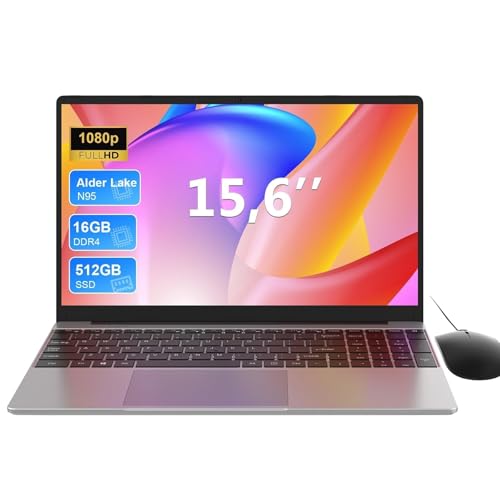
Engineering students have specific demands that separate them from the average undergraduate. You need enough processing power to run CAD sketches, MATLAB scripts, Python environments and simulation tools, yet you also need a machine that survives a full day of lectures on a single charge and fits inside a rucksack without wrecking your back. The under-£400 bracket has improved significantly since last year: Intel's 12th-generation chips have filtered down into Chromebook territory, and AMD's Ryzen 3 7000-series now appears in sub-£400 Windows laptops. The catch is that many options in this price range are Chromebooks, which limits native software compatibility. This guide cuts through the noise for UK buyers, identifying the four strongest candidates across Windows and ChromeOS, with honest assessments of what each machine can and cannot do for an engineering workload.
Quick Verdict
Best Overall: HP 15.6" Laptop (AMD Ryzen 3 7320U), the only sub-£400 Windows machine here with a modern processor, full-HD IPS display, 8 GB RAM and a PCIe SSD, making it the most capable day-to-day engineering workhorse in the lineup.
Best Value: ASUS Chromebook 14 CX3402CBA (Intel Core i3-1215U), you get an i3-1215U, 8 GB RAM and 128 GB UFS storage in a ChromeOS wrapper, which handles Linux-based engineering tools surprisingly well and undercuts Windows rivals on price.
The ASUS CX3402CBA is the most capable Chromebook in this guide and one of the most interesting laptops in the entire sub-£400 UK market. Fitting an Intel Core i3-1215U, a genuine 12th-generation hybrid-architecture processor with two performance cores and four efficiency cores, into a Chromebook is a significant achievement. The i3-1215U is a fundamentally different class of chip from the Celeron and AMD A4 processors found in most budget Chromebooks: it handles multi-threaded workloads, Linux virtual machines and heavy browser tabs without the stuttering that plagues cheaper options.
The 8 GB of RAM is the other critical differentiator. Running the Linux development environment (Crostini) on ChromeOS with 8 GB means you can install Python, GCC, GNU Octave (a free MATLAB alternative), FreeCAD and similar open-source engineering tools and actually use them without constantly hitting memory limits. Students whose universities provide web-based or cloud-hosted versions of engineering software, or who are happy working in a Linux terminal, will find this machine handles a genuine engineering workload.
Storage is 128 GB in UFS format, which is faster than the eMMC found in cheaper Chromebooks. The 14-inch Full HD display keeps the footprint manageable, and the build quality typical of ASUS's CX-series Chromebooks is solid: these machines are designed to survive the rigours of student life. ChromeOS itself receives guaranteed security updates, and ASUS backs this model with a warranty appropriate for student use.
The key limitation is the operating system. If your engineering department requires native Windows software, you will need to use Linux alternatives or remote desktop solutions. For first-year students whose coursework is still largely mathematical and report-based, that is manageable. For third or fourth-year students running specialist simulation packages, the HP Ryzen machine above is the safer choice.
That said, the i3-1215U's performance headroom means this Chromebook ages better than Celeron-based alternatives. It will still feel capable in year three of a degree, whereas a Celeron N4500 machine may already feel sluggish by year two.
Verdict: The best Chromebook for engineering students who can work within ChromeOS and Linux, offering genuine performance at a price that undercuts comparable Windows hardware.
Pros
- Intel Core i3-1215U is a genuine 12th-gen hybrid chip, far ahead of Celeron alternatives at this price
- 8 GB RAM enables a usable Linux development environment with Python, GNU Octave and FreeCAD
- 128 GB UFS storage is faster than eMMC and more generous than most budget Chromebooks
Cons
- ChromeOS limits native Windows software compatibility, which is a real problem for some engineering departments
- No confirmed port specification in verified data, so peripheral connectivity is uncertain before purchase
The Lenovo Chromebook S345 occupies an interesting niche: it is one of the few budget Chromebooks to combine a Full HD IPS display with a 14-inch screen at under £250. For engineering students who spend hours reading papers, writing reports and working in browser-based tools, the quality of the display matters more than benchmark scores, and the S345's 1920x1080 IPS panel is a genuine step above the 1366x768 TN screens found on many rivals in this price range.
The AMD A4-9120C processor is old by current standards, a dual-core chip based on AMD's Stoney Ridge architecture, and it shows in demanding tasks. Running multiple Chrome tabs, a Google Docs report and a YouTube tutorial simultaneously is fine. Trying to run a Linux virtual machine with Python and a Jupyter notebook alongside a video call will push the processor to its limits. The 4 GB of RAM reinforces this ceiling: ChromeOS manages memory efficiently, but 4 GB is the minimum for comfortable multitasking in 2024.
The 32 GB eMMC storage is the most significant practical limitation. ChromeOS itself consumes a portion of that, leaving limited room for offline files, Linux app installations and downloaded course materials. Students will need to rely heavily on Google Drive and cloud storage, which is workable on campus with good Wi-Fi but frustrating in accommodation with patchy connectivity.
Port connectivity is solid for the price: two USB-C ports, two USB-A ports, a microSD card slot and a 3.5mm audio jack. The dual USB-C means you can charge from either side of the machine, a small but genuinely useful convenience. The 14-inch chassis keeps weight reasonable for daily commuting.
The FHD IPS display is the S345's trump card. If your budget is firmly around £239 and you refuse to accept a blurry 768p TN panel, this is the Chromebook to choose. For students whose engineering work lives in Google Workspace, Overleaf, browser-based CAD tools like Onshape, or Python through JupyterHub on a university server, it is a perfectly functional machine.
Verdict: A surprisingly good display at the price, but the ageing AMD A4 processor and limited 32 GB storage mean it suits light users and cloud-first workflows only.
Pros
- 1920x1080 IPS display is rare at this price and significantly better for long study sessions than 768p TN alternatives
- Dual USB-C ports allow charging from either side and connection of USB-C monitors or docks
Cons
- AMD A4-9120C is an ageing dual-core chip that struggles with Linux VMs and heavy multitasking
- 32 GB eMMC storage is very tight once ChromeOS and Linux apps are installed, forcing reliance on cloud storage
- 4 GB RAM limits multitasking headroom compared with the 8 GB options elsewhere in this guide
The ASUS Chromebook 11 CR1100 is the most durable and education-focused machine in this roundup, and it comes with a three-year warranty that no other laptop here can match. ASUS designed the CR1100 explicitly for students and educational environments: the chassis meets MIL-STD-810H military-grade durability standards, the hinge is reinforced, the keyboard is spill-resistant, and the ports are protected. For an engineering student who is hard on equipment, those physical attributes have real value.
The Intel Celeron N4500 is a dual-core processor built on Intel's 10nm process, which makes it more efficient than older Celeron N3350 chips but still firmly in the budget tier. It handles ChromeOS's core tasks, Google Workspace, Overleaf, browser-based engineering tools and light Python scripting without drama. Attempting to run a full Linux development environment with multiple applications open will expose the processor's limits, and the 4 GB of RAM means you will need to be disciplined about tab management.
The 11.6-inch screen is the smallest in this roundup, with a 1366x768 TN panel. The TN panel means narrower viewing angles and less accurate colours compared with IPS alternatives. For students who do most of their work on a single screen and do not share their display frequently, this is manageable. For those who work in groups or value display quality for data visualisation, the smaller TN screen is a genuine compromise.
Where the CR1100 excels is port provision and physical resilience. Two USB-C ports, two USB-A ports, a microSD card slot and a 3.5mm audio jack cover virtually every peripheral an engineering student is likely to carry. The dual USB-C means flexible charging and monitor connection. The microSD slot is useful for projects involving microcontrollers, sensors or data logging.
The three-year warranty is the headline feature. Most budget laptops carry a one-year warranty, and student laptops take punishment. Having three years of ASUS warranty coverage provides genuine peace of mind for the duration of a standard undergraduate engineering degree. If durability, warranty coverage and port variety matter more to you than raw performance or screen quality, the CR1100 is the pick.
Verdict: The most durable and best-warranted option in the guide, suited to engineering students who prioritise physical resilience and port variety over processing power or display quality.
Pros
- Three-year warranty covers the full duration of most undergraduate engineering degrees, a unique advantage in this price bracket
- MIL-STD-810H durability rating and spill-resistant keyboard suit students who are hard on equipment
- Four-port connectivity (2x USB-C, 2x USB-A) plus microSD covers all common engineering peripherals
Cons
- 11.6-inch 1366x768 TN panel is the smallest and lowest-quality display in this roundup, with narrow viewing angles
- Intel Celeron N4500 with 4 GB RAM limits Linux VM performance and heavy multitasking compared with i3 or Ryzen alternatives
Buying Guide
Operating System: The Most Important Decision
Before comparing specs, decide which operating system your engineering course actually requires. Many UK universities, particularly for mechanical, civil and electrical engineering, mandate Windows-native software: AutoCAD, SolidWorks, ANSYS, Simulink and similar tools. If your department requires these, only the HP Ryzen 3 machine in this guide will serve you without workarounds. Check your university's IT requirements page before purchasing.
If your course is software engineering, data science, computer science or a discipline where Python, R, Julia and web-based tools dominate, a Chromebook with Linux enabled becomes viable. ChromeOS's Linux container (Crostini) supports Python, GCC, GNU Octave, FreeCAD and many other open-source engineering tools. The ASUS CX3402CBA with its i3-1215U and 8 GB RAM handles this workload best among the Chromebooks here.
RAM: 8 GB is the Sensible Minimum in 2024
Four gigabytes of RAM was acceptable for a student laptop five years ago. In 2024, with ChromeOS, Windows 11 and Linux all consuming more memory than their predecessors, 4 GB creates a noticeable bottleneck. If you are running a browser with ten tabs, a PDF reader, a code editor and a video call simultaneously, 4 GB machines will start swapping memory to storage, causing slowdowns. The 8 GB machines in this guide, the HP Ryzen and the ASUS i3 Chromebook, both handle this scenario more comfortably. If your budget forces a 4 GB choice, the Lenovo S345's IPS display and the ASUS CR1100's durability and warranty are the best compensating factors.
Storage: Type Matters as Much as Capacity
A 256 GB PCIe SSD, as found in the HP Ryzen machine, is substantially faster than the eMMC storage in Chromebooks. For Windows users running large applications, this translates to faster boot times and quicker application launches. For Chromebook users, eMMC is adequate because ChromeOS is lightweight and most data lives in the cloud. UFS storage, found in the ASUS CX3402CBA, sits between eMMC and PCIe SSD in speed terms. Regardless of type, 32 GB is genuinely too little for a four-year degree: prioritise 64 GB minimum, and ideally 128 GB or more.
Display: IPS Over TN for Long Sessions
Engineering students spend long hours reading papers, writing reports and analysing data. An IPS panel reduces eye strain through better colour accuracy and wider viewing angles. The TN panels on the ASUS CR1100 and Lenovo IdeaPad 3 (not in this guide) are functional but noticeably inferior for extended use. If you are choosing between two otherwise similar machines, always choose the IPS option.
Ports: Plan for Your Lab Work
Consider what you will plug in during lab sessions. An oscilloscope typically connects via USB-A. Many microcontroller boards use USB-A or USB-C. Projectors in lecture theatres often require HDMI. If your chosen laptop lacks a port you need, budget for a USB-C hub, which typically costs £20-£40 and adds weight and a cable to carry daily.
Battery Life and Weight
A 15.6-inch Windows laptop will typically weigh 1.7-2.0 kg and last 6-8 hours under mixed use. A 14-inch Chromebook typically weighs 1.4-1.6 kg and lasts 8-12 hours. If you commute by public transport or cycle, weight compounds over a semester. Factor in whether your campus has accessible charging points before dismissing battery life as a secondary concern.
The HP 15.6" Laptop with AMD Ryzen 3 7320U is the overall winner for engineering students under £400 in the UK. It is the only machine in this roundup that combines a modern, capable processor, full Windows 11 compatibility, 8 GB RAM, a PCIe SSD, a Full HD IPS display and a comprehensive port selection including HDMI and an SD card reader. For students whose engineering departments require Windows-native software, it is not a close contest.
If your workload is compatible with ChromeOS and Linux, the ASUS Chromebook 14 CX3402CBA is the best value pick: the i3-1215U's performance headroom and 8 GB RAM give it a useful life that extends across a full undergraduate degree, and it undercuts Windows alternatives significantly. For students on the tightest budgets who need durability and warranty coverage above all else, the ASUS CR1100's three-year warranty and MIL-STD-810H rating make it a pragmatic choice despite its modest performance figures.