Engineering students face a tougher laptop brief than most. You need enough processing muscle for MATLAB, AutoCAD, SolidWorks and Python environments, a display accurate enough to read technical drawings, and a battery that survives a full day of lectures and lab sessions without hunting for a socket. The £700 to £1,100 bracket has shifted noticeably since last year: Apple's M-series silicon now dominates the efficiency conversation, Intel's 13th-generation H-series chips have matured into reliable mid-range workhorses, and Windows 11 has finally ironed out most of the compatibility headaches that plagued engineering software in 2022 and 2023. Chromebooks and budget ARM devices remain popular for general students, but they fall short on the native software compatibility that engineering courses demand. This guide focuses on machines that genuinely handle the workload, comparing display quality, thermal performance, port selection and value so you can make a confident purchase before term starts.
Quick Verdict
Best Overall: Apple MacBook Air M1 (B08N5N1WBH). Fanless, fast enough for most engineering tasks, and the M1 chip's efficiency means all-day battery life. It sits just inside the £700, £1,100 bracket and represents outstanding value per pound of performance.
Best Value Windows Pick: Lenovo IdeaPad Slim 3 (B0H5CH91S5). The Intel Core i5-13420H with 512 GB PCIe SSD gives you a capable Windows 11 machine for running AutoCAD, MATLAB and Visual Studio without compromise, at a price that leaves money for textbooks.
Spec Comparison
The M1 MacBook Air remains one of the most sensible laptop purchases an engineering student can make in 2025, and its price has dropped to a point that makes it genuinely competitive in this bracket. It is aimed at students who spend the bulk of their time in Python, MATLAB (now natively supported on Apple Silicon), Xcode, or browser-based simulation tools, and who need a machine that will last an entire day of lectures without a charger in their bag.
The Apple M1 chip houses an 8-core CPU and a 7-core GPU on a single die, sharing 8 GB of unified memory. In practice, this means the machine handles multi-tab Chrome sessions, Jupyter notebooks, and light CAD work simultaneously without the throttling you see on comparable Intel Core i5 U-series chips. The fanless design is a genuine advantage in quiet lecture theatres: there is no coil whine, no fan ramp-up during a compile, and no audible distraction.
The 13.3-inch Retina IPS display runs at 2560×1600 with wide colour (P3) coverage, which is noticeably sharper than the Full HD panels on most Windows rivals at this price. Reading technical drawings and annotated PDFs is comfortable even at reduced zoom levels. The two Thunderbolt/USB 4 ports are the main limitation: you will almost certainly need a hub for connecting to university monitors, USB-A peripherals and Ethernet. A 3.5 mm headphone jack is present.
Battery life in mixed academic use consistently exceeds 12 hours in independent testing, which is exceptional for the price. The 256 GB SSD fills up quickly if you store large simulation datasets or CAD project files locally, so students working heavily with SolidWorks assemblies or large FEA meshes should consider external storage or cloud sync from the outset.
macOS compatibility is worth considering carefully. AutoCAD for Mac exists and works well; SolidWorks does not have a native macOS version, though Parallels Desktop running Windows ARM handles many engineering applications adequately. Students whose course mandates Windows-only software should look at the Windows picks below instead.
Verdict: The best all-round engineering student laptop in this price range for those who can work within the macOS ecosystem. Exceptional battery life, a superb display, and proven M1 performance make it the default recommendation.
Pros
- Fanless design runs silently during compiles and simulations
- Retina 2560×1600 P3 display is sharper than any Windows rival at this price
- Battery life exceeds 12 hours in real academic use
Cons
- Only two Thunderbolt ports means a hub is essential for most lab setups
- 256 GB SSD fills quickly with large CAD assemblies or simulation datasets
- SolidWorks has no native macOS version; Windows-only courses may be problematic
The M1 MacBook Pro 13-inch shares the same Apple Silicon foundation as the MacBook Air above but adds one important hardware difference: an active cooling fan. For engineering students who regularly run sustained workloads, such as long MATLAB scripts, finite element analysis, or extended compilation jobs, this matters. The fan allows the M1 to maintain its peak clock speeds for longer before throttling, which translates to faster completion times on heavy tasks compared to the fanless Air.
The chip specification is essentially identical: 8-core CPU, 8-core GPU (one extra GPU core versus the Air), and 8 GB of unified memory. The display is a 13.3-inch IPS panel, though it does not carry the same Retina branding resolution as the Air's 2560×1600 panel in all configurations. Both Thunderbolt/USB 4 ports are present alongside the 3.5 mm jack, giving the same port situation as the Air. A Touch Bar is included on this generation, which some students find useful for quick function-key access in engineering applications and others find unnecessary.
Battery life is slightly shorter than the Air due to the active cooling system drawing additional power, but it still comfortably reaches 10 to 11 hours in mixed use, which covers a full university day. The build quality is marginally more robust than the Air, with a slightly thicker chassis that houses the fan assembly and a MagSafe-style charging arrangement on this generation.
At its current price, the MacBook Pro M1 13-inch sits below the MacBook Air M1 in some listings, which makes the buying decision slightly counterintuitive. If you can get the Pro for less than the Air, the active cooling is a meaningful upgrade for engineering workloads. If pricing is similar, the Air's lighter weight and slightly brighter display may tip the balance for students who prioritise portability.
The same macOS software compatibility caveats apply here as with the Air. Students on courses that require Windows-native engineering software should weigh the Parallels route carefully before committing.
Verdict: A strong alternative to the MacBook Air M1 for students who run sustained heavy workloads. The active cooling gives it an edge in long compute sessions, and the price is competitive.
Pros
- Active cooling fan sustains peak M1 performance during long MATLAB or FEA runs
- Build quality is marginally more robust than the MacBook Air chassis
- Competitive pricing often places it below the Air for equivalent specs
Cons
- Touch Bar adds complexity without clear benefit for most engineering workflows
- 256 GB storage is tight for students working with large simulation or CAD files
- Same two-port limitation as the Air requires a hub for full lab connectivity
The MacBook Neo represents Apple's most recent generation of compact laptop silicon, using the A18 Pro chip, which is the same processor found in the iPhone 16 Pro line but optimised for sustained laptop use. For engineering students, this is a forward-looking purchase: the A18 Pro's 6-core CPU and 5-core GPU are paired with Apple's latest Neural Engine, which accelerates AI-assisted features in tools like Xcode and emerging machine-learning frameworks. If your course touches on data science, AI engineering or signal processing, this chip is meaningfully ahead of the M1 generation.
The machine ships with 8 GB of unified memory and a 512 GB SSD, which is a more practical storage allocation than the 256 GB found on the M1 models above. Running macOS Tahoe, it benefits from the latest OS-level optimisations for Apple Silicon, including improved virtualisation performance that makes running Windows ARM via Parallels more capable than on the M1 generation.
The 13-inch IPS display maintains the high-quality Retina standard expected from Apple's portable line, with accurate colour reproduction suitable for technical diagrams and presentations. The chassis dimensions are similar to the M1 Air, keeping weight manageable for students commuting between campuses.
At its price point, the MacBook Neo sits at the top end of the £700, £1,100 bracket. The premium over the M1 MacBook Air is significant, and for students whose workloads are primarily MATLAB, Python and AutoCAD for Mac, the M1 generation remains sufficient. The Neo makes most sense for students on computing, AI engineering, or software engineering courses where the Neural Engine acceleration and newer instruction set support will be exercised regularly.
Port provision and macOS software compatibility considerations are identical to the other Apple entries in this guide. A USB hub remains a practical necessity for connecting to university infrastructure.
Verdict: The most future-proofed compact Apple option in this bracket. Justified for AI and software engineering students; harder to recommend over the M1 Air for civil, mechanical or electrical engineering workloads where the performance difference is marginal.
Pros
- A18 Pro Neural Engine accelerates AI and ML workloads meaningfully over M1
- 512 GB SSD is a more practical allocation for engineering project files
- macOS Tahoe brings improved Parallels virtualisation for Windows-only software
Cons
- Premium price is hard to justify over M1 Air for non-AI engineering disciplines
- 8 GB unified memory may feel constrained running heavy virtualisation alongside native apps
Buying Guide
CPU: Performance Tier Matters More Than Clock Speed
The single most important hardware decision for an engineering student is the processor tier. Intel and AMD both offer U-series chips (15, 28 W TDP) and H-series chips (45, 55 W TDP). U-series chips are fine for light scripting, office work and browsing, but they throttle under sustained load, which means your MATLAB simulation or FEA run will slow down after the first few minutes as the chip manages heat. H-series chips maintain higher performance for longer and are strongly preferred for engineering workloads. Apple's M-series chips occupy a different category: their unified memory architecture and efficiency cores allow them to sustain performance without the thermal throttling common in thin Windows laptops, making them competitive with H-series chips despite lower nominal TDP figures.
RAM: 8 GB is the Minimum, 16 GB is Comfortable
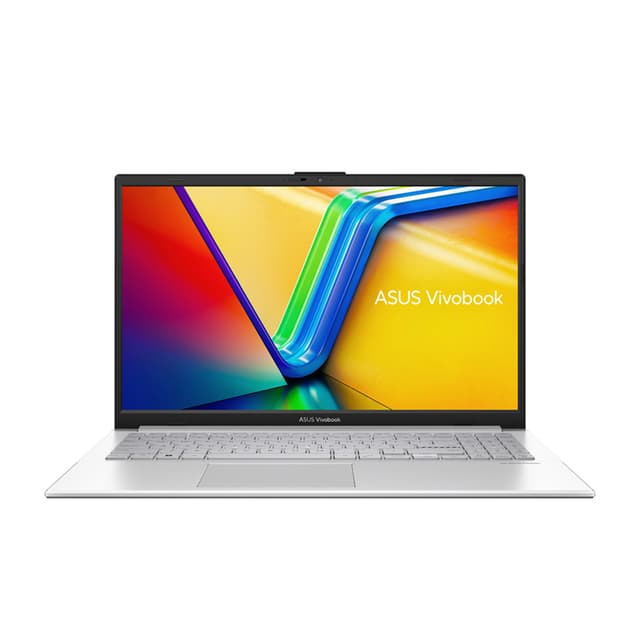
Engineering applications are memory-hungry. MATLAB alone can consume 4 to 6 GB during a complex simulation. Add a browser with research tabs, a PDF reader, and a CAD application, and 8 GB becomes a genuine bottleneck. If you are buying a machine with 8 GB, check whether the RAM is soldered or upgradeable via a SO-DIMM slot. Lenovo IdeaPad models typically allow upgrades; Apple Silicon machines do not, so the MacBook Air M1 recommended here stays at 8 GB. That is workable for coursework that runs one or two applications at a time. If you expect heavy simulation work, choose 16 GB from the outset. 24 GB, as found in the ASUS Vivobook 14, provides genuine headroom for the most demanding workflows.
Storage: 256 GB Works, 512 GB is Comfortable
Engineering projects accumulate data quickly. A single SolidWorks assembly with simulation results can occupy several gigabytes. ANSYS and MATLAB installations themselves consume 10 to 20 GB each. A 256 GB SSD works if you keep project files in cloud storage or on an external drive; 512 GB is more comfortable, and 1 TB or more is preferable for students working on data-heavy projects or who want to keep virtual machine images for Windows-only software on a Mac.
Display: Resolution and Panel Type
A Full HD (1920×1080) IPS panel is the baseline for comfortable technical work. TN panels have poor viewing angles and colour accuracy that makes reading technical drawings uncomfortable. Higher resolutions, such as the 2560×1600 on the MacBook Air or the WUXGA on the Lenovo Slim 3, provide more working space and sharper text. Avoid HD (1366×768) panels entirely for engineering use.
Software Compatibility: Know Your Course Requirements
Before buying, check your department's software list. If your course mandates SolidWorks, ANSYS, LabVIEW, or any other Windows-only application, a Windows machine eliminates risk. macOS machines can run many engineering tools natively, and Parallels Desktop handles Windows ARM virtualisation well, but there is an additional cost and complexity involved. Chromebooks are not suitable for engineering students due to their inability to run native desktop engineering software.
Ports and Connectivity
University labs often use USB-A peripherals, HDMI monitors, and Ethernet connections. Machines with only USB-C ports, such as the Apple options in this guide, require a USB-C hub, which adds £30 to £60 to the effective cost. Factor this in when comparing prices. Windows laptops in this bracket typically include a mix of USB-A, USB-C, and HDMI ports that cover most lab scenarios without additional accessories.
Battery Life
A full university day involves lectures, labs, and library sessions that can span 8 to 10 hours. Apple M-series machines consistently deliver 10 to 14 hours in mixed use. Windows H-series machines typically manage 6 to 9 hours depending on workload. Gaming-class machines like the ROG Strix fall below 4 hours under load. If you rely on battery power throughout the day, the Apple options have a clear advantage.
The Apple MacBook Air M1 (B08N5N1WBH) is the overall winner for engineering students in the £700, £1,100 bracket. Its combination of silent fanless operation, a class-leading Retina display, genuine all-day battery life, and M1 performance that handles the majority of engineering workloads without throttling makes it the most well-rounded choice for the widest range of students. The caveat, as always with Apple, is macOS software compatibility: students whose courses mandate Windows-only software should choose the Lenovo IdeaPad Slim 3 (B0H5CH91S5) instead, which delivers H-series processing power, a large WUXGA display, and full Windows 11 native compatibility at a competitive price. Students who need GPU-accelerated simulation should look seriously at the ASUS ROG Strix G16, accepting its weight and battery limitations in exchange for RTX 5060 CUDA capability. For those who prioritise multitasking headroom and storage above all else, the ASUS Vivobook 14's 24 GB RAM and 2 TB SSD combination is unmatched in this category.