Freelance software developers occupy an unusual sweet spot when it comes to keyboards. You need something that can handle eight-hour coding marathons without turning your wrists into a liability, but you also want the responsiveness and build quality that gaming keyboards deliver over their office-grade counterparts. Since last year, the market has shifted noticeably: Hall Effect magnetic switches have arrived at genuinely affordable price points, gasket-mounted boards have filtered down from boutique territory into mainstream retail, and wireless reliability has improved to the point where a 2.4 GHz connection is no longer a compromise. Whether you work from a coffee shop, a co-working space, or a home office that doubles as a gaming den, the keyboards in this list offer the tactile feedback, compact footprints, and long-term durability that developers actually care about. We have ranked five boards that balance typing comfort, portability, programmability, and value, covering everything from budget-conscious 60% boards to premium aluminium-chassis options.
Quick Verdict
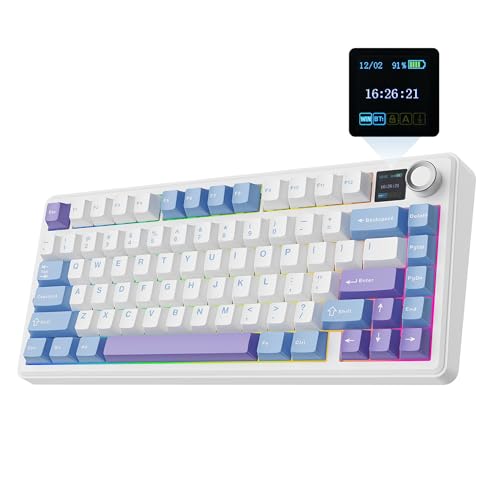
Best Overall: EPOMAKER X Aula F75 MAX. It combines a TFT display, tri-mode wireless, hot-swap sockets, and a knob into a 75% chassis that suits both coding and gaming without compromise.
Best Value: AULA WIN60 HE. Hall Effect switches at under fifty pounds is genuinely remarkable, and the adjustable actuation makes it surprisingly versatile for typing-heavy workloads.
The EPOMAKER X Aula F75 MAX is the pick that makes the most sense for a freelance developer who refuses to choose between a productive typing experience and a capable gaming board. The 75% layout is the sweet spot for developers: you retain the function row, which is indispensable for IDE shortcuts, debugging hotkeys, and terminal commands, while shedding the numpad and navigation cluster that bloat a full-size board and push your mouse hand too far to the right. That ergonomic gain alone justifies the layout choice for anyone logging serious hours at the desk.
The headline feature here is the TFT colour display, which sits in the top-right corner of the chassis. For a developer, this is not mere novelty: you can configure it to show system stats, time, or custom graphics, which means one fewer window cluttering your second monitor. The dedicated volume knob is similarly practical, letting you adjust audio without breaking your flow mid-compile. Hot-swap sockets mean you can swap switches without soldering, so if you start with the stock linears and later decide you want a tactile bump for typing feedback, the board accommodates that without any specialist tools.
Tri-mode wireless covers USB-C for lag-free wired sessions, 2.4 GHz for wireless gaming, and Bluetooth for pairing to a laptop or tablet when you are working away from your main rig. Battery life on Bluetooth with the display dimmed is competitive for the category, typically running well into multi-day territory before needing a charge. The gasket-style mounting softens the typing sound and adds a slight flex that reduces finger fatigue over long sessions, which matters enormously when your hands are your primary professional tool.
RGB lighting is per-key and fully programmable, though for most developers this is a secondary concern. The keycaps are double-shot PBT, which means legends will not fade after a year of heavy use, a detail that cheaper boards frequently skip. The board also supports per-key actuation remapping and macro programming via EPOMAKER's software, which is genuinely useful for binding repetitive code snippets or terminal commands.
Verdict: The F75 MAX delivers a feature set that would have cost twice the price two years ago. For a developer who games in the evenings and codes all day, it is the most balanced choice in this list.
Pros
- TFT display and volume knob add real workflow utility without requiring extra desk peripherals
- Hot-swap sockets allow switch changes without soldering, future-proofing your investment
- Tri-mode wireless covers every working scenario from desk to coffee shop
- Double-shot PBT keycaps resist legend fade under heavy daily use
Cons
- TFT display increases power consumption, so battery life drops noticeably with it set to full brightness
- Companion software interface is functional but less polished than SteelSeries Engine or comparable tools
Hall Effect magnetic switches have been a premium feature for most of their commercial life, appearing almost exclusively in boards costing well over a hundred pounds. The AULA WIN60 HE changes that equation dramatically by delivering genuine Hall Effect technology in a 60% wired board priced well under fifty pounds. For a freelance developer watching overheads, this is a significant proposition.
Hall Effect switches work by detecting changes in a magnetic field rather than relying on physical contact points. The practical consequence is that they do not wear out in the conventional sense: there is no metal-on-metal contact to oxidise or degrade, which means the actuation feel should remain consistent for tens of millions of keystrokes. For someone who types code for a living, that longevity matters far more than it does for a casual user.
The adjustable actuation point is the other key advantage. You can configure how far the key needs to travel before it registers, which lets you dial in a lighter, faster response for gaming or a deeper, more deliberate actuation for typing, reducing accidental keypresses during long coding sessions. This level of per-key customisation is normally the preserve of much more expensive boards.
The 60% layout will divide opinion among developers. You lose the function row, which means F-key shortcuts require a function layer, and there is no dedicated arrow cluster, which can slow navigation in an IDE or terminal. If you are comfortable with layer-based navigation, or if you primarily use keyboard shortcuts that do not rely on function keys, the compact footprint is a genuine advantage, particularly for developers who travel or work from varied locations. The wired-only USB-C connection is a limitation if you want wireless flexibility, but it does eliminate any latency or battery concerns entirely.
Build quality at this price is surprisingly solid. The case has a reasonable amount of heft, and the switches feel consistent across the board. RGB lighting is present and customisable, though the software is basic compared to more established brands. Keycap quality is adequate rather than exceptional, and enthusiasts may want to swap them out over time, but the hot-swap-free design means switches themselves are fixed.
Verdict: If your budget is tight and you want Hall Effect switch technology without paying a premium, the WIN60 HE is an exceptional value proposition. The 60% layout asks for some workflow adjustment, but the switch quality is genuinely impressive at this price.
Pros
- Hall Effect switches offer theoretically unlimited lifespan with no contact degradation, ideal for heavy typists
- Adjustable actuation point lets you tune the feel for typing versus gaming without changing switches
- Sub-fifty-pound price makes premium switch technology accessible on a freelancer's budget
Cons
- Wired-only connection limits portability and desk cable management options
- 60% layout removes the function row, requiring layer navigation for common IDE shortcuts
- Keycap quality is merely adequate and may need replacing for enthusiasts seeking a premium feel
The YUNZII B75 PRO positions itself as a thoughtful choice for developers who prioritise typing comfort above all else. Its gasket-mounted construction is the defining characteristic: the PCB is suspended within the case by silicone gaskets rather than being screwed directly to the chassis, which absorbs vibration and produces a softer, bouncier typing feel that is noticeably easier on the fingers during extended sessions. If you have ever experienced wrist or finger fatigue after a long day of coding, the difference a gasket mount makes is not trivial.
The 75% layout retains the function row, making it a more natural fit for developers than a 60% board. IDE shortcuts, terminal commands, and debugging hotkeys that rely on F-keys work without any layer gymnastics. The layout also includes arrow keys and a small navigation cluster, which speeds up cursor movement in code editors and terminals considerably. Hot-swap sockets mean you can experiment with different switch types: tactile switches for typing, linears for gaming, or even silent variants if you work in shared spaces.
Tri-mode wireless connectivity covers USB-C wired, 2.4 GHz wireless, and Bluetooth. The 2.4 GHz connection is effectively lag-free for gaming, while Bluetooth lets you pair to a laptop for mobile working without carrying a dongle. Battery life is competitive within the 75% wireless category, and the USB-C charging port means you are not hunting for a proprietary cable.
The B75 PRO's RGB lighting is per-key and reasonably well implemented, with a range of effects available through the onboard controls without needing software. This is a practical advantage for developers who do not want to install additional applications on a clean work machine. The double-shot PBT keycaps are a genuine quality touch at this price point, offering a textured surface that improves grip and resists shine over time.
Where the YUNZII falls slightly short is in software depth. The companion application is functional but lacks the macro programming depth of SteelSeries Engine or the customisation breadth of some competitors. For most developers, onboard controls will be sufficient, but power users may find the options limiting.
Verdict: The gasket mount and hot-swap sockets make the B75 PRO one of the most ergonomically considered boards in this price range. Developers who type heavily and want the flexibility to tune their switch feel over time will find it a rewarding long-term investment.
Pros
- Gasket-mounted construction reduces vibration and fatigue during extended typing sessions
- Hot-swap sockets allow switch experimentation without soldering or specialist tools
- Tri-mode wireless covers wired, 2.4 GHz, and Bluetooth for flexible working environments
Cons
- Companion software lacks depth for advanced macro programming compared to more established brands
- The gasket flex may feel unfamiliar or too soft for developers accustomed to rigid-mount boards
SteelSeries is one of the most recognisable names in gaming peripherals, and the Apex 9 Mini brings the brand's engineering rigour to a 60% form factor. The defining feature is the OptiPoint optical switch technology, which uses light beams rather than physical contacts to register keypresses. The result is an actuation that is both faster and more consistent than traditional mechanical switches, and with no contact points to wear, the switches should maintain their feel indefinitely.
The two-point actuation system is particularly interesting for developers. You can configure each switch to register on the way down, the way up, or both, which opens up possibilities for custom input schemes. For gaming this enables rapid double-tap inputs, but for coding it allows you to set a deeper actuation point that prevents accidental keypresses when resting fingers lightly on the keys, a common source of frustration during long typing sessions.
SteelSeries Engine is one of the most mature peripheral software suites available, offering deep macro programming, per-key RGB customisation, and profile management that syncs across devices. For a freelance developer who uses multiple machines or wants to bind complex code snippets to macro keys, the software quality is a genuine differentiator. The companion app is stable, well-documented, and actively maintained, which cannot be said for every brand in this category.
The 60% layout means the function row is absent, which will require some adjustment for developers reliant on F-key shortcuts. The wired-only USB-C connection is a limitation if wireless flexibility matters to you. However, the build quality is notably solid for a plastic-chassis board: there is minimal flex, the keycaps have a good texture, and the overall construction feels premium relative to the price.
The Apex 9 Mini's RGB lighting is per-key and integrates with SteelSeries' broader ecosystem, including reactive lighting tied to in-game events or system notifications, which some developers find useful as a visual alert system. The compact footprint makes it genuinely portable, and the detachable USB-C cable simplifies transport.
Verdict: The Apex 9 Mini offers SteelSeries' excellent software ecosystem and optical switch technology in a compact package. The wired-only connection and 60% layout are the main trade-offs, but for developers who value software depth and switch longevity, it is a strong contender.
Pros
- OptiPoint optical switches offer contactless actuation with no degradation over time
- SteelSeries Engine provides one of the most mature and stable macro programming environments available
- Two-point actuation configuration allows per-switch customisation for typing versus gaming modes
Cons
- Wired-only connectivity is a significant limitation for developers who work across multiple locations
- 60% layout removes the function row, requiring layer navigation for F-key-dependent IDE shortcuts
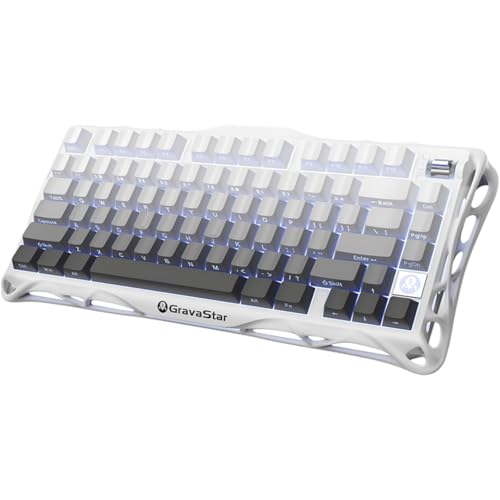
The GravaStar Mercury K1 is the premium option in this list, and it earns that position primarily through its aluminium alloy exoskeleton chassis. Where most keyboards at this price use polycarbonate or ABS plastic, the K1's metal construction gives it a solidity and thermal feel that is immediately apparent when you place your hands on it. For a freelance developer who wants a desk centrepiece that communicates professionalism during video calls and client meetings, the K1's visual and tactile presence is difficult to match.
The 75% layout is well chosen for developer use. The function row is present, arrow keys are included, and the overall footprint is compact enough to leave room for a mouse without sacrificing the keys that matter most for coding workflows. Hot-swap sockets allow switch changes without soldering, so you can tune the feel from the stock switches to whatever tactile or linear option suits your typing style.
Tri-mode wireless covers USB-C wired, 2.4 GHz, and Bluetooth, with the 2.4 GHz connection providing the low-latency response needed for gaming sessions after work hours. The aluminium chassis does add weight, sitting around 900 grams, which makes it less ideal for frequent travel but contributes to the stability that prevents the board from shifting during intense typing or gaming. The feet provide a solid grip on most desk surfaces.
GravaStar's aesthetic approach is distinctive: the board features a futuristic, angular design with exposed mechanical elements that set it apart from the understated look of most keyboards. RGB lighting is per-key and well-implemented, with the aluminium chassis providing a different light diffusion quality compared to plastic boards. The overall effect is striking without being garish, which is a difficult balance to achieve.
The companion software is functional but not as feature-rich as SteelSeries Engine. Macro programming is available, and per-key RGB customisation works well, but advanced users may find the options somewhat limited. The premium price is justified primarily by the build quality and materials rather than software depth, which is a reasonable trade-off for developers who prioritise physical quality over digital customisation.
Verdict: The GravaStar Mercury K1 is the board for developers who want a genuinely premium physical product. The aluminium chassis, hot-swap sockets, and tri-mode wireless make it a capable daily driver, and the build quality justifies the price for those who view their keyboard as a long-term investment.
Pros
- Aluminium alloy chassis provides exceptional build quality and stability that plastic boards cannot match
- Hot-swap sockets allow switch customisation without soldering, supporting long-term adaptability
- Tri-mode wireless covers all working scenarios from wired desk use to Bluetooth mobile pairing
Cons
- At approximately 900 grams, the aluminium chassis makes this a poor choice for developers who travel frequently
- Companion software lacks the macro programming depth of more established peripheral brands
Buying Guide
Layout: Which Size Actually Suits a Developer?
The keyboard layout debate is particularly consequential for developers because your daily workflow depends on specific keys being readily accessible. Full-size boards include a numpad, which is rarely useful for coding but adds significant desk width, pushing your mouse hand further right and increasing shoulder strain over time. Tenkeyless boards remove the numpad and are a reasonable compromise, but the 75% layout has emerged as the developer's favourite for good reason: it retains the function row, arrow keys, and a compact navigation cluster while reducing the overall footprint by roughly a quarter compared to a full-size board. The 60% layout is the most portable option but requires you to access F-keys and arrow keys through a function layer, which adds cognitive overhead during debugging or terminal navigation. Unless you are frequently travelling with your keyboard, the 75% layout is the most practical choice for developer work.
Switch Type: Tactile, Linear, or Something Newer?
Switch choice is deeply personal, but there are some developer-specific considerations worth noting. Tactile switches, which provide a physical bump at the actuation point, give you feedback that a keypress has registered without bottoming out the key, which can reduce finger fatigue over long typing sessions. Linear switches have no bump and are preferred by many gamers for their smooth, consistent travel, but some typists find them less satisfying for extended coding. Hall Effect magnetic switches, as found in the AULA WIN60 HE, offer adjustable actuation and theoretically unlimited lifespan, making them an increasingly compelling option for heavy typists. Optical switches, as used in the SteelSeries Apex 9 Mini, similarly avoid contact-based wear. Hot-swap sockets, available on several boards in this list, allow you to change switches without soldering, which is worth prioritising if you are unsure which switch type suits you best.
Wireless Connectivity: Is It Worth It?
Wireless keyboards have improved dramatically in recent years. Modern 2.4 GHz connections offer latency that is effectively indistinguishable from wired for both typing and gaming, and Bluetooth adds the flexibility to pair to a laptop or tablet without a dongle. For freelance developers who work from multiple locations or switch between a desktop and a laptop throughout the day, wireless connectivity is a genuine quality-of-life improvement rather than a luxury. Battery life on 75% wireless boards typically ranges from several days to several weeks depending on RGB usage, which means charging is rarely a daily concern. If you work exclusively at a fixed desk and prioritise simplicity, a wired board is perfectly adequate and eliminates battery management entirely.
Build Quality and Keycaps: What Lasts?
A developer's keyboard is a professional tool that should last several years. Double-shot PBT keycaps are significantly more durable than ABS alternatives: the legends are formed by moulding two layers of plastic together rather than printing on the surface, so they will not fade or shine regardless of how heavily you type. Gasket-mounted boards absorb vibration more effectively than rigid-mount designs, reducing long-term finger fatigue. Aluminium chassis boards offer the best physical durability but add weight. Consider how much you travel: a lighter plastic-chassis board may be preferable if portability matters, while a heavier aluminium board is ideal for a fixed desk setup where stability is valued over portability.
For the majority of freelance software developers, the EPOMAKER X Aula F75 MAX is the overall winner. It combines the 75% layout that suits developer workflows, tri-mode wireless for flexible working, hot-swap sockets for switch experimentation, a TFT display for system information at a glance, and a gasket-influenced mounting system that eases long typing sessions. All of this arrives at a price that is genuinely competitive for the feature set on offer. The AULA WIN60 HE takes the best value title for developers on a tighter budget who want Hall Effect switch technology without the premium price, accepting the trade-offs of a 60% layout and wired-only connection. The YUNZII B75 PRO is the strongest alternative for developers who prioritise typing comfort above all else, while the SteelSeries Apex 9 Mini suits those who value software ecosystem maturity. The GravaStar Mercury K1 is the choice for developers who want a premium physical product that doubles as a desk statement piece.