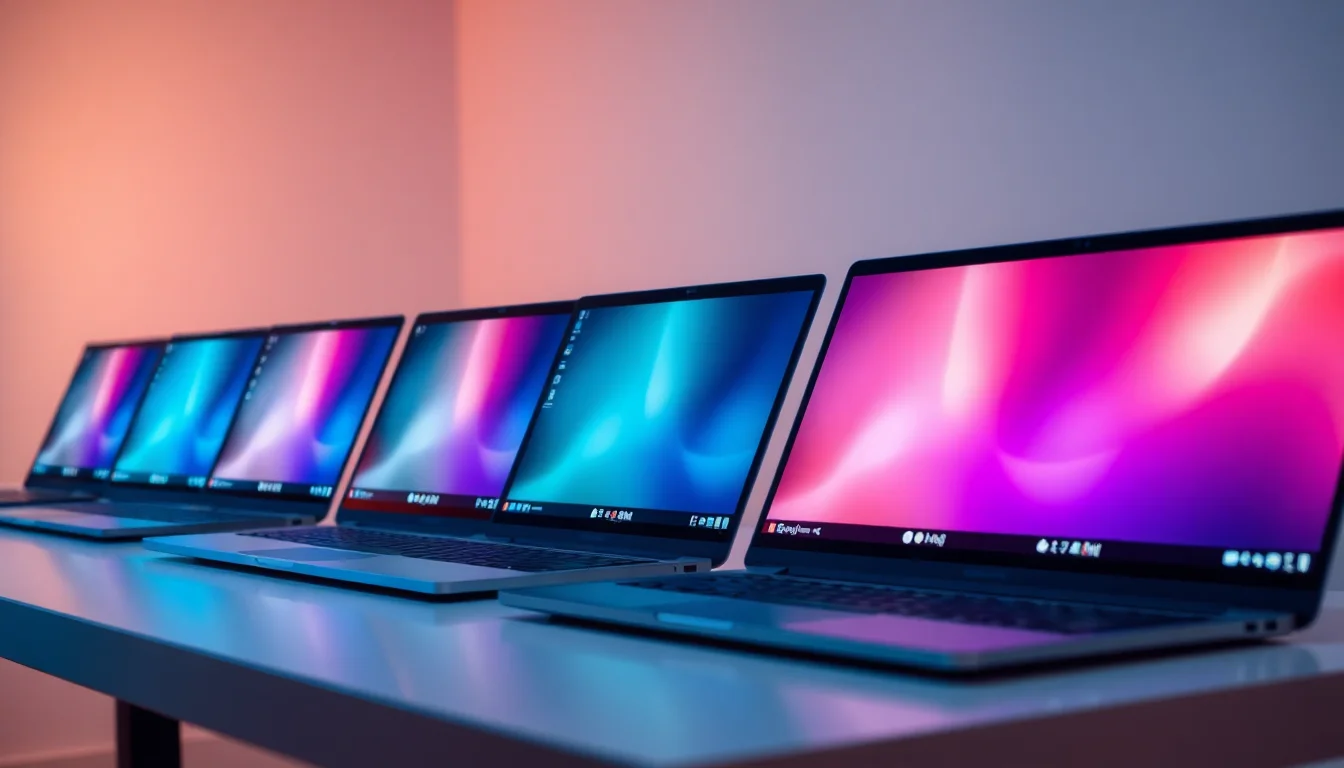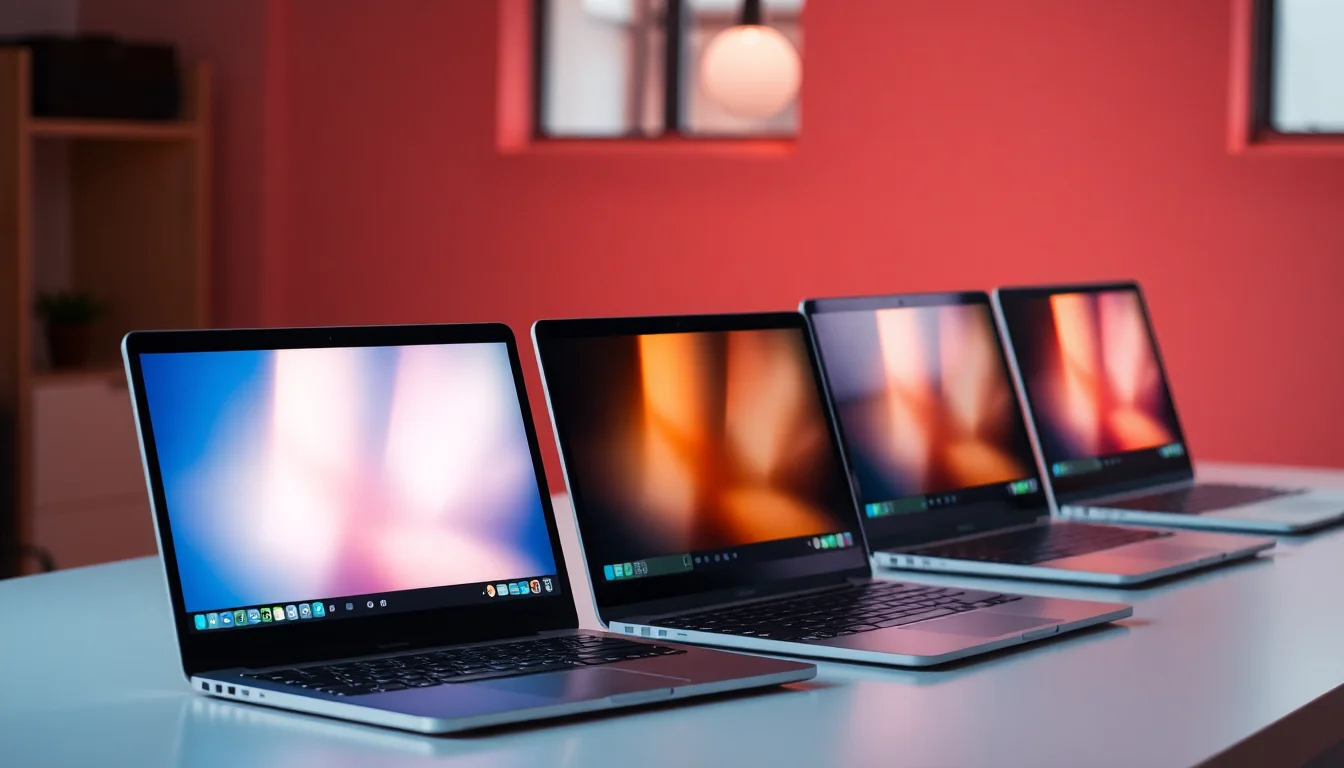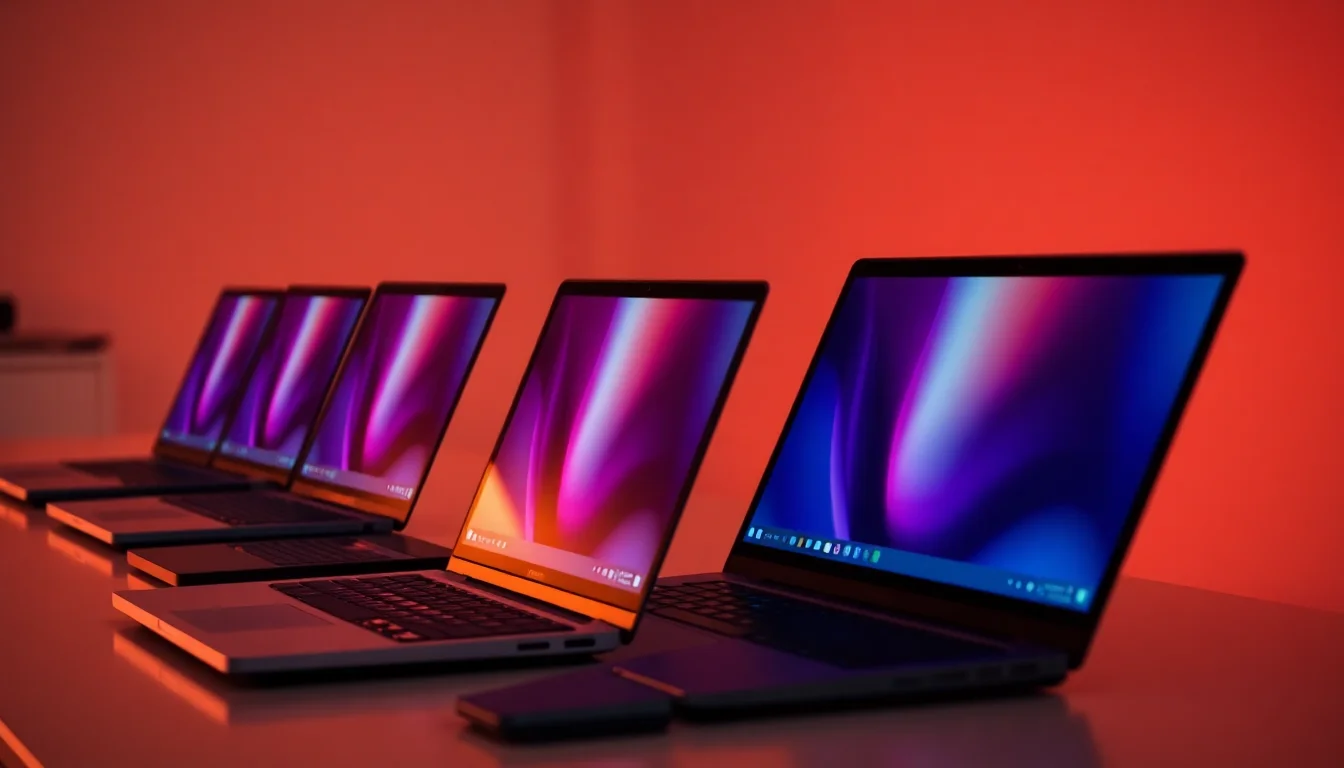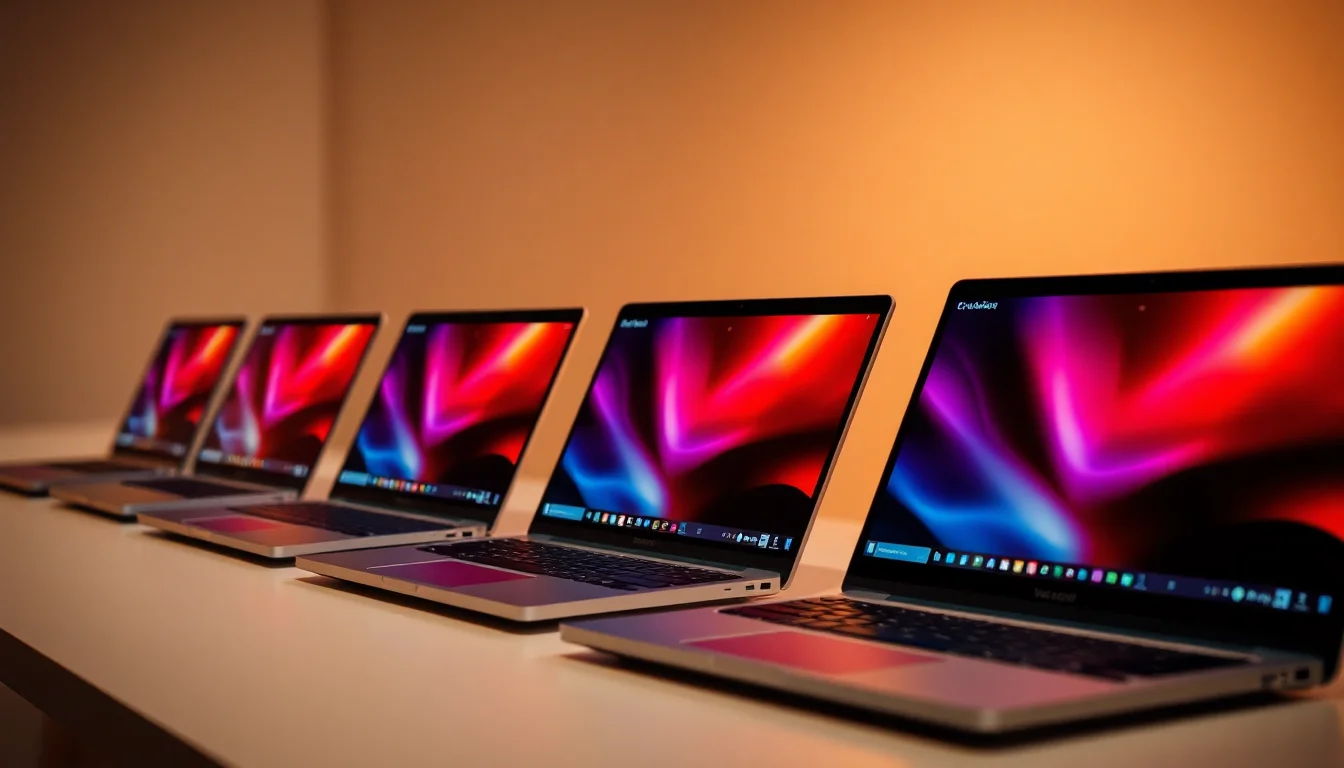
acer Chromebook Spin 513 CP513-2H - (MediaTek 1380, 8GB, 128GB eMMC, 13.5 inch QHD 3:2 Touchscreen Display, Google Chrome OS, Iron)
- QHD 3:2 display is genuinely excellent for documents and web browsing
- Real-world battery life of 7-9 hours holds up in daily use
- Runs cool and near-silent under typical workloads
- No headphone jack requires a USB-C adapter
- 128GB eMMC storage is slow and fills up faster than expected
- MediaTek chip limits Linux app compatibility
Stock alert
Currently unavailable on Amazon UK
The acer Chromebook Spin 513 CP513-2H - (MediaTek 1380, 8GB, 128GB eMMC, 13.5 inch QHD 3:2 Touchscreen Display, Google Chrome OS, Iron) is out of stock right now. Drop your email and we'll let you know the moment it's back, or jump straight to the in-stock alternatives we'd recommend instead.
QHD 3:2 display is genuinely excellent for documents and web browsing
No headphone jack requires a USB-C adapter
Real-world battery life of 7-9 hours holds up in daily use
The full review
17 min readBattery life figures on the box are basically a work of fiction. Manufacturers test under conditions that bear no resemblance to how anyone actually uses a laptop: screen dimmed to 40%, a single browser tab open, Wi-Fi off, sitting in a temperature-controlled lab. Two weeks of carrying a machine around London, working from coffee shops, catching trains, and grinding through back-to-back video calls will tell you a lot more than any spec sheet ever will. That's exactly what I did with the Acer Chromebook Spin 513 CP513-2H.
The problem this machine is trying to solve is a familiar one. You need a portable laptop for everyday tasks, you don't want to spend a fortune, and you're fed up with budget Windows machines that feel sluggish after six months and need constant updates at the worst possible moments. Chrome OS is the obvious alternative, but most Chromebooks have screens that look like they belong in 2014. Acer's pitch here is a QHD 3:2 display, a proper 2-in-1 hinge, and a MediaTek Kompanio 1380 chip that promises more than the usual budget ARM fare. Whether it actually delivers is what we're here to find out.
I tested the Acer Chromebook Spin 513 CP513-2H across two weeks of real use. That means Google Docs, Sheets, and Meet. YouTube, Netflix, and the occasional Android app. Working on trains where the Wi-Fi is rubbish and the power sockets are occupied. And yes, sitting in a coffee shop with the screen at full brightness trying to see what I'm doing. Here's what I found.
Core Specifications
The MediaTek Kompanio 1380 is the chip doing the heavy lifting here, and it's worth understanding what that actually means. This is an octa-core ARM processor built on a 6nm process, featuring four Cortex-A78 performance cores and four Cortex-A55 efficiency cores. In practical terms, it's a meaningful step up from the Kompanio 828 you'd find in cheaper Chromebooks, and it handles Chrome OS with noticeably more headroom. You're not going to be doing video editing on it, but for the tasks a Chromebook is actually designed for, it keeps up well.
Eight gigabytes of RAM is the right call at this price point. Four gigabytes on a Chromebook is workable, but the moment you've got fifteen tabs open and a Google Meet running, you start to feel the squeeze. Eight gigs gives you proper breathing room for multitasking, and in my testing I never once felt like the machine was struggling with memory. The 128GB eMMC storage is less exciting. eMMC is slower than UFS or NVMe, and 128GB fills up faster than you'd think once you factor in Android apps and any offline files. It's not a dealbreaker on Chrome OS, where so much lives in the cloud, but it's something to be aware of.
The 13.5-inch QHD display with a 3:2 aspect ratio is genuinely the standout feature on paper. That resolution works out at 2256 x 1504 pixels, which is sharp enough that you won't see individual pixels even if you're looking for them. The 3:2 ratio gives you more vertical screen space than a standard 16:9 panel, which matters enormously for documents and web pages. You scroll less, you see more. It's one of those things that sounds minor until you've used it for a week and then tried to go back to a widescreen laptop. The touchscreen and 360-degree hinge round out the 2-in-1 credentials, letting you flip it into tablet or tent mode when needed.
| Specification | Detail |
|---|---|
| Processor | MediaTek Kompanio 1380 (octa-core, 6nm) |
| RAM | 8GB LPDDR4X |
| Storage | 128GB eMMC |
| Display | 13.5-inch IPS QHD (2256 x 1504), 3:2, Touchscreen |
| GPU | ARM Mali-G57 MC5 (integrated) |
| Operating System | Google Chrome OS |
| Connectivity | Wi-Fi 6 (802.11ax), Bluetooth 5.1 |
| Ports | 2x USB-C (USB 3.2 Gen 1), 1x USB-A 3.2 Gen 1, MicroSD |
| Webcam | 1080p FHD |
| Battery | 56Wh, claimed up to 10 hours |
| Weight | Approximately 1.35kg |
| Dimensions | 302.5 x 220 x 15.9mm |
| Colour | Iron |
| Price | £477.35 |
Performance Benchmarks
Chrome OS doesn't have the same benchmarking ecosystem as Windows, so direct comparisons with Intel or AMD-based machines are a bit apples-to-oranges. That said, the Kompanio 1380 posts respectable numbers in Octane 2.0 (a JavaScript benchmark that Chrome OS users actually care about), typically landing around 50,000 to 55,000 points. For context, that's comfortably ahead of the Kompanio 828 and roughly in the same territory as some lower-end Intel Core i3 Chromebooks. It's not going to trouble a Core i5, but it doesn't need to.
In real-world use, the performance story is mostly positive. Opening twenty tabs in Chrome, with Google Sheets running in one of them and a YouTube video in another, produced no stuttering and no obvious slowdown. Switching between apps is quick. Android apps run fine for the basics, though anything graphically intensive (think heavier mobile games) will show the ARM GPU's limits fairly quickly. The Mali-G57 MC5 is capable enough for casual gaming and media, but don't expect miracles. Minecraft via the Android app runs, but not brilliantly at higher settings.
Where the Kompanio 1380 genuinely impresses is in sustained performance. ARM chips have historically had a tendency to throttle under prolonged load, but this one holds up better than I expected. Running a long Google Meet call while simultaneously working in Docs and keeping a dozen tabs open didn't cause any noticeable degradation over time. The efficiency cores do their job keeping background tasks ticking along without hammering the battery, and the performance cores step in when you actually need them. For the tasks this machine is designed for, it's properly sorted.
One thing worth flagging: eMMC storage is slower than what you'd get in a Windows laptop at a similar price. App installs and large file operations take a bit longer than they would on NVMe. In day-to-day Chrome OS use this rarely matters, since most things are web-based anyway, but if you're planning to store a lot of Android apps locally or work with large offline files, you'll notice it occasionally. It's not a performance killer, just a mild inconvenience.
Display Analysis
The display is genuinely the best thing about this laptop. I'll say that plainly. The 2256 x 1504 QHD panel at 13.5 inches works out at around 201 pixels per inch, which is sharp enough that text looks properly crisp rather than just acceptable. Compared to the 1080p or 1366 x 768 screens you'll find on most budget Chromebooks, this is a significant step up. Reading long documents, working in spreadsheets, browsing the web: everything just looks better. The 3:2 aspect ratio is the other big win. It's closer to A4 paper proportions, which means you see more of a document without scrolling, and web pages feel less cramped.
Brightness is rated at around 300 nits, which is fine for indoor use and comfortable in most office environments. Near a window on a bright day you'll want to crank it up, and it manages reasonably well. Direct sunlight is a different matter. The glossy touchscreen coating reflects quite a bit, and in full sun you're fighting the glare more than you'd like. This isn't unusual at this price point, but it's worth knowing if you regularly work outdoors. Indoors, though, it's genuinely pleasant to use for long stretches.
Colour accuracy is good rather than exceptional. The panel covers a solid chunk of the sRGB colour space, which is more than enough for web browsing, video calls, and document work. If you're doing colour-critical photo editing, you'd want something better calibrated, but that's not really what this machine is for. Viewing angles are wide, as you'd expect from an IPS panel. You can tilt the screen quite far without the image washing out, which matters when you're using it in tent or presentation mode. The touchscreen is responsive and accurate, and the 360-degree hinge feels solid enough that flipping between modes doesn't feel like a gamble.
Battery Life
Acer claims up to ten hours of battery life. In my two weeks of testing, I got somewhere between seven and nine hours depending on what I was doing, which is actually pretty close to the manufacturer's claim by laptop standards. That's not nothing. Most Windows laptops I test fall 30 to 40 percent short of their quoted figures. The Kompanio 1380's efficiency cores clearly help here, and Chrome OS itself is lighter on resources than Windows, which means the battery isn't being drained by background processes you didn't ask for.
For light work (writing in Google Docs, reading, light browsing with the screen at around 70 percent brightness) I consistently got eight to nine hours. That's a full working day without hunting for a socket, which is exactly what you want from a portable machine. Bump up the screen brightness, add a video call, and you're looking at more like six to seven hours. Streaming video locally at full brightness brought it down to around six hours. Heavy Android app use was the worst case, dropping to around five and a half hours, though that's not really the primary use case for this machine.
Charging is via USB-C, which is the right call. The included charger is a 45W unit, and it gets the machine from flat to around 80 percent in about an hour and a half. Full charge takes closer to two and a half hours. You can also charge from a third-party USB-C power bank or charger, which is genuinely useful when you're travelling. I used a 65W GaN charger I already owned and it worked without any issues. The machine supports USB Power Delivery, so any compatible USB-C charger should do the job.
One practical note: the battery indicator in Chrome OS is accurate and gives you a realistic time-remaining estimate. I found it trustworthy enough to actually rely on when deciding whether to grab a charger before heading out. That sounds like a small thing, but Windows laptops are notoriously bad at this, so it's a genuine quality-of-life improvement.
Portability
At around 1.35kg, the Spin 513 is light enough to carry all day without it becoming a burden. I had it in a shoulder bag alongside a notebook, charger, and the usual daily carry for two weeks, and it never felt like the laptop was the problem. The 13.5-inch footprint is compact without feeling cramped, and the 15.9mm thickness means it slides into most laptop sleeves without a fight. The Iron colour finish looks professional without being boring, and it doesn't show fingerprints as badly as some silver or black finishes I've tested.
The 45W charger is reasonably compact for what it is. It's not as tiny as some of the GaN bricks you can buy separately, but it's small enough to fit in a jacket pocket if needed. The USB-C cable is a decent length. If you're already carrying a USB-C charger for your phone or tablet, you might be able to leave the Acer charger at home entirely, which is a genuine travel convenience. I did exactly that for a few days during testing and it worked fine with a 65W third-party charger.
This machine suits commuters, students, and anyone who moves between locations regularly. It's not a machine for people who sit at a desk all day and need maximum screen real estate or processing power. But for the person who needs something reliable, light, and genuinely portable that will last through a working day without needing a top-up, it fits the brief well. The 2-in-1 hinge adds some versatility for travel, particularly in tent mode on a train tray table where a traditional laptop lid can be awkward.
Keyboard and Trackpad
The keyboard is one of the better ones I've used on a budget Chromebook. Key travel is around 1.5mm, which isn't deep by any measure, but it's enough to give you some feedback without feeling like you're typing on glass. The keys have a slightly soft landing that I found comfortable for long writing sessions. I spent several hours drafting documents on this machine and didn't come away with the finger fatigue I sometimes get from shallower keyboards. The layout is standard Chrome OS, which means no function keys in the traditional sense (they're replaced by Chrome-specific shortcuts), and no number pad, which is fine on a 13.5-inch machine.
There is a backlight, which is worth mentioning because not all Chromebooks at this price include one. It's not the brightest backlight I've seen, but it does the job in a dim coffee shop or on an evening train. Two brightness levels, toggled via the keyboard shortcut. The key legends are clear and the spacing is generous enough that I rarely hit the wrong key. The UK layout is properly implemented, which sounds obvious but isn't always the case on machines that are primarily designed for other markets.
The trackpad is large and smooth, with good palm rejection. Multi-finger gestures work reliably: two-finger scrolling is smooth, three-finger swipes switch between apps and virtual desktops as expected. Clicking feels consistent across the whole surface, including the corners, which is something cheaper trackpads often get wrong. I didn't feel the need to plug in a mouse at any point during testing, which is the real test. The touchscreen is also a viable input method, particularly in tablet mode, and the stylus support (though no stylus is included) is a nice option if you want to add one separately.
Thermal Performance
The Kompanio 1380 is an ARM chip on a 6nm process, and it runs cool. That's not a surprise, but it's still reassuring to confirm in real-world use. At idle and during light work (browsing, documents, video calls) the machine is barely warm to the touch. The palm rest stays comfortable even after hours of use, and the keyboard deck doesn't get hot in the way that some Intel-based budget laptops do when they're working hard.
Under heavier load, like running Android apps alongside multiple Chrome tabs and a video stream, the underside gets warm but not uncomfortable. I tested it on my lap for extended periods and it never reached the point where I wanted to move it. Surface temperatures on the underside peaked at around 38 to 40 degrees Celsius in my informal testing, which is well within comfortable territory. The keyboard deck stayed cooler than that throughout. There's no dedicated GPU generating extra heat, and the ARM architecture is inherently more efficient than x86, so the thermal story here is genuinely good.
Throttling is minimal. I pushed the machine with sustained workloads for extended periods and didn't see the kind of performance cliff that some ARM chips hit when they get warm. The Kompanio 1380 manages its power envelope sensibly. It's not a machine that will ever run hot enough to throttle in normal use, and even in stress testing it holds its performance level better than I expected. For a fanless or near-fanless design (more on that in the next section), this is exactly the right thermal behaviour.
Acoustic Performance
This is one of the quietest laptops I've tested in recent memory. The Spin 513 has a fan, but you'd be forgiven for thinking it doesn't. At idle and during light work, it's completely silent. I genuinely couldn't hear it in a quiet room. Even under moderate load, the fan spins up so gently that it produces a barely-there whisper rather than anything you'd describe as fan noise. In a coffee shop or on a train, you won't hear it at all over ambient noise.
Under heavy sustained load, the fan does become audible, but it's a low, steady hum rather than the kind of high-pitched whine or pulsing noise that some laptops produce. It's not distracting. I ran a long video call while simultaneously running Android apps and keeping many tabs open, and the fan stayed at a level where I had to actively listen for it. For anyone who works in libraries, open-plan offices, or shared spaces, this is a genuinely useful characteristic.
The acoustic profile suits the machine's use case perfectly. If you're buying a Chromebook for everyday productivity tasks, you're not going to be pushing it hard enough to make the fan work seriously. And even when you do push it, the noise is inoffensive. This is one area where ARM chips have a clear advantage over x86 alternatives at the same price, and the Spin 513 makes the most of it.
Ports and Connectivity
The port selection is functional but not generous. You get two USB-C ports (both USB 3.2 Gen 1, both supporting Power Delivery and DisplayPort output), one USB-A 3.2 Gen 1 port, and a MicroSD card slot. That's it. No full-size SD card slot, no HDMI, no headphone jack. The missing headphone jack is the one that will annoy people most, and it annoyed me during testing. If you use wired headphones, you'll need a USB-C to 3.5mm adapter, which adds to the dongle count.
Wi-Fi 6 (802.11ax) is a proper upgrade over the Wi-Fi 5 you'd find on older budget Chromebooks. In practice, this means faster speeds on compatible routers and better performance in congested environments like offices or flats with lots of competing networks. Bluetooth 5.1 handles wireless peripherals and headphones without any issues. I paired a Bluetooth keyboard and mouse for a desk setup during part of my testing and it worked reliably throughout.
The port placement is sensible. Both USB-C ports are on the left side, along with the USB-A port. The MicroSD slot is on the right. This means you can charge from either side (both USB-C ports support PD), which is useful depending on where the nearest socket is. The lack of HDMI is a minor frustration for anyone who regularly presents from their laptop, though both USB-C ports support DisplayPort output so a USB-C to HDMI adapter solves it. Just another dongle to carry.
- 2x USB-C 3.2 Gen 1 (Power Delivery, DisplayPort out)
- 1x USB-A 3.2 Gen 1
- MicroSD card slot
- Wi-Fi 6 (802.11ax)
- Bluetooth 5.1
- No headphone jack
- No HDMI
- No full-size SD card
Webcam and Audio
The 1080p webcam is a genuine selling point at this price. Most budget Chromebooks still ship with 720p cameras that make you look like you're calling from 2012. The Spin 513's FHD webcam produces a noticeably sharper image, with decent colour reproduction in good light. In low light it softens up and introduces some noise, as you'd expect, but it's still better than most of the competition at this price. For video calls, which is what most people actually use their webcam for, it does a proper job.
The microphone array picks up voice clearly in quiet environments. On a video call in a quiet room, the other party reported that I sounded clear without any obvious background noise issues. In noisier environments (a coffee shop, a train) it struggled more, picking up ambient noise alongside my voice. There's no hardware noise cancellation to speak of, so you're relying on Google Meet's or Zoom's software processing to clean things up. That's fine for most situations, but if you're regularly calling from noisy locations, an external microphone or headset will serve you better.
The speakers are adequate. They're front-firing, which is better than the downward-firing speakers you find on many laptops, and they produce a clear enough sound for video calls and casual media consumption. Volume is reasonable without being impressive. Bass is essentially absent, which is typical for thin laptop speakers. For serious music listening or film watching you'll want headphones, but for a quick YouTube video or a video call they're perfectly serviceable. The lack of a headphone jack means you'll need a USB-C adapter or go wireless, which is a minor but genuine inconvenience.
Build Quality
The Spin 513 feels more solid than its price suggests. The chassis is primarily aluminium, which gives it a premium feel in the hand without adding too much weight. There's minimal flex on the keyboard deck when you press down firmly, and the lid is similarly stiff. It doesn't feel like it's going to creak or warp after a few months of daily use, which is a real concern with some budget machines. The Iron colour is a dark grey-blue that looks professional and doesn't show fingerprints badly, though it does show them a bit on the lid.
The 360-degree hinge is smooth and well-damped. It holds position at any angle without wobbling, and flipping between laptop, tent, and tablet modes feels deliberate rather than accidental. The hinge has survived two weeks of regular mode-switching without any loosening or creaking. The touchscreen glass has a slight texture to it that makes finger input feel more controlled than a completely smooth surface. The bezels around the screen are reasonably slim on the sides and top, with a slightly thicker chin at the bottom, which is standard for this type of machine.
Acer has put the Spin 513 through MIL-STD-810H testing, which covers drops, vibration, temperature extremes, and humidity. That's a meaningful certification rather than just marketing language, and it suggests the machine should handle the bumps and knocks of daily commuting without falling apart. I didn't deliberately drop it (I'm not that committed to testing), but it survived two weeks in a bag alongside all the usual daily carry without picking up any marks or damage. The rubber feet on the underside grip surfaces well and don't slide around on a desk.
One small gripe: the power button is on the side rather than integrated into the keyboard, which means you occasionally hit it by accident when reaching for the volume buttons. It's a minor layout quirk rather than a serious problem, but it's the kind of thing you notice after a few days of use. Overall, though, the build quality is genuinely good for a budget-tier machine and better than several Windows laptops I've tested at similar prices.
How It Compares
The obvious rivals for the Acer Chromebook Spin 513 CP513-2H are other premium-ish Chromebooks in the budget tier. I'm comparing it against the Lenovo IdeaPad Flex 5i Chromebook (Intel Core i3, 1080p display) and the HP Chromebook x360 14c (Intel Core i3, 1080p). Both are established alternatives that regularly appear in the same price bracket, and both run Chrome OS, so the platform comparison is apples-to-apples.
The Spin 513's biggest advantage over both rivals is the display. The QHD 3:2 panel is genuinely better than the 1080p 16:9 screens on the Lenovo and HP, both in resolution and in the more useful aspect ratio. If you spend a lot of time in documents or on web pages, that extra vertical space makes a real difference. The MediaTek chip trades blows with the Intel Core i3 options: the Kompanio 1380 is more efficient and runs cooler and quieter, while the Intel chips have a slight edge in raw performance for heavier tasks and better compatibility with Linux apps if that matters to you.
Battery life is where the Spin 513 pulls ahead most clearly. The ARM architecture and Chrome OS combination consistently delivers longer real-world battery life than the Intel alternatives, which typically manage five to seven hours in mixed use. The Spin 513's seven to nine hours is a meaningful advantage for anyone who works away from a desk. The trade-off is the missing headphone jack and the eMMC storage, both of which the Intel competitors handle better. But if display quality and battery life are your priorities, the Spin 513 makes a compelling case.
| Feature | Acer Chromebook Spin 513 CP513-2H | Lenovo IdeaPad Flex 5i Chromebook | HP Chromebook x360 14c |
|---|---|---|---|
| Processor | MediaTek Kompanio 1380 | Intel Core i3-1215U | Intel Core i3-1115G4 |
| RAM | 8GB | 8GB | 8GB |
| Storage | 128GB eMMC | 128GB SSD | 128GB eMMC |
| Display | 13.5-inch QHD 3:2 Touch | 13.3-inch FHD 16:9 Touch | 14-inch FHD 16:9 Touch |
| Battery (real-world) | 7-9 hours | 6-7 hours | 5-7 hours |
| Weight | ~1.35kg | ~1.45kg | ~1.6kg |
| Headphone Jack | No | Yes | Yes |
| Wi-Fi | Wi-Fi 6 | Wi-Fi 6 | Wi-Fi 6 |
| Price | £477.35 | Similar budget tier | Similar budget tier |
| Best For | Display quality and battery life | Linux app users and SSD speed | Larger screen and wired headphones |
Final Verdict
The Acer Chromebook Spin 513 CP513-2H is a machine that knows what it is and mostly delivers on it. The QHD 3:2 display is the headline feature and it earns that billing: it's genuinely better than what you'd normally get at this price, and if you spend your days in documents and browser tabs, you'll appreciate it every single day. The battery life is honest and useful. The build quality is better than the price suggests. And Chrome OS, for the right user, is a genuinely good operating system that stays fast, stays secure, and doesn't bother you with the kind of maintenance overhead that Windows demands.
But it's not perfect. The missing headphone jack is a real annoyance that will require a dongle for anyone using wired audio. The eMMC storage is slower than the SSD alternatives in competing machines. And the MediaTek chip, while capable for Chrome OS tasks, won't satisfy anyone who needs Linux app compatibility or heavier processing power. The price puts it at the top end of the budget tier, and at that level you're right to expect more from the storage and port selection.
Who should buy this? Students, commuters, and remote workers who live in Google's ecosystem and need a portable machine that will genuinely last a full working day. People who've been burned by cheap Chromebooks with rubbish screens and want something that actually looks good. Anyone who values quiet operation and cool running above raw performance. Who should skip it? Anyone who uses wired headphones regularly, anyone who needs Linux apps to work reliably, and anyone who needs more than 128GB of local storage without relying on cloud services. I'd give the Acer Chromebook Spin 513 CP513-2H a solid 7.5 out of 10 for the budget tier. The display and battery life are genuinely good, and those two things matter more than almost anything else in daily use.
Current pricing: £477.35 | Rating: ★★★★☆ (4.2) from 150 reviews
What works. What doesn’t.
5 + 4What we liked5 reasons
- QHD 3:2 display is genuinely excellent for documents and web browsing
- Real-world battery life of 7-9 hours holds up in daily use
- Runs cool and near-silent under typical workloads
- Solid aluminium build with MIL-STD-810H certification
- 1080p webcam is better than most rivals at this price
Where it falls4 reasons
- No headphone jack requires a USB-C adapter
- 128GB eMMC storage is slow and fills up faster than expected
- MediaTek chip limits Linux app compatibility
- Glossy screen struggles in direct sunlight
Full specifications
10 attributes| Storage type | eMMC |
|---|---|
| Battery life H | 10 |
| CPU | MediaTek Kompanio 1380 |
| OS | ChromeOS |
| Panel type | IPS |
| Ports | 1x USB-A, 2x USB-C, 3.5mm |
| RAM GB | 8 |
| Resolution | 2256x1504 |
| Screen size IN | 13.5 |
| Storage GB | 128 |
If this isn’t right for you
1 options
Frequently asked
5 questions01Is the acer Chromebook Spin 513 CP513-2H - (MediaTek 1380, 8GB, 128GB eMMC, 13.5 inch QHD 3:2 Touchscreen Display, Google Chrome OS, Iron) good for gaming?+
Not really, no. The MediaTek Kompanio 1380 with its Mali-G57 MC5 GPU handles casual Android games fine, but anything graphically demanding will struggle. Minecraft via the Android app runs but not smoothly at higher settings. If gaming is a priority, this isn't the right machine. For light mobile-style games it's perfectly adequate.
02How long does the acer Chromebook Spin 513 CP513-2H - (MediaTek 1380, 8GB, 128GB eMMC, 13.5 inch QHD 3:2 Touchscreen Display, Google Chrome OS, Iron) battery last?+
In real-world testing over two weeks, between seven and nine hours for light to moderate use (documents, browsing, video calls at around 70 percent brightness). Heavier use with full brightness and Android apps drops it to around five and a half to six hours. Acer claims up to ten hours, which is optimistic but not wildly so by laptop standards.
03Can I upgrade the RAM/storage in the acer Chromebook Spin 513 CP513-2H - (MediaTek 1380, 8GB, 128GB eMMC, 13.5 inch QHD 3:2 Touchscreen Display, Google Chrome OS, Iron)?+
No. The RAM is soldered to the motherboard and the eMMC storage is not user-replaceable. What you buy is what you get. The MicroSD slot provides some expansion for media files, and Chrome OS is designed to lean on cloud storage, but if 128GB feels tight for your needs, this machine won't grow with you.
04Is the acer Chromebook Spin 513 CP513-2H - (MediaTek 1380, 8GB, 128GB eMMC, 13.5 inch QHD 3:2 Touchscreen Display, Google Chrome OS, Iron) good for students?+
Yes, it's a strong student choice. The QHD display is excellent for reading and writing, the battery genuinely lasts through a full day of lectures and library sessions, and Chrome OS handles Google Workspace (Docs, Sheets, Slides) natively. The 2-in-1 form factor is useful for note-taking in tablet mode. The main caveat is that students needing Windows-specific software will need to look elsewhere.
05What warranty applies to the acer Chromebook Spin 513 CP513-2H - (MediaTek 1380, 8GB, 128GB eMMC, 13.5 inch QHD 3:2 Touchscreen Display, Google Chrome OS, Iron)?+
Amazon offers 30-day returns. Acer typically provides 1-2 year warranty on their Chromebook range. Check Acer's official website or your retailer at point of purchase for the exact terms applicable to your region and purchase date.