Buying a motherboard wrong is one of the most expensive PC mistakes you can make. Not because the board itself will blow up (usually), but because a cheap VRM under a power-hungry Ryzen chip will throttle your CPU, run hot, and quietly ruin the performance you paid for. The MSI MAG B550 TOMAHAWK Motherboard ATX sits in the upper mid-range bracket and has a genuine reputation for solving exactly that problem: proper power delivery at a price that doesn't require selling a kidney.
Over 3,056 owners have rated it at 4.6 stars. That's not a fluke. That's a board that consistently does what it says on the tin, for a wide range of builders from Ryzen 5 budget setups all the way up to Ryzen 9 workstations. So the verdict up front: this is one of the most sensible AM4 motherboard purchases you can make in this bracket. The rest of this review earns that conclusion.
MSI MAG B550 TOMAHAWK Motherboard ATX: Core Specifications
The Tomahawk is an ATX board on the AMD AM4 socket, running the B550 chipset. It supports AMD Ryzen 3rd generation processors (and select 1st and 2nd gen with BIOS update, though that's not really why you're buying it). Memory is DDR4 across four slots, with a maximum capacity of 128 GB and overclocking support up to 4866 MHz. That's not the headline speed you'll see on X570 boards, but it's more than enough for anything short of extreme memory overclocking experiments.
PCIe is where things get genuinely interesting. You get one PCIe 4.0 x16 slot for your GPU (that's the full-fat, Lightning Gen 4 implementation MSI talks about), plus a second PCIe 3.0 x16 slot for additional cards. Two M.2 slots handle NVMe storage, with the primary slot running at PCIe 4.0 speeds when paired with a 3rd gen Ryzen chip. Rear I/O includes HDMI output, dual LAN (a 2.5G port and a standard Gigabit port), and USB 3.2 Gen 2 connectivity. The board ships with a pre-installed I/O shield, which sounds like a small thing but is genuinely one of those quality-of-life details that makes installation less annoying.
The audio solution uses MSI's Audio Boost implementation, and the board supports both standard RGB headers and RAINBOW LED strip headers through the Mystic Light ecosystem. Thermal management includes an extended heatsink design with 7 W/mK thermal pads and a 2 oz thickened copper PCB. Those are real engineering choices, not just marketing numbers on a sticker.
| Specification | Detail |
|---|---|
| Socket | AMD AM4 |
| Chipset | AMD B550 |
| Form Factor | ATX |
| Memory Slots | 4 x DDR4 |
| Max Memory | 128 GB |
| Memory Speed (OC) | Up to 4866 MHz |
| PCIe x16 Slots | 1 x PCIe 4.0, 1 x PCIe 3.0 |
| M.2 Slots | 2 (primary PCIe 4.0, secondary PCIe 3.0) |
| LAN | 2.5G + Gigabit dual LAN |
| Video Output | HDMI |
| USB | USB 3.2 Gen 2 (rear) |
| Audio | Audio Boost (HD audio) |
| RGB | Mystic Light, RGB + RAINBOW headers |
| I/O Shield | Pre-installed |

Socket and CPU Compatibility
AM4 is AMD's long-running socket, and the Tomahawk supports 3rd generation Ryzen processors (the Zen 2 architecture chips, Ryzen 3000 series) as its primary target. That means Ryzen 5 3600, Ryzen 7 3700X, Ryzen 9 3900X, and the rest of that generation slot straight in. But the B550 chipset also supports Ryzen 5000 series (Zen 3) chips with a BIOS update, and that's actually a significant point. A lot of builders are picking up Ryzen 5 5600 or Ryzen 7 5800X chips at very reasonable prices right now, and the Tomahawk handles them without complaint once the BIOS is current.
The AM4 socket has been around long enough that cooler compatibility is essentially universal. Almost every 120mm or 240mm AIO cooler on the market, and certainly every major tower cooler, supports AM4 mounting out of the box. You won't need an adapter kit or an awkward bracket swap. That's one of the genuine advantages of AMD sticking with AM4 for so long before moving to AM5. Your existing Noctua, be quiet!, or Corsair cooler almost certainly works here.
One thing: if you're planning to use a Ryzen 5000 series chip (which is smart, given the price-to-performance of those parts right now), check that the board ships with a BIOS version that supports it. Some older stock may need flashing before your CPU will POST. MSI's Flash BIOS Button feature on some boards handles this without a compatible CPU installed, but verify this for the specific revision you receive. Owner reviews do mention this occasionally, and it's not a dealbreaker, just something to be aware of before you start the build.
Chipset Features
B550 sits in the middle of AMD's chipset stack, below X570 and above B450. The key practical differences from X570: B550 doesn't support PCIe 4.0 across all chipset lanes (only the CPU-connected primary x16 slot and primary M.2 get Gen 4), and it typically costs less. What you don't lose is overclocking support, which B550 retains fully. So if you're running a Ryzen 7 or Ryzen 9 and want to push memory or CPU clocks, B550 doesn't lock you out of that the way the older A520 chipset does.
The chipset provides additional USB bandwidth, SATA connectivity, and the secondary PCIe lanes. USB 3.2 Gen 2 on the rear I/O is a proper high-speed implementation, not the Gen 1 token gesture some cheaper boards include. For storage, you get dual M.2 slots and SATA ports for traditional drives. The B550 chipset also doesn't require active cooling on the chipset heatsink, unlike early X570 boards which had a small fan that some owners found noisy over time. That's a reliability point.
Compared to X570, you're giving up some chipset-level PCIe 4.0 bandwidth and potentially fewer total USB ports depending on the specific board. In practice, for a gaming or content creation build, you won't notice. The primary GPU slot and primary M.2 are both PCIe 4.0 on the Tomahawk, which covers the two use cases where Gen 4 actually matters for most people. X570 makes sense if you need multiple PCIe 4.0 devices simultaneously. For everyone else, B550 is the smarter spend.
VRM and Power Delivery
This is the section that actually matters most, and it's where the Tomahawk earns its reputation. MSI has equipped this board with a proper extended heatsink design covering the VRM area, using 7 W/mK thermal pads and a 2 oz thickened copper PCB. Those specs matter because heat is the enemy of VRM longevity. A thin heatsink with mediocre thermal interface material will let your MOSFETs run hot under sustained load, which degrades them over time and can cause throttling on power-hungry CPUs.
The Tomahawk's VRM implementation is specifically designed to handle the full range of AM4 processors, including the Ryzen 9 3900X and 3950X at the top end. These chips have higher TDP requirements than a Ryzen 5, and cheaper B550 boards with inadequate VRM stages will struggle under sustained all-core loads. Owner reviews consistently report stable performance even with higher-end chips, which is the real-world validation that the thermal solution is doing its job. You're not buying this board and then worrying about whether it can keep up with your CPU.
The choke pad inclusion alongside the heatsink is another detail. Chokes generate heat too, and boards that only heatsink the MOSFETs while leaving the chokes uncooled are cutting a corner. MSI has addressed this here. It's the kind of thing you only notice when a cheaper board starts acting up six months into ownership, and the Tomahawk's owner review pattern suggests that's not a common complaint here. For anyone pairing this with a Ryzen 9 chip or planning to run sustained workloads (video encoding, 3D rendering, that sort of thing), this thermal solution is a genuine differentiator from budget B550 options.
Memory Support
Four DDR4 slots, up to 128 GB total capacity, and overclocking support up to 4866 MHz. The 128 GB ceiling is generous and essentially irrelevant for gaming (32 GB is plenty, 64 GB is overkill for most), but it matters if you're running virtual machines, doing heavy video editing, or using this as a workstation board. The DDR4 Boost branding refers to MSI's optimised trace routing and signal integrity work on the memory slots, which helps stability at higher frequencies.
In practice, running DDR4 at 3200 MHz or 3600 MHz is where most people will land, and both are well within this board's comfort zone. Ryzen processors have historically been sensitive to memory speed and timings because of the relationship between memory frequency and the Infinity Fabric interconnect. Getting your RAM to 3600 MHz with decent CL16 or CL18 timings on a Ryzen 3000 or 5000 chip makes a measurable difference to real-world performance, and the Tomahawk handles this without the instability some cheaper boards exhibit at those speeds.
The 4866 MHz ceiling is there for enthusiasts who want to push further. Reaching those speeds requires good quality memory kits (Samsung B-die is the traditional favourite for extreme overclocking), careful BIOS tuning, and some patience. Most people won't go there, and that's fine. But knowing the headroom exists means you're not hitting a wall if you decide to experiment later. JEDEC standard DDR4 speeds are supported from the base, with XMP profiles for rated kit speeds handled automatically in BIOS.
Storage Options
Two M.2 slots is the right number for most builds. The primary slot runs at PCIe 4.0 x4 speeds when you're using a 3rd gen Ryzen processor, which means you can use a Gen 4 NVMe drive and actually get the sequential read speeds those drives are rated for. Gen 4 NVMe drives can hit 7000 MB/s sequential reads, versus around 3500 MB/s for Gen 3. Whether that matters for your workload is a separate question, but the point is the Tomahawk doesn't bottleneck a Gen 4 drive.
The secondary M.2 slot runs at PCIe 3.0 speeds, which is still perfectly fast for a secondary drive (games, applications, general storage). Slotting a Gen 3 NVMe in there as a secondary drive alongside a Gen 4 primary is a sensible and common configuration. Both slots support NVMe drives, and owner reviews don't report any notable issues with M.2 installation or drive recognition, which is because some boards have been known to have fiddly M.2 retention screws or awkward slot placement under the GPU.
Beyond M.2, the board provides SATA ports for traditional 2.5-inch SSDs or 3.5-inch mechanical drives. If you're migrating from an older build and have existing SATA SSDs or a mechanical storage drive for bulk files, those connect without any fuss. The combination of dual M.2 plus SATA gives you a flexible storage setup that can grow with your needs without forcing you to choose between fast NVMe and high-capacity spinning storage.
Expansion Slots and PCIe
The primary PCIe 4.0 x16 slot is the one your GPU goes in. It's steel-reinforced, which matters more than it sounds. A heavy GPU (and modern high-end cards are genuinely heavy) can put real mechanical stress on an unprotected PCIe slot over time, especially if the build gets moved around. The reinforced slot is a structural improvement, not just an aesthetic one. MSI calls this their Lightning Gen 4 solution, and the key point is that it delivers the full PCIe 4.0 bandwidth directly from the CPU, not through the chipset.
The second x16 slot runs at PCIe 3.0 speeds. This is useful for adding a dedicated PCIe networking card, a capture card, or a secondary GPU in certain workstation configurations. For gaming, you'll almost certainly never use it, but having it there means you're not stuck if your use case evolves. Some cheaper B550 boards skip the second x16 slot entirely or give you only x1 slots for expansion, which limits your options considerably.
Lane sharing is worth understanding here. When you populate both x16 slots, the primary slot may reduce to x8 bandwidth depending on the configuration. For current GPU generations, x8 PCIe 4.0 is not a meaningful bottleneck for gaming performance. The bandwidth available at x8 Gen 4 exceeds what even the fastest current consumer GPUs can saturate. So don't let that detail worry you if you're running a standard single-GPU gaming setup, which is the vast majority of builds this board will end up in.

Connectivity and Rear I/O
The rear I/O panel comes with a pre-installed shield, which genuinely is one of those small things that makes a build go smoother. Anyone who has wrestled a separate I/O shield into a case at an awkward angle while trying not to cut their fingers will appreciate this. USB 3.2 Gen 2 connectivity on the rear provides fast transfer speeds for external drives, and the HDMI output is there for anyone using a Ryzen APU with integrated graphics (though most discrete GPU builds won't use it).
The dual LAN setup deserves specific attention. Having both a 2.5G port and a standard Gigabit port is genuinely useful in certain home network setups where you might want to connect to a NAS or a router that supports 2.5G while also having a secondary connection available. For pure gaming, 2.5G over a wired connection is more than enough bandwidth, and wired is always preferable to wireless for latency-sensitive applications. The fact that this board includes 2.5G LAN rather than standard Gigabit is a real upgrade in this price bracket.
Internal headers for USB and other front-panel connections are present, including USB 3.2 Gen 2 internal headers for case front-panel USB-C ports. This is increasingly important as modern cases include USB-C on the front panel, and a board that only offers USB 3.0 internal headers can't drive those properly. The RGB and RAINBOW LED strip headers for Mystic Light are also internal, giving you control over case lighting through MSI's software without needing separate controllers cluttering up the interior.
WiFi and Networking
The Tomahawk ships with dual wired LAN: a 2.5G port and a Gigabit port. That's the networking story for this board. There is no built-in WiFi. For a desktop motherboard in this category, that's a reasonable choice. WiFi on desktop builds is generally the wrong call anyway: wired connections are more stable, lower latency, and don't compete with other wireless devices in the area. If you genuinely need wireless, a PCIe WiFi card or a USB adapter is a straightforward addition, and you still have that second x16 slot available.
The 2.5G LAN port is the headline here. Standard Gigabit (1G) has been the baseline for years, but 2.5G is becoming more common in home networking equipment, particularly newer routers and managed switches. If your router supports 2.5G, connecting via this port gives you real throughput headroom, especially useful for large file transfers to a NAS or for future-proofing as network speeds in home environments continue to increase. Gigabit is still plenty for internet connections in the UK right now, but having 2.5G available means you're not leaving performance on the table as your local network infrastructure improves.
The secondary Gigabit port is a nice practical addition. Some builders use dual LAN for network bonding, others use it to connect to two separate network segments (say, a home network and a work VPN simultaneously), and some just like having a spare port in case one develops an issue. It's not a feature everyone will use, but it's the kind of thing you're glad is there when you need it. No WiFi 6 or Bluetooth here, but for a wired-first desktop build, that's not a gap worth worrying about.
BIOS and Overclocking
MSI's BIOS has had a chequered history, but the Tomahawk's reputation in this area is actually pretty solid. The interface offers both a simple EZ Mode for beginners and a full Advanced Mode for anyone who wants to dig into voltage offsets, memory subtimings, and fan curves. Fan curve control is something I care about specifically because a board that forces you to run fans at fixed speeds or only offers three preset profiles is annoying to live with. The Tomahawk's BIOS gives you proper per-header fan curve customisation, which matters for building a quiet system.
Overclocking support on B550 is full, unlike the locked-down A520 chipset. You can adjust CPU multipliers on unlocked Ryzen chips, tune memory frequency and timings, and adjust voltages. Owner reviews report generally positive overclocking experiences, with memory overclocking to 3600 MHz or 3800 MHz being achievable without excessive fuss. Pushing beyond that into 4000 MHz territory requires more patience and good memory kit selection, but the board doesn't get in the way. The BIOS stability is important here: a board with flaky BIOS handling of memory overclocking will fail to POST unpredictably, and that's not a complaint that comes up consistently in the Tomahawk's owner reviews.
BIOS updates are delivered through MSI's website and can be flashed from within the BIOS itself using a USB drive, which is straightforward. If you're buying this board to pair with a Ryzen 5000 series chip, check the BIOS version on arrival and update if needed before installing the CPU. It's a five-minute job and not something to be anxious about, but skipping it and then wondering why your system won't boot is a frustrating way to spend an afternoon. MSI's BIOS support page for this board is kept reasonably current.
Build Quality and Aesthetics
The 2 oz thickened copper PCB is a genuine quality indicator. Thicker copper means better power delivery trace performance and better heat dissipation through the board itself. It's not something you'll see or touch, but it's one of those engineering choices that separates boards that last from boards that don't. Combined with the extended VRM heatsink and choke pad coverage, the thermal engineering on the Tomahawk is clearly not an afterthought.
Aesthetically, the board has a dark military theme that works well in most cases. It's not garish, which is a relief. Mystic Light RGB is present but not overwhelming: you get RGB lighting on the board itself and headers for RGB and RAINBOW LED strips, all controllable through MSI's Mystic Light software with 16.8 million colour options and 29 effects. If you hate RGB, you can turn it all off. If you love it, there's enough here to make a properly lit build. The pre-installed I/O shield has a clean finish and aligns properly with the rear ports, which sounds like a basic expectation but isn't always delivered on cheaper boards.
Owner reviews are positive about the physical build quality. The PCIe slot reinforcement, solid capacitor choices, and heatsink mounting are all called out as positives. The board feels substantial, and the component layout is sensible: M.2 slots are accessible without removing the GPU in most configurations, the 24-pin ATX connector is in the right place, and the CPU power connectors at the top of the board are reachable without cable management nightmares. These are the details that make a build go smoothly rather than turning into a two-hour frustration session.
How It Compares
The two most natural comparisons for the MSI MAG B550 TOMAHAWK Motherboard ATX are the ASUS ROG Strix B550-F Gaming and the Gigabyte B550 AORUS Pro. All three sit in the same general upper mid-range AM4 bracket and target similar buyers: people who want proper power delivery and features without paying X570 prices.
The ASUS ROG Strix B550-F Gaming is arguably the Tomahawk's closest rival. It has a similarly capable VRM, good BIOS (ASUS's UEFI is widely regarded as one of the better implementations), and strong owner review scores. The Strix tends to carry a slight price premium over the Tomahawk in most markets, and whether that premium is worth it comes down to whether you prefer ASUS's ecosystem and BIOS interface over MSI's. The Tomahawk's dual LAN (2.5G plus Gigabit) is a differentiator here: the base Strix B550-F only has single 2.5G LAN, so if you specifically want two LAN ports, the Tomahawk wins that comparison.
The Gigabyte B550 AORUS Pro comes in with a competitive VRM and Gigabyte's App Center software ecosystem. Gigabyte's BIOS has historically been more divisive than MSI's or ASUS's, with some users finding it less intuitive. The AORUS Pro is a capable board, but the Tomahawk's owner review volume and consistency at 4.6 stars across 3,056 gives it a credibility edge that's hard to argue with. More reviews means more signal, and that signal is positive.
| Feature | MSI MAG B550 TOMAHAWK | ASUS ROG Strix B550-F Gaming | Gigabyte B550 AORUS Pro |
|---|---|---|---|
| Chipset | AMD B550 | AMD B550 | AMD B550 |
| Socket | AM4 | AM4 | AM4 |
| PCIe 4.0 x16 | Yes (1 slot) | Yes (1 slot) | Yes (1 slot) |
| M.2 Slots | 2 | 2 | 3 |
| LAN | 2.5G + 1G (dual) | 2.5G (single) | 2.5G (single) |
| Max DDR4 | 128 GB / 4866 MHz OC | 128 GB / 4400 MHz OC | 128 GB / 5000 MHz OC |
| RGB | Mystic Light (RGB + RAINBOW) | Aura Sync | RGB Fusion 2.0 |

Final Verdict
The MSI MAG B550 TOMAHAWK Motherboard ATX is one of the most straightforwardly good AM4 motherboard purchases in the upper mid-range bracket. It gets the things that actually matter right: the VRM thermal solution is properly engineered for high-end Ryzen chips, the dual M.2 slots cover modern storage needs, PCIe 4.0 on the primary GPU slot and primary M.2 are both present, and the dual LAN setup with 2.5G plus Gigabit is a genuine practical advantage over most rivals at this price. The 4.6-star average across over 3,056 owner reviews isn't a marketing number, it's the result of a board that consistently works as advertised without nasty surprises.
The BIOS is competent rather than exceptional. MSI's interface has improved considerably over the years, and the Tomahawk's owner review pattern doesn't show the kind of BIOS instability complaints that have plagued some competing boards. Fan curve control is proper and granular. Overclocking headroom is there if you want it. The pre-installed I/O shield, the reinforced PCIe slot, the 2 oz copper PCB, the choke pad thermal coverage: these are all the right choices made consistently, and that consistency is what earns a board a long-term reputation.
Who should buy this? Anyone building a Ryzen 5000 or Ryzen 3000 series AM4 system who wants a board that won't limit their CPU, handles modern storage, and will still be running reliably in five years. It suits gamers, content creators, and home workstation builders equally. The dual LAN is a specific win for anyone with a 2.5G-capable router or NAS.
Who should skip it? If you're pairing a Ryzen 5 3600 or 5600 with a budget GPU and don't plan to overclock or expand, you're paying for more board than you need. A solid B550 board in the mid-range bracket (something like the MSI B550-A Pro or the ASUS Prime B550M-A) will serve that build perfectly well and save you money for a better GPU or more RAM. The Tomahawk earns its position in the upper mid-range because of its VRM quality and dual LAN, but those features only justify the spend if you're actually using a chip that needs them.
As a final honest note on the AM4 platform itself: AMD's AM4 ecosystem is mature and settled, which means excellent compatibility, competitive pricing on CPUs, and a wide range of cooler support. The Tomahawk is a great way to get into or stay in that ecosystem. Score: 8.5 out of 10.
What works. What doesn’t.
5 + 3What we liked5 reasons
- Properly engineered VRM with extended heatsink and choke pad coverage for high-end Ryzen chips
- Dual LAN (2.5G + Gigabit) is a genuine differentiator in this price bracket
- PCIe 4.0 on both primary GPU slot and primary M.2 slot
- Pre-installed I/O shield and reinforced PCIe slot show attention to build quality details
- 4.6 stars across over 3,056 owner reviews is a credible long-term reliability signal
Where it falls3 reasons
- No built-in WiFi, requires separate adapter for wireless connectivity
- Upper mid-range pricing is overkill if pairing with a budget Ryzen 5 chip
- MSI's Mystic Light software can be divisive compared to ASUS Aura Sync
Full specifications
12 attributes| Socket | AM4 |
|---|---|
| Chipset | B550 |
| Form factor | ATX |
| Bios flashback | true |
| M2 slots | 2 |
| MAX RAM | 128GB |
| MAX RAM GB | 128 |
| Network | 2.5GbE |
| Pcie 5 slots | 0 |
| Pcie slots | 1x PCIe 4.0 x16, 1x PCIe 3.0 x16 |
| RAM slots | 4 |
| RAM type | DDR4 |
If this isn’t right for you
2 options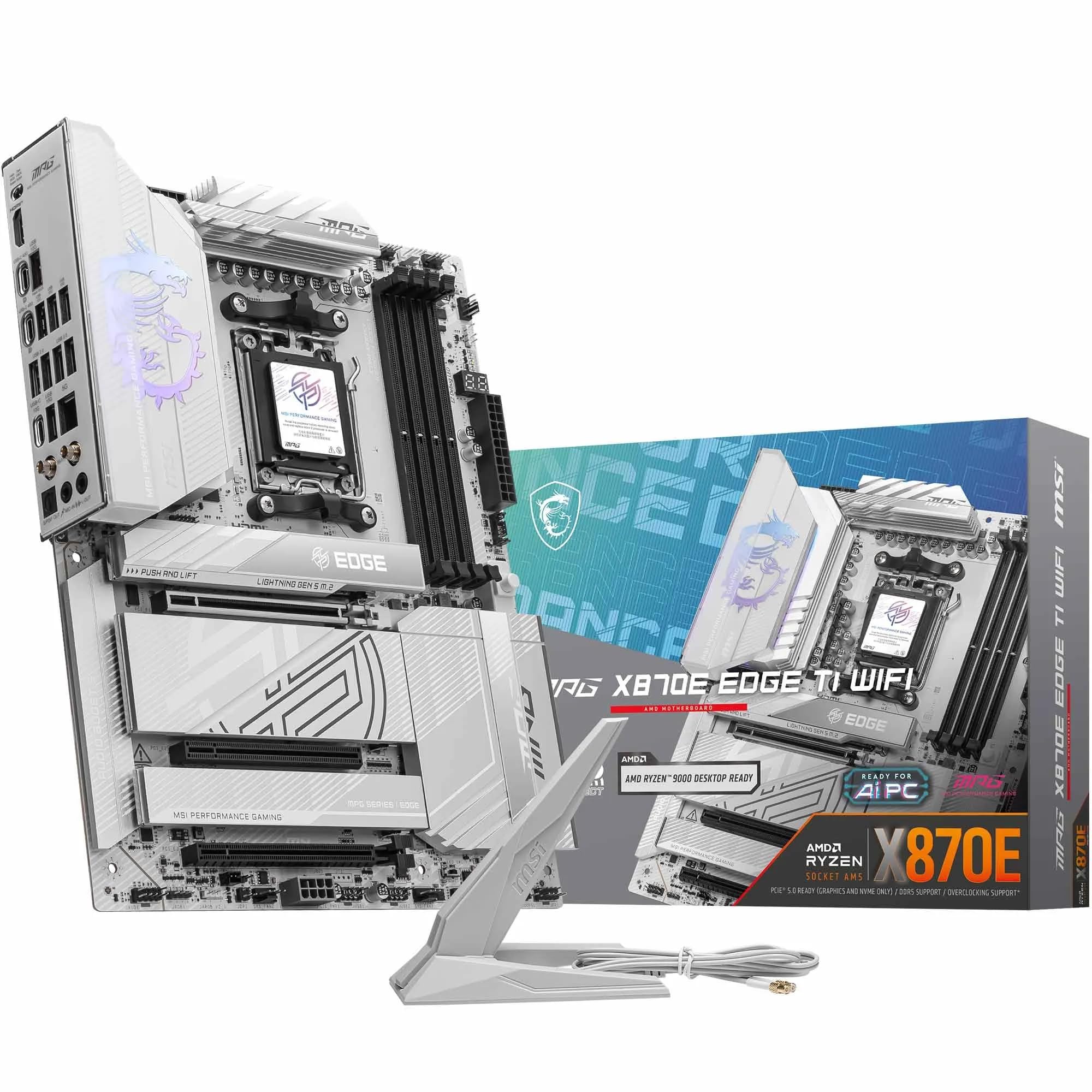 9.0 / 10
MSI MPG X870E EDGE TI WIFI Motherboard, ATX - Supports AMD Ryzen 9000/8000 / 7000 Processors, AM5-80A SPS VRM, DDR5 Memory Boost 8400+MT/s (OC), PCIe 5.0 x16, M.2 Gen5, Wi-Fi 7, 5G LAN
£299.99 · MSI
 8.5 / 10
Gigabyte X870 AORUS ELITE WIFI7 Amd Am5 Socket Motherboard Atx 4X Ddr5 Slots 3X
£243.98 · Gigabyte
Frequently asked
5 questions01Is the MSI MAG B550 TOMAHAWK Motherboard ATX overkill for just gaming?+
It depends on your CPU. For a Ryzen 7 5800X or Ryzen 9 5900X, the Tomahawk's VRM quality is genuinely useful and ensures your CPU runs at full speed under sustained gaming loads. For a Ryzen 5 5600 paired with a mid-range GPU, it's more board than you strictly need and a mid-range B550 option would serve you equally well for less money. The dual LAN, PCIe 4.0 support, and thermal engineering are real advantages, but only worth paying for if your build actually benefits from them.
02Will my existing CPU cooler work with the MSI MAG B550 TOMAHAWK Motherboard ATX?+
Almost certainly yes. The board uses the AMD AM4 socket, which has been the standard AMD desktop socket since 2016. Virtually every cooler released in the last several years, including AIOs, tower coolers, and budget stock-style coolers, supports AM4 mounting either natively or with an included bracket. Check your cooler's compatibility list for AM4 specifically, but it would be unusual for a modern cooler not to support it.
03What happens if the MSI MAG B550 TOMAHAWK Motherboard ATX doesn't work with my components?+
Amazon's standard 30-day returns policy applies, and purchases are covered by Amazon's A-to-Z Guarantee. If you have a compatibility concern, check MSI's CPU support list for the board before purchasing to confirm your specific Ryzen chip is listed. For Ryzen 5000 series chips, ensure the BIOS is updated on arrival before installing the CPU, as older stock may ship with a BIOS version that predates Ryzen 5000 support.
04Is there a cheaper motherboard I should consider instead?+
Yes, honestly. If you're building around a Ryzen 5 5600 or 5600X and don't plan to push memory overclocking hard or run sustained all-core workloads, a mid-range B550 board like the MSI B550-A Pro or ASUS Prime B550-Plus will handle your build without issue and cost noticeably less. The Tomahawk's advantages in VRM quality and dual LAN are real, but they're most valuable when you're running a Ryzen 7 or Ryzen 9 chip that actually stresses the power delivery system.
05What warranty and returns apply to the MSI MAG B550 TOMAHAWK Motherboard ATX?+
The product listing does not specify a manufacturer warranty duration in the verified product data. Amazon's standard 30-day return window applies to purchases made through Amazon UK, and the A-to-Z Guarantee covers purchases against defects and non-delivery. For specific warranty terms, check MSI's UK warranty information directly on their website at the time of purchase.