

When Google star ratings are not showing next to your website, check whose reviews they are before anyone opens the code.
The gold stars under a search result come from hidden code on the page, called structured data. Google decides which pages may use it for stars, and a business's reviews of itself, on its own website, don't qualify. A perfectly built site can go without stars for that reason alone.
Quick answer
Google shows review stars beside a web page only when the page carries valid review markup for an eligible item, such as a product. A business rating itself on its own website, even through a Google or Facebook reviews widget, isn't eligible. Valid markup still isn't a guarantee: Google decides when the stars appear.
At a glance
- Difficulty: Medium
- Time needed: about 15 minutes to find the cause; Google can take two weeks or more to recheck a fix
- You'll need: the page's address, a private browser window, a Google account, and Search Console access if you have it
Three kinds of stars, and where each one comes from
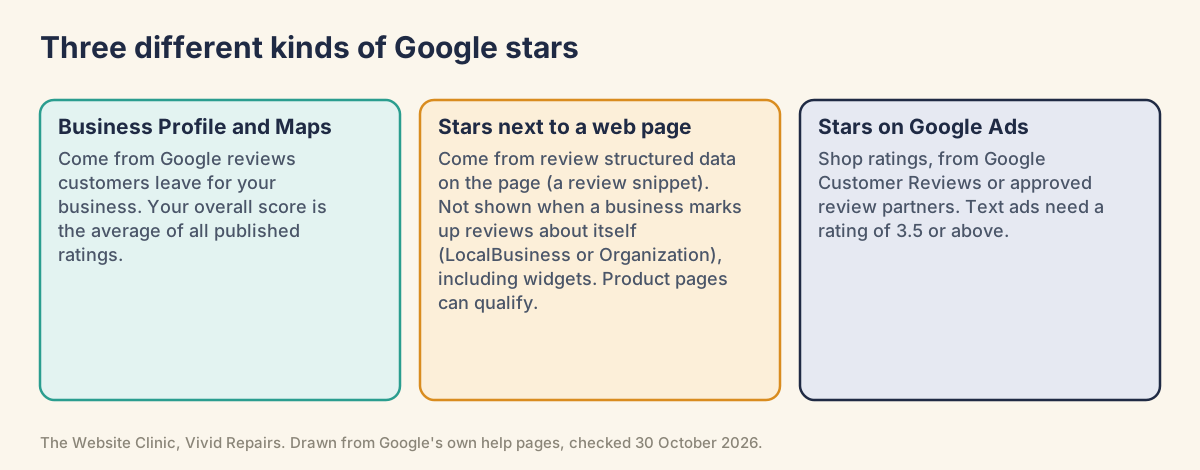
Stars on your Google Business Profile and in Maps come from Google reviews of your business. If those have dropped or vanished, see our guide to Google reviews disappearing.
Stars on Google Ads are shop ratings (once called seller ratings). Google builds them mainly from reviews collected through Google Customer Reviews and its listed review partners, plus its own shopping research. Its page on them doesn't list Business Profile reviews among the sources. Text ads need a rating of 3.5 or above from enough reviews in the country over the last 24 months, and most merchants get one after 100 or more eligible reviews.
The third kind sits next to a web page in the ordinary results. Google calls them review snippets.
Why a business's own reviews don't earn stars
Since September 2019, Google hasn't shown review stars for what it calls self-serving reviews. If the business being reviewed controls the reviews about itself, its pages that use LocalBusiness or Organization structured data are ineligible for the star feature.
That covers reviews typed into the code and reviews pulled in by a widget: Google's example names "Google Business reviews or Facebook reviews widget". A plumber or an accountant showing reviews on the home page won't get stars from them, however genuine they are.
A second rule catches the same set-up from another side: "Don't aggregate reviews or ratings from other websites." Copying your Business Profile or Trustpilot score into your page's markup breaks it.
None of this is a penalty.
Google's 2019 announcement said you don't need to remove the markup, you won't get a manual action just for having it, and your Business Profile isn't affected.
Pages that can qualify include single product pages in an online shop, books, courses, events, films, recipes and software, and sites reviewing other businesses, such as a local directory. "Service" isn't on Google's list, which matters for trades and professional firms.
Did Google switch stars off recently? No. It has phased out other search features since mid 2025, including FAQ rich results from 7 May 2026, but review snippets weren't on those lists. Their documentation was updated in September 2026, after a guideline on fake and undisclosed incentivised reviews was added in July.
Quick checks anyone can do
Look at the result as a customer would Easy
- Open a private window
In Chrome that's Ctrl+Shift+N, or Cmd+Shift+N on a Mac, which keeps your own history out of the results. - Search for the page
Type the product name, or the page's title, as a customer would. What you'll see: either a row of stars with a rating and a number of reviews under the page title, or a plain result with none. - Try other wordings
Results vary by search, location and device, so stars can show for one wording and not another.
Ask whose reviews they are, and about what Easy
- Reviews of your business, on your own site
Typed in or fed by a Google, Facebook or Trustpilot widget, they won't show as stars. Keep them for visitors and stop here: nothing is broken. - Reviews of one product, collected on your site
If customers reviewed a product through your own shop and those reviews sit on its page, the page can qualify. Carry on below. - A rating copied from somewhere else
A score taken from your Business Profile or another review site can't be used, even on an eligible page.
Think back to recent changes Easy
- List what changed
A new theme, reviews app, plugin update or platform can quietly remove the markup or attach the rating to the wrong thing. - Match the dates
If the stars went soon after a change, start there.
Step-by-step fixes for pages that qualify
Test the markup in the Schema Markup Validator and the Rich Results Test Medium
- Check the code reads correctly
Go to the Schema Markup Validator at validator.schema.org and give it the page address, or paste in the code. It runs without signing in. No errors means the markup is valid schema.org, the shared vocabulary this kind of code is written in. That says nothing yet about Google's stars. - Open the Rich Results Test
Go to search.google.com/test/rich-results and sign in with a Google account first. When we tried it signed out on 30 October 2026, it answered "Something went wrong. Log in and try again" instead of running the test. This one checks Google's own rich result types. - Test the page address
Paste the full address into the box marked "Enter a URL to test" and press TEST URL. Leave the crawler set to "Google Inspection Tool smartphone". - Read the summary line
You want "1 valid item detected" or similar. "No items detected" means no usable markup; "invalid" in the line means errors; "URL cannot be crawled" means the tool couldn't reach the page. - Open the detected item
Click "Product snippets" or "Review snippets". Errors stop the item qualifying; warnings name missing recommended fields. Copy the wording for whoever edits your site. - Check the rating is on the page
The score and number of reviews in the code must be plain to see on the page, near the reviews. - Retest after the fix
Once the changes are live, run both checks again. New code can be tried before it goes live in the validator or the Rich Results Test's CODE tab.
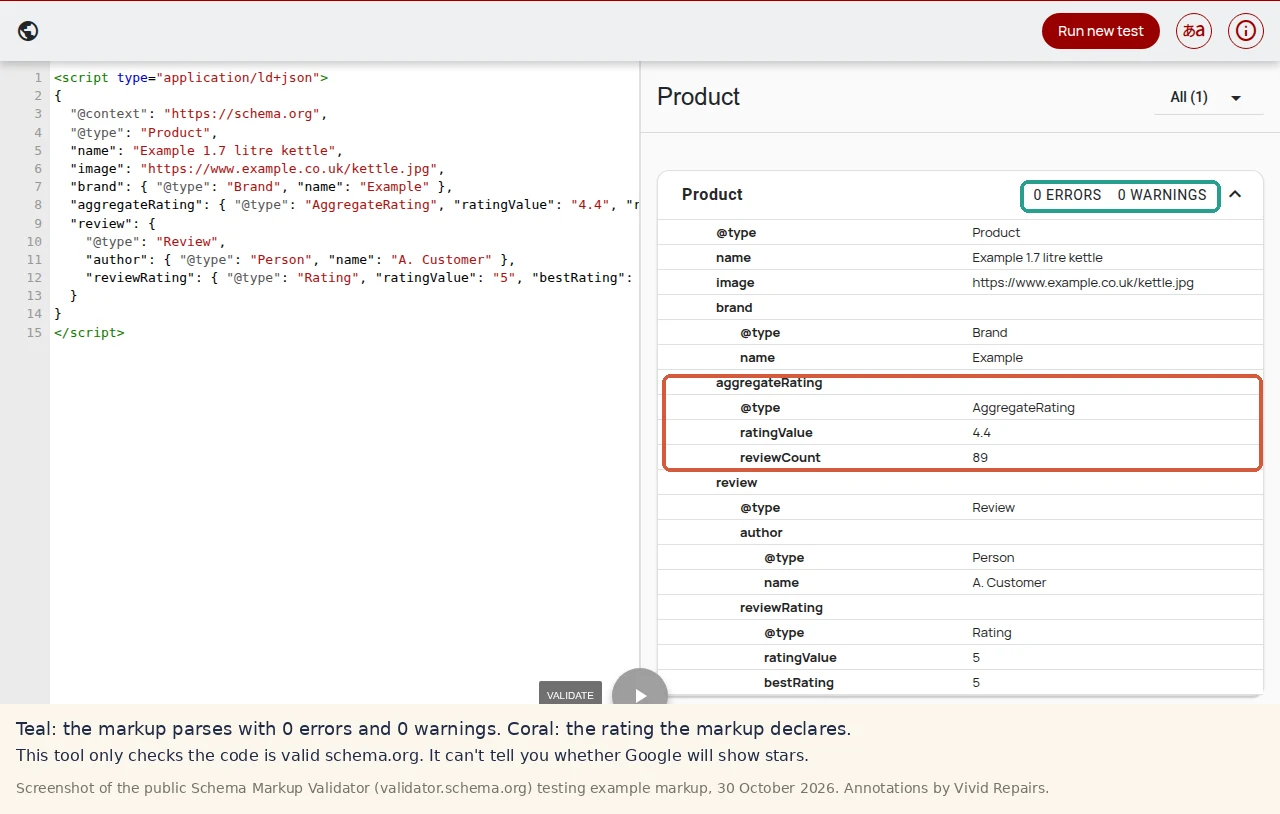
Neither tool can tell you the page is allowed stars. Self-serving reviews on a LocalBusiness page can pass both and still never show.
Check Search Console and ask Google to recheck Medium
- Find the report
In Search Console's menu, look under Enhancements for "Review snippets", or for a shop under Shopping for "Product snippets". What you'll see: a chart of valid and invalid items. No report means Google hasn't found valid markup of that type. - Read the issues
"Why items are invalid" lists errors that stop stars; "Improve item appearance" lists optional fixes. - Ask Google to recheck
After the fix is live, open the issue and press "Validate fix". It can take two weeks or more to reach "Passed" or "Failed". - Rule out a manual action
Open "Manual actions". If no structured data issue is listed, a penalty isn't the cause.
For a local business: put the effort where stars do show Medium
- Leave the reviews on your site
Visitors read them. Whether the old review markup stays is a tidying-up job for whoever runs the site. - Don't try to get round the rule
Extra markup, a different widget or a rating pasted in by hand won't change eligibility. - Build the stars on your Business Profile
Those show in Maps and the local results. Make asking for a Google review part of finishing each job, and offer nothing for it. Google doesn't allow any reward for a review, and UK consumer law bans fake reviews and rewards that are kept hidden: see our page on fake Google reviews.
For whoever edits the site's code
Type, property, report and status names below are written as Google gives them.
Eligible types and the two review rules Hard
Show the technical detail
Local business and Organization review snippets are eligible "only for sites that capture reviews about other" businesses or organisations. Valid itemReviewed types are Book, Course, CreativeWorkSeason, CreativeWorkSeries, Episode, Event, Game, HowTo, LocalBusiness, MediaObject, Movie, MusicPlaylist, MusicRecording, Organization, Product, Recipe and SoftwareApplication. Service isn't one of them, and we wouldn't relabel a service as a Product to get stars: Google lists "potentially misleading" markup among the reasons rich results don't show.
The self-serving rule applies to LocalBusiness "or any other type of Organization", subtypes included, whether the reviews are in the business's own structured data or come "through an embedded third-party widget". The aggregation rule is separate: "Don't aggregate reviews or ratings from other websites." Ratings must be "sourced directly from users".
Also: "users should be able to see that aggregate rating on the page"; reviews must be about "a specific item, not about a category or a list of items"; and no "fake or undisclosed incentivized reviews". Product rich results only support pages focused on a single product or its variants.
A Product example that's eligible Hard
Show the technical detail
A single product page in an online shop, with reviews of that product collected through the shop and shown on the page. This is the code in the Schema Markup Validator screenshot above, so pasting it in should give the same clean result:
<script type="application/ld+json">
{
  "@context": "https://schema.org",
  "@type": "Product",
  "name": "Example 1.7 litre kettle",
  "image": "https://www.example.co.uk/kettle.jpg",
  "brand": {
    "@type": "Brand",
    "name": "Example"
  },
  "aggregateRating": {
    "@type": "AggregateRating",
    "ratingValue": "4.4",
    "reviewCount": "89"
  },
  "review": {
    "@type": "Review",
    "author": {
      "@type": "Person",
      "name": "A. Customer"
    },
    "reviewRating": {
      "@type": "Rating",
      "ratingValue": "5",
      "bestRating": "5"
    }
  }
}
</script>
Why it qualifies. Product needs name plus at least one of review, aggregateRating or offers. AggregateRating needs ratingValue and at least one of ratingCount or reviewCount. Each Review needs author and reviewRating.ratingValue; itemReviewed can be left out because the review is nested in the Product. bestRating and worstRating default to 5 and 1; datePublished is recommended, and a shop would normally add offers.
Decimals take a dot: 4.4, never 4,4. The author must be a valid name, shorter than 100 characters. The 4.4 and the 89 must also be readable on the page. For merchants, Google recommends Product markup in the initial HTML. Strip any comments out of JSON-LD before publishing: the standard doesn't allow them.
The LocalBusiness pattern that won't earn stars Hard
Show the technical detail
A trade's home page markup that describes the business correctly, then adds a rating of itself:
<script type="application/ld+json">
{
  "@context": "https://schema.org",
  "@type": "Plumber",
  "name": "Example Plumbing",
  "url": "https://www.example.co.uk/",
  "telephone": "+44 113 496 0000",
  "address": {
    "@type": "PostalAddress",
    "streetAddress": "1 Example Street",
    "addressLocality": "Leeds",
    "postalCode": "LS1 1AA",
    "addressCountry": "GB"
  },
  "aggregateRating": {
    "@type": "AggregateRating",
    "ratingValue": "4,9",
    "reviewCount": 212
  }
}
</script>
What's wrong with it, most serious first:
- Plumber is a subtype of LocalBusiness, and the business is rating itself on its own site. That's self-serving, so the page is "ineligible for star review feature", whether a person typed the rating in or a widget generated it.
- If the 4.9 and the 212 come from the Google Business Profile or another review site, the markup also breaks "Don't aggregate reviews or ratings from other websites."
"4,9"uses a comma. Google asks for a dot:4.9.
Fixing the comma won't bring stars, because the first two problems aren't syntax. The rest of the block isn't affected by this rule: if you tidy up, take out the aggregateRating object and leave the rest.
Rich Results Test or Schema Markup Validator Hard
Show the technical detail
The Rich Results Test (search.google.com/test/rich-results) asked us to log in before it would run a test when we tried it signed out on 30 October 2026, although Google's help page for it doesn't mention signing in. It lists the Google rich result types found, with errors and warnings for each. Status lines include "N valid item(s) detected", "N items detected: Some are invalid", "N invalid item(s) detected", "No items detected", "URL cannot be crawled" and "Structured data with syntax errors detected".
It fetches the page as Google-InspectionTool, so a robots.txt rule can block it, and it won't test an HTTPS address unless the certificate is valid. If it refuses on certificate grounds, fix that first: see the "Not secure" warning.
The Schema Markup Validator (validator.schema.org) runs without signing in. It replaced Google's old Structured Data Testing Tool, checks syntax and compliance with schema.org, and no longer checks Google Search rich result types. Use it for vocabulary and nesting mistakes, and the Rich Results Test for Google eligibility.
The two can disagree. Owners on Google's help forum describe a microdata rating that the validator linked to the right item and the Rich Results Test didn't. One JSON-LD block, with the rating nested in the item it rates, avoids that.
Search Console, URL Inspection and why valid markup can stay hidden Hard
Show the technical detail
The Unparsable structured data report finds markup Google couldn't read at all. To confirm a fix on one page, run URL Inspection and choose "Test live URL", then press "Validate fix" on the issue in the rich result report. Its states are "Not started", "Started", "Looking good", "Passed" and "Failed"; Google checks a sample first, and the time depends on crawl frequency.
If the markup is valid and eligible and stars still don't show, Google's general guidelines list the reasons it may hold them back: results are tailored by search history, location and device type; the markup isn't representative of the page's main content or is potentially misleading; it's wrong in a way the Rich Results Test couldn't catch; the content it describes is hidden from users; or the page doesn't meet Google's guidelines, Search Essentials or content policies.
A structured data manual action costs the page its rich result eligibility but doesn't affect how it ranks.
When the stars still won't come
"They're verified Google reviews, so why not?" Owners on Google's help forum ask why their real Google reviews, shown in a widget, can't appear as stars. The reply they get quotes the rule against aggregating ratings from other websites, and the self-serving rule blocks it too. Those reviews already do their job on your Business Profile.
Everything validates, and still no stars for months. Some owners on the forum have Search Console listing valid review items and the Rich Results Test showing a valid AggregateRating, and still no stars in sight. Replies point to Google's position that structured data makes a feature possible without promising it. Check eligibility first; beyond that there's no switch to press.
A competitor still shows stars for their own business. Google said in 2019 that it was rolling the change out slowly and that some stars might still appear "where they shouldn't be". Google has a spam report page if you believe a site breaks its guidelines, with no promise of action, and copying the competitor won't help you.
The stars went after a new theme. They vanished after a recent theme change for one owner on the forum, and replies suggested allowing a few weeks after any fix. Compare the old and new markup in the validator to see what the theme dropped.
Price and stock show, but no stars. In one thread the price and availability appeared in the result while the stars didn't, and the rating turned out to be attached to the article rather than the product. Make sure aggregateRating sits inside the Product, not on a WebPage or Article.
A directory or booking site with two ratings. A platform reviewing other businesses is eligible in principle. One such site showed its own reviews beside an imported Google rating, and a forum contributor suggested dropping the imported one. It fits the aggregation guideline, though it came from a forum contributor rather than from Google.
Official pages on this
- Review snippet (Review, AggregateRating) structured data
- Product snippet structured data
- General structured data guidelines
- Making review rich results more helpful (September 2019)
- Search documentation updates
- Rich Results Test (Search Console Help)
- The Schema Markup Validator replaces the Structured Data Testing Tool (December 2020)
- Rich result status reports (Search Console Help)
- Fix structured data issues in Search Console
- About shop ratings (Google Ads Help)