

You don't pay to get your website on Google, and most of the time you don't need to submit anything either. Google's crawlers follow links from pages they already know, find new ones and add them to the index. Google says the vast majority of pages in its results get there that way, with no help from the owner.
A brand new site that nothing links to can sit unnoticed for a while. Google Search Console is how you nudge it along, and it's where Google tells you if something is stopping it.
Quick answer
Google finds most websites by itself, for free, and a new page typically takes a day or two to a few weeks to be crawled and indexed. To help a new site along, add it to Google Search Console, verify it, submit your sitemap and request indexing for your home page once. Then allow at least a week.
At a glance
- Difficulty: Easy
- Time needed: about an hour to set up, then a week or more of waiting
- You'll need: a Google account the business will keep, the login for your website builder, and ideally the login for wherever your domain's DNS is managed
How a site gets from live to listed
Google describes three stages: crawling, indexing and serving search results.
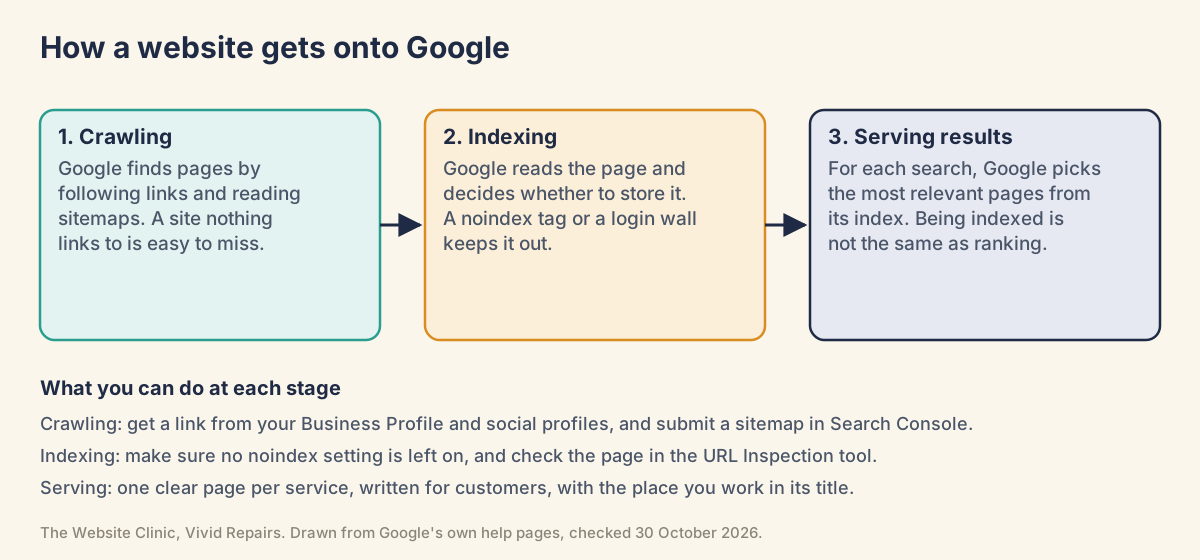
Crawling is Google finding and fetching your pages. Some it already knows from earlier visits. Others it discovers by following a link from a page it knows, or from a sitemap you've submitted.
Indexing is Google reading what it fetched and deciding whether to store it.
Serving is the bit people call ranking: for each search, Google picks pages from its index to show. Being indexed means you can appear. It doesn't decide where. What helps a small business site at this stage is a page for each main service, a clear title on each saying what and where, and the same name, address and phone number on the site and your Business Profile.
None of it can be bought. Google doesn't accept payment to crawl a site more often or to rank it higher, and it doesn't guarantee to crawl, index or serve any page, even one that follows its rules.
Be wary of anyone who promises a number one position or a "priority submit" to Google. Google's advice on hiring SEO help says no one can guarantee a top ranking, and it names both of those claims as warning signs.
Quick checks before you set anything up
See whether Google already has your site Easy
- Turn SafeSearch off
Google's troubleshooting page suggests this first, because SafeSearch can filter results out. - Search for your site
Typesite:and then your address, with no space after the colon:site:yourbusiness.co.uk. What you'll see: a list of pages from your site, or no results from your site at all. - Read the result
Pages listed means Google has indexed at least part of the site. A short list doesn't mean the rest is missing, because a site: search doesn't necessarily show every indexed page. Nothing listed means Google hasn't found you yet, or something is in the way.
Give Google a link to follow Easy
- Put the address on your Google Business Profile
If you serve customers locally you should have a profile anyway, and it has a place for your website. - Add it to your social profiles
Wherever the business already has a page. - Ask for a listing where you already belong
Your trade body, a supplier's stockist page, a local business association.
Never pay for links. Google warns that paying for them could be treated as a breach of its spam policies.
Built the site on WordPress, Wix, Squarespace or Shopify? Each has a setting that can hide a site from search engines, and it's easy to leave on after the build or a trial. If you're not sure yours is public, the switch for each platform is on our page about a website not showing on Google.
Submitting your site through Search Console
Search Console is Google's free tool for site owners, once called Google Webmaster Tools. It shows which pages are indexed, which aren't and why, and which searches you turn up for.
If you only do one thing on this page, do this.
Domain or URL prefix? A Domain property covers everything on your domain: all subdomains (www, m and so on) and both http and https. The only way to verify it is through your domain name provider, with a DNS record. A URL prefix property covers only addresses that start with the exact prefix you type, including the http:// or https:// at the start, so https://www.yourbusiness.co.uk doesn't cover the version without www, or the http one. It can be verified with an HTML tag, an HTML file, Google Analytics or Google Tag Manager. If you can get into your DNS settings, choose Domain.
Add, verify and submit your site Medium
- Sign in to Search Console
Go to search.google.com/search-console and sign in with a Google account the business will keep, not a personal one belonging to someone who might leave. - Add a property
Open the property selector and choose + Add property. What you'll see: two options, Domain and URL prefix. - Prove the site is yours
For a Domain property you're given a TXT record, a line of text you add to your domain's settings, that starts google-site-verification=. If your domain company appears in the list, choose it and click Start verification, then sign in with them and Google adds the record for you. Otherwise, paste the record into your DNS settings with the Host or Name box left blank or set to @ (shorthand for the domain itself), then click Verify. For a URL prefix property, choose HTML tag and paste it into your website builder's box for Google verification. What you'll see: confirmation that you're verified, or "Your verification DNS TXT record was not found". A manually added record can take up to two or three days to start working, so if you've only just added it, wait a day or two and try again. - Submit your sitemap
Platforms such as WordPress and Wix usually make one for you, often at yourbusiness.co.uk/sitemap.xml, so open that in your browser first. Then open the Sitemaps report, type the address into Add a new sitemap and click Submit. What you'll see: a status of Success, Has errors or Couldn't fetch. If Google couldn't fetch it, it keeps trying for a few days. - Inspect your home page
Paste the full home page address into the search bar at the top of Search Console. That's the URL Inspection tool. What you'll see: "URL is unknown to Google", meaning Google hasn't seen it before, "URL is not on Google" with a reason underneath, or "URL is on Google". - Request indexing, once
Unless the page is already on Google, click Request indexing. Google runs a quick check and, if the page passes, adds it to the indexing queue. For a new site, Google calls this the best first step. Don't keep clicking: there's a daily quota, and repeat requests don't get a page crawled any sooner. - Wait a week, then look again
Allow at least a week after submitting a sitemap or an indexing request before assuming there's a problem. Then run the site: search again and inspect the home page again.
On Wix, the SEO Setup Checklist connects the site to Search Console and submits it to Google for you, and Wix submits and updates the sitemap itself. Hosted platforms often do some of this automatically, so check your platform's help pages before doing it twice.
Keep the keys in the business Medium
- Find out whose account it's on
If a web designer set Search Console up, ask which Google account owns the property. If it's theirs, you're relying on them for access. - Verify yourself as an owner too
More than one person can verify ownership of the same property, using any of the methods above. If the only verified owner leaves, Google's advice is to verify ownership yourself to keep or regain access. - Leave the verification in place
Don't delete the DNS record, HTML tag or file once you're verified. Removing it can cost you the verification later.
While you're at it, find out where your domain is registered and who has that login. You'll need it for more than this one job.
For whoever handles your domain and DNS
For when verification won't go through or Google still can't see the site.

DNS verification for a Domain property Hard
Show the technical detail
A Domain property can only be verified through the domain name provider. The record is a TXT record on the root of the domain (Host blank or @), with a value in this form:
google-site-verification=YOUR_TOKENA CNAME record is the alternative, in which case Search Console gives you two values: a name and a destination.
The record has to go wherever the domain's nameservers point, and that isn't always the registrar. It might be Cloudflare, the web host or the website platform. These are standard lookups:
dig +short NS yourbusiness.co.uk
dig +short TXT yourbusiness.co.uk
nslookup -type=TXT yourbusiness.co.uk
The first should return the nameservers of whoever actually runs the DNS, and that's where the record belongs. The second should list your TXT records, each in quotes, and one of them should contain your google-site-verification= string. The third does the same job on Windows. Without a terminal, Google Admin Toolbox Dig (toolbox.googleapps.com/apps/dig/) runs the lookup in a browser: choose TXT.
The two DNS errors are "Your verification DNS TXT record was not found" (nothing is being served yet, or it's at a DNS host that isn't live) and "Your verification record did not match" (a record is served, but not with the expected token, perhaps one from an earlier attempt). Manually installed records can take up to two or three days to be served. Once verified, leave the record in place: removing it loses the verification.
HTML tag and file verification for a URL prefix property Hard
Show the technical detail
The HTML tag goes inside the <head> of the home page:
<meta name="google-site-verification" content="YOUR_TOKEN" />For HTML file upload, the file must sit at exactly the address Search Console gives, and Search Console doesn't follow redirects when looking for it. The errors read "Your verification file was not found in the required location" and "Your verification file has the wrong content". Deleting the file later loses the verification.
A URL prefix property includes the protocol, so it only shows data for http or for https, not both. Redirect http to https, and use a Domain property if you want both versions in one place. Adding a second verification method is a sensible backup in case one stops working, for example after a theme change strips the tag out.
Sitemap statuses and the robots.txt pointer Hard
Show the technical detail
The Sitemaps report shows a status of "Success", "Has errors" or "Couldn't fetch". The details page can say "Sitemap could not be read" or "Sitemap can be read, but has errors". Google tries to crawl a sitemap as soon as it's submitted, and after a failed fetch it keeps trying for a few days. Before resubmitting, run the sitemap's own address through URL Inspection's live test: "Page fetch" should say "Successful".
A single sitemap is limited to 50MB uncompressed or 50,000 URLs, so larger sites split it into several. Submitting one is a hint, not an instruction: Google may not download it or use it.
You can also point crawlers at it from robots.txt, which must sit at the root of the host:
Sitemap: https://www.yourbusiness.co.uk/sitemap.xmlIf robots.txt contains Disallow: / under User-agent: *, the whole site is blocked from crawling. Full robots.txt and noindex checks are on our not-showing page.
Reading URL Inspection on a new site Hard
Show the technical detail
The index result is one of "URL is on Google", "URL is on Google, but has issues", "URL is not on Google" or "URL is an alternate version". On a new site you'll often meet "URL is unknown to Google", which means Google hasn't seen the address before.
The fields to read: "Discovery" ("Sitemaps" and "Referring page" show how Google found the URL), "Last crawl", "Crawl allowed?", "Page fetch", "Indexing allowed?", "User-declared canonical" and "Google-selected canonical".
"Test live URL" fetches the page now and reports "URL is available to Google", "URL is available to Google, but has issues" or "URL is not available to Google". "View tested page" shows the HTML and HTTP headers Google received, which is how you catch a noindex added by a plugin or a script that the page source doesn't make obvious.
A quick header check from the command line:
curl -sI https://www.yourbusiness.co.uk/You want a 200 status on the address you're submitting and no X-Robots-Tag: noindex header. "URL is on Google" still doesn't guarantee the page appears in search results.
When verification won't behave
The TXT record "can't be found". Search Console kept saying it couldn't find a Domain property TXT record, while a DNS checker still showed an old, deleted record, according to someone helping a client on a local search forum. Google and the domain company each blamed the other. Look up what's actually being served with the commands above, check it's the current token, and give a manually added record two or three days.
The record went in at the wrong place. On a hosting company's community forum, an owner added the record at their web host while the domain's nameservers pointed at a different DNS service, so the record was never served. The fix was to add it where the nameservers point and delete the inactive zone. The small-business version is a domain bought at one company, with DNS run by the website platform or by Cloudflare.
"URL is on Google", but searching the name finds nothing. Owners on Google's help forum describe this. In one case, after a move to a new domain, Google kept asking "did you mean" the old address for months. Being indexed doesn't mean ranking first for your name, especially if it's close to a common word or another business. Product Experts there suggest WebSite structured data with your name and alternateName on the home page. Google uses it to choose the site name it shows beside your results; it won't make the site rank for the name by itself.
If something still looks wrong once you're listed, such as social profiles above your site or a domain with a past, our guide to a website not showing on Google covers those cases.
Official pages on this
- Get your website on Google
- In-depth guide to how Google Search works
- Why is my page missing from Google Search?
- Add a website property to Search Console
- Verify your site ownership
- Build and submit a sitemap
- Manage your sitemaps using the Sitemaps report
- URL Inspection tool
- Ask Google to recrawl your URLs
- Wix: site not appearing in search engine results