

Since Chrome 154 was released in September 2026, a website without HTTPS can lose a customer before its first page loads. Chrome now asks people's permission before it opens a public site over plain http. Someone who changed the setting themselves, or whose employer manages their Chrome, may not see it, and a visitor who clicks through isn't asked again for 15 days.
If your website says not secure, whether as a small label beside the address or a full-page warning a customer has sent you a photo of, the cause usually sits in your hosting or website builder settings and the fix usually costs nothing. Start by working out which warning it is, because Chrome has three that look alike.
Quick answer
"Not secure" means the page isn't reaching visitors over a valid HTTPS connection. Usually the site has no certificate, the certificate has expired or doesn't cover the address typed (often the version without www), http isn't redirected to https, or images, scripts or a form on the page still use plain http. Most hosts and website builders include certificates free.
At a glance
- Difficulty: Easy
- Time needed: 10 minutes to find the cause; up to 48 hours if a builder has to issue a new certificate after a DNS change
- You'll need: Chrome on a computer, a phone on mobile data, and the login for your host or website builder
Three warnings, three different faults
Websites load over plain http:// or encrypted https://. HTTPS needs a certificate, often called an SSL certificate. Each Chrome warning points at a different way that has gone wrong.
- "Not secure" beside the address. The page loaded over plain http. Chrome's help describes a connection that isn't private, where someone may be able to view and change what's sent and received.
- "This site doesn't support a secure connection", a warning that covers the page before anything loads. Chrome tried HTTPS, couldn't get it, and is asking whether to carry on over http, with buttons for "Continue to site" and "Go back". This is the Chrome 154 change: the setting called Always use secure connections is now on by default.
- "Your connection is not private", full page, with a code. The site offered HTTPS but the certificate failed a check. NET::ERR_CERT_DATE_INVALID means expired, or a visitor whose clock is wrong. ERR_CERT_COMMON_NAME_INVALID means it doesn't cover the address typed. NET::ERR_CERT_AUTHORITY_INVALID means the browser doesn't trust whoever issued it.
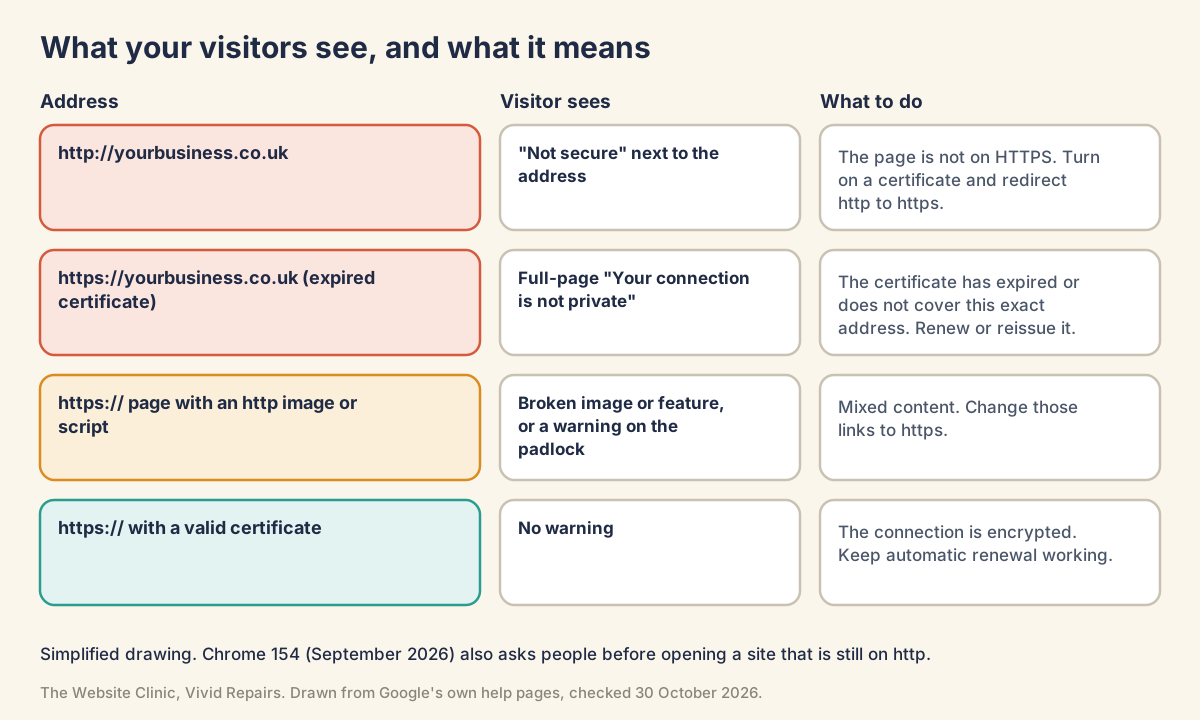
A quieter fourth case is mixed content: an https page still pulling an image, script, font or widget from an http address. You might see a missing picture, a broken slider, a padlock warning or "not fully secure". A form that sends to http gets its own "not secure" text as people type.
One more cause catches sites with a valid certificate. Chrome's guide for site owners says that if any step in a redirect chain doesn't support HTTPS, Chrome warns, even though the visitor would have ended up on a secure page. Its example is a site served at https://www.example.com, where http://example.com redirects to http://www.example.com and the bare example.com (the address without www) has no HTTPS. Anyone typing the address without www gets the warning.
That setup was harmless for years.
Quick checks before you change anything
Your site, or your computer? Easy
- Try a phone on mobile data
Turn off Wi-Fi and open your site. What you'll see: if the phone opens it cleanly while your computer warns, the fault is probably on the computer or its network. - Try someone else's site
Open a big, well-known website on the computer that warned. If that warns too, suspect the computer: its date and time, antivirus "HTTPS scanning", a work network, a hotel Wi-Fi sign-in page, or an extension. - Try an Incognito window
Extensions don't run there unless you've allowed them, so a warning that disappears points at one of yours.
Type all four addresses Easy
- Try each version
In fresh tabs, typehttp://yourname.co.uk,http://www.yourname.co.uk,https://yourname.co.ukandhttps://www.yourname.co.uk. What you'll see if all is well: every one ends on the same https address, with no warning page and no "Not secure" label. - Note which one fails
A warning only on the versions without www means HTTPS was never set up on the bare domain. Under Chrome's new default, that one step is enough. - Try an old inner page
Type the http address of your contact page. Old bookmarks and links point at inner pages too.
Read the certificate's dates Easy
- Open the certificate
Click the icon to the left of your web address, then the line about the connection, then the option to view the certificate. What you'll see: who it was issued to, who issued it, and the dates it's valid between. - Compare the expiry with today
A date in the past means it didn't renew (box 7).
Step-by-step fixes
Switch HTTPS on where your site lives Medium
- cPanel hosting
Go to Security, then SSL/TLS Status. What you'll see: each domain with a status. Filter for "Unsecured", "Expired", "Expiring Soon" or "Has AutoSSL Problems". cPanel's own example of a problem is a domain that doesn't resolve to an IPv4 address on the internet, which means it isn't pointing at a server. - Shopify
Certificates are free for every domain added to Shopify and are issued once its A and CNAME records (the DNS settings that point the domain at a server) point to Shopify, which can take up to 48 hours. What you'll see on the domain: "TLS or SSL pending", or "TLS or SSL unavailable" if it failed. - Squarespace
In the SSL settings, choose "Secure (Preferred)". The domain must point to Squarespace; allow up to 48 hours. Leave "HSTS Secure" alone unless you've read box 11. - Wix
HTTPS is on automatically at no extra cost, with a certificate generated once a domain is connected (a custom domain needs a paid plan). If it warns, check the domain is connected, its DNS records match the connection method and, for a domain bought elsewhere, DNSSEC (an extra security layer on the domain's DNS settings) is off. - Any other host
Look for an SSL, Let's Encrypt or AutoSSL option, or ask the host to enable HTTPS on both the www and non-www addresses.
Send every address to HTTPS Medium
- Give the bare domain its own HTTPS
Chrome now tries https://yourname.co.uk first. If that address has no working certificate, visitors get the warning, whatever your redirect does next. Make sure the certificate covers the address with and without www, then point the redirect from http://yourname.co.uk straight at the https address rather than at http://www.yourname.co.uk. - Turn on the force HTTPS setting
Many hosts and builders have a single switch. Where there isn't one, set up a permanent 301 redirect from every http address to the same page on https. - Update the WordPress addresses
In Settings, General, change both WordPress Address (URL) and Site Address (URL) to start with https. If they're greyed out, they're set in wp-config.php as WP_SITEURL and WP_HOME, and need changing there. - Update links that point inwards
Menus, buttons, canonical tags and the XML sitemap should all use the https addresses. - Test again
Repeat the four-address check from box 2. A page that keeps reloading and never arrives means two redirect rules are fighting; undo the last one you added.
Take a backup before changing the WordPress addresses. A typo in either field can lock you out of the dashboard until someone corrects it in wp-config.php or the database.
Clear mixed content and insecure forms Medium
- Open the Console
In Chrome, right-click the page, choose Inspect, then Console (Ctrl+Shift+J on Windows, Command+Option+J on a Mac). What you'll see: lines beginning "Mixed Content:" that name the file at fault. - Read the end of each line
"This request was automatically upgraded to HTTPS" means you can safely change that address to https. What you'll see for the serious kind: "This request has been blocked". That item isn't loading at all, so a slider, font or booking form may have quietly stopped working. - Go page by page
The Console only shows the page you're on and clears when you move, so check every page with a form, map, video or booking widget. - Fix it at the source
Changehttp://tohttps://in the page, theme or widget settings; on WordPress, check old image addresses inside posts. A file with no https version needs hosting yourself (where allowed), replacing or removing. - Check the forms
Start typing into your contact and login forms. Warning text means the form sends to an http address. Change its destination to https in the form's settings.

Make sure it renews Medium
- Know the limits
Publicly trusted certificates issued on or after 15 March 2026 can be valid for at most 200 days, falling to 100 days for those issued from 15 March 2027 and 47 days from 15 March 2029. One issued before March 2026 can still run longer. Let's Encrypt's free certificates last 90 days, moving to 64 in February 2027 and 45 in February 2028. - Check renewal is automatic
Renewing by hand isn't realistic at these lengths. Automatic renewal usually needs the domain still pointing at your host, so a DNS change can stop it. - Get told when it fails
Let's Encrypt stopped sending expiry reminder emails on 4 June 2025. Unless your host warns you, diary the expiry a fortnight ahead or use a monitoring service.
And Google rankings? Google called HTTPS a very lightweight ranking signal in 2014. Its current guidance says page experience aspects other than Core Web Vitals, which include being served securely, don't directly help a site rank higher. Moving to HTTPS needs nothing special in Search Console: don't use the Change of Address tool, and keep the redirects in place. The visitor who turns back at the warning costs more.
For your developer or host
Certificate expiry, names and chain Hard
Show the technical detail
Run this for the bare domain and again for www; with SNI the server can present a different certificate for each.
echo | openssl s_client -connect example.co.uk:443 -servername example.co.uk 2>/dev/null \
  | openssl x509 -noout -subject -issuer -dates -ext subjectAltName
notAfter= is the expiry. The Subject Alternative Name list must include every address people use. A wildcard such as *.example.co.uk covers www but not the bare domain. For monitoring, -checkend 1209600 in place of the last line's options exits non-zero if expiry is within 14 days.
echo | openssl s_client -connect example.co.uk:443 -servername example.co.uk -showcerts 2>&1 \
  | grep -E "Verify return code|^ *[0-9] s:"
An expired certificate gives Verify return code: 10 (certificate has expired). An incomplete chain gives 21 (unable to verify the first certificate) with only one certificate listed: install the full chain the certificate authority supplies. Names are only compared if you add -verify_hostname example.co.uk, which reports 62 (hostname mismatch) on a wrong one.
curl -vI https://example.co.uk/ 2>&1 | grep -E "subject:|issuer:|expire date|subjectAltName|SSL certificate (verify|problem)"A healthy site ends SSL certificate verify ok.; an expired one stops with curl: (60) SSL certificate problem: certificate has expired.
CERT_AUTHORITY_INVALID also covers self-signed certificates, and Chrome's help ties it to work proxies such as ZScaler, Palo Alto Networks or Fortinet. If issuance keeps failing, check DNS for CAA records limiting which authorities may issue; Shopify needs letsencrypt.org, pki.goog and ssl.com allowed where they exist.
Redirect chains and Ask-before-HTTP Hard
Show the technical detail
Chrome's adoption guide says any redirect step without HTTPS triggers the warning, tracking redirects and domain forwarding services included. A user's decision lasts 15 days and renews on each revisit. Localhost, local IPs and single-label or other non-unique hostnames are exempt. Certificate error warnings are separate and unchanged.
The guide's warning case is a bare domain with no HTTPS of its own, so first check that curl -sSI https://example.co.uk/ answers without a certificate error. A working one starts with a status line such as HTTP/2 301 or HTTP/2 200; a certificate fault prints a curl: (60) error instead. Then follow the redirects from http.
curl -sSI https://example.co.uk/ | head -n 1

curl -sI http://example.co.uk/ | grep -iE "^HTTP|^location"
curl -s -o /dev/null -w '%{http_code} %{redirect_url}\n' http://example.co.uk/
curl -sIL -o /dev/null -w '%{http_code} %{url_effective}\n' http://example.co.uk/
The first hop should be a 301 or 308 whose Location already starts with https (for example HTTP/1.1 301 Moved Permanently, Location: https://example.co.uk/), and the chain should end on a 200 at the final https address. A first hop to http://www.example.co.uk/ is worth fixing too, but on its own it isn't what Chrome warns about. Repeat from http://www.example.co.uk/.
To see what visitors will, turn on Always Use Secure Connections at chrome://settings/security and browse the site, old campaign links and forwarding domains. HSTS, where set, takes precedence over these warnings.
Mixed content in detail Hard
Show the technical detail
Browsers auto-upgrade image, video and audio requests, CSS background images included, and block the rest, including scripts, stylesheets, iframes, fetch, web fonts, and images via srcset or <picture>. An otherwise upgradable request is blocked if its host is an IP address. Plain <a> links to http pages aren't mixed content.
In DevTools, the Privacy and security panel's Non-secure origins section has View requests in Network panel.
As a stopgap while the sources are fixed, this header or meta tag makes the browser upgrade insecure URLs before requesting them. Anything with no https version then fails to load, so it isn't a fix in itself.
Content-Security-Policy: upgrade-insecure-requests

<meta http-equiv="Content-Security-Policy" content="upgrade-insecure-requests">
Mixed forms (on an https page, submitting over http) have shown warning text, a full-page "submit anyway" warning and no autofill since Chrome 87. Search templates and plugin output for action="http:.
HSTS, and why to go slowly Hard
Show the technical detail
The Strict-Transport-Security header tells browsers to use only HTTPS for the host for max-age seconds. Browsers ignore it over http, and it shouldn't be on the http to https redirect response.
curl -sI https://example.co.uk/ | grep -i strict-transport-securityTwo risks matter for a small business. Once a browser holds it, visitors can't click through a certificate error, so a lapsed certificate locks out everyone returning. And includeSubDomains blocks any subdomain that only works over http, such as an old test site or a booking page. Withdrawing it takes max-age=0 sent over HTTPS, and Squarespace warns that switching off "HSTS Secure" can keep returning visitors out for up to 48 hours.
Add it only once the redirect works and every subdomain runs on HTTPS, ramping max-age in stages (300, 604800, then 2592000 with includeSubDomains) and checking for breakage each time.
Strict-Transport-Security: max-age=300Don't add preload to a small business site. hstspreload.org says inclusion can't easily be undone and removal takes months to reach users through Chrome updates.
What owners run into
"The SSL checkers say my certificate is fine." Owners on Chrome's help forum and the Let's Encrypt community describe valid certificates that Chrome still flags as "Not secure". Replies pointed to what a checker doesn't test: a missing http to https redirect, or mixed content. Run boxes 2 and 6.
"I switched SSL on and now I can't log in." A login form flagged as not secure left one owner on Chrome's forum thinking they'd have to turn SSL off to get in. Replies pointed to insecure elements on the page and an old http bookmark. Fix the form or the bookmark; switching HTTPS off brings back a bigger warning for every visitor.
"Every site is not secure, but only on my computer." It happens on one machine while the phone works fine, posters on Google's forums say, sometimes with NET::ERR_CERT_DATE_INVALID. That points at the device: its clock, an old operating system, security software or an extension. In one thread, disabling extensions was what fixed it.
"A customer on an old device can't get in." Let's Encrypt certificates depend on the device trusting its ISRG Root X1 or X2. For X1 its compatibility list starts at Windows XP SP3 (with automatic root updates on), macOS 10.12.1, iOS 10 and Android 7.1.1. Wix's help likewise says older operating systems aren't a site issue. Usually it's the customer's device that needs updating.
"I turned HSTS off and some people still can't get in." Their browsers remember it and still insist on HTTPS until it works again or the remembered period runs out. That's why box 11 starts with a five-minute max-age.
Official pages on this
- Check if a site's connection is secure (Chrome Help)
- Fix common error messages, including certificate and clock errors (Chrome Help)
- Chrome 154 release notes: Ask before HTTP on by default
- Ask-before-HTTP adoption guide for site owners (Chromium)
- Fixing mixed content (web.dev)
- Strict-Transport-Security header (MDN)
- HSTS preload list submission and deployment advice
- CA/Browser Forum Baseline Requirements: certificate validity periods
- Let's Encrypt: decreasing certificate lifetimes to 45 days
- About HTTPS and SSL (Wix Help Center)
- Understanding Google page experience (Search Central)