

When a website is not showing on Google, it's usually one of two quite different problems.
- The site is missing. Search for the business name, or even paste the address into Google, and nothing from the site comes up.
- The site is there but buried. It shows when you search the business name, but not when customers search "boiler repair Basildon" or whatever you actually sell.
The fixes are different, so spend five minutes working out which one you've got.
Quick answer
Search Google for site:yourbusiness.co.uk. If nothing appears, open Google Search Console and inspect your home page: it says whether the page is on Google and, if not, why. Google's help lists a site that's too new, a noindex tag, a robots.txt block, password protection, and a site nothing links to.
At a glance
- Difficulty: Medium
- Time needed: 15 minutes to find the cause, then anything from a minute to a few weeks to fix and see it take effect
- You'll need: access to Google Search Console for the site, and the login for your website builder or hosting
Missing or buried: what's going on
Before a page can appear for any search, Google has to find it, fetch it (crawling) and decide to store it (indexing). A missing site has stalled somewhere in that chain: Google hasn't found it, can't open it, or has been told not to keep it. A buried site has made it into the index, and the question is why other pages are chosen ahead of it.
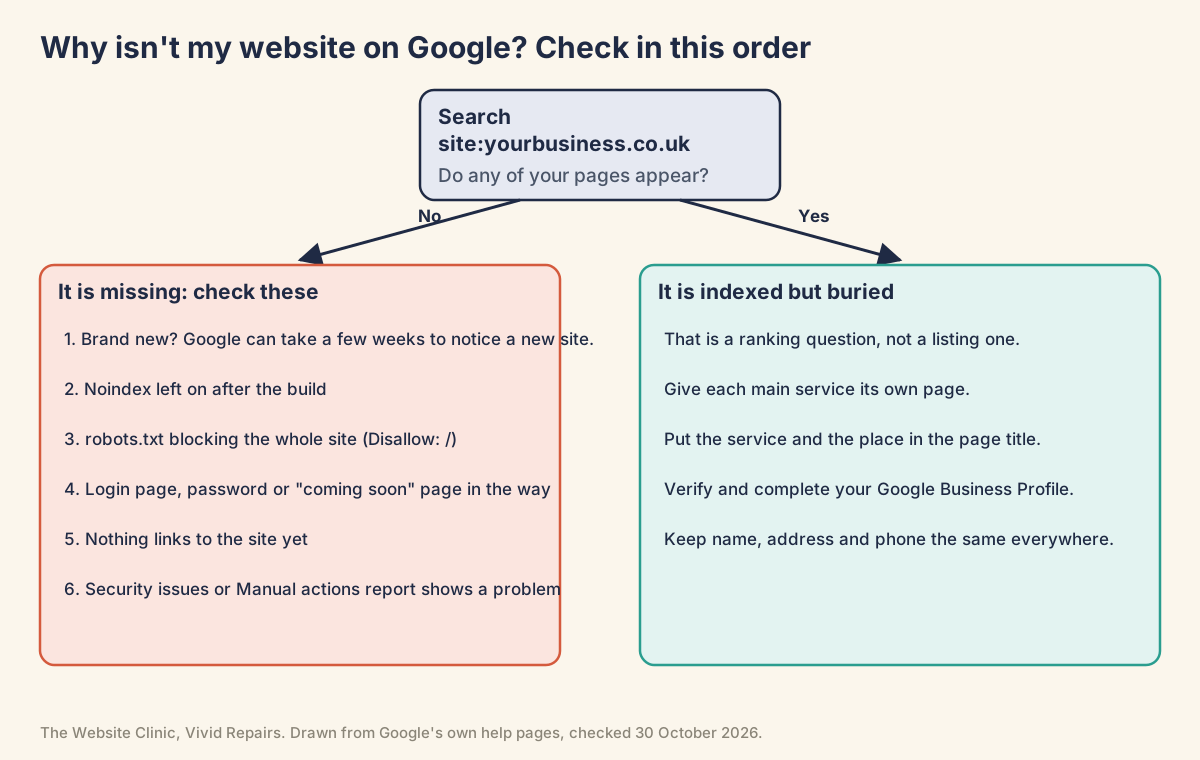
Search Console tells you which. It's free, and it's where Google says directly what it found when it tried your pages. If you haven't set it up, our guide to getting your website on Google walks through adding and verifying the site.
Quick checks anyone can do
Missing, or buried? Easy
- Turn SafeSearch off
It can filter results out, and it's the first thing Google's troubleshooting page asks you to rule out. - Run a site: search
Typesite:yourbusiness.co.uk, with your own address and no space after the colon. What you'll see: pages from your site (it's indexed, at least partly), or nothing from your site at all. - Rule out a Google-wide problem
Open the Google Search Status Dashboard at status.search.google.com and click View incident history. What you'll see: sections for Crawling, Indexing, Ranking and Serving. If Crawling and Indexing both say "No recent incidents reported", Google hasn't flagged a problem on its side.
Is it simply too new? Easy
- Check when it went live
It takes time after a page is published before Google crawls it, and more time to index it. The total is typically a day or two to a few weeks. - Check when you last asked
If you submitted a sitemap or requested indexing in the last few days, allow at least a week before assuming there's a problem.
Look at the site the way Google does Easy
- Open it in a private window
Use an incognito or private browsing window, so you're not logged in to your website builder. What you'll see: your real home page, or a login box, a password prompt or a "coming soon" page. If you see one of those, so does Google. - Open your robots.txt
In the same window, go to yourbusiness.co.uk/robots.txt. What you'll see: a short text file. Trouble looks likeUser-agent: *followed byDisallow: /, which asks every crawler, Google included, to stay out of the whole site.
Step-by-step fixes
Find the reason in Search Console Medium
- Inspect your home page
Paste the full home page address, exactly as it appears in your browser, into the search bar at the top of Search Console. This is the URL Inspection tool. What you'll see: "URL is unknown to Google", "URL is not on Google" or "URL is on Google". - If it's unknown to Google
Google hasn't seen the address before. Submit your sitemap, make sure something links to the site, such as your Business Profile, and request indexing for the home page. - If it's not on Google, read three lines in order
Open the details and look at "Crawl allowed?", then "Page fetch", then "Indexing allowed?". What you'll see: the first line that isn't fine is your answer. Crawl not allowed means robots.txt is blocking it. A failed page fetch means Google couldn't get the page from your server, for example because of a login, a password or a server error. Indexing not allowed means a noindex rule, an instruction in the page's code or settings telling Google not to list it. - Fix the cause
Turn off the hiding setting in box 5, remove the robots.txt block, or take the password or "coming soon" page off. - Test the live page
Click Test live URL to fetch the page as it is now, rather than as Google last saw it. What you'll see: "URL is available to Google" once the fix has worked. - Request indexing once
Click Request indexing. Asking more than once for the same page won't speed it up. - Wait, then inspect again
Allow at least a week before checking whether it's indexed.

Turn off the setting that hides the site Medium
- WordPress
Go to Settings, then Reading. Untick "Discourage search engines from indexing this site" and save. On WordPress.com, the same Reading screen has Site Visibility: set it to Public. What you'll see: the box unticked after saving. On a self-hosted site, while it's ticked WordPress adds a noindex tag to every page. - Wix
Go to SEO & GEO, then Tools and settings, then SEO Settings, and make sure "Let search engines index your site" is switched on. Only published pages can be indexed, and password-protected or members-only pages can't be. - Squarespace
The site must be on a paid plan and published: search engines won't find trial, expired or cancelled sites. Remove any site-wide or home page password, and on each important page check the SEO tab, where "Hide this page from search results" should be unticked. - Shopify
In private mode, every page of the store is hidden from visitors and search engines. In your Shopify admin, go to Online Store, click the Private label, choose Public, and click Update. If the store has never been launched, the button says Launch store instead. - Built by a developer?
Ask them to check for a noindex tag or header left on from the build. The technical detail below shows where to look.
Listed but buried Medium
- Give each main service its own page
A dedicated page with a clear title such as "Boiler repair in Basildon", rather than one page listing everything. - Verify and complete your Google Business Profile
For local searches, the map results can appear above the ordinary website results. - Keep your details consistent
Write your business name, address and phone number the same way on the site and on your profile. - Give changes time
Some changes take effect in a few days, others take several months.
Read the Page indexing report, and check for action against the site Medium
- Look at the pages that matter
Open the Page indexing report and check your home page, main service pages and contact page. Google says not to expect every URL to be indexed. Duplicates, tag pages and old redirects are fine to leave out. What you'll see: a table headed "Why pages aren't indexed", with a reason on each row. - Match the reason
"URL marked 'noindex'" is the hiding setting (some guides call it "excluded by noindex tag"). "URL blocked by robots.txt" is the robots.txt block. "Discovered - currently not indexed" means Google has found the page but not crawled it yet. "Crawled - currently not indexed" means Google looked and decided not to index it for now; it may or may not be indexed later, and there's no need to resubmit. - Validate once you've fixed something
Fix every page with that reason, open the reason and click Validate fix. What you'll see: the validation state move from "Started" to "Looking good" and then "Passed" or "Failed". It typically takes up to about two weeks. - Check Security & manual actions
Open Manual actions and Security issues. A manual action means a person at Google has decided pages break its spam policies, and they can be ranked lower or left out of results. Do this first if you bought or inherited the domain. If either report shows a problem, it lists what to fix, and afterwards you can ask for a review, which can take several days or weeks. - Check nobody asked for removal
Look in the Removals tool for any approved request to take the site or a page out of results.
Technical detail for whoever runs your website
Find a noindex in the markup or the headers Hard
Show the technical detail
A noindex can be a meta tag in the <head>, for all crawlers or for Google only:
<meta name="robots" content="noindex">
<meta name="googlebot" content="noindex">
Or an HTTP response header, which won't show in the page source:
HTTP/1.1 200 OK
X-Robots-Tag: noindex
WordPress's "Discourage search engines" box outputs <meta name='robots' content='noindex, nofollow' /> on current versions. To check the markup, view source (Ctrl+U in Chrome on Windows, Option+Cmd+U on a Mac) and search for noindex. To check the headers:
curl -sI https://www.yourbusiness.co.uk/ | grep -i -E "^HTTP|x-robots-tag|location"You want a 200 status and no X-Robots-Tag line containing noindex. Then run the same command on the http and non-www versions: each should return a single 301 with a location pointing at the one address you want indexed.
For the noindex to be seen at all, the page must not be blocked by robots.txt, and a noindex rule inside robots.txt isn't supported. If a plugin or script adds the tag after the page loads, the source can look clean: "View tested page" in URL Inspection shows the HTML and headers Googlebot actually received.
robots.txt rules and the robots.txt report Hard
Show the technical detail
robots.txt must sit at the root of the host it applies to. This blocks every crawler from the whole site:
User-agent: *
Disallow: /
It controls crawling, not indexing. It isn't a way to keep a page out of Google: a disallowed page can still be indexed if other sites link to it. To keep a page out, use noindex and leave the page crawlable, or password-protect it.
Search Console's robots.txt report shows the fetch status as "Fetched", "Not Fetched - Not found (404)" or "Not Fetched - Any other reason", and after fixing the file you can choose "Request a recrawl" from its menu. The report is available for Domain properties and for URL prefix properties at the domain level.
Status codes, redirects and canonicals Hard
Show the technical detail
All 4xx errors except 429 are treated the same way: Google takes it that the content doesn't exist, and indexed URLs that return them are removed. A login or password wall that answers Googlebot with 401 or 403 therefore reads as "not there". 5xx and 429 responses make Google slow its crawling, and URLs that keep returning server errors are eventually dropped. A soft 404 is a page that returns 200 but looks like an error page.
The other Page indexing reasons you'll meet, word for word: "Server error (5xx)", "Redirect error", "Soft 404", "Blocked due to unauthorized request (401)", "Not found (404)", "Blocked due to access forbidden (403)", "URL blocked due to other 4xx issue", "Alternate page with proper canonical tag", "Duplicate without user-selected canonical", "Duplicate, Google chose different canonical than user" and "Page with redirect". The warnings are "Indexed, though blocked by robots.txt" and "Page indexed without content".
"Page with redirect" is a non-canonical URL that redirects elsewhere, so it won't be indexed; inspect the address it redirects to instead. "Duplicate without user-selected canonical" means Google sees the page as a duplicate and the page doesn't name a preferred version. Compare "User-declared canonical" and "Google-selected canonical" in URL Inspection. The report's Source column tells you who can fix each issue: generally only those marked "Website" are yours.
In the Sitemaps report, "Couldn't fetch" or "Sitemap could not be read" means Google can't use the file. Test the sitemap's address with a live URL inspection: "Page fetch" should be "Successful".
Builder and staging addresses (a platform's own subdomain, a dev server) should be kept out of the index with a password or noindex, and nothing on the live site should link to them. Squarespace, for one, lets you hide its built-in domain from search once a custom domain is connected.
When it isn't that simple
The builder's own address got indexed instead. On Google's help forum, a UK business's contact page sat at "Discovered - currently not indexed" for two months. A Product Expert found the Squarespace development address had been indexed, and the live privacy policy page still linked to it throughout. Search your builder's subdomain with site: and remove any links pointing at it.
You inspected the wrong version of the address. In the same thread, the address without www redirected to the www version, so it showed as "Page with redirect" and was never going to be indexed itself. Inspect the exact address your site ends up on.
Every check is green, and still "Crawled - currently not indexed". "Page fetch: Successful", indexing allowed, the right canonical and a clean live test still weren't enough, and repeated indexing requests hadn't helped, an owner on the forum said. Replies pointed at thin content. That fits Google's wording for the status. Improve the page and link to it from your stronger pages.
After a domain change, Google suggests the old name. An owner who moved from a .org to a .gov address, with permanent redirects and a Change of Address in Search Console, reported that searching the new address made Google ask "did you mean" the old one, two and a half months later, even though URL Inspection said "URL is on Google". A new name that's close to something more established can take a while to stand on its own.
The domain came with a past. A new site built on an expired domain had Search Console showing many pages indexed while a site: search showed one or two, in one owner's report, and spammy links left by the previous owner turned up later. If you bought or inherited the domain, open Manual actions and Security issues before blaming timing.
Social profiles outrank the home page. A long-standing owner saw Instagram and YouTube above their own home page for their name, while the Page indexing report showed several other reasons. The Product Expert's advice was to inspect the home page alone, because only the home page status was relevant to that question.
Official pages on this
- Why is my page missing from Google Search?
- Get your website on Google
- Page indexing report
- URL Inspection tool
- Block Search indexing with noindex
- Introduction to robots.txt
- Manual actions report
- Wix: site not appearing in search engine results
- Squarespace: why doesn't my site appear in Google search results?
- Shopify: password page and private mode