
The obvious check is to search for your business on your own phone. If that phone is signed in to the account that manages the profile, it can mislead you: owners sometimes see their own listing when the public doesn't.
So for a business not showing on Google Maps, start with the search a customer would do, signed out. What comes back tells you whether you've got a listing problem or a ranking problem, and those are fixed in completely different places.
Quick answer
Search your exact business name and town on Google Maps while signed out. If nothing appears, there's probably no verified Business Profile, or it's suspended or treated as a duplicate: add or claim it free at business.google.com/add and finish verification. If it shows for your name but not your trade, it's listed but not ranking yet.
At a glance
- Difficulty: Easy
- Time needed: Ten minutes to find the cause. Verification can take up to five working days, and a new business can take up to a month to show in rankings
- You'll need: A phone or browser that isn't signed in to your business Google Account, and sign-in to the account that manages the profile
Listed, verified and ranking are three different things
To turn up on the map for a stranger, a business needs a profile, the profile needs to be verified and in good standing, and it then has to rank for whatever that stranger typed.
Only verified businesses can show their business information on Maps and Search. That doesn't make unverified listings invisible: one can sit on Maps waiting for the owner to claim it. And a verified profile can still be held back if it's suspended, or if Google treats it as a duplicate of another profile, in which case it won't show on Search or Maps at all.
Ranking is separate. Searching your exact name tests whether you're listed. Searching "electrician Colchester" tests where you rank, and local results are mainly based on three things: relevance, distance and prominence.
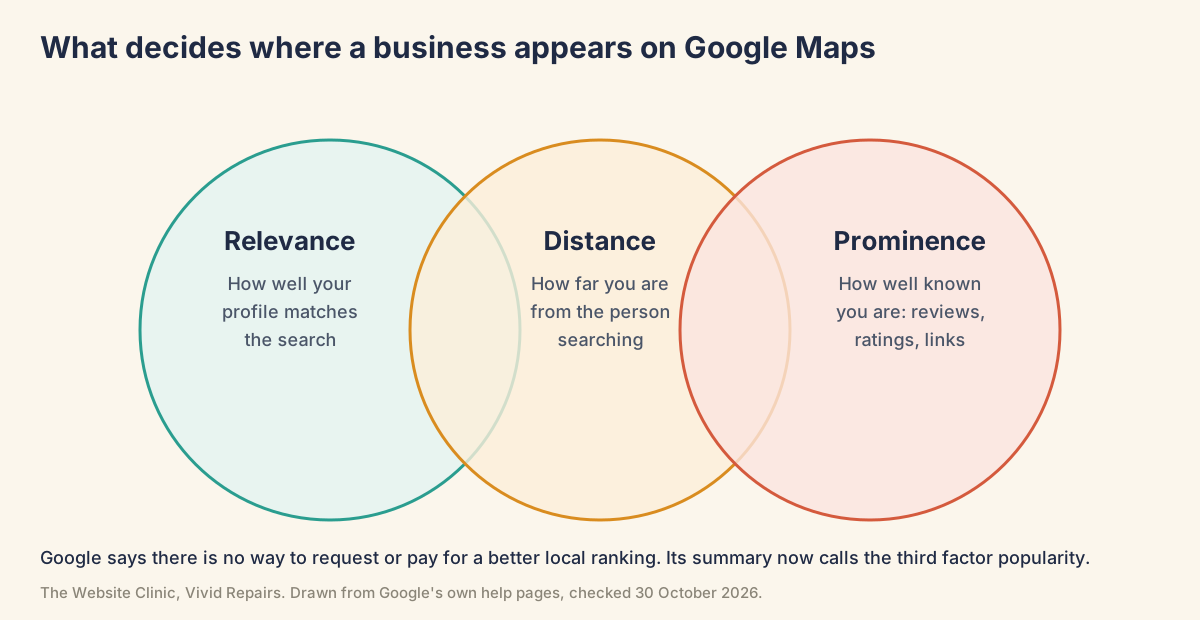
Distance is the easy one to forget. It's how far each business is from the person searching, and when they don't share their location, Google uses what it knows about it. A competitor a mile closer to the searcher can appear when you don't, and nothing on your profile changes that.
Find out what customers actually see
Search as a stranger would Easy
- Sign out, or borrow a phone
Use a private browser window, a phone that isn't signed in to the business account, or ask a friend to search for you. - Search your name and town
Type the business name exactly as it's written on your sign or invoices, plus the town, into Google and then into Google Maps. What you'll see: your profile panel with your details, nothing at all, or only your website and social media pages. - Search your trade and town
Try what a customer would type, such as "plumber Chelmsford". If your name search worked but you're missing here, the listing is fine and the question is ranking.
Find the profile as its manager Easy
- Sign in to the right account
Use the Google Account you think manages the profile. You have to be signed in to it to find the profile this way. - Search "my business"
On Google, search for my business, or your business name and town. In the Google Maps app, tap Business at the bottom right. What you'll see: your profile with its management tools. If nothing comes up, this account may not be the one that manages it. - Read any status or warning
Note whether it asks you to get verified or mentions a suspension. A label saying the profile is only visible to you isn't defined anywhere in Google's help pages; on the help forum it's described as the manager's view, so trust the signed-out search over it.
Check whether someone else holds it Easy
- Look at the public listing
If your business appears but you can't manage it, look at the panel in Search and the About tab in Maps. What you'll see: "Claim this business" on the About tab in Maps means nobody has claimed it. In Search, select "Own this business?": a screen saying "Someone else may manage this Business Profile" means it's already claimed, and one inviting you to manage the business means it isn't. - Search at business.google.com/add
Type the business name. What you'll see: "Someone else may manage this Business Profile" with a Request access option, if it's already verified by another account.
Getting it listed, verified and visible
A suspended or disabled profile won't show to the public until that's resolved, even though you may still see it signed in. That needs an appeal, covered in our guide to a suspended Business Profile.
Add or claim the profile, then verify it Medium
- Check you're eligible
The business has to meet customers face to face, at its premises or theirs. Online-only businesses can't have a profile, and nor can a virtual office or rented mailing address. - Go to business.google.com/add
Sign in with a Google Account the business will keep, not one tied to a member of staff or an outside designer. - Search for the business
If it's already listed and unclaimed, claim it rather than creating a second one. If someone else has verified it and customers visit your premises, select Request access; the current owner has three days to respond. A service-area business with no address showing contacts Business Profile support to transfer ownership instead. - Enter your details
Use your real trading name, the right main category, your address or service area, phone number and website. - Select Get verified
Google chooses the method and you can't change it. It might be phone or text, email, a live video call, a video recording or a postcard. For a postcard, type the code into the Code field and select Submit. - Wait for the review
Verification reviews take up to five working days, and occasionally longer. Leave the name, address and category alone while you wait. - Look for the confirmation email
When verification succeeds, Google sends one. No email means it hasn't finished yet.
Verification that didn't stick Medium
- Get verified has come back
That means Google couldn't completely verify the business. Go through the method it offers now. - A Review issues notice after a video
Your video wasn't accepted. Record a new one live, unedited, in one take and at least 30 seconds long. A shop shows the street, signs or nearby landmarks and proof that you manage it; a service-area business shows its tools or equipment and where it operates. - The postcard hasn't arrived, or the code fails
Most codes arrive within 14 days, and they expire after 30. Editing the name, address or category while you wait stops the code working. - Asked to verify again
That's usually because business details were changed recently. Verify again.
Codes are private. Google will never ask you for your verification code. Anyone who phones or messages asking for it is trying to take over your profile.
Duplicates and shared addresses Medium
- Look for a second profile
You can have only one Business Profile for each business, and a profile treated as a duplicate won't show on Search or Maps. Search your name, old names and phone number on Maps for anything that looks like you. - Remove a duplicate you made by mistake
You can remove it without affecting the verified listing. Check twice which one you're removing. - Merge one you don't control
Suggest an edit on Google Maps to report it. When two profiles are merged their reviews are combined, though replies to reviews may be lost. - Sharing an address with another business
Two businesses at one address can each have a profile if they have different names and clearly different signage. To appeal a duplicate decision at a shared address, you'll be asked for evidence of permanent signage showing both. - Moved premises
Update the address on your existing profile rather than starting a new one. Restaurants, hotels and entertainment venues are the exception: their location edits are rejected, so they mark the old profile as permanently closed and create one at the new site.
Address, map pin and service area Medium
- Open the location settings
Go to Edit profile, then Location, and next to Business location select Edit. - Hide the address if customers don't visit
Trades, cleaners and mobile hairdressers who go to customers should turn off Show business address to customers and select Save. Leaving a home address showing when nobody visits goes against Google's guidelines. - Add service areas
Next to Service area, select Edit. You can add up to 20 areas, but not a radius, and the whole area shouldn't be more than about two hours' drive from your base. Once approved, service area edits can take up to 48 hours to appear. - Move a misplaced pin
Select Adjust, set the pin in the right spot on the map, then select Done and Save. - Without permanent signage, you're a service-area business
A business with no permanent sign on site isn't eligible as a shop front and should be set up with service areas instead.
Most profile changes show in about 10 minutes, some take up to 30 days, and edits can take up to three days to reach search results. Allow for that before deciding a change hasn't worked.
Listed, but not ranking Medium
- Give a new business a month
Rankings for new businesses can take up to a month to appear in search results. - Complete every part of the profile
Opening hours, services, photos and a description. Inaccurate details can keep the profile out of relevant searches in your area. - Pick the main category that fits
Choose the one that best describes the business, not the one you wish it ranked for. - Keep your details consistent
Use the same name, address and phone number on your website, your profile and anywhere else you're listed. - Ask for reviews as part of every job
No reward attached, and reply to the ones you get. More reviews and positive ratings can help local ranking. - Link the website
Add it to the profile, and make sure the site itself names the areas you serve.
There's no way to request or pay for a better local ranking. Anyone selling a guaranteed top-three map position is promising something Google says no one can guarantee.
For the developer or agency looking after the listing
Two IDs, and a Maps link that lands on the right place Hard
Show the technical detail
Business Profile ID: in the profile, More, Business Profile settings, Advanced settings. It's the unique identifier for the listing, and the one Google support asks for.
Place ID: a textual identifier that uniquely identifies a place on Google Maps. Look it up with Google's public Place ID Finder (developers.google.com/maps/documentation/javascript/examples/places-placeid-finder). Place IDs can change over time, and Google recommends refreshing stored ones that are more than 12 months old.
To link to the listing from a website or email signature, use a Maps URL with the place ID, which Google calls the best guarantee of linking to the right place:
https://www.google.com/maps/search/?api=1&query=Example+Plumbing+Chelmsford&query_place_id=PLACE_IDReading the listing's state through the Business Profile APIs Hard
Show the technical detail
Business Profile API access has to be requested through the GBP API contact form and approved. A project showing a quota of 0 QPM hasn't been approved yet.
The Business Information API returns a location's metadata. The readMask parameter is required:
curl -H "Authorization: Bearer $TOKEN" \
"https://mybusinessbusinessinformation.googleapis.com/v1/locations/LOCATION_ID?readMask=name,title,metadata"placeId: populated if the location appears on Google Maps. Google populates it when the location appears on Google Maps, so an empty value points to a listing problem rather than a ranking one.mapsUri: a link to the location on Maps.duplicateLocation: the location resource this one duplicates.hasPendingEdits: some of the location's properties are in the edit pending state.hasVoiceOfMerchant: if false, calllocations.getVoiceOfMerchantStateon the Verifications API.
The action that call returns lines up with the owner checks on this page:
verify: verification isn't finished (boxes 4 and 5).resolveOwnershipConflict: "This location duplicates another location that is in good standing" (boxes 3 and 6).complyWithGuidelines, withrecommendationReasonBUSINESS_LOCATION_SUSPENDEDorBUSINESS_LOCATION_DISABLED: suspended or disabled, which goes to appeal.waitForVoiceOfMerchant: "The location is under review for quality purposes". Wait.
What the website can and can't do for the listing Hard
Show the technical detail
Search Console: if you've verified the website in Search Console, Google can in some cases verify the Business Profile instantly. Search Console has no report on Maps or Business Profile visibility, so it can't tell you why a listing is missing. Website indexing problems are a different job, covered in our guide to a website not showing on Google.
LocalBusiness structured data: markup on the website can tell Google about opening hours, departments and similar details, and you can test it with the Rich Results Test. It doesn't create or verify a Business Profile, so it won't put a missing business on the map.
<script type="application/ld+json">
{
  "@context": "https://schema.org",
  "@type": "LocalBusiness",
  "name": "Example Plumbing",
  "url": "https://www.example.co.uk",
  "address": {
    "@type": "PostalAddress",
    "addressLocality": "Chelmsford",
    "addressCountry": "GB"
  }
}
</script>
Keep the name, address and phone number in the markup identical to the profile.
Cases that don't fit the pattern
Verified, but "only visible to you" for weeks. A profile verified by text still hadn't gone public after more than two weeks, its owner said on Google's help forum. When they finally searched from a different Google account, it was fully visible. The label was the manager's view all along. Run the signed-out search before contacting anyone.
In Search, missing from Maps. Owners report newly verified profiles showing in Search but not Maps, and one who deleted a duplicate found the remaining profile on Maps but not in Search. If either lasts beyond the timings above, check the pin, the address and whether another profile still exists.
A second business at the same address. One electrician described the business name turning faded and grey on Maps after a relative's separate business used the same home address for a while, with no recovery months after it moved away. Google doesn't say that caused it, but "Same address" is one of its reasons for treating a profile as a duplicate. Keep one business per home address, and give shared premises separate, permanent signs.
Postcard verified, nothing even for the exact name. A service-area business with no public address reported that its Facebook and LinkedIn pages came up but the profile didn't. The Product Expert's advice was to sign in, search for the exact name or "my business", and read the status shown there. Do that, then run through boxes 5 and 6.
"Twenty-four to forty-eight hours", repeatedly. One owner said support kept promising the profile would go live within a day or two, into a fifth week. Another poster said they deleted and re-created theirs several times before it worked. Don't copy that: Google allows one profile per business. Keep the one you have, with its Business Profile ID ready for support.