Running two monitors side by side transforms how you work, game, and create. Whether you are a developer who needs code on one screen and a browser on the other, a video editor scrubbing a timeline while watching a reference clip, or a gamer who wants a dedicated communications display, a dual-monitor setup pays dividends in productivity and immersion. The market has shifted noticeably over the past year: QD-OLED panels have dropped in price, ultrawide curved screens now undercut what flat 27-inch monitors cost in 2023, and even budget IPS options from brands like ASUS monitors have pushed refresh rates to 120 Hz as standard. This guide focuses specifically on monitors that work well in pairs, considering bezel width, VESA compatibility, colour consistency between units, and the port selection needed to run two displays from a single PC. Each pick below can be bought as a matching pair or combined with a complementary screen for a mixed-use setup.
Quick Verdict
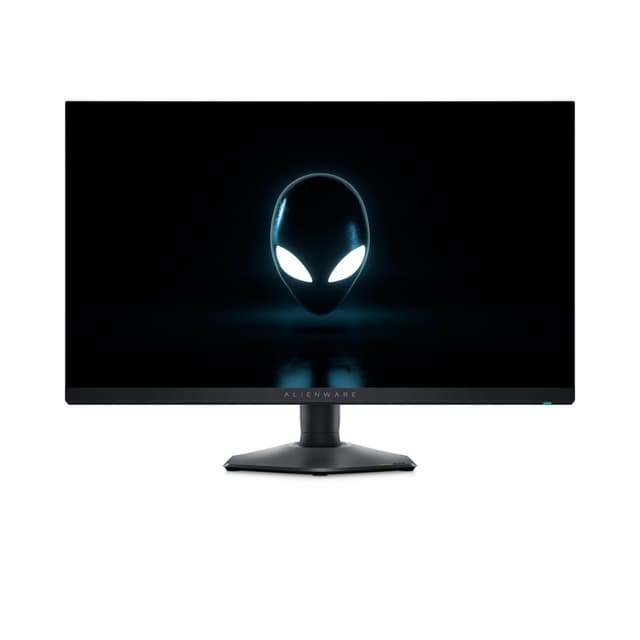
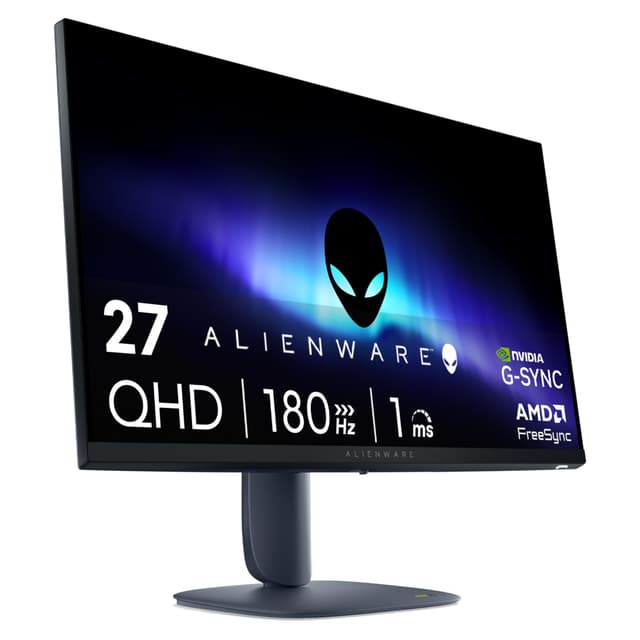
Best Overall: The Alienware AW2725DM delivers QHD resolution, a fast 180 Hz IPS panel, and a price that makes buying two genuinely affordable. It is the pick that balances image quality, speed, and value for the widest range of users.
Best Value: The Amazon Basics 23.8-inch Monitor is the most sensible budget choice for a matching pair. At its price point, buying two leaves money to spare for a better GPU or desk accessories, and the IPS panel keeps colours honest across both screens.
Best Premium Pick: The MSI MAG 272QPW QD-OLED X28 is the standout for anyone who refuses to compromise on picture quality and wants a genuinely stunning pair of displays on their desk.
| Monitor | Price | Resolution | Panel / Refresh Rate | Screen Size | Key Ports |
|---|---|---|---|---|---|
| Alienware AW2725DM | 2560x1440 (QHD) | Fast IPS / 180 Hz | 27 inch | 2x HDMI, 1x DP, 3x USB | |
| MSI MAG 272QPW QD-OLED X28 | £448.99 | 2560x1440 (QHD) | QD-OLED / 280 Hz | 27 inch | 2x HDMI 2.1, 1x DP 1.4a, 1x USB-C |
| AOC CU34G2XPD | £257.53 | 3440x1440 (UWQHD) | VA / 180 Hz | 34 inch curved | 2x HDMI 2.0, 2x DP 1.4, 4x USB-A |
| Amazon Basics 23.8-inch | £89.26 | 1920x1080 (FHD) | IPS / 120 Hz | 23.8 inch | HDMI, DP, VGA, VESA |
| Philips Evnia 27M2N3800A | 4K UHD | IPS / 160 Hz | 27 inch | Not specified beyond standard | |
| LG UltraWide 34BA75QE | £412.36 | 3440x1440 (UWQHD) | IPS / 60 Hz | 34 inch | USB-C, RJ45, HDMI, DP 1.4, USB hub, speakers |
| Acer SB242Y H1bi | £90.62 | 1920x1080 (FHD) | IPS / Not specified | 23.8 inch | 1x HDMI 1.4, 1x VGA |
1. Alienware AW2725DM
The Alienware AW2725DM is the monitor most dual-setup buyers should look at first. It sits at a price point that makes running two of them plausible for a mid-range budget, and the specification sheet is hard to argue with: QHD resolution at 2560x1440, a Fast IPS panel, and a 180 Hz refresh rate that covers both competitive gaming and smooth desktop use. Alienware's build quality has historically been a step above generic brands, and the AW2725DM continues that tradition with a sturdy stand offering height, tilt, and pivot adjustments, all of which matter enormously when you are trying to align two screens at the same eye level.
For dual-monitor setups, the thin bezels on three sides are a genuine selling point. When two of these are placed side by side, the gap between the active display areas is minimal, making it easier to drag windows across without your eye catching a thick plastic border. The port selection is practical: two HDMI ports, one DisplayPort, and three USB ports mean you can connect peripherals directly to the monitor rather than routing cables back to a tower under the desk.
The 27-inch size is the sweet spot for a dual setup on a standard desk. Two 27-inch screens sit comfortably within arm's reach without requiring you to turn your head excessively to see the secondary display. At QHD, text is sharp enough for long reading sessions, and the pixel density is noticeably better than 1080p at this screen size. The Fast IPS panel means response times are competitive for gaming, and the 180 Hz ceiling is more than enough for most titles.
Who is this for? It suits gamers who want a primary gaming screen and a secondary Discord or stream-monitoring display, as well as professionals who need accurate colour reproduction for design work. The IPS panel handles colour better than VA alternatives at similar prices. It is also a strong choice for students or home workers who want a proper upgrade from a laptop without spending premium money.
Verdict: The best all-round dual-monitor pick in the catalogue. Fast, sharp, well-built, and priced to allow two on a realistic budget.
Pros
- 180 Hz Fast IPS panel suits both gaming and productivity without compromise
- Thin side and top bezels minimise the visual gap between two paired screens
- Height, tilt, and pivot adjustments make alignment straightforward
Cons
- No USB-C port limits connectivity options for laptop users
- 1080p users stepping up will need a more capable GPU to drive two QHD screens
2. MSI MAG 272QPW QD-OLED X28
The MSI MAG 272QPW QD-OLED X28 represents the premium end of what is currently achievable in a 27-inch dual-monitor setup. QD-OLED technology combines the quantum dot colour volume of QLED with the per-pixel contrast of OLED, meaning true blacks, spectacular HDR highlights, and colour accuracy that IPS panels simply cannot match. The 280 Hz refresh rate is the highest in this catalogue, making it a serious option for competitive gamers who want the fastest possible response alongside picture quality that would embarrass many dedicated content creation monitors.
At 2560x1440, the resolution is identical to the Alienware above, but the QD-OLED panel renders that resolution with a clarity and vibrancy that is immediately apparent. Dark scenes in games, films, and editing software look dramatically better when each pixel can switch off independently. For creative professionals working in photography, video, or graphic design, the colour accuracy and wide colour gamut of QD-OLED is a meaningful advantage over standard IPS.
The port selection is comprehensive: two HDMI 2.1 ports, one DisplayPort 1.4a, and a USB-C with 15W power delivery. The HDMI 2.1 ports are particularly useful for console users who want to connect a PlayStation 5 or Xbox Series X to one of their dual monitors, as HDMI 2.1 supports 4K 120 Hz on those platforms (though this screen is QHD rather than 4K). The USB-C port adds flexibility for laptop users who want to connect a single cable for both video and charging.
The main consideration is cost. Buying two of these represents a significant outlay, and users need to weigh whether the QD-OLED advantage is worth the premium over a pair of Fast IPS screens. For most gamers and office workers, the answer is probably no. For creative professionals, streamers, or anyone who spends long hours looking at their screens and values visual quality, the answer is a firm yes.
OLED panels also carry a theoretical burn-in risk with static elements like taskbars, though MSI includes pixel-shifting and screen-saver technologies to mitigate this. For mixed-use setups where the monitor is not displaying a static image for hours at a time, burn-in is rarely a practical concern.
Verdict: The best-looking dual-monitor option in the catalogue. The premium is justified for creative professionals and enthusiasts who will genuinely use the picture quality advantage.
Pros
- QD-OLED panel delivers true blacks and exceptional colour volume that IPS cannot match
- 280 Hz refresh rate is the highest in this selection, ideal for competitive gaming
- HDMI 2.1 ports support console connectivity at high frame rates
Cons
- Premium price makes buying two a significant investment compared to IPS alternatives
- Theoretical OLED burn-in risk requires mindful use habits with static content
3. AOC CU34G2XPD
The AOC CU34G2XPD is a 34-inch curved ultrawide monitor with a 3440x1440 resolution, a VA panel, and a 180 Hz refresh rate, and it is available at a price that makes it one of the most compelling value propositions in the entire curved monitor market. For a dual-monitor setup, pairing two ultrawides creates an immersive workspace that rivals a triple-monitor arrangement, though it does require a desk wide enough to accommodate two 34-inch screens side by side, which means roughly 160 cm of usable desk space at minimum.
The 1500R curve is gentle enough that two screens placed side by side do not create an awkward angle mismatch, and the 21:9 aspect ratio means each screen already provides significantly more horizontal space than a standard 16:9 panel. For tasks like video editing, spreadsheet work, or having a browser and document open simultaneously on a single screen, the ultrawide format reduces the need to switch windows constantly.
The port selection is generous: two HDMI 2.0 ports, two DisplayPort 1.4 ports, a USB-B upstream port, and four USB-A downstream ports. The four USB-A ports are a genuine convenience for a dual-setup desk, as they allow you to connect keyboards, mice, headsets, and drives directly to the monitor rather than stretching cables to a tower. The 1ms response time specification and FreeSync Premium support make this a capable gaming monitor as well as a productivity screen.
VA panels have traditionally offered better contrast than IPS, which benefits dark-room gaming and film watching, but they can exhibit some colour shift when viewed from steep angles. On a curved ultrawide, this is less of an issue than on a flat screen because the curve keeps the edges of the panel at a more consistent viewing angle. The 180 Hz refresh rate is competitive for gaming, and the WQHD resolution provides a noticeably sharper image than 1080p at this screen size.
The main caveat for a dual ultrawide setup is GPU demand. Driving two 3440x1440 screens at 180 Hz requires a more capable GPU, and users with mid-range GPUs may need to cap refresh rates or run games at lower settings on the primary screen. For productivity use at 60-100 Hz, the GPU requirement is far more modest.
Verdict: Outstanding value for a dual ultrawide setup. The port selection, refresh rate, and price combination is difficult to beat at this screen size.
Pros
- 3440x1440 at 180 Hz for under £200 is exceptional value for an ultrawide gaming monitor
- Four USB-A ports on the monitor reduce cable clutter on a dual-screen desk
- Two DisplayPort 1.4 and two HDMI 2.0 ports provide flexible multi-source connectivity
Cons
- Two 34-inch screens require a very wide desk, limiting this setup to larger workspaces
- VA panel shows some colour shift at steep vertical viewing angles
4. Amazon Basics 23.8-inch Monitor
The Amazon Basics 23.8-inch Monitor is the entry point for anyone who wants a functional, reliable dual-monitor setup without spending more than necessary. At its price, buying two of these costs less than a single mid-range gaming monitor, and the IPS panel ensures that colours remain consistent across both screens, which matters more than most buyers realise when they are looking at two displays simultaneously.
The specification is straightforward: 1920x1080 resolution, an IPS panel, and a 120 Hz refresh rate. That refresh rate puts it ahead of many budget monitors that still ship at 75 Hz, and 120 Hz is genuinely smooth for desktop use, light gaming, and scrolling through documents or web pages. The port selection covers HDMI, DisplayPort, and VGA, with VESA mounting compatibility that allows both screens to be mounted on a dual-arm stand for a cleaner desk setup.
For the target user, which is a student, home worker, or first-time dual-monitor builder, this monitor does everything required. Text is sharp at 1080p on a 23.8-inch screen, the IPS panel handles colour well enough for casual photo editing and design work, and the 120 Hz refresh rate means the desktop feels responsive. The 23.8-inch size is also practical: two of these fit comfortably on a standard 120 cm desk without requiring the user to turn their head significantly to see the secondary display.
The Amazon Basics branding sometimes raises questions about build quality, but the monitor uses an IPS panel rather than the cheaper TN technology found in some budget screens, and the stand offers basic tilt adjustment. For a dual-setup where both screens will be used for productivity tasks, the image consistency between two IPS units is a real advantage over mixing panel types.
The limitations are those of any budget 1080p monitor: no HDR support worth mentioning, no USB hub, and a stand that does not offer height adjustment. For users who want to mount both screens on a VESA arm, the lack of height adjustment on the stand is irrelevant, and a dual-arm mount is recommended for this pairing anyway.
Verdict: The best value dual-monitor buy in the catalogue. Two of these for the price of one mid-range screen is a compelling proposition for budget-conscious buyers.
Pros
- IPS panel ensures consistent colour across both screens when paired
- 120 Hz refresh rate is above average for the price bracket
- VESA compatibility allows clean dual-arm mounting without the stock stands
Cons
- No height adjustment on the stock stand makes alignment without a VESA arm awkward
- 1080p resolution shows pixel structure on a 23.8-inch screen at close viewing distances
5. Philips Evnia 27M2N3800A
The Philips Evnia 27M2N3800A is the only 4K monitor in this catalogue available at a price that makes a dual-4K setup theoretically achievable without a five-figure budget. At 27 inches with a 4K IPS panel running at up to 160 Hz, it is aimed squarely at users who want the sharpest possible image quality for both productivity and gaming, and who have a GPU capable of driving 4K content on two screens simultaneously.
The 4K resolution at 27 inches produces a pixel density that makes text look almost print-sharp, which is a significant advantage for anyone who spends long hours reading documents, writing code, or working with detailed design files. At this pixel density, Windows scaling works well at 150 or 200 per cent, and the result is a desktop that feels spacious and crisp simultaneously. For photographers and video editors, 4K at 27 inches is genuinely useful for pixel-level editing work.
The 160 Hz refresh rate is an interesting specification for a 4K monitor. Driving 4K at 160 Hz requires substantial GPU bandwidth, and most users will find that 4K 60-120 Hz is more practical for gaming unless they have a top-tier graphics card. For desktop use and productivity, 60 Hz is perfectly smooth, and the 160 Hz ceiling is a future-proofing measure rather than a day-one requirement. The IPS panel technology ensures wide viewing angles and accurate colour reproduction, both of which matter in a dual setup where you may be viewing the secondary screen from a slight angle.
For a dual-4K setup, the GPU requirement is the primary constraint. Running two 4K screens at high refresh rates demands a very capable graphics card, and users with mid-range GPUs should consider whether QHD or 1080p alternatives would deliver better real-world performance. For productivity-focused setups where gaming is not a priority, the GPU requirement is far more modest, and a dual-4K productivity setup is achievable with integrated graphics or entry-level discrete GPUs at 60 Hz.
The Philips Evnia also benefits from the brand's reputation for colour accuracy and build quality, which has been consistent across its monitor range for many years.
Verdict: The best choice for a dual-4K setup on a budget, provided the GPU can handle the resolution. Exceptional for productivity and creative work.
Pros
- 4K IPS at 27 inches delivers near-print-sharp text, ideal for long reading and editing sessions
- 160 Hz ceiling is unusually high for a 4K monitor at this price point
- IPS panel provides accurate colour and wide viewing angles for angled secondary-screen use
Cons
- Driving two 4K screens at high refresh rates demands a high-end GPU
- Verified port specifications are limited, so buyers should confirm connectivity before purchasing
6. LG UltraWide 34BA75QE
The LG UltraWide 34BA75QE takes a different approach to the dual-monitor question. Rather than being a screen you buy two of, it is a monitor designed to function as a productivity powerhouse on its own, and pairs well with a smaller secondary screen for notifications, communications, or reference material. The 34-inch IPS ultrawide panel at 3440x1440 provides the equivalent horizontal workspace of roughly two 27-inch 16:9 monitors placed side by side, which makes it a compelling alternative to a traditional dual-monitor arrangement.
The port selection is the standout feature here: USB-C, RJ45 Ethernet, HDMI, DisplayPort 1.4, a USB hub, and built-in speakers are all included. The RJ45 port is particularly useful for office workers who need a wired network connection and do not want to run a separate Ethernet cable to their PC. The USB-C port supports single-cable laptop connectivity, and the built-in USB hub reduces desk clutter. The built-in speakers mean you do not need separate desktop speakers for a secondary audio source, which is a practical convenience in a dual-screen setup.
The 60 Hz refresh rate is the main limitation for gaming use. At 60 Hz, the LG 34BA75QE is not a gaming monitor, and users who want smooth gaming performance should look at the AOC CU34G2XPD or the MSI QD-OLED instead. For productivity, content consumption, and office work, 60 Hz is perfectly adequate, and the IPS panel's colour accuracy and viewing angles are well-suited to these tasks.
The HDR10 support and built-in speakers make this a capable multimedia screen as well as a productivity tool. For a home office setup where the primary screen handles work and the secondary screen handles video calls, reference material, or media playback, the LG 34BA75QE is a logical primary monitor choice. Its connectivity options mean it can serve as a docking station for a laptop, reducing the number of cables on the desk.
The 34-inch size means a secondary screen should ideally be 24-27 inches to avoid a jarring size mismatch. Pairing it with the Amazon Basics 23.8-inch or the Acer SB242Y creates a practical mixed setup for home office use.
Verdict: Best suited as the primary screen in a mixed dual setup for home office users who value connectivity and productivity over gaming performance.
Pros
- RJ45 Ethernet port and USB-C single-cable connectivity make it an effective laptop docking monitor
- Built-in speakers and USB hub reduce the number of separate peripherals needed on the desk
- IPS ultrawide panel provides accurate colour and generous workspace for productivity tasks
Cons
- 60 Hz refresh rate makes it unsuitable as a gaming monitor
- 34-inch ultrawide creates a size mismatch when paired with standard 24-27 inch secondary screens
7. Acer SB242Y H1bi
The Acer SB242Y H1bi is a professional home office monitor aimed at users who need a clean, reliable display for everyday computing tasks without any gaming pretensions. At 23.8 inches with a 1920x1080 IPS panel, it is a straightforward productivity screen that covers the basics well. Acer's SB series has historically been positioned as a professional alternative to consumer gaming monitors, with a design language that favours slim bezels and minimal branding over RGB lighting and aggressive styling.
For a dual-monitor setup in a home office or professional environment, the Acer SB242Y makes sense as a secondary screen paired with a more capable primary monitor, or as one half of a matched pair for users who primarily need additional screen real estate for documents, email, and video calls rather than gaming or creative work. The IPS panel ensures consistent colour across both screens when paired with another IPS monitor, which is important for users who move windows between displays and expect colours to look the same on both.
The port selection is minimal: one HDMI 1.4 port and one VGA port. HDMI 1.4 supports 1080p at 60 Hz without issue, but users who want higher refresh rates should note that HDMI 1.4 has bandwidth limitations. VGA is an analogue connection that is increasingly rare on modern PCs, though it remains useful for connecting older laptops or desktop PCs with legacy graphics outputs. The absence of a DisplayPort connection is a limitation for users who want to daisy-chain monitors or use DisplayPort's higher bandwidth for future upgrades.
The slim bezels on three sides are a genuine advantage for a dual setup, as they minimise the visual gap between the two active display areas. The VESA mounting compatibility means both screens can be placed on a dual-arm stand for a cleaner desk arrangement. The IPS panel offers the wide viewing angles and colour consistency that make it preferable to TN alternatives for office use, and the 23.8-inch size is practical for standard desks.
This monitor is best suited to users who need a secondary display for a specific purpose, such as keeping a reference document, email client, or video call open while working on the primary screen. It is not a gaming monitor, and buyers who want any gaming capability should look at the KOORUI G2411P or Amazon Basics options instead.
Verdict: A sensible, no-frills secondary monitor for home office dual setups. Best paired with a more capable primary screen rather than bought as a matched pair.
Pros
- IPS panel provides consistent colour that matches well with other IPS monitors in a dual setup
- Slim three-sided bezels reduce the visual gap between paired screens
- VESA compatibility supports clean dual-arm mounting
Cons
- Only HDMI 1.4 and VGA ports, with no DisplayPort, limits future connectivity options
- No height adjustment on the stand makes alignment without a VESA arm difficult
How We Picked
Every monitor in this list was evaluated specifically for dual-monitor use rather than single-screen performance. Key criteria included bezel width, since thin bezels reduce the visual break between two paired screens; VESA mounting compatibility, which allows both screens to be placed on a dual-arm stand; port selection, particularly whether the monitor provides enough connectivity for both display input and peripheral use; panel type consistency, since pairing two IPS monitors produces more uniform colour than mixing IPS with VA; and price, because a dual setup requires buying two units and the total cost matters more than the per-unit price. Refresh rate and resolution were considered in the context of the GPU power required to drive two screens simultaneously. Build quality, stand adjustability, and UK availability were also factored into the final rankings.
Buying Guide
Can I use any monitor for a dual monitor setup?
Technically, almost any monitor with a compatible port can be added to a dual setup, but not all monitors are equally well-suited. The most important practical requirement is that your PC has two video output ports, either on the graphics card or motherboard. Beyond that, matching panel types between the two screens produces more consistent colour, and matching screen sizes prevents the jarring experience of moving a window from a 27-inch screen to a 24-inch screen and watching it change apparent size.
Can I run two monitors from one HDMI port?
Not directly. A single HDMI port outputs to a single display. To run two monitors, you need two separate video outputs: for example, one HDMI and one DisplayPort, or two HDMI ports. Some docking stations and USB-C hubs can split a single video signal to two displays, but this typically limits the resolution or refresh rate of both screens. The cleanest solution is a graphics card with two or more video outputs, which is standard on virtually all modern discrete GPUs.
What equipment is needed for dual monitors?
At minimum, you need two monitors, a PC with two video output ports, and two video cables matching the ports on both the PC and the monitors. Optionally, a dual-monitor arm stand provides a cleaner setup and better ergonomics than two separate stands, and an HDMI or DisplayPort switch can be useful if you want to connect multiple PCs to the same pair of screens. For a complete overview of best gaming peripherals and PC accessories to complement your setup, consider reviewing dedicated buying guides. A sufficiently powerful GPU is important if you intend to game across both screens or run demanding applications on each simultaneously.
Is 16 GB of RAM enough for two monitors?
Yes, in almost all cases. Running two monitors does not significantly increase RAM usage compared to running one. The additional screen real estate allows more applications to be open simultaneously, which can increase RAM consumption if you fill both screens with memory-hungry programmes, but the monitors themselves do not consume RAM. For general productivity, web browsing, and light gaming across two screens, 16 GB is comfortably sufficient. Heavy video editing, 3D rendering, or running virtual machines on both screens simultaneously may benefit from 32 GB.
What are the disadvantages of dual monitors?
The main disadvantages are desk space requirements, increased GPU load, higher power consumption, and the potential for distraction. Two monitors require significantly more horizontal desk space than one, and the cables, stands, and power supplies add clutter. Running two screens increases the load on your GPU, which can reduce gaming performance on the primary screen if the secondary screen is displaying active content. Some users also find that having a second screen visible in their peripheral vision makes it harder to focus on the primary task. Finally, the initial cost of buying two quality monitors is higher than buying one, though the productivity benefit typically justifies the investment for most users.
What size monitors work best in a dual setup?
27 inches is widely considered the optimal size for a dual setup on a standard desk. Two 27-inch screens provide generous workspace without requiring excessive head movement to see the secondary display. 24-inch screens are a practical alternative for smaller desks or closer viewing distances. Ultrawide 34-inch screens can be paired but require a very wide desk, and the size mismatch when combining an ultrawide with a standard screen can be awkward. For most home office and gaming setups, two matched 27-inch or 24-inch monitors deliver the best balance of workspace, ergonomics, and desk space.
Should both monitors in a dual setup be identical?
Identical monitors produce the most consistent experience, with matching colour profiles, brightness levels, and refresh rates. However, many users run a primary and secondary monitor with different specifications: a high-refresh gaming screen as the primary and a lower-cost productivity screen as the secondary. This works well when the two screens serve clearly different purposes. If you regularly move windows between screens and expect consistent colour, matching panel types (both IPS, for example) is more important than matching brands or models exactly.
Final Verdict
The Alienware AW2725DM is the overall winner for a dual-monitor setup. It delivers QHD resolution, a 180 Hz Fast IPS panel, thin bezels, and a practical port selection at a price that makes buying two achievable for a mid-range budget. The combination of gaming performance, colour accuracy, and build quality covers the widest range of use cases, from competitive gaming to professional productivity. For buyers who prioritise picture quality above all else, the MSI MAG 272QPW QD-OLED X28 is the premium alternative, with QD-OLED technology that produces a visibly superior image. For those on a tight budget, two Amazon Basics 23.8-inch monitors deliver a functional, consistent IPS dual setup at a total cost that undercuts most single mid-range monitors. Whichever pair you choose, the key is matching panel types, ensuring your GPU can drive both screens at your target resolution and refresh rate, and investing in a dual-arm stand to keep the desk tidy and the screens at the correct ergonomic height.
Frequently Asked Questions
Almost any monitor with a compatible video port can be used in a dual setup, provided your PC has two video outputs. For the best experience, try to match panel types between the two screens, as pairing two IPS monitors produces more consistent colour than mixing IPS with VA. Matching screen sizes also prevents a jarring visual shift when moving windows between displays.
Not directly from a single HDMI port. Each monitor requires its own dedicated video output from your PC. Most modern graphics cards provide at least two outputs, typically a combination of HDMI and DisplayPort. Some USB-C hubs and docking stations can output to two displays from a single connection, but this usually limits resolution or refresh rate on both screens.
You need two monitors, a PC with two video output ports, and two video cables compatible with both the PC and the monitors. A dual-monitor arm stand is strongly recommended for ergonomics and cable management. Ensure your graphics card supports the resolution and refresh rate you want on both screens simultaneously, as GPU requirements increase with higher specifications.
Yes, 16 GB of RAM is sufficient for the vast majority of dual-monitor setups. The monitors themselves do not consume RAM. The increased RAM usage in a dual setup comes from running more applications simultaneously across both screens. For general productivity, gaming, and web browsing, 16 GB handles dual-monitor use comfortably. Only very heavy workloads such as video editing and running virtual machines simultaneously may benefit from 32 GB.
The main disadvantages are the increased desk space required, higher GPU load when both screens display active content, greater power consumption, and the potential for distraction from the secondary screen. The initial cost of two monitors is higher than one, and cable management becomes more complex. Some users also find that peripheral vision of the secondary screen makes it harder to maintain focus on the primary task.