Whether you spend hours working through spreadsheets, reading long-form articles, editing documents or simply browsing the web, the monitor you use makes an enormous difference to eye strain and reading comfort. The best monitors for reading prioritise sharp text rendering, accurate colour reproduction, flicker-free backlights and enough screen real estate to keep multiple windows open side by side. Since last year, the market has shifted noticeably: QD-OLED panels have become more accessible, IPS technology has improved its contrast ratios, and 4K monitors at 27 inches have dropped in price to the point where pixel-perfect text is no longer a premium luxury. This guide is aimed at home workers, students, writers, coders and anyone who stares at text for extended periods. We have selected six monitors from the catalogue that genuinely suit reading use cases, covering a range of budgets from under £100 to just under £400.
Quick Verdict
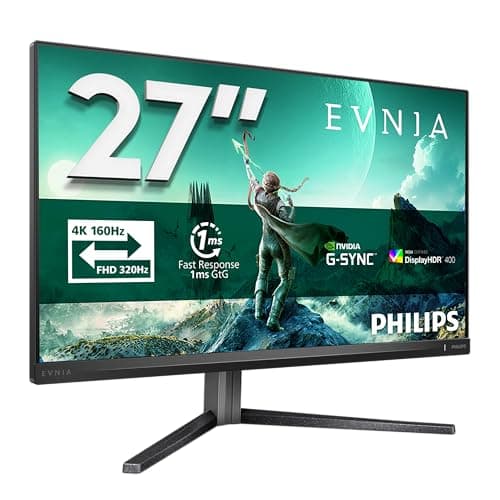
Best Overall: The Philips Evnia 27M2N3800A earns the top spot thanks to its 4K IPS panel at 27 inches, which delivers the sharpest text rendering in this group at a surprisingly competitive price. Every character is rendered with precision, and the IPS panel keeps colours consistent across wide viewing angles, making it ideal for long reading sessions.
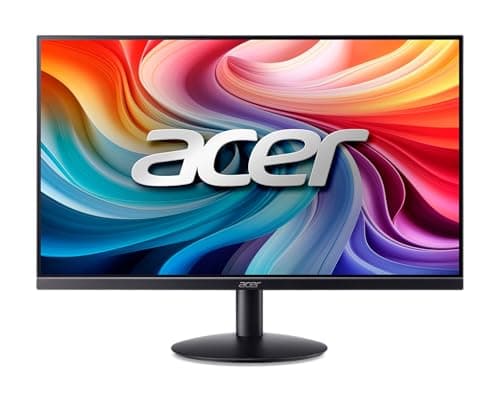
Best Value: The Acer SB242Y H1bi is the standout budget pick. At its price point, its IPS panel produces clean, accurate colours and comfortable text rendering for everyday reading and office work, making it the sensible choice for those who do not need 4K.
The Philips Evnia 27M2N3800A sits at the top of this list for a straightforward reason: it combines a 4K IPS panel with a 27-inch screen size, which is widely considered the sweet spot for reading. At 4K on a 27-inch display, the pixel density is exceptionally high, meaning individual characters appear razor sharp, anti-aliasing is virtually invisible, and you can comfortably read at standard system scaling without squinting. This is a significant advantage over 1080p monitors of the same size, where text edges can look slightly soft, particularly in smaller font sizes.
The IPS panel technology is well suited to reading because it maintains consistent colour and brightness across the entire screen, even when you are sitting slightly off-axis. There is no colour shift as you move your head, which matters when you are leaning back in a chair or sharing the screen with a colleague. The 4K resolution also means that if you work with PDFs, scanned documents or high-resolution images alongside text, everything is rendered with fidelity.
The 160 Hz refresh rate is genuinely useful even for non-gaming tasks. Scrolling through long documents feels noticeably smoother at higher refresh rates, reducing the visual blur that can contribute to eye fatigue over long sessions. The IPS panel also tends to produce more natural-looking whites, which makes reading on a white background more comfortable than the slightly yellow-tinged whites sometimes produced by VA panels.
At its current price, the Philips Evnia 27M2N3800A represents exceptional value for a 4K IPS monitor. It is aimed at users who want the clearest possible text without spending a fortune, and it delivers on that promise. Home workers, writers, coders and students will all benefit from the sharpness on offer here. The monitor is also well suited to light photo editing or colour-critical work, given the accuracy of the IPS panel.
Verdict: The best all-round reading monitor in this group. The 4K IPS combination at 27 inches produces the sharpest text rendering available here, and the price makes it accessible to most budgets.
Pros
- 4K resolution on a 27-inch IPS panel delivers outstanding text sharpness and pixel density
- IPS panel provides wide viewing angles and consistent colour, reducing eye strain over long sessions
- 160 Hz refresh rate makes scrolling through documents noticeably smoother
Cons
- IPS panels typically have lower contrast ratios than VA or OLED, so dark mode reading may not look as punchy
- No built-in speakers listed, which may require additional desk clutter for audio
The LG UltraWide 34BA75QE takes a different approach to reading comfort: rather than increasing pixel density, it increases screen real estate. At 34 inches with a 3440x1440 ultrawide resolution, this monitor gives you the horizontal space to have a document open on one side and a reference browser, email client or notes application on the other, without needing a second monitor. For researchers, writers, legal professionals and anyone who works with multiple sources simultaneously, this workflow benefit is substantial.
The IPS panel is the key selling point for reading use cases. LG's IPS technology is well regarded for its accurate colour reproduction and consistent brightness uniformity, both of which matter when you are reading for extended periods. The 3440x1440 resolution across 34 inches gives a pixel density that, while not as high as a 4K 27-inch panel, is still comfortably sharp for standard reading tasks. Text is clear and well-defined at normal viewing distances.
The connectivity on this monitor is a genuine highlight for desk setups. The inclusion of USB-C means you can connect a modern laptop with a single cable and charge it simultaneously, keeping the desk tidy. The built-in RJ45 ethernet port is a practical addition for home workers who want a wired internet connection without a separate adapter. The built-in speakers and USB hub further reduce the number of peripherals needed on the desk.
The 60 Hz refresh rate is the one area where this monitor shows its productivity-focused credentials rather than gaming ones. For reading, document editing and general office work, 60 Hz is entirely adequate, and many users will not notice any difference. However, if you also use your monitor for video or occasional gaming, the lower refresh rate may feel limiting compared to other options in this list.
This monitor suits professionals who need a wide workspace and value connectivity above all else. The USB-C with charging, ethernet, and built-in speakers make it a genuine all-in-one solution for a clean, productive desk setup.
Verdict: The best choice for multitaskers who want to keep multiple documents or applications open side by side. The ultrawide IPS panel and exceptional connectivity make it a compelling productivity monitor.
Pros
- Ultrawide 34-inch IPS panel provides ample space for side-by-side document and application layouts
- USB-C with charging, built-in RJ45 ethernet and USB hub make it a highly practical single-cable desk solution
- Built-in speakers reduce the need for additional peripherals
Cons
- 60 Hz refresh rate means scrolling is less smooth than higher-refresh alternatives in this list
- Ultrawide format can feel excessive for users who primarily read single-document or single-page content
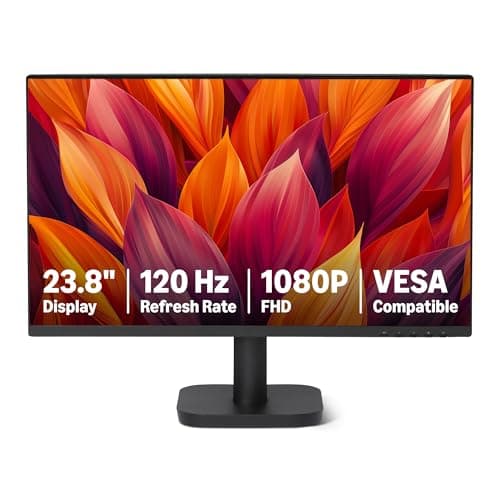
The Amazon Basics 23.8-inch monitor is the entry-level option in this group, and it makes a credible case for itself as a no-frills reading monitor for users on a tight budget. The IPS panel is the key reason it earns a place here over cheaper VA alternatives at this size. IPS technology produces more accurate, consistent colours and better viewing angles than VA at the budget end of the market, where VA panels can suffer from noticeable colour shift and slower response times.
At 1920x1080 on a 23.8-inch screen, the pixel density is adequate for comfortable reading at a normal desk distance of 50 to 70 centimetres. Text is clean and legible, and the IPS panel keeps whites looking neutral rather than the slightly warm tint that some budget VA panels produce. For students, home workers on a budget, or those setting up a secondary reading monitor alongside a primary display, this monitor delivers what is needed without unnecessary expense.
The 120 Hz refresh rate is a welcome addition at this price point. While it is not essential for reading, the smoother scrolling it enables does reduce the visual fatigue associated with lower refresh rates, particularly during long sessions of reading web content or scrolling through documents. The inclusion of HDMI, DisplayPort and VGA connectivity means it will work with virtually any computer, including older machines with only VGA outputs.
The VESA mount compatibility is worth highlighting for reading use cases specifically. Being able to mount the monitor on an arm allows you to position it at the ideal height and distance for comfortable reading, which is often not possible with the fixed stands included on budget monitors. If you plan to read for extended periods, investing in a monitor arm alongside this display is a practical upgrade.
This monitor will not win any awards for colour accuracy or contrast, and it is not the right choice for users who want the sharpest possible text or who work with colour-critical content. But for everyday reading, web browsing, document editing and general office work, it does the job reliably and affordably.
Verdict: The most affordable IPS option in this group. A sensible, no-nonsense reading monitor for budget-conscious buyers who still want the viewing angle and colour consistency benefits of IPS technology.
Pros
- IPS panel provides better viewing angles and more neutral whites than budget VA panels at this price point
- 120 Hz refresh rate makes scrolling through documents smoother than standard 60 Hz budget monitors
- HDMI, DisplayPort and VGA connectivity ensures compatibility with a wide range of computers including older machines
Cons
- 1080p resolution on a 23.8-inch screen lacks the pixel density of 4K or 1440p options, making text slightly less sharp at close distances
- Budget build quality means the stand offers limited ergonomic adjustment, making a monitor arm a near-essential accessory
The Acer SB242Y H1bi is positioned specifically at the professional home office market, and its specifications reflect that focus. The 23.8-inch IPS panel at 1920x1080 resolution produces clean, accurate text rendering that is well suited to the kind of sustained reading and document work that characterises home office use. Acer has a strong track record in the office monitor segment, and the SB242Y H1bi benefits from that experience in terms of panel calibration and ergonomic design.
The IPS panel technology is the right choice for a reading monitor at this size. Compared to VA panels, IPS produces more consistent brightness across the screen, which means that text in the corners of the display looks as clear as text in the centre. This uniformity matters when you are reading long documents or working with spreadsheets where content extends to the edges of the screen. The colour accuracy of IPS also means that any colour-coded content, such as highlighted text, annotated PDFs or colour-formatted spreadsheets, is rendered faithfully.
The professional focus of this monitor is reflected in its clean, understated design. There are no aggressive gaming aesthetics here, which suits a home office or study environment. The thin bezels on three sides help to reduce visual distraction when reading, and the overall aesthetic is professional and unobtrusive.
Connectivity is straightforward with one HDMI 1.4 and one VGA port. This is sufficient for most home office setups, though users with multiple devices or those who need DisplayPort for higher refresh rates will need to look elsewhere. The HDMI 1.4 port supports 1080p at standard refresh rates without issue, which is all that is needed for reading and office tasks.
For students, home workers and anyone who needs a reliable, comfortable reading monitor without spending more than necessary, the Acer SB242Y H1bi is a well-considered choice. It does not offer the pixel density of 4K options or the contrast of OLED, but it delivers a clean, comfortable reading experience at a price that is hard to argue with.
Verdict: The best value IPS monitor for home office reading. Clean text rendering, good uniformity and a professional aesthetic make it an excellent choice for sustained document work on a modest budget.
Pros
- IPS panel delivers consistent brightness uniformity and accurate colour, keeping text clear across the entire screen
- Professional, understated design with thin bezels suits home office and study environments
- Competitive price makes it accessible for budget-conscious home workers and students
Cons
- Only one HDMI 1.4 and one VGA port, limiting connectivity for multi-device setups
- 1080p resolution at 23.8 inches is adequate but noticeably less sharp than 4K or 1440p alternatives
How We Picked
Selecting the best monitors for reading required a different set of criteria from a standard gaming or general-purpose monitor roundup. We prioritised panel type first: IPS and QD-OLED panels were favoured over VA for their superior viewing angle consistency and colour accuracy, which directly affect reading comfort over long sessions. Resolution relative to screen size was the second key factor, as higher pixel density produces sharper text with cleaner character edges. We also considered refresh rate, not for gaming performance but for scrolling smoothness, which contributes to reduced eye strain. Connectivity was assessed with home office and productivity workflows in mind, giving credit to monitors with USB-C, ethernet and USB hub features. Price was weighed against the reading-specific benefits each monitor offers, ensuring that every pick represents genuine value for its intended audience. Monitors with specifications better suited to gaming or entertainment than reading were excluded from consideration.
Buying Guide
Panel Type
The panel type is the single most important specification for a reading monitor. IPS panels are the most widely recommended for reading because they offer consistent colour and brightness across wide viewing angles, meaning text looks the same whether you are sitting directly in front of the screen or slightly to one side. They also tend to produce accurate, neutral whites, which is important for reading on white backgrounds. VA panels offer higher contrast ratios, which can make text appear sharper in dark mode applications, but they suffer from colour shift at wide angles and can have slower pixel response times. QD-OLED panels offer the best of both worlds in terms of contrast and colour accuracy, but they come at a higher price and require some awareness of burn-in risk with static content.
Resolution and Screen Size
For reading, higher pixel density is almost always better. A 4K panel at 27 inches delivers approximately 163 pixels per inch, which is high enough that individual pixels are invisible to the naked eye at normal viewing distances. This means text edges are perfectly smooth and characters are rendered with precision. A 1440p panel at 27 inches delivers around 109 pixels per inch, which is still comfortable for most reading tasks. A 1080p panel at 24 inches delivers around 92 pixels per inch, which is adequate but noticeably less sharp than higher-resolution options. If you read a lot of small text, work with PDFs or spend time in code editors, investing in a higher-resolution panel will pay dividends in reduced eye strain.
Refresh Rate
While high refresh rates are primarily marketed for gaming, they do have a practical benefit for reading: smoother scrolling. At 60 Hz, fast scrolling through a long document can produce visible motion blur, which some users find uncomfortable. At 120 Hz or above, scrolling is noticeably smoother and the text remains legible even during fast movement. For reading, 75 Hz to 120 Hz is a comfortable sweet spot, and anything above that is a bonus rather than a necessity.
Ergonomics and Eye Care Features
A monitor that cannot be positioned correctly will cause discomfort regardless of its panel quality. Look for monitors with height adjustment, tilt and ideally swivel. Flicker-free backlights are important for reducing eye strain, as older PWM-dimmed monitors can cause headaches during long sessions. Low blue light modes or hardware filters are worth considering if you read in the evenings, as blue light can interfere with sleep. VESA mount compatibility allows you to use a monitor arm, which gives you the greatest flexibility in positioning the screen at the ideal height and distance for your reading posture.
Connectivity
For a reading and productivity monitor, connectivity requirements differ from gaming setups. USB-C with power delivery is increasingly valuable for laptop users, allowing a single cable to carry video, data and charging simultaneously. A USB hub built into the monitor reduces desk clutter. If you work from home and rely on a wired internet connection, a monitor with a built-in ethernet port, such as the LG UltraWide 34BA75QE, can simplify your setup considerably. Built-in speakers are a practical addition if you do not want separate desktop speakers.
Final Verdict
For the majority of readers, the Philips Evnia 27M2N3800A is the clear overall winner. Its 4K IPS panel at 27 inches delivers the sharpest text rendering in this group, the wide viewing angles of IPS technology keep text consistent and comfortable across long sessions, and the 160 Hz refresh rate ensures smooth scrolling. At its current price, it represents outstanding value for a 4K monitor and is the right choice for home workers, students and anyone who reads extensively on screen. Users who need a wider workspace for multitasking should look at the LG UltraWide 34BA75QE, which adds USB-C, ethernet and built-in speakers to a capable IPS ultrawide panel. For those on a tighter budget, the Acer SB242Y H1bi delivers a clean, comfortable IPS reading experience without unnecessary expense.