
TL;DR
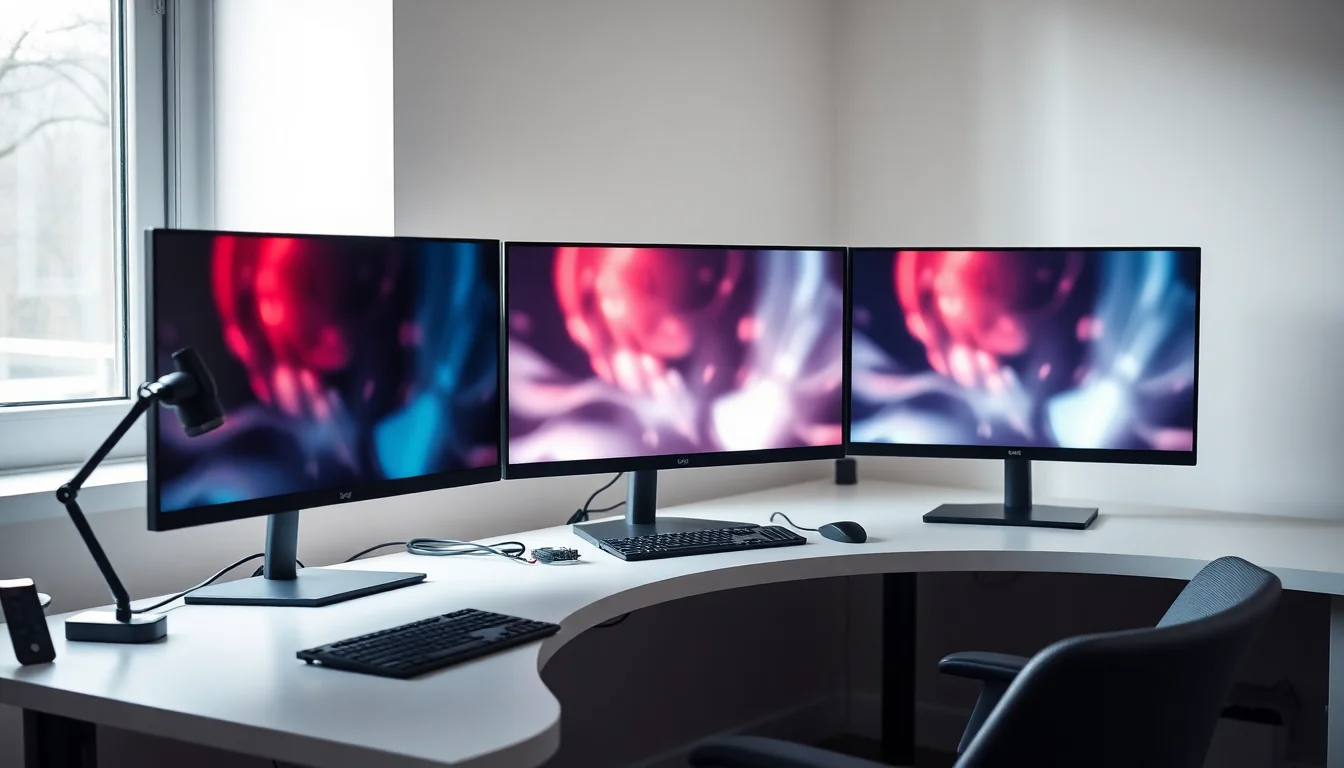
A triple monitor setup UK workers actually rely on demands more than three screens and a spare HDMI cable. You need to audit your GPU's output pipelines, choose between three distinct connection architectures, and configure Windows or macOS to stop fighting you. Get those foundations right and productivity gains of 20 to 50 percent, backed by task-based research, are genuinely achievable.
Quick Answer
A functional triple monitor setup UK requires a GPU or dock with at least three active display output pipelines, VESA-compatible mounting that meets DSE ergonomic regulations, and OS-level configuration for multi-monitor taskbars and scaling. The architecture you choose, whether three separate cables, DisplayPort daisy-chaining, or a Thunderbolt dock, determines what hardware you actually need to buy.
Key Takeaways
- Check GPU output pipelines first, not just port count. Many laptops expose three ports but only two active display signals.
- DisplayPort 1.4 delivers 32.4 Gbit/s and supports MST daisy-chaining. HDMI 2.0 maxes at 4K 60 Hz with 8-bit colour and does not support daisy-chaining at all.
- USB-C is a connector shape, not a capability. Only Thunderbolt 3/4 ports reliably drive two external displays. Three displays over one cable almost always requires DisplayLink compression.
- Identical monitors simplify colour matching and OS scaling. Mixed setups work but require manual DPI configuration in Windows and can behave erratically in macOS.
- UK DSE regulations require adjustable monitor height and angle. Fixed-height stands may not satisfy employer compliance obligations for home workers.
- Under the Consumer Rights Act 2015, any dock or monitor sold as triple-display capable must actually deliver that. You have 30 days to reject faulty goods outright.
- Around 63% of UK employees now work from home at least occasionally, making a proper multi-monitor workstation one of the most impactful home-office investments available.
Three screens sounds extravagant until you've spent a morning flipping between a spreadsheet, a video call and a reference document on a single 27-inch panel. Then it sounds obvious. With around 63% of UK employees now working from home either mainly or occasionally (up from 27% in 2019, according to the ONS Homeworking in the UK data), the home desk has quietly become the most important workstation most of us will ever configure. Getting a triple monitor setup UK right, technically and ergonomically, is no longer a niche concern.
But the internet is full of advice that stops at 'buy three monitors and plug them in.' This guide goes further. We'll cover the signal-path architecture that determines whether your hardware can even drive three displays, the mounting and ergonomic standards that UK employers are legally required to meet, and the OS-specific quirks that catch most people out. No product tiers. No affiliate-padding. Just the framework you need to make a genuinely informed decision.
What Is a Triple-Monitor Setup and Why Do UK Workers Choose It?
A triple monitor setup, at its most basic, is any workstation configuration where three separate display panels are active simultaneously. That might mean three external monitors connected to a desktop PC, two external screens flanking a laptop's built-in display, or a portable monitor clipped to the side of a laptop on a train. The physical form varies enormously. What unifies them is the demand they place on your hardware's display output architecture, and that's where most buyers run into trouble.
Why three? Two monitors already offer a meaningful productivity uplift, but the jump to three introduces something qualitatively different: dedicated screen real estate for persistent context. Your email or Slack can live permanently on one side panel. Your primary work, code, document, design, occupies the centre. Reference material, a browser, a dashboard, a PDF, sits on the other side. You stop minimising and maximising windows. You stop losing context. Multi-monitor productivity gains in task-based studies range from 20 to 50 percent, primarily through reduced window switching and easier document comparison, and three screens is where that benefit really compounds.
The three main architectures for a triple monitor setup UK buyers will encounter are: three separate cables (one per monitor, each running directly from a GPU port or dock output), DisplayPort Multi-Stream Transport daisy-chaining (monitors linked in a chain from a single GPU port), and a single USB-C or Thunderbolt dock that handles all display outputs plus power. Each has different hardware requirements, different bandwidth trade-offs, and different failure modes. The rest of this guide unpacks all three.
It's also worth understanding the UK-specific context. With laptops the most common home computing device (ONS Internet Access Households and Individuals 2023 puts household computer access at 88%), the majority of UK buyers are not starting from a desktop with a discrete GPU and six free ports. They're starting from a laptop with one HDMI port, one or two USB-C ports, and a manufacturer's specification sheet that uses the word 'supports' very loosely. That asymmetry shapes every recommendation in this guide.
GPU Ports, Bandwidth and Signal Paths: The Technical Foundation
This is the section most buying guides skip entirely, and it's the reason so many triple monitor setups fail on arrival. Understanding it doesn't require an engineering degree. But you do need to grasp three concepts: output pipelines, bandwidth, and signal standards.
An output pipeline is the internal circuit within your GPU (or integrated graphics chip) that generates a display signal. Physical ports on your machine, HDMI, DisplayPort, USB-C, are just connectors. The number of ports you can see on the back of your laptop or GPU is not the same as the number of displays you can run simultaneously. Many laptops have three physical ports but only two active pipelines. The third port is physically present but electrically inert for display purposes. Check your laptop or GPU manufacturer's specification page, not the port count on the chassis.
Bandwidth determines what resolution and refresh rate each display can receive. DisplayPort 1.4, the current mainstream standard on most monitors and GPUs, delivers a raw data rate of 32.4 Gbit/s. That's enough for 4K at 120 Hz with Display Stream Compression, or 4K at 60 Hz uncompressed. HDMI 2.0, still common on mid-range monitors, maxes out at 4K 60 Hz with 8-bit colour. HDMI 2.1 pushes that to 4K 144 Hz or 8K 30 Hz, but it's less universally available. The critical difference: DisplayPort supports Multi-Stream Transport (MST) daisy-chaining between monitors. HDMI does not. If you want to chain monitors, you need DisplayPort on both the GPU and the monitors.
Signal path logic matters when you're mixing connection types. A desktop GPU with two DisplayPort outputs and one HDMI output can typically drive three monitors simultaneously, one per port, assuming all three pipelines are active. A laptop with one HDMI and one USB-C (carrying DisplayPort Alt Mode) can drive two external displays, plus its own built-in panel, giving you three screens total. But that USB-C port must genuinely support DisplayPort Alt Mode, not just USB data. Many USB-C ports on cheaper laptops carry only USB 3.x data and cannot output a display signal at all.
For a deeper technical breakdown of how GPU pipelines and DisplayPort bandwidth interact across specific GPU generations, our dedicated guide on GPU port bandwidth and signal-path limits covers the architecture in full, including how AMD, Nvidia and Intel integrated graphics differ in their multi-display support.
One more thing: integrated graphics (Intel Iris Xe, AMD Radeon integrated) can drive three displays on many modern chips, but performance under load, particularly with video playback or any GPU-accelerated task across three screens, will be noticeably worse than a discrete GPU. For productivity work (documents, spreadsheets, video calls), integrated graphics is usually fine. For a gaming triple monitor setup UK, you need a discrete GPU with sufficient VRAM, typically 8 GB or more for 1080p triple-screen gaming.
Choosing Your Three Monitors: Resolution, Size and Panel Type
The question of whether to buy matching or mixed monitors is one of the most searched topics in this space, and the honest answer is: matching is better, but mixed is workable if you plan carefully.
Matching monitors, same resolution, same size, same panel type, same manufacturer if possible, eliminate the two biggest sources of friction in a triple setup: colour inconsistency and scaling mismatch. When all three panels share the same native resolution, Windows and macOS can apply a single DPI scaling factor across the array. Text is the same size on all three. Brightness and colour temperature can be calibrated to match. Your eyes don't have to constantly adjust as you move content between screens. For most UK office workers, three identical 27-inch 1440p IPS panels is the sweet spot in 2026: high enough resolution for crisp text, wide enough colour gamut for document and photo work, and affordable enough to buy three without remortgaging.
Mixed setups introduce complexity at every level. If your centre monitor is 4K and your side panels are 1080p, Windows will apply different DPI scaling factors to each, and applications that span or move between screens can appear blurry or jump in size. macOS handles mixed DPI somewhat better than Windows, but it still has quirks, particularly with full-screen apps and menu bar placement. If you're committed to a mixed setup, keep the resolution difference modest (1440p centre with 1080p sides is more manageable than 4K centre with 1080p sides) and read our guide on mixed-resolution monitor scaling in Windows and macOS before buying.
Panel type matters too. IPS (In-Plane Switching) panels offer wide viewing angles and accurate colour, which is important when your side monitors sit at an angle to you. VA panels offer better contrast and deeper blacks but narrower viewing angles, making them less ideal for the off-axis position your side screens occupy. TN panels are fast but have poor off-axis colour shift. For a productivity triple monitor setup UK, IPS is the default recommendation for all three panels.
Refresh rate is less critical for productivity than for gaming. A 60 Hz panel is perfectly adequate for document work, video calls and most creative tasks. For a gaming triple monitor setup UK, you'll want 144 Hz or higher on all three panels, and you'll need a GPU powerful enough to drive the frame rates to justify it. Mixing refresh rates in a gaming context creates visible inconsistency between panels during fast motion.
Colour accuracy, measured as Delta E (dE), matters if you're doing colour-critical work like photo editing or video grading. For general productivity, a dE of less than 3 is acceptable. For colour-critical work, look for dE less than 2, ideally factory-calibrated. Most budget panels don't specify dE at all, which tells you something about their target market.
Mounting, Ergonomics and Desk Setup for Three Screens
Three monitors create a physical problem that two monitors don't: you're now arranging panels across a width that can easily exceed 150 centimetres, and the side panels are necessarily off-axis from your primary line of sight. Get the geometry wrong and you'll have neck pain within a week. Get it right and you'll barely notice the screens are there.
The Health and Safety (Display Screen Equipment) Regulations 1992 set the legal baseline for UK workstations. They require that screens be adjustable in height and tilt, positioned to avoid glare and reflections, and placed at a distance that doesn't cause eye strain. For employer-funded home setups (and most remote workers in the UK are technically covered by DSE obligations if their employer has assessed their workstation), fixed-height stands that don't allow height adjustment may not satisfy compliance requirements. Monitor arms, which allow independent adjustment of each screen's height, tilt and rotation, are the ergonomically correct choice.
The standard recommendation for monitor height is that the top of the screen should be at or slightly below eye level when you're sitting upright. For a triple setup, all three panels should share the same eye-level baseline, or the side panels can be angled very slightly inward and downward to reduce neck rotation. The centre monitor should be directly in front of you. Side panels should be angled at roughly 30 to 45 degrees inward, not flat against the wall.
Mounting options for three screens fall into three categories. A triple-arm bracket mounts all three monitors on a single clamp or grommet, keeping the footprint compact but making individual adjustments fiddly once installed. A dual-arm plus single-arm combination gives you the most flexibility: the two side panels on a dual arm, the centre on its own arm or a quality stand. Standalone stands are the cheapest option but consume the most desk space and offer the least adjustability. Whatever you choose, verify VESA compatibility on your monitors. The standard hole patterns are 75x75 mm and 100x100 mm. Some ultra-thin monitors use proprietary stands with no VESA holes at all, which is a significant limitation for a triple setup.
Desk depth is a constraint that's easy to overlook. Three 27-inch monitors at the recommended 60 to 70 centimetre viewing distance require a desk at least 70 centimetres deep. Most standard UK desks are 60 centimetres deep, which pushes you either too close to the screens or forces the monitors to hang over the desk edge on arms. If your desk is shallow, monitor arms that extend forward are essential. They also free up the desk surface underneath, which is a genuine quality-of-life improvement.
Cable management deserves a mention here. Three monitors mean at minimum three display cables, three power cables, and potentially three USB cables for built-in hubs. Cable trays, velcro ties and desk grommets keep this manageable. Routed cables also reduce the risk of someone (or a pet) yanking a monitor off its arm by catching a cable underfoot. Our full guide on monitor arm ergonomics and DSE compliance for UK workstations covers VESA sizing, weight limits, desk load calculations and employer compliance obligations in detail.
Windows Workflows: Snap Layouts, Virtual Desktops and Multi-Monitor Taskbars
Hardware is only half the story. Windows 11 has genuinely good multi-monitor support, but it requires configuration to work the way you'd want across three screens. Out of the box, you'll get three independent displays with a taskbar on each and basic window dragging between them. With a few minutes of setup, you can have a workflow that makes three monitors feel like a single, coherent workspace.
Snap Layouts, introduced in Windows 11 and refined through subsequent updates, let you arrange windows into predefined grid zones on each monitor. On a 27-inch 1440p centre screen, a two-column snap (50/50 or 70/30) works well for main work plus a reference window. Side panels typically run a single full-screen application each. To access Snap Layouts, hover over a window's maximise button or press Win + Z. You can customise the layout grid density in Settings under System, Multitasking.
The multi-monitor taskbar in Windows 11 can be configured to show all open applications on every taskbar, or only the applications open on that specific monitor. For a triple setup, showing only the relevant apps on each monitor's taskbar is less cluttered and more intuitive. Find this under Settings, Personalisation, Taskbar, Taskbar Behaviours, and set 'Show my taskbar apps on' to 'Taskbar where window is open.'
Virtual desktops in Windows 11 extend the triple-monitor concept further. You can create multiple virtual desktops (Win + Tab, then 'New Desktop'), each with its own window arrangement across all three physical monitors. Switching between them with Win + Ctrl + Left/Right Arrow lets you maintain completely separate workspace contexts, one for deep work, one for communication, one for reference, without any window juggling. It's a powerful combination with three physical screens.
Scaling is the persistent pain point. If your three monitors share the same resolution and size, set all three to 100% scaling and you're done. If you're mixing a 4K centre with 1080p sides, Windows will suggest different scaling percentages for each (typically 150 to 200% for 4K, 100% for 1080p). Applications that don't support per-monitor DPI awareness will appear blurry when dragged between screens. Most modern applications handle this correctly, but legacy software often doesn't. The fix is usually to right-click the application's executable, go to Properties, Compatibility, and change the high-DPI scaling override to 'Application' or 'System (Enhanced).'
For a thorough walkthrough of Snap Layouts, virtual desktop configuration and per-monitor DPI fixes across all three screens, see our dedicated piece on Windows multi-monitor workflows for triple-screen productivity.
macOS Workflows: Spaces, Mission Control and Menu-Bar Placement
macOS and multiple monitors have a complicated relationship. Apple's approach to multi-display workflows is coherent once you understand its logic, but it makes assumptions about how you work that don't always match a triple-monitor productivity setup. Knowing the quirks before you buy saves a lot of frustration.
Mission Control is macOS's window management layer. On a triple-monitor setup, each physical display gets its own row of Spaces in Mission Control. You can have completely different virtual desktops on each screen simultaneously. Swipe up with three or four fingers on a trackpad (or press Mission Control in your keyboard's function row) to see all three displays' Spaces at once. This is genuinely powerful for context switching: your left monitor might be on a 'Communication' Space showing Mail and Messages, your centre on a 'Work' Space showing your primary application, and your right monitor on a 'Reference' Space with Safari and Preview.
The menu bar is a point of friction. By default, macOS places the menu bar on whichever display is set as the primary (the one containing the Dock). In System Settings under Displays, you can enable 'Show menu bar on all displays' in macOS Ventura and later. But the active application's menus only appear on the display where that application's focused window sits, not globally. If your active window is on the right monitor but the menu bar is on the centre monitor, you'll be moving your mouse a lot. Muscle memory adapts, but it takes time.
Full-screen mode behaves differently in macOS than in Windows. When you make an application full-screen on macOS, it creates a new Space on that monitor and blacks out (or shows a grey linen texture on) the other monitors. This is the default behaviour and catches many users off guard. You can disable it by going to System Settings, Desktop and Dock, and turning off 'Displays have separate Spaces.' But be warned: disabling this setting also disables per-display Spaces in Mission Control, which removes some of the workflow flexibility described above. Most power users leave it enabled and simply avoid full-screen mode in favour of maximised windows.
Scaling on macOS is handled more gracefully than on Windows for mixed-resolution setups, largely because macOS uses a resolution-independent rendering layer. But if you're mixing a Retina (HiDPI) display with standard-resolution external monitors, you may notice that UI elements appear slightly different in size between screens. You can adjust this in System Settings, Displays by selecting 'More Space' or 'Larger Text' scaling presets per display. For colour-critical work, macOS's Colour Profiles system (also in Display settings) lets you assign ICC profiles to each monitor independently, which is a significant advantage over Windows for creative professionals.
Our companion piece on macOS multi-monitor workflows with Spaces and Mission Control covers Apple Silicon display limits, DisplayLink setup on Mac, and how to configure per-display colour profiles in detail.
The Single-Cable Dream: USB-C, Thunderbolt and DisplayLink Reality
The idea of plugging one cable into your laptop and having three monitors, power delivery and USB peripherals all spring to life is genuinely appealing. It's also, in most real-world configurations, only partially achievable. Here's what's actually possible and where the limits are.
USB-C is a connector shape. That's it. The same physical port can carry USB 2.0 data only, USB 3.2 data, DisplayPort Alt Mode (one 4K display stream), Thunderbolt 3 (up to two 4K display streams plus 40 Gbit/s data), or Thunderbolt 4 (same as Thunderbolt 3 but with stricter minimum specifications). When a laptop manufacturer says a USB-C port 'supports displays,' they might mean any of these things. Check the spec sheet and look specifically for 'Thunderbolt 3,' 'Thunderbolt 4,' or 'DisplayPort Alt Mode' in the port description.
A Thunderbolt 3 or 4 dock connected via a single cable can drive two external 4K displays at 60 Hz, plus the laptop's built-in screen, giving you three displays total. That's the realistic single-cable scenario for most laptop users. Getting three external displays over one Thunderbolt cable requires the dock to use DisplayLink for the third display, which means software-rendered output via the CPU. DisplayLink works well for productivity tasks (documents, spreadsheets, video calls) but isn't suitable for gaming or GPU-accelerated creative work on that third display.
For laptop users who want to understand exactly which docks and which laptop models support three external displays over a single connection, our guide on USB-C docks and Thunderbolt: which laptops support three external displays tests specific configurations and explains the pipeline logic per manufacturer. And if you need displays that travel with you, our guide on portable triple monitors for laptop covers USB-C and DisplayLink portable options in the UK market.
DisplayLink adapters deserve a specific mention because they solve the 'my laptop only has two pipelines' problem by bypassing the GPU entirely. A DisplayLink adapter connects via USB 3.0 or USB-C data (not DisplayPort Alt Mode) and uses a chip on the adapter to compress the display signal, which is then rendered by a driver on the CPU. The result is a third (or fourth) display that works on almost any laptop, regardless of GPU pipeline count. The trade-off is CPU overhead, a small amount of latency, and occasional driver conflicts. For a static productivity setup, DisplayLink is a practical and affordable solution. For gaming, it isn't.
Budget and Cost-Effective Triple-Monitor Setups
A triple monitor setup UK buyers can actually afford is more achievable than most product listings suggest, provided you're willing to make a few informed compromises. The cheapest functional route isn't three brand-new premium panels. It's a thoughtful combination of what you already have and targeted purchases that fill the gaps.
If you have a laptop, its built-in display is already your third screen. You need two external monitors, not three. Two 24-inch or 27-inch 1080p IPS panels from brands like AOC, LG or BenQ are widely available from UK retailers including Currys, John Lewis and Amazon, typically in the £100 to £150 range each. At that price point, you're getting a decent IPS panel with acceptable colour accuracy and a 75 Hz refresh rate. Not spectacular, but entirely functional for productivity work.
Connection is the next cost. If your laptop has an HDMI port and a USB-C port with DisplayPort Alt Mode, you can connect both external monitors directly with standard cables (HDMI to HDMI, USB-C to DisplayPort or USB-C to HDMI) for under £20 total. If you need a dock for additional ports, a USB-C hub with dual display output costs £40 to £80 from reputable brands. Avoid the cheapest unbranded options: they frequently fail to deliver the advertised display output and, more seriously, unbranded docks without UKCA safety marking can present electrical safety risks.
Mounting on a budget means choosing between a cheap dual-monitor arm (£40 to £60 from Argos or Amazon) and the monitors' included stands. Included stands are free but fixed-height and take up desk space. A basic dual-arm mount gives you height and tilt adjustability, which matters for ergonomics and DSE compliance. Don't skip this cost: neck pain from a poorly positioned monitor is a real and expensive problem over time.
Total budget for a functional cheap triple monitor setup UK: approximately £300 to £400, assuming you're using your laptop's built-in screen as the third display. If you need three external monitors (for a desktop setup or a laptop you prefer to use in clamshell mode), add £100 to £150 for the third panel. Our detailed breakdown in the budget triple-monitor setups under £500 guide covers specific configurations, recommended panel models and dock options at different price points.
Safety, Compliance and Consumer Rights in the UK
This is the section that almost no buying guide includes, and it's arguably the most practically important one for UK buyers. There are real legal protections here, and real legal obligations, that affect what you buy, how you set it up and what you can do if something goes wrong.
The Health and Safety (Display Screen Equipment) Regulations 1992, updated and still in force, place obligations on UK employers to assess and mitigate the risks of display screen work. For remote workers using employer-provided equipment or working from home under a formal arrangement, employers are required to carry out a DSE workstation assessment. This assessment covers monitor height and angle (adjustable, at or below eye level), viewing distance (arm's length, 60 to 70 cm), lighting (no glare on screens), and seating (adjustable height and back support). If your employer is funding your triple monitor setup, they should be conducting this assessment. If they're not, it's worth raising, both for your health and because the legal obligation sits with them.
For self-employed workers and personal setups, the DSE regulations don't apply directly, but the ergonomic principles are identical. The HSE's guidance document INDG36 (rev4) is freely available on the HSE website and provides a practical workstation checklist that's worth working through for any triple-monitor configuration.
Consumer rights are equally important. Under the Consumer Rights Act 2015, any monitor, dock or mounting arm sold in the UK must be of satisfactory quality, fit for purpose and match its description. If a dock is sold as supporting three external displays and it doesn't, you have the right to a full refund within 30 days of purchase, or repair and replacement after that period. For online purchases, the Consumer Contracts Regulations 2013 give you an additional 14-day cooling-off period to return goods for any reason at all, regardless of whether they're faulty.
UKCA marking on electrical accessories (docks, hubs, power adapters) indicates compliance with UK safety standards. This replaced CE marking for products placed on the UK market after January 2021. A product without UKCA marking that connects to mains power may not have been tested to UK electrical safety standards. This isn't a theoretical concern: poorly designed USB-C docks with inadequate power circuitry have caused electrical damage to laptops in documented cases. Stick to products from established brands available through reputable UK retailers, and check for UKCA or CE marking (CE remains valid for many product categories under transitional arrangements).
If a retailer refuses to honour your consumer rights, the Citizens Advice Consumer Service (available online at citizensadvice.org.uk) can provide guidance and escalate to Trading Standards if necessary. For purchases over £100 made by credit card, Section 75 of the Consumer Credit Act 1974 makes your credit card provider jointly liable with the retailer, giving you an additional route to redress.
Where to Go Next
This guide has given you the framework. You understand the three connection architectures, the GPU pipeline constraints that determine what your hardware can actually drive, the ergonomic and legal requirements for a compliant UK workstation, and the OS-level configuration that makes Windows and macOS behave sensibly across three screens. But a framework is only useful when it connects to specific decisions.
If you're still unsure whether your laptop's ports can support three displays, start with our technical deep-dive on GPU port bandwidth and signal-path limits, which covers pipeline counts for specific GPU families and explains how to read a manufacturer's spec sheet for display output capability.
If you're planning to connect monitors via a single Thunderbolt dock or USB-C hub, our guide on USB-C docks and Thunderbolt for triple-monitor laptops tests real-world configurations and flags the specific dock models that actually deliver on their three-display claims.
For DisplayPort daisy-chaining, which is the neatest cable solution for desktop setups with MST-capable monitors, the full technical walkthrough is in our piece on connecting three monitors over one DisplayPort cable, including how to enable MST in your monitor's on-screen menu and what refresh rate trade-offs to expect at different resolutions.
If you're buying a mix of monitors rather than three identical panels, don't skip our guide on mixed-resolution monitor scaling in Windows and macOS before you purchase. The per-monitor DPI issues are solvable, but knowing about them in advance saves a lot of post-purchase frustration.
And if your primary constraint is budget, our practical budget triple-monitor setup guide for UK buyers walks through specific configurations at the £300, £400 and £500 price points, including which corners are safe to cut and which aren't.
Three screens, properly configured, is one of the most impactful productivity investments a UK home worker can make in 2026. The hardware is more accessible than it's ever been. The software support in Windows 11 and macOS is genuinely good. The main barriers are technical knowledge and ergonomic awareness, both of which you now have.
Frequently Asked Questions
No, you don't. Mixing resolutions, sizes and panel types is perfectly possible, but it does introduce scaling headaches in both Windows and macOS. Identical panels make colour consistency and brightness matching far easier. If you do mix, keep your primary centre display as the reference for colour and brightness, and consider portrait orientation for side panels if your work is document or code heavy. Test your OS scaling before committing to a mixed purchase, because some combinations produce blurry text on the non-native-resolution screen.
Most modern laptops support two external displays via HDMI and USB-C, but three typically requires a Thunderbolt 3 or 4 dock, a DisplayLink adapter, or a USB-C hub with DisplayPort Alt Mode daisy-chaining. The critical thing to check is not the number of physical ports but the number of active GPU output pipelines your laptop exposes. Many business laptops have three ports but only two active pipelines, so the third port simply won't carry a display signal. Check your laptop's manual or the manufacturer's specification page before buying any dock or adapter.
The most cost-effective route is to use your laptop's built-in display as the third screen and buy two budget 1080p or 1440p IPS panels from retailers like Currys or Argos. A USB-C hub or a single HDMI adapter handles the external connections if your GPU supports it. Avoid cheap docks without UKCA safety marking, as they present genuine electrical risks. Budget around £100 to £150 per monitor and £50 to £100 for a decent dual-monitor arm, bringing a functional setup to roughly £300 to £400 total.
Position all three screens at arm's length, roughly 60 to 70 centimetres from your eyes, with the top of each screen at or slightly below eye level. Use monitor arms so you can adjust height and tilt independently for each panel. Enable Windows Night Light or macOS Night Shift in the evening to reduce blue light output. Crucially, match brightness across all three panels as closely as possible, because constant pupil adjustment between a bright centre and dim side screens is a major cause of fatigue. Follow the 20-20-20 rule: every 20 minutes, look at something 20 feet away for 20 seconds.
Yes, if both your GPU and your monitors support DisplayPort Multi-Stream Transport (MST). MST isn't always enabled by default, so check your monitor's on-screen display menu and your GPU driver settings. The trade-off is bandwidth: daisy-chaining splits the available throughput between all displays in the chain, so three 4K panels at 60 Hz is generally not achievable over a single DisplayPort 1.4 connection without Display Stream Compression. Three 1440p panels at 60 Hz is more realistic. Always test before you commit to this architecture.
Rarely, in practice. A USB-C port carrying DisplayPort Alt Mode can drive one 4K stream. Thunderbolt 3 or 4 can drive two 4K streams. Getting three displays from a single cable requires a Thunderbolt dock with DisplayLink or MST support, and even then, power delivery is a separate concern. A 65 W dock won't fully power a 100 W workstation laptop under load, so you'll likely still need a separate charger. Read dock specifications carefully: many products advertise three-display support but only deliver it at reduced resolution or with one display running via DisplayLink compression.
Under the Consumer Rights Act 2015, any monitor or dock sold as supporting three displays must be of satisfactory quality, fit for purpose and match its description. If it doesn't perform as advertised, you have the right to a full refund within 30 days of purchase, or repair and replacement after that. For online purchases, the Consumer Contracts Regulations give you 14 days to cancel and return for any reason at all. If a retailer refuses to help, contact the Citizens Advice Consumer Service, which can escalate to Trading Standards on your behalf.
A dual-arm mount for your two side panels plus a standalone stand or single arm for the centre monitor gives the most flexibility. Triple-bracket mounts are more compact but harder to adjust individually once installed. Whatever you choose, confirm VESA compatibility on your monitors (75x75 mm or 100x100 mm hole patterns are standard) and check the weight rating of both the mount and your desk. Clamp mounts suit thinner desks; grommet mounts are better for thick solid-wood surfaces. Under the Health and Safety Display Screen Equipment Regulations 1992, screens must be adjustable in height and angle, so fixed-height stands may not meet compliance requirements for employer-funded home setups.