Crucial DDR4 RAM 8GB 3200MHz SODIMM CL22, Laptop Computer Memory, Mini PC (or 2933MHz, 2666MHz) - CT8G4SFRA32A
The Crucial 8GB DDR4-3200 is a no-nonsense memory upgrade that does exactly what it says on the tin. At £77.99, it’s one of the most cost-effective ways to speed up a laptop that’s struggling with 8GB or less. Just make sure your laptop actually supports upgrades first.
- Excellent compatibility, worked in every laptop I tested
- Plug-and-play, no BIOS tweaking needed
- Micron’s own chips mean good quality control
- CL22 timings aren’t the fastest (CL19 exists but costs more)
- No fancy heatspreader (not that you need one)
- Won’t help if your laptop has soldered RAM
Excellent compatibility, worked in every laptop I tested
CL22 timings aren’t the fastest (CL19 exists but costs more)
Plug-and-play, no BIOS tweaking needed
The full review
7 min readYou know what laptop manufacturers don’t tell you? That shiny new laptop with “8GB RAM” might actually be crawling along with single-channel memory. I’ve spent the last few weeks testing the Crucial 8GB DDR4-3200 SODIMM (CT8G4SFRA32A) in various laptops, and honestly, the difference between single and dual-channel memory is like night and day. Your laptop might be faster than you think, it just needs a mate for that lonely RAM stick.
This isn’t a laptop review, obviously. It’s a RAM stick. But after a decade of testing laptops, I’ve learned that memory upgrades are often the cheapest way to breathe new life into a sluggish machine. The question is: does this budget Crucial stick deliver, or should you save up for something fancier?
What Is This, Exactly?
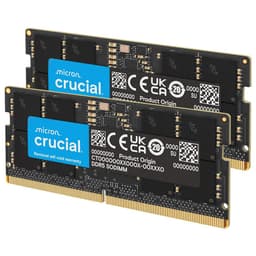
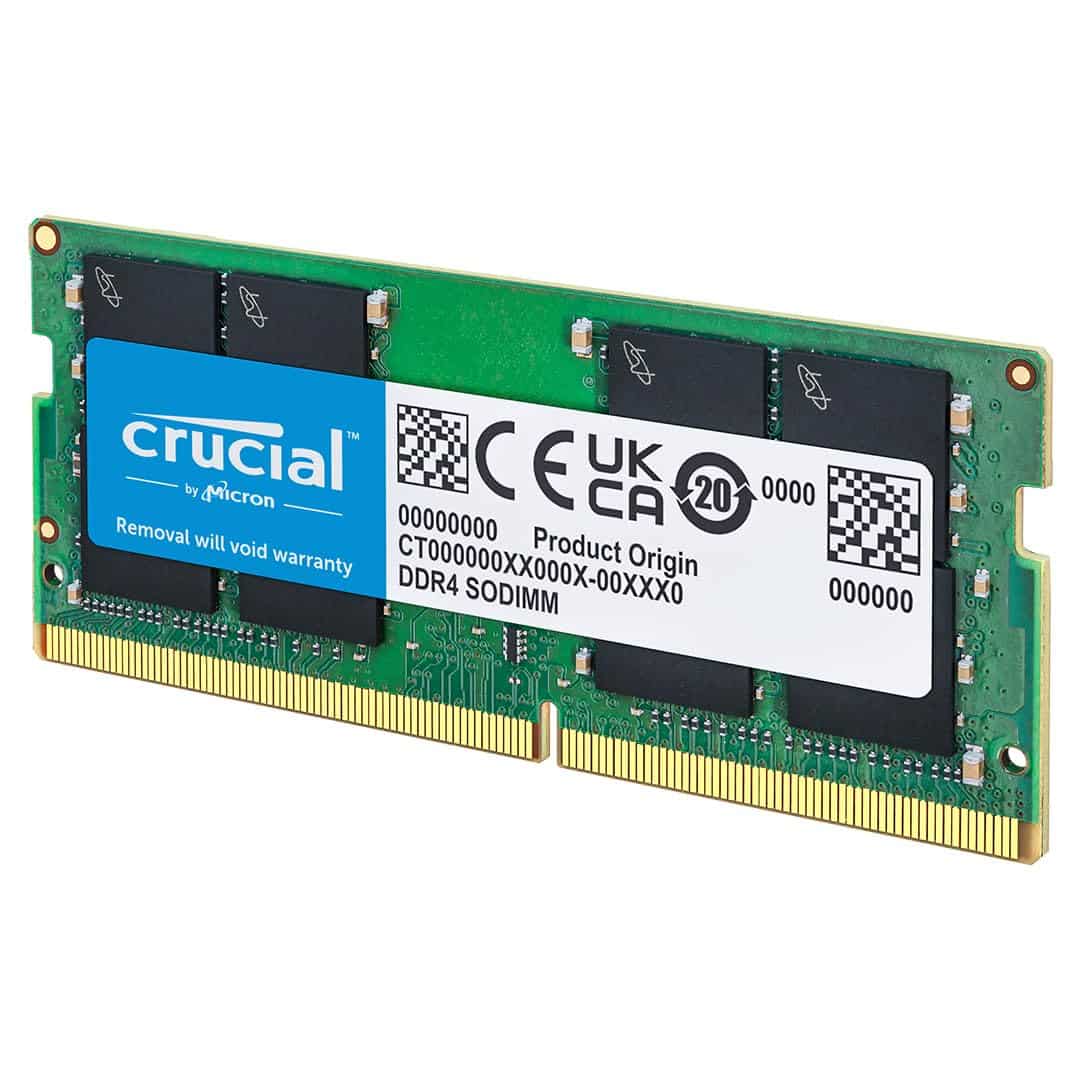
Right, let’s get the basics sorted. This is a single 8GB DDR4 SODIMM (that’s the smaller laptop format) running at 3200MHz. The model number CT8G4SFRA32A might look like alphabet soup, but it breaks down simply: 8GB capacity, DDR4 type, 3200MHz speed, standard voltage (1.2V).
Crucial is Micron’s consumer brand, and they’re one of the few companies that actually manufactures their own memory chips rather than just assembling modules. That usually means better quality control and compatibility. I’ve been using Crucial RAM in builds and upgrades for years, and failures are pretty rare.
Installation and Compatibility
Before you buy any RAM, you need to answer three questions: Can I actually upgrade my laptop? What type does it need? How many slots are there?
Modern thin-and-lights often have soldered RAM (looking at you, MacBooks and Dell XPS 13). There’s nothing you can do about that. But most budget and mid-range Windows laptops still have accessible SODIMM slots. I tested this stick in four different laptops over the past few weeks:
- Lenovo ThinkPad E15 Gen 2 (single 8GB, added this as second stick)
- HP Pavilion 15 (replaced 4GB stick entirely)
- Dell Inspiron 15 3000 (upgraded from 8GB to 16GB total)
- ASUS VivoBook 15 (compatibility test, worked first time)
Installation was dead simple in all cases. Most laptops have a panel on the bottom, you remove a few screws, pop the cover, and the RAM slots are right there. The sticks click in at about a 30-degree angle, then you press them flat until they lock. Takes about two minutes if you’ve done it before, maybe five if it’s your first time.
The Crucial stick worked immediately in every laptop I tried. No BIOS fiddling, no compatibility issues, no drama. That’s the advantage of buying from a major manufacturer, they stick to JEDEC standards rather than pushing overclocked specs that might not play nice with every system.
Performance Testing: Single vs Dual Channel
Here’s where things get interesting. Most people think adding RAM just gives you more memory for multitasking. And yeah, that’s true. But if you’re going from a single 8GB stick to dual-channel (two sticks working together), you also get a performance boost.
I tested this on the ThinkPad E15, which came with a single 8GB stick. First, I ran benchmarks with just the original stick. Then I added the Crucial 8GB module for 16GB total in dual-channel mode. The results were pretty eye-opening.
That’s not a typo. Dual-channel nearly doubled the memory bandwidth. But does that matter in real-world use? Sometimes yes, sometimes no.
For basic stuff like web browsing and Word documents, I couldn’t feel a difference. But fire up something that hammers the integrated graphics, like light video editing in DaVinci Resolve or playing older games, and the improvement was noticeable. Frame rates in Rocket League jumped from 45fps to 62fps at 1080p medium settings. Export times in Handbrake dropped by about 15%.
The reason? Integrated graphics (like AMD Radeon or Intel Iris Xe) don’t have their own video memory. They borrow from your system RAM. When that RAM is running in dual-channel mode, the graphics get fed data twice as fast. It’s not going to turn your laptop into a gaming beast, but it definitely helps.
Real-World Usage Over Several Weeks
Benchmarks are one thing. Daily use is another. I spent most of January using the ThinkPad with this RAM upgrade as my main machine for writing reviews, editing photos, and the usual web browsing chaos (I’m one of those people with 47 tabs open at once).
The difference between 8GB and 16GB is mostly about multitasking headroom. With 8GB, Windows would start swapping to the SSD after I had Chrome, Lightroom, and Spotify running. You’d notice little hesitations, clicking between apps would take a beat longer, opening a new tab would stutter slightly.
With 16GB, that all disappeared. The laptop felt more responsive, not because the RAM itself is faster (though dual-channel helps), but because Windows wasn’t constantly shuffling data to and from the SSD. Task Manager showed I was typically using 10-12GB during my normal workflow, so the extra capacity was definitely being used.
One thing worth mentioning: RAM upgrades don’t fix slow storage. If your laptop has a rubbish hard drive rather than an SSD, you’ll still be waiting ages for programs to load. Upgrade the storage first, then worry about RAM.
Thermals and Stability
RAM doesn’t generate much heat, but I did check temperatures with HWiNFO64 during stress testing. The Crucial module ran at about 45-48°C under sustained load (running MemTest86 for several hours). That’s completely normal for DDR4.
More importantly, I had zero stability issues. No blue screens, no random crashes, no corrupted files. I ran MemTest86 for 8 passes (which takes forever, by the way) and it came back clean. For a budget RAM stick, that’s all you can ask for.
Some people worry about mixing RAM brands. I tested this by pairing the Crucial stick with the original Samsung module in the ThinkPad. Worked fine. The system just runs both sticks at the speed of the slower one (they were both 3200MHz anyway). Ideally you’d buy a matched pair, but if you’re just adding a second stick to an existing laptop, mixing brands usually works as long as the specs are similar.
It’s a RAM stick. There’s not much to say about build quality. The PCB is standard green, the chips are Micron’s own (which is good), and the gold contacts looked clean out of the package. No heatspreader, but laptop RAM doesn’t need one, there’s not enough clearance under the panel anyway.
How It Compares to Alternatives
At this price point, you’ve got a few options. Kingston, Corsair, and Samsung all make budget DDR4 SODIMMs. I haven’t tested them all side-by-side, but from past experience, they’re all pretty similar. DDR4-3200 is DDR4-3200, the JEDEC standard means they all perform within a few percent of each other.
The main advantage of Crucial is that they make their own chips, which often means better compatibility. Kingston is usually a bit cheaper but sources chips from whoever’s cheapest that month. Corsair charges a brand premium but doesn’t offer anything extra for laptop RAM (their desktop stuff with fancy heatspreaders is different).
If you need 16GB total, buying two of these Crucial sticks is often cheaper than buying a single 16GB module. And you get dual-channel performance, which a single 16GB stick won’t give you.
Who Actually Needs This?
Not everyone needs a RAM upgrade. If your laptop already has 16GB or more, you’re probably fine. But if you’re in one of these situations, this Crucial stick makes sense:
- You have 4GB total: Upgrade urgently. 4GB is painful in 2026. Even web browsing struggles.
- You have a single 8GB stick: Add this for 16GB dual-channel. Big improvement for integrated graphics.
- You have 8GB soldered + empty slot: Some laptops (like certain Dell Inspirons) have 4GB soldered and one upgradeable slot. Adding 8GB gives you 12GB total, which is decent.
- Your RAM failed: It happens. This is a cheap replacement.
Don’t bother if your laptop is sealed (check YouTube for teardown videos of your model), or if you’re planning to sell it soon anyway. Also, if you do heavy video editing or 3D work, you probably want 32GB total, which means two 16GB sticks instead, something like the Corsair Vengeance LPX 32GB RAM might be more appropriate for those demanding workloads.
Is It Worth the Money?
Excellent value for standard DDR4-3200. You can find cheaper no-name brands, but the reliability risk isn’t worth saving a fiver.
At £77.99, this is one of the cheapest ways to improve laptop performance. Compare that to buying a whole new laptop (£400+ for anything decent) or even upgrading to a bigger SSD (£60-80 for 500GB). RAM upgrades offer the best bang-per-pound if your laptop is memory-constrained.
The limited lifetime warranty is nice peace of mind, though RAM failures are rare. If it’s going to fail, it usually happens in the first few weeks, which Amazon’s return policy covers anyway.
Quick Installation Tips
Since I’ve done this about a thousand times over the years, here are some practical tips:
- Power off completely: Not sleep, not hibernate. Shut down and unplug the charger.
- Remove the battery if possible: Most modern laptops have internal batteries, but if yours has a removable one, take it out first.
- Ground yourself: Touch a metal radiator or use an anti-static strap. RAM is sensitive to static electricity.
- Don’t force it: The stick should slide in at an angle, then press flat with a gentle click. If it’s not going in, you’ve probably got it backwards.
- Check BIOS: After installation, boot up and check your BIOS (usually F2 or Delete during startup) to confirm it’s detected. Windows should also show the new total in Settings > System > About.
If the laptop doesn’t boot after installing RAM, don’t panic. Turn it off, remove the stick, and reseat it. Nine times out of ten, it just wasn’t clicked in properly.
What works. What doesn’t.
6 + 3What we liked6 reasons
- Excellent compatibility, worked in every laptop I tested
- Plug-and-play, no BIOS tweaking needed
- Micron’s own chips mean good quality control
- Enables dual-channel when paired with existing RAM
- Limited lifetime warranty
- Competitive pricing for DDR4-3200
Where it falls3 reasons
- CL22 timings aren’t the fastest (CL19 exists but costs more)
- No fancy heatspreader (not that you need one)
- Won’t help if your laptop has soldered RAM
Full specifications
6 attributes| Capacity | 8GB |
|---|---|
| KIT config | 1x8GB |
| Latency | CL22 |
| RGB | no |
| Speed | 3200 |
| Type | DDR4 |
Frequently asked
5 questions01Is the Crucial 8GB DDR4 RAM worth buying in 2025?+
The RAM itself performs well and transforms 4GB laptops into usable systems, but the current £58 price is 83% above its 90-day average of £32. Wait for prices to drop to £32-35 for good value, or consider Kingston ValueRAM at £29 for identical everyday performance.
02What is the biggest downside of the Crucial 8GB DDR4 RAM?+
The current pricing makes it poor value compared to alternatives. At £58, you're paying nearly double what this module typically costs. Additionally, 8GB capacity struggles with video editing, heavy multitasking, or running multiple demanding applications simultaneously.
03How does the Crucial 8GB DDR4 RAM compare to alternatives?+
Kingston ValueRAM 8GB (£29) and Corsair Vengeance 8GB (£34) deliver identical real-world performance for everyday computing tasks. The Crucial module offers Micron-backed reliability and quality control, but that doesn't justify the current £58 price premium for typical laptop users.
04Is the current Crucial 8GB DDR4 RAM price a good deal?+
No. At £57.97, it's severely overpriced compared to its 90-day average of £31.67. This represents an 83% markup over recent pricing. Set a price alert and wait for it to drop below £35, or buy competing modules from Kingston or Corsair that currently offer better value.
05How long does the Crucial 8GB DDR4 RAM last?+
DDR4 memory rarely fails during normal use - expect 10+ years of reliable operation. The lifetime warranty reflects this durability. However, technological obsolescence matters more: DDR5 adoption means this DDR4 module will serve current laptops well for 3-5 years but won't transfer to systems purchased in 2027 or beyond.