Spreadsheet work demands something different from a monitor than gaming or video editing does. You need sharp text rendering, enough horizontal real estate to see dozens of columns without scrolling, and a panel that stays comfortable across a full working day. The market has shifted noticeably over the past year: ultrawide IPS panels have come down in price, 4K monitors are now genuinely affordable at the 27-inch mark, and smart monitor features are creeping into the mainstream. Whether you are an accountant juggling multi-tab workbooks, a data analyst who lives in Excel, or a student who needs a reliable second screen for Google Sheets, the right monitor can meaningfully reduce eye strain and speed up your workflow. This guide covers six picks across a range of budgets and sizes, all chosen with spreadsheet-specific criteria in mind: pixel density, colour accuracy, screen real estate, and ergonomics.
Quick Verdict
Best Overall: LG UltraWide 34BA75QE. Its 34-inch IPS ultrawide panel, built-in USB-C docking, Ethernet port and 3440x1440 resolution make it the most practical all-round spreadsheet monitor on this list.
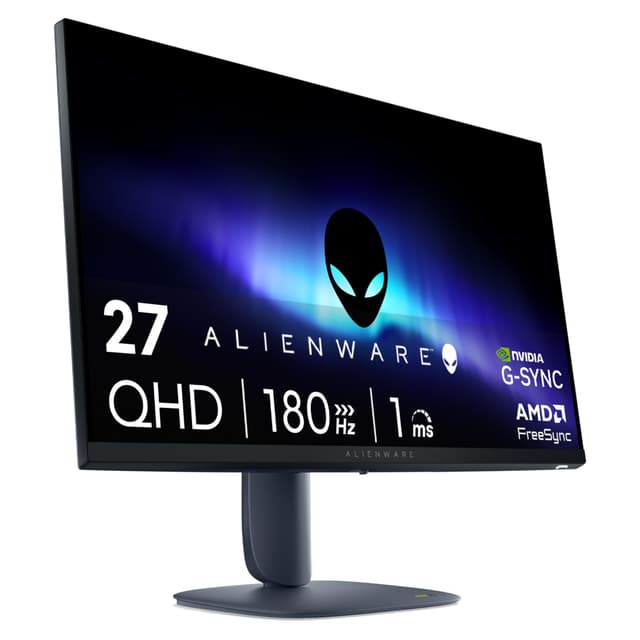
Best Value: Philips Evnia 27M2N3800A. A 27-inch 4K IPS panel at under £170 gives exceptional pixel density for crisp text, making it the sharpest pick per pound.
| Monitor | Price | Resolution | Panel | Screen Size | Refresh Rate | Key Ports |
|---|---|---|---|---|---|---|
| LG UltraWide 34BA75QE | £359.00 | 3440x1440 | IPS | 34 inch | 60 Hz | USB-C, RJ45, HDMI, DP 1.4, USB hub, speakers |
| Philips Evnia 27M2N3800A | 4K (3840x2160) | IPS | 27 inch | 160 Hz | HDMI, DisplayPort | |
| AOC CU34G2XPD | £259.99 | 3440x1440 | VA | 34 inch | 180 Hz | 2x HDMI 2.0, 2x DP 1.4, 4x USB-A, 3.5mm |
| Acer SB242Y H1bi | £90.91 | 1920x1080 | IPS | 23.8 inch | Not specified | 1x HDMI 1.4, 1x VGA |
| Amazon Basics 23.8-inch | £89.26 | 1920x1080 | IPS | 23.8 inch | 120 Hz | HDMI, DP, VGA, VESA |
1. LG UltraWide Monitor 34BA75QE
The LG UltraWide 34BA75QE is the monitor this list was built around. For anyone who spends the majority of their working day inside spreadsheet software, the combination of a 34-inch IPS panel at 3440x1440 resolution and a genuinely useful connectivity suite is hard to beat at this price point. The ultrawide format is the single biggest quality-of-life upgrade you can make to a spreadsheet workflow: instead of toggling between windows or constantly scrolling right, you can pin a data table on one side and a summary chart or pivot table on the other, all within a single glance.
The IPS panel is the right choice for office work. IPS technology delivers wide viewing angles and consistent colour reproduction, which matters when you are sharing your screen with a colleague leaning in from the side, or when you are checking conditional formatting colours across a large range. The 3440x1440 resolution across 34 inches gives a pixel density of around 110 PPI, which is comfortable for reading small cell text without scaling. At 60 Hz the panel is not aimed at gaming, but for spreadsheets, documents and video calls that is entirely irrelevant. The 5ms response time is perfectly adequate for productivity use.
Where the 34BA75QE really earns its place as the top pick is connectivity. The inclusion of USB-C means laptop users can connect with a single cable and charge simultaneously, eliminating the need for a separate dock. The RJ45 Ethernet port is a genuine differentiator: it lets you plug your laptop into a wired network through the monitor, which is invaluable in office environments where Wi-Fi is unreliable. Add a DisplayPort 1.4 input, HDMI, a built-in USB hub and integrated speakers, and this monitor functions as a partial docking station. For a remote worker or a hot-desking professional, that means one cable in and everything works.
HDR10 support is present, though ultrawide IPS panels at this price tier are not going to deliver the contrast depth of an OLED. The built-in speakers are adequate for calls and background audio, though audiophiles will want to add a separate speaker bar. The 34-inch ultrawide footprint does require a reasonably deep desk, and the stand is not height-adjustable on all configurations, so check ergonomic requirements before purchasing.
Verdict: The most complete spreadsheet monitor on this list. The ultrawide IPS panel, USB-C docking, Ethernet and built-in speakers create a genuinely desk-friendly productivity hub for anyone who works in data-heavy applications all day.
Pros
- 3440x1440 ultrawide IPS panel gives exceptional horizontal screen real estate for multi-column spreadsheets
- USB-C with charging and RJ45 Ethernet make it a partial laptop dock in a single unit
- Built-in speakers and USB hub reduce desktop cable clutter
Cons
- 60 Hz refresh rate rules it out for gaming use alongside productivity work
- Large 34-inch ultrawide footprint requires a spacious desk
2. Philips Evnia 27M2N3800A
The Philips Evnia 27M2N3800A is the most surprising value proposition on this list. A 27-inch 4K IPS monitor with a 160 Hz refresh rate at under £170 is genuinely remarkable, and for spreadsheet users the headline benefit is pixel density. At 3840x2160 across 27 inches, you get approximately 163 PPI, which is more than enough to render small cell text, footnotes and formula bar content with crisp, print-like clarity. If you have ever squinted at a crowded Excel sheet on a 1080p monitor, moving to 4K at 27 inches is a transformative experience.
The IPS panel technology ensures accurate colour reproduction and wide viewing angles. Conditional formatting relies heavily on colour cues, and IPS panels represent colours more faithfully than VA alternatives, particularly in the mid-tones. The Evnia 27M2N3800A is marketed as a gaming monitor, which means it carries features like the high 160 Hz refresh rate that spreadsheet users will never need, but the underlying panel quality is what matters here, and IPS at 4K is excellent for text-heavy work.
The 27-inch form factor is the sweet spot for many desk setups. It is large enough to display a meaningful number of rows and columns simultaneously, but compact enough to fit on a standard desk without dominating the space. At 4K, Windows scaling at 150% gives you an effective workspace that feels generous without making text uncomfortably small. Most productivity users will find 125-150% scaling ideal on this panel.
The connectivity specification is not detailed in the verified specs beyond HDMI and DisplayPort inputs, so users who need USB-C or Ethernet should look at the LG above. For desktop PC users with a dedicated graphics card, however, this is a non-issue. The Evnia 27M2N3800A is a monitor that punches well above its price in terms of panel quality, and the fact that it also handles gaming competently is a bonus for those who switch between work and play on the same machine.
Build quality is solid for the price, with a clean aesthetic that suits both home office and professional environments. The stand offers basic tilt adjustment. For a secondary monitor in a dual-screen setup, this is also an excellent choice: two of these side by side would give you an enormous 4K workspace for a combined outlay that rivals a single premium ultrawide.
Verdict: The best value pick on this list. 4K IPS at 27 inches for under £170 delivers exceptional text clarity for spreadsheet work, making it the sharpest choice per pound spent.
Pros
- 4K IPS panel at 27 inches gives 163 PPI pixel density for crisp, fatigue-reducing text rendering
- Exceptional value for a genuine 4K IPS panel at this price point
- 160 Hz refresh rate adds versatility if the monitor doubles as a gaming display
Cons
- No USB-C or Ethernet, limiting docking convenience for laptop users
- Stand ergonomics are basic compared to more expensive office-focused monitors
3. AOC CU34G2XPD
The AOC CU34G2XPD brings ultrawide spreadsheet real estate to a significantly lower price point than the LG, making it an appealing option for budget-conscious buyers who still want the productivity benefits of a 34-inch 3440x1440 panel. The curved VA panel with a 1500R curvature radius is designed to wrap the display around your field of vision, which can reduce neck movement when working across a wide spreadsheet. Whether you find the curvature helpful or distracting is a personal preference, but many users report reduced fatigue during long sessions on curved ultrawides.
The VA panel technology delivers deeper blacks and higher contrast ratios than IPS, which can make the screen more comfortable in low-light environments. The trade-off is that VA panels have narrower viewing angles than IPS: colours and contrast shift noticeably if you view the screen from a steep angle. For a single user working directly in front of the monitor, this is rarely a problem, but it is worth noting if you regularly share your screen with colleagues standing beside you.
The connectivity suite on the CU34G2XPD is genuinely impressive for the price. Two HDMI 2.0 ports and two DisplayPort 1.4 inputs mean you can connect multiple devices simultaneously, which is useful if you switch between a work laptop and a personal desktop. The four USB-A ports effectively turn the monitor into a USB hub, and the 3.5mm audio output lets you connect headphones or speakers directly. This level of connectivity is unusual at this price and makes the AOC a strong choice for users who want to reduce desk clutter.
The 180 Hz refresh rate and 1ms response time are gaming-oriented specifications that spreadsheet users will not use, but they do confirm that the underlying panel hardware is high quality. FreeSync Premium support is present for those who do use it for gaming. At 3440x1440 across 34 inches, pixel density sits at around 110 PPI, which is comfortable for productivity work, though not as sharp as 4K at 27 inches.
The curved design does mean the monitor takes up more desk depth than a flat panel of the same size. The stand is reasonably adjustable, and the overall build quality feels solid for the price. For users who want maximum horizontal screen space without spending LG money, the AOC CU34G2XPD is a well-rounded choice.
Verdict: The best budget ultrawide for spreadsheets. The 34-inch 3440x1440 VA panel and excellent connectivity suite deliver genuine productivity value at a price that is hard to argue with.
Pros
- 34-inch 3440x1440 ultrawide gives maximum horizontal column visibility for large spreadsheets
- Four USB-A ports and dual HDMI plus dual DisplayPort inputs provide exceptional connectivity for the price
- VA panel delivers high contrast, which is comfortable in mixed-light office environments
Cons
- VA panel has narrower viewing angles than IPS, which can be an issue when sharing the screen
- Curved design increases desk depth footprint compared to flat panels
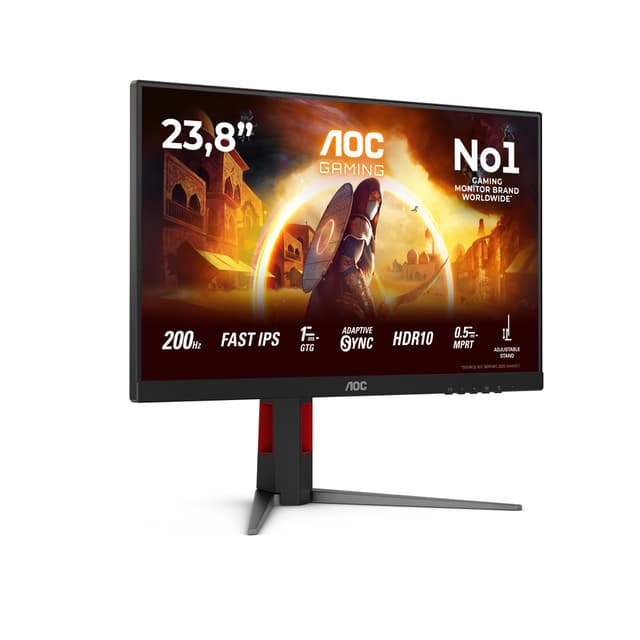
4. Acer SB242Y H1bi
The Acer SB242Y H1bi is positioned as a professional home office monitor, and it earns that description through a combination of IPS panel quality, sensible sizing and a price that makes it accessible for users on a tight budget. At 23.8 inches with a 1920x1080 IPS panel, it is the most modest specification on this list, but for users who primarily work with smaller spreadsheets, do not need ultrawide real estate, and are working from a compact desk, it is a well-considered choice.
The IPS panel is the right call for a productivity-focused monitor at this size. Text rendering on IPS at 1080p is clean and consistent, and the wide viewing angles mean the screen looks the same whether you are sitting directly in front of it or slightly to one side. For a shared desk where multiple people might glance at the screen, or for a monitor mounted slightly off-centre, IPS is noticeably better than VA at this size.
The 23.8-inch form factor at 1080p gives a pixel density of around 93 PPI, which is comfortable for standard office work. Text is clear and readable without scaling adjustments, and the screen is large enough to display a meaningful spreadsheet without feeling cramped. Users who need to see very large data sets simultaneously will want to look at the ultrawide options above, but for everyday spreadsheet tasks, email and document work, 1080p at 24 inches is entirely adequate.
Connectivity is straightforward: one HDMI 1.4 port and one VGA input. The VGA port is useful for connecting older desktop PCs or laptops that lack HDMI, which is a practical consideration in office environments where equipment is not always current. The absence of DisplayPort or USB-C is a limitation for modern laptop users, but at this price point it is an expected trade-off. The monitor is VESA-compatible, which is an important feature for users who want to mount it on a monitor arm to free up desk space or improve ergonomics.
The Acer SB242Y H1bi is a no-frills, well-executed office monitor. It does not have the screen real estate of the ultrawides or the pixel density of the 4K options, but it delivers reliable IPS image quality at a price that is hard to fault for budget-conscious buyers or those equipping a secondary workstation.
Verdict: A solid, no-nonsense IPS office monitor for users who need reliable text clarity on a budget. The VESA compatibility and VGA port add practical value for home and office setups alike.
Pros
- IPS panel delivers accurate colours and wide viewing angles for comfortable all-day spreadsheet work
- VESA mount compatibility allows arm mounting for improved desk ergonomics
- VGA port adds compatibility with older office equipment
Cons
- 1080p resolution at 23.8 inches limits the number of cells visible simultaneously in large spreadsheets
- No USB-C or DisplayPort restricts connectivity options for modern laptops
5. Amazon Basics 23.8-inch Monitor
The Amazon Basics 23.8-inch monitor is the entry-level pick on this list, and it earns its place by delivering a clean IPS panel at a price that undercuts almost everything else in the category. For a student setting up a first home office, a secondary screen for a laptop, or a budget-constrained buyer who simply needs a functional display for spreadsheet and document work, this monitor does the job without unnecessary complexity.
The IPS panel at 1920x1080 gives the same fundamental image quality advantages as the Acer above: wide viewing angles, consistent colour reproduction and clean text rendering. The 120 Hz refresh rate is a step above the standard 60 Hz found on many budget office monitors, which means scrolling through long spreadsheets and moving windows around the desktop feels noticeably smoother. This is a small but genuine quality-of-life improvement for daily use, even in a productivity context.
Connectivity is notably broad for the price. The inclusion of HDMI, DisplayPort and VGA means this monitor can connect to virtually any device, from a modern laptop with DisplayPort output to an older desktop with only VGA available. VESA mounting compatibility is also present, which is a useful feature at any price point. The combination of three input options and VESA support makes this monitor flexible enough to work in a wide range of setups.
At 23.8 inches and 1080p, the pixel density is around 93 PPI, which is the same as the Acer. Text is readable and comfortable, though users who work with very dense spreadsheets or small font sizes will benefit from moving up to a higher-resolution panel. For standard-sized cell text in Excel or Google Sheets, 1080p at 24 inches is perfectly workable.
The Amazon Basics branding means this monitor is designed to be functional rather than feature-rich. There are no built-in speakers, no USB hub and no smart features. The stand offers basic tilt adjustment. For a user who simply needs a reliable, affordable IPS screen to extend their workspace or replace an ageing monitor, those omissions are entirely acceptable. The value proposition is straightforward: a clean IPS panel with good connectivity at the lowest price on this list.
Verdict: The most affordable route to a decent IPS spreadsheet monitor. The 120 Hz refresh rate and three-input connectivity make it more capable than its price suggests, ideal as a budget first monitor or secondary screen.
Pros
- IPS panel delivers wide viewing angles and consistent colour for comfortable spreadsheet work
- HDMI, DisplayPort and VGA inputs cover virtually every device connection scenario
- 120 Hz refresh rate makes scrolling and window management noticeably smoother than standard 60 Hz budget monitors
Cons
- 1080p resolution limits the number of spreadsheet cells visible at once compared to higher-resolution alternatives
- No built-in speakers, USB hub or USB-C connectivity
How We Picked
Selecting monitors for spreadsheet use requires different criteria than a gaming or creative professional shortlist. The primary factors we assessed were: resolution and pixel density, since sharper text reduces eye strain during long sessions; panel type, with IPS preferred for colour accuracy and viewing angles relevant to office environments; screen size and aspect ratio, because horizontal real estate directly affects how many columns are visible without scrolling; and connectivity, particularly USB-C and Ethernet for laptop users who want a clean single-cable desk setup. We also considered price-to-performance ratio, ensuring each pick offers genuine value within its tier. Refresh rate and gaming-specific features were treated as secondary considerations. All specifications used in this article are drawn from verified manufacturer data for the UK market.
Buying Guide
Resolution: Why it matters more for spreadsheets than gaming
Resolution is arguably the single most important specification for spreadsheet monitors. More pixels means more cells visible at once, and sharper text means less eye strain during long sessions. At 1080p on a 24-inch screen, you get a comfortable workspace for everyday tasks, but you will find yourself scrolling more in large data sets. Moving to 1440p ultrawide (3440x1440) dramatically increases horizontal real estate, letting you see far more columns simultaneously. 4K at 27 or 32 inches gives the highest pixel density, making even small cell text crisp and readable. If you regularly work with large financial models, data tables or multi-tab workbooks, prioritise resolution above almost everything else.
Panel type: IPS vs VA for office work
IPS panels are generally preferred for productivity and office use. They offer wider viewing angles, which means colours and contrast remain consistent even when you are not sitting perfectly centred in front of the screen. This matters when sharing your display with a colleague, or when the monitor is positioned slightly off-axis. IPS panels also tend to handle colour accuracy better, which is important for conditional formatting and chart colours in spreadsheets. VA panels offer higher contrast ratios and deeper blacks, which can be more comfortable in low-light environments, but the narrower viewing angles are a genuine trade-off for office use. For most spreadsheet users, IPS is the safer choice.
Screen size and aspect ratio
For spreadsheet work, wider is almost always better. Standard 16:9 monitors in the 24-27 inch range are a practical choice for compact desks, but a 21:9 ultrawide at 34 inches transforms the experience of working with wide data tables. The extra horizontal space means you can pin a pivot table and a data source side by side, or keep a chart visible while editing the underlying data. If your desk cannot accommodate a 34-inch ultrawide, a 27-inch 4K monitor is the next best option, offering enough pixel density to display a meaningful amount of data at a comfortable scale. Avoid going below 24 inches if spreadsheet work is a primary use case.
Connectivity for laptop users
If you connect a laptop to your monitor, connectivity is a critical consideration. USB-C with Power Delivery allows a single cable to carry video, data and charging simultaneously, which dramatically simplifies a desk setup. Ethernet ports built into the monitor, as found on the LG UltraWide, allow wired network access through the monitor itself. HDMI and DisplayPort inputs are standard, but check whether your laptop's outputs match the monitor's inputs before purchasing. VGA is useful for older machines but carries lower image quality than digital connections.
Ergonomics and eye comfort
Spreadsheet work often means long hours in front of a screen. Look for monitors with height-adjustable stands, tilt and swivel adjustments, and flicker-free backlighting. Blue light filter modes, increasingly standard on modern monitors, can reduce eye fatigue during evening work sessions. VESA mount compatibility is worth prioritising even if you do not immediately plan to use a monitor arm, as it keeps future ergonomic upgrades open. Pairing your monitor with best PC accessories like monitor arms, cable management solutions and desk organizers can further optimize your workspace. Matte screen coatings reduce glare from overhead lighting, which is a practical benefit in most office environments.
Final Verdict
The LG UltraWide 34BA75QE takes the overall win for spreadsheet use. The combination of a 34-inch IPS ultrawide panel at 3440x1440, USB-C docking, RJ45 Ethernet, built-in speakers and a USB hub creates a monitor that functions as a productivity hub rather than just a display. The horizontal screen real estate it provides is the single most impactful upgrade available for data-heavy work, and the connectivity suite means laptop users can achieve a clean, single-cable desk setup. For those on a tighter budget, the Philips Evnia 27M2N3800A is the standout value pick: 4K IPS at 27 inches for under £170 delivers exceptional text clarity that will make a genuine difference to anyone who spends hours reading small cell text. Between these five picks, the vast majority of spreadsheet users will find exactly what they need.
Frequently Asked Questions
For most data-heavy users, yes. A 34-inch 3440x1440 ultrawide lets you view significantly more columns simultaneously without horizontal scrolling, and you can pin two separate spreadsheet windows side by side at a usable size. The productivity benefit is most pronounced for financial modelling, data analysis and any work involving wide tables.
1080p is workable for everyday spreadsheet tasks, but 4K makes a noticeable difference to text clarity and the amount of data visible at once. At 27 inches, 4K gives around 163 PPI, which renders small cell text with print-like sharpness. If you spend most of your day reading dense spreadsheets, the upgrade to 4K is worth the investment.
IPS is generally the better choice for productivity and office use. It offers wider viewing angles, more consistent colour reproduction and better performance when the screen is viewed from a slight angle. VA panels have higher contrast ratios and can be more comfortable in low-light environments, but the narrower viewing angles are a practical limitation in shared office settings.
Yes, and several picks on this list are technically gaming monitors. The high refresh rates and fast response times are irrelevant for spreadsheet use, but the underlying panel quality, resolution and connectivity are what matter for productivity. A gaming monitor with a 4K IPS panel, such as the Philips Evnia 27M2N3800A, is an excellent spreadsheet display regardless of its gaming credentials.
27 to 34 inches is the sweet spot for most spreadsheet users. A 27-inch 4K monitor offers excellent pixel density in a compact footprint, while a 34-inch ultrawide maximises horizontal real estate for wide data tables. Monitors below 24 inches tend to feel cramped for data-heavy work, and monitors above 34 inches require a very deep desk to maintain a comfortable viewing distance.