MacBook users have specific needs when it comes to external monitors. Apple's Retina displays set a high bar for colour accuracy, sharpness and contrast, so pairing your MacBook Air or MacBook Pro with a substandard screen can feel like a step backwards. Whether you are a creative professional who needs accurate sRGB and P3 coverage, a developer who wants screen real estate, or someone who simply wants a clean desk setup with minimal cables, the right monitor makes a significant difference. For a complete overview of best pc accessories beyond displays, our comprehensive guide covers the full ecosystem. Since last year, the market has shifted noticeably: QD-OLED panels have become more affordable, ultrawide IPS displays now ship with USB-C connectivity as standard, and 4K options have dropped in price to the point where 1080p screens are hard to justify for MacBook users who are used to pixel-dense Retina output. This guide covers five carefully selected monitors that work well with macOS, covering a range of budgets and use cases, from compact 27-inch 4K panels to expansive 34-inch ultrawide displays.
Quick Verdict
Best Overall: LG UltraWide Monitor 34BA75QE. The combination of USB-C with power delivery, RJ45 ethernet, built-in speakers and a crisp IPS ultrawide panel makes it the most MacBook-friendly all-rounder in this selection. One cable from your MacBook and you have power, video, audio and internet sorted.
Best Value: Philips Evnia 27M2N3800A. A 4K IPS panel at under £170 is remarkable, and the 160 Hz refresh rate means it handles both creative work and gaming without compromise. For MacBook users on a budget who refuse to sacrifice resolution, this is the pick.
Spec Comparison
| Monitor | Price | Resolution | Panel Type | Refresh Rate | Screen Size | Key Ports |
|---|---|---|---|---|---|---|
| LG UltraWide 34BA75QE | £412.36 | 3440x1440 | IPS | 60 Hz | 34 inch | USB-C, RJ45, HDMI, DP 1.4, USB hub, speakers |
| Philips Evnia 27M2N3800A | 4K UHD | IPS | 160 Hz | 27 inch | Verified ports not listed | |
| MSI MAG 272QPW QD-OLED | £448.99 | 2560x1440 | QD-OLED | 280 Hz | 27 inch | 2x HDMI 2.1, DP 1.4a, USB-C (15W PD) |
| AOC CU34G2XPD | £277.00 | 3440x1440 | VA | 180 Hz | 34 inch | 2x HDMI 2.0, 2x DP 1.4, USB-B, 4x USB-A, 3.5mm |
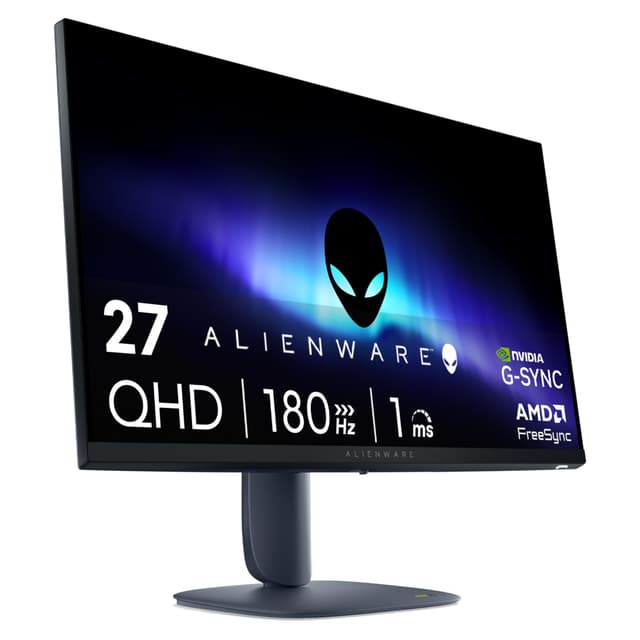
| Alienware AW2725DM | 2560x1440 | IPS | 180 Hz | 27 inch | 2x HDMI, 1x DP, 3x USB |
1. LG UltraWide Monitor 34BA75QE
The LG 34BA75QE is the monitor that most closely replicates the experience of using a high-end MacBook Pro display on a larger canvas. At 34 inches with a 3440x1440 IPS panel, it delivers wide colour coverage, accurate out-of-box calibration and the kind of sharp, detailed image that MacBook users expect. The ultrawide 21:9 aspect ratio is genuinely transformative for productivity: you can run two full-size application windows side by side without feeling cramped, which is something a standard 16:9 monitor at the same size simply cannot match.
The connectivity story is where this monitor earns its Best Overall title. It includes a USB-C port that handles video, data and power delivery in a single cable, meaning you can connect your MacBook Air or MacBook Pro and charge it simultaneously without reaching for a separate power brick. The RJ45 ethernet port is a bonus that many MacBook users will appreciate, given that Apple removed ethernet from its laptops years ago. A USB hub, full-size DisplayPort 1.4, HDMI and built-in speakers round out a port selection that is genuinely comprehensive.
The IPS panel produces excellent viewing angles and consistent brightness across the screen, which matters for photo editing and colour-sensitive creative work. Colour accuracy is strong, with good sRGB coverage that suits most professional workflows. The 60 Hz refresh rate will disappoint gamers, but for the target audience of creative professionals, developers and productivity-focused users, 60 Hz is perfectly adequate. macOS handles the 3440x1440 ultrawide resolution well, and the display scales cleanly.
HDR10 support is present, though as with most monitors at this price point, the HDR implementation is relatively modest rather than a true HDR experience. The built-in speakers are serviceable for video calls and casual listening, saving you desk space if you do not want dedicated external speakers. At £412.36, this is not the cheapest option in this guide, but the combination of features, panel quality and MacBook-specific connectivity justifies the outlay.
Verdict: The most complete MacBook monitor package available at this price, combining ultrawide productivity, accurate IPS colour and genuinely useful connectivity including USB-C and ethernet.
Pros
- USB-C single-cable connection with power delivery for MacBook
- RJ45 ethernet port eliminates the need for a separate adapter
- Accurate IPS panel with wide colour coverage suits creative workflows
- Built-in speakers and USB hub reduce desk clutter
Cons
- 60 Hz refresh rate rules it out for gaming use cases
- HDR10 implementation is entry-level rather than a true HDR experience
2. Philips Evnia 27M2N3800A
The Philips Evnia 27M2N3800A is a 27-inch 4K IPS monitor with a 160 Hz refresh rate, and at under £170 it represents one of the most compelling value propositions in the current monitor market for MacBook users. MacBook owners are accustomed to Retina-quality displays, and dropping to a 1080p external monitor often feels like a jarring downgrade. This Philips panel sidesteps that problem entirely by offering genuine 4K resolution at a price that was unthinkable even eighteen months ago.
The IPS panel technology means colour accuracy and viewing angles are strong, which is important for anyone doing photo editing, video work or graphic design alongside their MacBook. The 4K resolution at 27 inches gives a pixel density that is noticeably sharper than a 1440p screen, and macOS's display scaling works well with 4K monitors, allowing you to run the display at a scaled resolution that mimics the clarity of a Retina screen while giving you more usable space than a native 4K layout.
The 160 Hz refresh rate is a genuine bonus. Most MacBook users will not need 160 Hz for productivity work, but it means the monitor is not wasted if you also use it for gaming or if you connect a Windows machine at some point. The fast IPS panel keeps motion blur low, and the overall responsiveness of the display is excellent. The 27-inch form factor is the sweet spot for desk use: large enough to feel expansive compared to a MacBook screen, but not so large that it dominates a typical home office setup.
The Philips Evnia branding sits within Philips' gaming-oriented product line, so the aesthetic leans slightly towards the gaming market with subtle design flourishes. This is unlikely to bother most buyers, but those seeking a more understated monitor aesthetic may prefer the LG or Samsung options. At, the price-to-performance ratio is exceptional, making this the clear Best Value pick for MacBook users who want 4K without spending a premium.
Verdict: A 4K IPS panel at a budget price with a fast 160 Hz refresh rate makes this the best value MacBook monitor for users who prioritise resolution and colour accuracy over connectivity features.
Pros
- 4K IPS panel at a price significantly below the typical 4K monitor market rate
- 160 Hz refresh rate adds versatility beyond pure productivity use
- 27-inch size is ideal for most desk setups alongside a MacBook
Cons
- Gaming-oriented design aesthetic may not suit minimalist home office setups
- No USB-C or built-in ethernet, requiring adapters for some MacBook configurations
3. MSI MAG 272QPW QD-OLED
The MSI MAG 272QPW is the most visually impressive monitor in this selection, and for MacBook users who want the best possible image quality and are willing to pay for it, it is a compelling choice. The QD-OLED panel technology combines the perfect blacks and infinite contrast ratio of OLED with the colour volume and brightness of quantum dot technology, resulting in an image that looks genuinely different from a standard IPS or VA monitor. Colours are vivid and accurate, blacks are truly black rather than a dark grey, and the overall image has a depth and richness that is immediately apparent.
The 2560x1440 resolution at 27 inches gives a pixel density of around 109 PPI, which is lower than 4K but still sharp enough for most work. macOS scales well at 1440p, and the QD-OLED panel's colour quality more than compensates for the lower pixel count compared to a 4K IPS display. The 280 Hz refresh rate is far beyond what most MacBook users will ever need for productivity, but it means the monitor is future-proofed and performs exceptionally well if you also use it for gaming.
Connectivity includes two HDMI 2.1 ports, a DisplayPort 1.4a and a USB-C port with 15W power delivery. The USB-C connection allows MacBook users to connect with a single cable, though the 15W power delivery is only sufficient to slow-charge or maintain battery level on a MacBook Air, rather than providing full charging speed. MacBook Pro users with higher power requirements may still want to keep their MagSafe charger connected. The HDMI 2.1 ports are a bonus for anyone who also connects a games console.
The main consideration with OLED panels for MacBook users is the risk of burn-in from static interface elements. macOS menus, the dock and the menu bar are persistent on-screen elements, and while modern OLED panels have improved significantly in burn-in resistance, it remains a longer-term consideration. At £448.99, this is the most expensive monitor in the guide, but the image quality is genuinely class-leading.
Verdict: The best image quality of any monitor in this selection, with QD-OLED delivering extraordinary contrast and colour that MacBook Pro users in creative fields will appreciate, though the burn-in consideration and premium price require careful thought.
Pros
- QD-OLED panel delivers perfect blacks and exceptional colour volume for creative work
- USB-C connectivity allows single-cable connection to MacBook
- HDMI 2.1 ports add versatility for console gaming alongside MacBook use
Cons
- Long-term OLED burn-in risk from static macOS interface elements requires management
- USB-C only provides 15W power delivery, insufficient for fast-charging MacBook Pro
- Premium price is harder to justify if colour accuracy rather than contrast is the priority
4. AOC Gaming CU34G2XPD
The AOC CU34G2XPD is a 34-inch curved ultrawide monitor with a 3440x1440 VA panel and a 180 Hz refresh rate, and at £277.00 it is the most affordable 34-inch ultrawide in this guide. For MacBook users who want the productivity benefits of an ultrawide display without the premium price of the LG 34BA75QE, the AOC offers a genuinely attractive alternative. The 1500R curvature is subtle enough not to feel distracting for productivity work while adding a mild sense of immersion for gaming and media consumption.
The VA panel technology delivers stronger contrast than IPS, with deeper blacks that make the display more satisfying for watching films and working in dimly lit environments. Colour accuracy is good, though VA panels traditionally show slightly less accurate colour at extreme viewing angles compared to IPS. For a MacBook user sitting directly in front of the screen, this is rarely a practical concern. The 180 Hz refresh rate is the highest of the ultrawide options in this guide, which is a bonus for gaming use.
The port selection is genuinely comprehensive: two HDMI 2.0 ports, two DisplayPort 1.4 inputs, a USB-B upstream port, four USB-A downstream ports and a 3.5mm audio output. The USB hub functionality is useful for MacBook users who want to connect peripherals through the monitor. The absence of USB-C is the main limitation for MacBook users, as it means you will need a USB-C to DisplayPort cable or adapter to connect your MacBook, and you will not get power delivery through the monitor cable. A separate power connection for your MacBook is therefore required.
The curved design and gaming aesthetic, with a relatively angular stand and subtle RGB accents on some configurations, may not suit every home office. The 34-inch size also demands a reasonably deep desk to sit at a comfortable viewing distance. For MacBook users who primarily want productivity screen real estate and occasionally game, and who do not mind using an adapter for connectivity, the AOC CU34G2XPD delivers strong value.
Verdict: The best-value 34-inch ultrawide in this selection, with strong VA contrast, a comprehensive USB hub and 180 Hz performance, though the lack of USB-C means MacBook users need an adapter.
Pros
- Four USB-A ports on the monitor reduce the need for a separate hub
- VA panel delivers deeper blacks and stronger contrast than IPS alternatives at this price
- 180 Hz refresh rate and 1ms response time make it genuinely capable for gaming
Cons
- No USB-C port means MacBook users require a separate adapter or cable
- Gaming-oriented curved aesthetic may not suit minimalist office environments
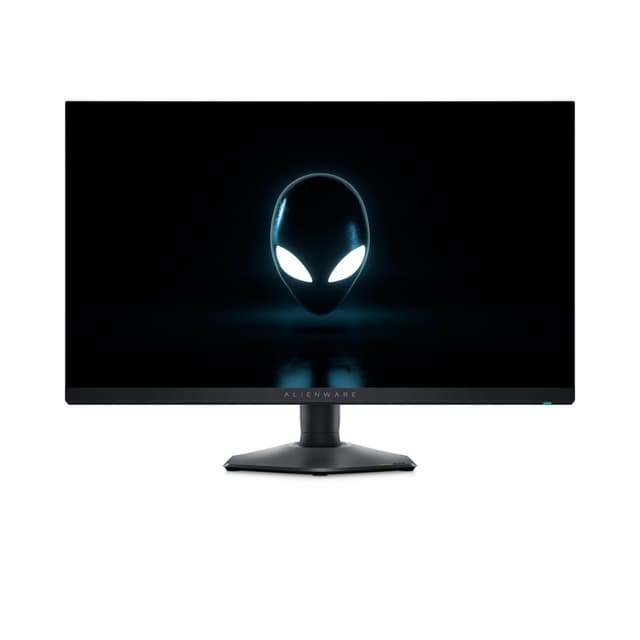
5. Alienware AW2725DM
The Alienware AW2725DM is a 27-inch QHD IPS monitor with a 180 Hz refresh rate, and at it sits at an interesting price point that undercuts many comparable QHD monitors from mainstream brands. Alienware's reputation is built on gaming hardware, but the AW2725DM's Fast IPS panel and accurate colour reproduction make it a credible choice for MacBook users who want a balance of productivity quality and gaming performance from a single external display.
The 2560x1440 resolution at 27 inches is a comfortable step up from 1080p, and while it does not match the sharpness of a 4K display, it provides noticeably more detail and desktop space than a full HD monitor. macOS handles 1440p well, and the Fast IPS panel's wide colour gamut and accurate factory calibration mean colours look natural and consistent, which is important for anyone doing photo editing or design work alongside their MacBook.
The port selection includes two HDMI inputs, a DisplayPort and three USB ports, giving MacBook users enough connectivity for peripherals and a secondary device. As with the AOC, there is no USB-C port, so a USB-C to DisplayPort or HDMI cable is needed to connect a MacBook directly. The three USB ports on the monitor are useful for connecting a keyboard, mouse and other peripherals without needing a separate hub, though the USB-C absence remains a limitation compared to the LG and MSI options.
The Alienware build quality is strong, with a solid stand that offers good height, tilt and swivel adjustment. The monitor's design is more restrained than some gaming monitors, with the AlienFX lighting being subtle rather than garish. For a MacBook user who also games regularly and wants a monitor that performs well in both contexts alongside quality gaming peripherals, the AW2725DM is a well-rounded choice. The 180 Hz refresh rate and 1ms response time ensure gaming performance is not compromised, while the IPS panel quality keeps creative work looking accurate.
Verdict: A well-balanced QHD IPS monitor that serves both productivity and gaming use cases effectively, with strong build quality and accurate colour, though the absence of USB-C is a notable gap for MacBook users.
Pros
- Fast IPS panel delivers accurate colour reproduction suitable for creative work alongside gaming
- Three USB ports on the monitor reduce the need for a separate hub
- Strong build quality with versatile stand adjustment
Cons
- No USB-C port requires an adapter for direct MacBook connection
- 1440p resolution is a step below 4K, which MacBook Retina users may notice
How We Picked
Selecting monitors for working from home for MacBook users requires a different set of priorities to a general monitor recommendation. We focused on five key criteria. First, connectivity: USB-C with power delivery is the gold standard for MacBook compatibility, allowing a single cable to handle video and charging. Second, colour accuracy: MacBook displays are calibrated to a high standard, so the external monitor needs to match that quality rather than introducing colour shifts. Third, resolution: MacBook users are accustomed to Retina-quality displays, making 4K or high-density 1440p panels preferable to 1080p. Fourth, macOS compatibility: we considered how well each monitor's resolution and scaling options work with macOS display settings. Fifth, practical value: we weighed the feature set against the asking price to identify monitors that justify their cost for the MacBook audience specifically, rather than recommending the most expensive option by default.
Buying Guide
Resolution: Why 4K Matters for MacBook Users
MacBook Air and MacBook Pro models ship with Retina displays that pack significantly more pixels per inch than standard monitors. When you connect an external display, the difference in pixel density can be immediately apparent, particularly for text rendering and fine detail in images. A 1080p monitor at 24 or 27 inches will look noticeably softer than your MacBook's built-in screen. A 4K monitor at 27 inches, by contrast, gives a pixel density that macOS can scale to produce sharp, Retina-like output. If your budget allows, 4K is strongly recommended for MacBook users. If you are considering a 1440p monitor, the larger 34-inch ultrawide format helps compensate by spreading pixels across a wider canvas, and the productivity benefits of the ultrawide aspect ratio can outweigh the lower pixel density.
USB-C Connectivity and Power Delivery
Modern MacBook Air and MacBook Pro models use USB-C and Thunderbolt ports exclusively. A monitor with a USB-C input that supports DisplayPort Alt Mode and power delivery allows you to connect your MacBook with a single cable, eliminating the need for a separate power brick and reducing desk clutter significantly. When evaluating USB-C monitors, check the power delivery wattage: MacBook Air models typically need around 30W for comfortable charging, while MacBook Pro models may need 60W or more for full-speed charging. A monitor offering only 15W will slow-charge or merely maintain battery level rather than actively charging your laptop under load.
Panel Type: IPS, VA or OLED
IPS panels offer the best combination of colour accuracy and viewing angles, making them the most popular choice for creative professionals and general productivity use. VA panels deliver stronger contrast and deeper blacks, which is beneficial for media consumption and working in low-light conditions, but colour accuracy at extreme angles is slightly lower. QD-OLED panels, as seen in the MSI MAG 272QPW, offer the best contrast of all panel types with genuinely infinite contrast ratios, but the burn-in risk from static macOS interface elements is a consideration for long-term use. For most MacBook users, an IPS panel is the safest and most versatile choice.
Screen Size and Aspect Ratio
The most popular sizes for MacBook external monitors are 27 inches and 34 inches. A 27-inch 4K monitor is the closest equivalent to Apple's own Pro Display XDR in terms of the desktop experience, offering a clean, focused workspace. A 34-inch ultrawide provides dramatically more horizontal screen space, which is ideal for developers, video editors and anyone who works with multiple applications simultaneously. The ultrawide format effectively replaces two monitors without the bezel gap in the middle. Consider your desk depth when choosing: a 34-inch monitor requires more distance to sit comfortably than a 27-inch model.
Refresh Rate Considerations
For pure productivity and creative work, 60 Hz is sufficient and macOS animations look smooth at this rate. If you also use your external monitor for gaming, a higher refresh rate of 120 Hz or above makes a meaningful difference to the experience. Most monitors in this guide offer 160 Hz or higher, which is more than adequate for gaming. Note that some high refresh rates may only be available over DisplayPort or HDMI 2.1, not over USB-C, so check the specifications of your chosen cable and port combination if refresh rate is a priority.
Final Verdict
The LG UltraWide Monitor 34BA75QE is the overall winner for MacBook users. No other monitor in this selection matches its combination of MacBook-specific connectivity, including USB-C with power delivery, RJ45 ethernet and a built-in USB hub, with a high-quality IPS ultrawide panel that transforms productivity. The single-cable connection experience it provides is the closest you can get to Apple's own display ecosystem without paying Apple's premium prices. For MacBook users on a tighter budget who prioritise resolution above all else, the Philips Evnia 27M2N3800A is the standout value pick, delivering genuine 4K IPS quality at a price that makes it accessible to almost any buyer. Both monitors represent the best of what the current market offers for the MacBook audience.
Frequently Asked Questions
No, you do not strictly need a USB-C monitor. MacBook models can connect to monitors via HDMI or DisplayPort using a USB-C to HDMI or USB-C to DisplayPort cable. However, a monitor with a native USB-C input that supports DisplayPort Alt Mode and power delivery allows a single cable to handle both video and charging, which is significantly more convenient and reduces cable clutter on your desk.
A 1440p monitor will look noticeably less sharp than your MacBook's built-in Retina display when viewed at the same distance. macOS does not natively support HiDPI scaling on most 1440p monitors in the same way it does on 4K displays, so text and fine details may appear slightly soft. A 4K monitor is generally recommended for MacBook users who want to maintain Retina-quality sharpness on their external display.
There is a theoretical long-term burn-in risk with OLED monitors used with macOS, because the operating system has persistent static elements including the menu bar, the dock and application sidebars. Modern OLED panels have improved significantly in burn-in resistance, and features such as pixel shifting and screensavers mitigate the risk. However, for users who leave their Mac connected to an OLED monitor for many hours daily over several years, it remains a consideration that IPS and VA monitors do not share.
For most desk setups, 27 inches is the most practical size for a MacBook external monitor. It provides a significant upgrade in screen real estate over your MacBook's built-in display without dominating the desk or requiring you to sit unusually far back. A 34-inch ultrawide is excellent for productivity-heavy workflows but requires a deeper desk and more physical space. If you primarily work from a single desk with ample space, the 34-inch ultrawide format is worth considering for the productivity benefits.
Yes, all monitors in this guide support standard video inputs including HDMI and DisplayPort, which are compatible with Windows PCs and games consoles as well as MacBooks. Some monitors include multiple inputs, allowing you to connect two devices simultaneously and switch between them using the monitor's input selector. The LG 34BA75QE and AOC CU34G2XPD are particularly well suited to multi-device setups due to their range of input options.