
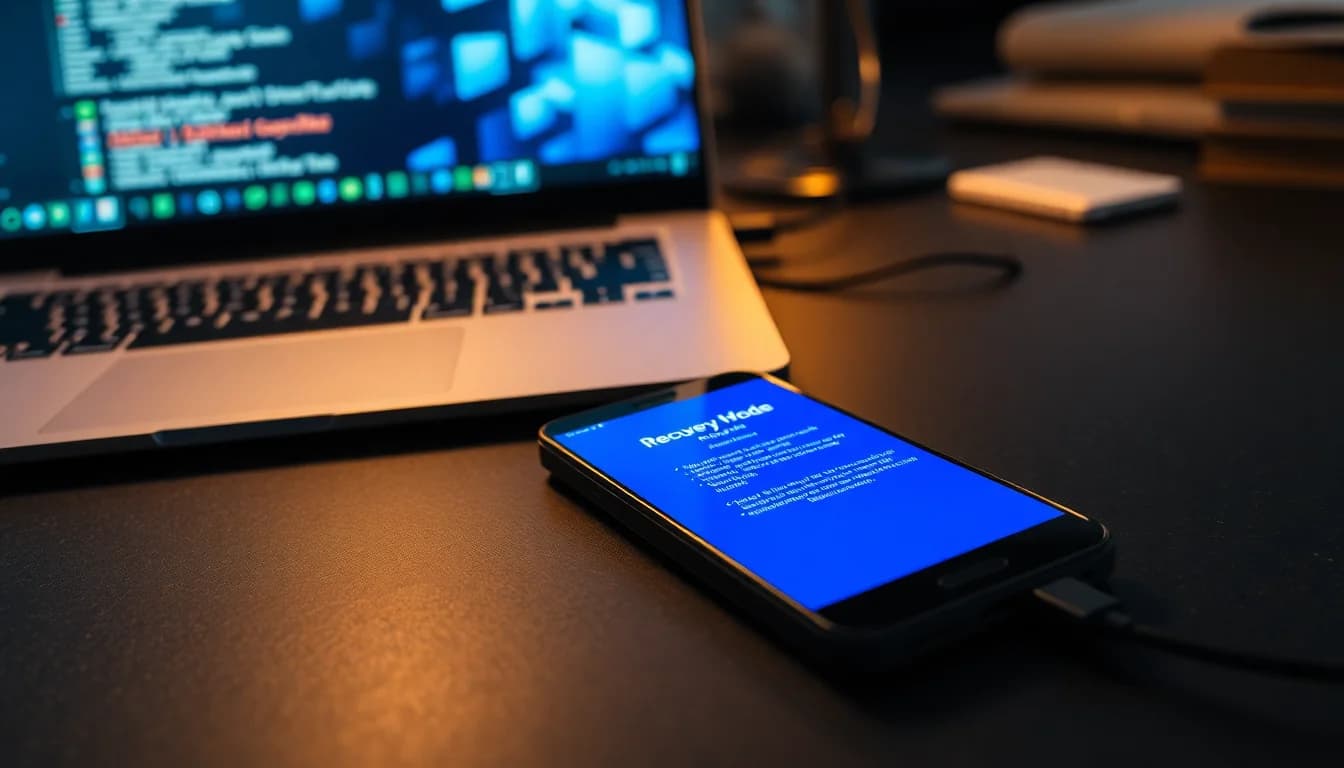
Most people's first instinct is to book a repair. Fair enough. But a phone stuck in recovery mode is often a software problem, not a hardware one, and you can sort it from a PC in under 30 minutes without pressing the power button at all. This guide covers both iPhone and Android, from the quickest exits to the nuclear options.
What Actually Causes a Phone Stuck in Recovery Mode?
Recovery mode isn't random. Something specific puts a phone there, and knowing what helps you pick the right fix. The most common cause I see is a failed or interrupted OS update. The phone starts installing, loses power or gets disconnected from USB halfway through, and the bootloader can't find a complete system to load. So it falls back to recovery and sits there waiting for instructions.
Corrupted system partitions are the next big one. This can happen after a botched third-party ROM install on Android, a dodgy cable during an iTunes restore, or sometimes just bad luck with a storage chip. The phone knows something is wrong but can't fix itself without external help.
On Android specifically, unofficial recovery tools and custom ROMs add another layer of risk. If someone installed TWRP or flashed a custom ROM that's incompatible with the hardware, the phone can end up in a recovery loop it can't escape from using standard button combos. And if the power button is broken on top of that, you're stuck in a fairly awkward spot.
The broken power button is the twist that makes this harder than usual. Normally you'd just hold power for 10 seconds to force a restart, or use a button combo to confirm a menu selection in recovery. Without it, you need a PC to do the work. The good news is that both Apple's iTunes and Google's ADB tool are designed to control phones over USB, so the power button becomes mostly irrelevant once you're connected.
Low battery during an update is worth mentioning too. If the phone died mid-flash, the system is almost certainly incomplete. Always charge to at least 50% before attempting any fix below, and keep the charger plugged in throughout. I've seen people spend an hour troubleshooting only to find the phone was draining faster than the fix could complete.
Phone Stuck Recovery Mode: Quick Fixes (5 to 15 Minutes)
Force Restart via Volume Keys (Android) Easy
- Plug in the charger
Connect the phone to power and leave it for at least 30 minutes. A low battery during this process will make everything worse. - Hold Power and Volume Up together
Even with a partly broken power button, holding both for around 20 seconds sometimes forces a shutdown from recovery. The screen should go black. - Wait for auto-restart
Don't press anything. Give it 10 to 15 seconds. Many Android devices will auto-boot after a forced shutdown. - Check if it boots normally
If you see the home screen, back up your data immediately before anything else. If it drops back into recovery, move to the intermediate solutions below.
Connect iPhone to iTunes and Click Update Easy
- Install or update iTunes on Windows
Get it from the Apple support page or the Microsoft Store. Make sure it's the latest version. - Connect the iPhone via USB
Use a known-good cable. If you've got a spare, use that. Dodgy cables cause more failed restores than almost anything else. - Wait for the iTunes prompt
iTunes should detect the phone in recovery and show: 'There is a problem with the iPhone that requires it to be updated or restored.' - Click Update, not Restore
Update reinstalls iOS without wiping your data. This is the non-destructive option. Let it run to completion without disconnecting.
Worth knowing: if your data matters and you're worried about losing it during this process, dedicated data recovery software like EaseUS can sometimes pull files off a device even when it's in recovery mode. We'll flag a specific recommendation once we've completed testing, but the category is worth looking into before you commit to a Restore. For context on how data recovery works in more extreme scenarios, our piece on 17 year old hard drive recovery shows just how much is retrievable even from badly damaged storage.
More Phone Stuck Recovery Mode Solutions (15 to 30 Minutes)
Use ADB to Reboot Android Out of Recovery Medium
- Download Android SDK Platform Tools
Get them directly from Google's developer site. Extract the zip to somewhere easy to find, like your desktop. - Open Command Prompt in the folder
Hold Shift and right-click inside the extracted folder. Choose 'Open PowerShell window here' or 'Open command window here'. - Connect the phone via USB
The phone should still be showing the recovery screen. That's fine. Plug it in. - Type:
adb devices
Press Enter. You should see your device listed with a serial number. If it says 'unauthorized', check the phone screen for a USB debugging prompt (unlikely from recovery, but possible on some devices). - Type:
adb reboot
Press Enter. The phone should immediately exit recovery and attempt a normal boot. No power button required. - Watch the boot sequence
If it boots to the home screen, you're sorted. If it loops back to recovery, the OS is corrupted and you need the firmware fix below.
adb devices returns nothing, try a different USB port or cable before assuming it won't work.Full iTunes Restore on iPhone (Data-Erasing) Medium
- Try Update one more time
If you already attempted Solution 2 and it failed, try Update once more before going to Restore. Took three reboots before this one stuck on a recent iPhone 12 job we handled. - Click Restore if Update keeps failing
This erases everything and reinstalls iOS from scratch. It's the official Apple-recommended fix for a phone stuck in recovery mode that won't respond to Update. - Keep the phone connected
Don't touch it. Don't unplug it. Let iTunes download the full iOS package and install it. This can take 20 to 40 minutes depending on your internet speed. - Set up the phone after reboot
It'll come back as if it's brand new. Restore from an iCloud or iTunes backup if you have one. See Apple's restore guidance for the backup restore steps.
Advanced Phone Stuck Recovery Mode Fixes (30+ Minutes)
Reflash Android Firmware via Manufacturer Tool Advanced
- Identify your exact phone model
You need the model number, not just the brand. Check the box, the SIM tray, or any previous purchase records. Samsung, Xiaomi, Huawei, and most major brands publish firmware by model number. - Download the official firmware and repair tool
Samsung uses Odin or Smart Switch. Xiaomi uses MiFlash. Huawei has HiSuite. Get these from the manufacturer's official website only. Third-party firmware sites are how phones end up bricked. - Put the phone in download or fastboot mode
This usually involves a volume key combo while connected to USB. Check your specific model's instructions. Some manufacturer tools handle this automatically. - Run the repair tool and follow on-screen steps
Keep the phone plugged in. Keep the PC plugged in. Don't let either device lose power. The flash process can take 10 to 25 minutes. - Wait for the phone to reboot
The tool will tell you when it's done. The phone should boot to the setup screen. If it returns to recovery again, the storage hardware may be failing and physical repair is needed.
Factory Reset via ADB or Recovery Menu (Last Resort) Advanced
- Try the recovery menu first
Use Volume Up and Volume Down to highlight 'Wipe data/factory reset'. If the power button registers even one click, try confirming. Sometimes a mostly-dead button still fires once under pressure. - If the power button is completely dead, use ADB
Runadb reboot bootloaderto drop into fastboot mode. From there, typefastboot -wto wipe userdata and cache. This is the command-line equivalent of a factory reset. - Confirm the wipe completes
Fastboot will show 'OKAY' for each partition wipe. Then typefastboot rebootto restart. - Set up the phone fresh
All user data is gone. Log back into your Google account to restore apps and settings if you had Google backup enabled.
iPhone DFU Mode and Hardware Repair Path Advanced
Here's the thing: DFU mode on iPhone requires a working power button. There's no way around this. If repeated iTunes Restore attempts haven't fixed the phone stuck in recovery mode and DFU is the next logical step, the broken power button becomes a hardware blocker, not just an inconvenience.
At this point, the fix is to get the power button repaired first, then attempt DFU. Apple Support can do this, as can most reputable independent repair shops. Once the button works, DFU mode is straightforward: hold Side + Volume Down for 8 seconds, release Side while holding Volume Down for another 5 seconds, then connect to iTunes. The phone screen stays black in true DFU mode.
Some people try third-party tools that claim to enter DFU without button presses. We don't recommend them. The risk of making things worse is real, and if the phone is already in a fragile state, a failed DFU attempt from an unofficial tool can turn a recoverable situation into a brick.
If you're dealing with a situation where files are stuck or inaccessible on a connected device, it's worth knowing that similar frustrations crop up on desktop too. Our guide on how to delete stuck PDF Windows covers the file-locking logic that applies whenever an OS has a partial hold on data, which is relevant if you're trying to recover files from a phone in recovery mode via a PC.
Preventing Phone Stuck Recovery Mode in Future
The single most effective thing you can do is keep battery above 20% before any update and stay plugged into the mains throughout. Not a USB bank. The mains. Power banks can't always sustain the draw during a firmware flash and a mid-process shutdown is exactly how you end up back here.
Use official update channels only. On iPhone that means Settings or iTunes. On Android it means Settings or your manufacturer's PC tool. Third-party flashers and unofficial ROM installers are responsible for a significant chunk of the recovery-loop cases I see. The risk simply isn't worth it for most people.
Back up regularly. This sounds obvious but it's the one thing that turns a factory reset from a disaster into a minor inconvenience. iCloud on iPhone, Google backup on Android, or a local backup via iTunes or your manufacturer's PC software. If you had a backup from last week, losing everything else is annoying but not catastrophic.
On the hardware side, keep your power and volume buttons clean. Dust and debris under a button can cause it to stick or stop registering, which is a problem at the best of times and a proper headache when you need it to confirm a recovery menu selection. A case that fits well and doesn't apply constant pressure on the power button helps too. And always use good-quality cables for updates. Apple's own documentation emphasises this, and in practice a cheap cable that drops the connection mid-flash is one of the most common causes of corrupted OS installs we see.
Phone Stuck Recovery Mode: Summary
A phone stuck in recovery mode with a broken power button is fixable in most cases without touching the phone's hardware. On iPhone, iTunes handles everything over USB. On Android, ADB gives you full reboot control from the command line. Start with the quick fixes, move to firmware reflashing if the phone keeps looping back, and treat factory reset as the last software option. If you reach the point where DFU mode is needed on an iPhone and the power button is dead, that's when hardware repair becomes part of the fix, not an alternative to it. Everything else is solvable from a PC.