Most of the advice floating around about the Microsoft Horizon mockup assumes you already know what it is. You probably don't, and that's the whole problem. People install dodgy theme packs, dig through Settings looking for features that don't exist, or try to run a Figma file like it's a setup wizard. This guide cuts through all of that.
What Is the Microsoft Horizon Mockup and Why Does It Cause Problems?
Here's the thing: the Microsoft Horizon mockup is not a Windows version. It's not a beta. It's not a leaked build. It's a fan-made design concept, the kind that shows up on Figma's community page or OS Mockups Wiki, created by designers imagining what Windows could look like. The name comes from an abandoned UI concept explored during the Windows 8 era, sometimes called the 'Horizon band,' which was a status strip idea that Microsoft quietly dropped before any public release.
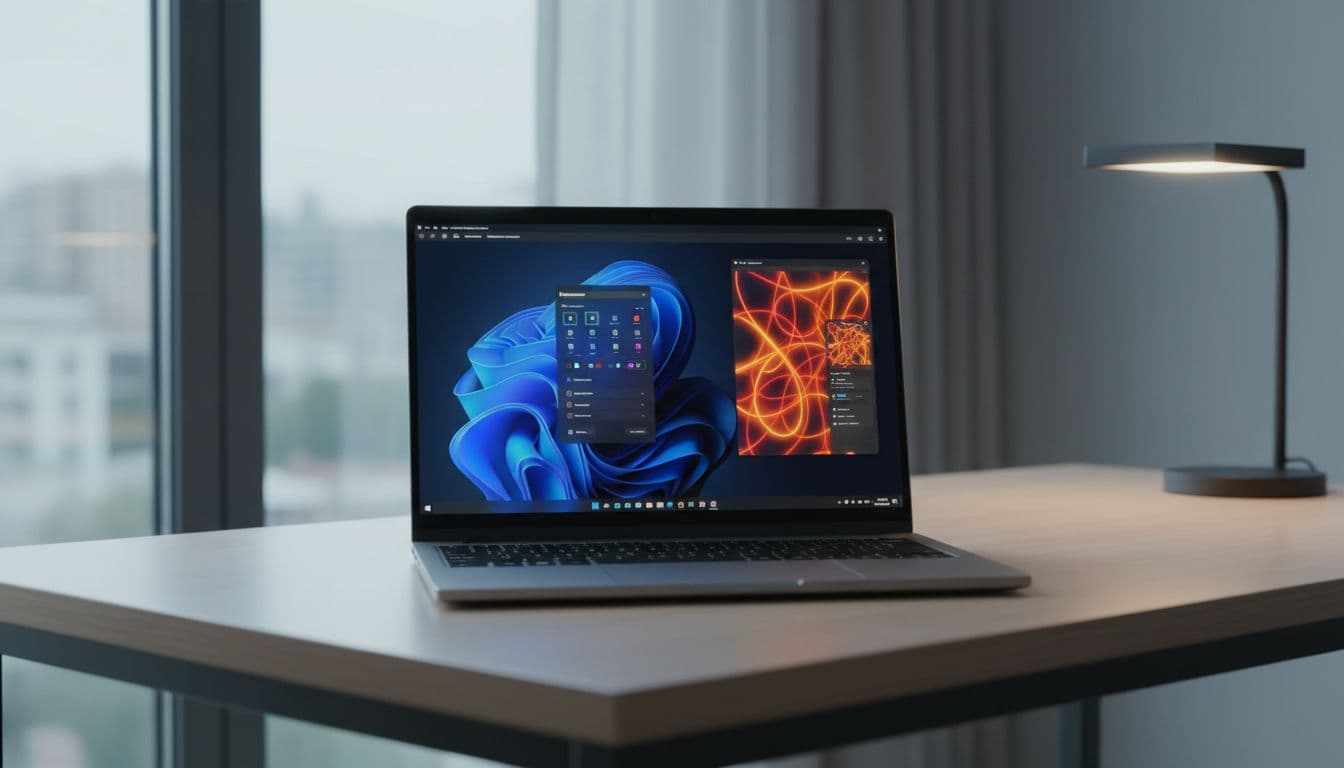
So why does this cause so many support tickets? Because the mockups look convincing. Someone sees a slick YouTube video or a Reddit post showing a Windows desktop that looks completely different, with a redesigned taskbar, a floating status bar, and a cleaner Start menu. They assume it's real. They go looking for it. And then things go sideways.
The problems break down into a few clear categories. First, people search Windows Settings for Horizon-specific options that simply do not exist in any shipped build, wasting time and getting confused. Second, they install third-party shell replacements, icon packs, or theme tools to approximate the look, and those tools frequently break Explorer, the taskbar, or the system tray. Some of them patch system DLLs directly, which is a proper mess to undo. Third, some users install unofficial community Windows builds claiming to include a Horizon UI, which are unsupported, often unstable, and potentially a security risk.
Then there's the file-format problem. The actual mockup assets are usually Figma files (.fig), Photoshop documents (.psd), or Adobe XD files (.xd). People download them expecting to 'install' the look, then get confused when double-clicking the file does nothing useful or crashes an unrelated app. These are design assets, not installers. You open them in design software, you don't run them.
Display scaling is another one that catches people out. If you've been fiddling with DPI settings trying to match the proportions of a mockup screenshot, you can end up with a blurred or misaligned UI that looks worse than what you started with. The recommended scaling for your specific monitor exists for a reason.
Microsoft Horizon Mockup Quick Fix
Start here. This covers the majority of cases where the issue is confusion or minor cosmetic changes rather than a system that's been properly broken by aggressive theming tools.
Confirm What You're Dealing With Easy
- Check the source of the Horizon content.
If it came from a Figma community page, OS Mockups Wiki, a Reddit thread, or a YouTube concept video, it is a design concept only. Not a Windows build, not a Microsoft release, not something you can install. - Stop searching Settings for Horizon options.
There is no Horizon taskbar band, no Horizon Start menu, and no Horizon status strip in Windows Settings or Control Panel. These features were never shipped. Use the standard taskbar and system tray instead. - Open mockup files correctly.
If you downloaded a .fig file, open it in Figma (browser or desktop app). A .psd file needs Photoshop or a compatible editor like GIMP. An .xd file needs Adobe XD. Do not try to run these as programs.
Revert Simple Cosmetic Changes Easy
- Reset your desktop theme.
Right-click the desktop and choose Personalise. Under Themes, select any default Windows theme (Windows (light) or Windows (dark) are the safe choices). This resets wallpaper, colours, sounds, and cursor in one go. - Reset accent colour.
Still in Personalise, go to Colours. Set Mode to Windows default and under Accent colour choose Automatic (let Windows pick from background). This clears any custom hex values applied to match a mockup. - Verify the taskbar looks normal.
Go to Settings, Personalisation, Taskbar. Make sure taskbar alignment is set to Centre (Windows 11) or Left (Windows 10) depending on your preference, and that battery, network, and clock icons are enabled in the system tray.
More Microsoft Horizon Mockup Solutions
If quick cosmetic resets didn't fix things, a third-party tool has probably dug deeper into your system. This is the most common situation we see at Vivid Repairs when people have been chasing the Microsoft Horizon mockup look. Shell replacements and theme patchers can alter Explorer behaviour, break the taskbar, cause black screens on login, or make the system tray icons disappear entirely. The fix is methodical but not complicated.
Remove Third-Party Customisation Apps Intermediate
- Open the app list.
On Windows 11: Settings, Apps, Installed apps. On Windows 10: Settings, Apps and features. Sort by install date to spot anything added recently. - Uninstall shell and theme tools.
Look for and remove: Start menu replacements (Open-Shell, Start11, StartAllBack), icon packs (IconPackager, Ipack tools), theme patchers (UltraUXThemePatcher, SecureUXTheme), and any app with 'skin,' 'theme,' or 'shell' in the name. Uninstall one at a time, not all at once. - Reboot after each removal.
Some of these tools hook into Explorer at startup. A reboot confirms whether the issue clears before you remove the next one. This one often needs a second reboot before the taskbar fully restores. - Reset theme and colours again.
After uninstalling, go back to Settings, Personalisation, Themes and reapply a default Windows theme. The uninstall process sometimes leaves orphaned colour values or wallpaper paths that point to deleted files.
Fix Display Scaling and Resolution Easy
- Set resolution to Recommended.
Go to Settings, System, Display. Under Display resolution, choose the option marked (Recommended). On a 1080p monitor that's 1920x1080. On a 4K display it's 3840x2160. Anything else causes blurring. - Set scaling to Recommended.
Under Scale, choose the Recommended percentage. For most 1080p monitors that's 100%. For 4K displays it's typically 150% or 200%. Avoid custom values unless you have a specific accessibility need. - Sign out and back in.
Scaling changes don't always apply fully until you sign out. Do that, sign back in, and check whether text and UI elements are sharp and correctly proportioned.
For context on why display scaling matters so much when people try to match a Microsoft Horizon mockup: the mockup screenshots are usually created at a specific resolution and DPI in a design tool, then exported as images. What looks perfect at 1440p in Figma can look completely wrong at 1080p with 125% scaling on a real Windows install. Chasing that exact look by tweaking DPI settings is a rabbit hole that rarely ends well. If you've also been having general Windows performance issues alongside this, our guide on fixing slow Windows performance covers some overlapping ground on startup tools and resource-heavy background processes.
Advanced Microsoft Horizon Mockup Fixes
Right. If you're still here, something has been altered at a deeper level. Maybe a theme patcher modified system DLLs. Maybe you edited registry keys trying to recreate the abandoned Horizon status band. Maybe you installed a community Windows build that claimed to include the Horizon UI and now the system is behaving oddly. These fixes take longer but they work.
Run SFC and DISM to Repair System Files Intermediate
- Open an elevated command prompt.
Right-click the Start button, choose Terminal (Admin) on Windows 11 or Command Prompt (Admin) on Windows 10. Click Yes on the UAC prompt. - Run System File Checker.
Typesfc /scannowand press Enter. This scans protected system files and replaces corrupted ones from a cached copy. It takes 10 to 15 minutes. Do not close the window. - Run DISM to repair the component store.
Once SFC finishes, typeDISM /Online /Cleanup-Image /RestoreHealthand press Enter. This pulls replacement files from Windows Update if the local cache is also damaged. Needs an internet connection. Takes another 10 to 20 minutes. - Reboot and verify.
After both tools finish, reboot. Check whether Explorer, the taskbar, and system tray are behaving normally. If SFC reported it could not fix certain files, the DISM step usually handles those on the next run.
Reset Windows or Create a Fresh User Profile Advanced
- Try a fresh user profile first.
Go to Settings, Accounts, Family and other users (Windows 11) or Settings, Accounts, Other users (Windows 10). Add a new local account. Sign into it and check whether the system behaves normally. If it does, the problem is isolated to your original profile's per-user settings rather than system-wide files. - Migrate your data to the new profile.
Copy Documents, Pictures, Downloads, and Desktop folders fromC:\Users\OldProfileNameto the new profile. Leave the old profile in place as a backup for now. - Use Reset this PC as a last resort.
If even the new profile is broken, go to Settings, System, Recovery. Click Reset this PC and choose Keep my files. This reinstalls Windows while preserving personal data. It removes all installed apps and custom settings, which is exactly what you want here.
If you've been dealing with startup tools that hook into Explorer and you're not sure which ones are still active even after uninstalling, Task Manager is your friend. Open it with Ctrl+Shift+Esc, go to the Startup apps tab (Windows 11) or Startup tab (Windows 10), and disable anything you don't recognise. Microsoft's documentation on repairing a Windows image with DISM is the authoritative reference if you want to understand exactly what the tool is doing under the hood. And if your issues have spiralled into something that looks more like a corrupted Windows installation than a theme problem, our guide on fixing corrupted Windows files goes deeper on recovery options.
Preventing Microsoft Horizon Mockup Problems
The single most effective thing you can do is recognise the Microsoft Horizon mockup for what it is before you start. A design concept file is not an installer. A community Windows build is not a Microsoft release. Once that's clear, most of these problems never happen in the first place.
Beyond that, keep customisation within the built-in personalisation tools. Settings, Personalisation covers themes, colours, wallpaper, fonts, and taskbar behaviour. That's a lot of room to work with, and none of it touches system DLLs or Explorer hooks. If you want to go further, test heavier changes in a secondary user account first. Create a local account, apply your theme tools there, and live with it for a day before touching your main profile. This is genuinely the best isolation strategy and it costs nothing.
On the file side: always open mockup files in their intended app. Figma files in Figma, PSD files in Photoshop or GIMP (free alternative), XD files in Adobe XD. Keep those apps updated. Missing fonts are the most common reason a mockup file loads with broken layouts, so install any font packs listed in the mockup's documentation before opening the file.
For display settings, match your resolution and scaling to the Recommended values for your monitor and leave them there. If you want to see how a mockup would look at a different resolution, use the design tool's built-in preview at that resolution rather than changing your actual display settings.
Finally, only install Windows from official Microsoft sources at microsoft.com or from your OEM's recovery partition. Community builds claiming to include Horizon UI features are unsupported, frequently unstable, and sometimes carry malware. The official Microsoft Reset this PC documentation is the right starting point if you need a clean Windows installation. If you're also curious about safely customising Windows appearance without breaking things, our guide on safe Windows personalisation covers the built-in options in detail.
Microsoft Horizon Mockup: Summary
The Microsoft Horizon mockup is a fan-made design concept, not a Windows feature, not a beta build, and not something you can install. The problems it causes fall into three buckets: confusion about what it is, system instability from third-party theme tools used to approximate its look, and file-format issues when trying to open the actual design assets. Quick cosmetic resets via Settings, Personalisation handle the minor cases. Uninstalling shell replacement tools and running sfc /scannow plus DISM handles the intermediate ones. A fresh user profile or Reset this PC handles the serious ones. And if you just want to view the Microsoft Horizon mockup files, open them in Figma, Photoshop, or Adobe XD, not as programs. That's the whole story.