
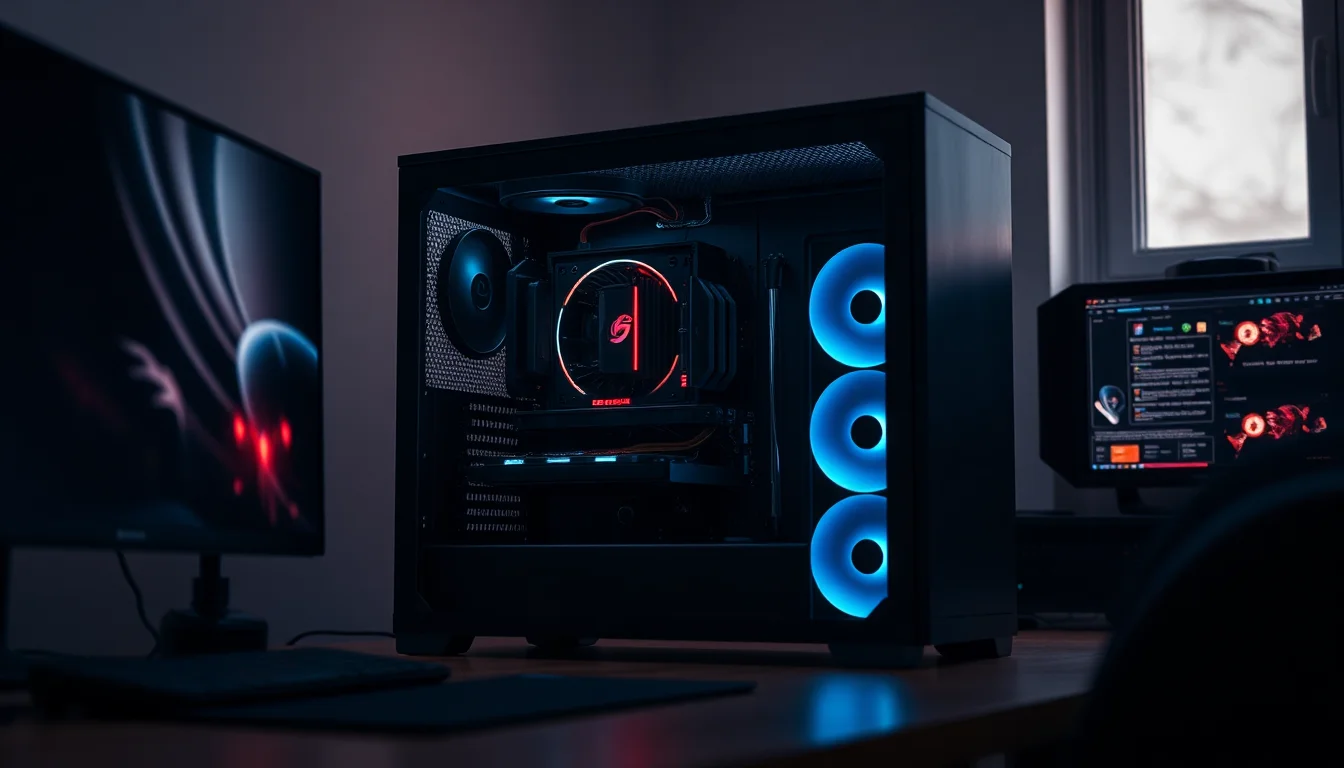
TL;DR
A silent PC build is not about a single magic component. It's about understanding every noise source in your system, choosing parts that address each one, and verifying the result with real measurements. This guide gives you the framework to do exactly that, from acoustics fundamentals and UK consumer law to component selection, case design, fan curves and long-term maintenance.
Quick Answer
A successful silent PC build targets below 35 dB(A) at idle by addressing all noise sources simultaneously: CPU cooler, GPU fans, PSU fan mode, case fans, and storage. No single component is enough on its own.
Key Takeaways
- A silent PC build typically targets below 30 to 35 dB(A) at idle and below 45 to 50 dB(A) under load.
- GPU fans are the dominant noise source under gaming load, not CPU coolers alone.
- SSDs eliminate mechanical drive noise entirely and are one of the highest-impact, lowest-cost upgrades.
- Acoustic damping in a case can reduce noise by 3 to 6 dB(A), but only if airflow is not compromised.
- Semi-passive and zero-RPM PSU modes significantly reduce idle noise.
- Optimised active cooling outperforms passive cooling for most mainstream builds.
- Under the Consumer Rights Act 2015, 'silent' and 'noise-damped' marketing claims must be backed by real test data.
You've probably noticed it at the worst possible moment. A deadline looming, the flat quiet, and then your PC decides to spin up like a hairdryer. Or perhaps you're working from home, on a call, and your machine's fan noise is clearly audible to whoever's on the other end. These aren't trivial annoyances. Sustained background noise affects concentration, sleep quality and, in shared spaces, other people's comfort too.
The good news is that building a genuinely quiet machine in 2026 is more achievable than ever. But it requires a systematic approach. Slapping a 'silent' case around otherwise noisy components won't get you there. This guide explains why, and what will.
What Is a Silent PC and Why Build One?
The term 'silent PC' gets used loosely, so let's be precise. A truly silent PC produces no audible noise at all, typically achieved only with fully passive (fanless) cooling and solid-state storage. A quiet PC, by contrast, is one that's audible but unobtrusive in normal use. In practice, most people who want a 'silent build' are actually aiming for the latter: a machine that disappears acoustically into the background of a room.
The practical benchmark is around 30 dB(A) at idle and below 50 dB(A) under sustained load. A quiet room typically measures around 30 dB(A) or lower, so hitting that figure at idle means your PC blends into the ambient environment rather than rising above it. Under load, some fan activity is acceptable, but the goal is to avoid the kind of aggressive spin-up that pulls your attention away from what you're doing.
Why does this matter beyond personal comfort? Consider the contexts where a silent build is genuinely valuable. Home studios and podcast recording spaces where any fan noise bleeds into microphones. Bedrooms where a PC doubles as a media centre and runs while you sleep. Open-plan offices or shared flats where noise is a social issue, not just a personal one. Even a standard home office benefits: research consistently links sustained background noise to reduced cognitive performance and increased fatigue, even when the noise is not consciously perceived as loud.
There's also a distinction worth drawing between 'silent' and 'noise-damped'. A noise-damped case with acoustic foam panels reduces the noise that escapes the chassis, but the components inside are still generating the same amount of heat and sound energy. A silent build addresses noise at the source: lower-RPM fans, better cooler designs, semi-passive PSUs, and solid-state storage. Damping is a useful secondary layer, not a substitute for quiet components.
One more thing. The Consumer Rights Act 2015 is directly relevant here. If a product is marketed as 'silent', 'ultra-quiet', or 'noise-damped', it must genuinely be as described. That means vendor noise claims are only meaningful when accompanied by test conditions: distance from the unit, load state, ambient noise level, and whether the figure is in dB(A) or some other weighting. We'll return to this when we cover measurement. For now, treat any unqualified 'silent' claim with scepticism.
How Noise Is Measured: Decibels and UK Standards
Understanding how acoustic measurements work is not optional if you want to evaluate component claims intelligently. Fortunately, the basics are not complicated.
Decibels (dB) measure sound pressure level on a logarithmic scale. A 10 dB increase represents a doubling of perceived loudness to human ears, not a simple additive increase. So a component rated at 40 dB(A) doesn't sound twice as loud as one rated at 20 dB(A). It sounds roughly four times as loud. This matters when you're comparing specifications across components.
The '(A)' in dB(A) refers to A-weighting, a frequency filter that adjusts raw sound pressure measurements to reflect how human hearing actually perceives different frequencies. Low frequencies are de-emphasised; mid and upper frequencies, where human hearing is most sensitive, are weighted more heavily. A-weighting is the standard used in UK workplace guidance, product specifications, and acoustic testing. If a component's noise rating doesn't specify A-weighting, treat it as incomplete data.
Test distance matters enormously. A component rated at 25 dB(A) at 1 metre will measure noticeably higher at 30 cm, which is a more realistic distance from a desktop case to a seated user. Many manufacturers test at 1 metre in an anechoic chamber, conditions that bear little resemblance to a typical room. Our dedicated article on how to measure PC noise covers the full methodology, including how to account for room reflections and ambient noise when testing at home.
For practical home testing, a decent smartphone app set to A-weighting will get you within a few dB of a calibrated meter, which is good enough for comparative purposes. The key discipline is consistency: same distance, same room, same ambient conditions, measured at both idle and full load. Record the ambient noise level separately (with the PC off) so you know your noise floor.
One subtlety worth understanding: noise sources don't add linearly. If your CPU cooler produces 30 dB(A) and your GPU fans produce 30 dB(A), the combined output is approximately 33 dB(A), not 60 dB(A). This is because decibels are logarithmic. The practical implication is that silencing one dominant source gives you diminishing returns unless you address the others too. A 40 dB(A) GPU combined with a 25 dB(A) CPU cooler will measure close to 40 dB(A) overall. The GPU dominates. Fix the GPU first.
Finally, be aware of coil whine as a distinct acoustic phenomenon. It's not captured well by simple dB(A) measurements because it's a high-frequency tonal sound that some people find intensely irritating even at low measured levels. We cover it in detail in the troubleshooting section.
Component Selection for Silent Builds: CPU Coolers, GPUs, and PSUs
Every spinning thing in your PC is a potential noise source. The discipline of a silent PC build is choosing components where each source is addressed, not just the most obvious one.
CPU Coolers
The CPU cooler is where most people start, and rightly so. At idle and during light tasks, it's often the loudest component. The key variables are fan size, maximum RPM, and the cooler's thermal efficiency (which determines how hard the fan has to work to keep temperatures in check).
Larger fans move more air at lower RPM, which is why 140mm fans are generally quieter than 92mm fans at equivalent airflow. A large tower cooler with a single 140mm fan running at 600 to 800 RPM will be nearly inaudible in most rooms. The trade-off is physical size: large air coolers can conflict with RAM clearance and case compatibility. All-in-one liquid coolers (AIOs) move the noise to the radiator fans, which can be larger and slower, but they add pump noise at idle. That pump hum is subtle but present, and some people find it more objectionable than fan noise.
For a thorough comparison of specific models and their measured noise outputs, our guide to the best CPU coolers for silent PC builds covers the options in detail, including real-world dB(A) measurements at various load states.
GPU Cooling
Under gaming load, the GPU fans are typically the dominant noise source. This is the component most people underestimate when planning a silent build. A GPU with an aggressive default fan curve will spin up loudly the moment you launch a game, regardless of how quiet everything else is.
Look for graphics cards with large triple-fan coolers, semi-passive fan modes (fans stop completely at low loads), and favourable reviews of their acoustic performance under load. You can also tune fan curves manually using software like MSI Afterburner, trading slightly higher temperatures for significantly lower noise. Our article on quiet graphics card coolers explains the design differences between GPU cooling solutions and which configurations work best for noise-sensitive builds.
Power Supply Units
The PSU is often overlooked in silent build planning. Modern units frequently feature semi-passive or zero-RPM fan modes, where the fan stays off entirely below a certain load threshold (often 30 to 40 per cent of rated wattage). At idle and during light tasks, a semi-passive PSU contributes nothing to your acoustic profile.
Under sustained load, PSU fan quality matters. Cheaper units use smaller, louder fans that spin up aggressively. Higher-quality units use larger, slower fans with better bearings. Buying a PSU with more headroom than you need (say, an 850W unit in a 400W-draw system) means the fan stays in semi-passive mode more of the time. Our coverage of semi-passive and zero-RPM PSUs covers the specific features to look for and which certifications (80 Plus Gold, Platinum) correlate with better acoustic behaviour.
Storage and Mechanical Noise: SSDs vs Hard Drives
Storage is one of the simplest decisions in a silent PC build, and one of the highest-impact ones. Mechanical hard drives produce two distinct types of noise: the continuous low-frequency hum of spinning platters, and the intermittent clicking and scratching of read/write heads seeking data. Both are audible in a quiet room, and the seeking noise in particular can be surprisingly intrusive during tasks like file transfers or game loading.
SSDs have no moving parts. There is nothing to spin, nothing to seek, and therefore nothing to make noise. Full stop. Switching from a mechanical drive to an SSD removes an entire noise source from your build without any acoustic trade-off. It also improves boot times, application load speeds and overall system responsiveness, so it's not a sacrifice in any direction.
For a silent build in 2026, there is no compelling reason to include a mechanical hard drive as a primary or secondary drive unless you have very specific high-capacity storage needs that SSDs can't meet cost-effectively. Even then, consider whether a NAS (network-attached storage) device located elsewhere in your home is a better solution than a spinning drive inside your quiet PC.
NVMe SSDs (the M.2 form factor that plugs directly into the motherboard) are the standard choice for primary storage. They're fast, compact, and completely silent. SATA SSDs in the 2.5-inch form factor are also silent and slightly cheaper per gigabyte, though slower. Neither produces any acoustic output under any operating condition.
Our comparison of SSD versus hard drive noise and performance goes into more detail on the acoustic measurements, vibration characteristics of mechanical drives, and the case for hybrid storage configurations if you genuinely need high-capacity local storage alongside a silent primary drive.
Case Design and Acoustic Damping: Airflow vs Attenuation
The case is where silent build decisions get genuinely complicated, because the two things you want from it, good airflow and acoustic attenuation, are in partial tension with each other. Understanding that tension is the key to choosing well.
Acoustic attenuation works by adding mass and damping material to case panels. Dense foam lining, thick steel side panels, and rubber-isolated fan mounts all reduce the amount of sound energy that escapes the chassis. A well-implemented acoustic case can reduce perceived noise by 3 to 6 dB(A), which is a meaningful improvement. But here's the problem: if you seal the case too aggressively, you restrict airflow. Restricted airflow means higher component temperatures. Higher temperatures mean fans have to spin faster to compensate. Faster fans produce more noise. You've negated the benefit.
The best silent PC cases solve this with careful engineering rather than brute-force damping. They use large, low-restriction mesh intakes (often at the front and bottom) to allow generous airflow, while damping the panels that don't need to be open. They position fan mounts with rubber isolation to prevent vibration from transmitting to the chassis. And they're designed for positive or neutral air pressure inside the case, which means slightly more air coming in than going out, reducing the amount of noise that escapes through gaps.
Positive pressure also reduces dust ingestion, because air enters through filtered intakes rather than being drawn in through every gap and seam. Less dust means fans stay cleaner longer, which means they don't have to spin up to compensate for reduced airflow over time. It's a virtuous cycle for long-term acoustic performance.
Fan placement matters too. Front-mounted intake fans pull air across the GPU and exhaust through the rear and top. Bottom-mounted intakes feed the GPU directly. Top-mounted exhausts pull hot air out efficiently. Getting this airflow path right means your fans can run slower while still keeping temperatures in check.
Our detailed guide to silent PC cases and acoustic damping design reviews the specific features to look for, explains the airflow configurations used by leading manufacturers, and covers what to expect from cases at different price points in the UK market.
Active vs Passive Cooling Strategies
Passive cooling, where components are cooled entirely by convection and conduction through large heatsinks with no fans at all, is the theoretical ideal for a silent build. No fans means no fan noise. Simple. But the practical constraints are significant enough that passive cooling is a niche choice rather than a mainstream recommendation.
For passive cooling to work, the heatsink must be large enough to dissipate heat through convection alone, which requires either a very large surface area or very low heat output from the component. A modern mid-range CPU at full load might produce 65 to 125 watts of heat. Dissipating that passively requires a heatsink that would be impractically large in most cases, and case airflow must be carefully designed to support natural convection. The system is also sensitive to ambient temperature: a passive build that runs fine in a cool UK winter may throttle during a warm summer.
Passive builds are genuinely viable for low-power platforms: Intel N-series or AMD Athlon processors in the 15 to 35 watt TDP range, paired with integrated graphics or a low-power discrete GPU. These configurations work well as media centre PCs, home servers, or light productivity machines. They're not suitable for gaming or sustained creative workloads.
For everyone else, optimised active cooling is the answer. The goal is not to eliminate fans but to ensure those fans run as slowly as possible while keeping temperatures safe. This means choosing coolers with large, high-quality fans, tuning fan curves so fans only spin up under genuine thermal demand, and ensuring case airflow is efficient enough that fans don't have to work harder than necessary.
The distinction between 'fanless' and 'quiet active' matters for expectations. A fanless PC is truly silent. A quiet active PC is nearly silent at idle and acceptably quiet under load. Most users find the latter more than sufficient, and it's achievable with mainstream hardware at a modest premium over a standard build.
Fan Curves and Temperature Management
Fan curve optimisation is where a lot of silent build guides stop short, which is a shame because it's one of the most effective tools available. A fan curve defines the relationship between temperature and fan speed: at X degrees, run at Y RPM. Most motherboards ship with curves that prioritise thermal safety over acoustics, spinning fans up early and aggressively. Adjusting those curves is free, reversible, and can dramatically reduce noise without meaningful thermal penalty.
The basic principle is to raise the temperature threshold at which fans begin to spin up, and to flatten the curve so that moderate temperature increases don't cause aggressive fan speed increases. A CPU running at 70 degrees Celsius is perfectly safe. If your fan curve starts ramping at 50 degrees, you're adding noise unnecessarily. Shift the ramp point to 65 or 70 degrees and the fans stay quieter during typical workloads.
Most motherboard BIOS interfaces include a fan curve editor. ASUS AI Suite, MSI Command Center, and Gigabyte's System Information Viewer all offer software-level control. For GPU fans, MSI Afterburner is the standard tool and works across most GPU brands. Set a custom curve that keeps fans off (or at minimum speed) until the GPU reaches 60 to 65 degrees, then ramps gradually rather than sharply.
The trade-off is temperature. Running fans slower means components run hotter. For CPUs and GPUs, operating temperatures up to 80 to 85 degrees Celsius under sustained load are generally within safe limits for modern hardware, though you should verify the specific thermal specifications for your components. Sustained operation near the thermal limit can affect long-term component longevity, so don't push curves to the extreme.
Our dedicated guide to fan curve optimisation for silent builds walks through the process step by step, including specific curve profiles for common component combinations and how to use monitoring software to verify your results.
Post-Build Noise Measurement
Building a silent PC without measuring the result is like decorating a room without checking the colour in natural light. You might get lucky, but you won't know what you've actually achieved. Post-build measurement is the step that separates a systematic approach from an optimistic one.
The process is not complicated. You need a decibel meter or a smartphone app capable of A-weighted measurements. NIOSH SLM is a well-regarded free app for iOS; DecibelX and Sound Meter are widely used on Android. For more accurate results, a dedicated meter from a supplier like RS Components or Screwfix is worth the modest outlay, particularly if you're comparing multiple configurations.
Set up in a quiet room with the PC on a hard surface (not carpet, which absorbs differently than hard floors). Measure ambient noise first with the PC off. Then measure at idle, after the system has been running for five minutes and fans have settled. Then measure under load: run a CPU stress test (Prime95 or Cinebench) and a GPU stress test (FurMark or 3DMark) simultaneously to simulate worst-case conditions. Record all figures at a consistent distance, typically 30 cm from the front of the case for a realistic desktop scenario, or 1 metre if you want figures that are comparable to manufacturer specifications.
What are you looking for? At idle, below 30 to 35 dB(A) is excellent. 35 to 40 dB(A) is acceptable. Above 40 dB(A) at idle suggests something is running harder than it should, and it's worth investigating which component is responsible. Under load, below 45 dB(A) is very good for a gaming build. 45 to 50 dB(A) is acceptable. Above 50 dB(A) under load is audible in a quiet room and worth addressing if noise is your priority.
If your results are higher than expected, the diagnostic approach is to isolate sources. Disconnect case fans temporarily and remeasure. Then reconnect them and disconnect the CPU cooler fan (briefly, while monitoring temperatures). This process of elimination identifies which component is the primary contributor. Our article on troubleshooting PC noise issues covers this diagnostic process in detail, including how to identify coil whine, vibration resonance, and fan bearing noise.
Long-term thinkingMaintenance and Long-Term Acoustics
A silent PC build that's quiet on day one can become noticeably louder within six to twelve months if maintenance is neglected. The mechanism is simple: dust accumulates on fan blades and heatsink fins, reducing airflow efficiency. To compensate, fans spin faster. Faster fans mean more noise. The build that measured 32 dB(A) at idle in January might measure 38 dB(A) by the following autumn.
Dust management starts at the design stage. Positive air pressure inside the case, achieved by running intake fans slightly faster than exhaust fans, means air enters through filtered intakes rather than being sucked in through unfiltered gaps. Dust accumulates on the intake filters, which are easy to clean, rather than inside the heatsinks and fan hubs, which are harder to access.
Cleaning frequency depends on your environment. A home with pets or carpet will accumulate dust faster than a hard-floored room with no animals. As a general rule, check intake filters every one to two months and clean them when there's visible accumulation. A full internal clean with compressed air (or a low-powered vacuum with a brush attachment) every six months is a reasonable baseline. Pay particular attention to GPU heatsinks, which accumulate dust between the fins and are often the first component to show thermal degradation from dust.
Fan bearings also degrade over time. Most modern fans use fluid dynamic bearings (FDB) or magnetic levitation bearings (maglev), which last significantly longer than older sleeve bearings. But even good fans develop bearing noise after several years. A fan that starts making a faint clicking or rattling sound at low RPM usually has a failing bearing and should be replaced. The noise will worsen over time, not improve.
Thermal paste between the CPU and cooler also degrades over time, increasing thermal resistance and forcing fans to work harder. Reapplying thermal paste every two to three years is good practice for any high-performance system, and particularly important in a silent build where thermal efficiency directly affects acoustic performance.
Troubleshooting Noise Issues: Coil Whine and Vibration
Even a well-planned silent PC build can develop unexpected noise issues. The two most common culprits are coil whine and mechanical vibration, and they require different approaches.
Coil whine is a high-pitched tonal sound, often described as a whine, buzz or whistle, produced by inductors in the GPU or PSU vibrating at frequencies related to their switching rate. It's most audible during GPU-intensive tasks like gaming, and it can vary with frame rate (which is why capping your frame rate sometimes reduces it). It's not a sign of component failure, but it can be genuinely irritating, particularly because its tonal character makes it more perceptible than broadband fan noise at the same measured dB(A) level.
Practical fixes for coil whine include undervolting the GPU (which reduces the electrical stress that causes inductor vibration), capping the frame rate to reduce GPU load spikes, and ensuring the PSU is not running near its rated capacity (which increases switching frequency stress). Some units are simply more prone to coil whine than others, and a replacement of the same model may behave differently. If coil whine is severe and persistent, it's worth checking whether you're within the return window under the Consumer Rights Act 2015, as a product that produces disruptive noise not disclosed in its specification could be considered not of satisfactory quality.
Mechanical vibration is a different problem. It occurs when a spinning component (fan or drive) transmits vibration to the case chassis, which then acts as a resonating surface and amplifies the sound. Rubber fan mounts, anti-vibration grommets, and soft mounting for drives all reduce vibration transmission. If you're experiencing a low-frequency buzz or rattle, the diagnostic approach is to press gently on different panels while the system is running to identify which surface is resonating, then add damping material or tighten loose fasteners.
Case panel resonance can also be caused by fans running at a specific RPM that happens to match the resonant frequency of a panel. Changing the fan speed slightly (by adjusting the fan curve) often eliminates the resonance entirely. This is a surprisingly common issue and one of the easier fixes available.
Silent PC Build Examples and Benchmarks
To make the framework concrete, it helps to consider how these principles translate into real build configurations. Rather than prescribing specific products (which change in price and availability), the focus here is on the configuration logic that determines acoustic outcomes.
A productivity-focused silent build, aimed at office work, video calls and light creative tasks, can achieve genuinely inaudible idle noise. A low-TDP processor (65W or less), a large tower cooler with a single 140mm fan, an NVMe SSD, a semi-passive PSU, and a well-designed acoustic case will typically measure below 28 to 30 dB(A) at idle. Under load, the fan ramps gently but stays below 35 dB(A). This kind of build is achievable at a modest premium over a standard configuration and represents the sweet spot for home office use.
A quiet gaming PC build is more challenging because the GPU introduces a significant noise source under load. The strategy here is to choose a GPU with a large triple-fan cooler and a well-tuned semi-passive mode, set a custom fan curve that prioritises quiet operation at moderate temperatures, and accept that under heavy gaming load the system will be audible but not intrusive. A target of 38 to 42 dB(A) under gaming load is realistic for a mid-to-high-end gaming build with proper component selection and fan curve tuning. That's quieter than a normal conversation (around 60 dB(A)) and comparable to a quiet office environment.
A passive or near-passive build for media centre use is the third archetype. Here, a low-power platform, fanless CPU cooler, passively cooled or semi-passive GPU, and a silent case with natural convection airflow can produce a genuinely silent system. The constraint is performance: these builds are not for gaming or video encoding. But for streaming BBC iPlayer, playing music, or light browsing in a bedroom or living room, they're ideal.
Where to Go Next
This guide has given you the framework. Every component category, every acoustic trade-off, and the measurement methodology to verify what you've built. But the framework only takes you so far. When you're ready to choose specific components or solve a specific problem, the spoke articles in this cluster give you the depth you need.
If you're starting with the CPU cooler, our guide to the best CPU coolers for silent PC builds covers measured noise outputs, fan size trade-offs, and AIO versus air cooler acoustic comparisons. For the GPU, which is the dominant noise source under gaming load, our article on quiet graphics card coolers explains the design differences between cooling solutions and what to look for in a noise-sensitive build.
Choosing the right case is where many builders make their biggest mistake, and our guide to silent PC cases and acoustic damping explains exactly what separates a case that genuinely reduces noise from one that just restricts airflow. For the PSU, which is often the most neglected component in silent build planning, our coverage of semi-passive and zero-RPM power supplies covers the features, certifications and real-world behaviour you should expect.
Once your build is complete, our guide on how to measure PC noise accurately gives you the step-by-step process to verify your results, and our silent PC maintenance guide covers the long-term discipline that keeps a quiet build quiet over years of use. And if something unexpected goes wrong, our PC noise troubleshooting guide covers coil whine, vibration resonance, fan bearing noise and every other acoustic problem you're likely to encounter.
Building a silent PC is a satisfying project precisely because the results are immediately and continuously perceptible. Every time you sit down to work or game in a quiet room, you'll know the difference. Get the fundamentals right, measure what you've built, and maintain it properly. The silence will take care of itself.
Frequently Asked Questions
A silent PC build typically operates below 30 to 35 dB(A) at idle and under 45 to 50 dB(A) under load. That puts it roughly in the range of a quiet library or empty office. The threshold is somewhat subjective and depends on your room's ambient noise level and how close you sit to the machine. Under the Consumer Rights Act 2015, any product marketed as 'silent' or 'noise-damped' must genuinely meet that description, so always check whether a vendor's noise claim comes with stated test conditions and a measured figure.
Under gaming load, the GPU fans are almost always the dominant noise source. CPU coolers, case fans and PSU fans all contribute at idle and during lighter tasks, but once a GPU is working hard its fans can easily dominate the acoustic profile. A truly quiet gaming PC requires attention to every source, not just the CPU cooler. Choosing a graphics card with a well-engineered cooler and a sensible default fan curve is one of the most impactful decisions you'll make.
For most builds, optimised active cooling is the better choice. Passive (fanless) systems work well only with low-power hardware, very large heatsinks and excellent natural airflow through the case. Push a passive setup with a mid-range or high-end CPU and you'll hit thermal limits quickly. Ultra-quiet active cooling, using low-RPM fans, semi-passive PSUs and carefully tuned fan curves, gives you far more thermal headroom while staying genuinely quiet. Passive builds are worth considering for compact, low-power machines used as media centres or home servers.
Use a dedicated decibel meter or a well-calibrated smartphone app set to A-weighting (dB(A)), which reflects how human hearing perceives loudness. Measure at a consistent distance from the case, typically 30 cm or 1 metre, in a quiet room. Record the ambient noise level first so you can subtract it from your readings. Always test at both idle and full load, and repeat measurements under identical conditions if you want to compare components or configurations. Our guide on how to measure PC noise covers the full process in detail.
Yes, but only if it doesn't strangle airflow in the process. A well-designed acoustic case with damping material around panels and fan mounts can reduce perceived noise by roughly 3 to 6 dB(A). The catch is that restricting airflow forces fans to spin faster to compensate, which can easily cancel out the acoustic benefit. Look for cases that balance damping with generous intake and exhaust paths, ideally with positive or neutral air pressure inside the chassis.
Coil whine is a high-pitched buzzing or whistling sound produced by inductors in the GPU or PSU vibrating under electrical load. It's not a sign of damage, but it can be genuinely irritating. Common fixes include undervolting the GPU to reduce the electrical fluctuation that causes the vibration, adjusting fan curves so the component runs cooler and draws less power, or capping the frame rate in games to reduce GPU load spikes. In some cases the component is simply prone to it and a replacement unit of the same model may behave differently. Our troubleshooting guide covers coil whine fixes in full.
Expect to pay roughly 10 to 20 per cent more than an equivalent standard build. Quiet components, including low-noise coolers, semi-passive PSUs and acoustically damped cases, carry a premium. The investment makes sense if noise genuinely affects your work, sleep or the people around you. Under the Consumer Rights Act 2015, goods must be as described, so if a component is sold on its quiet credentials and doesn't deliver, you have grounds to return it.
Significantly so. Mechanical hard drives produce audible seek noise and low-frequency vibration as the read/write heads move and the platters spin. SSDs have no moving parts at all, so they contribute nothing to your build's acoustic profile. Switching from a mechanical drive to an SSD is one of the simplest and highest-impact changes you can make in a silent PC build, and it also improves speed and reliability.