TL;DR
Choosing a second monitor for your laptop UK setup comes down to three things: what ports your laptop actually has, what resolution and size suits your desk and eyes, and whether you need portability or a permanent desk setup. Get the port compatibility right first. Everything else follows from there.
Quick Answer
For most UK home workers, a 24 to 27 inch desk monitor with USB-C or HDMI input, height adjustment, and a 1440p panel is the right choice. Check your laptop's port spec before buying anything else.
Key Takeaways
- Not all USB-C ports carry video. Only those with DisplayPort Alt Mode or Thunderbolt will drive an external display.
- HDMI 1.4, found on many older and budget laptops, tops out at 4K 30 Hz. For smooth 4K, you need HDMI 2.0 or USB-C with DisplayPort Alt Mode.
- UK employers must comply with the Health and Safety (Display Screen Equipment) Regulations 1992 for home workers, which means proper screen height and distance matter legally, not just ergonomically.
- 44% of working adults in Great Britain now work from home at least some of the time, making a proper external monitor setup more relevant than ever.
- Portable USB-C monitors are ideal for travel but typically offer only 200 to 250 nits brightness, making them unsuitable as all-day desk monitors.
- Ultrawide monitors replace two standard displays in a single panel, but they require a laptop with sufficient GPU bandwidth and a compatible port.
- All monitors sold in the UK must carry an energy label (A to G) under retained EU Regulation 2019/2013, so running costs are now easy to compare before you buy.
You're working from the kitchen table on a 14-inch laptop screen, juggling a spreadsheet, a video call, and three browser tabs. Something has to give. A second monitor for your laptop is the obvious answer, but the moment you start looking, the choices multiply fast: 24 inch or 27 inch, 1080p or 4K, USB-C or HDMI, portable or desk-mounted. And that's before you've worked out whether your laptop can even drive the monitor you're eyeing.
This guide cuts through that noise. It's built around the decisions that actually matter, in the order you need to make them. Start with your laptop's ports. Then think about resolution and size. Then decide whether you need a monitor that travels with you or one that stays put. The spoke articles linked throughout go deeper on specific products and scenarios once you know your direction.
What Is a Second Monitor for a Laptop and Why Do UK Home Workers Need One?
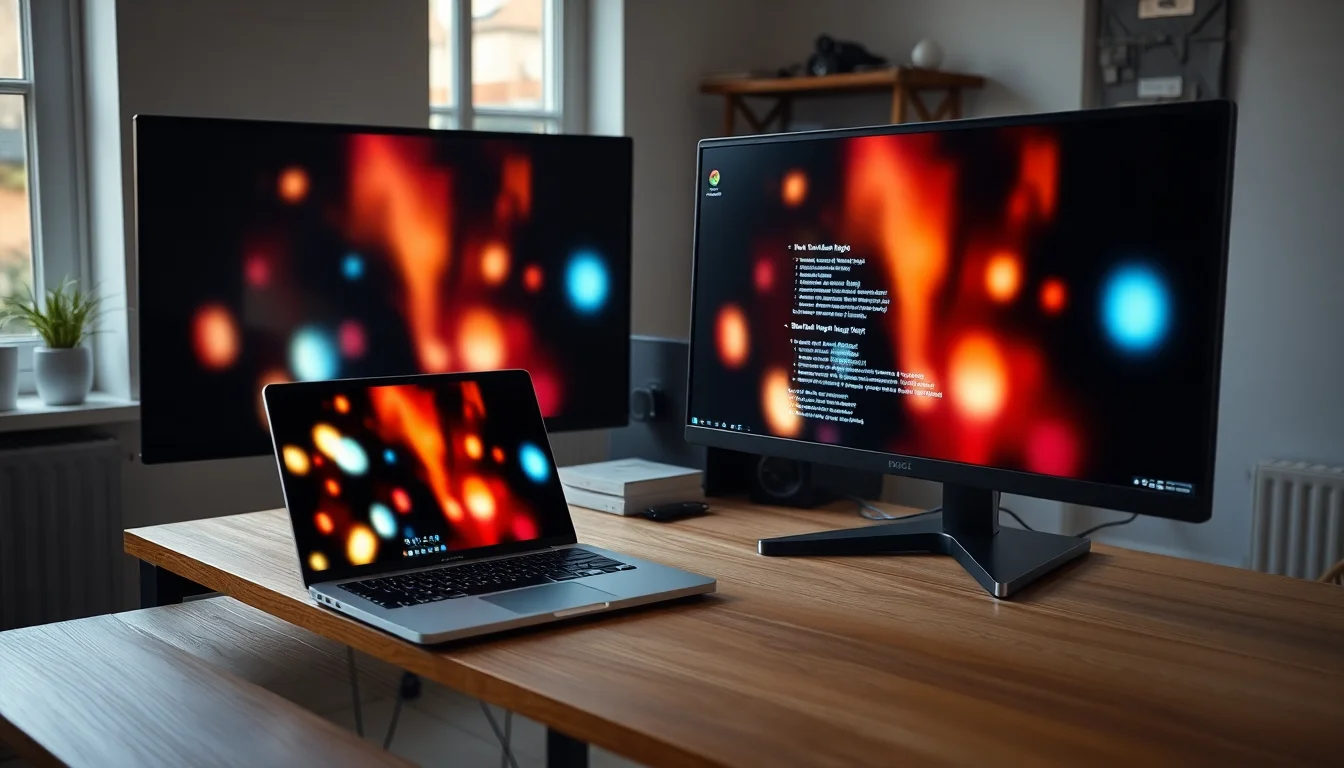
A second monitor, or external monitor, is simply a display connected to your laptop that extends or mirrors your screen real estate. Your laptop screen becomes one display; the monitor becomes another. Windows and macOS both handle this natively, letting you drag windows between screens, run different applications on each, or mirror your laptop display for presentations.
The case for one in the UK is unusually strong right now. According to the Office for National Statistics, 44% of working adults in Great Britain reported working from home at least some of the time, up from 27% before the pandemic, with 16% working exclusively from home. That's a huge proportion of the workforce trying to do professional-grade work on a laptop screen that was designed for portability, not productivity.
There's also a legal dimension that most buying guides ignore entirely. UK employers must comply with the Health and Safety (Display Screen Equipment) Regulations 1992, which apply to home workers using laptops as their primary workstation. The HSE's guidance is specific: the top of the screen should sit at roughly eye level, the display should be at arm's length, and the screen must have height and tilt adjustment. A laptop propped on a pile of books with a Bluetooth keyboard is not a compliant setup. An external monitor on a proper stand, or better still a monitor arm, gets you there.
Beyond compliance, the productivity argument is well established. Studies consistently show gains of 20 to 30 percent for document-heavy or multi-application work when workers move from a single screen to two. Think about what that means practically: you can keep your email or Slack on one screen while working in a document on the other. You can have a reference PDF open alongside the thing you're writing. You can take a video call without minimising everything else. These aren't marginal gains.
There are three broad categories of second monitor worth knowing about before you go further. First, desk monitors: the 24 to 32 inch panels designed to sit on your desk permanently, usually with height, tilt and swivel adjustment. Second, portable monitors: lightweight 13 to 16 inch USB-C panels designed to travel with you, useful for hot-desking or working from client sites. Third, ultrawide monitors: wide-format displays (typically 34 inches or more) that replace two standard monitors in a single curved or flat panel. Each has a distinct use case, and the rest of this guide will help you work out which fits your situation.
Port Compatibility: USB-C, HDMI, Thunderbolt and Adapter Essentials
This is the section most buying guides skip, and it's the one that causes the most frustration. Buying a monitor without checking your laptop's port spec first is how you end up with a £300 display you can't connect properly.
Start by identifying every port on your laptop. The most common options in 2026 are HDMI (full-size or micro), USB-C, and Thunderbolt 3 or 4 (which uses the same physical USB-C connector but carries more bandwidth). Some older laptops also have DisplayPort or Mini DisplayPort outputs.
HDMI: the most common, but not all HDMI is equal. Most laptops made in the last decade have at least one HDMI port. But there's a critical distinction between HDMI 1.4 and HDMI 2.0. HDMI 1.4, still common on budget and mid-range Windows laptops, supports 4K resolution only at 30 Hz. That's technically 4K, but 30 Hz refresh rate produces visible judder when scrolling or moving windows, which is genuinely uncomfortable for daily work. HDMI 2.0 supports 4K at 60 Hz, which is the minimum you'd want for a 4K external display. If your laptop has HDMI 1.4 and you want a 4K monitor, you're either stuck with 30 Hz or you need to find an alternative port.
USB-C and DisplayPort Alt Mode. This is where things get genuinely confusing. A USB-C port can do many things: charge your laptop, transfer data, carry audio, and carry video. But it only carries video if it supports DisplayPort Alt Mode (or Thunderbolt). And here's the trap: many budget laptops have USB-C ports for charging and data only, with no video output capability at all. The port looks identical. You cannot tell by looking at it.
To check, look at your laptop's spec sheet. Search for your exact model name and 'USB-C DisplayPort Alt Mode' or 'USB-C video output'. If the spec sheet lists a USB-C port as supporting 'DisplayPort' or 'DP Alt Mode', it can drive a monitor. If it only mentions 'USB 3.2' or 'USB 2.0' without any display reference, it almost certainly cannot. Our USB-C monitors compatibility guide walks through this verification process for the most common laptop models in detail.
Thunderbolt 3 and 4. Thunderbolt ports (identified by the lightning bolt icon, often combined with the USB-C symbol) always support video output and carry significantly more bandwidth than standard USB-C with DisplayPort Alt Mode. Thunderbolt 4 supports up to two 4K displays or one 8K display. MacBooks from 2016 onwards use Thunderbolt exclusively for external displays, which is why they need USB-C to HDMI or USB-C to DisplayPort adapters to connect to most monitors.
How many external displays can your laptop drive? This is separate from the port question. Most consumer laptops support one external display. Some support two, but only via a specific combination of ports or a compatible USB-C dock. MacBook Airs with the M-series chip (other than M3) are famously limited to a single external display unless you use a specific dock that exploits the DisplayLink chipset. MacBook Pros with M1 Pro or M1 Max support two or more. For Windows laptops, check the spec sheet under 'maximum simultaneous displays'. If you need two external monitors, our guide to laptop docking stations with monitor support covers the options that genuinely work.
Resolution, Scaling and DPI Matching: Why 1080p, 1440p and 4K Matter on Laptops
Resolution is one of those specs that looks simple on paper and causes real headaches in practice, especially when you're mixing a laptop screen with an external monitor. Here's what you actually need to know.
The three main resolutions. For external monitors in 2026, the practical options are 1080p (1920x1080), 1440p (2560x1440, also called QHD or 2K), and 4K (3840x2160, also called UHD). At 24 inches, 1080p is still perfectly usable for text-heavy work, though it's starting to look soft compared to modern laptop screens. At 27 inches, 1080p becomes noticeably less sharp, and 1440p is the sweet spot. At 32 inches, 4K starts to justify itself for detailed work.
DPI matching: the problem nobody warns you about. Modern laptops, particularly MacBooks and premium Windows machines, have high-DPI screens. A 13-inch MacBook display runs at around 227 PPI (pixels per inch). A standard 27-inch 1080p monitor runs at around 82 PPI. When you put these two screens side by side, the difference in sharpness is stark. Text that looks crisp on your laptop screen looks blurry on the external monitor. This isn't a fault with the monitor. It's a DPI mismatch.
Windows handles this with display scaling settings. You can tell Windows to render at 125% or 150% on the external monitor to compensate, but this can cause blurring in applications that don't scale well, and it can make some software render at the wrong size. macOS handles multi-DPI setups more gracefully, but it's not immune to issues either. The cleanest solution is to choose an external monitor with a DPI reasonably close to your laptop screen, or to accept the difference and set scaling manually.
Refresh rate. For work use, 60 Hz is the standard and it's perfectly adequate. 144 Hz and above are primarily for gaming. That said, some people find that 75 Hz or higher feels noticeably smoother for everyday scrolling and window management. If your laptop's port supports it, it doesn't hurt to opt for a monitor with a slightly higher refresh rate, but don't pay a significant premium for it if your primary use is documents, spreadsheets, and video calls.
Panel type. IPS (In-Plane Switching) panels offer the best colour accuracy and viewing angles for work use, and they're now the default choice at most price points. VA panels offer better contrast ratios (useful in darker rooms) but slightly worse viewing angles. TN panels are fast but have poor colour and viewing angles, and they're largely absent from the work monitor market now. For video conferencing, document work, and general productivity, IPS is the right call.
Flicker and blue light. ISO 9241-307:2008 covers flicker and image stability for monitors. Many modern monitors now advertise flicker-free backlighting (DC dimming rather than PWM) and low blue-light modes. If you're spending six or more hours a day in front of a screen, these features are worth having. They don't cost significantly more at the 24 to 27 inch tier.
Monitor Size and Ergonomics: 24, 27 and 32 Inches Explained
Size is the decision most people make emotionally and then rationalise afterwards. Bigger feels better. But monitor size needs to match your desk depth, your viewing distance, and the resolution of the panel. Get this wrong and you'll either be squinting at small text or craning your neck at a screen that's too close.
24 inches. At a typical desk depth of 60 to 70 cm, a 24-inch monitor sits comfortably at arm's length. At 1080p, it's sharp enough for text work. At 1440p, it's excellent. It's also the easiest size to position ergonomically on a standard UK desk, and it's typically the lightest and cheapest option in the desk monitor category. If desk space is tight, or if you're buying a second monitor to complement a laptop screen rather than replace it, 24 inches is often the pragmatic choice.
27 inches. The most popular size for home working setups in 2026, and for good reason. At 1440p, a 27-inch monitor offers a genuinely comfortable amount of screen real estate for side-by-side document work, and the pixel density is high enough that text looks sharp at normal viewing distances. At 1080p, a 27-inch screen starts to look soft, so it's worth spending a little more for 1440p at this size. Most 27-inch monitors also offer height adjustment as standard, which matters for HSE compliance.
32 inches. A 32-inch monitor is a significant presence on any desk. At 4K, it's excellent for detailed creative work, large spreadsheets, or anyone with vision requirements that benefit from larger text at native scaling. At 1440p, 32 inches is still usable but the pixel density starts to feel low if you sit close. The main practical issue is desk depth: at less than 70 cm, a 32-inch screen can feel overwhelming, and you may find yourself moving your head rather than your eyes to scan the display.
Height adjustment and stands. This is where many budget monitors fall short. A monitor that only tilts, without height adjustment, forces you to raise the screen on books or boxes, which is a common workaround but not a stable one. Look for monitors with a stand that offers at least 100 to 130 mm of height adjustment. If the monitor you want has a VESA mounting pattern (75x75 mm or 100x100 mm is standard), you can replace the stock stand with a monitor arm, which gives you far more flexibility. A good monitor arm also frees up desk space and makes it easier to position the screen correctly for different users. Our guide to ergonomic monitor stands and arms for home working covers the options across different budgets.
The laptop screen problem. When you add an external monitor to a laptop, you face a choice: do you use the laptop screen as a second display, or do you close the lid and use the external monitor as your primary screen? Both work, but using the laptop screen as a secondary display creates a height mismatch: the laptop screen sits lower than the external monitor, which can cause neck strain if you switch between them frequently. Closing the lid and using an external keyboard and mouse is often the more ergonomic setup for all-day work, provided your laptop supports clamshell mode (most do).
Desk Monitors vs Portable Monitors: Which Suits Your Setup?
The desk monitor versus portable monitor decision is really a question about where and how you work. They serve genuinely different purposes, and the mistake is treating them as interchangeable.
Desk monitors are designed to stay put. They're mains-powered, typically 24 to 32 inches, and built with ergonomic adjustment in mind. They're the right choice for anyone with a fixed home office or dedicated workspace. The image quality at a given price point is significantly better than portable alternatives, brightness levels are higher (typically 250 to 400 nits for standard panels), and the panel sizes available are much larger. If you work from home five days a week and your laptop rarely leaves the desk, a desk monitor is almost certainly the better investment.
Portable monitors are a different proposition. They're typically 13 to 16 inches, USB-C powered, and designed to slip into a laptop bag alongside your laptop. They're genuinely useful for people who work across multiple locations: hot-desking at a co-working space, visiting client sites, working from a hotel room. At a fixed desk, though, they're a compromise. Brightness is typically 200 to 250 nits, which is noticeably dimmer than a desk monitor and can be a real problem in a bright room. Many portable monitors also need a second power source if your laptop's USB-C port can't supply enough power for both charging and video simultaneously.
There's also a middle ground: some people buy a desk monitor for their home setup and a portable monitor for travel, using the laptop screen as the primary display on the road. This is a perfectly sensible approach if your work genuinely spans both contexts. For a detailed look at what's available in the portable category, our roundup of the best portable monitors for laptops in the UK covers the options across different sizes and budgets.
Power and connectivity. Desk monitors connect via HDMI, DisplayPort, or USB-C and draw power from the mains. Portable monitors typically connect via USB-C (carrying both video and power) or occasionally via a mini-HDMI port with a separate USB power cable. The single-cable USB-C connection is the most convenient, but it only works if your laptop's USB-C port supports DisplayPort Alt Mode. If it doesn't, you'll need a separate video cable and a power bank or USB charger for the monitor.
Cost.** A decent 24-inch desk monitor starts at around £130 to £160 at Currys or John Lewis. A quality 27-inch 1440p model sits in the £200 to £300 range. Portable monitors start at around £80 for a basic 1080p model and rise to £200 to £300 for a 1440p or OLED portable panel. At similar price points, desk monitors offer better image quality, more ergonomic adjustment, and higher brightness. Portable monitors justify their premium through portability alone.
Ultrawide Monitors for Laptops: When They Make Sense
Ultrawide monitors are the option that looks extravagant until you've used one for a week, at which point going back feels like a step backwards. But they're not right for everyone, and they come with specific technical requirements that catch people out.
An ultrawide monitor typically has a 21:9 aspect ratio, compared to the standard 16:9 of most monitors. The most common sizes are 34 inches (3440x1440 resolution) and 38 inches (3840x1600). Some curved ultrawide models go up to 49 inches with a 32:9 aspect ratio, effectively replacing two 27-inch monitors side by side. The appeal is obvious: a single, continuous screen surface without the bezel gap you get from two separate monitors.
When ultrawide makes sense. For creative professionals working in video editing, photo editing, or audio production, the extra horizontal space is genuinely transformative. Timeline-based applications benefit enormously from the additional width. Developers working with multiple code panels side by side find similar benefits. For anyone who regularly references a document on one side while writing on the other, the extra width removes the need to constantly switch windows.
When it doesn't. If your work is primarily email, video calls, and a single application at a time, an ultrawide is probably overkill. The extra width can actually reduce focus by making it too easy to have too many things open simultaneously. And ultrawide monitors are significantly more expensive than standard monitors at comparable quality levels.
The technical requirements. This is where many laptop users run into trouble. A 34-inch 3440x1440 ultrawide has significantly more pixels than a 27-inch 1440p monitor, and it requires more bandwidth from your laptop's GPU and port. HDMI 2.0 can handle 3440x1440 at 60 Hz, but only just. For 38-inch or 49-inch models, you really want DisplayPort 1.4 or USB-C with Thunderbolt. Budget laptops with integrated graphics and HDMI 1.4 will struggle. Check your laptop's maximum supported resolution for external displays before committing to an ultrawide purchase.
Refresh rate on ultrawides. Many ultrawide monitors now offer 100 Hz or higher refresh rates, which is appealing if you also use your laptop for gaming. But for work use, 60 Hz is sufficient, and opting for a 60 Hz ultrawide rather than a 100 Hz model can save you a meaningful amount of money. Our detailed guide to ultrawide monitors for laptop productivity setups covers the specific models and port requirements in depth.
Energy Efficiency and UK Regulatory Compliance
Energy efficiency probably isn't the first thing on your mind when you're choosing a monitor, but it's worth a moment of your attention, particularly given UK energy prices and the fact that a monitor running eight hours a day, five days a week, adds up over a year.
Under retained EU Regulation (EU) 2019/2013, all monitors sold in the UK must carry an energy label on a scale from A to G, covering on-mode power consumption. This makes it straightforward to compare running costs between models before you buy. A typical 27-inch 1080p monitor draws around 20 to 30 watts in normal use. A 27-inch 4K HDR monitor can draw 40 to 60 watts. Multiply that by your working hours and the difference becomes meaningful over a year.
Beyond the energy label, look for monitors with automatic brightness adjustment (which reduces power consumption in bright rooms), sleep modes that activate quickly when the input signal is lost, and DisplayPort or USB-C connections that allow the monitor to enter deep sleep when your laptop is locked or closed.
On safety compliance: monitors sold in Great Britain must comply with the Electrical Equipment (Safety) Regulations 2016 (SI 2016/1101) and the Electromagnetic Compatibility Regulations 2016, indicated by CE or UKCA marking. When buying from UK retailers such as John Lewis, Currys, or Argos, compliance is effectively guaranteed. When buying from overseas marketplace sellers, it's worth checking for UKCA or CE marking explicitly, particularly for budget monitors from less-established brands.
There's also the question of ergonomic compliance beyond just the screen itself. ISO 9241-307:2008 covers flicker and image stability. Monitors with PWM (pulse-width modulation) backlight dimming can cause imperceptible flicker that contributes to eye fatigue over long sessions. Flicker-free monitors use DC dimming instead, and the difference is noticeable for people who are sensitive to it. Most reputable manufacturers now advertise flicker-free status explicitly. Low blue-light modes, which reduce the colour temperature of the display in the evening, are a related feature worth having if you work late.
Pitfalls to avoidCables, Adapters and Common Connection Mistakes
The cable and adapter question is where a lot of second monitor setups fall apart. Not because the monitor is wrong, or the laptop is wrong, but because the connection between them is wrong. Here's what you actually need to know.
Matching your ports. The ideal scenario is a direct cable match: both your laptop and your monitor have USB-C with DisplayPort Alt Mode, so you use a single USB-C to USB-C cable. Or both have HDMI 2.0, so you use a standard HDMI cable. In practice, you'll often need an adapter, because laptop ports and monitor ports don't always match.
The most common adapter scenarios in 2026 are: USB-C (laptop) to HDMI (monitor), USB-C (laptop) to DisplayPort (monitor), and Mini DisplayPort (laptop) to HDMI (monitor). For the first two, active adapters are more reliable than passive ones. An active adapter contains a chip that handles the signal conversion, whereas a passive adapter relies on the laptop's port to do the conversion natively. If your laptop's USB-C port supports DisplayPort Alt Mode, a passive adapter will usually work. If you're unsure, an active adapter removes the doubt.
USB-C docks. If your laptop has only one or two USB-C ports and you need to connect a monitor, keyboard, mouse, ethernet, and USB-A peripherals simultaneously, a USB-C dock is the practical solution. A good dock connects to your laptop via a single USB-C cable and provides multiple outputs. But not all docks support video output. Some are data-only hubs. And some support only one external display, while others support two. Our guide to HDMI adapters and cables for laptops covers the specific options and how to verify compatibility before you buy.
Cable quality matters more than people expect. A USB-C cable that works for charging may not carry video reliably. USB-C cables rated for USB 3.2 Gen 2 or Thunderbolt 3/4 are generally safe for video use. Cables rated only for USB 2.0 charging may not carry the bandwidth required for 4K video. If you're getting a flickering image, dropped connections, or a resolution lower than expected, try a different cable before assuming the monitor or laptop is at fault.
HDMI cable versions. Standard HDMI cables (sometimes labelled 'High Speed HDMI') support HDMI 2.0 and are fine for 4K at 60 Hz at cable lengths up to about 3 metres. Longer runs may need active HDMI cables. 'Standard Speed HDMI' cables (older, thinner) are limited to 1080p. The cable packaging should state the supported bandwidth; if it doesn't, that's a warning sign.
The most common mistake. Buying a USB-C adapter without verifying that your laptop's USB-C port supports DisplayPort Alt Mode. The adapter arrives, you plug it in, the monitor shows no signal. The adapter isn't broken. Your laptop's USB-C port simply doesn't carry video. Always check the spec sheet first. If you're not sure how to do that for your specific laptop, the USB-C monitor compatibility guide on this site walks through the verification process for the most common models.
Where to Go Next
You now have the framework. You know to check your laptop's ports before anything else, to think about resolution and DPI matching rather than just screen size, and to factor in ergonomic compliance and energy running costs alongside the headline specs. The decision tree is clearer than it was when you arrived.
Where you go from here depends on your specific situation. If portability is your priority and you're looking for a monitor that travels with your laptop, our guide to the best portable monitors for laptops in the UK covers the current options in detail, including power requirements and brightness trade-offs. If you're working with a tight budget and need a permanent desk monitor under £200, the budget second monitors under £200 guide will point you in the right direction without wasting your time on false economies.
For those with a modern laptop and a USB-C port who want to understand exactly what they can and can't connect, the USB-C monitor compatibility guide is the most detailed resource we've produced on the subject. It covers DisplayPort Alt Mode verification for specific laptop models, adapter recommendations, and the dock options that genuinely work for driving two external displays.
And if you've settled on a monitor but haven't yet sorted the stand or arm situation, don't underestimate how much difference the right ergonomic monitor stand or arm makes to both comfort and HSE compliance. Getting the screen at the right height is half the battle. The monitor itself is only the other half.
Frequently Asked Questions
Yes, particularly if you work from home or in a hybrid arrangement. Around 44% of working adults in Great Britain now work from home at least part of the time, and a second monitor reduces constant window-switching, improves video call layouts, and supports HSE DSE ergonomic positioning. Productivity gains for document-heavy or multi-app work are typically in the region of 20 to 30 percent, and the cost of a decent 24 to 27 inch desk monitor is usually recovered within a few months for regular remote workers.
For home working, a 24 to 27 inch desk monitor with height and tilt adjustment is the strongest choice for most people. Check your laptop's ports first: USB-C with DisplayPort Alt Mode supports modern displays well, while HDMI 1.4 limits you to 4K at 30 Hz. If you travel frequently or hot-desk, a 13 to 15 inch portable USB-C monitor is worth considering, though brightness (typically 200 to 250 nits) and power requirements are real trade-offs. Avoid mixing very different DPI screens in Windows without checking the scaling behaviour first.
Most laptops support at least one external display, but the method depends on your ports. Older and budget laptops typically offer HDMI, which works with a simple HDMI cable. Modern Windows laptops and MacBooks often use USB-C with DisplayPort Alt Mode or Thunderbolt. Some laptops support two external displays via a USB-C dock. The key trap to avoid is buying a USB-C adapter that handles charging or data only, with no video output. Always check your laptop's spec sheet or manufacturer support page before buying a cable or adapter.
Look at your laptop's official spec sheet under 'external display support' or 'maximum displays'. Most modern Windows laptops support one external display via HDMI or USB-C; some support two via a compatible USB-C dock. MacBooks with Thunderbolt typically support one external 4K display, though M1 Pro and M1 Max models support two. If the spec sheet is unclear, search for your exact laptop model alongside 'external monitor support', or contact the manufacturer directly.
The most common causes are: the cable or adapter not being fully seated; the monitor not being powered on; the laptop's display output being disabled (try pressing Fn plus the display key, or go to Windows Settings, then Display, then Extend); outdated graphics drivers (in Windows, open Device Manager, find Display Adapters, right-click and update); or a USB-C adapter that does not support DisplayPort Alt Mode. Try a different cable first. If the monitor is still not detected, restart both devices and check Device Manager on Windows or System Report on a Mac.
The main downsides are increased power consumption (a typical monitor adds 30 to 50 watts), the desk space required, and cable clutter. Windows Snap layouts can behave unexpectedly across two screens, and some older software does not scale well across displays with different resolutions or DPI settings. There is also a real risk of eye strain if the monitors are misaligned, at different brightness levels, or set to a colour temperature that is too cool for long sessions. For laptop users specifically, a second monitor reduces portability and ties you to a fixed workspace.
Technically yes, if your TV has an HDMI or USB-C input and your laptop has a matching output. But TVs are not well suited to daily work: they are typically too large for arm's-length viewing, have higher input lag, and display text with less sharpness than a dedicated monitor at typical desk distances. For occasional use such as presentations or video playback, a TV is fine. For daily home working, a 24 to 27 inch monitor with proper ergonomic adjustment is far more appropriate and aligns with HSE DSE guidance.
It depends on what ports your laptop and monitor each have. If both have USB-C with DisplayPort Alt Mode support, a USB-C to USB-C cable is the cleanest option. If your laptop has USB-C but the monitor only has HDMI, you need a USB-C to HDMI adapter. If both have HDMI, a standard HDMI cable is all you need. Avoid very cheap passive adapters; active adapters in the £20 to £50 range are more reliable. If you also need USB-A ports, ethernet, or an SD card slot, a USB-C dock is worth considering rather than a simple single-port adapter.