
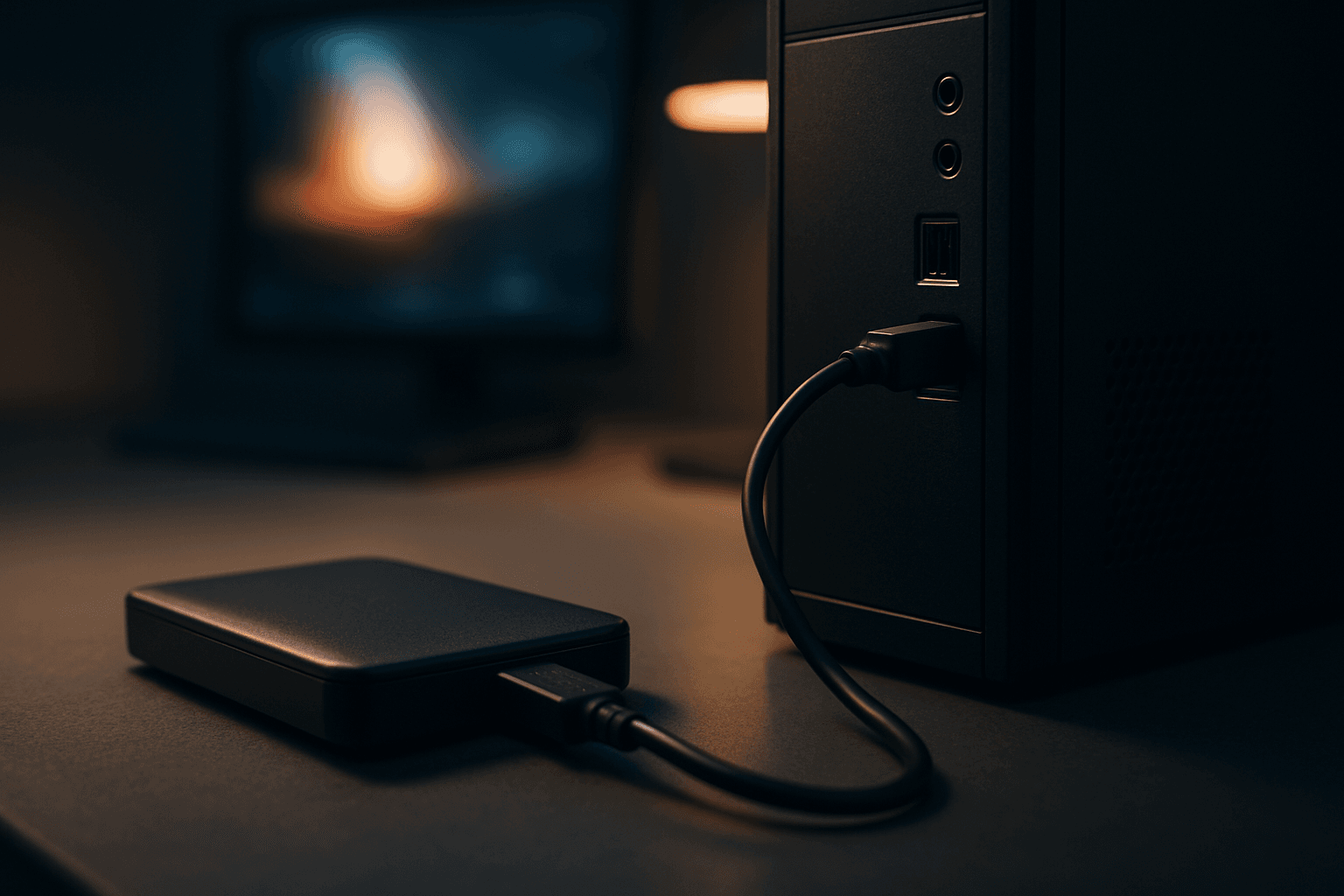
When your external HDD not detected Windows situation hits, the first instinct is panic. But here's the reality after 15 years of fixing these daily: the drive itself is fine in the majority of cases. What's broken is usually a cable, a power setting, a missing drive letter, or a driver that's gone a bit stale. This guide works through every layer, from the five-second cable swap to deep DiskPart surgery, so you can pinpoint the actual fault rather than guessing.
What Causes External HDD Not Detected Windows?
There are five distinct failure points and knowing which one you're dealing with saves a lot of wasted effort. The symptoms overlap, which is why people end up reformatting drives they didn't need to reformat, or replacing cables when the real problem was a driver.
USB connection and power problems are the most common starting point. A cable that looks fine can have a broken internal conductor. Front-panel USB ports on desktop cases are notoriously unreliable because they're wired through a header on the motherboard rather than directly to the USB controller. USB hubs, especially unpowered ones, frequently can't deliver the current a spinning hard drive needs, particularly 3.5-inch desktop drives that often draw 900mA or more. If the drive spins up briefly and then cuts out, power starvation is the likely cause.
Driver and USB controller issues sit one layer up. Windows 10 and 11 handle most USB drivers automatically, but after major updates the USB Mass Storage Device driver or the USB Root Hub driver can end up in a broken state. You'll see the drive appear briefly in Device Manager with a yellow warning triangle, or it won't appear at all despite the hardware being physically connected.
Missing drive letters and uninitialised disks are responsible for a huge chunk of the 'my drive isn't showing up' calls we get. The drive is actually detected by Windows, it just has no letter assigned so File Explorer has nowhere to display it. This happens most often after Windows updates, on drives that were last used on a different OS, or on brand-new drives that were never formatted. Open Disk Management and you'll usually see it sitting there labelled as Unallocated or Unknown.
File system corruption tends to follow an improper removal, a power cut mid-transfer, or a malware infection. The partition table or file allocation table gets damaged and Windows either refuses to mount the volume or mounts it as RAW. This is where dedicated data recovery software such as EaseUS becomes important before you attempt any repair, because running the wrong command on a corrupted volume can make the data unrecoverable. If you've ever had to recover deleted photos on Windows, the same principle applies here: read first, write later.
Physical hardware failure is the least common but the most serious. Clicking, grinding, or a drive that's completely silent when it should be spinning are the giveaways. SMART diagnostics from the manufacturer's own tool will usually confirm this. At that point the conversation shifts from fixing to recovering whatever data you can before the drive dies entirely.
External HDD Not Detected Windows: Quick Fix
Start here. These steps take under ten minutes and fix the problem the majority of the time.
Check Connections and Disk Management Easy
- Power first
If your drive has a separate power brick, confirm it's switched on and the cable is seated properly at both ends. Desktop external drives (3.5-inch) will not spin up without external power, full stop. No amount of software fixes will help if the drive isn't getting power. - Swap the USB port
Unplug the drive and reconnect it to a rear USB port directly on the motherboard. Avoid front-panel ports and USB hubs for this test. If you only have a laptop, try a different port on the opposite side of the chassis. - Try a different cable
USB cables fail more often than people expect. If you have a spare, swap it. Short cables (under 50cm) are more reliable than long ones for bus-powered drives. - Test on another PC
Plug the drive into a different computer. If it shows up fine there, the fault is with your original PC's ports, drivers, or power delivery. If it fails on both machines, the drive or cable is the problem. - Open Disk Management
Right-click Start and select 'Create and format hard disk partitions'. Look for your external drive in the lower pane. It may show as Disk 1 or Disk 2, labelled Unknown, Not Initialised, Unallocated, or with a volume but no letter. If you can see it here, the drive is detected and the fix is usually just assigning a letter (covered in the next solution box).
More External HDD Not Detected Windows Solutions
Assign a Missing Drive Letter Easy
- In Disk Management
Right-click the volume on the external drive (the coloured bar in the lower pane, not the disk label on the left) and choose 'Change Drive Letter and Paths'. Click Add, pick an unused letter from the dropdown (avoid A, B, and C), and click OK. The drive should appear in File Explorer within a few seconds. - Via DiskPart (if Disk Management doesn't cooperate)
Open Command Prompt as Administrator. Typediskpartand press Enter. Then run:list volume
Find your external drive in the list (match it by size). Note its volume number, then run:select volume 3(replace 3 with your actual number)assign letter=E(use any unused letter)
Close DiskPart and check File Explorer.
Disable USB Power Management Easy
- Turn off USB selective suspend
Open Control Panel, go to Power Options, and next to your active plan click 'Change plan settings', then 'Change advanced power settings'. Expand USB settings, expand USB selective suspend setting, and set it to Disabled for both On battery and Plugged in. Click Apply. - Disable power saving on USB Root Hubs
Open Device Manager (right-click Start). Expand Universal Serial Bus controllers. For every entry labelled USB Root Hub or USB Root Hub (USB 3.0), right-click, select Properties, go to the Power Management tab, and uncheck 'Allow the computer to turn off this device to save power'. Click OK. Do this for all of them, not just one. - Verify
Unplug and replug the drive. Leave it idle for five minutes and check it's still showing in File Explorer. This is the test that catches the 'it disconnects after a few minutes' variant of external HDD not detected Windows.
Update or Reinstall USB Drivers Medium
- Update drivers automatically
In Device Manager, expand Disk drives and right-click the external drive entry. Select 'Update driver' and choose 'Search automatically for drivers'. Do the same for any USB Mass Storage Device entries under Universal Serial Bus controllers. - Force a full USB controller reset
In Device Manager, right-click each USB Root Hub, Generic USB Hub, and USB Host Controller entry under Universal Serial Bus controllers and select 'Uninstall device'. Don't panic when USB devices briefly stop responding. Restart Windows. Windows will detect and reinstall all USB controllers fresh on boot. This took three reboots before it stuck on one particular Dell machine I worked on last month, so be patient if it doesn't resolve immediately. - Check Windows Update
Go to Settings, Windows Update, and run a full check. Driver updates for USB controllers sometimes ship through Windows Update rather than Device Manager, particularly on laptops from HP, Dell, and Lenovo.
Initialise Disk and Create Partition Medium
- Initialise the disk
In Disk Management, if the drive shows as Unknown or Not Initialised, right-click the disk label on the left (e.g. 'Disk 1') and select 'Initialise Disk'. Choose GPT for any modern PC running Windows 10 or 11. Choose MBR only if the drive will be used on a very old system that doesn't support GPT. - Create a new volume
After initialisation, the disk will show as Unallocated. Right-click the unallocated space and select 'New Simple Volume'. Follow the wizard. Assign a drive letter and format as NTFS for Windows-only use, or exFAT if you need Mac compatibility. Quick format is fine for a new or wiped drive. - Verify in File Explorer
The drive should now appear with its assigned letter. Copy a small test file to confirm read and write are working.
Run CHKDSK on the External Drive Medium
- Basic file system repair
Open Command Prompt as Administrator. Run:chkdsk /f E:(replace E: with your drive's actual letter). The /f flag fixes file system errors. This is the right starting point for a drive that mounts but behaves oddly, throws errors, or shows files as inaccessible. Microsoft's own CHKDSK documentation covers all the flags in detail if you want to go deeper. - Sector-level check (only if data is backed up)
Run:chkdsk /r E:The /r flag checks every sector and attempts to recover readable data from bad sectors. It's slower and puts more stress on the drive, so only run it once you've already copied off anything important. If Windows reports it cannot complete the check or cannot repair the drive, that's a strong signal the hardware is failing.
Advanced External HDD Not Detected Windows Fixes
These steps are for situations where everything above has failed, or where Disk Management shows the drive in a state that basic tools can't handle. Take your time here. Rushing DiskPart commands on the wrong disk number is how people wipe their main Windows drive by accident.
DiskPart Full Inspection and Clean Rebuild Advanced
- Identify the disk
Open Command Prompt as Administrator. Rundiskpart, thenlist disk. Match your external drive by its size in the output. Note the disk number carefully. Do not confuse it with Disk 0, which is almost always your main Windows drive. - Check volumes
Runlist volume. This shows all volumes across all disks. If your external drive has a volume but no letter, select it withselect volume Xand runassign letter=E. - Full wipe and rebuild (data destructive)
Only if the drive is empty or data has been recovered. Run:select disk 2(your external disk number)cleanconvert gptcreate partition primaryformat fs=ntfs quickassign letter=E
This is the equivalent of a factory reset for the drive. The Microsoft partition guide has additional context on GPT vs MBR choices if you're unsure. - Verify
Runlist volumeagain. The drive should now show with its assigned letter, file system as NTFS, and status as Healthy. Open File Explorer to confirm.
SMART Diagnostics and Hardware Assessment Advanced
- Download the manufacturer's tool
WD drives: use WD Dashboard. Seagate drives: use SeaTools. Toshiba drives: use Toshiba Storage Diagnostic Tool. These tools read SMART data directly from the drive firmware and run extended surface tests that go beyond what CHKDSK can do. - Read the SMART report
Look specifically at Reallocated Sector Count, Pending Sector Count, and Uncorrectable Sector Count. Any non-zero value in those three attributes means the drive has physical damage. A drive with reallocated sectors is not necessarily dead immediately, but it's telling you it's on the way out. Back up everything now. - BIOS USB mode (edge case)
On older PCs with older external enclosures, the XHCI (USB 3.0 controller) mode in BIOS can cause compatibility problems. Restart, enter BIOS/UEFI, and look for USB configuration options. Switching between XHCI and legacy USB modes occasionally fixes drives that are detected on one machine but not another. Consult your motherboard manual for the exact setting name.
For context on how USB detection issues compare to other peripheral problems on Windows, the same USB controller faults that cause external HDD not detected Windows can also show up as headphones not working on Windows, since both rely on the same USB subsystem. And if you're dealing with a broader set of Windows display or system glitches alongside this, it's worth checking whether a recent update has caused wider instability, as covered in our guide to Windows 12 background not displaying. Also, if you've had to do a clean reinstall or profile reset as part of troubleshooting, our guide to recovering desktop shortcuts on Windows might save you some time putting things back together.
For a more focused look at the specific scenario where the drive simply doesn't appear anywhere in Windows, our dedicated article on external HDD not showing Windows covers some additional edge cases around enclosure firmware and USB bridge chip compatibility that go beyond what we've covered here.
HowToGeek's guide to finding missing hard drives in Disk Management is also worth a read for additional context on the Disk Management interface if you're new to it.
Preventing External HDD Not Detected Windows
Most of the cases we see are preventable. The single most important habit is using 'Safely Remove Hardware' before unplugging. It sounds obvious, but pulling a drive mid-write even briefly is enough to corrupt the file allocation table. Right-click the USB icon in the system tray and eject the drive properly every time. It takes three seconds.
Cable quality matters more than people realise. A cheap, long USB cable introduces resistance and voltage drop that can cause intermittent disconnects, especially on bus-powered 2.5-inch drives. Keep cables short (under 50cm ideally), use the cable that came with the drive or a quality replacement, and connect to rear motherboard ports rather than front-panel ones. Front-panel ports on desktop cases are connected via a header cable that adds another potential failure point.
For 3.5-inch desktop drives, always use the proper power adapter. Never run them from a USB hub without external power. The USB spec allows 500mA on USB 2.0 and 900mA on USB 3.0, but some 3.5-inch drives need more than that under load. The drive will spin up, appear briefly, and then disconnect if it's not getting enough current.
Check drive health periodically using your manufacturer's diagnostic tool. Running a SMART check every few months takes about two minutes and gives you early warning before a drive fails completely. A drive showing early reallocated sectors is still usable, but it's telling you to buy a replacement and copy everything across before it gets worse. Combine that with a proper backup strategy: one copy on the external drive, one copy somewhere else (another drive, or cloud storage). External HDDs are not fail-proof storage, they're one component in a backup plan.
External HDD Not Detected Windows: Summary
External HDD not detected Windows breaks down into a clear diagnostic sequence. Start with the physical layer: power, cable, port. Then check Disk Management before assuming the drive is dead. Assign a letter if it's there but invisible, disable USB power management if it keeps disconnecting, and update or reinstall USB drivers if it won't enumerate properly. CHKDSK handles most file system corruption. DiskPart handles partition table problems when Disk Management can't. SMART diagnostics tell you whether you're dealing with a software problem or a dying drive. Work through those layers in order and you'll either fix the external HDD not detected Windows problem or know exactly why the drive needs replacing.