
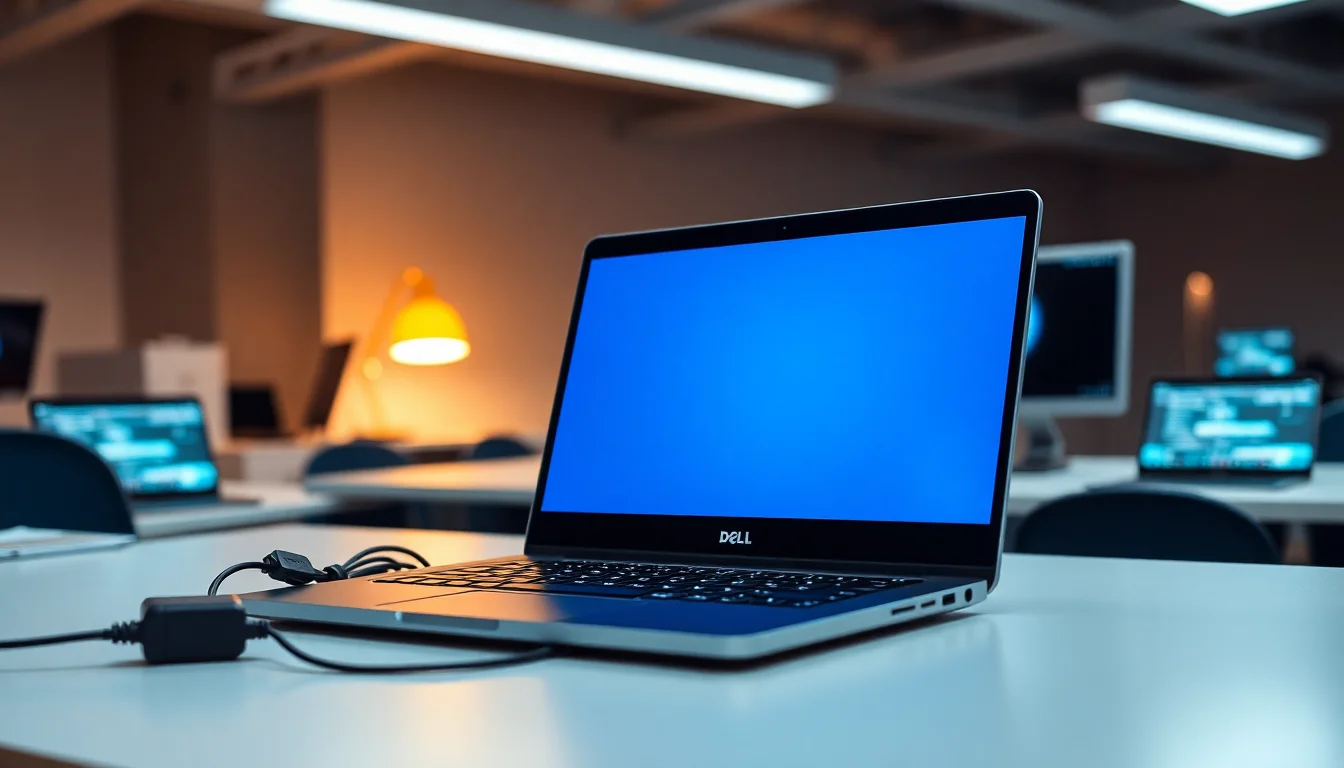
Your Dell Chromebook 11 3120 is stuck on a blank blue screen and won't respond to anything. No boot logo, no boot menu, nothing. You've tried the power button a few times and got nowhere. This guide cuts through the guesswork and gets you back to a working device in three systematic approaches, starting with the simplest and moving to hardware diagnostics if needed.
What causes Dell Chromebook 11 3120 blank screen?
A blank blue screen on your Dell Chromebook 11 3120 falls into one of five buckets, and knowing which one you're dealing with speeds up the fix considerably.
First and most common: the embedded controller gets stuck in a weird power state. This happens when the Chromebook crashes during shutdown, loses power suddenly, or gets left on a charging dock with degraded firmware. The system powers up to some degree but can't complete the boot sequence, leaving you staring at an empty blue void. These cases almost always respond to a hard reset.
Second, ChromeOS system files get corrupted. Bad sectors on the internal storage, interrupted updates, or filesystem corruption from unexpected power loss all cause this. The hardware is fine but the OS won't load. Recovery mode reinstallation fixes it.
Third, the internal storage itself starts failing. The eMMC chip (soldered storage on the Chromebook 11 3120) has a finite lifespan, and once it begins to degrade, the system can't reliably read the boot files. Diagnostics reveal this, but fixing it requires component-level repair.
Fourth, power delivery is broken. A dead battery, a faulty AC adapter, or a bad charging connector means the system powers on briefly but can't sustain operation. The blank screen appears because the boot process is interrupted mid-way through.
Fifth, external devices are blocking the boot sequence. A USB drive left in the port, a docking station interference, or an SD card can confuse the Chromebook's boot process and prevent normal startup.
The good news: you don't need to figure out which one it is. Just work through the fixes in order. Most blank screen cases resolve in under 15 minutes.
Dell Chromebook 11 3120 blank screen quick fix
Hard Reset with Refresh + Power Easy
- Disconnect everything
Pull out any USB drives, SD cards, external hard drives, and docking stations. Leave only the AC charger plugged in. - Wait for stable power
Let the Chromebook sit powered off with the AC charger connected for 2-3 minutes. This allows the embedded controller to fully discharge and stabilize. - Perform the hard reset
Hold down the Refresh key (the circular arrow key above the 3 and 4 keys). While holding Refresh, press the Power button once. Do not hold Power, just press it. Hold Refresh for another 5 seconds after pressing Power, then release. - Watch for signs of life
The screen may flicker, show a brief white flash, or display a blue loading indicator. These are good signs. Give it 30 seconds before testing again. - Retry if blank persists
If the screen is still blank after 30 seconds, try a deeper reset. Hold the Power button for approximately 10 seconds until the Chromebook shuts down completely. Wait 10 seconds, then repeat the Refresh + Power sequence again.
Success rate on this step alone is around 60% for Dell Chromebook 11 3120 blank screen cases. The hard reset clears the stuck power state and lets the firmware initialize properly. If you're back at a sign-in screen, you're done. If the screen remains blank, move to the next solution.
Recover using ChromeOS recovery mode
Enter Recovery Mode and Reinstall ChromeOS Medium
- Power off the Chromebook completely
Hold the Power button for 10 seconds until all signs of power disappear. Do not use sleep mode, shut it down fully. - Press ESC + Refresh + Power simultaneously
Press and hold the ESC key and the Refresh key at the same time. While holding both, press the Power button. This is a three-key combination. Do not release ESC and Refresh until you see something on screen. - Watch for recovery mode
After 5-10 seconds, the screen should display a recovery screen with white text on a dark background. It will say something like 'Chrome OS is missing or damaged' and ask if you want to recover your device. If you see this, recovery mode worked. - Choose your recovery method
If you have an internet connection available, select to recover using internet. The Chromebook will download a fresh ChromeOS image and reinstall it. This takes 15-25 minutes depending on your connection speed. If you don't have internet access or internet recovery fails, you'll need a USB recovery drive (see step 5). - Create USB recovery media if needed
On another working computer (PC or Mac), visit Google's Chromebook Recovery Utility page, download the recovery utility, and follow the prompts. You'll select your model (Dell Chromebook 11 3120), choose a USB drive, and let it create recovery media. The process takes 5-10 minutes. When done, insert the USB drive into your broken Chromebook and retry the recovery mode sequence. - Allow recovery to complete fully
Once the recovery process begins, you'll see a progress bar. Do not interrupt this. Do not unplug the AC charger, remove the USB drive, or close the screen. Let it run to completion even if it seems to stall for a minute or two. Interrupting recovery can leave the Chromebook completely unbootable.
Recovery mode bypasses the corrupted OS entirely and writes a fresh copy of ChromeOS to the internal storage. This solves the problem if the system files were damaged but the hardware is sound. Expect the full process to take 25-35 minutes including setup.
If recovery fails partway through, try it again. But if recovery fails multiple times or produces error codes, internal storage failure is likely. Move to the advanced diagnostics step.
Advanced diagnostics for persistent Dell Chromebook 11 3120 blank screen
Hardware Diagnosis and Storage Testing Hard
- Use a known-good charger and fully charged battery
Borrow a charger from another Dell Chromebook if possible, or use a multi-device USB-C charger rated for your Chromebook's power requirements (typically 30-45W). A weak or damaged charger can cause boot failures. Connect the known-good charger and allow the battery to charge for 30 minutes before attempting anything else. - Attempt recovery again with fresh hardware
Try the recovery mode process a second time (ESC + Refresh + Power). If a different charger lets recovery progress further than before, the original charger is likely faulty. If recovery still fails at the same point, storage failure is more probable. - Access Dell diagnostics if recovery offers the option
Some Chromebooks display diagnostic options during recovery mode startup. Look for a 'Diagnostics' or 'Hardware Check' option on the recovery screen. If available, run it. The diagnostic will test RAM, storage, and other components and report which one is failing. - Interpret repeated recovery failures
If recovery fails two or more times at any point in the process (not during download, but during the actual write to storage), the internal eMMC storage is almost certainly failing. This is not a software problem that recovery can fix. - Consider professional repair if diagnostics confirm hardware failure
If testing shows storage failure, component-level repair is required. The eMMC chip cannot be recovered without hardware expertise. Contact Dell support or a qualified repair centre. Attempting to disassemble the Chromebook yourself risks additional damage.
This step is for cases where the simple fixes don't work. You're now testing whether the problem is truly software (fixable via recovery) or hardware (requiring professional repair). Repeated recovery failures consistently point to internal storage degradation. The eMMC chips used in the Chromebook 11 3120 have a rated lifespan, and once they start showing errors, software recovery cannot restore them.
If you've reached this point, document the error codes you see during recovery attempts. Write down any text displayed on the screen. These details help a repair technician diagnose the exact failure mode.
Preventing Dell Chromebook 11 3120 blank screen in future
Most blank screen cases are preventable with basic discipline around power and updates.
Use clean shutdowns only. Press the power button and select 'Shut down' from the menu. Do not force-power-off the Chromebook even if it seems frozen. If the system is truly stuck, wait 60 seconds then hold Power for 10 seconds. This is better than a forced shutdown.
Keep ChromeOS updated. When you see the 'System update required' notification, apply it immediately. Updates include boot stability fixes and security patches. Delaying updates increases the risk of filesystem corruption during unexpected shutdown.
Avoid unknown USB peripherals during startup. If your Chromebook has previously struggled with boot problems, don't plug in USB drives, external hard drives, or docking stations until it has fully booted and shown the sign-in screen. Unknown devices can confuse the boot sequence.
Verify the AC charger regularly. Every month or two, confirm that the charger is delivering power properly. The charging indicator LED should illuminate when plugged in. If it doesn't, switch to another charger immediately. A failing charger causes intermittent power loss, which corrupts the filesystem.
Create recovery media before you need it. On another computer, download the Chromebook Recovery Utility and create a USB recovery drive for your Dell Chromebook 11 3120 now. Store it somewhere safe. If your Chromebook fails and you don't have recovery media, you're stuck waiting for another computer or paying for repair, so it's also worth keeping your important files backed up with a tool like EaseUS in case the internal storage fails entirely.
Monitor for repeated recovery failures. If recovery fails once, it might be a fluke. If it fails twice in a row, the internal storage is likely degrading. Don't keep trying endlessly. Get the device to a repair technician before it stops responding entirely.
Dell Chromebook 11 3120 blank screen summary
A blank blue screen on your Dell Chromebook 11 3120 is rarely a dead device. Most cases respond to a hard reset (Refresh + Power) in under five minutes. If that doesn't work, recovery mode reinstalls the operating system in 25-35 minutes. Only repeated recovery failures point to hardware damage requiring professional repair.
Start simple, work methodically, and don't skip the hard reset step. You'll have your Chromebook working again or will have a clear diagnosis of what's actually broken.