
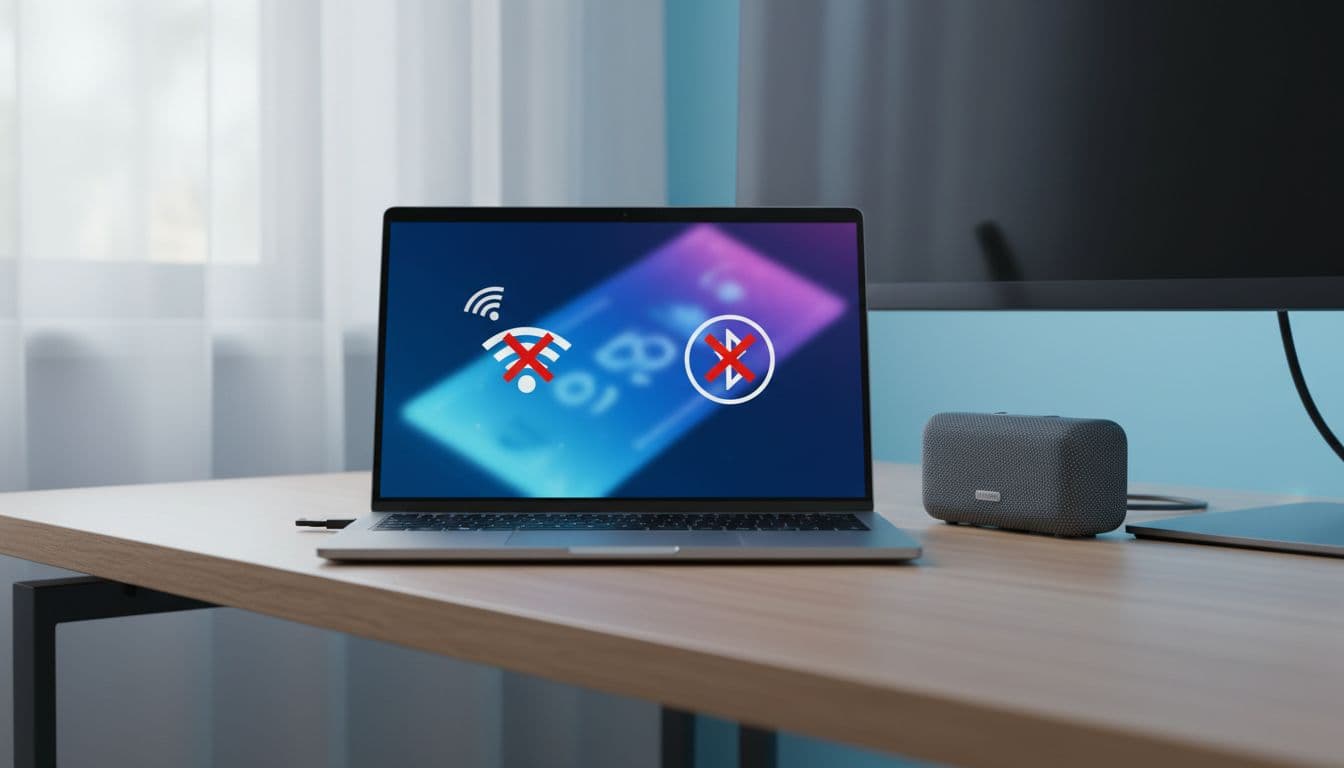
Bluetooth Wi-Fi dropping the moment you connect a speaker is one of those problems that shows up constantly in support queues right now. It's not random. There are a handful of specific causes and most of them are fixable in under 30 minutes without touching any hardware.
What Causes Bluetooth Wi-Fi Dropping?
The short answer is that your PC's Bluetooth and Wi-Fi almost certainly share a single combo chip. That's normal on laptops and on most desktop wireless cards. The problem is that Windows doesn't always manage the two radios well when they're both active at the same time, and a few things can push it over the edge into the drop-everything behaviour you're seeing.
The most common culprit, by a wide margin, is Windows power management. The operating system is allowed to cut power to the Bluetooth adapter when it thinks it's idle or when Battery Saver kicks in. On a combo chip, killing Bluetooth can destabilise the Wi-Fi side too, because they share the same underlying hardware. Microsoft's own Bluetooth troubleshooting documentation calls this out explicitly. You'll see the Bluetooth icon disappear from the taskbar, and the Wi-Fi drops within a few seconds.
Second is 2.4 GHz interference. Bluetooth audio runs on 2.4 GHz. So does your Wi-Fi if you're on a standard 2.4 GHz network. The two radios have to share that spectrum, and on a busy combo chip during active audio streaming, they can collide. HowToGeek has a solid explainer on exactly why this happens, but the practical result is that your Wi-Fi slows to a crawl or drops entirely while music is playing. Moving to 5 GHz sidesteps this completely.
Third is driver quality. Combo adapter drivers handle the coexistence logic between Bluetooth and Wi-Fi in software. An outdated or buggy driver can get this wrong, especially after a Windows feature update that changes how the Bluetooth stack works. Microsoft's Bluetooth driver FAQ for hardware developers explains how tightly coupled the two stacks are at the firmware level. Generic Windows Update drivers often lag behind the OEM releases by months.
And then there's the Bluetooth Support Service. It can get into a stuck state, particularly after sleep or hibernate cycles. When it's not running cleanly, the Bluetooth stack becomes unreliable and can drag Wi-Fi down with it on shared hardware. Finally, a corrupted pairing profile for the speaker itself can cause repeated reconnection attempts that hammer the adapter until both radios give up. Stale profiles are more common than people expect, especially after a Windows update.
Bluetooth Wi-Fi Dropping: Quick Fixes
Start here. These take 5 to 10 minutes and fix the problem for a good chunk of people without needing to touch Device Manager or drivers at all.
Disable Battery Saver and Re-Pair the Speaker Easy
- Turn off Battery Saver
Go to Settings, then System, then Power and battery. Set Battery Saver to Off. If you're on an older Windows 10 build, it may be listed as Energy Saver. Disable it entirely for now, not just raise the threshold. - Remove the speaker pairing
Go to Settings, then Bluetooth and devices. Find your speaker in the list, click the three-dot menu next to it, and choose Remove device. Confirm. - Re-pair the speaker
Put the speaker into pairing mode (check its manual if unsure, usually hold the Bluetooth button for 3 to 5 seconds). Back in Windows, click Add device, choose Bluetooth, and let it find the speaker. Pair it fresh. - Test immediately
Play audio through the speaker for 5 to 10 minutes and watch your Wi-Fi. If both stay stable, a stale pairing profile or Battery Saver was the cause. Done.
Restart the Bluetooth Support Service Easy
- Open Services
Press Win + R, typeservices.msc, and press Enter. - Find and restart Bluetooth Support Service
Scroll down to Bluetooth Support Service. Right-click it and choose Restart. If it shows as Stopped, right-click and choose Start instead. Wait for the status to return to Running. - Check startup type
Double-click the service. Make sure Startup type is set to Automatic. If it's Manual or Disabled, change it to Automatic and click OK. - Reconnect the speaker and test
Reconnect your Bluetooth speaker and monitor for drops.
Switch Wi-Fi to 5 GHz Easy
- Check if your router broadcasts a 5 GHz network
Most modern routers do. It's usually labelled with a '5G' suffix in the network name, or your router may have a combined name with band steering. Log into your router admin page (usually 192.168.1.1 or 192.168.0.1) to check. - Connect to the 5 GHz network
In Windows, click the Wi-Fi icon in the taskbar, find the 5 GHz network, and connect. If both bands have the same name, you may need to rename them in the router settings to force the choice. - Test with Bluetooth audio running
Play audio through the speaker for 10 minutes. If Wi-Fi stays solid on 5 GHz but was dropping on 2.4 GHz, that confirms band interference as the cause.
More Bluetooth Wi-Fi Dropping Solutions
If the quick fixes didn't hold, the problem is almost certainly sitting in Device Manager. These steps take 15 to 30 minutes and fix the majority of remaining cases.
Disable Bluetooth Adapter Power Saving Medium
- Open Device Manager
Right-click the Start button and choose Device Manager. Expand the Bluetooth section. - Open adapter properties
Right-click your Bluetooth adapter (it'll usually be named something like Intel Wireless Bluetooth or Realtek Bluetooth Adapter). Choose Properties. - Disable power saving
Go to the Power Management tab. Untick the box labelled 'Allow the computer to turn off this device to save power'. Click OK. - Do the same for the Wi-Fi adapter
Still in Device Manager, expand Network adapters. Find your Wi-Fi adapter (often the same Intel or Realtek card but listed separately). Right-click, Properties, Power Management, and untick the same box. - Reboot and test
Reboot the PC fully. Connect the speaker and run audio for 10 minutes. Watch both connections.
Update the Bluetooth Driver Medium
- Try Windows Update first
In Device Manager, right-click the Bluetooth adapter and choose Update driver, then Search automatically for drivers. Let it run. If it finds something, install it and reboot. - Check the OEM site
This is the important bit. If you have an Intel wireless combo card (very common on laptops), go to the Intel Driver and Support Assistant page or search 'Intel Wireless Bluetooth driver' on Intel's site. For Realtek, check the laptop manufacturer's support page (Dell, HP, Lenovo, Asus, etc.) and download their wireless package. These OEM packages include coexistence firmware that generic Windows Update drivers often don't. - Install and reboot
Run the installer. Reboot when prompted. Some driver changes need a second reboot before they stick, so if the problem returns after the first restart, reboot once more before concluding it hasn't worked. - Verify the driver version
Back in Device Manager, right-click the Bluetooth adapter, choose Properties, then the Driver tab. Check the Driver Date and Driver Version. It should now reflect a recent date from the OEM package you installed.
msinfo32, go to Components, then Network, and look for the Bluetooth or wireless adapter name. That tells you exactly what to search for on the vendor site.If you're also dealing with general wireless instability beyond just the Bluetooth conflict, our guide to Wi-Fi keeps dropping on Windows covers adapter-level fixes in more depth. And if you're seeing the speaker disconnect repeatedly even when Wi-Fi is stable, the Bluetooth speaker disconnecting guide has pairing and profile-specific steps worth working through.
Advanced Bluetooth Wi-Fi Dropping Fixes
These are for cases where the intermediate steps haven't held. A clean driver reinstall is the most reliable fix for deep driver corruption or coexistence bugs. It takes 30 minutes but has the highest success rate of anything on this list.
Clean Bluetooth Driver Reinstall Advanced
- Download the OEM package first
Before you uninstall anything, download the latest full wireless package from your adapter vendor's site (Intel, Realtek, Qualcomm, etc.) or your laptop manufacturer's support page. Save it to your desktop. You'll need it offline after the uninstall. - Uninstall the Bluetooth adapter
In Device Manager, right-click the Bluetooth adapter and choose Uninstall device. When prompted, tick the box that says 'Attempt to remove the driver for this device' (the exact wording varies slightly by Windows version). Click Uninstall. - Also uninstall the Wi-Fi adapter
On combo chips, do the same for the Wi-Fi adapter under Network adapters. This clears the shared driver package completely. - Reboot
Reboot the PC. Windows will reinstall generic drivers automatically. Don't use these. They're placeholders. - Install the OEM package
Run the installer you downloaded in step 1. This installs the full vendor driver including coexistence firmware. Follow the prompts and reboot when asked. - Restart Bluetooth Support Service
After the reboot, openservices.mscagain and confirm Bluetooth Support Service is running. If it's stopped, start it manually and set startup type to Automatic. - Re-pair the speaker and test
Go to Settings, Bluetooth and devices, remove the speaker if it's still listed, and pair it fresh. Run audio for 15 minutes and monitor both connections. This is the most thorough fix for Bluetooth Wi-Fi dropping caused by driver-level coexistence bugs.
Preventing Bluetooth Wi-Fi Dropping
Most of these are set-and-forget. Do them once and you're unlikely to see this problem again.
1. Keep OEM drivers current. Not Windows Update drivers. The actual vendor package from Intel, Realtek, Qualcomm, or your laptop manufacturer. Check every few months or after a major Windows feature update. Windows updates can silently roll back OEM drivers to generic ones, which is a common trigger for Bluetooth Wi-Fi dropping to return after you've already fixed it.
2. Stay on 5 GHz Wi-Fi. If your router supports it, there's no reason to use 2.4 GHz as your primary band on a device that's also running Bluetooth audio. 5 GHz has more bandwidth, less congestion, and zero overlap with Bluetooth's spectrum. Set it and forget it.
3. Leave adapter power saving off. Once you've disabled it in Device Manager, Windows won't re-enable it automatically. But a driver update can reset the setting, so check it again after any wireless driver update.
4. Re-pair after major updates. After a Windows feature update or a big driver change, remove the speaker from Bluetooth devices and pair it again. Takes 30 seconds and prevents stale profile issues before they start causing Bluetooth Wi-Fi dropping again.
5. Avoid Battery Saver during audio sessions. If you're on a laptop and need to conserve battery, plug in rather than running Battery Saver while streaming Bluetooth audio. The two don't mix well on combo hardware.
Bluetooth Wi-Fi Dropping: Summary
Bluetooth Wi-Fi dropping after connecting a speaker is almost always a software problem, not a hardware one. Power management cuts the adapter, the 2.4 GHz band gets congested, a stale pairing profile hammers the connection, or an outdated combo driver handles coexistence badly. Work through the solutions in order: disable Battery Saver and re-pair first, then fix adapter power saving in Device Manager, then update or cleanly reinstall the full OEM wireless package. Switching Wi-Fi to 5 GHz is the fastest single fix if your router supports it. For most people, one or two of these steps is enough to stop Bluetooth Wi-Fi dropping for good.