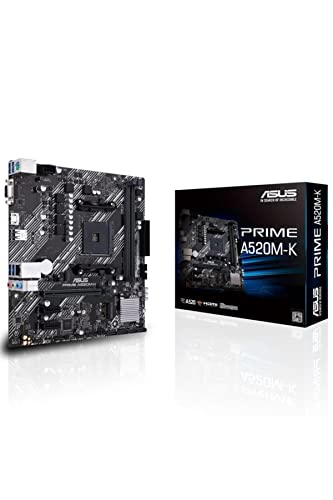
Asustek computer PRIME A520M-K
The full review
17 min readMost people never think about their motherboard until something goes wrong. And when it does go wrong, it takes everything else with it: your CPU, your RAM, your storage, sometimes your sanity. So picking the right board for a budget build isn't just about saving a few quid. It's about not having to rebuild the whole thing six months later because you cut corners on the one component that everything else plugs into.
The ASUS PRIME A520M-K sits at the very bottom of ASUS's AM4 lineup. It's a Micro-ATX board built around AMD's A520 chipset, aimed squarely at people putting together a first PC, a home office machine, or a basic gaming rig on a tight budget. I've been testing it for about a month now, paired with a Ryzen 5 5600G, and I want to give you a straight answer on whether it's actually worth your money or whether you should stretch a bit further.
This is an ASUS PRIME A520M-K review UK 2026 written after real-world use, not a spec sheet regurgitation. If you want to know what it's actually like to build with, live with, and potentially regret, read on.
Core Specifications
Before we get into the nuance, here's what you're actually getting. The A520M-K is a Micro-ATX board on the AM4 socket, which means it supports AMD's Ryzen 3000, 4000, 5000, and select 4000G/5000G APU series. The A520 chipset is AMD's entry-level offering from that generation, sitting below B550 and well below X570. That hierarchy matters, and I'll come back to it.
You get two DDR4 DIMM slots supporting up to 64GB of RAM, a single PCIe 3.0 x16 slot for your GPU, one M.2 slot (PCIe 3.0 x4 or SATA), and four SATA ports. The rear I/O is minimal but functional: four USB 2.0 ports, two USB 3.2 Gen 1 Type-A ports, a single VGA output, an HDMI 1.4 port, a Realtek Gigabit Ethernet port, and a three-jack audio stack. No USB-C on the rear. No Wi-Fi. No RGB headers worth getting excited about.
The board measures 244mm x 244mm in the standard Micro-ATX footprint, which means it'll fit in most mid-tower and all Micro-ATX cases without issue. Power delivery comes via a 24-pin ATX connector and a single 8-pin CPU power connector. There's a four-pin CPU fan header and a four-pin chassis fan header. That's it for fan control. Sparse, but at this price point, expected.
Socket & CPU Compatibility
The AM4 socket has been AMD's platform since 2016, and it's one of the best things AMD ever did for consumers. The sheer number of CPUs that fit this socket is remarkable. The A520M-K officially supports Ryzen 3000 series (Matisse), Ryzen 4000G and 5000G APUs, and the Ryzen 5000 series (Vermeer). That means you can drop in a Ryzen 5 5600, a Ryzen 7 5700X, or even a Ryzen 9 5900X if you're feeling ambitious, though I'd question why you'd pair a 5900X with an A520 board. More on that shortly.
One thing worth knowing: if you're buying this board new in 2026 and pairing it with a Ryzen 5000 CPU, you may need a BIOS update before the system will POST. ASUS has been reasonably good about shipping boards with updated firmware, but it's not guaranteed. If you don't have an older Ryzen CPU to do the update with, you'll need to check whether the board ships with a BIOS version that already supports your chip. ASUS's website lists the supported BIOS versions for each CPU, so check that before you buy if you're going straight in with a 5000 series processor.
What you won't get is support for Ryzen 7000 series. That's AM5 territory, a completely different socket and platform. The A520M-K is end-of-the-road for AM4, which is fine if you're building now and planning to use it for three to five years, but it does mean there's no upgrade path beyond what AM4 already offers. For a budget build, that's an acceptable trade-off. Just go in with eyes open.
Chipset Features
The A520 chipset is AMD's stripped-back entry-level option, and it shows. Compared to B550, you lose PCIe 4.0 support entirely. The CPU still has its own PCIe 4.0 lanes, but the chipset itself only provides PCIe 3.0 connectivity. In practice, this means your GPU slot runs at PCIe 3.0 x16 (which is still fine for any current GPU), and your M.2 slot tops out at PCIe 3.0 x4. If you're buying a PCIe 4.0 NVMe drive, it'll work, but it'll be bottlenecked to Gen 3 speeds. Not a disaster, but worth knowing.
Overclocking support is limited. The A520 chipset does not support CPU overclocking. You can't push a Ryzen 5 5600 beyond its stock boost clocks on this board. Memory overclocking via EXPO or manual XMP profiles is technically supported, but the A520's memory controller implementation is less flexible than B550. I managed to get a 3200MHz kit running at its rated speed without issue, but I wouldn't expect miracles if you're trying to push 3600MHz or beyond.
USB connectivity from the chipset is limited to USB 3.2 Gen 1 (5Gbps) and USB 2.0. There's no USB 3.2 Gen 2 (10Gbps) anywhere on this board, front or rear. For most home office and basic gaming use cases, that's fine. But if you're regularly transferring large files to external drives or using high-bandwidth USB peripherals, it's a genuine limitation. The chipset also provides four SATA 6Gbps ports, which is adequate for most builds. RAID 0, 1, and 10 are supported, though I'd be cautious about relying on RAID on a budget board.
VRM & Power Delivery
Right. This is where budget boards either earn their keep or quietly fail you over time. The A520M-K uses a 4+3 phase power delivery setup. Four phases for the CPU, three for the SoC. The MOSFETs are not named components, which is typical at this price, and there's a small heatsink covering the CPU VRM area. It's not a big heatsink. It's not a particularly heavy one either. But for the CPUs this board is realistically paired with, it does the job.
I ran a Ryzen 5 5600G through Cinebench R23 multi-core loops and Prime95 small FFTs for extended periods during my testing. VRM temperatures stayed under 75°C with the case side panel on and reasonable airflow. That's acceptable. I wouldn't pair this board with a Ryzen 9 5900X or a 5950X and expect it to hold up under sustained all-core loads. The VRM simply isn't built for that kind of sustained power draw. But with a 65W TDP Ryzen 5 or Ryzen 7 chip, it's fine. Genuinely fine, not just marketing fine.
Where I do get a bit twitchy is the lack of any VRM temperature monitoring in the BIOS or software. ASUS's AI Suite doesn't report VRM temps on this board, which means you're flying blind if you're pushing it harder than intended. It's not a dealbreaker for the target audience, but it's the kind of thing that reminds you this is a cost-reduced product. The single 8-pin CPU power connector is appropriate for the board's power delivery capability. Don't try to run a 105W TDP chip on this and then wonder why it throttles.
Memory Support
Two DDR4 slots, maximum 64GB (2x 32GB), and official support up to 4400MHz with overclocking. In practice, the A520 platform is a bit fussier about memory than B550. I tested with a 2x8GB Corsair Vengeance 3200MHz CL16 kit and it ran at rated speed without any manual intervention. XMP loaded first time in the BIOS. No complaints there.
The two-slot configuration is worth thinking about. If you start with 2x8GB and want to upgrade to 32GB later, you'll need to replace both sticks rather than just adding two more. That's a minor annoyance but it's the trade-off with Micro-ATX boards at this price. Four-slot boards at this price point tend to use cheaper PCB routing anyway, so it's not necessarily a worse outcome, just a different one.
Single-channel operation is possible if you only install one stick, but you'll take a noticeable performance hit, especially with APUs like the 5600G that share memory bandwidth with the integrated graphics. If you're using an APU, always run dual-channel. It makes a meaningful difference to iGPU performance, sometimes 20-30% in graphics-heavy tasks. ASUS's memory QVL list for this board is reasonably comprehensive, and I didn't encounter any compatibility issues during testing, though I only tested with two kits.
Storage Options
One M.2 slot and four SATA ports. That's the storage story. The M.2 slot sits just below the PCIe x16 slot and supports both PCIe 3.0 x4 NVMe and SATA M.2 drives. It accepts 2242, 2260, and 2280 form factors. There's no heatsink for the M.2 slot, which is a minor annoyance if you're installing a drive that runs warm, but at PCIe 3.0 speeds, most drives won't thermal throttle without one.
The four SATA ports are positioned at the right edge of the board in a horizontal orientation, which can be a bit awkward depending on your case layout. They're all SATA 6Gbps and work without issue. I had a 2.5-inch SSD and a 3.5-inch HDD connected simultaneously with no problems. RAID 0, 1, and 10 are supported via the AMD RAID utility, though as I said earlier, I wouldn't rely on software RAID on a budget platform for anything critical.
The bigger limitation is that there's only one M.2 slot. If you want two NVMe drives, you're out of luck unless you use a PCIe adapter card in the x1 slot, which is a bit of a faff. For most people building a basic system, one M.2 for the OS and applications plus SATA for bulk storage is perfectly workable. But it's worth knowing the ceiling before you commit.
Expansion Slots & PCIe
The expansion slot situation is minimal. You get one PCIe 3.0 x16 slot and one PCIe 3.0 x1 slot. That's it. The x16 slot has metal reinforcement, which ASUS calls SafeSlot. It's a proper steel-reinforced slot that prevents the GPU from flexing and damaging the PCB. On a budget board, that's a nice touch and one I genuinely appreciate. Heavy GPUs can cause real damage to unreinforced slots over time, especially in systems that get moved around.
The x16 slot runs at full x16 bandwidth from the CPU's PCIe lanes, so there's no bandwidth sharing or lane splitting to worry about for your GPU. That's straightforward and correct. The single x1 slot is useful for adding a Wi-Fi card, a USB expansion card, or a PCIe-to-M.2 adapter if you need more storage. It's PCIe 3.0, which is fine for those use cases.
What you don't get is any multi-GPU support, but that's been irrelevant for years. You also don't get a second x16 slot for a capture card or similar. If you're building a streaming or content creation rig that needs multiple PCIe cards, this board will feel limiting quickly. For a straightforward gaming or office build with one GPU, it's perfectly adequate. The slot spacing means a dual-slot GPU won't block the x1 slot, which is a small but practical detail that not all Micro-ATX boards get right.
Connectivity & Rear I/O
The rear I/O panel is functional but sparse. You get four USB 2.0 ports (two stacked pairs), two USB 3.2 Gen 1 Type-A ports, a PS/2 combo port (yes, really), VGA, HDMI 1.4, Gigabit Ethernet, and a three-jack audio stack. There's no USB Type-C on the rear. No optical audio output. No Clear-CMOS button, which is mildly annoying if you ever need to reset the BIOS without digging into the board.
The HDMI 1.4 output is worth flagging. If you're using an APU and want to connect to a 4K monitor, HDMI 1.4 caps out at 4K/30Hz. That's fine for desktop use but not ideal if you want smooth 4K video playback or gaming. For 1080p or 1440p displays, it's not an issue. The VGA output is there for legacy monitors, which is more useful than it sounds in a school or office environment where older displays are still in service.
Internal headers are limited but cover the basics: one USB 3.2 Gen 1 header (for front-panel USB 3.0), two USB 2.0 headers, one CPU fan header, one chassis fan header, and the standard front-panel connectors. There's a single ARGB header and a four-pin RGB header, which is a bit surprising for a board at this price. Not that I'd go mad with RGB on a budget build, but it's there if you want it. The front-panel audio header is present for case audio connectivity.
WiFi & Networking
There's no Wi-Fi on this board. Full stop. The Realtek 8111H Gigabit Ethernet controller handles all your networking, and it does so reliably. I had it connected to a gigabit switch for the entire testing period and never saw a dropped connection or any instability. The Realtek 8111H is one of the most common budget Ethernet controllers around, and it works fine for everyday use.
If you need Wi-Fi, you'll need to add a PCIe Wi-Fi card or a USB Wi-Fi adapter. A decent PCIe Wi-Fi 6 card will set you back a bit extra, which is worth factoring into your total build cost. It's not a dealbreaker, but it does mean the A520M-K isn't a great fit for builds where the PC will be far from the router and you don't want to run a cable. Most desktop builds are wired anyway, so for the target audience, this is probably fine.
The Gigabit Ethernet is adequate for most home broadband connections. If you're on a multi-gigabit connection (lucky you), you'll be bottlenecked at 1Gbps, but that's an edge case for the budget build market this board targets. The Realtek driver situation on Windows 11 is generally fine, though I'd recommend grabbing the latest driver from Realtek's site rather than relying on Windows Update, which sometimes installs an older version.
BIOS & Overclocking
ASUS's UEFI BIOS is, in my experience, one of the better implementations in the budget space. That's not a high bar, but ASUS clears it. The EZ Mode interface gives you a clean overview of your system, fan speeds, temperatures, and boot order. It's genuinely usable without needing to go into Advanced Mode for basic tasks. Most budget board BIOS interfaces feel like they were designed by someone who hates users. ASUS's at least feels like someone thought about it.
Advanced Mode is where you'll spend time if you're tweaking memory settings or fan curves. The fan curve editor is basic but functional. You can set temperature targets and fan speed percentages, which is enough for most builds. What you can't do is overclock the CPU. The A520 chipset doesn't support it, and ASUS hasn't unlocked any workarounds. You can enable Precision Boost Overdrive (PBO) to let AMD's own boost algorithm run a bit more aggressively, but that's about it. Memory overclocking is available, and I found the XMP/DOCP profile loading to be reliable.
There's no Q-Code display or debug LEDs on this board, which means if something goes wrong during POST, you're diagnosing it the old-fashioned way: remove components until it boots. That's fine for experienced builders but can be genuinely stressful for first-timers. ASUS does include a BIOS Flashback feature on some of their boards, but not this one. If you need to update the BIOS to support a newer CPU, you'll need a compatible CPU already installed to do it. Worth planning for if you're buying a Ryzen 5000 chip and the board has been sitting on a shelf for a while.
Build Quality & Aesthetics
The A520M-K is a no-nonsense board. Black PCB, minimal heatsinks, no RGB lighting on the board itself (there are headers for RGB strips and ARGB devices, but the board doesn't light up on its own). The overall aesthetic is clean and inoffensive. It won't win any beauty contests, but it won't look out of place in a basic build either.
PCB quality feels appropriate for the price. It's a four-layer PCB, which is standard for budget Micro-ATX boards. The component layout is sensible: the M.2 slot is accessible without removing the GPU, the SATA ports are positioned to avoid cable clutter with most GPU configurations, and the 24-pin ATX connector is at the right edge where it should be. The CPU power connector is at the top-left corner, which is standard. Nothing unusual or annoying about the physical layout.
The heatsink on the VRM area is small but present. It's attached with push-pins rather than screws, which is a cost-cutting measure I don't love but is common at this price. The heatsink doesn't wobble or feel loose, and it stayed in place throughout testing. The rear I/O shield is integrated into the board (no separate shield to install), which is a quality-of-life improvement that ASUS has rolled out across most of their lineup. It's a small thing, but it makes installation noticeably easier. The overall build quality is what you'd expect from ASUS at this price: not premium, but not cheap-feeling either.
How It Compares
At this price point, the A520M-K's main competition comes from two directions. First, there's the MSI PRO A520M-A PRO, which sits at a similar price and offers a comparable feature set. Second, and more importantly, there's the MSI B550M PRO-VDH WiFi, which costs a bit more but brings PCIe 4.0 support, Wi-Fi, and a meaningfully better VRM. The question is whether the price gap justifies the upgrade.
Against the MSI PRO A520M-A PRO, the ASUS holds its own. ASUS's BIOS is better, the SafeSlot reinforcement is a genuine advantage, and the integrated I/O shield is a nice touch. The MSI has a slightly better VRM implementation on paper, but in real-world testing with mid-range Ryzen chips, the difference is academic. Both boards are fine for Ryzen 5 and Ryzen 7 chips up to 65W TDP.
The more interesting comparison is against the B550M PRO-VDH WiFi. If you're building a system you want to last five years and you might want to push memory speeds or use a PCIe 4.0 NVMe drive at full speed, the B550 board is the better long-term investment. The A520M-K makes sense if you're genuinely budget-constrained and you know exactly what you're building: a basic system with a mid-range Ryzen chip, standard DDR4 memory, and no need for Wi-Fi or PCIe 4.0. If there's any flexibility in your budget, the B550 tier is worth the stretch.
Build Experience
I built a system on this board using a Ryzen 5 5600G, 2x8GB Corsair Vengeance 3200MHz, a 500GB Kingston NV2 NVMe SSD, and a basic Cooler Master case. The whole process took about an hour, which is pretty standard for a Micro-ATX build. The board's layout is sensible and there were no awkward moments. The integrated I/O shield made rear panel installation straightforward, and the SATA port orientation didn't cause any cable routing headaches.
First boot went smoothly. The system POSTed immediately, detected all components correctly, and I was in the BIOS within about 30 seconds. I enabled the XMP profile for the memory, saved, and rebooted. Windows 11 installation from a USB drive was uneventful. Drivers installed without issue. The whole setup from unboxing to a working Windows desktop took under two hours, which is about as painless as budget builds get.
One minor annoyance: the CPU fan header is positioned quite close to the top edge of the board, which means cable management for the CPU cooler fan can be a bit tight depending on your cooler. It's not a real problem, just something to be aware of. The front-panel header connectors are labelled clearly on the PCB, which is more than you can say for some budget boards I've worked with. Overall, this is a board that doesn't fight you during the build process, and that counts for something.
What Buyers Say
The A520M-K has 0 on Amazon, with a rating of No rating. The consistent praise is around ease of installation, BIOS usability, and reliability for basic builds. A lot of buyers are using it for first builds or office PCs, and the feedback from that group is generally positive. People seem to appreciate that it just works without drama.
The complaints that come up repeatedly are the limited connectivity (specifically the lack of Wi-Fi and USB-C), the HDMI 1.4 limitation for 4K displays, and the fact that some buyers received boards that needed a BIOS update to work with their Ryzen 5000 CPU. That last one is a legitimate frustration, and it's something ASUS could address by ensuring retail stock ships with up-to-date firmware. It doesn't happen every time, but it happens enough to be worth mentioning.
A smaller number of buyers have reported DOA units or early failures, but that's true of any budget board and the rate doesn't seem unusually high. ASUS's warranty support in the UK is generally decent, and Amazon's return policy covers you for the initial period. The overall picture from buyer feedback aligns with my own testing experience: a reliable, no-frills board that does what it says and doesn't cause problems when used within its intended parameters.
Value Analysis
The A520M-K sits firmly in the entry-level tier of the AM4 motherboard market. At its current price, it's competing with other A520 boards and the lower end of the B550 range. Within the A520 tier, it's one of the better options because of ASUS's BIOS quality and the SafeSlot reinforcement. If you're committed to spending at this level, the ASUS is a sensible choice over most of the competition.
The value question gets more complicated when you look at the tier above. B550 boards offer PCIe 4.0, better VRMs, more M.2 slots, and often Wi-Fi. If you're building a system you plan to use for five or more years, the extra spend on a B550 board is almost always worth it. The A520M-K makes the most sense in specific scenarios: very tight budgets, builds where the feature gaps genuinely don't matter (office PCs, basic home use), or situations where you're reusing existing DDR4 memory and just need a functional platform.
For a gaming build, I'd push you toward B550 unless the budget is genuinely fixed. For an office PC or a home server running light workloads, the A520M-K is perfectly sensible. The price difference between A520 and B550 has narrowed over time, which makes the A520 a harder sell than it used to be. But at its current price point, it's not bad value for what it is. Just be honest with yourself about what you actually need before you buy.
Pros and Cons
- Pro: Reliable ASUS BIOS, genuinely one of the better budget BIOS experiences
- Pro: SafeSlot GPU reinforcement is a real benefit, not just marketing
- Pro: Integrated I/O shield makes installation easier
- Pro: Stable and reliable for Ryzen 5 and Ryzen 7 builds within its TDP limits
- Pro: Clean, sensible board layout with no awkward build moments
- Con: No Wi-Fi, no USB-C rear, HDMI 1.4 only
- Con: A520 chipset limits you to PCIe 3.0 throughout
- Con: Only one M.2 slot, no VRM temperature monitoring
- Con: May require BIOS update for Ryzen 5000 CPUs out of the box
Final Verdict: ASUS PRIME A520M-K Review UK 2026
The ASUS PRIME A520M-K is a competent budget board that does its job without drama. It's not exciting. It doesn't have features that'll make you feel clever for buying it. But it's well-built for the price, the BIOS is better than most of the competition at this level, and it'll run a Ryzen 5 or Ryzen 7 chip reliably for years if you don't push it beyond its limits.
The honest answer to "should you buy it" depends entirely on your situation. If your budget is fixed at the entry level and you're building a basic system with a mid-range Ryzen chip, yes, this is a sensible choice. If you have any flexibility, spend a bit more on a B550 board. The PCIe 4.0 support, better VRMs, and additional M.2 slots are worth the extra money for a build you'll be living with for several years. The A520M-K is a good board for what it is. The question is whether what it is matches what you need.
I'd score it 7 out of 10. It loses points for the connectivity limitations and the chipset ceiling, but it earns them back for build quality, BIOS usability, and genuine reliability. For the right build, it's a solid foundation. For the wrong build, you'll wish you'd spent a bit more. Know which one you're doing before you buy.
Not Right For You? Consider These Instead
If the A520M-K doesn't quite fit your needs, here are the most sensible alternatives depending on what's missing for you.
- Need PCIe 4.0 and better VRMs: Look at the MSI B550M PRO-VDH WiFi or the ASUS PRIME B550M-A. Both offer a meaningful step up in capability for a modest price increase.
- Need Wi-Fi built in: The MSI B550M PRO-VDH WiFi includes Wi-Fi 5 and is worth considering if you can't run a cable to your router.
- Want to future-proof with AM5: If you're thinking about Ryzen 7000 or beyond, you'll need an AM5 board entirely. Look at the ASUS PRIME B650M-A or similar entry-level AM5 options. Different socket, different RAM (DDR5), but a proper upgrade path.
- Absolute minimum spend: The Gigabyte A520M S2H is cheaper and works, but the BIOS is worse and build quality is noticeably lower. The ASUS is worth the small premium over the cheapest A520 options.
About the Reviewer
I've been building PCs in the UK for 15 years, from budget office machines to high-end workstations. I write for vividrepairs.co.uk with a focus on honest, practical advice for real-world builds. I test products myself, in real builds, for real periods of time. I don't do sponsored reviews and I don't soften conclusions to keep manufacturers happy. If something's rubbish, I'll say so. If it's good value, I'll say that too.
For this review, I tested the ASUS PRIME A520M-K for about a month in a complete build, running real workloads including gaming, video playback, office applications, and sustained CPU stress tests. The board was purchased through normal retail channels.
External references: ASUS PRIME A520M-K official product page | TechPowerUp A520 platform analysis
Affiliate Disclaimer: This article contains affiliate links. If you purchase through these links, vividrepairs.co.uk may earn a small commission at no extra cost to you. This does not influence our editorial opinions or scores.
If this isn’t right for you
1 options
Frequently asked
5 questions01Is the ASUS PRIME A520M-K overkill for just gaming?+
No, it's actually on the simpler end for gaming builds. It supports any AM4 Ryzen CPU up to the 5000 series, has a reinforced PCIe x16 slot for your GPU, and runs stable under gaming loads. The limitation is that you can't overclock the CPU and you're limited to PCIe 3.0, which is fine for current GPUs but means you won't get full speed from a PCIe 4.0 NVMe drive. For 1080p and 1440p gaming with a mid-range Ryzen chip, it does the job without issues.
02Will my existing CPU cooler work with the ASUS PRIME A520M-K?+
If your cooler is designed for AMD AM4, it will fit. The A520M-K uses the standard AM4 socket with the standard AMD mounting bracket. Most aftermarket coolers that support AM4 will work directly. If your cooler uses the stock AMD backplate, that's already included with the board. Just check your cooler's compatibility list for AM4 support and you should be fine.
03What happens if the ASUS PRIME A520M-K doesn't work with my components?+
The most common compatibility issue is with Ryzen 5000 CPUs on boards that shipped with older BIOS firmware. If the board doesn't POST, you'll need to update the BIOS using an older compatible Ryzen CPU first. For other compatibility issues, Amazon's 30-day return policy covers you, and ASUS offers a 3-year warranty for manufacturing defects. Check the ASUS QVL (qualified vendor list) for your specific RAM kit before buying to avoid memory compatibility surprises.
04Is there a cheaper motherboard I should consider instead?+
The Gigabyte A520M S2H is cheaper and will work for basic builds, but the BIOS is noticeably worse and build quality is lower. Honestly, the small price difference between the Gigabyte and the ASUS is worth paying for the better BIOS experience alone. If you're looking to save money, the ASUS is already near the bottom of what I'd recommend. Going cheaper than this introduces more risk than the savings justify.
05What warranty and returns apply to the ASUS PRIME A520M-K?+
Amazon offers 30-day returns on most items, and ASUS typically provides a 3-year warranty on their motherboards in the UK. You're also covered by Amazon's A-to-Z guarantee for purchases made through Amazon. If you have a fault within the first 30 days, Amazon returns is the quickest route. After that, ASUS's warranty support handles repairs or replacements.